Live Webinars shows the webinars on your Zoom account, read straight from Zoom. It works like Live Meetings: pick a host, see their webinars, copy a link, start one, or delete the ones you no longer need.
Use it when your team schedules webinars in the Zoom app and you want to check them, or bring them onto your site, without leaving WordPress.
By the end of this guide, you will have:
- The Live Webinars screen open for any host on your Zoom account
- Webinars filtered by Upcoming or Scheduled
- A join link copied, or a webinar started in Zoom, from its row
- With ZooMeet Pro, a Zoom webinar imported as a page on your site
- Webinars you no longer need deleted from Zoom
Estimated setup time: 3 minutes. Looking at the list changes nothing. Only Delete from Zoom changes your Zoom account, and it always asks first.
Note: Viewing, copying, starting and deleting webinars are free. Importing a webinar to your site requires ZooMeet Pro.
Before you begin #
Make sure you have:
- ZooMeet installed and activated, with Zoom connected. See How to connect Zoom with ZooMeet using Server-to-Server OAuth.
- An administrator account on your WordPress site
- A Zoom host with a Zoom Webinars licence. Without one, Zoom has no webinars to list. See How to create Zoom webinars with ZooMeet for the plan details.
- ZooMeet Pro, if you want to import webinars
Step 1: Open Live Webinars #
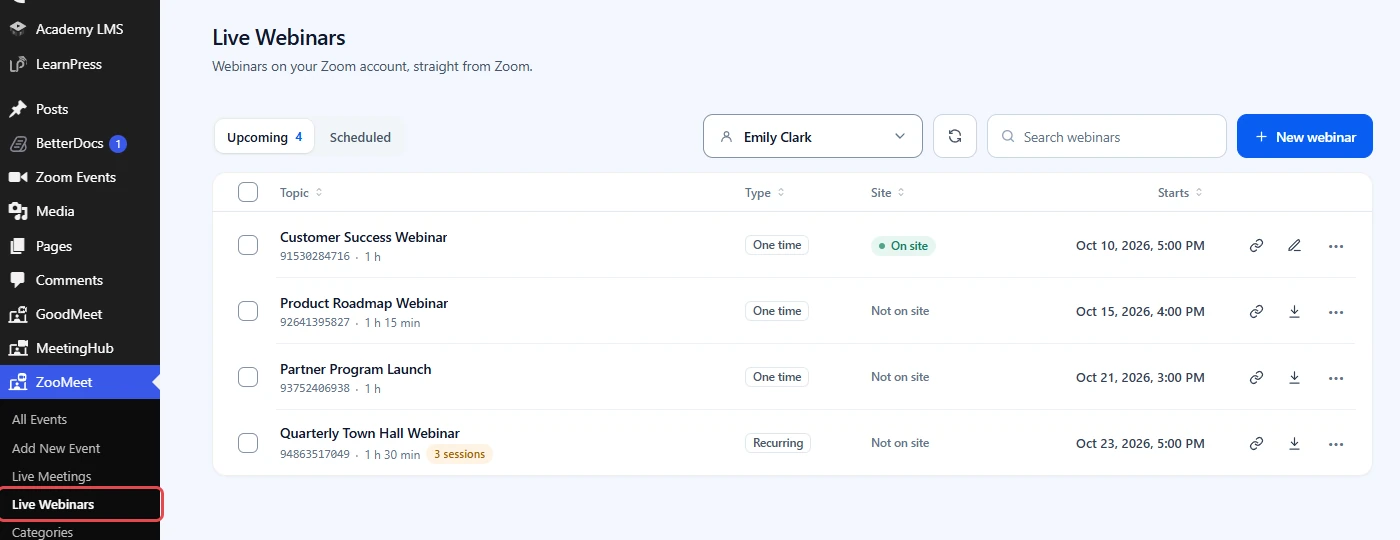
The Live Webinars item appears in the ZooMeet menu once Zoom is connected.
- In the WordPress admin menu, go to ZooMeet > Live Webinars.
- Check the heading Live Webinars and the line Webinars on your Zoom account, straight from Zoom.
Step 2: Choose the host and the list #
- Click the host picker and pick the Zoom user whose webinars you want to see.
- Click Upcoming for webinars that have not happened yet, or Scheduled for every webinar with a set time that has not expired.
- Type in Search webinars to find one by topic or Zoom ID.
- Click a column heading to sort by it.

The Site column shows On site, Draft or Not on site, the same as on Live Meetings. The list is kept for 5 minutes. Click the round arrow, Refresh from Zoom, to read it again now.
Step 3: Use the row actions #
Hover over a row to see its actions.
- Click the chain icon to copy the webinar’s join link. You see Join link copied.
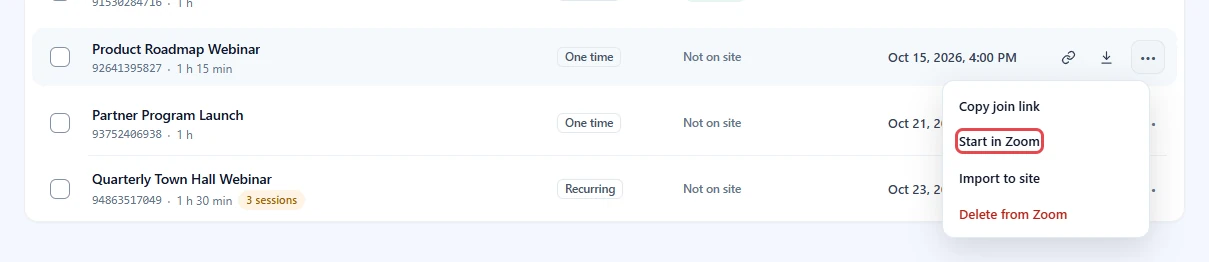
- Click More actions (•••) for Copy join link, Start in Zoom, Edit on site, View page, Update from Zoom, Import to site and Delete from Zoom. The menu shows only the ones that fit the webinar.
Step 4: Import a webinar to your site (Pro) #
Importing creates a webinar page on your site, just like one made in ZooMeet. Attendees can then join from your site, and you can edit it in ZooMeet.
- Hover over a webinar marked Not on site.
- Click the import icon, or More actions (•••) > Import to site.
- To import several, tick their boxes and click Import to site in the bar that appears.

When it is done, the Site column changes to On site and a message sums it up, for example 1 imported.
Tip: To import as a draft, or to add categories, use ZooMeet > Import instead. See How to import meetings and webinars from Zoom with ZooMeet.
Step 5: Delete webinars from Zoom #
- Click More actions (•••) on the row, then Delete from Zoom. For several webinars, tick their boxes and click Delete from Zoom in the bar.
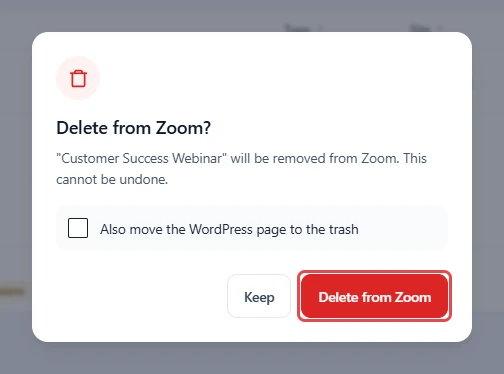
- Read Delete from Zoom? It says This cannot be undone.
- If the webinar has a page on your site, tick Also move the WordPress page to the trash if the page should go too. It is off by default.
- Click Delete from Zoom to confirm, or Keep to cancel.
Important: Registrants of a deleted webinar can no longer join with their link.
Benefits of Live Webinars #
- Every webinar in one list: See webinars made in the Zoom app as well as in WordPress.
- Quick checks before an event: Copy the link or start the webinar from its row.
- Pages for Zoom-made webinars: With ZooMeet Pro, give any webinar a page on your site in one click.
- A tidy account: Remove old or cancelled webinars, with a clear confirmation first.
Troubleshooting #
“No webinar plan” #
The message reads This Zoom host has no webinar plan, so there are no webinars to show. The host you picked has no Zoom Webinars licence. Pick another host, or assign a webinar licence to this one in Zoom.
“No webinars here” #
The host has a webinar licence but no webinars of that type. Try the other tab, or click New webinar to create one.
“Importing webinars is part of ZooMeet Pro.” #
Importing webinars requires ZooMeet Pro. Viewing, copying and deleting stay free.
“Zoom is limiting requests right now. Try again in a minute.” #
Zoom limits how often an account can ask for data. Wait a minute, then click Refresh from Zoom.
Frequently asked questions #
Do I need ZooMeet Pro for Live Webinars? #
No, not to see, copy, start or delete webinars. Yes, to import them to your site or update them from Zoom.
Why is there no Live or Past tab? #
Zoom lists webinars only as upcoming or scheduled. For past webinars and who attended, use Zoom Reports.
Does deleting from Zoom delete the page on my site? #
No, not unless you tick Also move the WordPress page to the trash.
You’re ready to manage your Zoom webinars #
You can now see every webinar on your Zoom account, copy links, start them, clean up old ones and, with ZooMeet Pro, give them pages on your site. Next, import several at once with categories, or create a new webinar.


