- Step 1: Install Easy Digital Downloads
- Step 2: Install DriveHub and DriveHub Pro
- Step 3: Connect Your Google Drive Account
- Step 4: Turn On the Easy Digital Downloads Integration
- Step 5: Add Google Drive Files to a Download
- Step 6: Check the File Rows and Publish
- Step 7: Share Files with Buyers' Google Accounts (Optional)
- Step 8: See It on Your Site
- Benefits of Using DriveHub with Easy Digital Downloads
- Troubleshooting
Do you sell eBooks, course recordings or design packs with Easy Digital Downloads, and want the files to stay in your Google Drive? You can easily do this with DriveHub.
Your files never get copied to your server, so big downloads don’t eat up your hosting space, and you keep one tidy copy of every product in Google Drive.
Here is an easy, step-by-step guide to help you set it all up!
Note: This needs DriveHub Pro.
Step 1: Install Easy Digital Downloads #
DriveHub adds Google Drive files to your Easy Digital Downloads products, so Easy Digital Downloads needs to be there first:
- From your WordPress admin, click on Plugins > Add New Plugin.
- Search for Easy Digital Downloads.
- Click Install Now and then Activate.
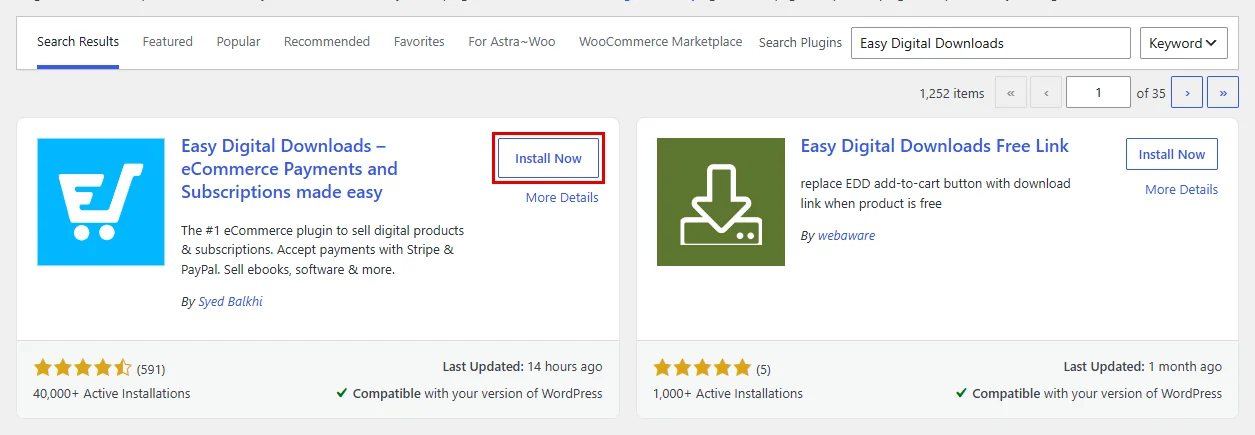
If Easy Digital Downloads is already active, skip to the next step.
Step 2: Install DriveHub and DriveHub Pro #
Next, install the free DriveHub plugin:
- Go to Plugins > Add New Plugin.
- Search for DriveHub.
- Click Install Now and then Activate.
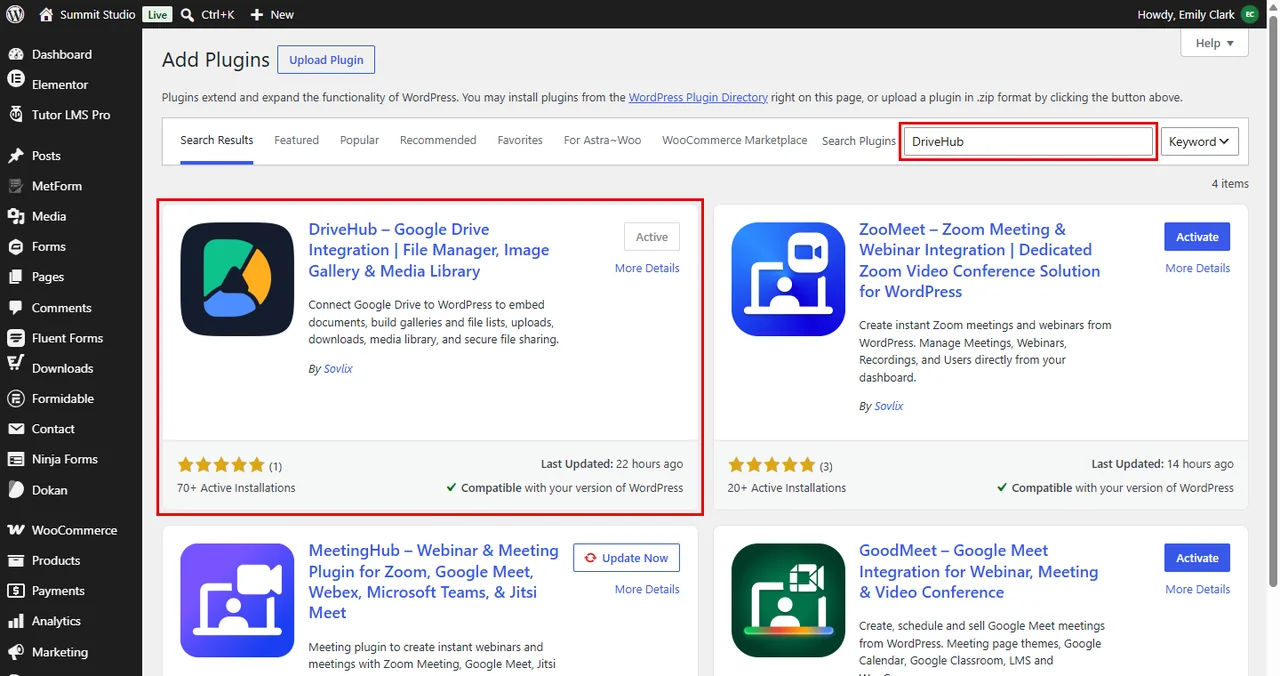
Selling through Easy Digital Downloads is a Pro feature, so add DriveHub Pro on top. Read How to Install and Activate DriveHub Pro if you haven’t done that yet.
Step 3: Connect Your Google Drive Account #
DriveHub can only send files that live in a connected Google account:
- Open DriveHub and click on Start Setup.
- Click on Add Account.
- Choose the Google account that holds your products and allow the permissions.
Read our step by step setup guide to avoid any confusion.
Step 4: Turn On the Easy Digital Downloads Integration #
Now tell DriveHub to serve your Easy Digital Downloads files from Google Drive:
- Go to DriveHub > Integrations.
- Find the Easy Digital Downloads card under Stores and courses.
- Click on Set up on the card. If the card already shows a switch, turn it on and click the small settings icon next to it instead. The Easy Digital Downloads settings window opens.
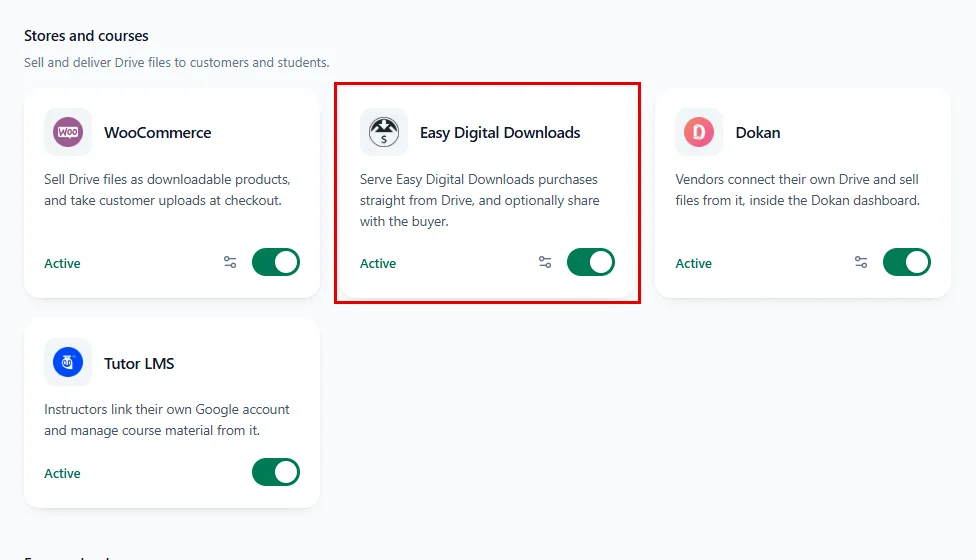
In the settings window:
- Turn on Serve downloads from Drive.
- If you want buyers to also get the file in their own Google Drive, turn on Share with buyers’ Google accounts (more on this in Step 7).
- Click on Done.
- Click on Save changes in the bar at the bottom of the screen.
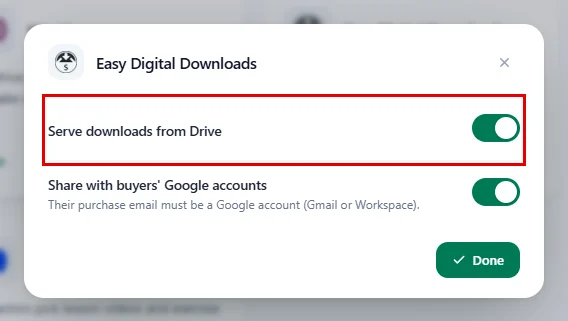
Don’t forget to click Save changes. Done only closes the window, and nothing is saved until you click the bar.
Step 5: Add Google Drive Files to a Download #
Now open the product you want to sell:
- Go to Downloads > Add New, or open an existing download.
- Give it a title and price, for example Brand Strategy Masterclass at $129.00.
- Scroll down to the Download Details box and open the Files tab.
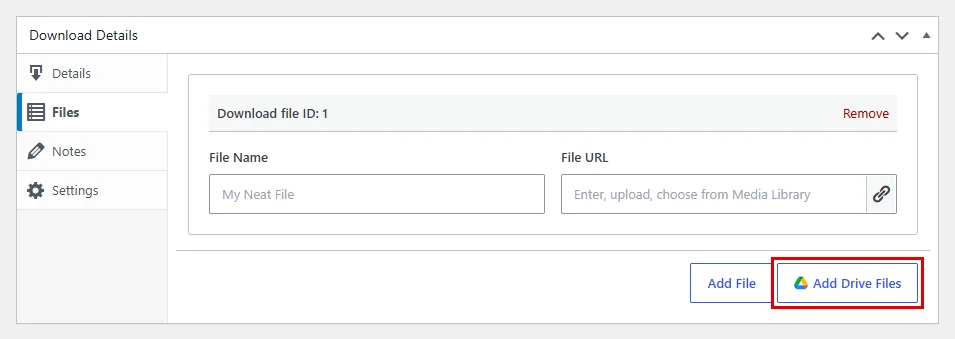
- Click on Add Drive Files (the button with the Google Drive icon, next to Easy Digital Downloads’ own Add File button).
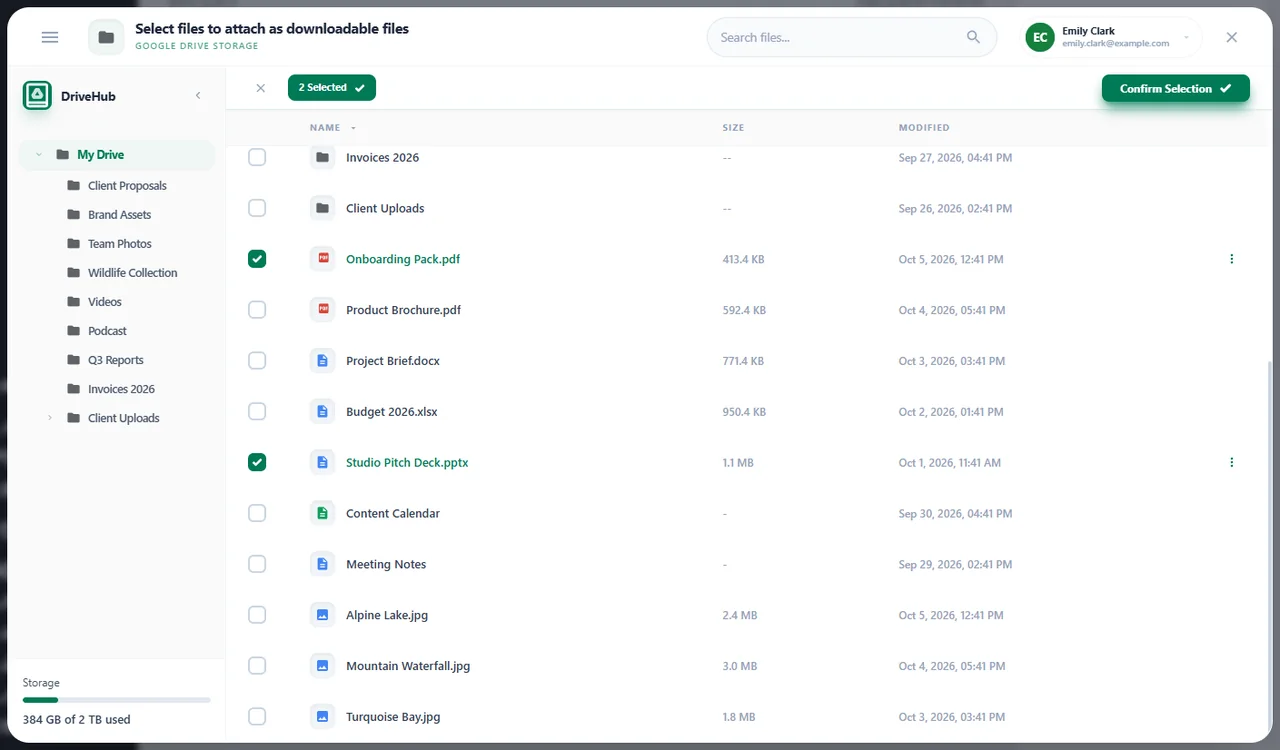
The Select files to attach as downloadable files window opens:
- Browse your Drive, or type in Search files… to find a file.
- Tick the box next to each file you want to sell (for example Studio Pitch Deck.pptx and Onboarding Pack.pdf).
- Click on Confirm Selection.
Tip: You can tick a folder too. Buyers then get the whole folder as one ZIP file.
Step 6: Check the File Rows and Publish #
DriveHub adds one file row to the Files tab for each file you picked:
- The File Name is filled in for you. You can change it to anything you like.
- The File URL starts with your site address and contains
drivehub-edd-download. Leave it as it is. - Click on Publish (or Update).
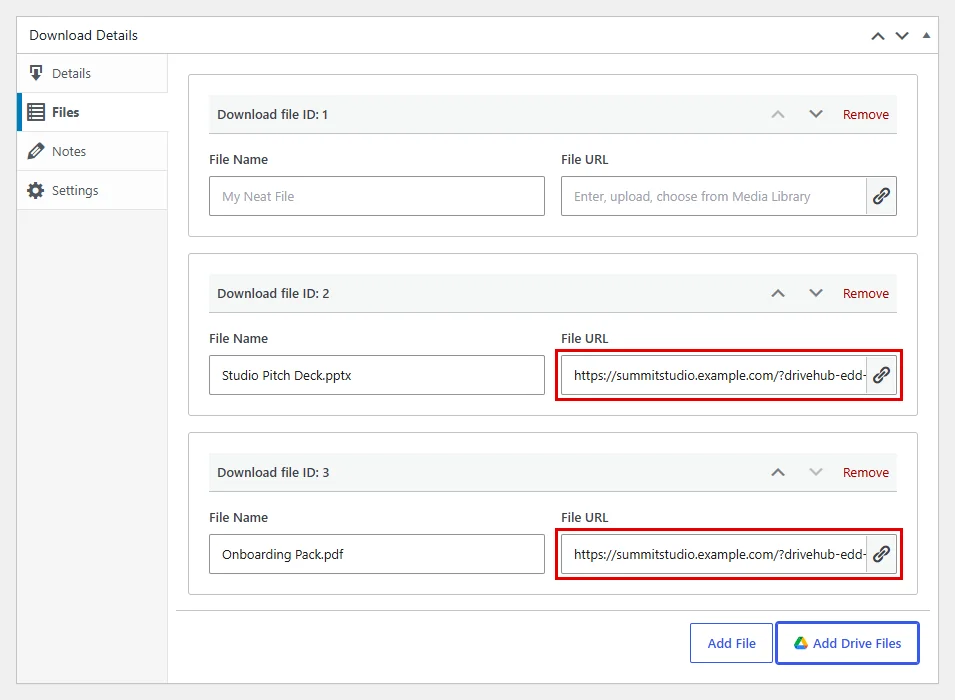
Tip: If Easy Digital Downloads left an empty row above your Drive files, remove it before you publish.
Step 7: Share Files with Buyers’ Google Accounts (Optional) #
With Share with buyers’ Google accounts turned on (Step 4), DriveHub also shares each file with the buyer’s Google account once the purchase is complete:
- The buyer gets view access to the file in their own Google Drive, under Shared with me.
- This only works when the purchase email is a Google account (Gmail or Workspace). Other addresses still get the normal download.
- Each file is shared with each buyer only once, even if they buy again.
Step 8: See It on Your Site #
And that’s it. When a customer buys the Brand Strategy Masterclass, the files show up under Products on their receipt page, in the receipt email and in their purchase history, just like any other Easy Digital Downloads file.
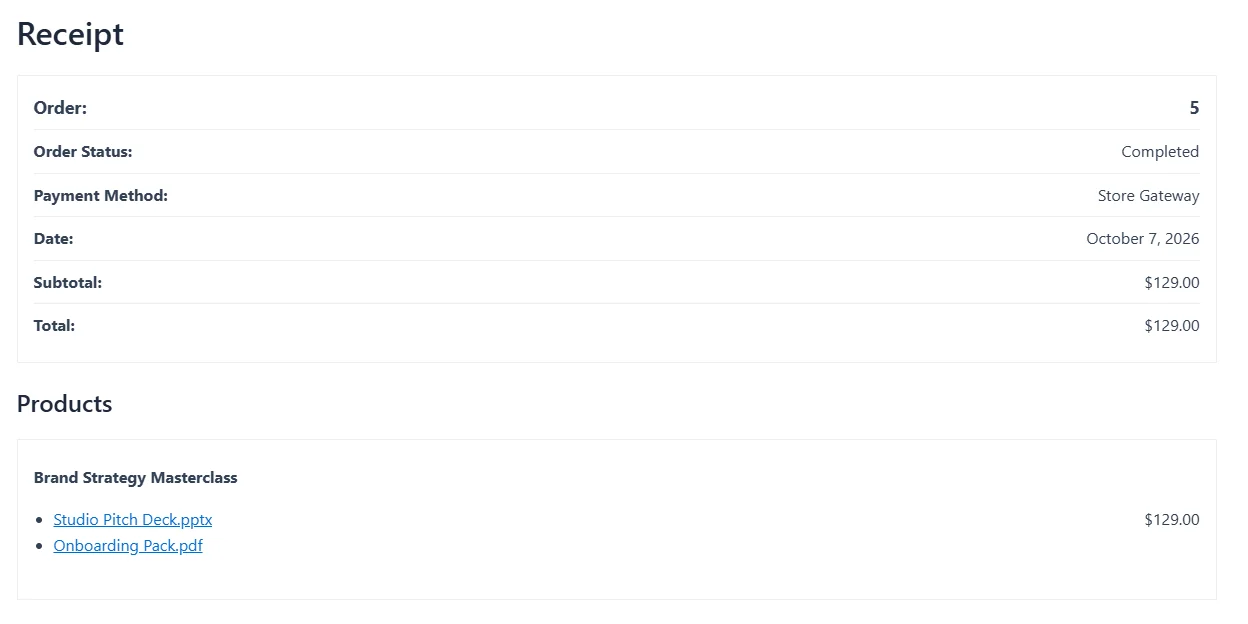
When the customer clicks a link, Easy Digital Downloads checks the purchase as usual, then DriveHub streams the file straight from Google Drive. Your buyers never see your Drive.
Benefits of Using DriveHub with Easy Digital Downloads #
- Save hosting space: Big files stay in Google Drive, not on your server.
- One copy of every product: Update a file in Drive and every new buyer gets the new version.
- Sell whole folders: Attach a folder and buyers get it as a single ZIP.
- Private by default: Files are served through your site, so your Drive stays hidden.
- A bonus for Google account buyers: Share the file straight into their Google Drive if you want.
With DriveHub and Easy Digital Downloads, selling Google Drive files takes just a few clicks.
Troubleshooting #
- The Add Drive Files button is missing: Check that Serve downloads from Drive is on and that you clicked Save changes in Step 4.
- The download shows “Google Drive connection unavailable.”: Your Google account is no longer connected. Reconnect it in DriveHub, then try again.
- The download fails: Make sure the file still exists in Google Drive and was not moved to the trash.


