- Step 1: Open the Google Drive Settings
- Step 2: Check Your Connected Accounts
- Step 3: Add Another Google Account
- Step 4: Change the Default Account
- Step 5: Switch Accounts in the File Browser
- Step 6: Remove an Account
- Step 7: Reconnect an Account That Stopped Working
- Benefits of Managing Multiple Google Accounts in DriveHub
Do you keep your files in more than one Google Drive, like a personal Drive and a shared studio Drive? You can easily connect all of them to DriveHub and manage them from one screen.
This is super useful because each module can read from the right Drive, and you can see at a glance which account is the default, how much storage each one has left, and whether any of them needs your attention.
Here is an easy, step-by-step guide to help you manage your Google accounts!
Step 1: Open the Google Drive Settings #
All your connected accounts live in one place:
- Go to DriveHub > Settings from your WP-Admin.
- Click Google Drive under Setup in the settings menu.
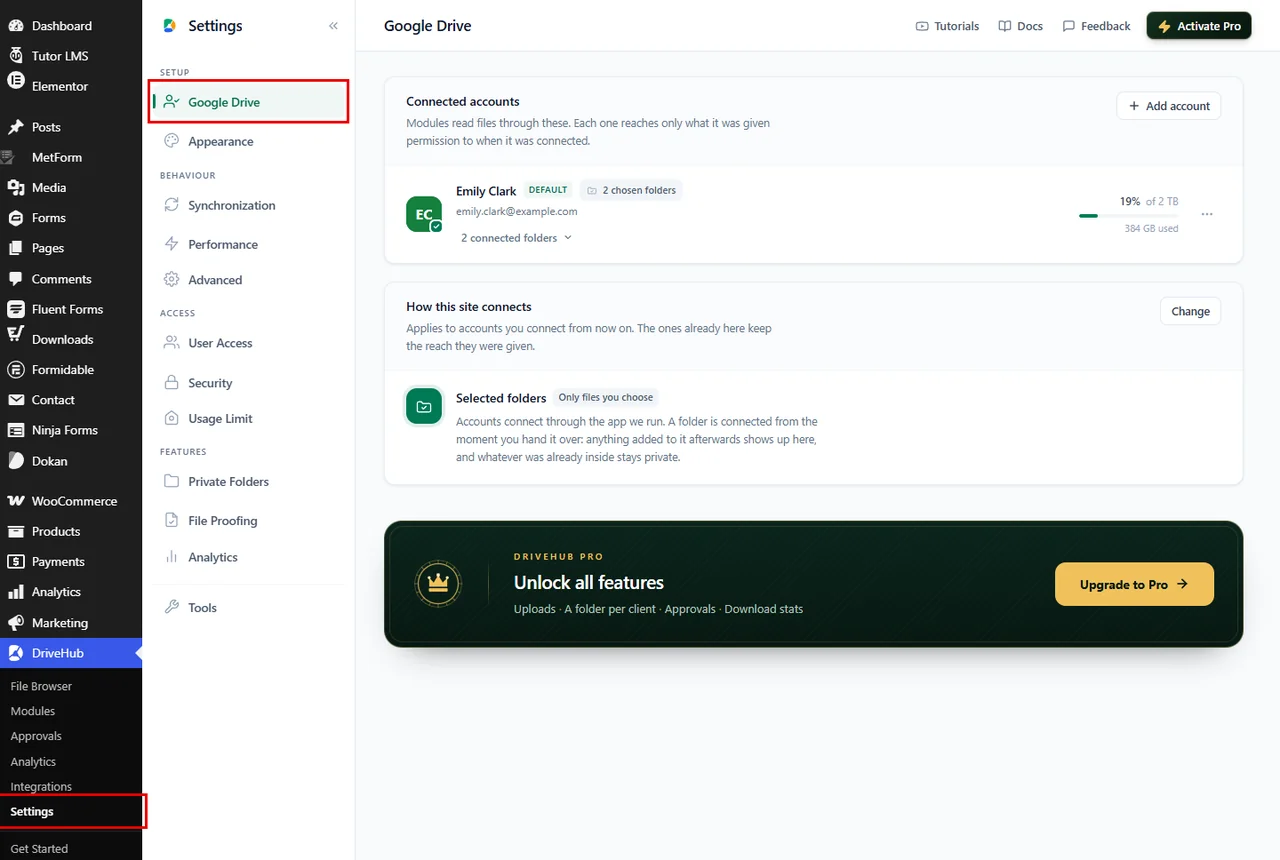
Note: If no account is connected yet, this tab shows the connect screen instead. Follow our step by step setup guide to connect your first account.
Step 2: Check Your Connected Accounts #
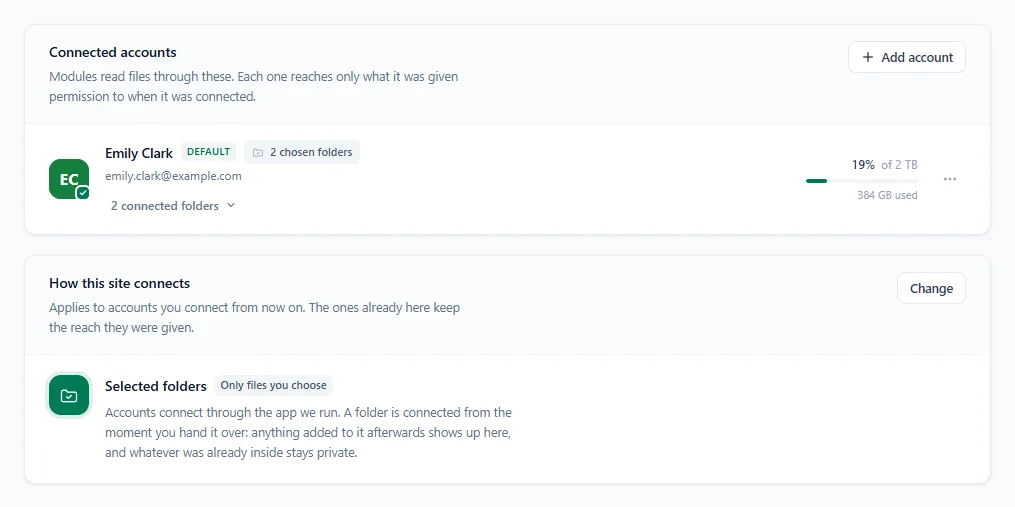
The Connected accounts card lists every Google account DriveHub can use. For each account you can see:
- The account name and email address.
- A Default badge on the account that modules use unless they name another one.
- How much the account can reach: All Drive files, or a number of chosen folders (for example 2 chosen folders). Click connected folders under the email to see which folders they are.
- How much of the account’s Google Drive storage is used.
Below it, the How this site connects card shows the connection method in use: Selected folders (only files you choose) or Whole Drive (all your Drive files). It applies to accounts you connect from now on; accounts already in the list keep the reach they were given. Click Change if you want to switch the method.
Step 3: Add Another Google Account #
You can add as many Google accounts as you need:
- Click Add account at the top right of the Connected accounts card.
- A Google sign-in window opens. Select the Google account you want to add.
- Allow the necessary permissions.
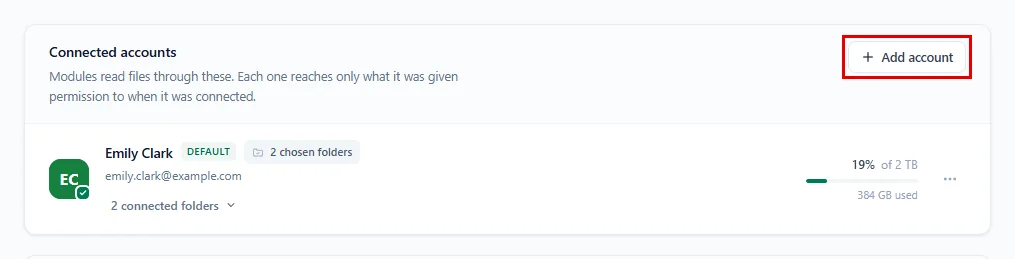
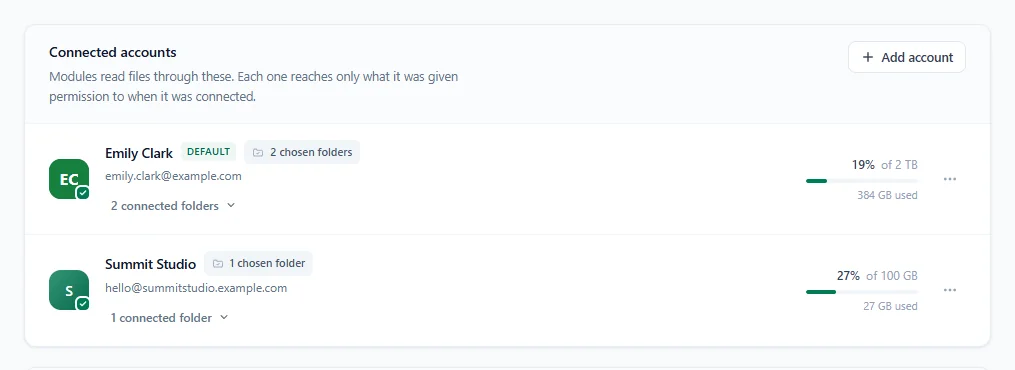
Once you allow access, the window closes by itself and the new account appears in the list.
Tip: If the sign-in window does not open, check that your browser is not blocking pop-ups for your site.
Step 4: Change the Default Account #
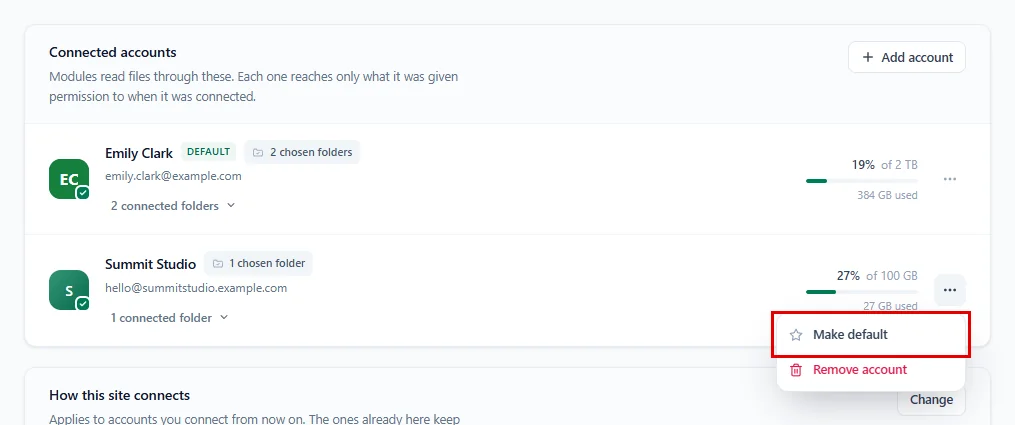
The default account is the one modules use when they do not name another account. To change it:
- Click the … button at the end of the account you want to use.
- Click Make default.
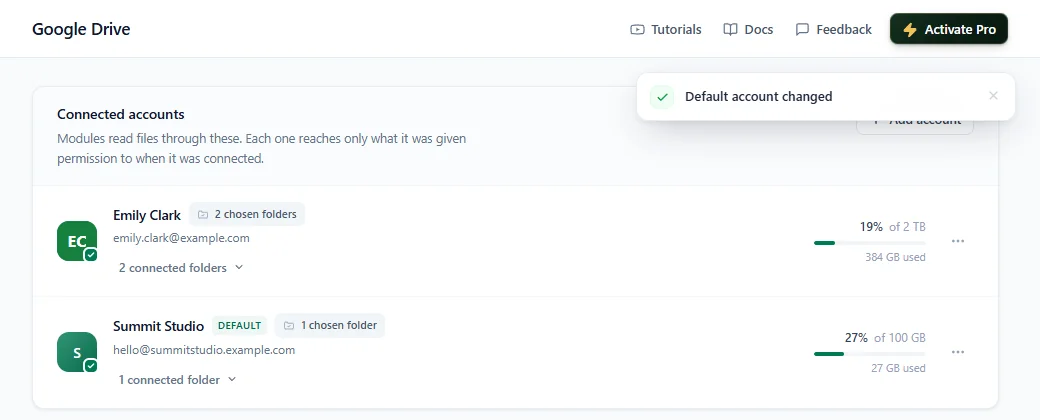
You will see the message Default account changed, and the Default badge moves to that account.
Step 5: Switch Accounts in the File Browser #
When you work with files in DriveHub > File Browser, you can jump between your Drives without leaving the page:
- Click your account name at the top right of the File Browser.
- Under Accounts, click the account you want to browse.
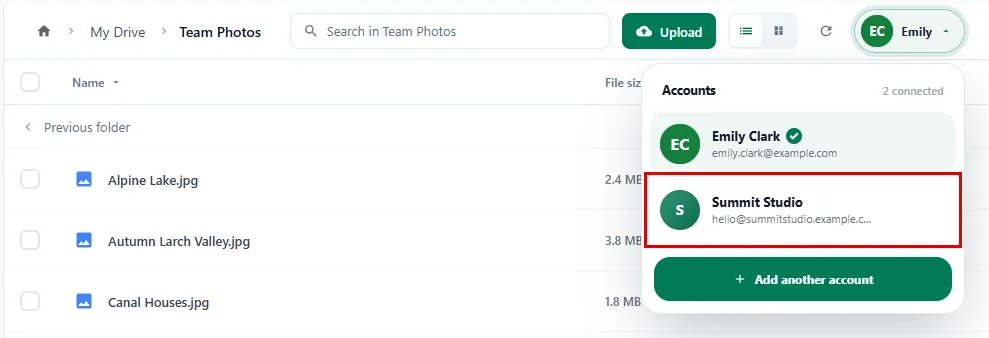
The File Browser opens the My Drive folder of that account. Switching here only changes which Drive you are looking at; it does not change your default account. You can also click Add another account to connect a new one from here.
Step 6: Remove an Account #
If you no longer need an account, you can remove it from DriveHub:
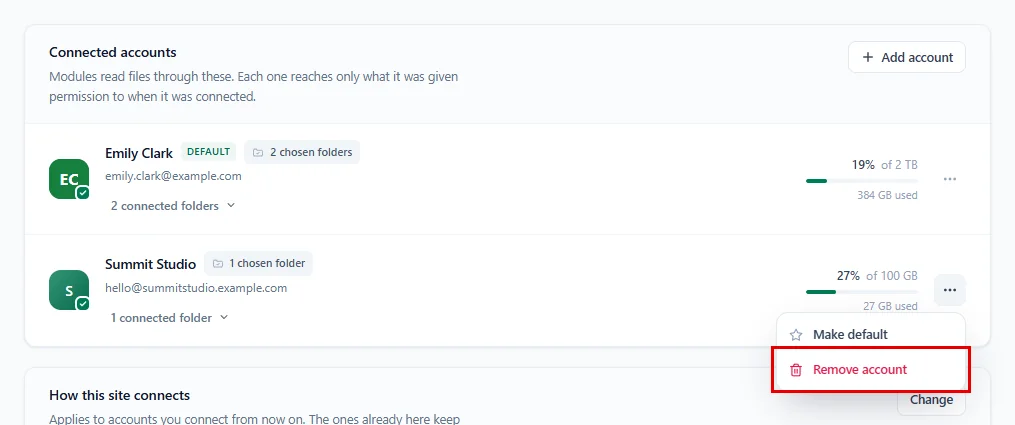
- Click the … button at the end of the account.
- Click Remove account.
DriveHub asks you to confirm and shows exactly which account it will remove:
- Click Remove account to confirm, or Keep it if you changed your mind.
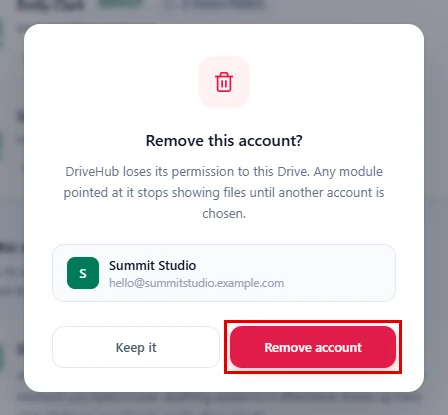
You will see the message Account disconnected. DriveHub loses its permission to that Drive, so any module pointed at it stops showing files until you choose another account for it. Nothing is deleted from your Google Drive.
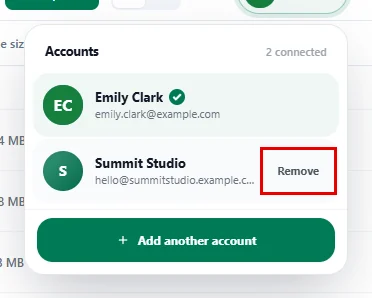
You can also remove an account from the File Browser account switcher:
- Open the switcher and hover over the account.
- Click Remove, then confirm with Remove account (or click Keep to cancel).
Step 7: Reconnect an Account That Stopped Working #
Sometimes Google stops accepting an account’s permission, for example after you change your Google password or remove DriveHub’s access from your Google account. When that happens, DriveHub tells you right at the top of the Google Drive tab:
- Look for the One account has stopped working message.
- Click Reconnect, either in the message or on the account’s row.
- Sign in with the same Google account and allow the permissions again.
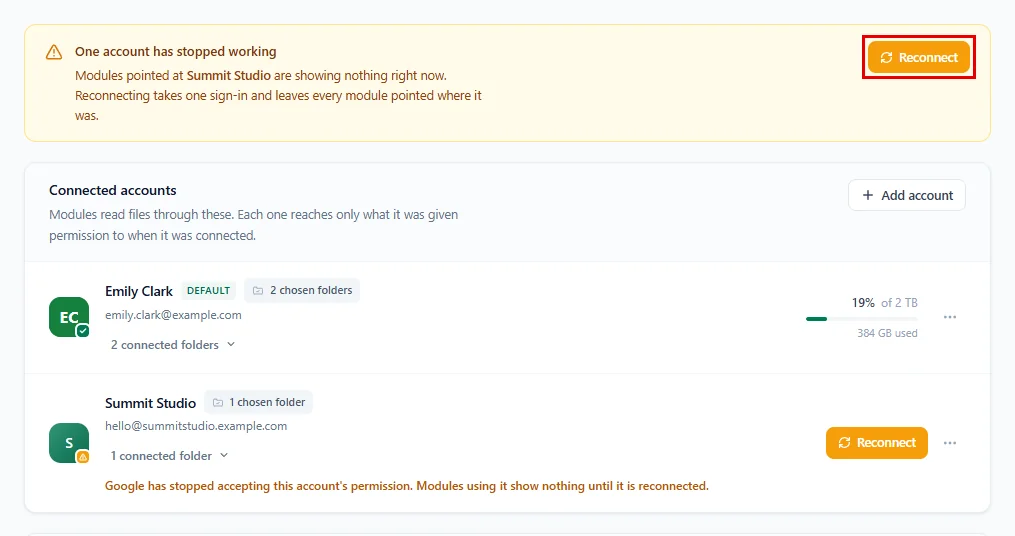
Reconnecting takes one sign-in and leaves every module pointed where it was. Once it is done, the warning disappears and the account’s files show up again.
And that’s it! Now you can add, switch and remove Google accounts whenever you need, and keep every module reading from the right Drive.
Benefits of Managing Multiple Google Accounts in DriveHub #
- Keep work separate: Use one Drive for client files and another for internal files, each with its own modules.
- One clear default: New modules always know which account to use.
- Storage at a glance: See how full each Drive is before you start a big upload.
- Early warnings: DriveHub tells you the moment an account stops working, so visitors never see an empty module for long.
- Safe removal: Removing an account never deletes anything from Google Drive.
With DriveHub, all your Google Drives are managed from one simple screen inside WordPress.


