How many meetings did you hold this month, who hosted them, who came, and who signed up? The Zoom Reports screen answers all four from inside WordPress, using the reports Zoom keeps for your account.
This guide is the overview. It shows what you need from Zoom, how to open the screen, and what each of the four tabs is for. Each tab then has its own step-by-step guide.
By the end of this guide, you will have:
- A clear idea of which Zoom plan the reports need
- The Zoom Reports screen open
- A short tour of the Daily, Account, Per-Meeting and Registrants tabs
- Links to the detailed guide for every report and for exporting
Estimated setup time: 2 minutes. Reports only read from Zoom, so nothing on your site or in Zoom changes.
Before you begin #
Make sure you have:
- ZooMeet installed and activated, with Zoom connected. See How to connect Zoom with ZooMeet using Server-to-Server OAuth.
- An administrator account on your WordPress site
- A paid Zoom plan. See the table below.
- ZooMeet Pro, for the Per-Meeting and Registrants tabs and the View buttons on Daily and Account
What you need from Zoom #
| You want to | Zoom needs |
|---|---|
| See any report | A Pro, Business, Enterprise, Education or API plan, and an admin or owner role (or a role with usage reports access). |
| Report on a meeting | The meeting must have been hosted on a paid account. Upgrading does not create reports for meetings held before the upgrade. |
| Look back in time | Zoom keeps meeting reports for about 15 months, and each search covers up to one month at a time. |
| Let ZooMeet read reports | The report scopes on your Server-to-Server OAuth app. |
Important: On a free Zoom account, Zoom refuses every report, and the tabs show Zoom’s message instead of numbers. The detail guides show the same screens with sample data, the way they look on a paid account.
Step 1: Open Zoom Reports #
The Zoom Reports item appears in the ZooMeet menu once Zoom is connected.
- In the WordPress admin menu, go to ZooMeet > Zoom Reports.
- Check the heading Zoom Reports and the line Zoom usage and sign-ups, by day, host and meeting.
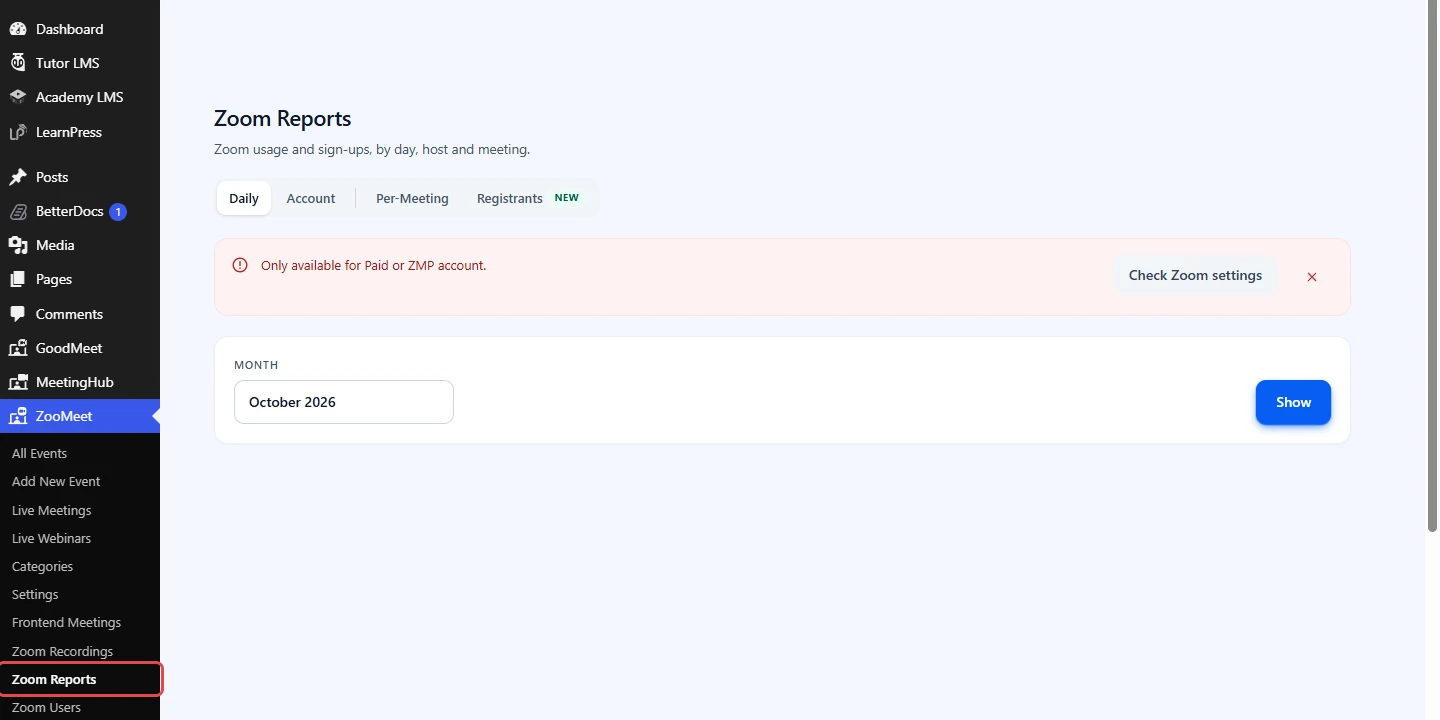
The Daily tab loads the current month as soon as the screen opens. The other tabs wait until you click Show, so opening the screen never sends more than one request to Zoom.
Step 2: Pick the report you need #
The tabs sit in two groups. Daily and Account answer “how much, over time”. Per-Meeting and Registrants answer “who”.
Note: Screens below use sample data. Your own list fills in once your Zoom plan includes this feature.
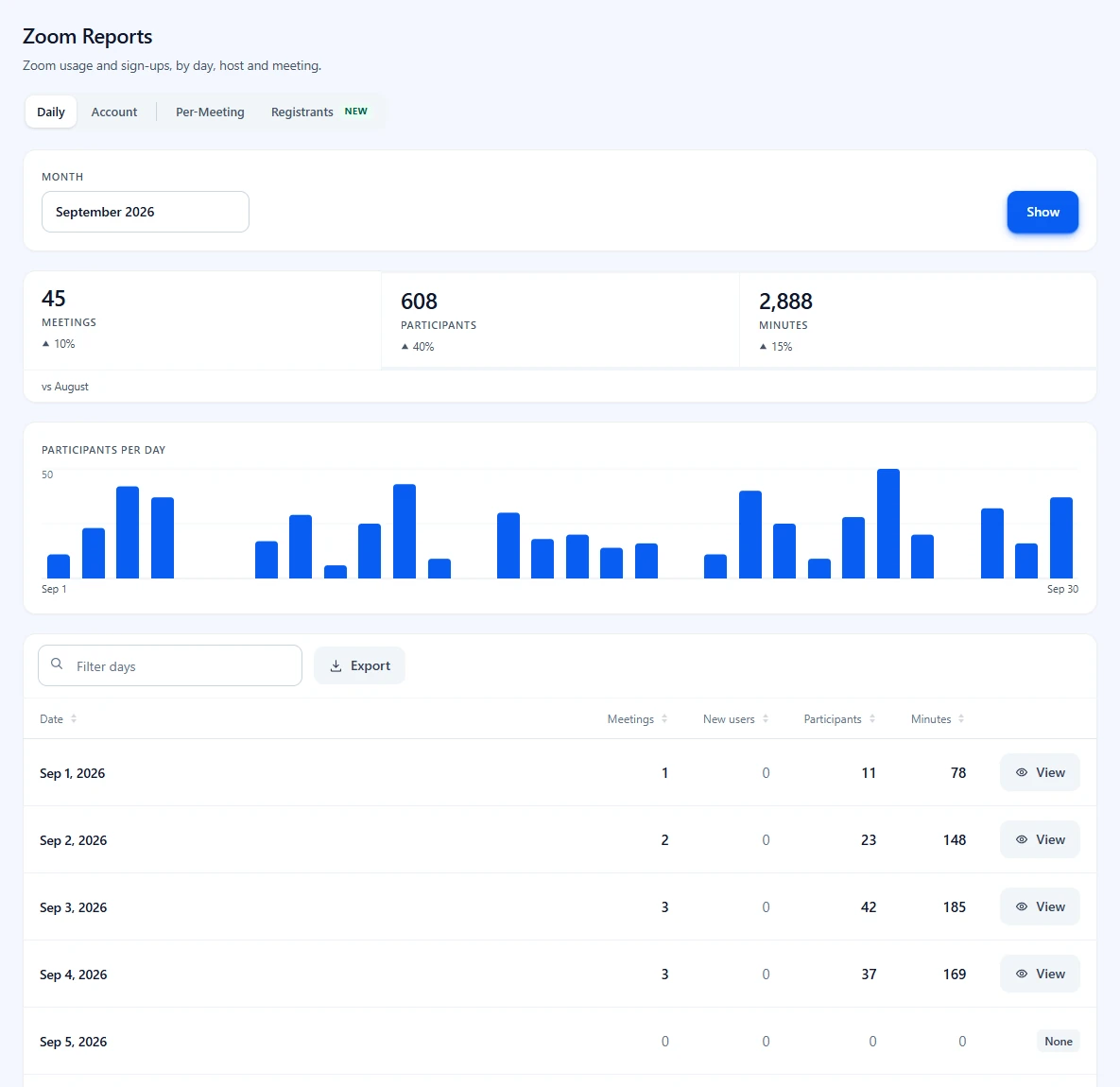
- Daily: meetings, new users, participants and minutes for every day of a month, with a chart. Read How to read the Daily usage report.
- Account: the same numbers per host, over any date range, with the last time each host signed in. Read How to read the Account usage report.
- Per-Meeting (ZooMeet Pro): every meeting a host held, with the people who attended. Read How to see who attended each Zoom meeting.
- Registrants (ZooMeet Pro, marked New): who signed up for each meeting or webinar, from Zoom, WooCommerce or your site. Read How to see who registered for your Zoom meetings and webinars.
- Export: every table and window can be saved as a CSV file. Read How to export Zoom reports to CSV.
Note: Without ZooMeet Pro, Per-Meeting and Registrants show a locked sample of the report with an Upgrade button, and Daily and Account show See who attended instead of the View buttons.
Benefits of Zoom Reports in ZooMeet #
- Answers in WordPress: See meeting usage without opening the Zoom web portal.
- Trends at a glance: Totals come with a comparison to the period before.
- Attendance you can prove: With ZooMeet Pro, list who attended each class.
- Exports for every table: Download CSV files for your records.
Troubleshooting #
“Only available for Paid or ZMP account.” #
The Zoom account is on the free plan, and Zoom does not provide reports on it. Upgrade the Zoom account to a paid plan, then open Zoom Reports again.
“This feature requires a Zoom Pro, Business, or Enterprise account. The Reports API is not available on your current Zoom plan.” #
Same cause, shown on the Per-Meeting tab. Upgrade the Zoom account, then click Try again.
“Unable to connect to the Zoom API. Please check your credentials.” #
ZooMeet could not sign in to Zoom. Click Check Zoom settings and check the connection. See How to connect Zoom with ZooMeet using Server-to-Server OAuth.
Zoom Reports is not in the menu #
The menu item only appears while Zoom is connected with a Server-to-Server OAuth app. Connect Zoom, then reload the page.
Frequently asked questions #
Do I need ZooMeet Pro to see reports? #
No. Daily and Account work in the free plugin. Per-Meeting, Registrants and the View buttons need ZooMeet Pro.
Are reports stored on my site? #
No. Every report is fetched from Zoom when you ask for it. Exports are saved only where you download them.
Can instructors see Zoom Reports? #
No. Only administrators can open the screen.
Security best practices #
- Participant and registrant lists contain names and email addresses. Keep exported files somewhere private and delete them when you no longer need them.
- Give the administrator role only to people who should see this data.
You’re ready to explore your Zoom reports #
You know what Zoom needs, where the reports live and what each tab answers. Pick the report you need next.
- How to read the Daily usage report
- How to read the Account usage report
- How to see who attended each Zoom meeting
- How to see who registered for your Zoom meetings and webinars
- How to export Zoom reports to CSV
Sources for the Zoom plan details in this guide: Zoom Support, Getting started with Zoom reporting, Generating Active Host reports and Generating meeting reports for registration, Q&A, polling, and surveys.


