Do you want to use your Google Drive photos and documents in posts and pages, without uploading them to your server first? You can easily do this with DriveHub.
The Media Library integration adds a Google Drive button to your WordPress Media Library. Pick files from Google Drive and they show up next to your normal uploads, ready to insert anywhere, while the files themselves stay in Google Drive and save your hosting space.
Here is an easy, step-by-step guide to help you set it all up!
Note: The Media Library integration needs DriveHub Pro.
Step 1: Open the Integrations Page #
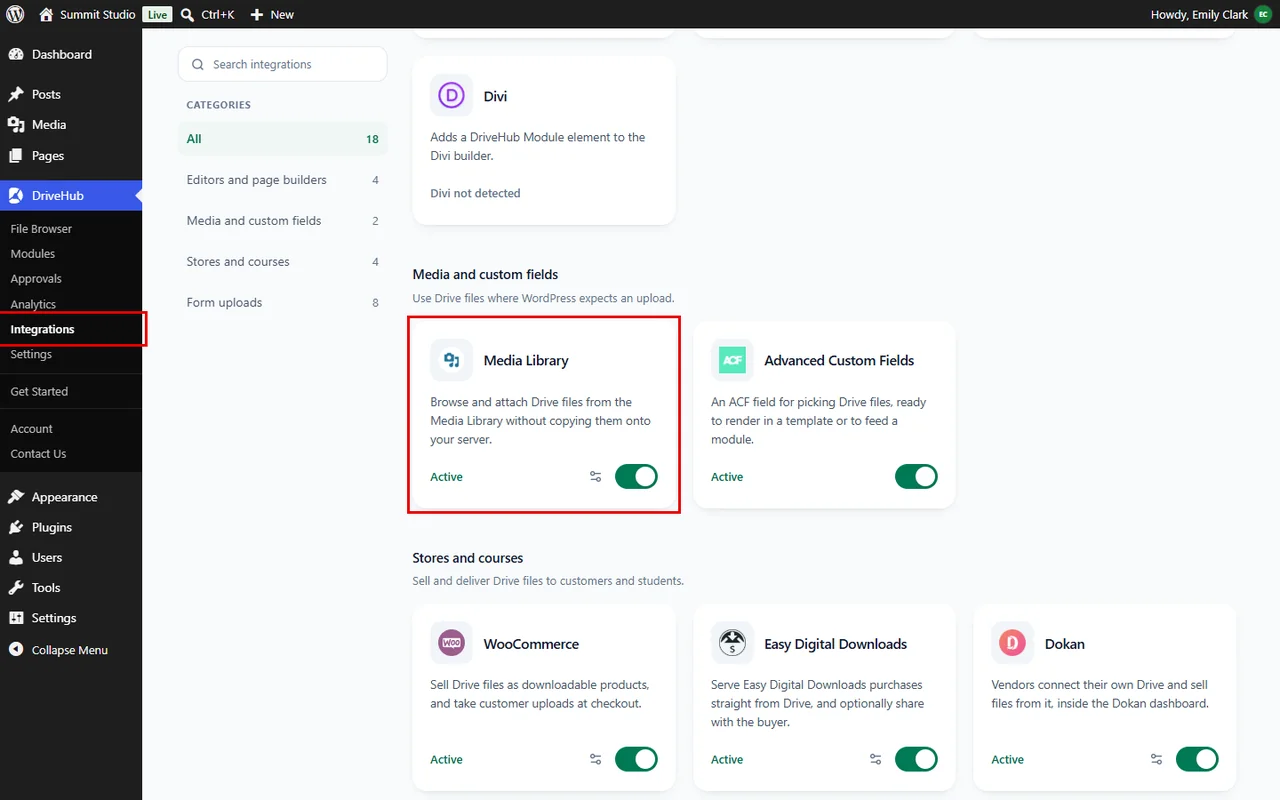
- Go to DriveHub > Integrations from your WP-Admin.
- Find the Media Library card under Media and custom fields.
Step 2: Set Up the Media Library Integration #
The first time, the card shows a Set up button instead of a switch, because DriveHub needs to know a few things first:
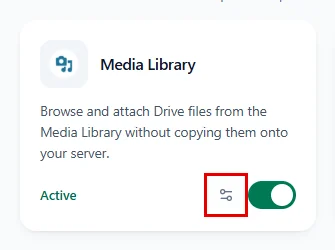
- Click on Set up on the Media Library card. This also switches the integration on.
- Already set up? Click the gear icon next to the switch instead.
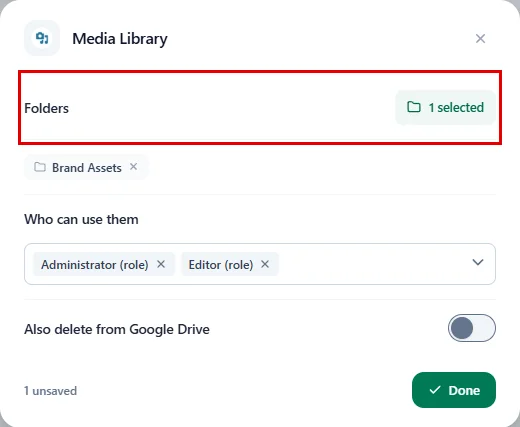
The Media Library settings window opens. Now fill in the options:
- Folders: Click on Choose, tick the Google Drive folders you want to use with the Media Library (for example, Brand Assets), and click Confirm Selection. You need at least one folder.
- Who can use them: Pick the roles or users who can see the Google Drive button in the Media Library. Only Administrator is selected at first; add Editor or Author if your team needs it.
- Also delete from Google Drive: Leave this off to keep your files safe. Turn it on only if deleting a Drive item from the Media Library should delete the file in Google Drive too.
Note: Also delete from Google Drive only works when an attachment is deleted permanently, not when it is moved to Trash. The file skips the Google Drive bin, so you can’t restore it from there.
When you’re done:
- Click on Done to close the window.
- Click on Save changes in the bar at the bottom of the screen.

Your Media Library card now says Active. Click the gear icon on the card any time to change these settings.
Step 3: Add Google Drive Files to the Media Library #
- Go to Media > Library.
- Click on the new Google Drive button at the top, next to Add Media File.

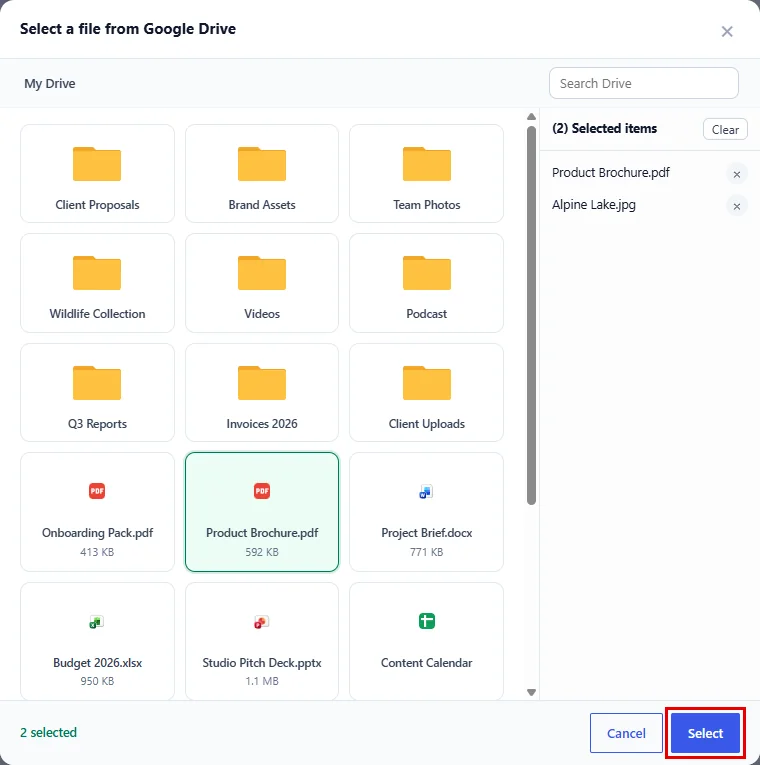
The Select a file from Google Drive window opens:
- Browse your folders, or use Search Drive to find a file.
- Click the files you want to add (for example, Alpine Lake.jpg and Product Brochure.pdf). You can pick several at once.
- Click on Select.
DriveHub adds the files to your Media Library. They look just like your other images and documents, but they are served straight from Google Drive.
Step 4: Insert Google Drive Files into Posts and Pages #
You can also pick Google Drive files right while you write:
- Open a post or page and click Add Media (Classic Editor), or add an Image block and click Media Library (block editor).
- In the media window, click on Google Drive next to Upload files and Media Library.
- Pick your files and click Select.

- Choose the file in the media window and click Insert into post (or Select) as usual.
And that’s it! Your Google Drive image is now in your post, and it loads straight from Google Drive.
Benefits of Using Google Drive in the Media Library #
- Save hosting space: Your files stay in Google Drive, not on your server.
- Works everywhere: Insert Drive files anywhere WordPress asks for an image or a file.
- No re-uploading: Use the photos and documents your team already keeps in Google Drive.
- Team control: Choose exactly which roles or users can add Drive files.
With DriveHub, your Google Drive becomes part of your WordPress Media Library.


