- Before you begin
- Step 1: Open Routing forms
- Step 2: Pick a starting point
- Step 3: Write the title, the question and the answers
- Step 4: Choose where each answer leads
- Step 5: Add a second question (optional)
- Step 6: Create the form and share it
- Step 7: Manage your forms
- What visitors see
- Where routed answers show up
- Benefits of using routing forms
- Troubleshooting
- "Publish a booking page first; a form sends visitors to one."
- Create form or Save shows a message instead of saving
- "You have the most forms a site can hold. Delete one first."
- An answer shows Unpublished page
- The form's link opens the home page, or the shortcode shows nothing
- A booking has no routing note
- Frequently asked questions
- You're ready to route visitors
A routing form in MeetingHub asks visitors one or two short questions before they book, then opens the booking page that fits their answers. You build it in WordPress under MeetingHub > Booking setup > Routing forms, and share it as a link or a shortcode, so a new lead lands on your discovery call and a current client lands on a support session.
Use a routing form when you have more than one booking page and visitors are not sure which one to pick. Each booking that comes through the form also carries the visitor’s answers, so you know why they booked before the call starts.
By the end of this guide, you will have:
- A routing form made from a ready starting point, or from a blank one
- A question whose answers each lead to a booking page, a web address or a message
- A place for everyone whose answers match nothing
- The form live on your site through its own link or a shortcode
- Routed bookings that arrive with the visitor’s answers as a note
Estimated setup time: 5 minutes. The ready starting points fill in the question, the answers and the pages for you.
Note: Requires MeetingHub Pro.
Before you begin #
Make sure you have:
- MeetingHub and MeetingHub Pro installed and activated. See How to install MeetingHub and finish the Get Started setup.
- At least one published booking page. A routing form only sends visitors to booking pages that are taking bookings. See How to create a booking page in WordPress with MeetingHub.
Step 1: Open Routing forms #
Routing forms sit in Booking setup, next to your booking pages.
- In the WordPress admin menu, go to MeetingHub > Booking setup.
- Click the Routing forms tab.
- If you have no forms yet, you see Send each visitor to the right call. Click New routing form.

If no booking page is published yet, the button reads Create a booking page instead. Publish a page first, then come back.
Step 2: Pick a starting point #
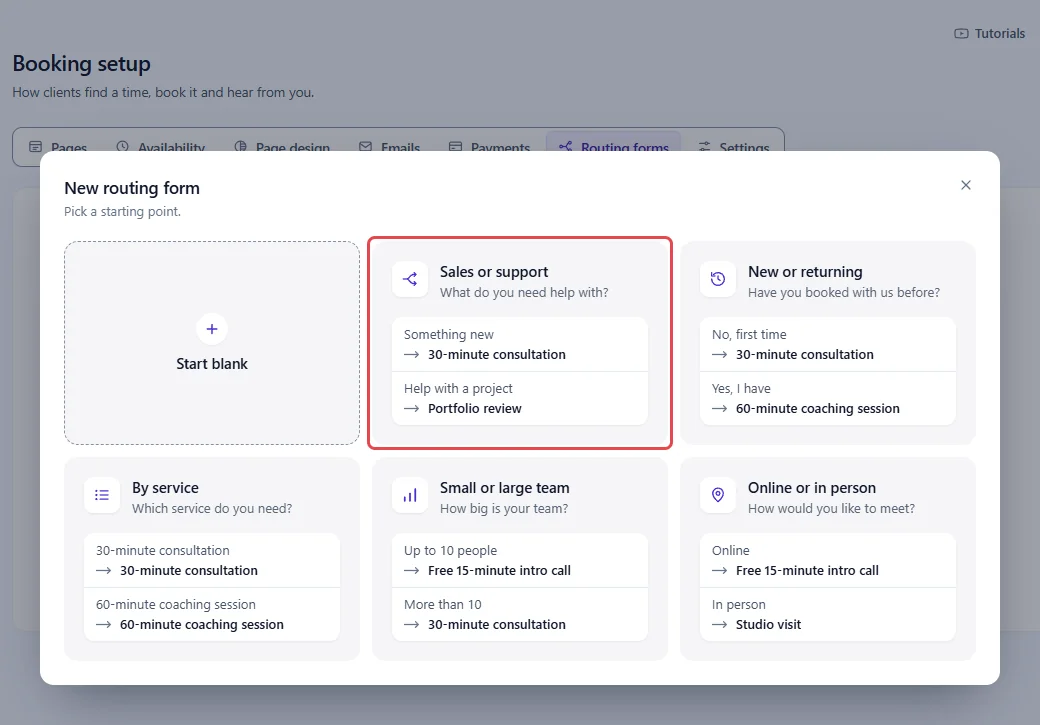
The New routing form window asks you to Pick a starting point. Five cards are ready forms with a question, two answers and a booking page for each answer. Start blank gives you an empty form.
| Starting point | The question visitors see | Its answers |
|---|---|---|
| Sales or support | What do you need help with? | Something new / Help with a project |
| New or returning | Have you booked with us before? | No, first time / Yes, I have |
| By service | Which service do you need? | One answer per booking page, up to eight |
| Small or large team | How big is your team? | Up to 10 people / More than 10 |
| Online or in person | How would you like to meet? | Online / In person |
Each card shows which booking page every answer will open. MeetingHub picks those pages by looking for words in your page titles, such as “support”, “intro” or “studio”. When nothing matches, it uses your pages in order, so check every pick in the next steps.
- Click the starting point closest to what you need, for example Sales or support. The form editor opens with everything filled in.
Step 3: Write the title, the question and the answers #
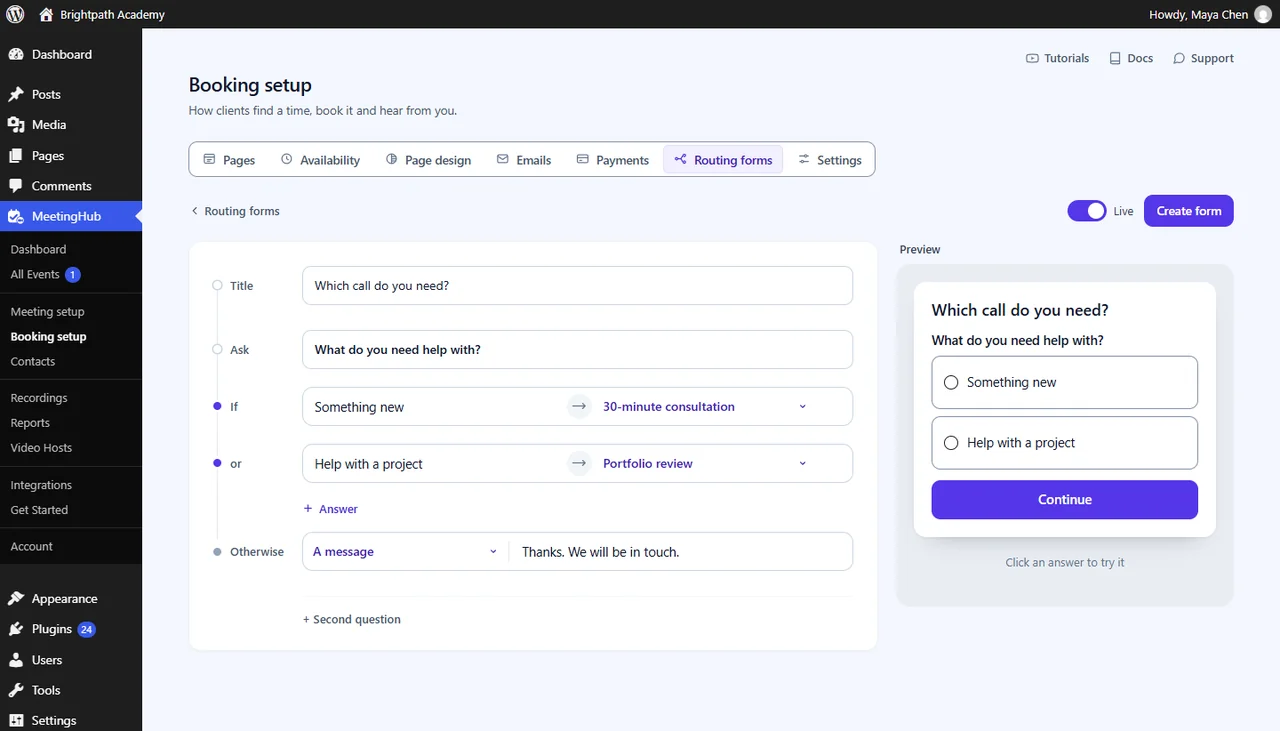
The editor reads like a sentence: Title, Ask, then If an answer, go to a page, and Otherwise for everyone else. On the right, Preview shows the form the way visitors see it.
- In Title, type the heading visitors see above the question, for example
Which call do you need?. - In Ask, type your question.
- Type each answer in its own row, next to If and or.
- To add an answer, click + Answer under the last row. A question holds up to eight answers.
- To remove an answer, click the cross at the end of its row. Every question keeps at least two answers, so a question with two has no cross.
Step 4: Choose where each answer leads #
Each answer row ends with a picker. It lists your published pages under Booking pages, and two more choices under Or.
- For each answer, open the picker and choose a booking page.
- To send an answer somewhere else, choose A web address and type the address, or choose A message and type what visitors will read.
- Leave an answer on Same as Otherwise to send it wherever the Otherwise row points.
- In the Otherwise row, choose where everyone else goes. A new form starts with the message
Thanks. We will be in touch.

Try it as you go. Click an answer in Preview, and the line under the form says where it leads, for example Opens 30-minute consultation.
Step 5: Add a second question (optional) #
Some visitors need two questions before you know where they belong, such as what they need and how they want to meet.
- Click + Second question. A Then ask row appears with two empty answers.
- Type the question and its answers, and choose where each answer leads.
- To send one mix of answers to its own page, click + Answer pair. In the Both row, pick one answer from each question, then choose where that pair leads. A form holds up to 10 pairs.
MeetingHub checks the pairs first, then single answers from the top down, and uses the first one that matches. Answers that match nothing go to Otherwise.

To remove the second question, click the cross next to it. Its answer pairs go with it.
Step 6: Create the form and share it #
- Leave Live switched on at the top of the editor.
- Click Create form. A bar confirms Live. Share it anywhere.
- Click Copy link to copy the form’s own address. Share it in an email, a social post or behind a button.
- Or click Shortcode and paste it into any page or post, for example in a Shortcode block.

The link looks like this:
https://brightpath.example.com/?mhub_routing=which-call-do-you-need
The shortcode looks like this:
[meetinghub_routing id="rf_k3m9x2qa"]
Your actual link and shortcode may look different. Always copy them from your own MeetingHub settings.
The link is made from the form’s title when you create it. Renaming the form later keeps the same link, so links you already shared keep working.
Tip: To save a form without putting it live, switch off Live before you click Create form. You see Saved, and paused. Visitors cannot open a paused form.
Step 7: Manage your forms #
Back on Routing forms, each form sits on one row: a switch that shows whether it is live, its name, the pages it opens and its numbers, for example 120 visits · 18 booked.
- Switch a form off to pause it. Its link and shortcode stop working until you switch it back on.
- Click Copy link to copy the form’s link again.
- Open the ••• menu at the end of the row for Edit, Copy shortcode, Duplicate and Delete.
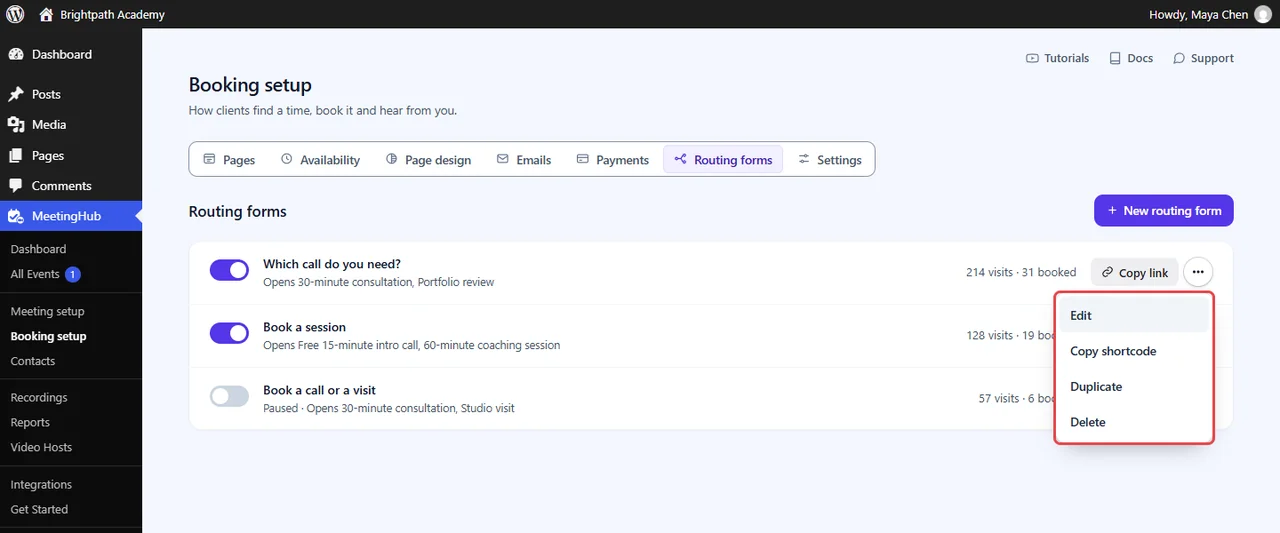
- Duplicate makes a paused copy with “(copy)” after its name.
- Delete asks first. The form’s link and shortcode stop working, and bookings it already made stay.
A visit counts each time the form is shown to a visitor. A booking counts when someone who came through the form books the page it sent them to.
What visitors see #
Visitors see your title, each question as a list of choices and a Continue button. Through the form’s own link, the form sits alone on a plain page. Through the shortcode, it sits inside your page.


When they click Continue, one of three things happens:
- A booking page opens, and they book as usual.
- A web address opens.
- A message takes the place of the form.
If a visitor leaves a question unanswered, the form shows again with Please answer every question.
Where routed answers show up #
When a visitor books within two hours of answering, MeetingHub adds their answers to the booking as a note:
From the routing form "Which call do you need?".
What do you need help with?: Help with a project
Open the booking from MeetingHub > All Events and look under Notes. Clients never see notes.

Benefits of using routing forms #
- Fewer wrong bookings: Visitors reach the page meant for them, so you spend less time moving calls around.
- Context before the call: Each routed booking arrives with the answers that brought it.
- One link for every visitor: Share a single address and let the answers sort people out.
- Safe to change: Renaming a form keeps its link, and an unpublished page never leaves a visitor stuck.
A routing form is a small thing that saves a lot of back-and-forth emails.
Troubleshooting #
“Publish a booking page first; a form sends visitors to one.” #
The New routing form window shows this when no booking page is published. Publish a booking page on Booking setup > Pages, then open the window again.
Create form or Save shows a message instead of saving #
The editor names the first thing still missing:
| Message | What to do |
|---|---|
| Add a title. | Type a title in Title. |
| Add the question. | Type the question in Ask or Then ask. |
| Add at least two answers. | Give every question two answers or more. |
| Add the web address under Otherwise. | Type an address in the Otherwise row. |
| Add the message under Otherwise. | Type the words visitors should read. |
| Fill in each web address or message. | An answer or pair points to A web address or A message that is still empty. |
| Pick both answers in each pair. | Every Both row needs one answer from each question. |
“You have the most forms a site can hold. Delete one first.” #
A site holds up to 50 routing forms. Delete a form you no longer use, then try again.
An answer shows Unpublished page #
The page that answer points to was unpublished or deleted. Visitors who give that answer go to Otherwise instead. If Otherwise is also a page that is gone, they see Thanks. We will be in touch.
- Open the form with Edit.
- Pick another page in that answer’s picker.
- Click Save.
The form’s link opens the home page, or the shortcode shows nothing #
The form is paused or deleted.
Check that:
- The form’s switch is on, on Routing forms.
- The id in your shortcode matches a form on the list. Click Copy shortcode and paste it again.
A booking has no routing note #
Check that:
- The visitor booked within two hours of answering the form.
- They booked on the page the form opened for them.
- Fewer than 60 visitors answered from the same internet address in the last hour. Past that, MeetingHub still opens the page but does not carry the answers.
Frequently asked questions #
Can an answer send visitors to a page outside MeetingHub? #
Yes. Choose A web address in the answer’s picker and type the address, such as a contact form or a pricing page.
How many questions can a routing form ask? #
Up to two, each with up to eight answers.
Do search engines list a routing form’s own link? #
No. The form’s own page asks search engines not to index it.
Can I see which answers a client gave? #
Yes. Open the booking from All Events. The answers are under Notes, after the line naming the form.
Does pausing a form reset its numbers? #
No. Pausing keeps the form, its visits and its bookings. Deleting the form removes them.
You’re ready to route visitors #
Your routing form now meets visitors before they book and sends each one to the page that fits. Share its link wherever people ask how to book you, and check its visits and bookings on Routing forms to see which answers bring the most calls.
Related guides:


