- Before you begin
- Step 1: Open ZooMeet settings
- Step 2: Open the Event themes tab
- Step 3: Browse the theme gallery
- Step 4: Select a theme
- Step 5: Preview the theme on a real meeting
- Step 6: Save your choice
- What visitors see
- Use a different theme for one meeting
- Benefits of using ZooMeet meeting themes
- Troubleshooting
- Frequently asked questions
- You're ready to choose a meeting theme
Every ZooMeet meeting has its own page on your site. Visitors and students open it to check the time, watch the countdown and click Join in browser or Join in Zoom app. A meeting theme decides how that page looks.
A class, a webinar and a one-to-one call each need a different kind of page. In this guide you pick a site default theme, preview it on a real meeting and save it. Every meeting page then uses that theme, unless a meeting picks its own.
By the end of this guide, you will have:
- A site default theme for every meeting page
- A preview of that theme on your latest meeting
- The new theme saved and live for your visitors
- One meeting with its own theme, if it needs a different look
- A clear picture of all fourteen themes, on desktop and on a phone
Estimated setup time: 3 minutes. Changing the theme never changes your Zoom meetings, join links or passcodes.
Before you begin #
Make sure you have:
- ZooMeet installed and activated, with your Zoom account connected
- An administrator account on the site
- At least one published meeting, so you can preview the theme
- ZooMeet Pro activated, if you want one of the 12 Pro themes
Let’s get started.
Step 1: Open ZooMeet settings #
Event themes are a site-wide setting, so they live in ZooMeet settings rather than in a single meeting.
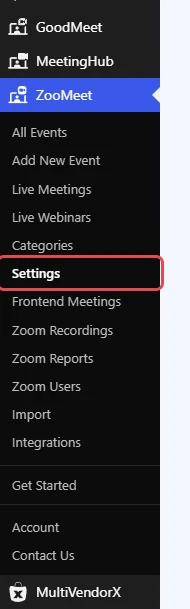
- In the WordPress admin menu, go to ZooMeet.
- Click Settings.
Step 2: Open the Event themes tab #
The theme and the style settings share one tab, so you can change the layout and the colours in one visit.
- In the settings menu on the left, find the Appearance group.
- Click Event themes.
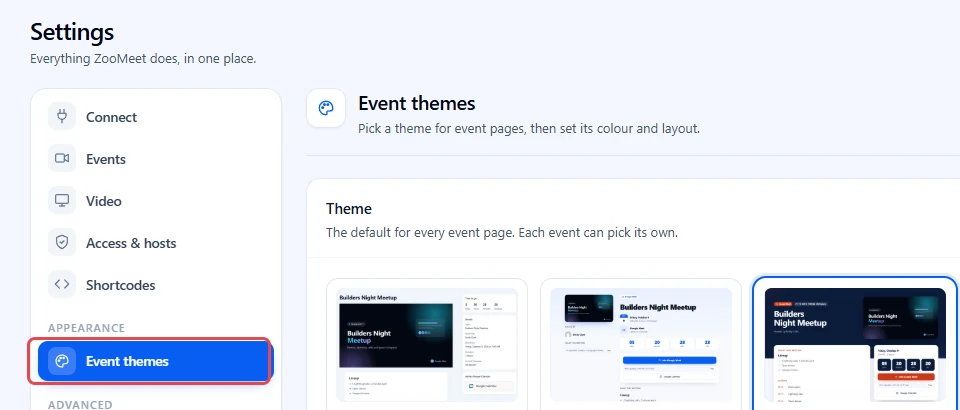
The tab shows the Theme group at the top and the Style group below it.
Step 3: Browse the theme gallery #
Each card in the Theme group shows a preview, the theme name and a short description of what the theme is built for. The group summary reads The default for every event page. Each event can pick its own.
- Scroll through the Theme group and read the card descriptions.
- Find the card with the blue border and the filled circle. That is your current site default. On a new site, it is Classic.
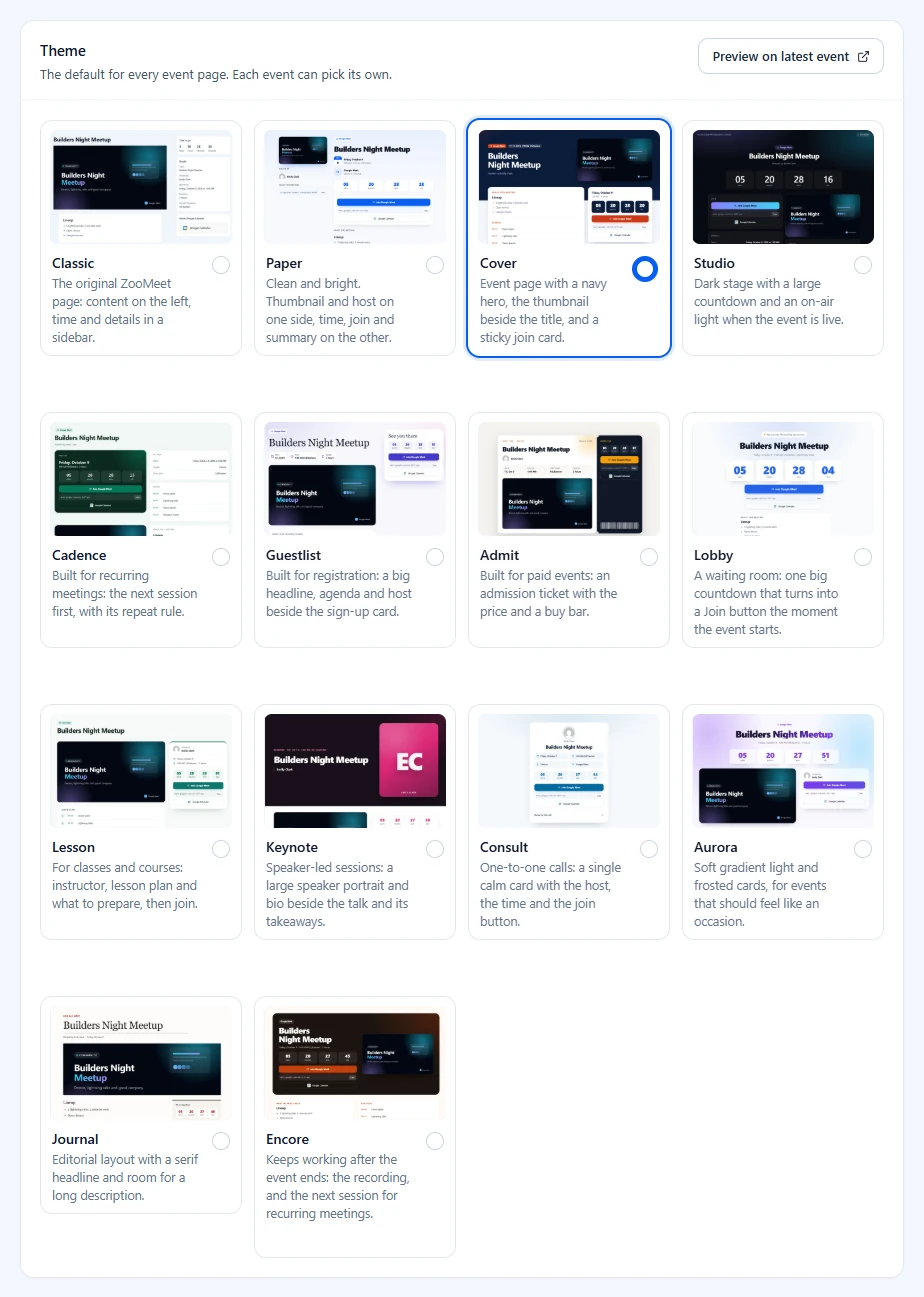
Note: Cover, Studio, Cadence, Guestlist, Admit, Lobby, Lesson, Keynote, Consult, Aurora, Journal and Encore require ZooMeet Pro. Without Pro, these cards still show in the gallery with a Pro badge. Clicking one opens the upgrade window instead of selecting it.
Step 4: Select a theme #
Selecting a card only marks your choice. Nothing changes on your site until you save.
- Click the card of the theme you want, for example Aurora.
- Check that the card now has a blue border and a filled circle.
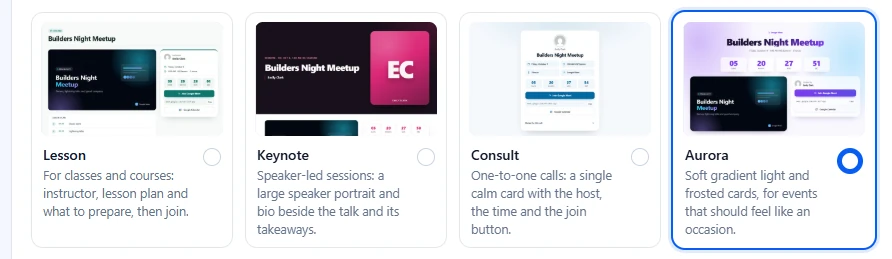
A bar appears at the bottom of the screen with You have unsaved changes.
Step 5: Preview the theme on a real meeting #
A preview shows the theme with your own meeting content, which tells you more than the small card does.
- Click Preview on latest event at the top right of the Theme group.
- Your most recent published meeting opens in a new browser tab, drawn with the selected theme.
- Check the page, then close the tab and come back to settings.
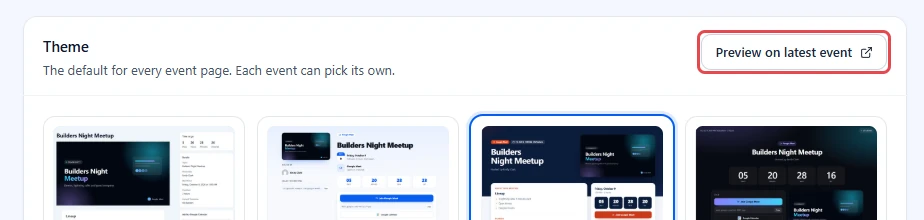
Note: The preview shows the selected theme only. Brand colour and other style changes apply after saving. Only administrators can open the preview.
Step 6: Save your choice #
Saving makes the theme live on every meeting page that follows the site default.
- Click Save changes in the bar at the bottom of the screen.
- Wait for the confirmation message, Appearance saved.

To undo your selection instead, click Discard. The gallery goes back to the theme you saved last.
Tip: A single meeting can use a different theme from the site default. See Use a different theme for one meeting.
What visitors see #
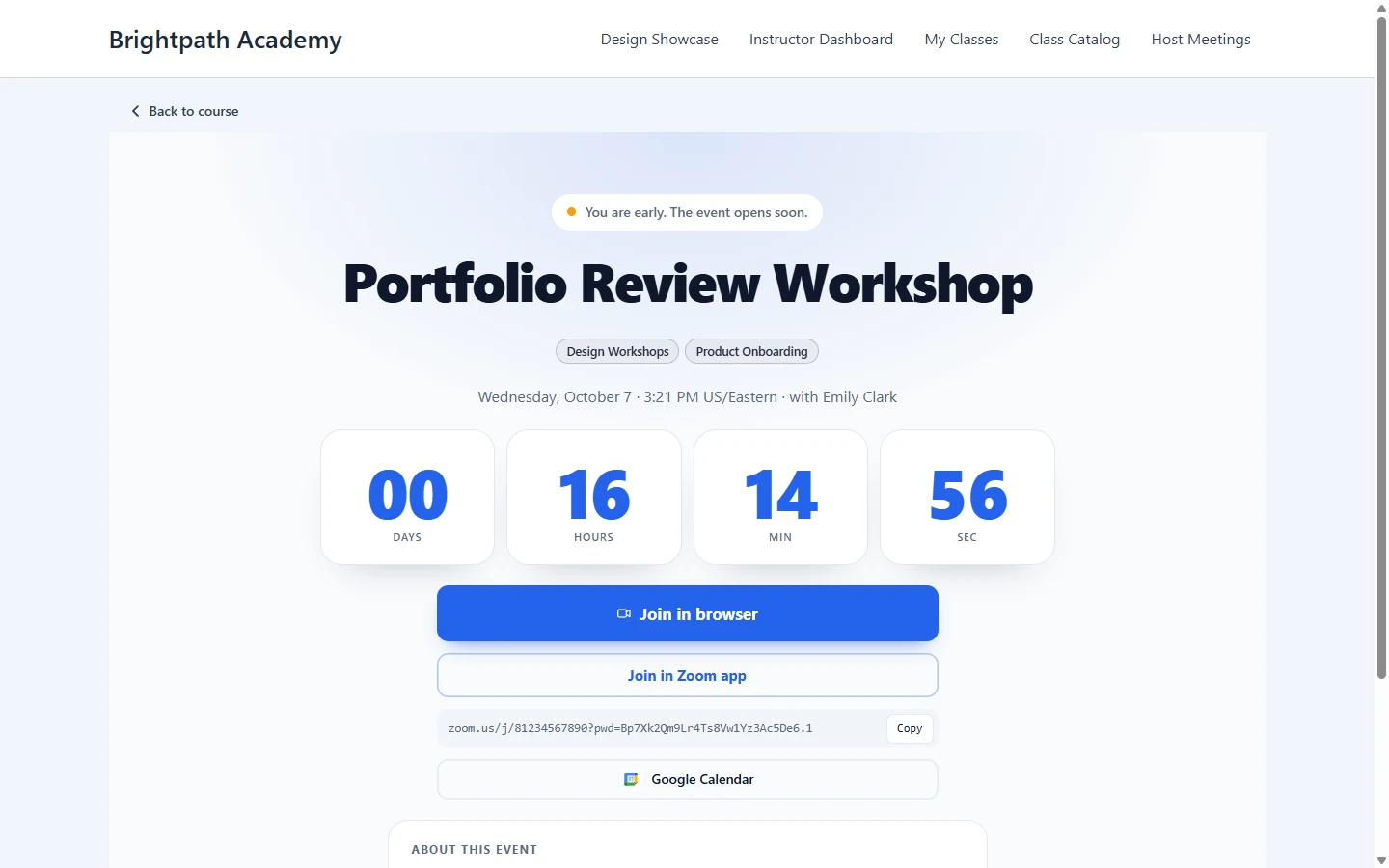
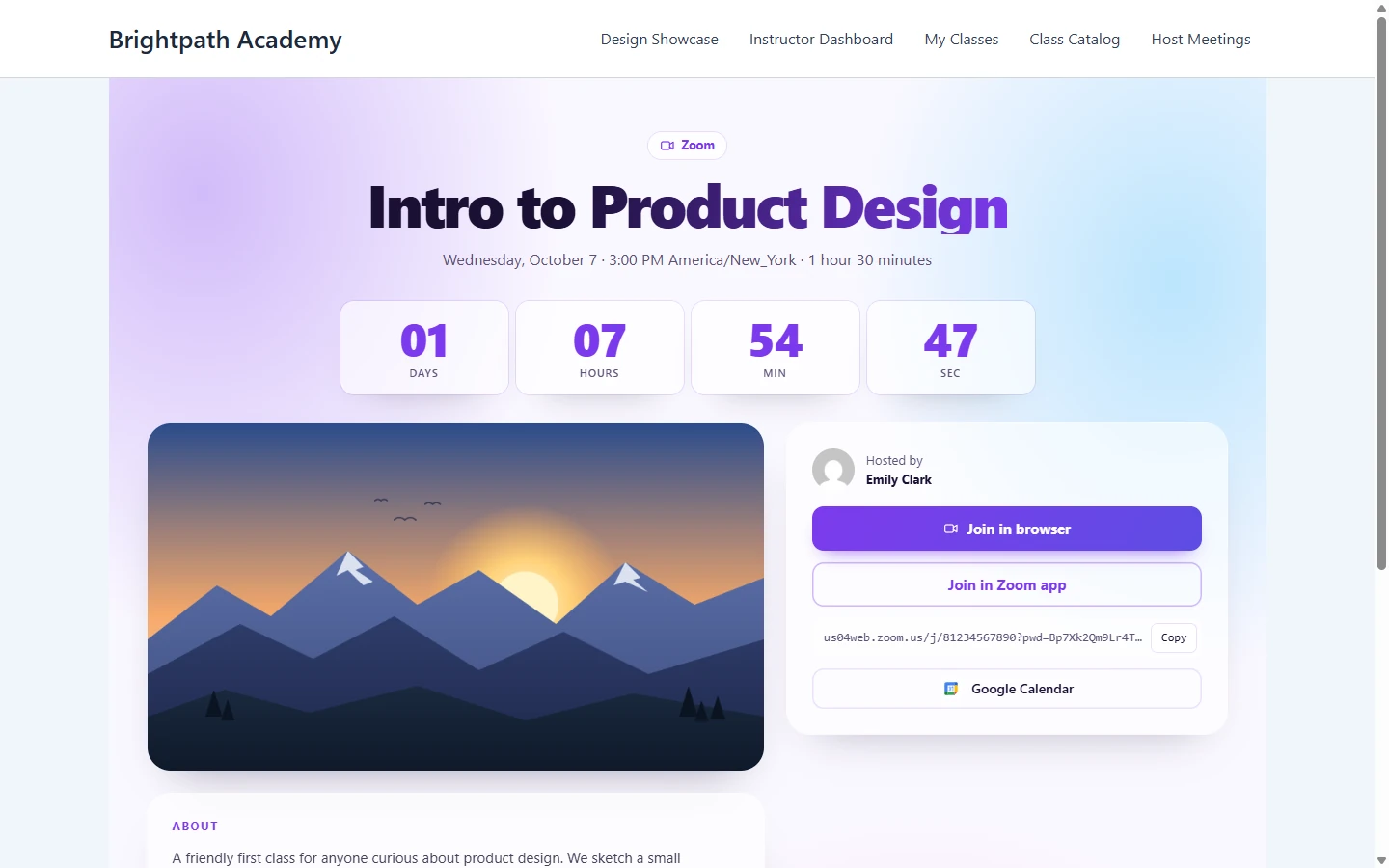
Open any meeting page in a private browser window. It now uses the theme you saved. Each shot below shows a real meeting in that theme. Pick the one that fits the meetings you run most often.
Note: Meetings attached to a course are for enrolled students only. Other visitors see a For students of this course card with a View course button instead of the meeting page.
Free themes #
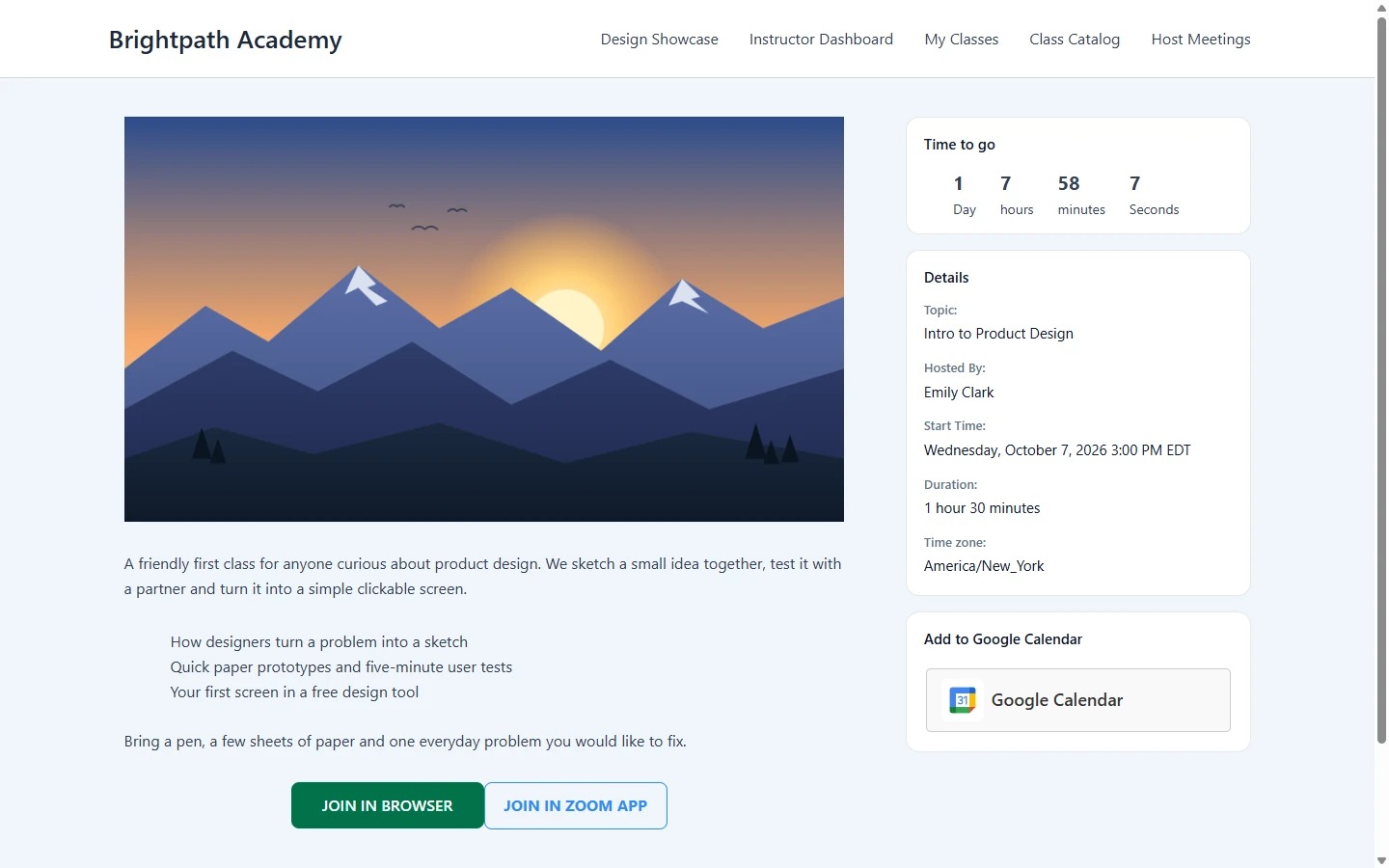
Classic #
Best for any meeting, with the content on the left and the time and details in a sidebar.
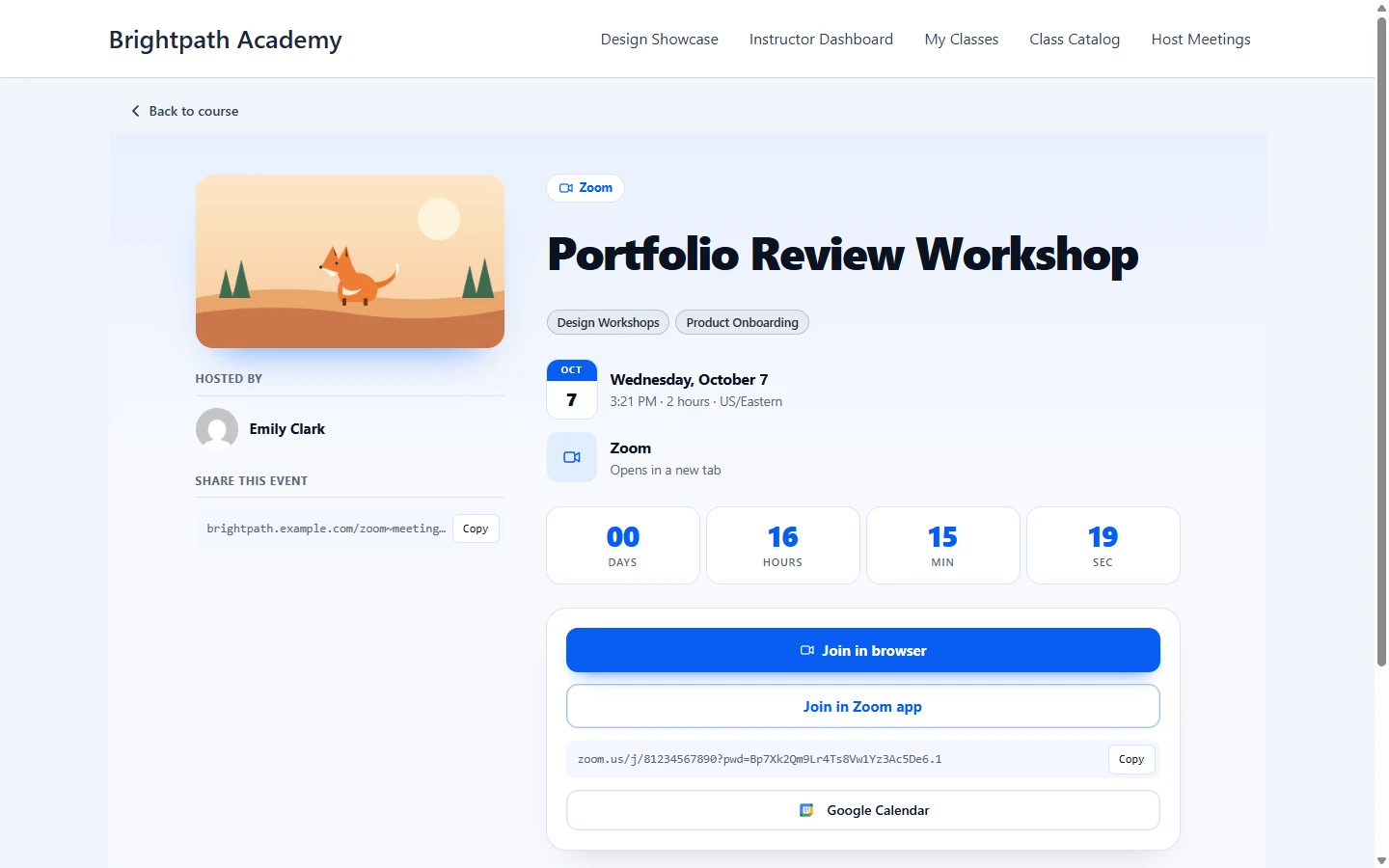
Paper #
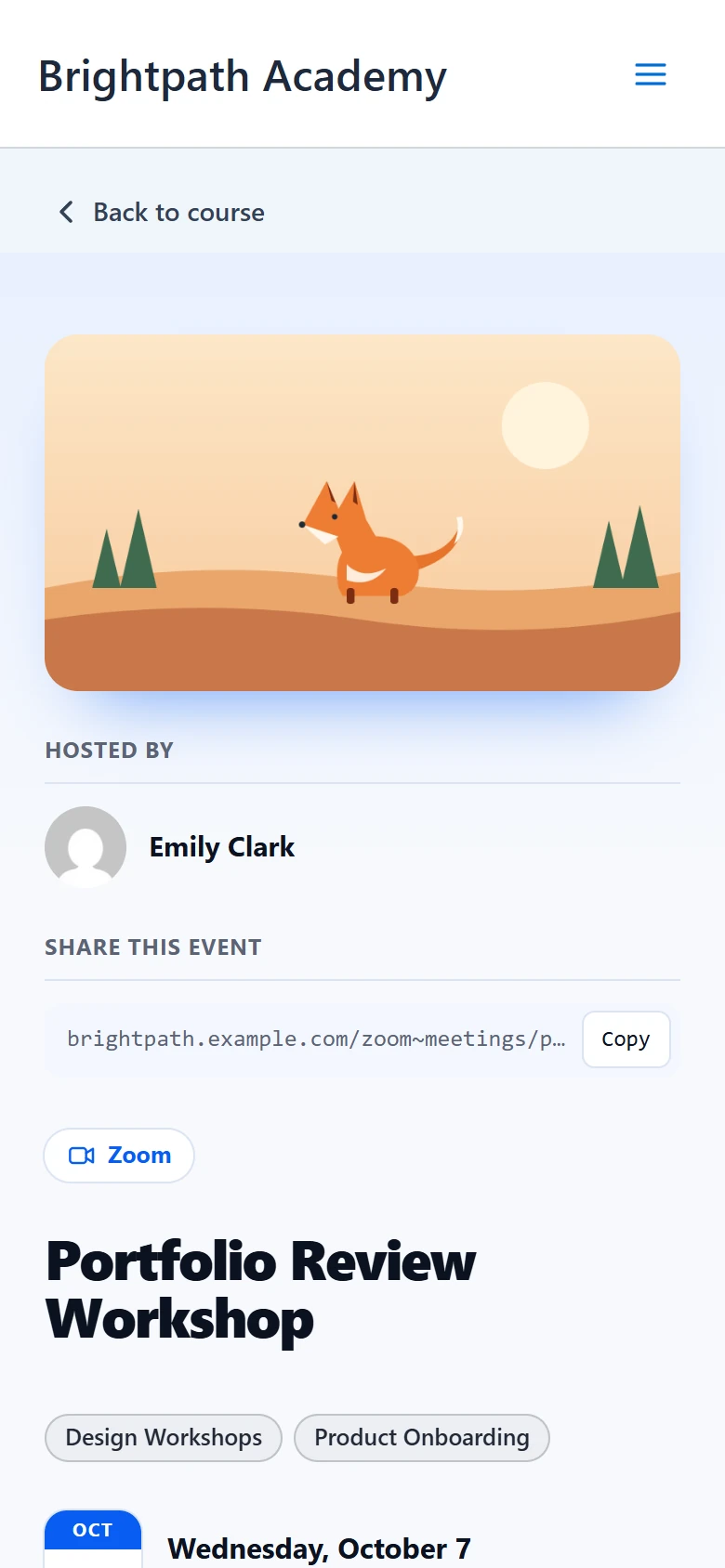
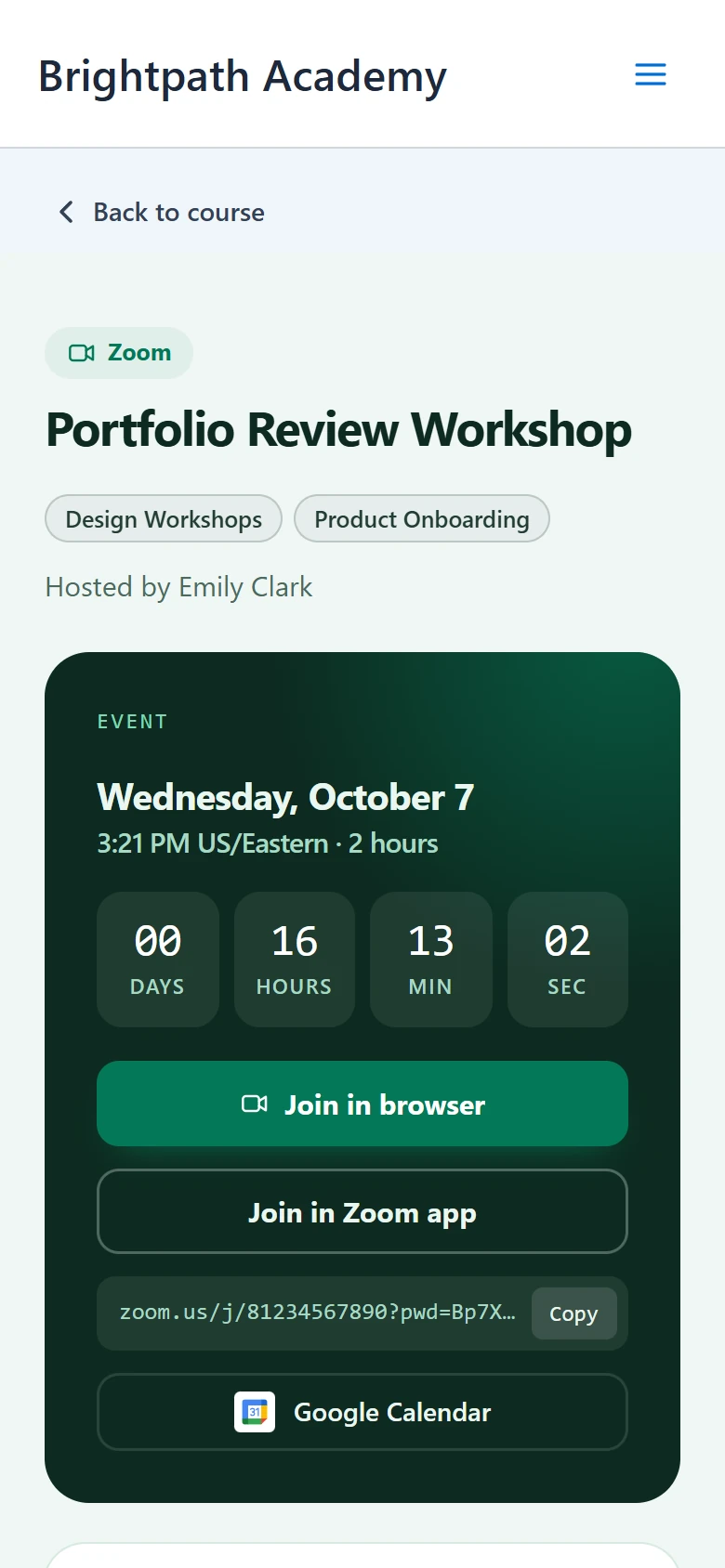
Best for clean, bright pages with the thumbnail and host beside the join card.
Pro themes #
Note: The themes in this section require ZooMeet Pro.
Cover #
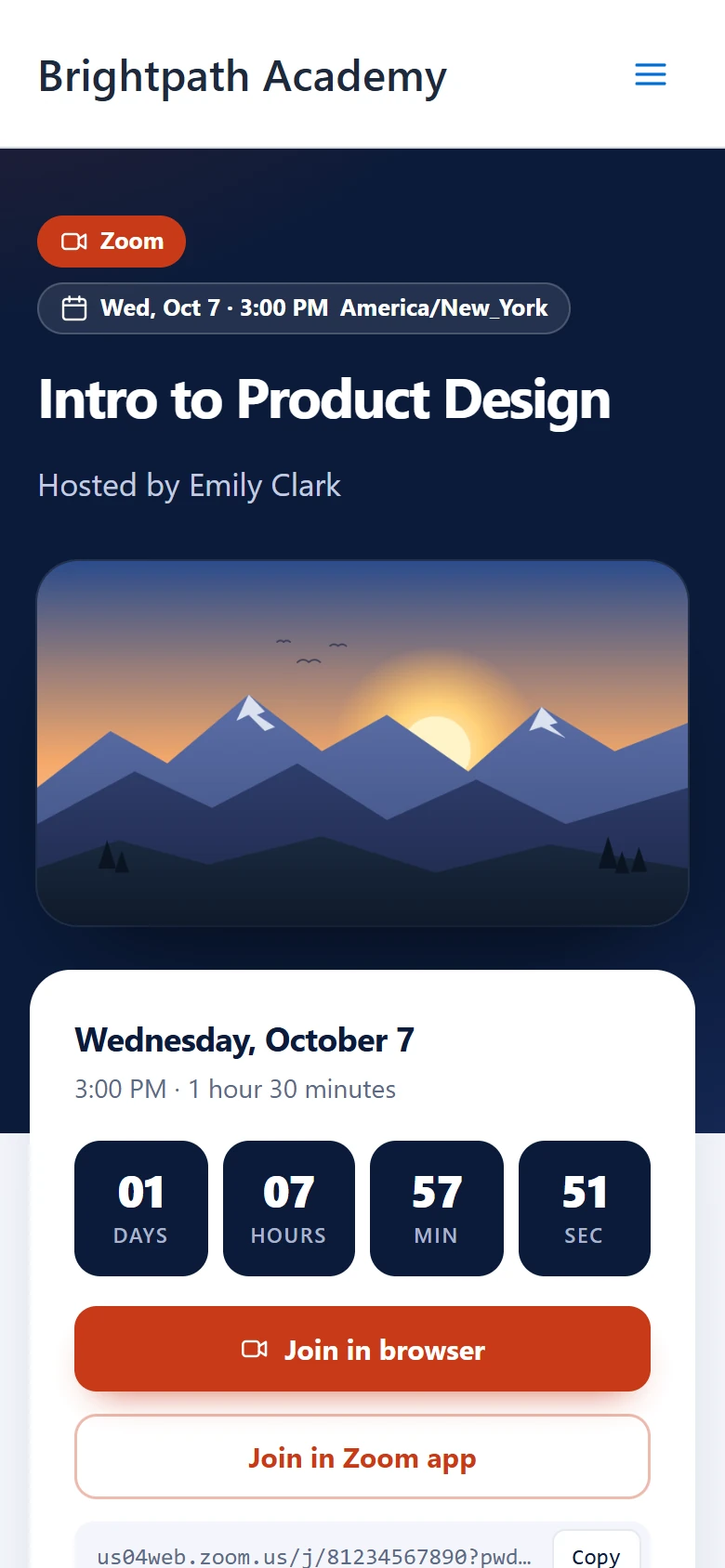
Best for events that need a bold first impression.
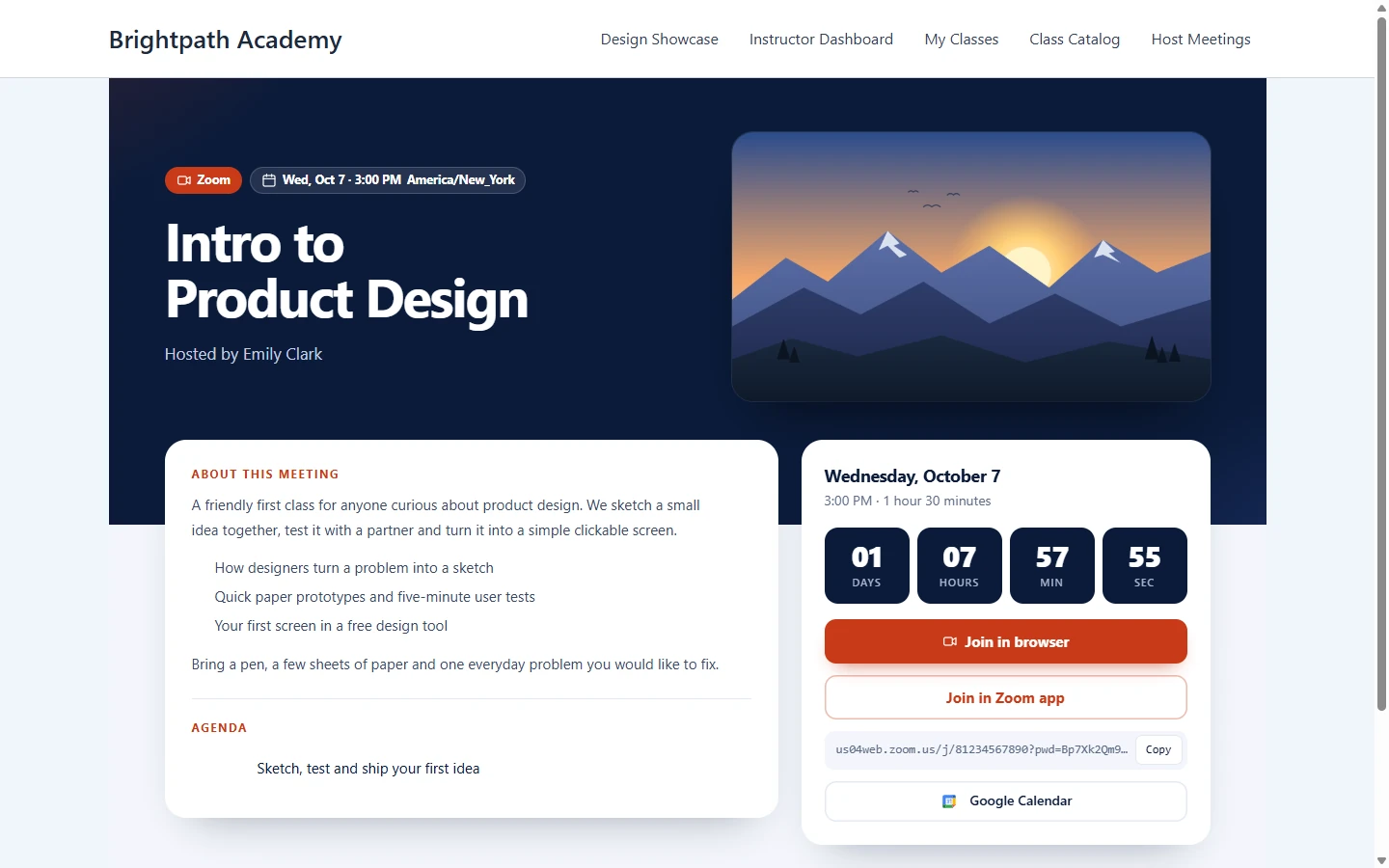
If a meeting has no description, Cover leaves the description panel out, so there is no empty box under the hero.
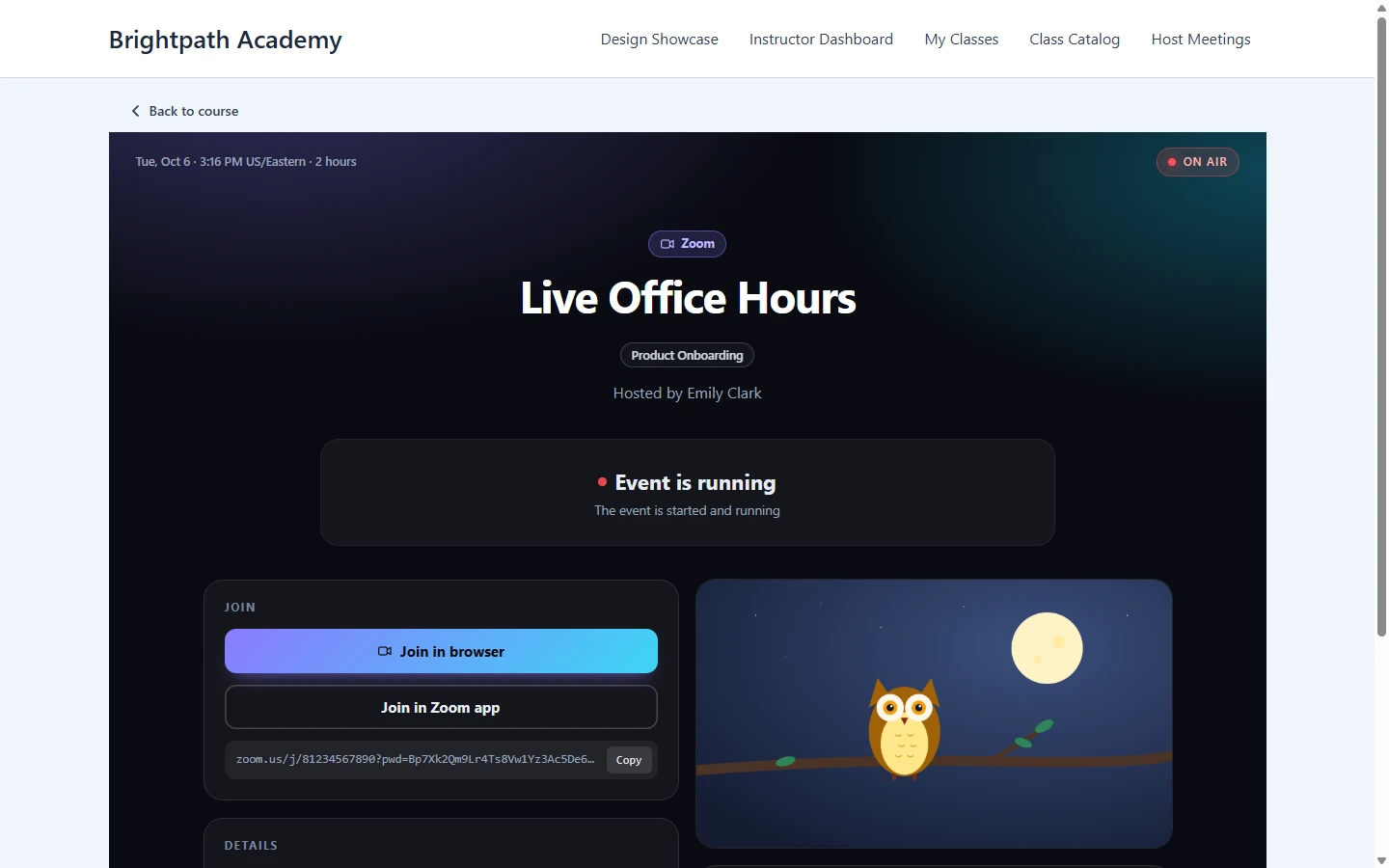
Studio #
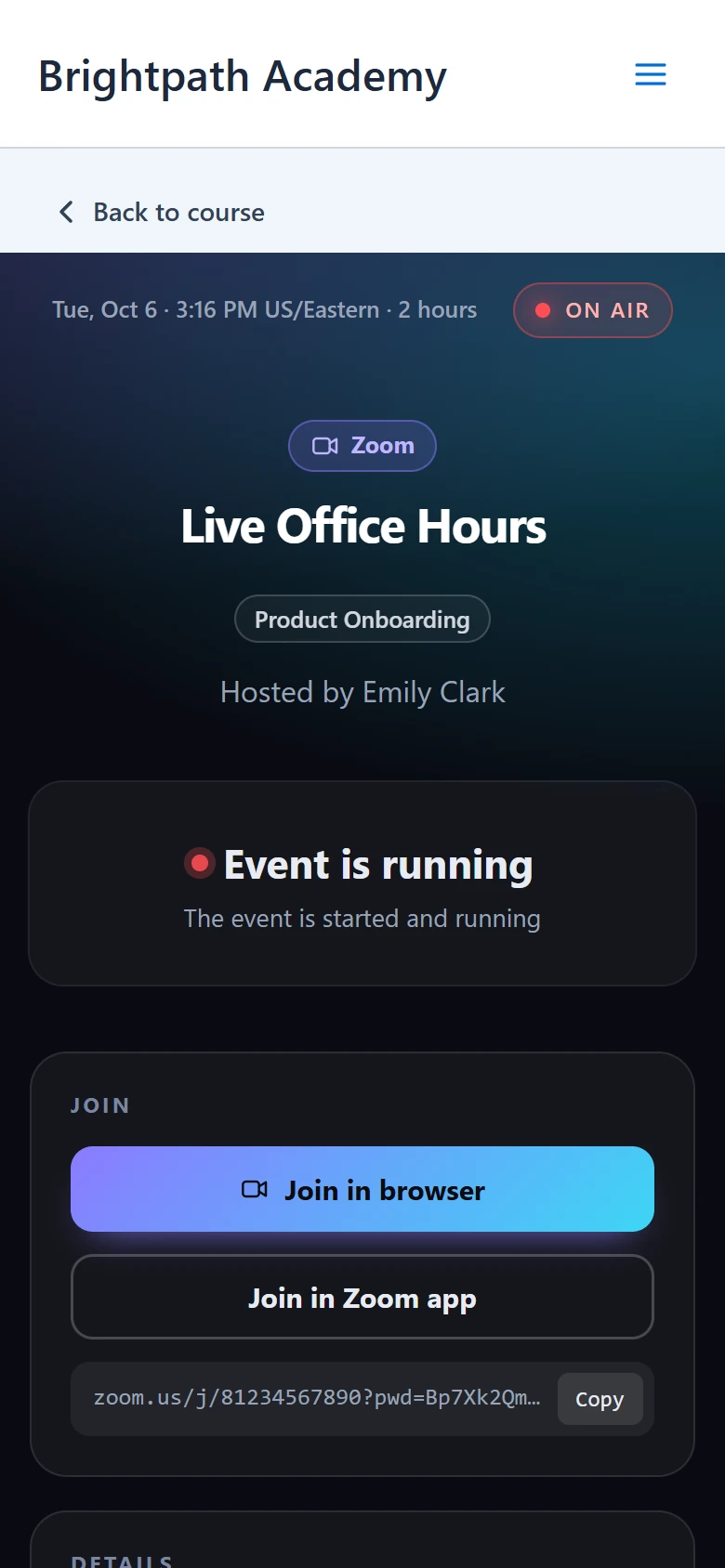
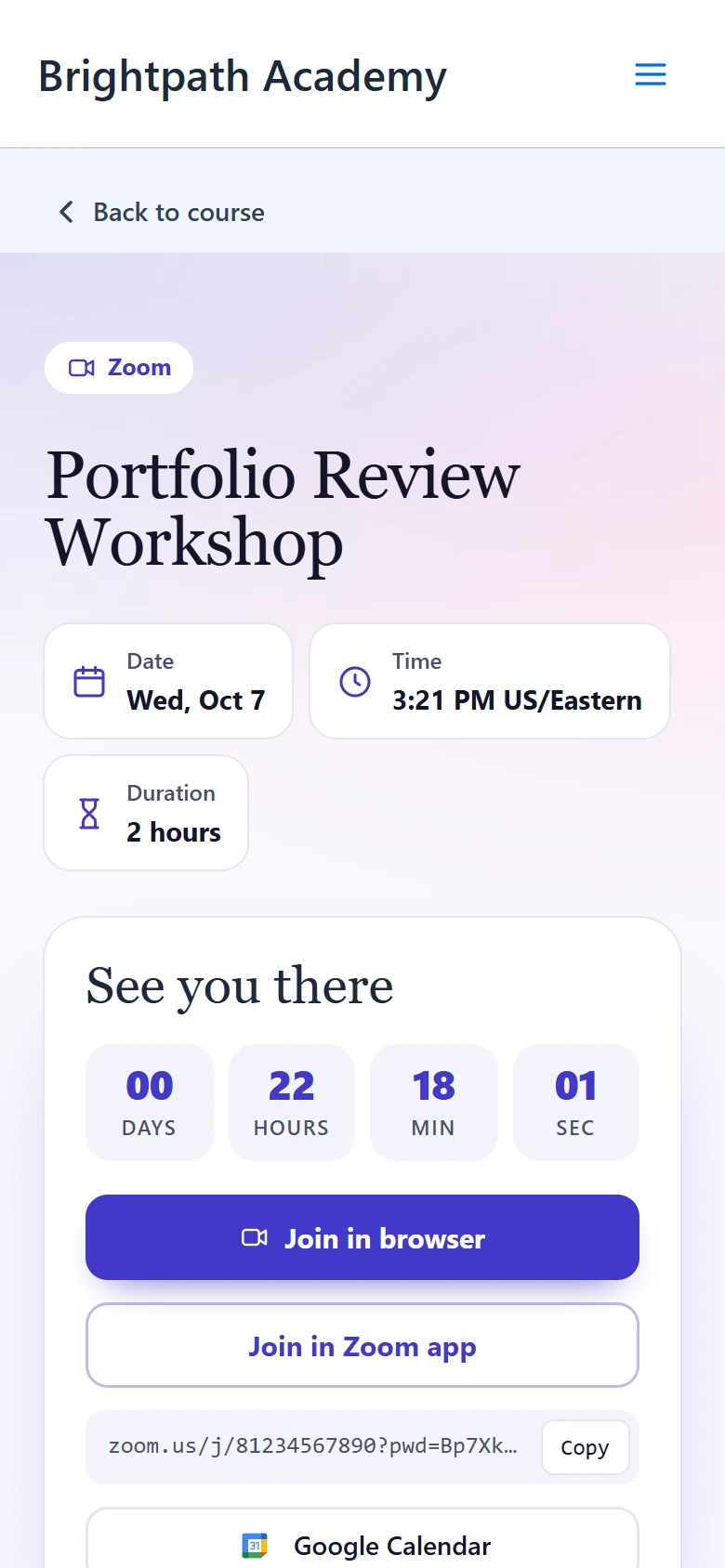
Best for live sessions that should feel like a broadcast.
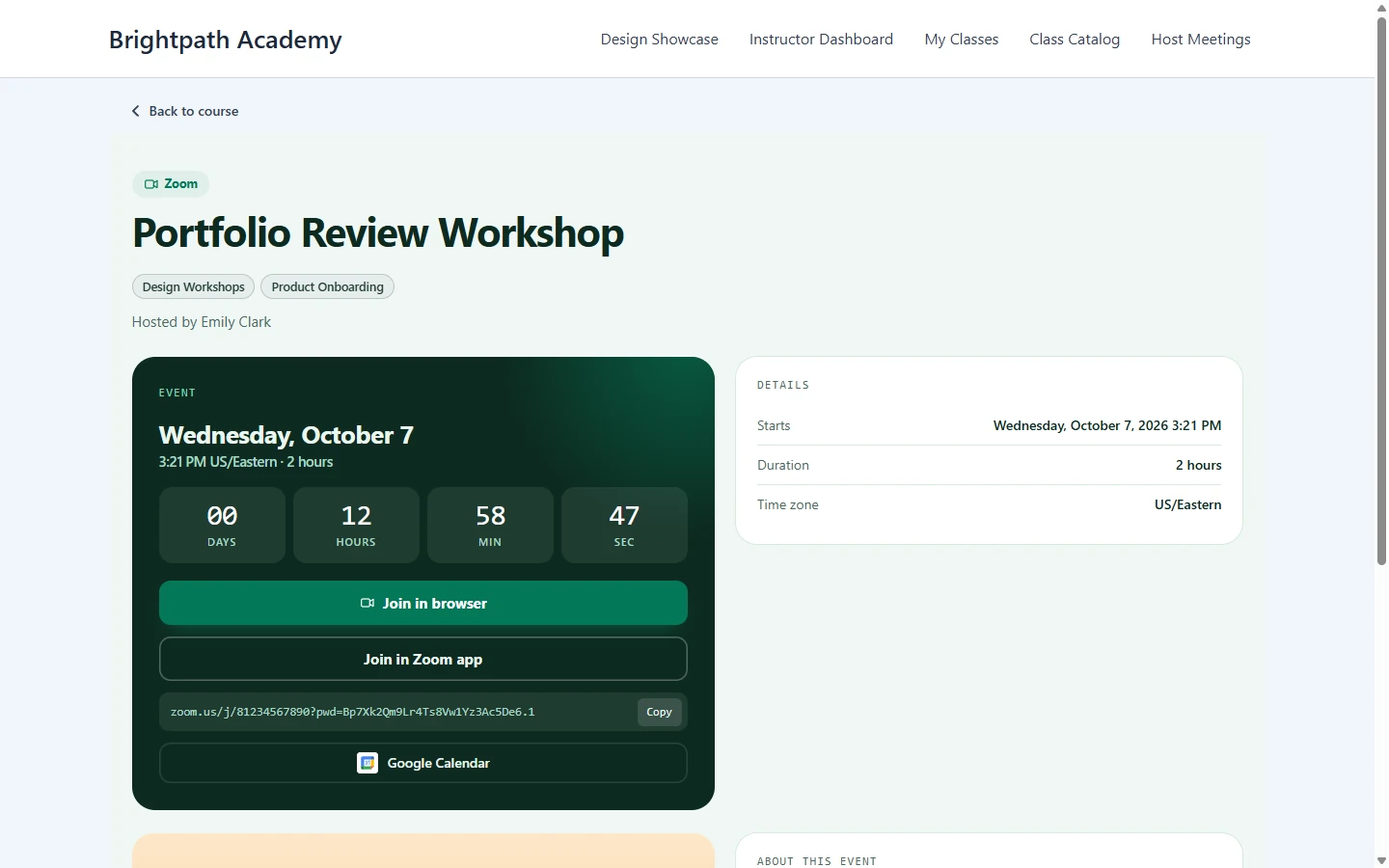
Cadence #
Best for recurring meetings such as weekly classes and check-ins.
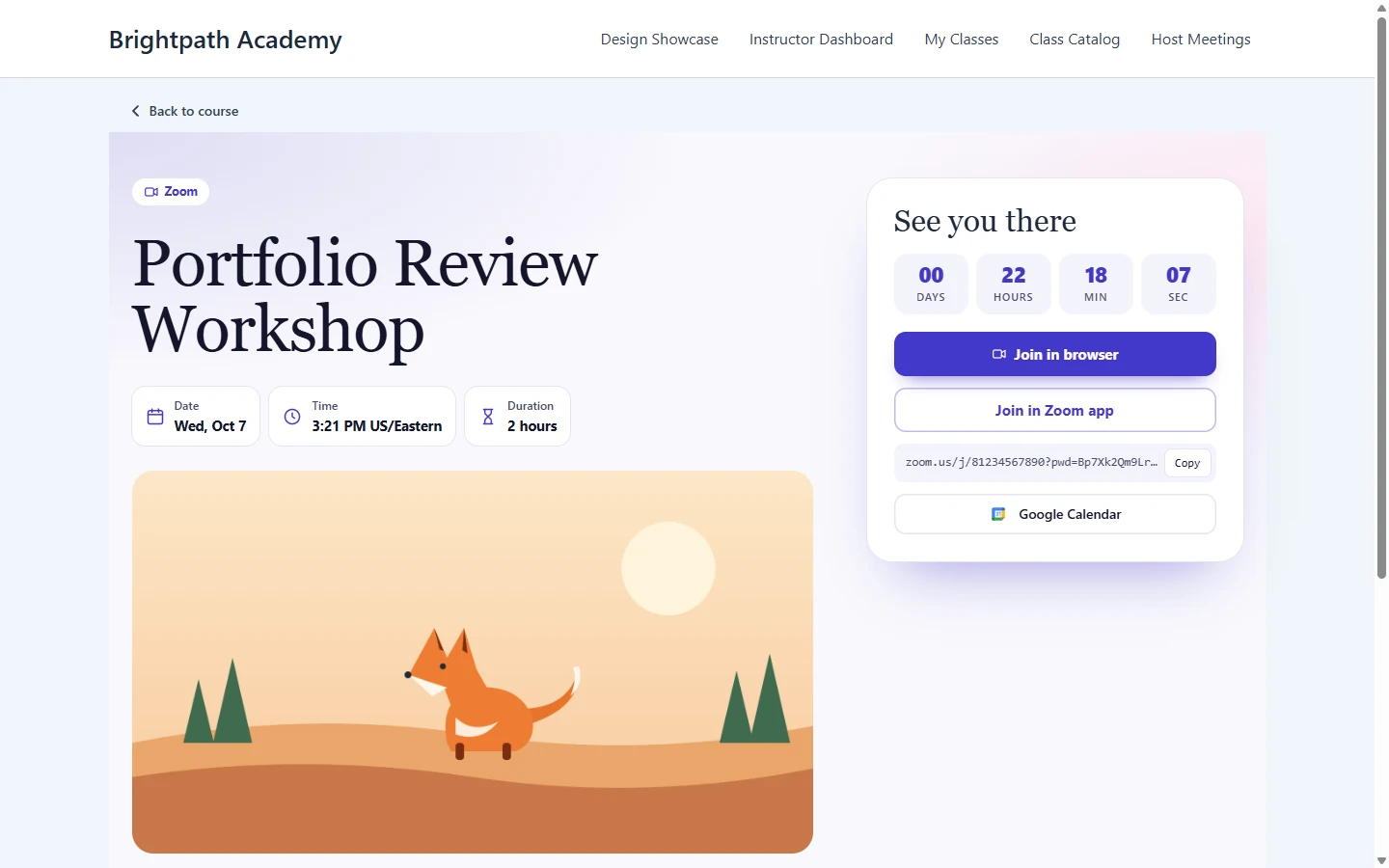
Guestlist #
Best for meetings that need registration.
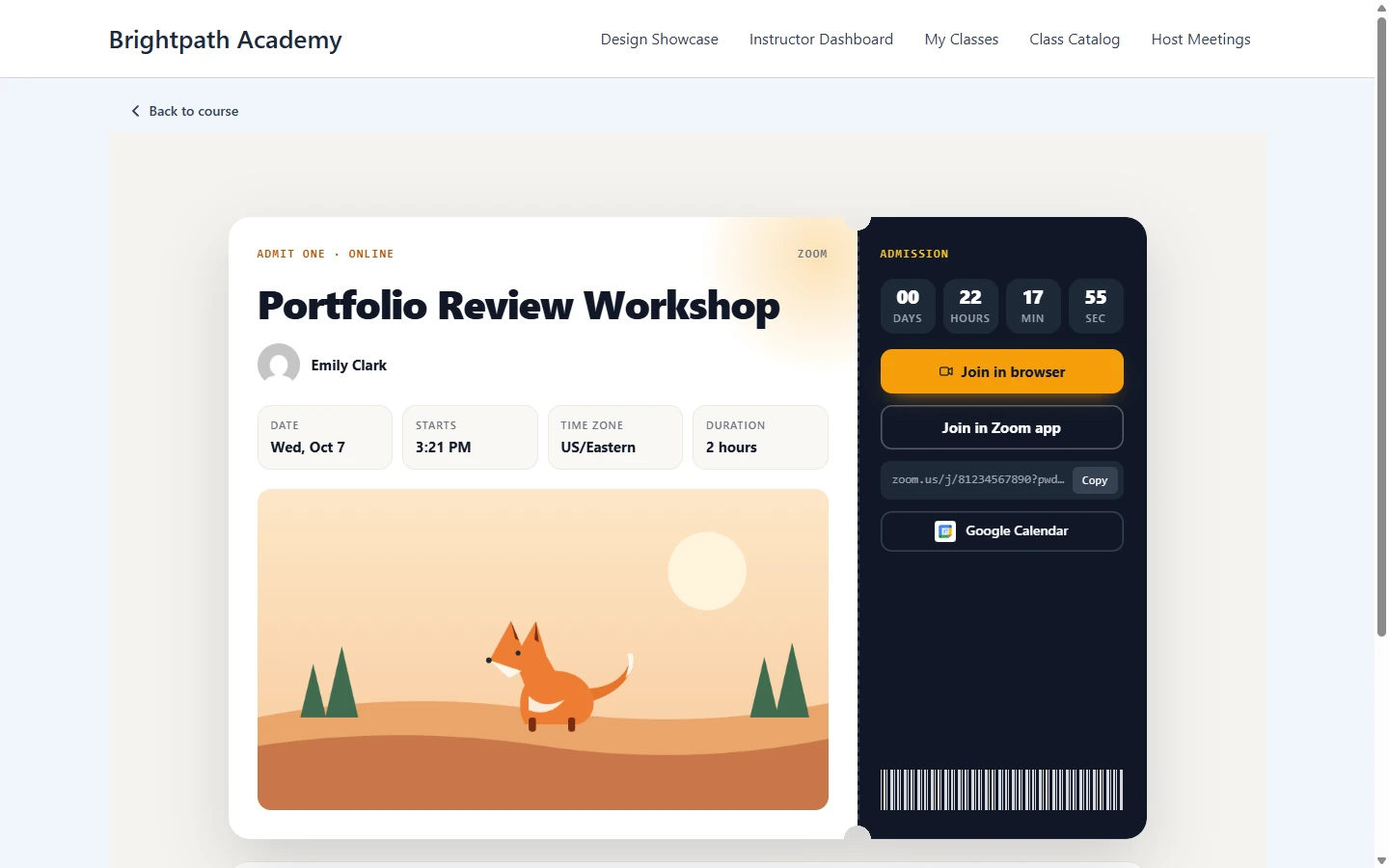
Admit #
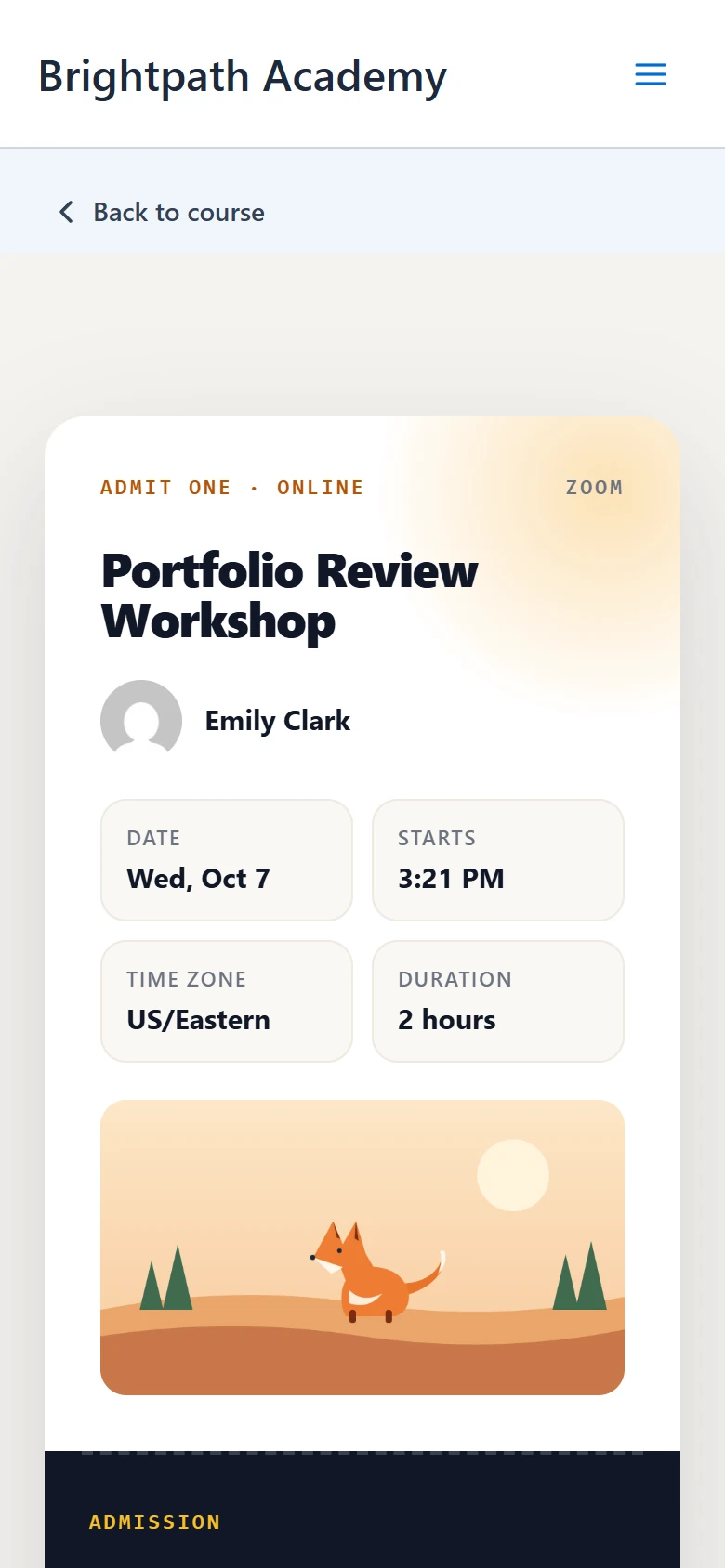
Best for paid meetings and masterclasses.
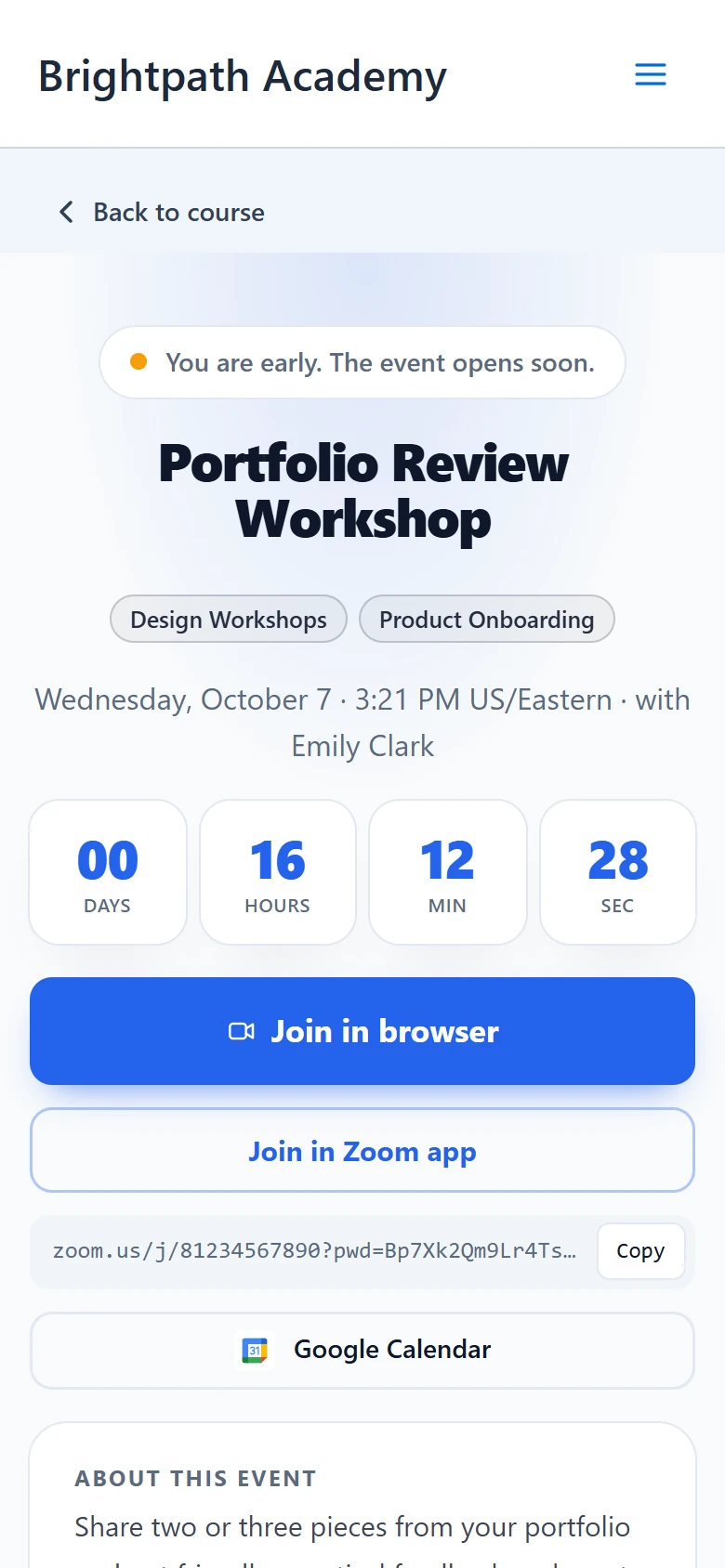
Lobby #
Best for meetings where people wait for the start.
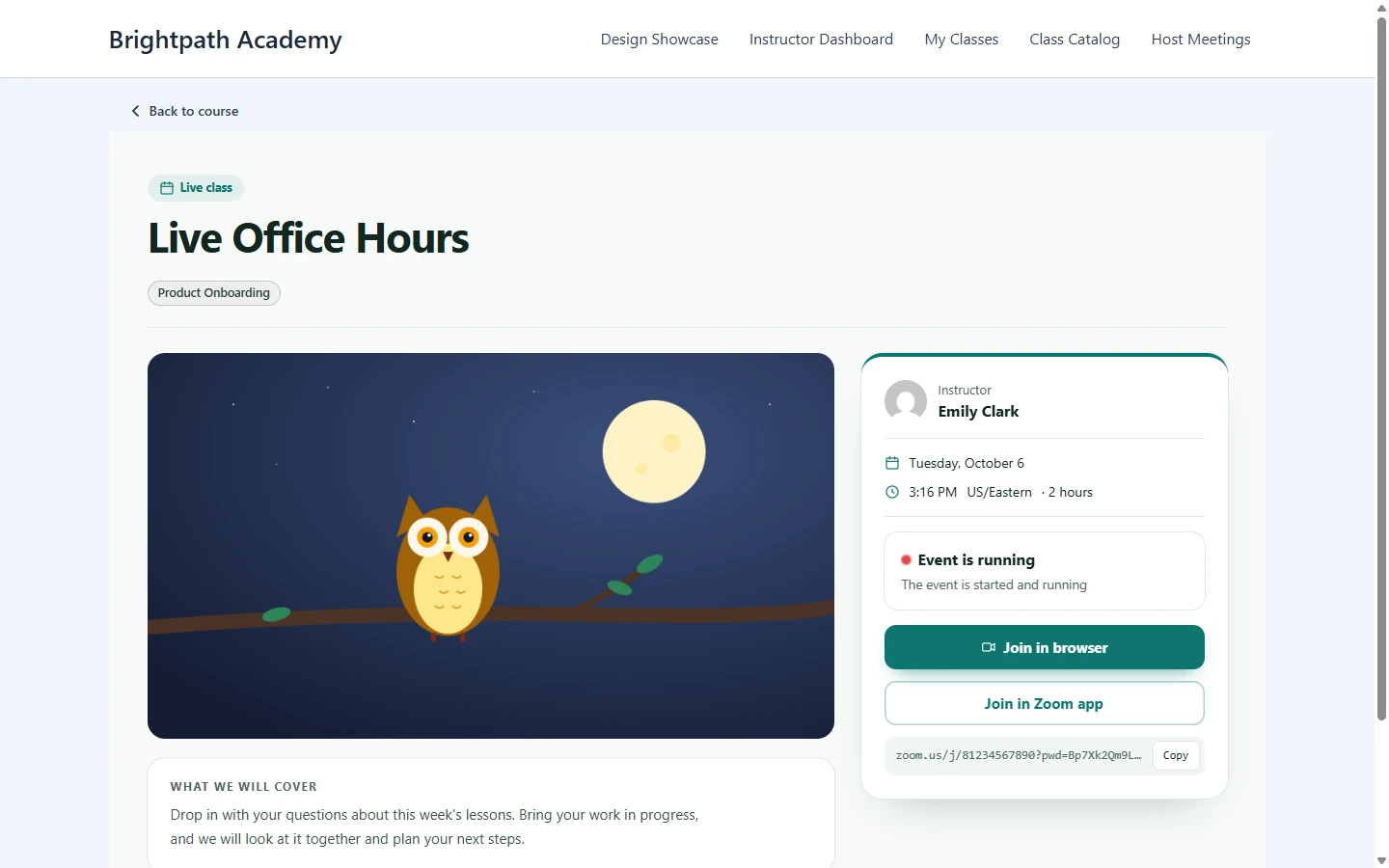
Lesson #
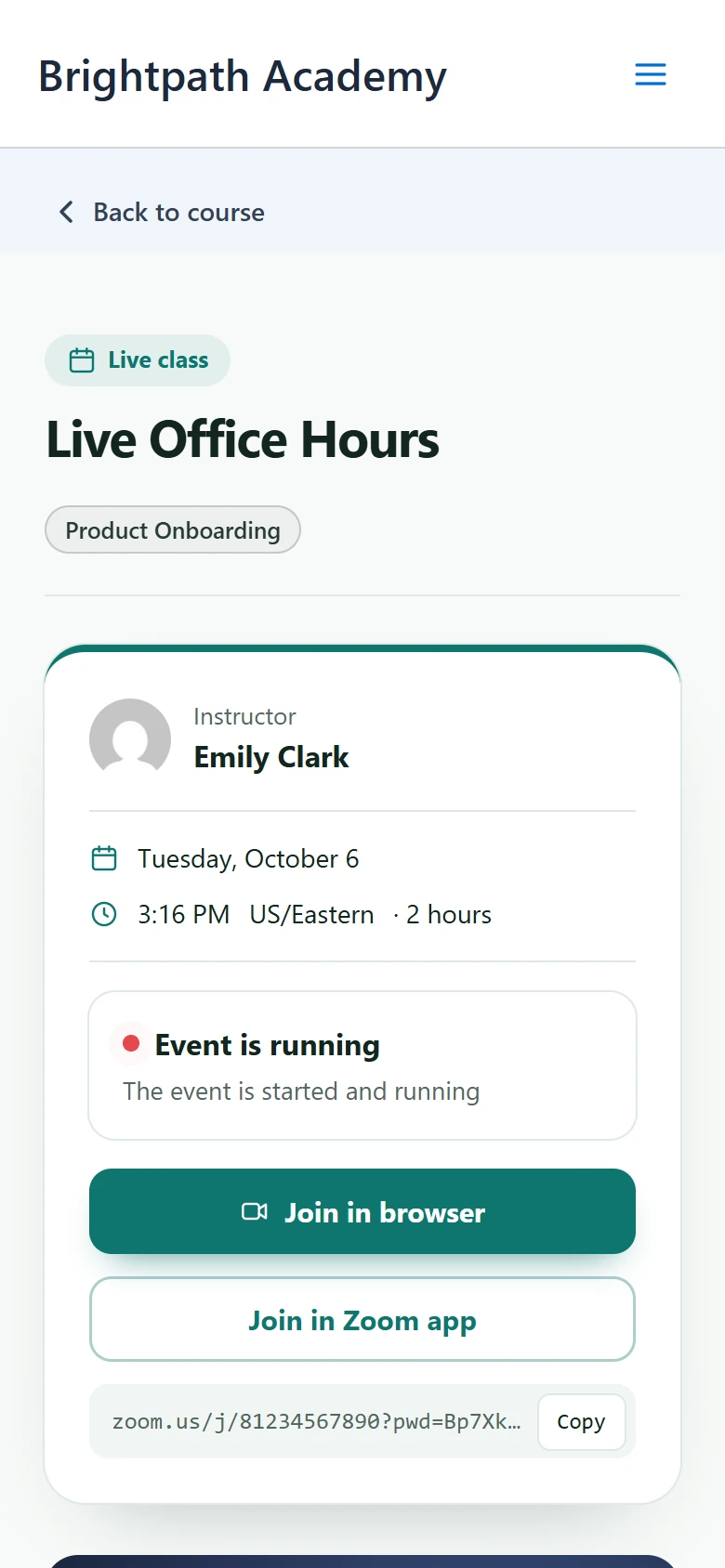
Best for classes and course sessions.
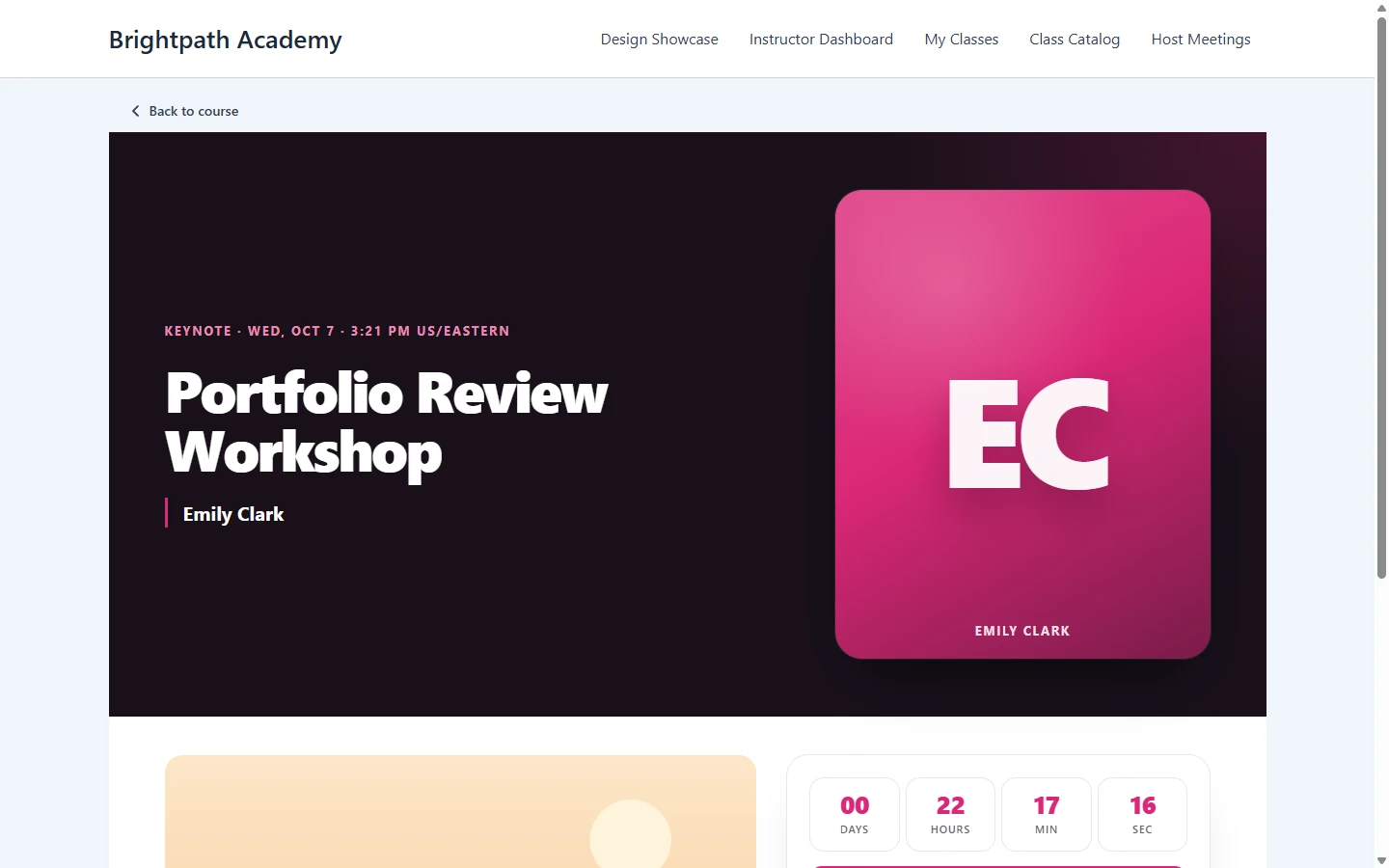
Keynote #
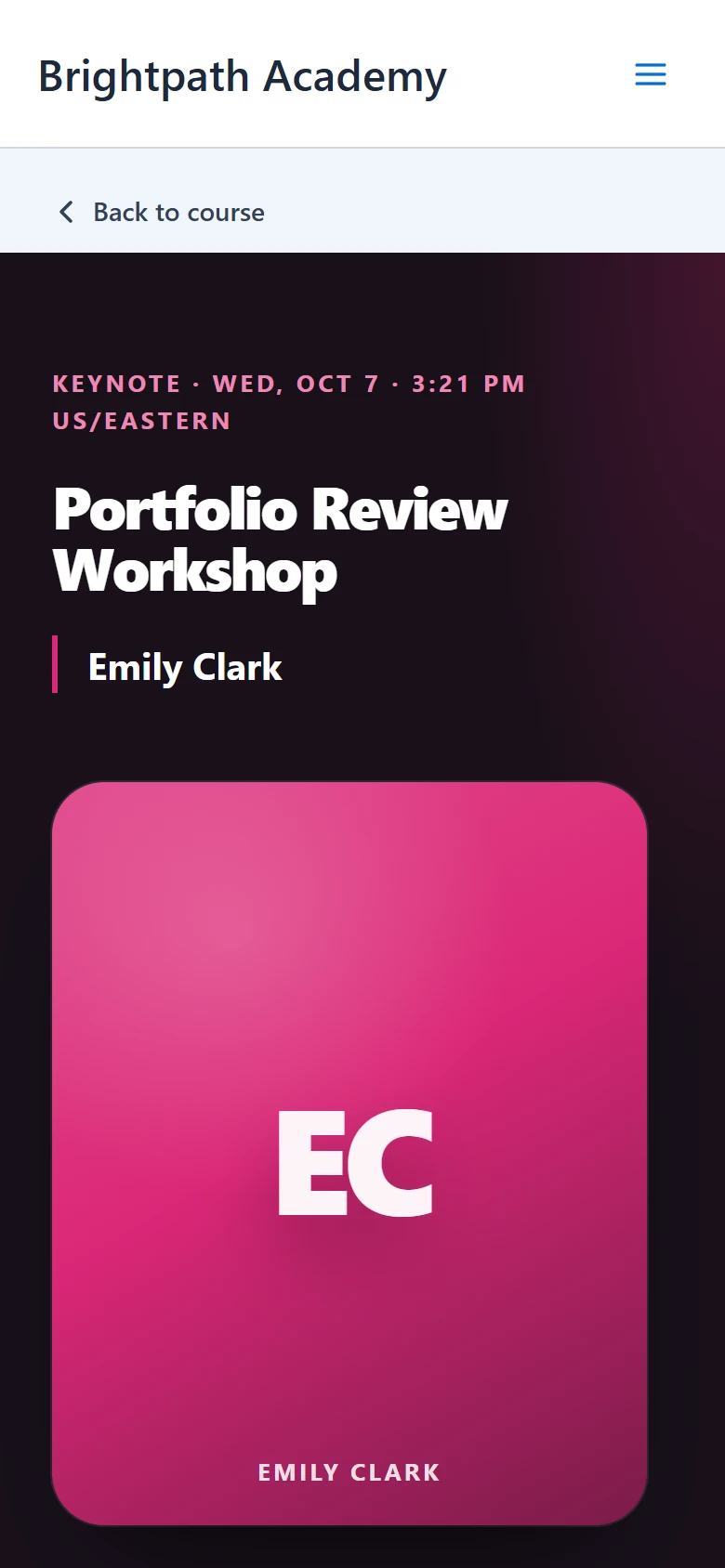
Best for talks led by one speaker.
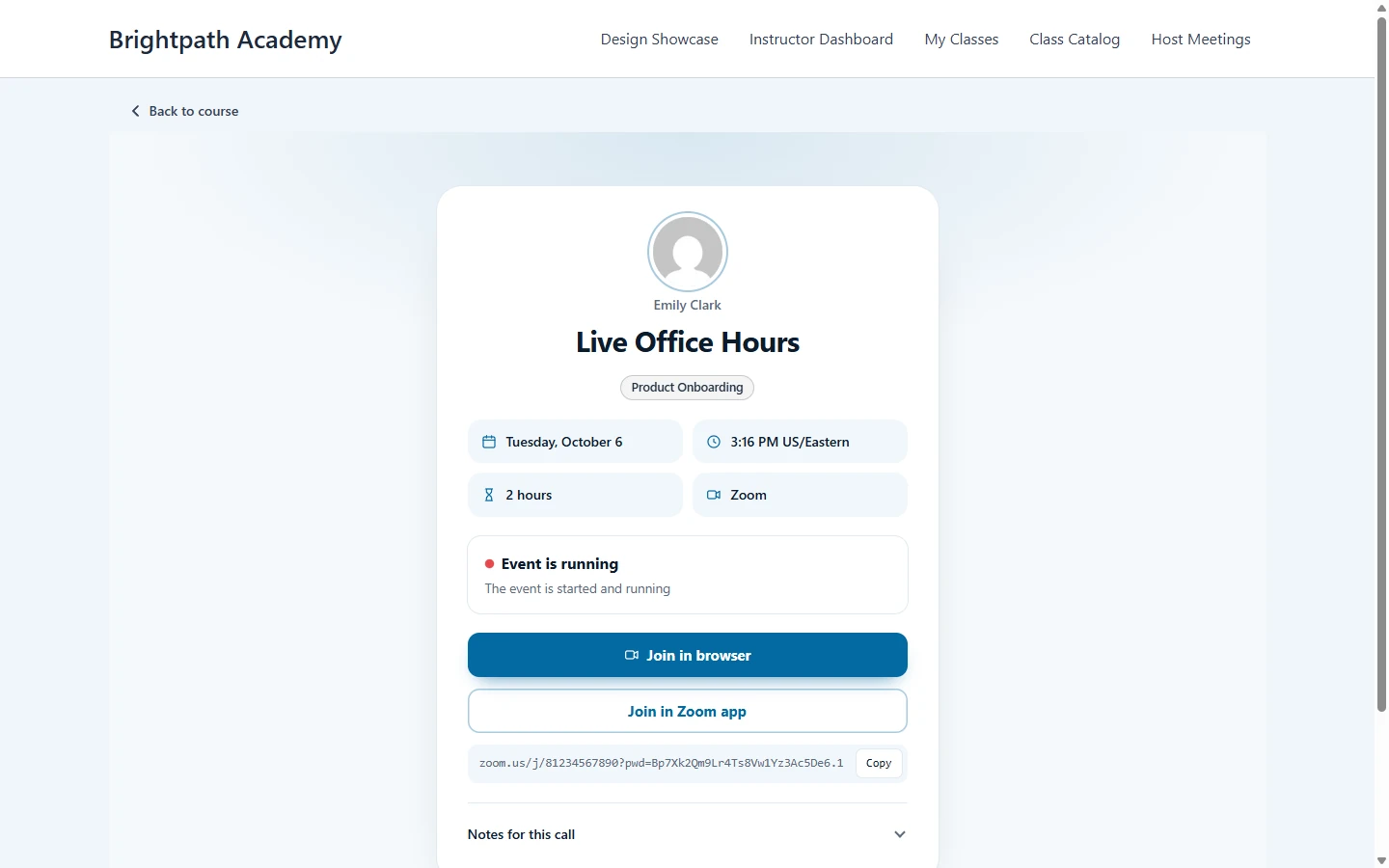
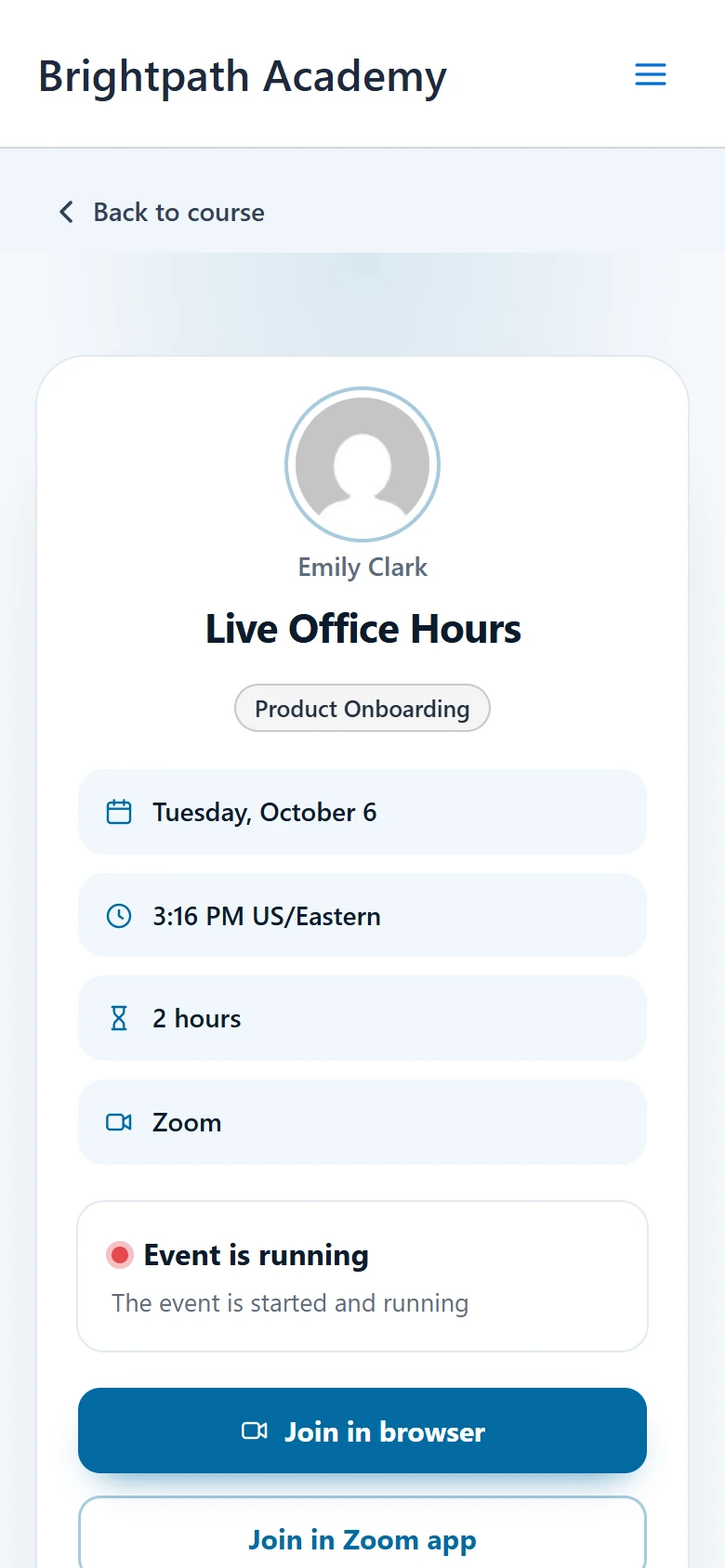
Consult #
Best for one-to-one calls and consultations.
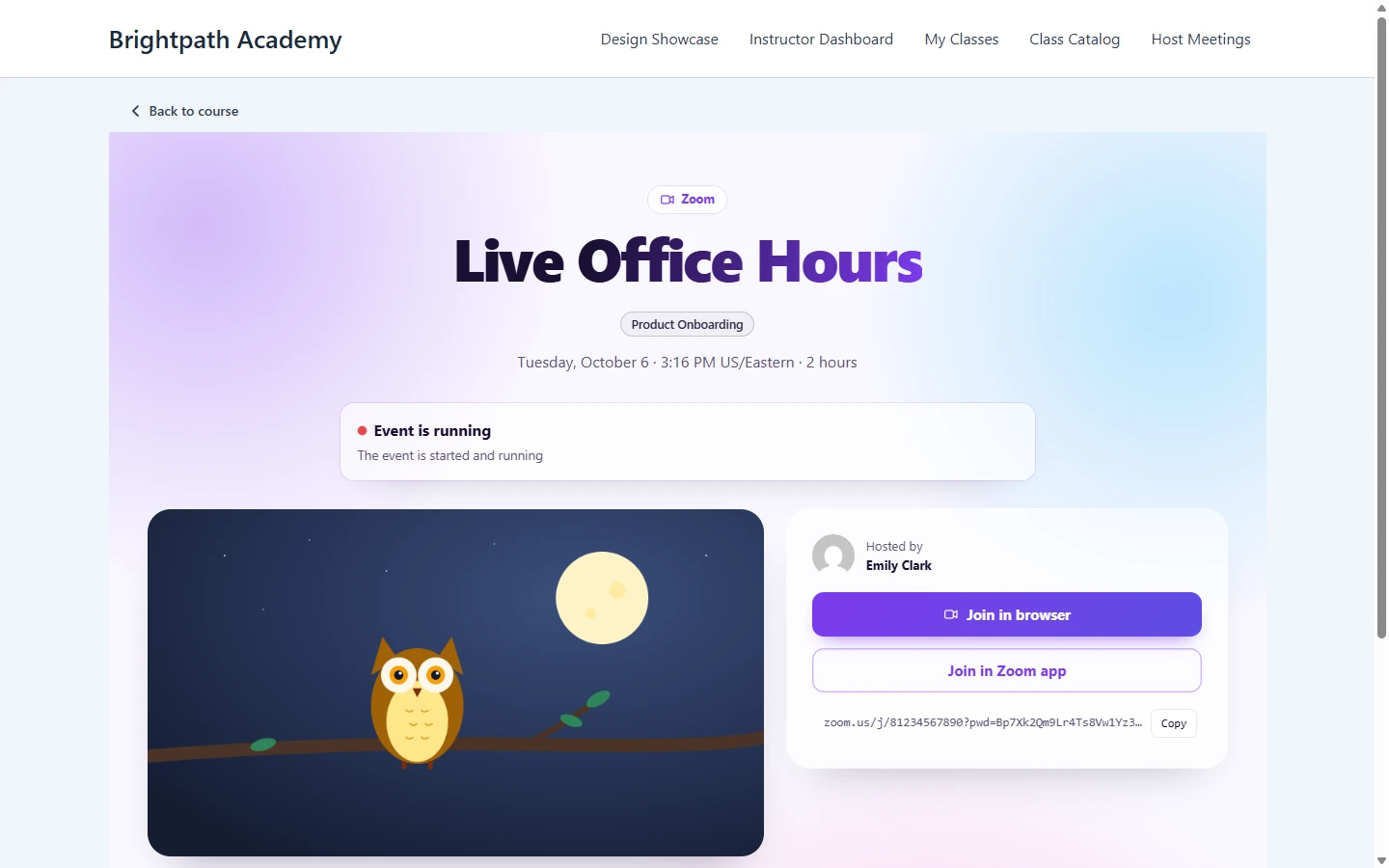
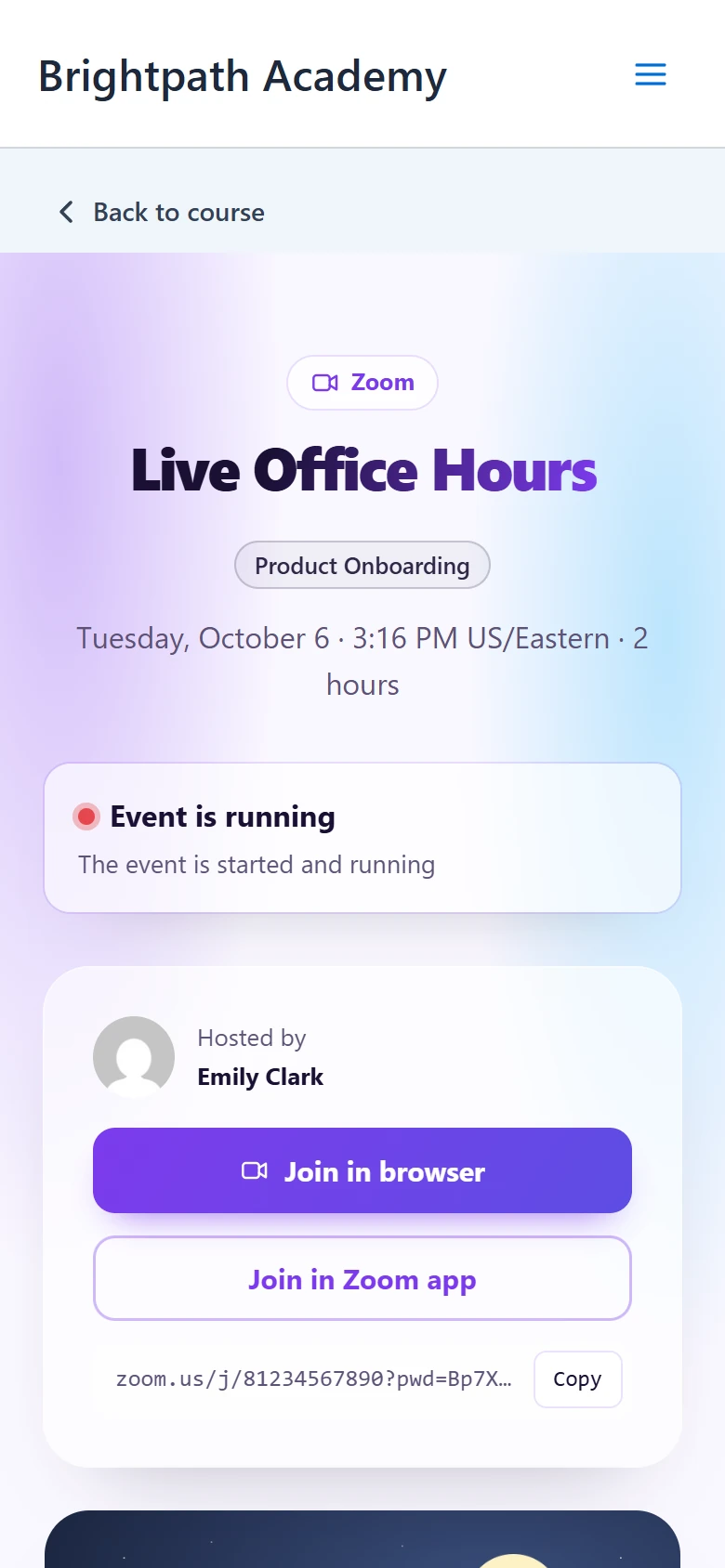
Aurora #
Best for community events and meetups that should feel special.
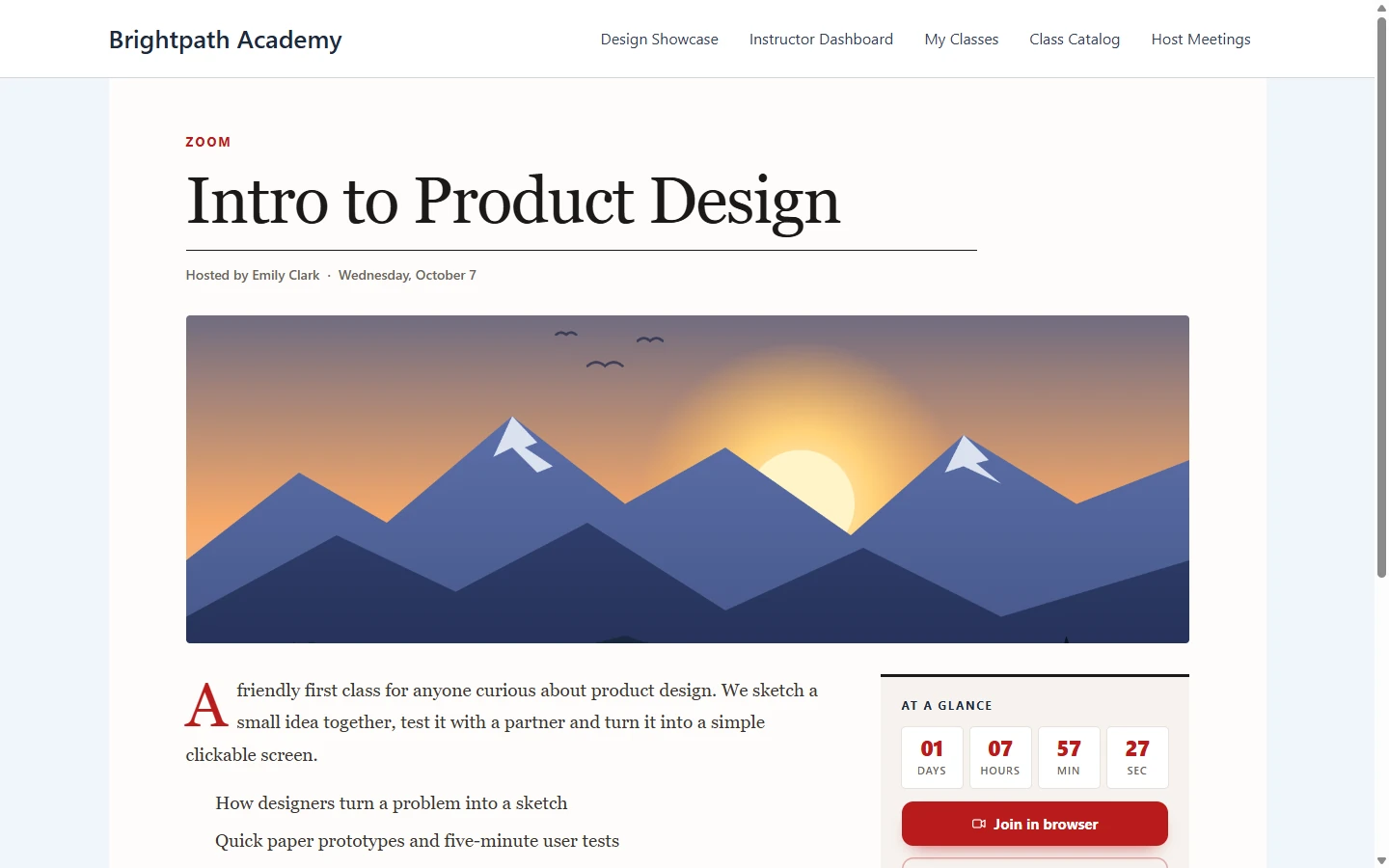
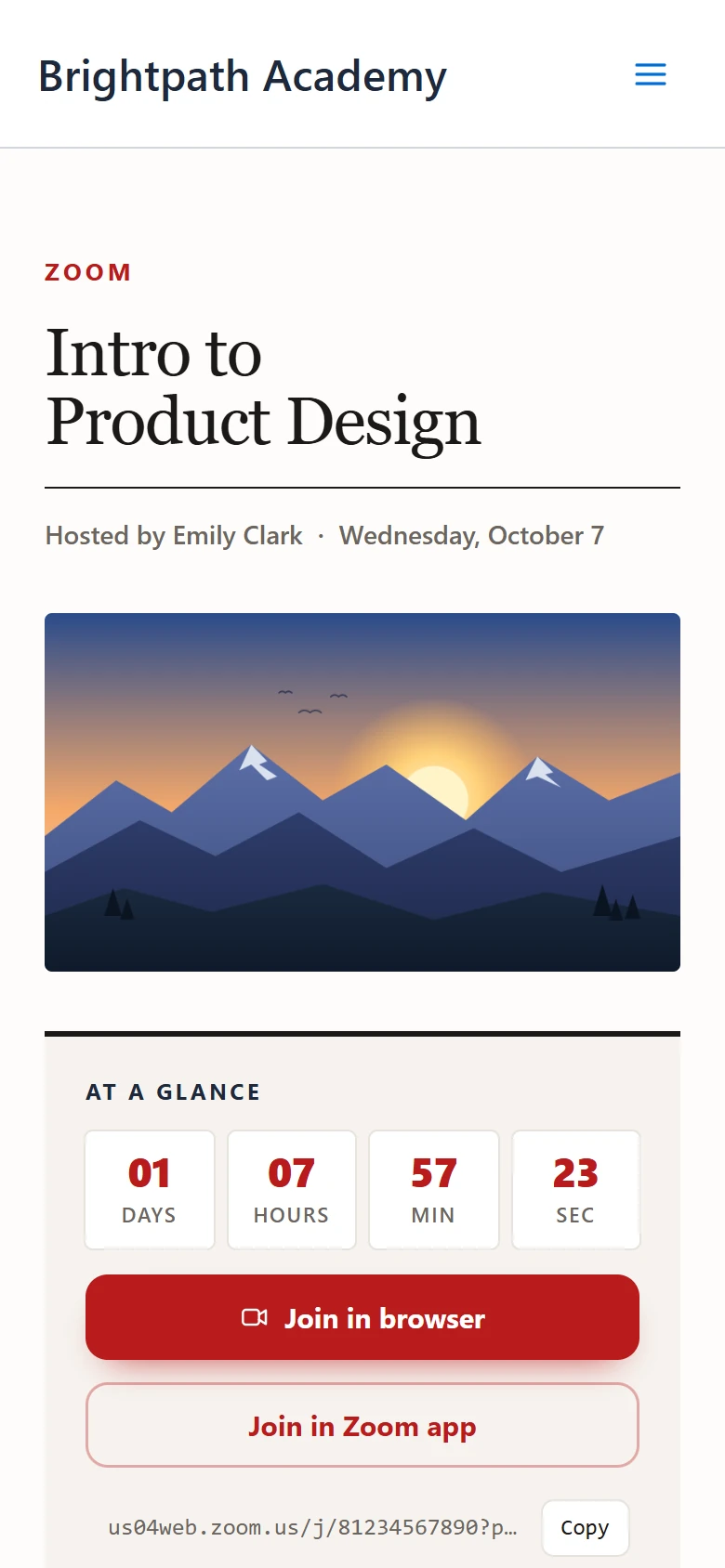
Journal #
Best for meetings with a long description.
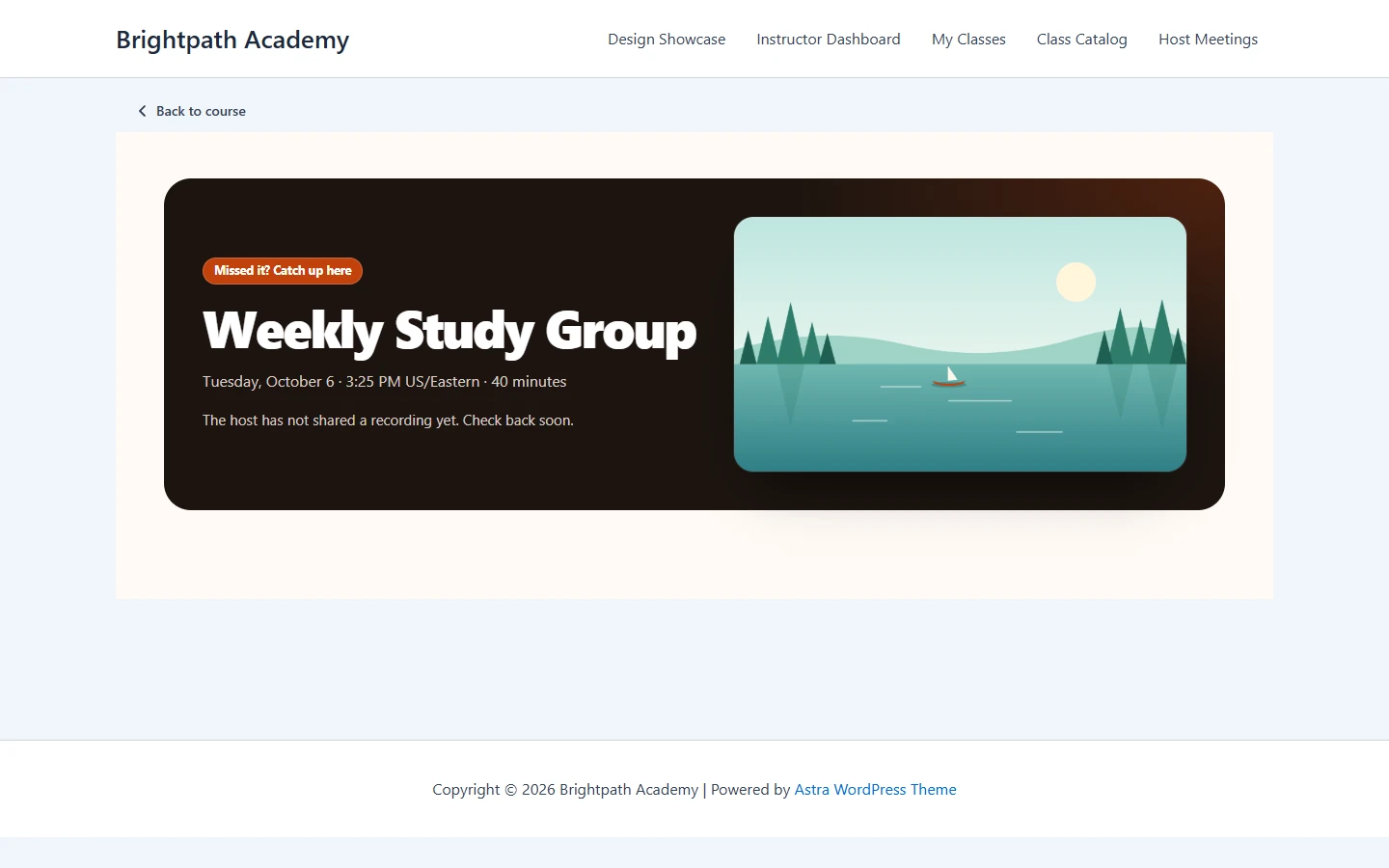
Encore #
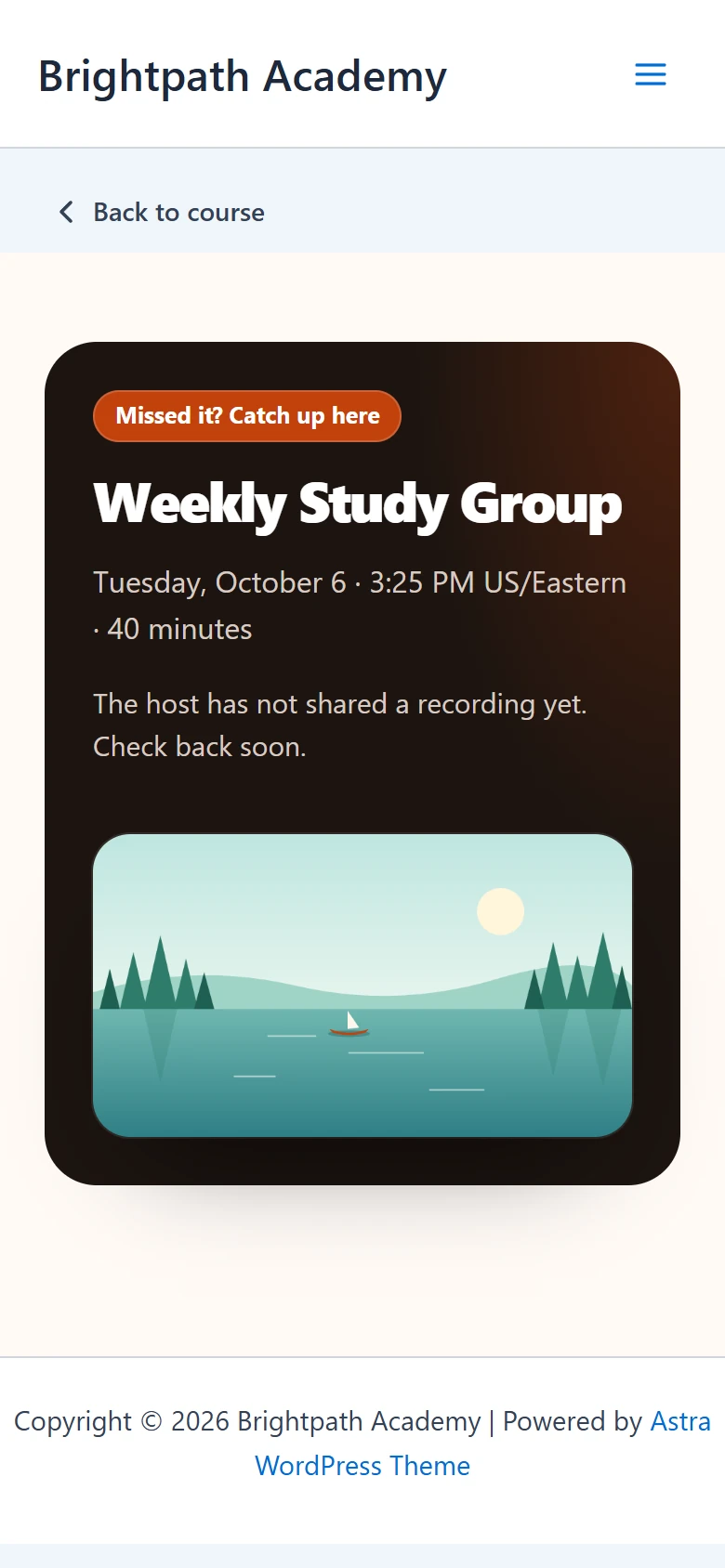
Best for meetings that are over, so visitors can catch up.
Themes on a phone #
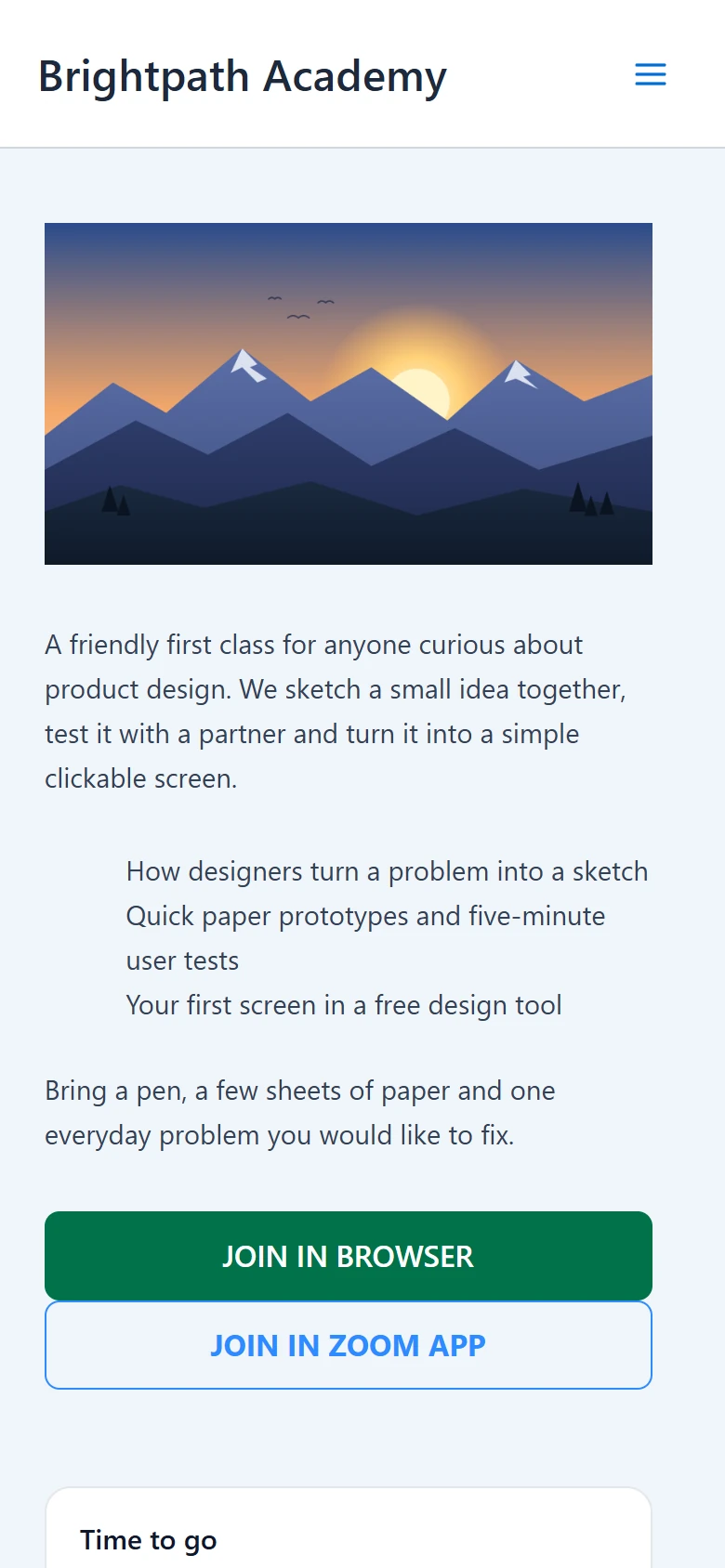
Every theme adapts to small screens. The title, countdown and join buttons stay near the top.
| Classic | Paper | Cover |
|---|---|---|
 |
 |
 |
| Studio | Cadence | Guestlist |
|---|---|---|
 |
 |
 |
| Admit | Lesson | Keynote |
|---|---|---|
 |
 |
 |
| Consult | Aurora | Journal |
|---|---|---|
 |
 |
 |
| Lobby | Encore |
|---|---|
 |
 |
Use a different theme for one meeting #
The site theme keeps every meeting page consistent. Some meetings need their own look, though, such as a launch event or a one-to-one call. You can give a single meeting its own theme while every other meeting keeps the site default.
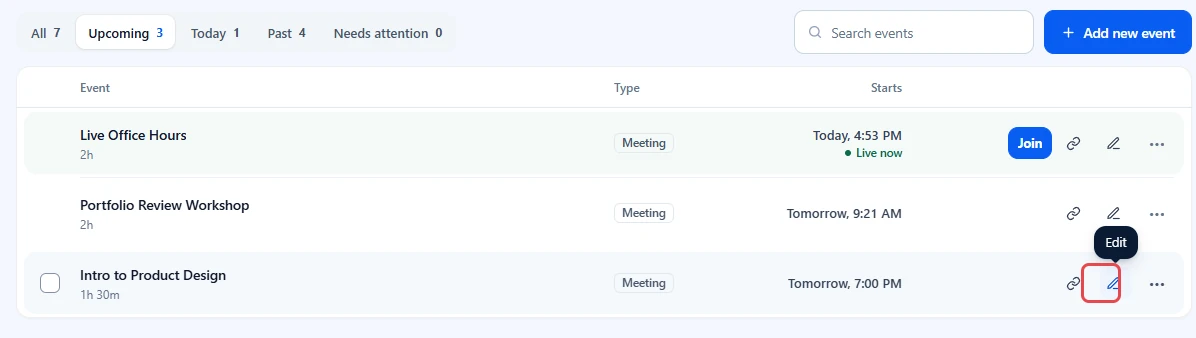
- Go to ZooMeet > All Events, hover over the meeting and click the pencil icon, Edit. For a new meeting, click Add new event.
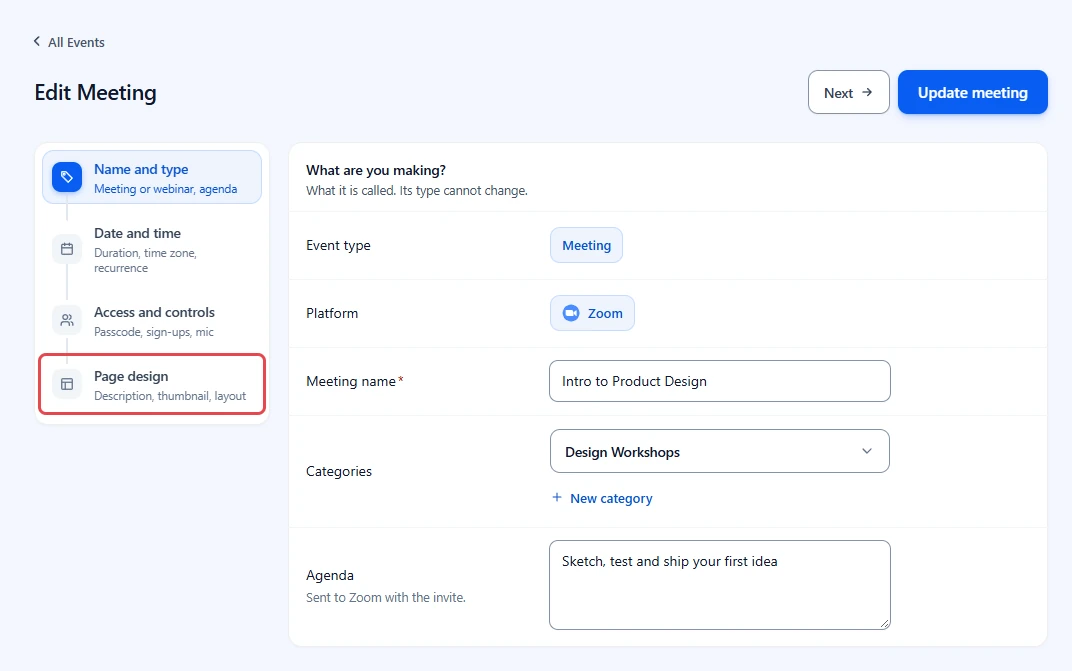
- In the steps on the left, click Page design.
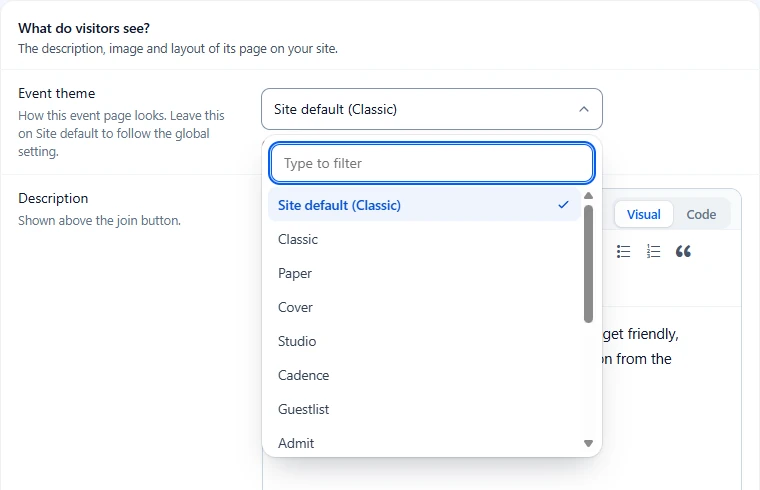
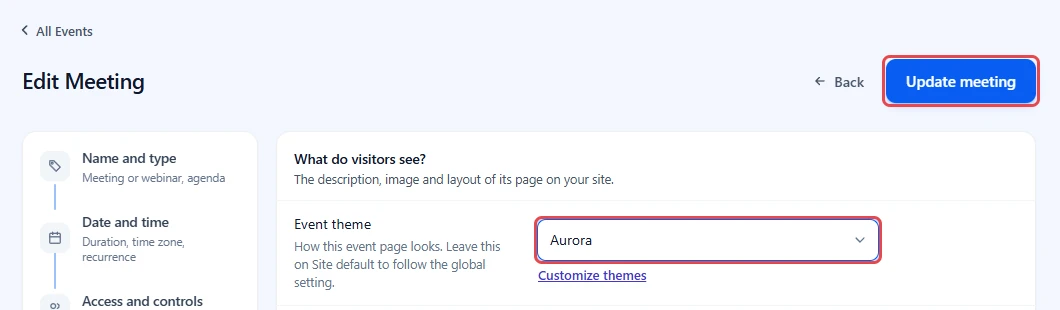
- Click Event theme. The first option, Site default (Classic) in this example, follows the site default theme, whichever one you saved above. Pick any other theme, for example Aurora, to fix this meeting to it. You can type in Type to filter to find a theme fast.
- Click Update meeting, or Create meeting for a new one. Saving also updates the meeting in Zoom, so it can take a few seconds.
Open the meeting page in a private window to see it. The rest of your meetings still use the site default.
Note: A named theme always wins over the site default. If a meeting uses a Pro theme while ZooMeet Pro is inactive, the page falls back to the site default, and to Classic if the site default is a Pro theme too. To switch a meeting back, set Event theme to Site default and click Update meeting.
Benefits of using ZooMeet meeting themes #
- A layout per meeting type: Classes, registrations, paid sessions, one-to-one calls and finished meetings each have a theme built for them.
- One place for the join button: Every page follows the site default, so returning visitors find the button where they expect it.
- Preview on real content: You see the theme on your latest meeting before anyone else does.
- Nothing breaks when you switch: Meetings, Zoom join links and passcodes stay as they are.
Troubleshooting #
I only see Classic and Paper as selectable themes #
The other 12 themes come with ZooMeet Pro. Without Pro, they show with a Pro badge and open the upgrade window when clicked.
Check that:
- ZooMeet Pro is installed and activated under Plugins, with an active license.
- You reloaded the Event themes tab after activating Pro.
A meeting page does not use the theme I saved #
That meeting has its own theme in its Page design step. A meeting’s own choice wins over the site default.
- Edit the meeting and open Page design.
- Set Event theme to Site default.
- Click Update meeting.
The Preview on latest event button is missing #
The button needs at least one published meeting to preview on. Create and publish a meeting, then reload the Event themes tab.
The preview does not show my new brand colour #
The preview applies the selected theme only. Style settings apply after saving. Click Save changes, then reload the meeting page.
Visitors see “For students of this course” instead of the meeting #
The meeting is attached to a course, so only enrolled students can open it. This is access control, not the theme. Log in as an enrolled student, or open a meeting that is not attached to a course, to check the theme.
My theme looks different on one site #
Your WordPress theme can override any ZooMeet design with a file at zmeet/themes/<slug>.php, for example zmeet/themes/aurora.php. Ask your developer whether your theme ships such an override file.
Frequently asked questions #
Does changing the theme change my Zoom meetings? #
No. The theme only changes how the meeting page looks on your site. Meetings, join links and passcodes in Zoom stay the same.
Can each meeting use a different theme? #
Yes. Open the meeting, go to Page design, and pick an Event theme. See Use a different theme for one meeting.
Can I change colours and button shapes too? #
Yes. Use the Style group on the same screen. See How to customize your meeting page style.
What happens to Pro themes if I deactivate ZooMeet Pro? #
Meeting pages that used a Pro theme fall back to the site default, or to Classic when the site default is a Pro theme. Your saved choice comes back when you activate Pro again.
Can visitors see the preview? #
No. The preview link works for administrators only. Visitors always see the saved theme.
You’re ready to choose a meeting theme #
Your meeting pages now share one saved theme, so visitors see the same layout on every meeting link. Next, give a single meeting its own theme, or set colours and layout for all of them.


