- Step 1: Open the Usage Limit Tab
- Step 2: Turn On Usage Limits and Pick a Period
- Step 3: Set the Ceilings for One Person
- Step 4: Choose Who the Limits Apply To
- Step 5: Get an Email When Someone Reaches a Limit (optional)
- Step 6: Save Your Changes
- Step 7: Reset the Counters (optional)
- Step 8: Give One Module Its Own Limits (optional)
- Benefits of Setting Usage Limits
Do you want to stop one visitor from downloading your whole Google Drive library in an afternoon, or keep video streaming from eating up your hosting bandwidth? You can easily do this with DriveHub.
The Usage Limit settings let you cap how many files, ZIPs and megabytes each person can take in a day, a week or a month. You can set limits for the whole site, and then give a single module its own rules.
Here is an easy, step-by-step guide to help you set it all up!
Note: Usage limits need DriveHub Pro.
Step 1: Open the Usage Limit Tab #
- Go to DriveHub > Settings from your WP-Admin.
- Click on Usage Limit in the settings menu (under Access).
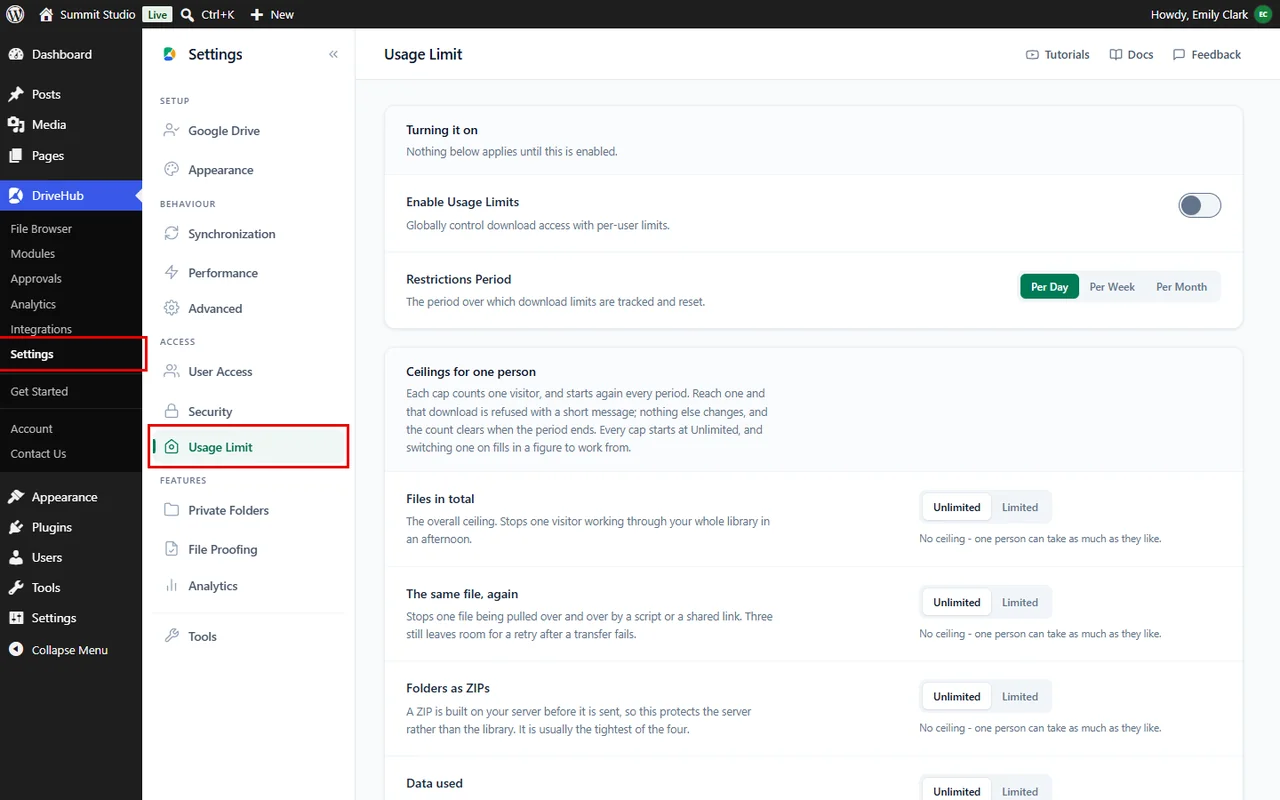
You will see four groups: Turning it on, Ceilings for one person, Who it applies to and Alerts and reset.
Step 2: Turn On Usage Limits and Pick a Period #
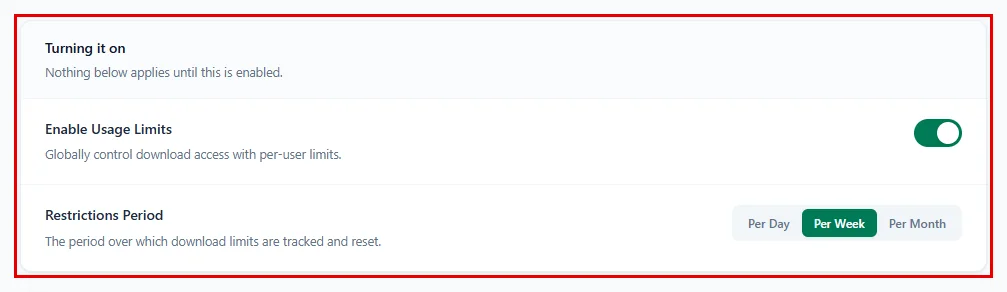
Nothing on this tab works until you switch it on:
- Turn on Enable Usage Limits.
- In Restrictions Period, choose Per Day, Per Week or Per Month. This is how long DriveHub counts before every counter starts again.
Step 3: Set the Ceilings for One Person #
Every limit counts one visitor and starts at Unlimited. To set a limit, click Limited on that row. DriveHub fills in a sensible number for your period, and you can type your own:
- Files in total: the most files one person can download in the period (for example, 50 a day).
- The same file, again: how many times one person can download the same file. Three still leaves room for a retry if a download fails.
- Folders as ZIPs: how many folders one person can download as a ZIP. ZIPs are built on your server first, so this protects your hosting.
- Data used: the most data one person can download or play, in MB. Videos watched on the page count too. 1024 MB is 1 GB.
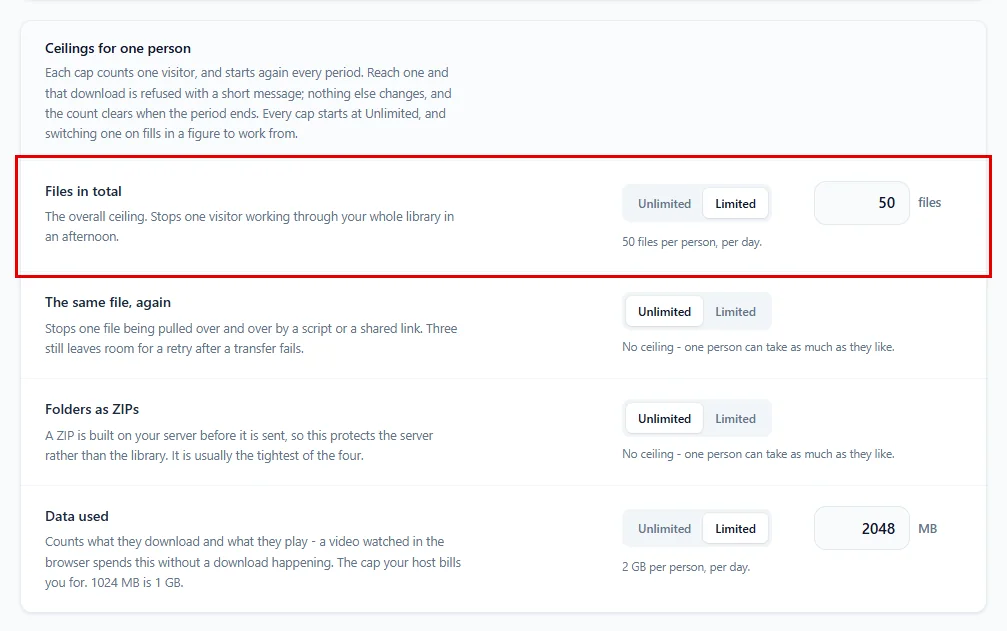
The line under each row tells you the rule in plain words, for example “50 files per person, per day.” Click Unlimited again to remove a limit.
Step 4: Choose Who the Limits Apply To #
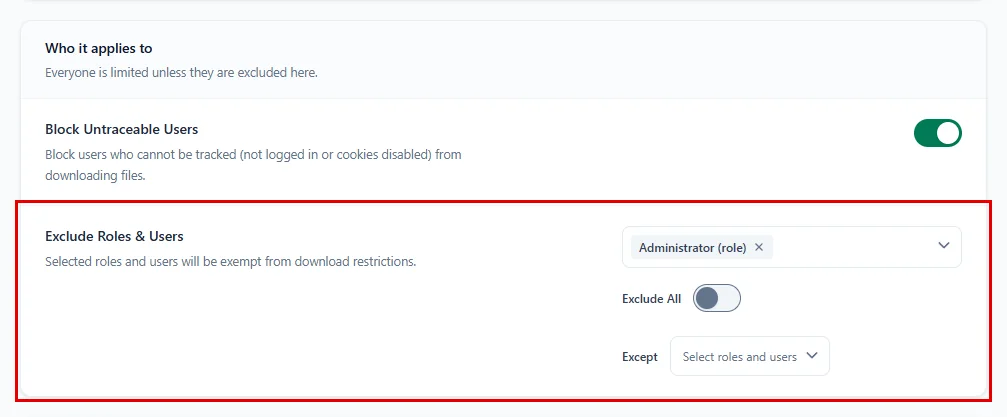
Everyone is limited unless you leave them out here:
- Turn on Block Untraceable Users to stop downloads from people DriveHub cannot count (logged-out visitors, or anyone with cookies turned off).
- In Exclude Roles & Users, pick the roles or users who never get limited, for example Administrator and Editor.
- Or turn on Exclude All to leave everyone out, and then pick the only people who should be limited in Except.
Step 5: Get an Email When Someone Reaches a Limit (optional) #
- Turn on Email Notification.
- In Notification Recipients, type one or more email addresses, separated by commas (for example,
[email protected]). - Click Available dynamic tags to add %admin_email% (your site admin), %user_email% or %linked_user_email% with one click.
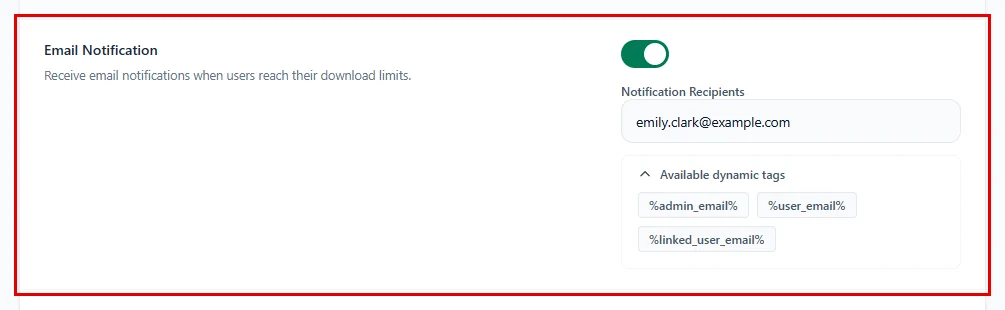
DriveHub sends at most one email a day for each person and each kind of limit, so your inbox stays calm. Emails are sent for logged-in users only.
Step 6: Save Your Changes #
- Click on Save changes in the bar at the bottom of the screen.

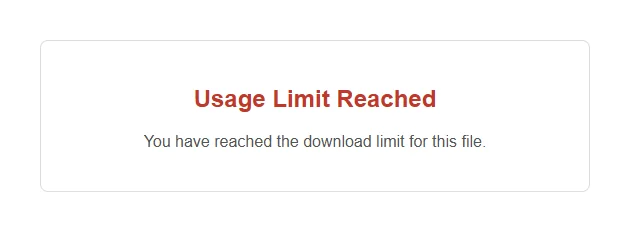
When someone reaches a limit, their download stops and they see a short Usage Limit Reached message, such as “You have reached the download limit for this period.” or “You have reached the download limit for this file.” Everything else on the page keeps working.
Step 7: Reset the Counters (optional) #
Want to give everyone a fresh start, for example after you raised a limit?
- In Alerts and reset, click on Reset next to Reset Usage Limits.
- Click Yes, Reset to confirm.
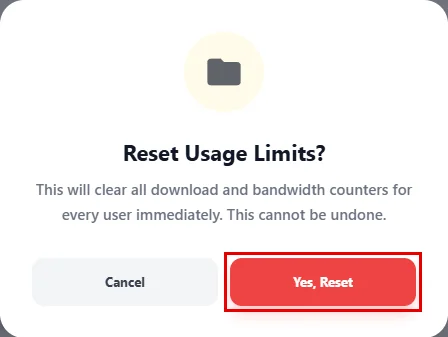
This clears every download and bandwidth counter for all users straight away, and it cannot be undone. Your limit settings stay as they are.
Step 8: Give One Module Its Own Limits (optional) #
Do you want tighter rules on one page only, like a client download area? Each module can have its own limits:
- Go to DriveHub > Modules and open the module you want to change.
- Click on the Permissions tab.
- Turn on Usage Limits.

Now set the rules for this module:
- Choose a Restrictions Period: Per Day, Per Week or Per Month.
- Fill in Download Limits, Download Limits per File, ZIP Download Limits and Bandwidth Limits (in MB). Leave a box empty for no limit.
- In Exclude Users & Roles, pick who is never limited, or turn on Exclude All and pick the people to limit in Except.
- To limit only certain roles or users on this module, pick them in Exclude Limit to Users & Roles. Everyone else is then left out.
- Click Save changes in the module builder.
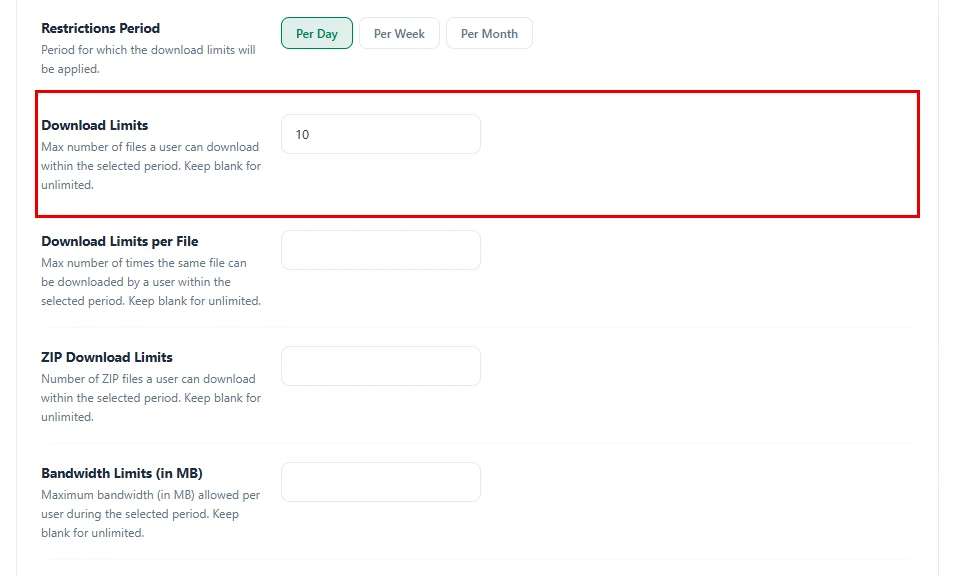
The module’s own numbers replace the site-wide ones on that module. Any box you leave empty keeps the value from Settings > Usage Limit.
Benefits of Setting Usage Limits #
- Protect your library: Stop one person or a script from downloading everything.
- Keep hosting costs down: Cap data and ZIP downloads, which use the most server power.
- Fair for everyone: Each visitor gets the same allowance, and it resets by itself.
- Flexible rules: Leave out your team, and set tighter limits on a single module.
- Stay informed: Get an email when someone reaches a limit.
With DriveHub, sharing your Google Drive files stays generous for real visitors and safe for your site.


