- Before you begin
- Step 1: Open Live Meetings
- Step 2: Choose the host
- Step 3: Pick which meetings to show
- Step 4: Refresh the list
- Step 5: Use the row actions
- Step 6: Work with several meetings at once
- Step 7: Delete meetings from Zoom
- Benefits of Live Meetings
- Troubleshooting
- Frequently asked questions
- You're ready to manage your Zoom meetings
Live Meetings shows the meetings on your Zoom account, read straight from Zoom. It lists every meeting a host has, including ones created in the Zoom app or by a colleague, not only the ones you made in WordPress.
Use it to see what is scheduled, copy a join link, start a meeting, bring a Zoom meeting onto your site, or clean up old meetings, without opening the Zoom web portal.
By the end of this guide, you will have:
- The Live Meetings screen open for any host on your Zoom account
- Meetings filtered by Upcoming, Scheduled, Live or Past
- A join link copied, or a meeting started in Zoom, from its row
- A Zoom meeting imported as a meeting page on your site
- Meetings you no longer need deleted from Zoom, one at a time or in bulk
Estimated setup time: 3 minutes. Looking at the list changes nothing. Only Delete from Zoom changes your Zoom account, and it always asks first.
Before you begin #
Make sure you have:
- ZooMeet installed and activated, with Zoom connected. See How to connect Zoom with ZooMeet using Server-to-Server OAuth.
- An administrator account on your WordPress site
Live Meetings is part of the free plugin.
Step 1: Open Live Meetings #
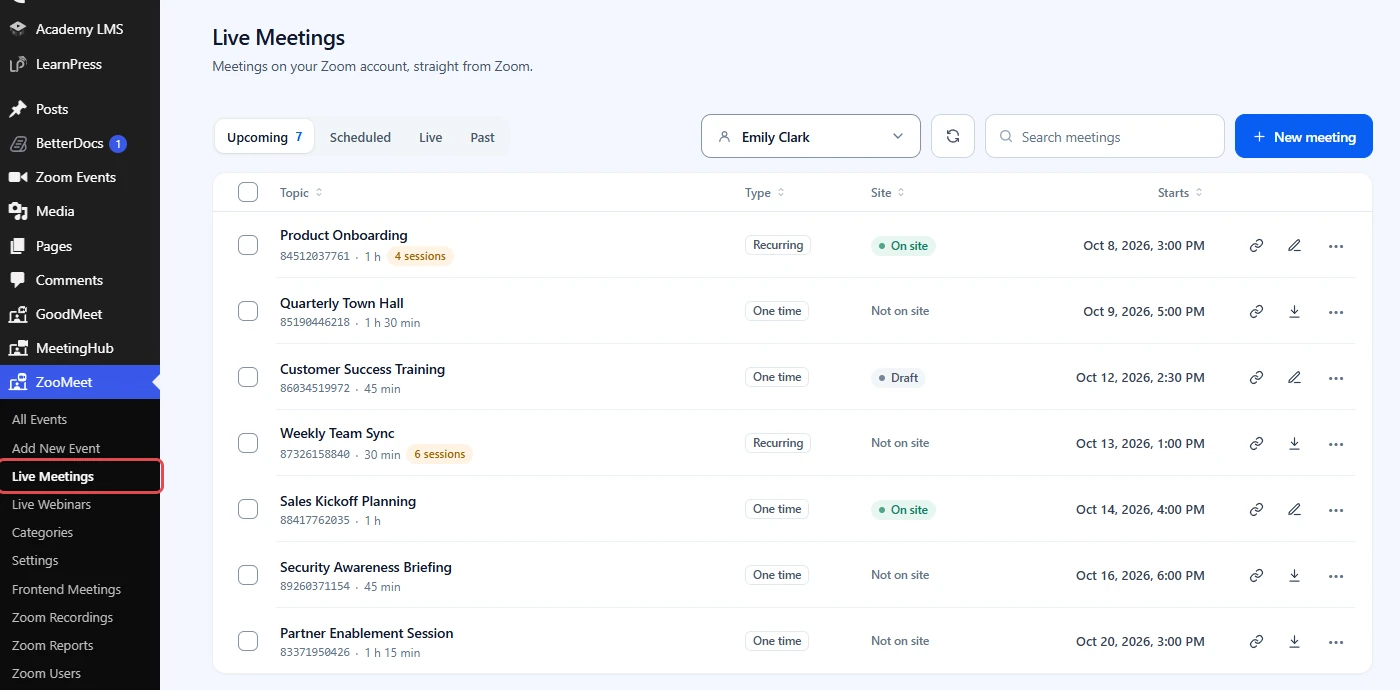
The Live Meetings item appears in the ZooMeet menu once Zoom is connected.
- In the WordPress admin menu, go to ZooMeet > Live Meetings.
- Check the heading Live Meetings and the line Meetings on your Zoom account, straight from Zoom.
Step 2: Choose the host #
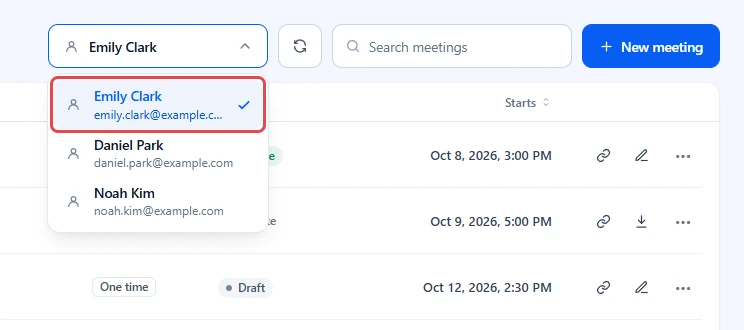
Every Zoom meeting belongs to a host. The list shows one host at a time.
- Click the host picker at the top right. It shows the name of the current host.
- Pick the Zoom user whose meetings you want to see.
Tip: If a host is missing, add them first on ZooMeet > Zoom Users. See How to manage Zoom users and hosts with ZooMeet.
Step 3: Pick which meetings to show #
The tabs on the left decide which meetings Zoom sends back. The open tab shows a count.
- Click Upcoming for meetings that have not happened yet. This is where the screen opens.
- Click Scheduled for every meeting with a set time that has not expired, including recurring meetings.
- Click Live for meetings running right now.
- Click Past for meetings that have already ended.
- Type in Search meetings to find a meeting by topic or Zoom ID.
- Click Topic, Type, Site or Starts to sort by that column. Click again to reverse the order.
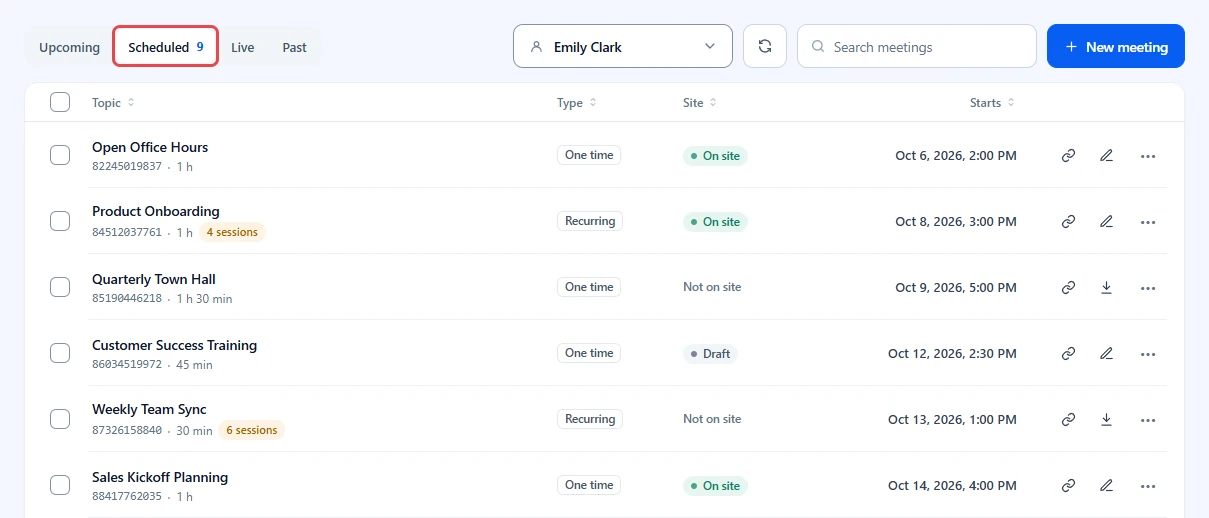
Here is what each column tells you:
- Type: One time, Recurring, No fixed time or Instant.
- Under the topic: the Zoom meeting ID, the length and, for recurring meetings, the number of sessions.
- Site: On site when the meeting already has a page on your site, Draft when that page is a draft, and Not on site when it lives only in Zoom.
- Starts: the start date and time in your site’s time zone. Meetings with no fixed time show Any time.
The list shows 20 meetings per page. Use Previous and Next at the bottom to move between pages.
Step 4: Refresh the list #
ZooMeet keeps the list for 5 minutes so the screen opens fast and Zoom is not asked again on every visit. A meeting you just made in the Zoom app may not show yet.
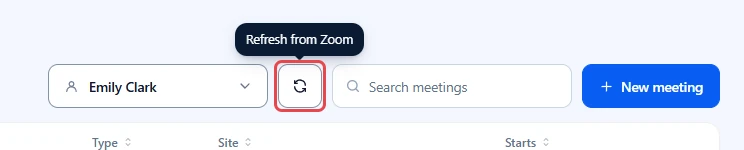
- Click the round arrow next to the host picker. Its tooltip reads Refresh from Zoom.
- Wait a moment while ZooMeet reads the list again.
Note: Importing or deleting from this screen refreshes the list for you.
Step 5: Use the row actions #
Hover over a row to see its actions. Two buttons sit on the row, and the rest are in a menu.
- Click the chain icon to copy the meeting’s join link. You see Join link copied.
- Click the pencil icon to open the meeting in ZooMeet’s edit form. It shows only when the meeting is already on your site.
- Click the import icon to bring the meeting onto your site. It shows only when the meeting is Not on site.
- Click More actions (•••) for the rest.
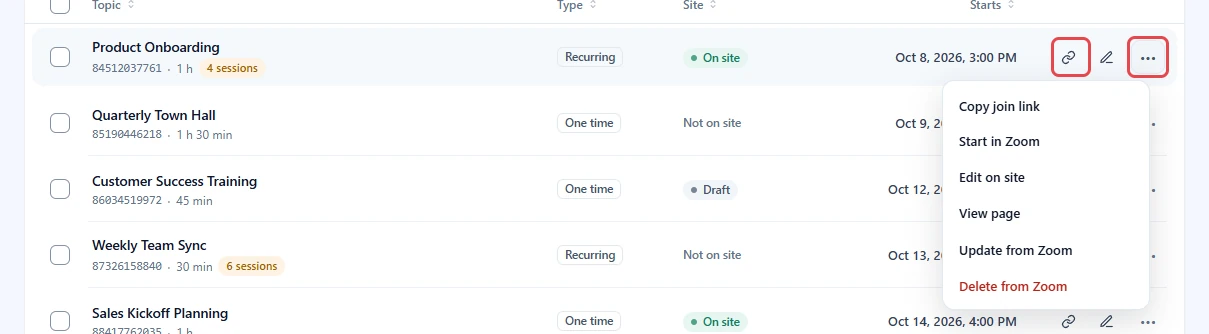
The More actions menu can show:
- Copy join link: the link attendees use.
- Start in Zoom: opens Zoom in a new tab. Sign in to Zoom as the host to start the meeting.
- Edit on site: opens the meeting page’s settings in ZooMeet.
- View page: opens the published meeting page.
- Update from Zoom: copies the latest topic, time, length and settings from Zoom onto the page on your site. Use it after someone changed the meeting in the Zoom app.
- Import to site: creates a meeting page for this Zoom meeting.
- Delete from Zoom: removes the meeting from your Zoom account. See Step 7.
Note: Import to site from this screen publishes the meeting page with no categories. To import as a draft or with categories, use ZooMeet > Import. See How to import meetings and webinars from Zoom with ZooMeet.
Step 6: Work with several meetings at once #
- Tick the box at the start of each row you want. To pick every meeting on the page, tick the box in the header.
- Read the bar that appears: it shows how many are selected.
- Click Import to site to bring every selected meeting that is not on your site yet onto it.
- Or click Delete from Zoom to delete every selected meeting. See Step 7.
- Click Clear to unselect them all.
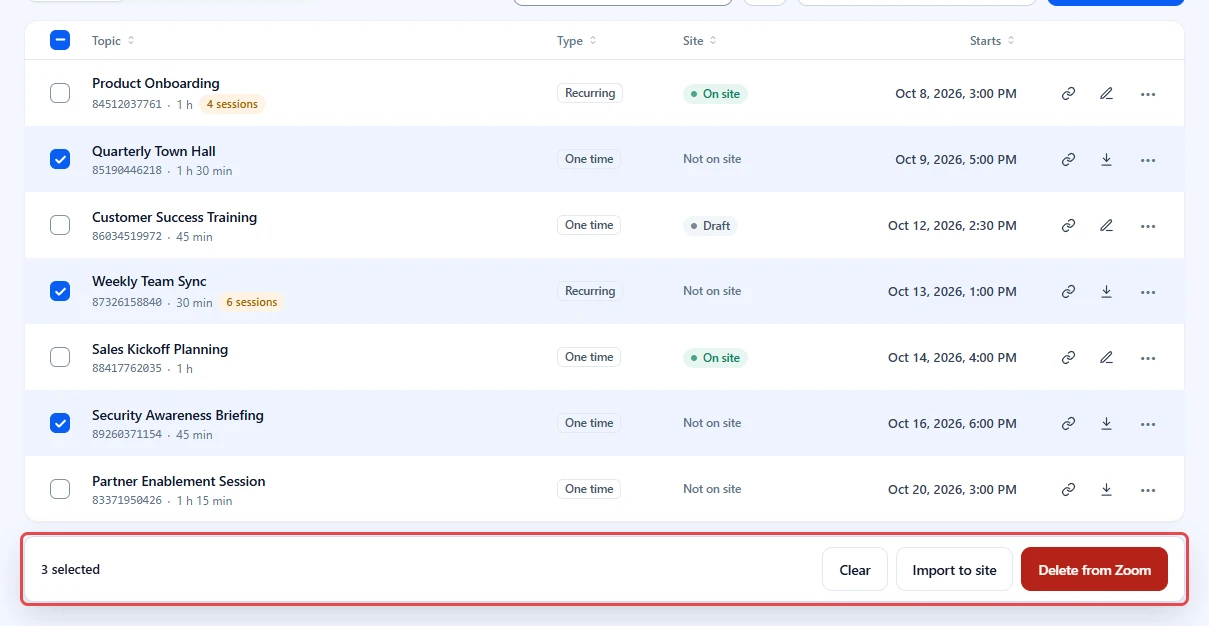
When the import finishes, a message sums it up, for example 2 imported, 1 already on site.
Step 7: Delete meetings from Zoom #
Delete a meeting when it was made by mistake or will not happen. This removes it from your Zoom account, so the join link stops working.
- Click More actions (•••) on the row, then Delete from Zoom. For several meetings, use the bulk bar.
- Read Delete from Zoom? The dialog names the meeting and says This cannot be undone.
- If the meeting also has a page on your site, a box reads Also move the WordPress page to the trash. It is off by default. Tick it if the page should go too.
- Click Delete from Zoom to confirm, or Keep to cancel.
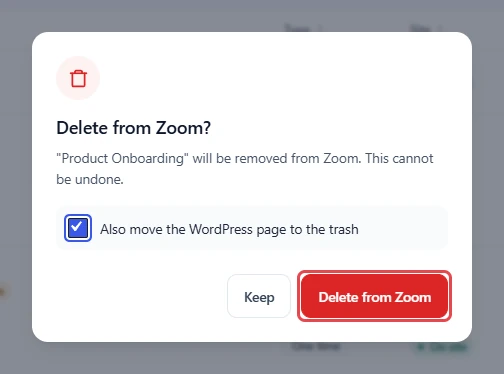
You see what Zoom answered, for example 1 deleted on Zoom. If Zoom refuses, its own reason is shown instead, and the meeting stays in the list.
Important: Deleting a recurring meeting removes every session. Attendees who saved the old link can no longer join.
Benefits of Live Meetings #
- One view of your Zoom account: See meetings made anywhere, not only in WordPress.
- Fast everyday actions: Copy a join link or start a meeting in two clicks.
- Clear status: On site, Draft and Not on site show at a glance what your visitors can see.
- Safe clean-up: Every delete asks first and reports Zoom’s real answer.
Troubleshooting #
“Connect Zoom to see what is on your account.” #
Zoom is not connected. Click Connect Zoom and follow How to connect Zoom with ZooMeet using Server-to-Server OAuth.
“No meetings here” #
The host has no meetings of that type. Try another tab or host, or click New meeting to create one.
A meeting I just made in Zoom is missing #
The list is kept for 5 minutes. Click Refresh from Zoom.
“Zoom is limiting requests right now. Try again in a minute.” #
Zoom limits how often an account can ask for data. Wait a minute, then click Refresh from Zoom.
“Showing the first 3,000. Pick a narrower type to see the rest.” #
The host has more than 3,000 meetings of that type. Pick Upcoming or Live to see a shorter list.
Delete failed #
Zoom refused the delete, and the message shows its reason. The meeting may already be gone, or the Zoom app may lack the scope to delete meetings. Check the scopes in How to connect Zoom with ZooMeet using Server-to-Server OAuth, or turn on API logs to see Zoom’s full answer.
Frequently asked questions #
Do I need ZooMeet Pro for Live Meetings? #
No. Live Meetings is part of the free plugin.
Can I edit a Zoom meeting here? #
No. Import it first, then edit it on your site with Edit on site. ZooMeet updates Zoom when you save.
Does deleting from Zoom delete the page on my site? #
No, not unless you tick Also move the WordPress page to the trash. Even then the page goes to the trash, so you can restore it.
Why does a recurring meeting show only once? #
Zoom sends one row per session. ZooMeet groups them into one row and shows the number of sessions under the topic.
Can attendees see this screen? #
No. Only administrators see Live Meetings.
You’re ready to manage your Zoom meetings #
You can now see every meeting on your Zoom account, copy links, start meetings, import them as pages and clean up the ones you no longer need. Next, import meetings in bulk with categories, or see the webinars on your account.


