- Before you begin
- All MeetingHub meeting shortcodes
- Step 1: Open the Shortcodes tab
- Step 2: Preview and copy a list shortcode
- Step 3: Copy the shortcode for one meeting
- Step 4: Paste the shortcode on a page
- Step 5: Choose what the shortcode shows
- Step 6: Add the MeetingHub Event block (block editor)
- Step 7: Add the MeetingHub Event widget (Elementor)
- Insert a meeting from the Classic Editor (optional)
- Step 8: Embed a meeting on another site (optional)
- What visitors see
- Benefits of MeetingHub shortcodes, blocks and widgets
- Troubleshooting
- Frequently asked questions
- You're ready to put meetings on any page
To show meetings on any WordPress page with MeetingHub, copy a shortcode from MeetingHub > Meeting setup > Shortcodes (or from a meeting’s row in All Events) and paste it into a page, or add the MeetingHub Event block in the block editor or the MeetingHub Event widget in Elementor. Visitors then see a list of upcoming meetings, or one meeting as a card or a full page, wherever you put it.
That lets you build a “Live classes” page, add a meeting to a course lesson, or feature next week’s webinar on your home page, without copying links by hand.
By the end of this guide, you will have:
- A list of upcoming meetings on a page of your site
- One meeting shown as a card or a full page with its join button
- The MeetingHub Event block or Elementor widget added to a page
- The shortcode options that change what a list or card shows
Estimated setup time: 5 minutes per page. Shortcodes never change your meetings; removing one only removes it from that page.
Before you begin #
Make sure you have:
- MeetingHub installed and activated.
- At least one published meeting. See How to create your first online meeting in WordPress with MeetingHub.
- Permission to edit pages on your site.
- Elementor installed, only if you build pages with Elementor.
All MeetingHub meeting shortcodes #
| Shortcode | What it shows |
|---|---|
[mhub-jitsi-meeting-list], [mhub-zoom-meeting-list], [mhub-zoom-webinar-list], [mhub-google-meeting-list], [mhub-msteams-meeting-list], [mhub-webex-meeting-list] |
A list of that platform’s meetings (or Zoom webinars) |
[mhub-jitsi-meeting id="…"], [mhub-zoom-meeting id="…"], [mhub-zoom-webinar id="…"], [mhub-google-meeting id="…"], [mhub-msteams-meeting id="…"], [mhub-webex-meeting id="…"] |
One meeting or webinar |
[mhub-msteams-upcoming] |
Upcoming Microsoft Teams meetings |
[mhub-my-meetings] |
A signed-in member’s own upcoming meetings and bookings, each with a Join button |
Recording shortcodes are covered in How to share Zoom cloud recordings on your site, and the front-end host page in How to let hosts create meetings from the front end in WordPress.
Step 1: Open the Shortcodes tab #
- Go to MeetingHub > Meeting setup.
- Click the Shortcodes tab.
- Pick a platform in the list on the left, for example Zoom.
Each card shows the shortcode’s name, what it does, the code, and how many Parameters it takes.

Step 2: Preview and copy a list shortcode #
- Click Preview on a card to see a small drawing of what the shortcode puts on a page. Click Hide to close it.
- Click Parameters to read the options it takes.
- Click Copy.

A list shortcode looks like this:
[mhub-zoom-meeting-list available="true"]
Your actual shortcode may look different. Always copy it from your own MeetingHub settings.
Step 3: Copy the shortcode for one meeting #
- Go to MeetingHub > All Events.
- Hover over the meeting, click More actions (•••), then Copy shortcode.
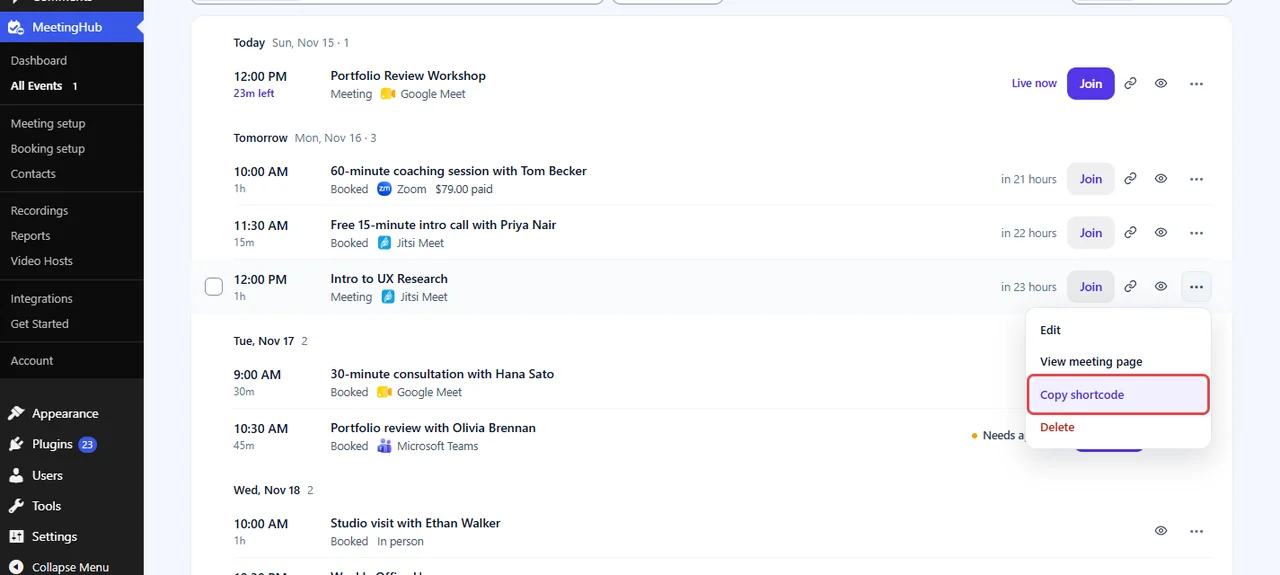
The code carries the meeting’s ID and the platform’s tag, for example:
[mhub-jitsi-meeting id="1234" hide_details="no" hide_timer="no" hide_calendar="no" /]
Step 4: Paste the shortcode on a page #
- Open the page in the WordPress editor, or create a new one under Pages > Add New Page.
- Add a Shortcode block and paste the code.
- Click Publish, or Save for an existing page.

Shortcodes also work in widgets and in any page builder that accepts a shortcode. In Bricks Builder, add a Shortcode element and paste any MeetingHub shortcode into it.
Step 5: Choose what the shortcode shows #
Add options inside the brackets to change the output.
On a list:
available="true"(or"yes") lists only meetings that have not started yet.category="workshops"lists only meetings in that category. Separate several slugs with commas.view="rows"orview="cards"prints the list as rows or a card grid in your meeting page design, instead of a table. Requires MeetingHub Pro.limit="6"sets how many rows or cards show withview: 20 by default, 50 at most.
[mhub-google-meeting-list view="cards" available="yes" limit="6"]
On one meeting:
hide_details="yes"hides the details box andhide_timer="yes"hides the countdown. With MeetingHub Pro,hide_calendar="yes"hides the calendar box.size="card"orsize="compact"shows the meeting as a card instead of its full page. The card’s button opens the meeting page, where guests join.show="date,join"picks the card’s parts fromcountdown,date,descriptionandjoin. All four show by default.look="launch"gives this one card another theme, here the Webinar theme. Requires MeetingHub Pro.
[mhub-zoom-webinar id="1234" size="card" show="countdown,date,join"]
On [mhub-my-meetings]: limit (5 by default), include="sessions" or include="bookings" to show one kind, layout="next" to show only the next one, and empty for your own text when nothing is coming up.
Step 6: Add the MeetingHub Event block (block editor) #
The block shows one meeting or webinar from any platform, without a shortcode.
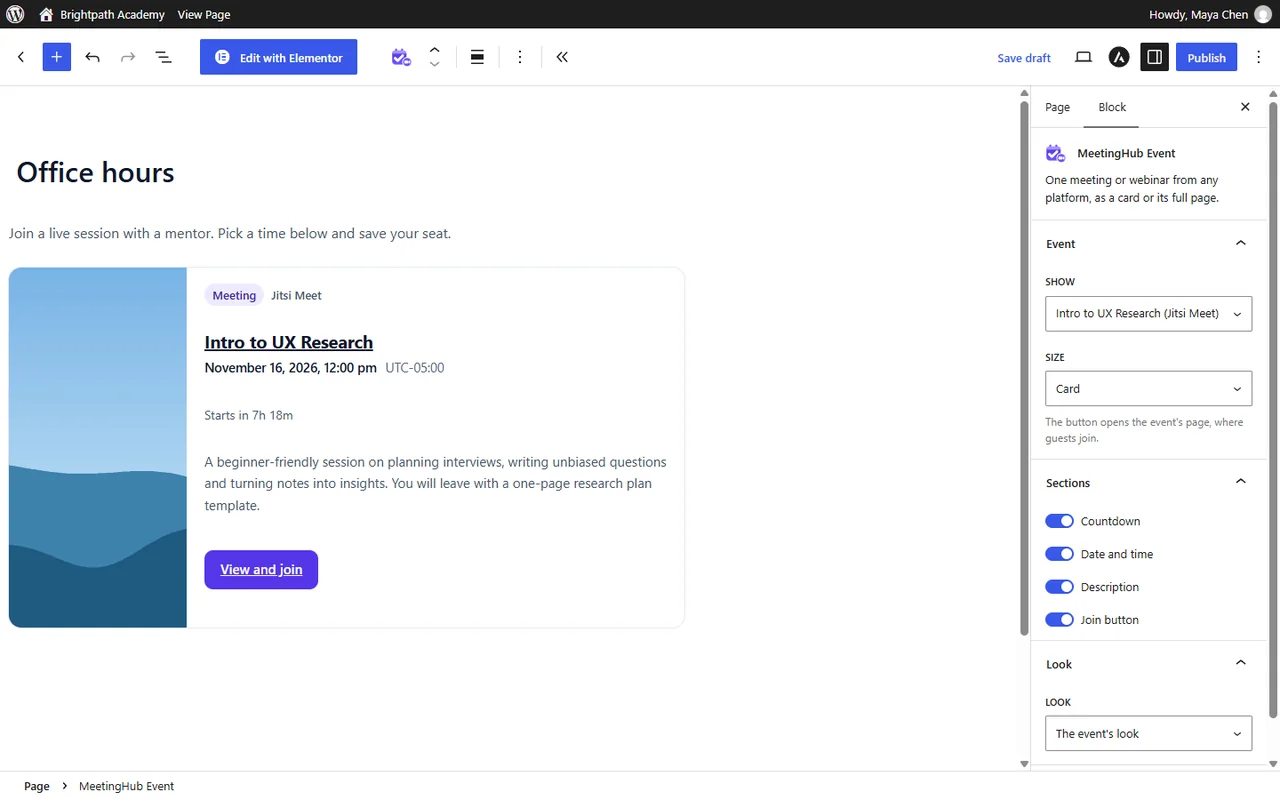
- In the block editor, click + and search for
MeetingHub Event. It sits in the Embed group. - Pick the meeting in Event on the block itself, or later in the block settings under Event > Show.
- Under Size, choose Card, Compact or Full page. Full page shows the meeting’s whole content with its join buttons.
- Under Sections, choose what the card shows: Countdown, Date and time, Description and Join button.
- Under Look, the card uses The event’s look. With MeetingHub Pro you can pick another theme for this block.
- Click Save or Publish.
The older single-platform blocks (Jitsi Meet (MeetingHub), Zoom Direct Meeting or Webinar (MeetingHub), Webex (MeetingHub) and Google Meet (MeetingHub)) still work on pages that use them.
Step 7: Add the MeetingHub Event widget (Elementor) #
- Open the page with Edit with Elementor.
- In the widget panel, find the MeetingHub Widgets group and drag MeetingHub Event onto the page.
- In the Event section of the widget’s Content tab, pick the meeting in Show and choose a Size.
- Open Sections and Look to choose what the card shows and how it looks, the same way as the block.
- Click Publish or Update.

The older platform widgets (Jitsi Meet (MeetingHub), Webex (MeetingHub), Zoom Direct Meetings & Webinars (MeetingHub), Google Meet (MeetingHub) and Microsoft Teams (MeetingHub)) are in the MeetingHub, older widgets group, and pages that use them keep working. Type MeetingHub in Search Widget to find them all at once.
Insert a meeting from the Classic Editor (optional) #
If your site uses the Classic Editor, MeetingHub adds a button to its toolbar, so you can drop a meeting into a post without copying anything.
- Open the post or page in the Classic Editor and click where the meeting should go.
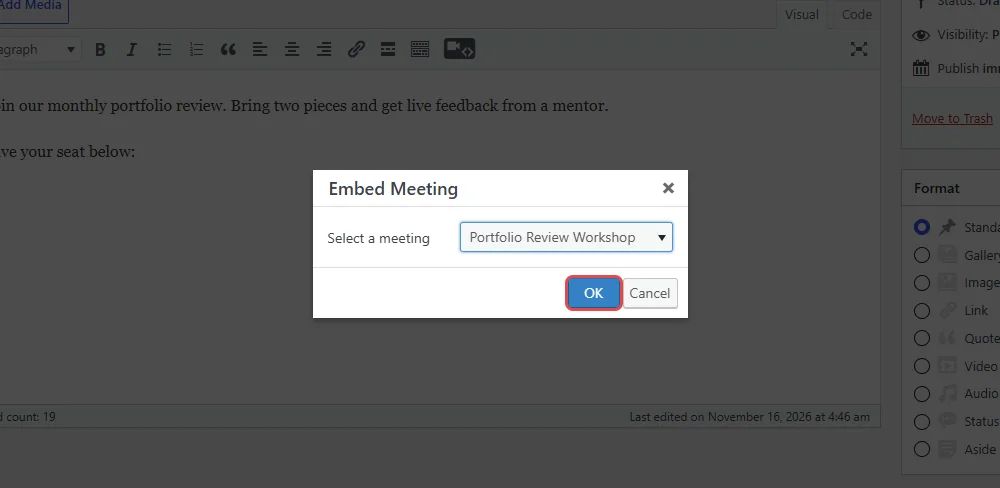
- Click the Embed Meeting button (the video icon) in the editor toolbar.

- Under Select a meeting, pick the meeting or webinar, for example Portfolio Review Workshop.
- Click OK.
MeetingHub inserts the shortcode for the meeting’s platform at the cursor, for example [mhub-google-meeting id="3730"] for a Google Meet meeting.
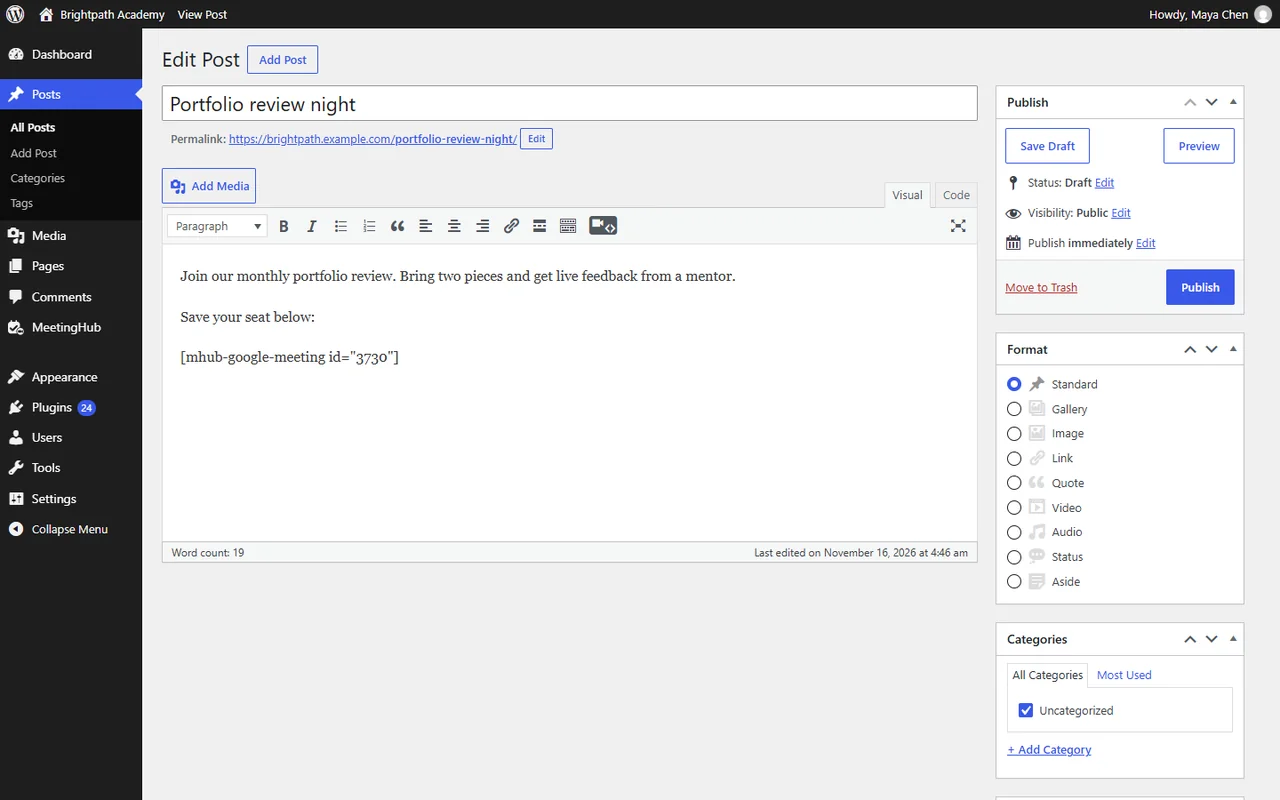
- Click Publish or Update.
Note: The Classic Editor button requires MeetingHub Pro.
Step 8: Embed a meeting on another site (optional) #
- Open a published meeting in All Events and click Page design.
- In Look and content, find Embed on another site and click Copy code.
- Paste the code where the other site accepts HTML.
It shows the meeting as a card; its button opens the meeting page on your site. Requires MeetingHub Pro.
What visitors see #
A meeting list #
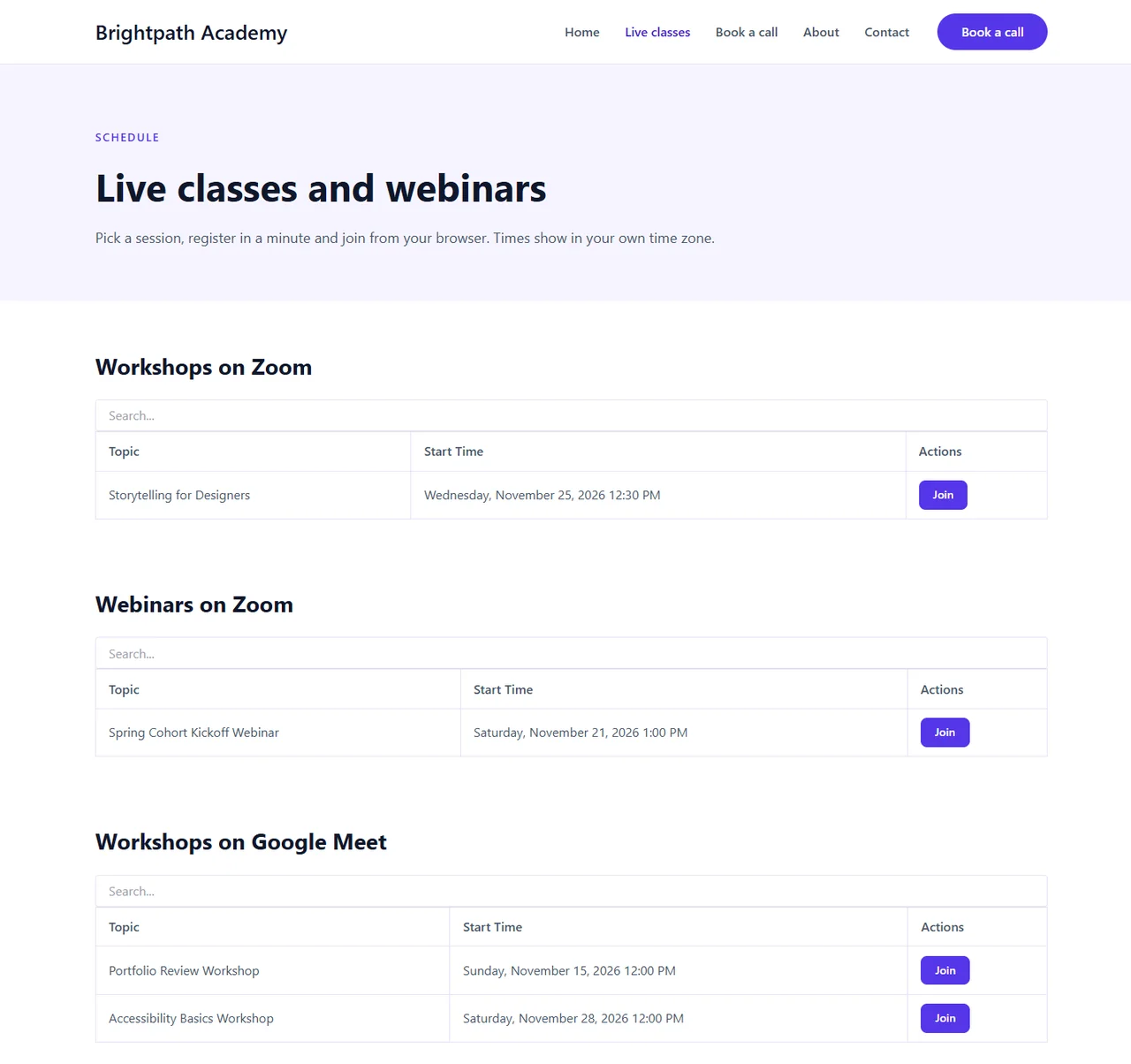
A list shortcode shows a table with a search box and each meeting’s Topic, Start Time and a Join button, sorted by start time. On a phone, the rows turn into cards. With view="cards" the same meetings appear as cards in your meeting page design.
One meeting as a card #
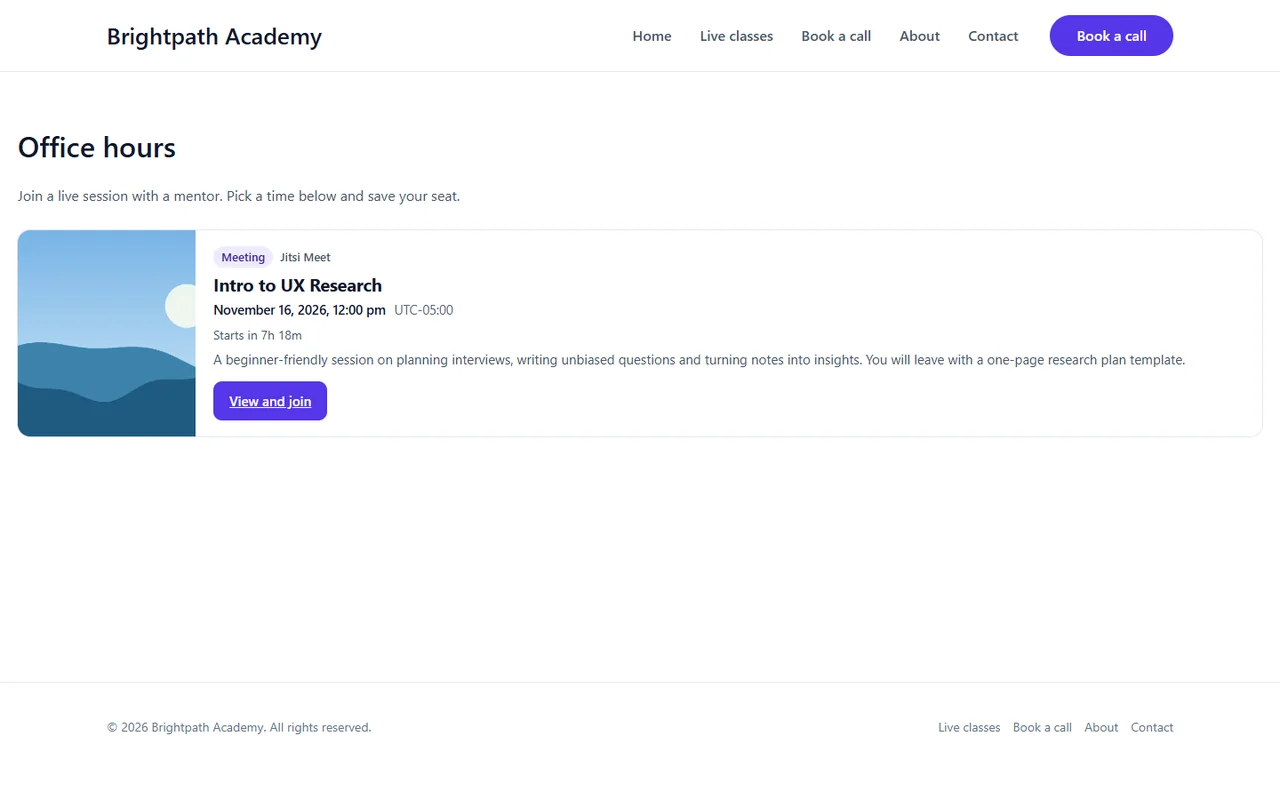
A card shows the platform, the meeting’s date, the countdown, a short description and a View and join button that opens its page.
Benefits of MeetingHub shortcodes, blocks and widgets #
- Meetings anywhere: Put a list or a single meeting on any page, post, widget or course lesson.
- Always current: Lists update themselves as you add, change or finish meetings.
- Your editor, your choice: Use a shortcode, a block or an Elementor widget for the same result.
- On brand: Cards and Pro list views use your meeting page design.
Troubleshooting #
The shortcode shows as plain text on the page #
The code was pasted into a paragraph or a code block. Put it in a Shortcode block, or in a text area your builder runs shortcodes in.
The list is empty #
With available="true", the list leaves out meetings that have already started or ended. Remove the option to see every meeting, and check that the meetings are on the platform the shortcode names.
The card shows nothing #
Check that the id belongs to a published meeting on the platform the tag names. A [mhub-zoom-meeting] shortcode cannot show a Jitsi Meet meeting.
I cannot find the MeetingHub Event widget in Elementor #
It is in the MeetingHub Widgets group. Check that MeetingHub is active and reload the Elementor editor.
Frequently asked questions #
Can I use more than one MeetingHub shortcode on a page? #
Yes. Add as many as you like, for example one list per platform.
Does the meeting list show past meetings? #
Yes, unless you add available="true", which keeps only meetings still to come.
Do I need MeetingHub Pro for the block or widget? #
No. The MeetingHub Event block and widget work in every version. MeetingHub Pro adds other looks per card, rows and cards for lists, and the embed code.
Can members see only their own meetings? #
Yes. Put [mhub-my-meetings] on a page members visit after they log in. It lists their own upcoming meetings and bookings.
You’re ready to put meetings on any page #
Your meetings can now appear on any page, as a list, a card or a full page, from a shortcode, block or Elementor widget. Next, design the pages those cards open, or let members host their own meetings.


