Do you sell long videos, big design packs or Google Docs, and would rather your buyers open them in Google Drive than download them? You can easily do this with DriveHub.
By default, DriveHub serves each purchase through your site as a normal download. With redirection on, the buyer clicks the file and lands on it in Google Drive, where they can watch it, read it online or save it to their own Drive.
Here is an easy, step-by-step guide to help you set it all up!
Note: This needs DriveHub Pro.
Step 1: Get Ready to Sell Drive Files #
This guide builds on selling Google Drive files with WooCommerce. If you haven’t done that yet, follow Steps 1 to 5 of How to Sell Google Drive Files with WooCommerce first:
- Install WooCommerce, DriveHub and DriveHub Pro.
- Connect your Google account. Read our step by step setup guide to avoid any confusion.
- Turn on Sell Drive files as downloads in DriveHub > Integrations > WooCommerce, then click Save changes.
Step 2: Open the Drive Picker on Your Product #
Now open the product you want to deliver through Google Drive:
- Go to Products > Add New Product, or open an existing product (we’ll use Brand Strategy Masterclass at $129.00).
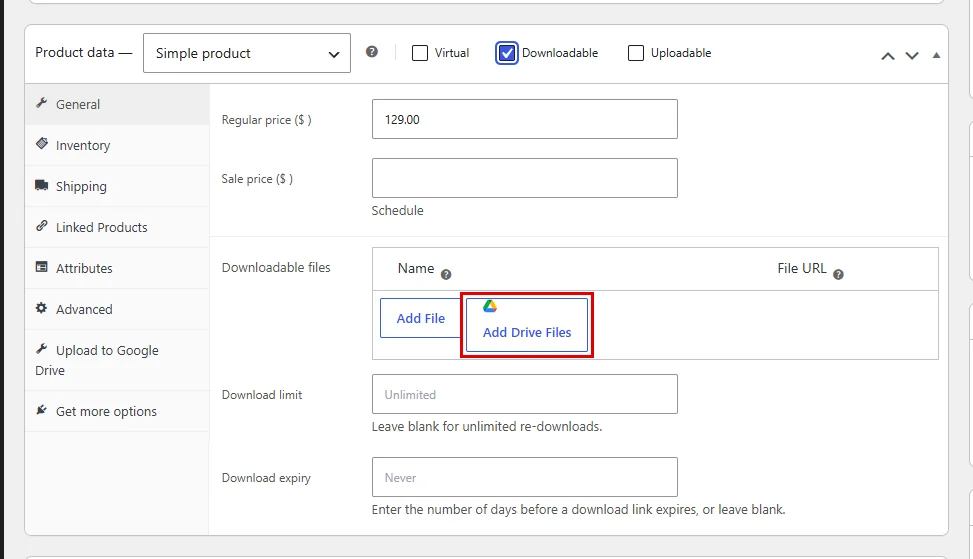
- In the Product data box, tick Downloadable.
- In the Downloadable files table, click on Add Drive Files.
Step 3: Pick the Files and Turn On Redirection #
The Select files to attach as downloadable products window opens:
- Click the files you want (for example Studio Pitch Deck.pptx and Onboarding Pack.pdf). They appear under Selected items.
- Below the file list, turn on Enable redirection. This sends the buyer to the file in Google Drive instead of downloading it through your site.
- If you want the file shared with the buyer, also turn on Add user permission. This shares the file with the purchase email address, so the buyer can open it in Drive.
- Click on Confirm Selection.
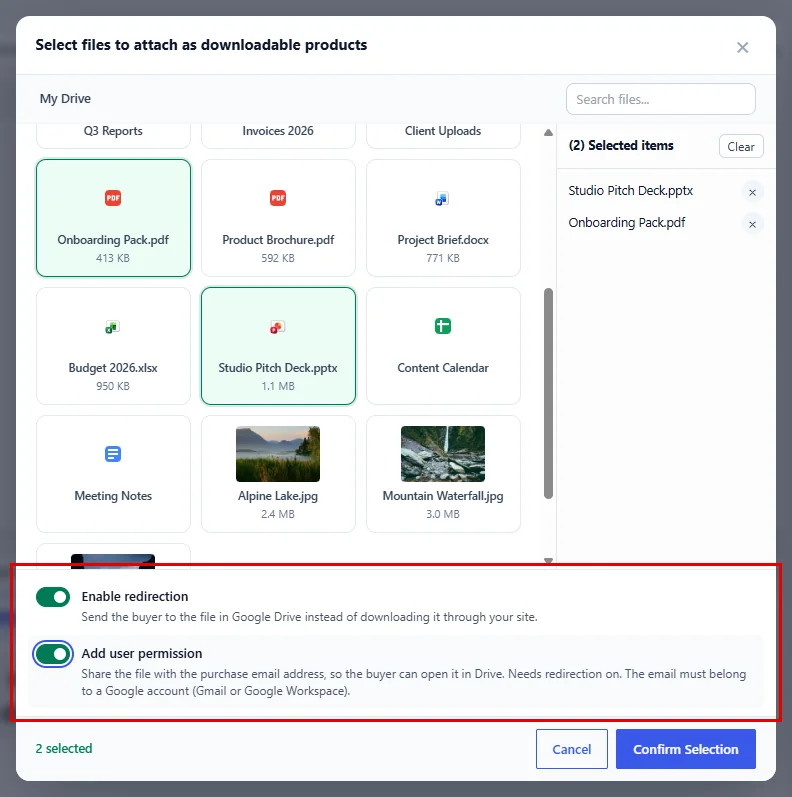
You can only turn on Add user permission while Enable redirection is on.
Tip: The switches apply to the files you added in that one pick. To use different settings for different files, add them in separate picks.
Step 4: Publish the Product #
DriveHub adds a row to Downloadable files for each file, with the redirect setting built into its File URL:
- Leave the File URL as it is.
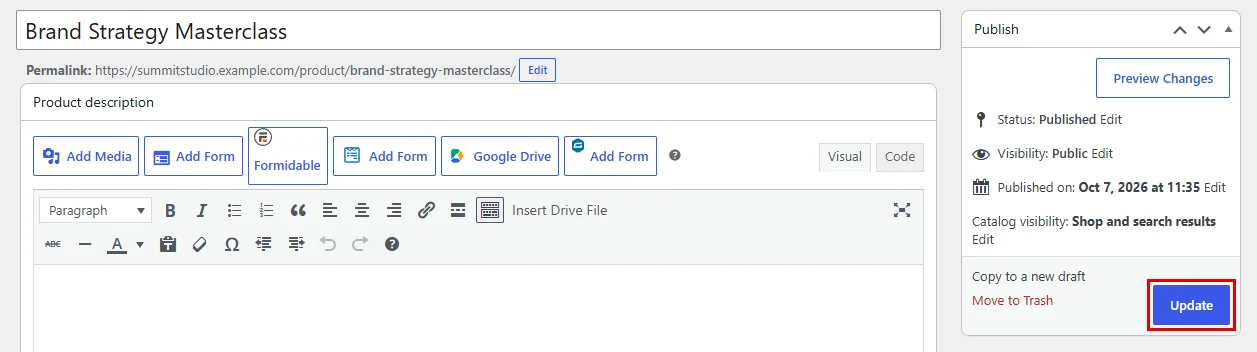
- Click on Publish (or Update).
Step 5: See What the Buyer Gets #
And that’s it. Here is what happens after a purchase:
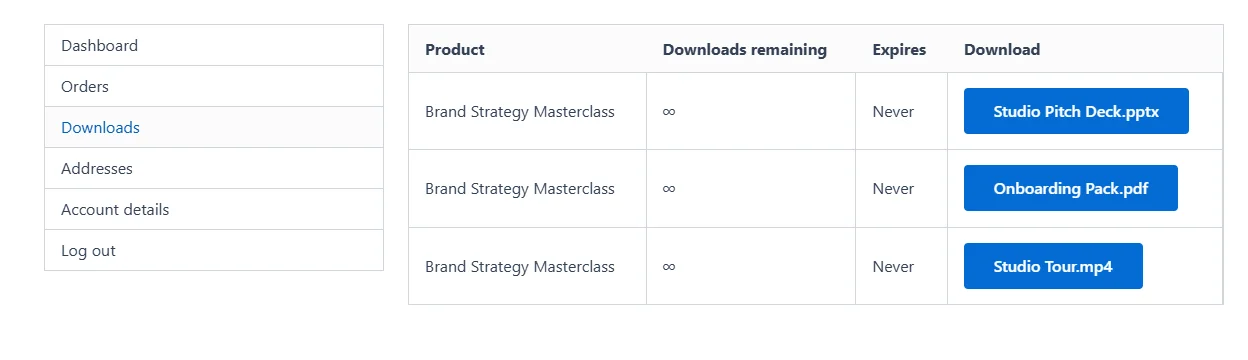
- The buyer clicks the file in My Account > Downloads or in the order email.
- WooCommerce checks the download is allowed, as usual (order status, limits, expiry, login).
- The buyer lands on the file in Google Drive. If the item is a folder, they land on the folder.
With Add user permission on, DriveHub shares the file with the buyer’s purchase email the first time they open it. The file then also shows up in their Shared with me list in Google Drive.
Important Things to Know #
Google accounts only: Google can only share a file with a Google account (Gmail or Workspace). If the purchase email is not a Google account, no permission is added.
Less private: Without Add user permission, the Drive file itself must be shared as “Anyone with the link” for buyers to open it. Anyone who gets that link can then open the file, even without buying or logging in. If this matters to you, keep your files private in Drive and use Add user permission, or leave redirection off.
Benefits of Sending Buyers to Google Drive #
- Great for big files: Videos and large packs open in Google Drive without passing through your server.
- Read online: Google Docs, Sheets and Slides open in Google’s own viewer.
- Saved in their Drive: With Add user permission, buyers keep the file under Shared with me.
- Same WooCommerce rules: Limits, expiry and login checks still run before the redirect.
With DriveHub and WooCommerce, sending buyers straight to Google Drive takes just two switches.
Related guides:


