Do you sell Google Drive files in your WooCommerce store and want only logged-in customers to download them? You’re in the right place.
You can easily do this with DriveHub and one WooCommerce setting. No code and no extra plugin needed. A shared download link stops working for anyone who is not logged in, so your Google Drive files stay with the people who paid for them.
Here is an easy, step-by-step guide to help you set it all up!
Step 1: Install WooCommerce #
If your store is already running, skip to Step 2. Otherwise:
- From your WordPress admin, click on Plugins > Add New.
- Search for WooCommerce.
- Click Install and then Activate.
- Follow the WooCommerce setup wizard to finish your store basics.
Step 2: Install DriveHub and DriveHub Pro #
Next, add DriveHub to your site:
- Go to Plugins > Add New and search for DriveHub.
- Click Install and then Activate.
- Install and activate DriveHub Pro as well.
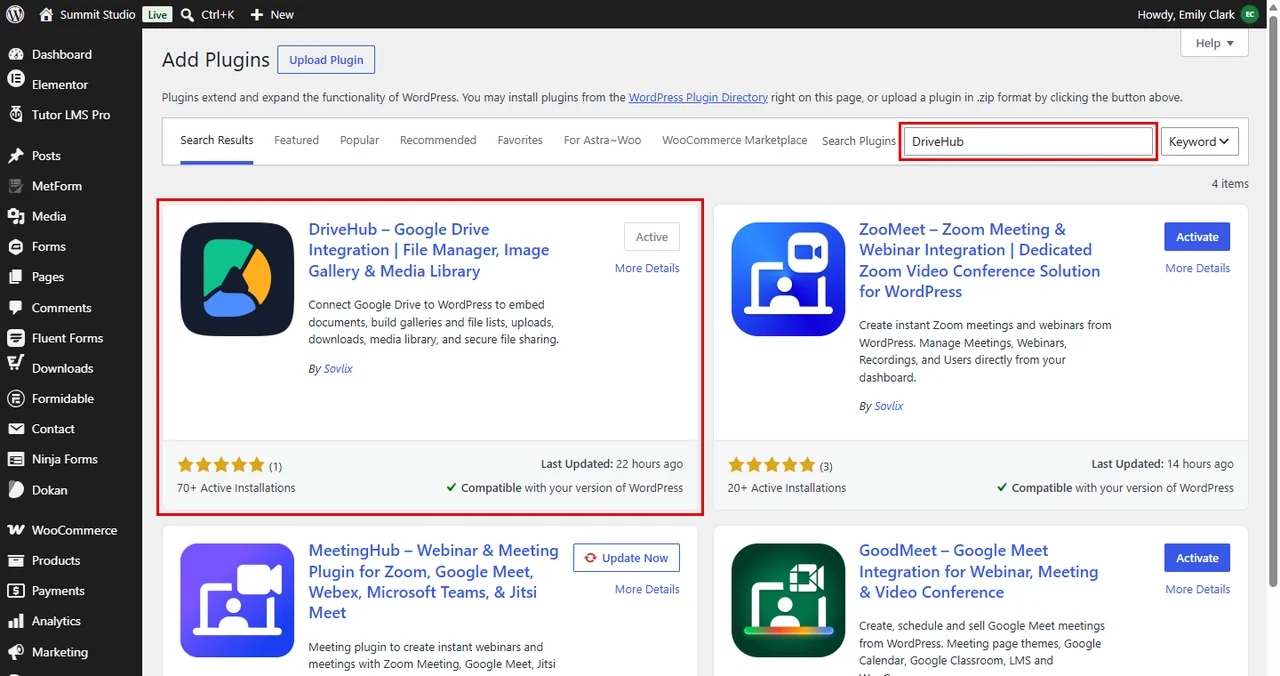
Note: This needs DriveHub Pro.
Step 3: Connect Your Google Account #
DriveHub needs a connected Google account before it can deliver any file:
- Go to DriveHub and follow the setup screen to add your Google account.
Read our step by step setup guide to avoid any confusion.
Step 4: Turn On the WooCommerce Integration #
In this step, you let DriveHub serve Google Drive files as WooCommerce downloads:
- Go to DriveHub > Integrations.
- Find the WooCommerce card under Stores and courses.
- Click on Set up. If the card already says Active, click the settings icon next to its switch instead.
- Turn on Sell Drive files as downloads.
- Click Done.
- Click Save changes in the bar at the bottom of the screen.
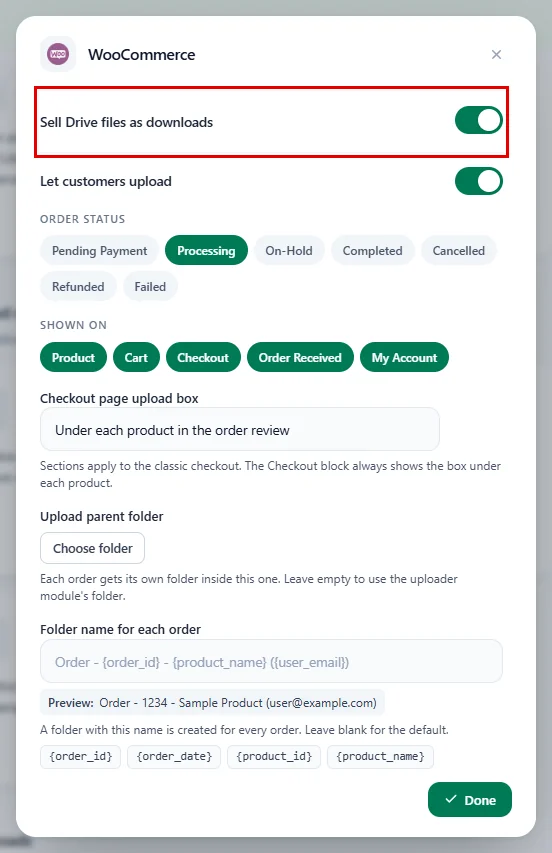
Once saved, the card says Active. If you already sell Google Drive files in your store, this is done and you can move on.
Step 5: Give Your Buyers an Account #
Customers can only log in to download if they have an account. Let’s make sure they get one:
- Go to WooCommerce > Settings and open the Accounts & Privacy tab.
- To make every buyer create an account, untick Enable guest checkout (recommended).
- Or keep guest checkout and, under Account creation, tick During checkout or After checkout (recommended).
- Click Save changes.
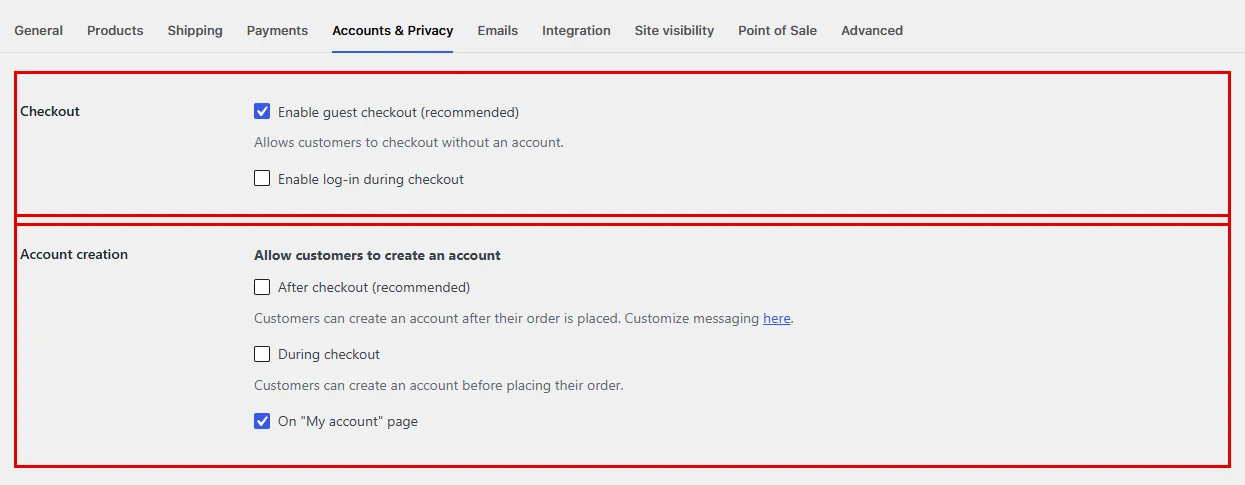
Step 6: Require Login for Downloads #
Now switch on the login check itself:
- Go to WooCommerce > Settings > Products.
- Click on the Downloadable products link at the top.
- Under Access restriction, tick Downloads require login.
- Click Save changes.

Don’t forget to click Save changes, or WooCommerce keeps the old setting.
Step 7: See It in Action #
That’s it! Here is what happens now when someone opens a download link, for example the Masterclass Seat recording your customer bought for $129:
- The buyer, logged in: the download starts. If the file uses redirection, they go straight to the file in Google Drive.
- Anyone not logged in: they land on the My Account login page with the message You must be logged in to download files. The Google Drive file is never reached.
- A logged-in user who did not buy it: WooCommerce stops the download with This is not your download link.
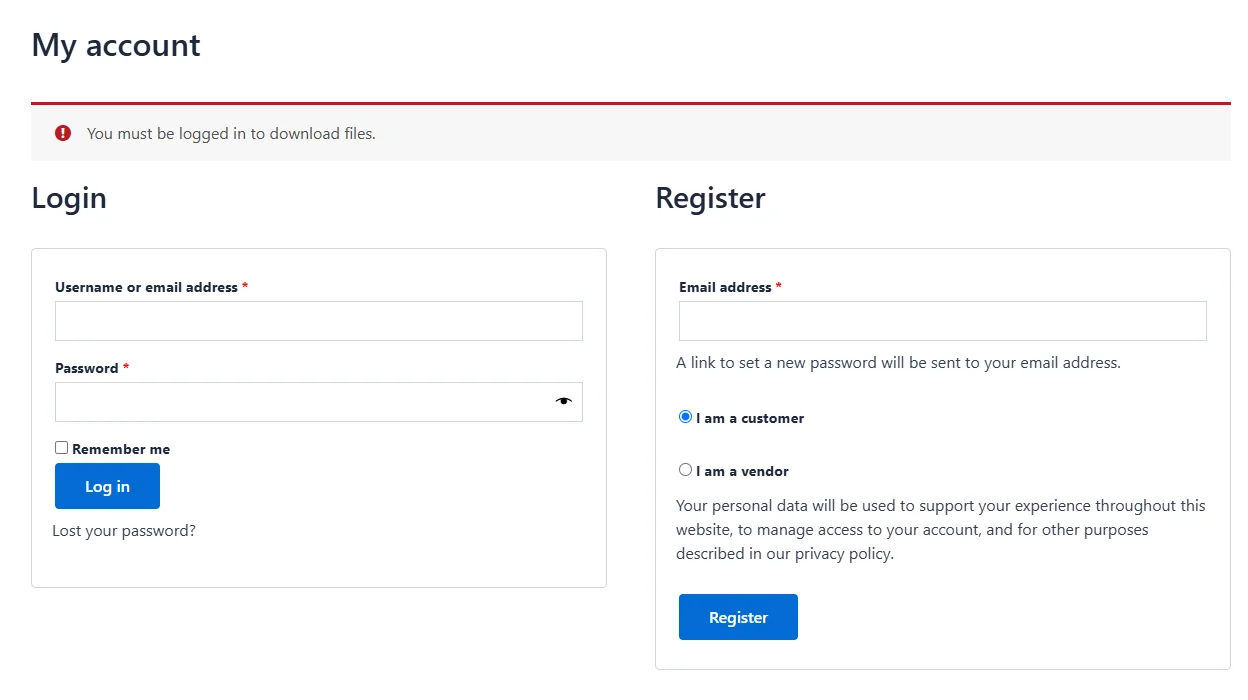
Note: WooCommerce skips this check for guest orders, because a guest has no account to log in with. That’s why Step 5 matters: when every buyer has an account, every download link is protected.
Benefits of Logged-in Only Downloads #
- No leaked links: A forwarded download link is useless without the buyer’s login.
- No code: It’s one WooCommerce checkbox, and DriveHub’s Google Drive downloads follow it.
- Works with redirection: Files that open in Google Drive are protected the same way.
- Happier customers: Buyers find every purchase again under My Account > Downloads.
With DriveHub and WooCommerce, your Google Drive downloads stay with your paying customers.
Related guides:


