Every table on ZooMeet > Zoom Reports can be saved as a CSV file, and so can the Participants and Registrants windows. Open the file in Excel, Numbers or Google Sheets to keep attendance records, total up the month, or share a sign-up list with a colleague.
Note: Screens below use sample data. Your own list fills in once your Zoom plan includes this feature.
By the end of this guide, you will have:
- A CSV file from any report table
- An attendance file from a Participants window
- A sign-up list for a single meeting or webinar
- A clear idea of what each file contains and what it is called
Estimated setup time: 1 minute per file.
Before you begin #
Make sure you have:
- A report on screen. Open the tab, set its filters and click Show. See How to use Zoom Reports in ZooMeet.
- ZooMeet Pro, for files from Per-Meeting, Registrants and the Participants windows
Tip: An export saves what you see. Filter or sort the table first, and the file follows: only matching rows, in the order shown, from every page, not only the page on screen.
Step 1: Export a report table #
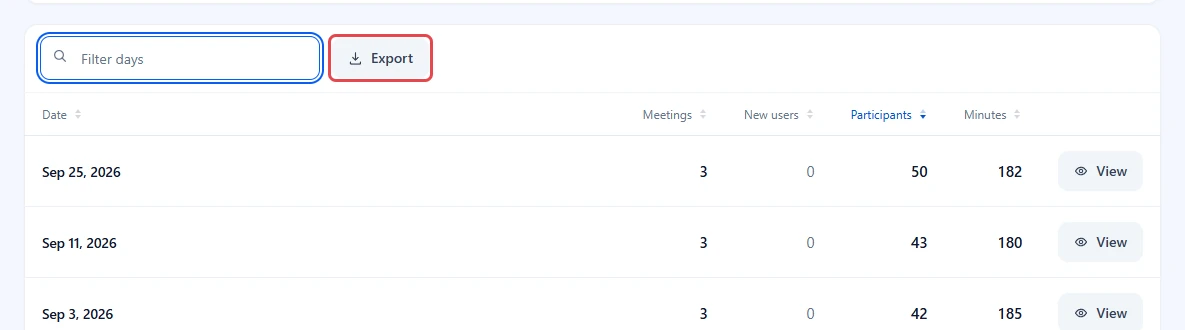
Daily, Account, Per-Meeting and Registrants each have an Export button next to their filter box.
- Show the report you want.
- Optionally, type in the filter box to keep only some rows, or click a column heading to sort.
- Click Export. Your browser saves the file to your downloads folder.
Step 2: Export a Participants window #
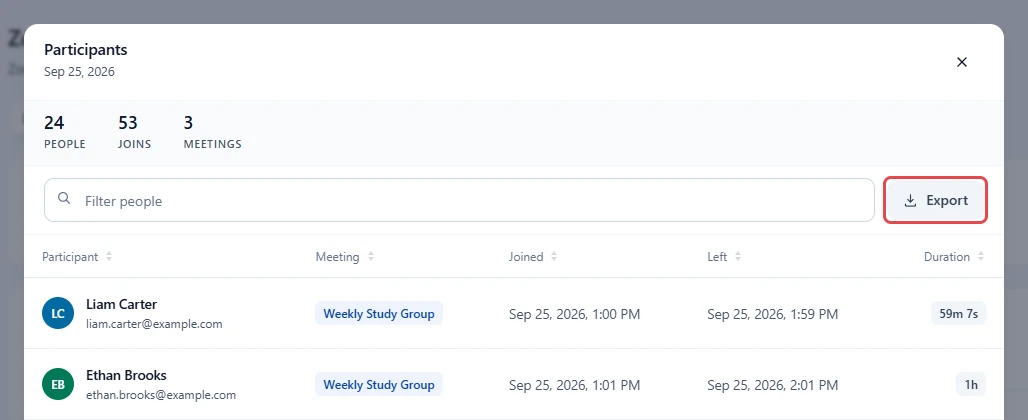
- In Daily, Account or Per-Meeting, click View on a row.
- Optionally, type in Filter people.
- Click Export in the window.
Step 3: Export the registrants of one session #
On the Registrants tab you have two ways to save one session’s sign-ups.
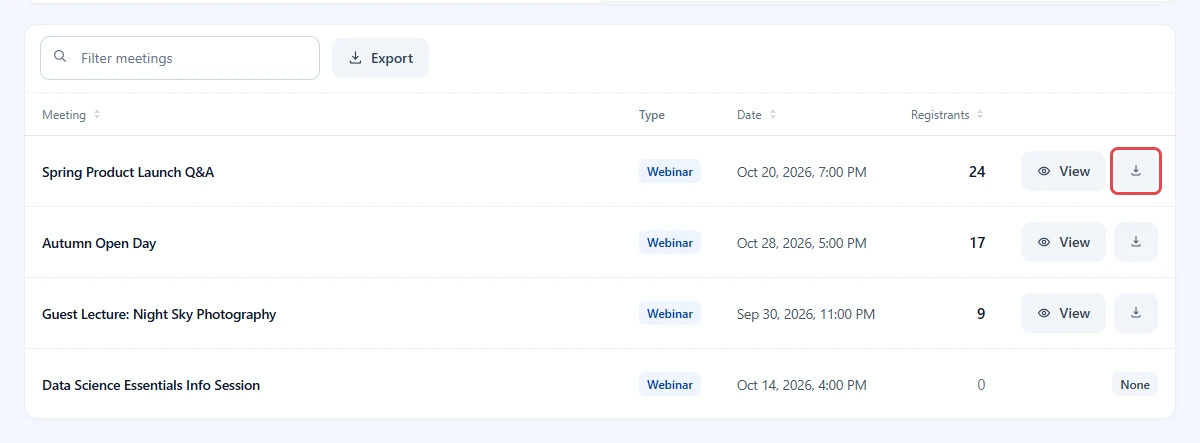
- Click the download icon on the session’s row. ZooMeet fetches the list and saves it straight away. While it works, the icon shows a spinner.
- Or click View, then Export in the window. Use this when you want to filter the people first.
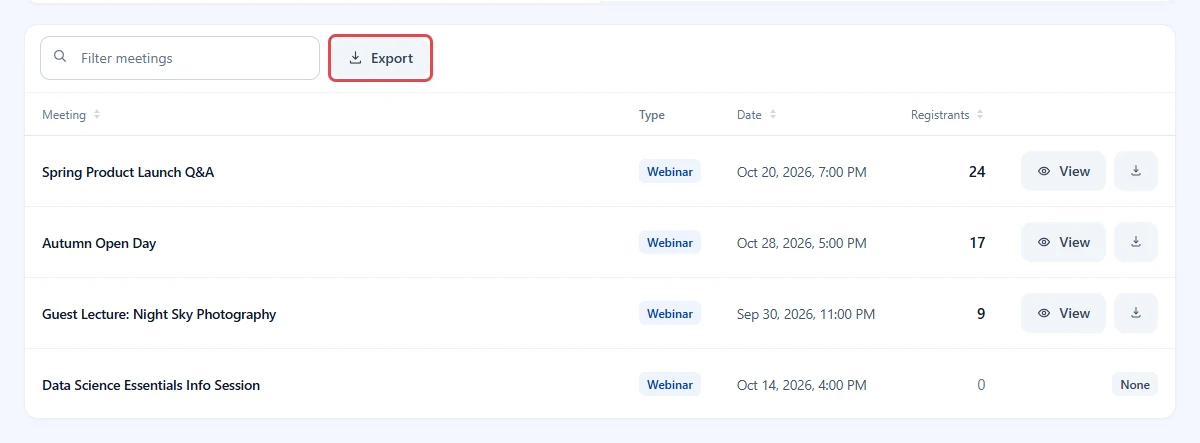
To save the list of sessions itself, with their counts, click Export above the table.
What each file contains #
| Where | File name | Columns |
|---|---|---|
| Daily table | zoom-daily-2026-09.csv |
Date, Meetings, New users, Participants, Minutes |
| Account table | zoom-hosts-2026-09-06-to-2026-10-06.csv |
Host, Email, Meetings, Participants, Minutes, Last login |
| Per-Meeting table | zoom-meetings-2026-09-06-to-2026-10-06.csv |
Meeting, Started, ID, Participants |
| Participants window | zoom-participants-...csv, named after the meeting, the day or the date range |
Name, Email, Meeting, Joined, Left, Duration |
| Registrants table | zoom-registrant-meetings-2026-09-06-to-2026-10-06.csv |
Meeting, Type, Date, Registrants |
| One session’s registrants (row icon or window) | Spring-Product-Launch-Q-A-registrants.csv, named after the session |
Name, Email, Status, Registered |
The dates in a file name are the ones you picked. Yours will differ.
A few details that help in a spreadsheet:
- Dates in the Daily, Account, Per-Meeting and Registrants tables are written as raw values, for example
2026-09-25or2026-09-25T13:00:00Z(a time in UTC), so spreadsheets can sort them. The Participants window writes dates and durations the way it shows them, for exampleSep 25, 2026, 9:00 AMand59m 7s. - Files are UTF-8, so names with accents open correctly.
- A cell that starts with
=,+,-or@gets a leading apostrophe, so a spreadsheet never runs it as a formula.
Note: Zoom Recordings has its own export icon above its table. Its file, zoom-recordings-<date>.csv, has Topic, Meeting ID, Recorded, Duration, Size, Bytes and Files. See How to find and share Zoom cloud recordings with ZooMeet.
Troubleshooting #
Nothing downloads when I click Export #
Check that your browser allows downloads from your site, and look in your downloads folder. Some browsers ask before saving the first file.
“Download failed.” #
The download icon on a Registrants row could not fetch the list. Try again, or open View and use Export in the window.
The file has fewer rows than I expected #
Text is still in the filter box. Clear it, then export again.
There is no Export button #
The button appears once the report has rows. Click Show first. In a window, it appears once the list has loaded.
Frequently asked questions #
Does exporting send anything to Zoom? #
No. The file is built in your browser from the rows on screen. Only the download icon on a Registrants row asks your site for the list first.
Can I export all pages at once? #
Yes. Every export includes all matching rows, not only the page on screen.
Is the export a ZooMeet Pro feature? #
The Daily and Account exports are free. Exports from Per-Meeting, Registrants and the Participants windows come with those Pro reports.
Security best practices #
- Participant and registrant files hold names and email addresses. Store them somewhere private.
- Delete exported files once you no longer need them.
You’re ready to export your reports #
You can now save any report table, attendance list or sign-up list as a CSV file, and you know what each one contains.


