- Before you begin
- Step 1: Open API logs
- Step 2: Turn on logging
- Step 3: Read the log
- Step 4: Filter and search
- Step 5: Open the details of one request
- Step 6: Download the log as a CSV file
- Step 7: Clear the log and turn it off
- What is recorded, and what never is
- Benefits of API logs
- Troubleshooting
- Frequently asked questions
- You're ready to troubleshoot Zoom
When a meeting will not save, a list stays empty or Zoom refuses to connect, the reason is in Zoom’s answer. API logs keeps a short record of what ZooMeet asked Zoom and what Zoom answered, so you can see the real error instead of guessing.
Turn it on while you track down a problem, read or download the entries, and turn it off again when you are done. It is also the fastest way to give our support team what they need.
By the end of this guide, you will have:
- API logging turned on, for errors only or for every request
- The log filtered, searched and read, with full details for one request
- A CSV file of the log to keep or send to support
- The log cleared and logging turned off when you no longer need it
Estimated setup time: 3 minutes. Logging never changes your meetings or Zoom. It only records requests.
Before you begin #
Make sure you have:
- ZooMeet installed and activated
- An administrator account on your WordPress site
API logs are part of the free plugin. They work even when Zoom is not connected, so you can see why a connection fails.
Step 1: Open API logs #
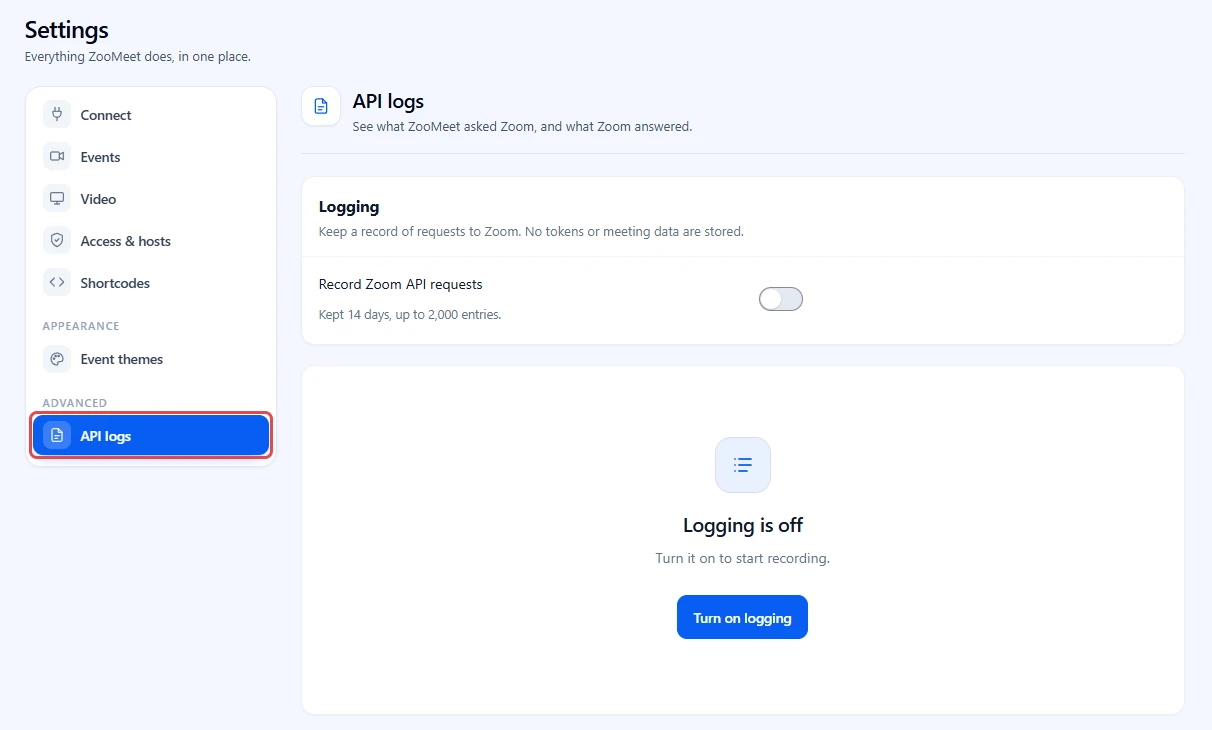
- In the WordPress admin menu, go to ZooMeet > Settings.
- In the list on the left, under Advanced, click API logs.
Step 2: Turn on logging #
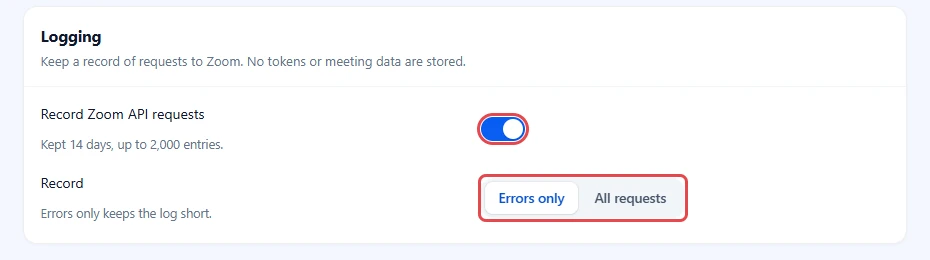
- In the Logging card, turn on Record Zoom API requests. You see Logging on. The switch saves on its own.
- Under Record, pick what to keep:
– Errors only: only requests that failed. This keeps the log short and is the right choice most of the time.
– All requests: every request, including the ones that worked. Use it when you need to see the full order of events.
- Repeat what went wrong, for example save the meeting again or reload the screen that stayed empty. The new requests appear in the log.
Step 3: Read the log #
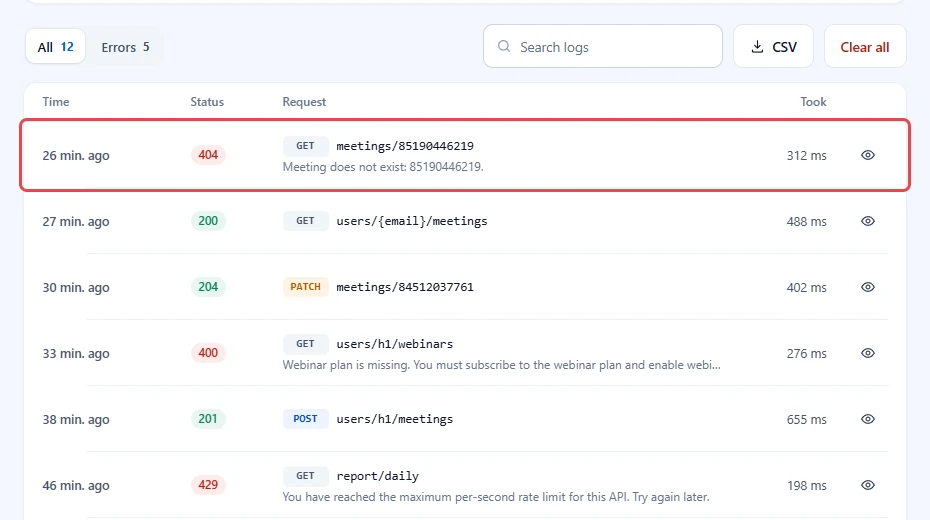
Each row is one request to Zoom, newest first.
- Time: how long ago it happened. Hover over it for the exact date and time.
- Status: Zoom’s answer code. Green codes (200 to 299) worked. Red codes failed, for example 404 when a meeting does not exist or 401 when the connection was refused. Failed means Zoom could not be reached at all.
- Request: the method, such as GET or DELETE, and the part of Zoom that was asked, for example
meetings/85012345678. Zoom’s message shows underneath. - Took: how long Zoom took to answer, in milliseconds.
The log shows 20 entries per page. Use Previous and Next at the bottom to move between pages.
Step 4: Filter and search #
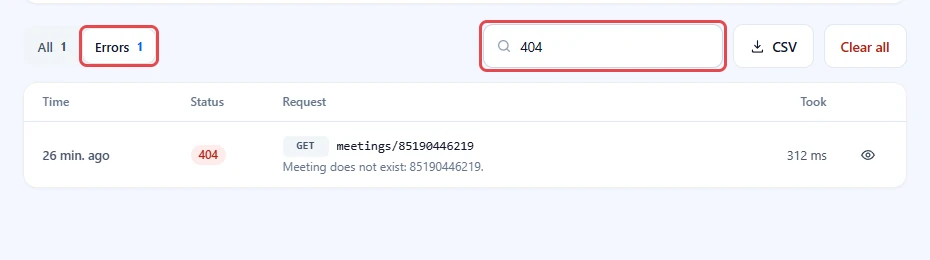
- Under Show, click Errors to see only failed requests, or All for everything. Each shows a count.
- Type in Search logs to find entries by part of the request, a status code, a Zoom error code or a word in the message, for example
404ormeetings. - If nothing matches, the log says No matching entries. Click Clear filters to see everything again.
Step 5: Open the details of one request #
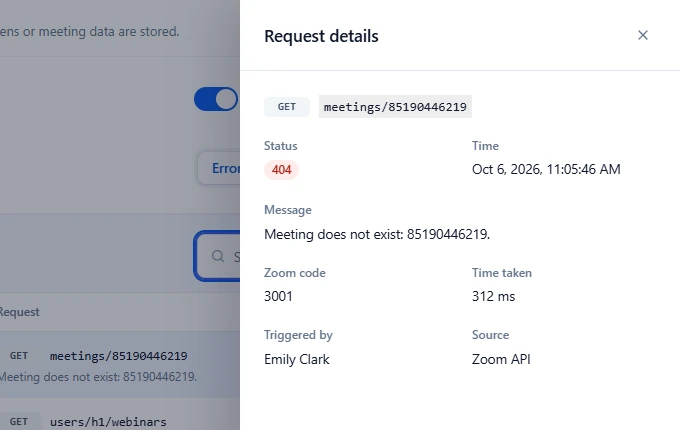
- Click the eye icon, Details, at the end of a row.
- Read Request details:
– Status and Time, with seconds
– Message: Zoom’s own words
– Zoom code: Zoom’s error number, if it sent one
– Time taken
– Triggered by: the WordPress user whose action sent the request, or System for background tasks
– Source: Zoom API for normal requests, or Access token when ZooMeet asked Zoom to sign in - Click the cross, or press Escape, to close the panel.
Step 6: Download the log as a CSV file #
- Click CSV above the log.
- Open the file in a spreadsheet, or attach it to your support request.
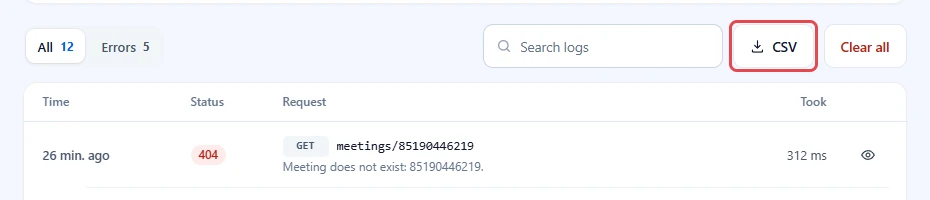
The file has these columns: Time (UTC), Method, Endpoint, Status, Zoom code, Message, Duration (ms), User and Source.
Tip: When you contact support, set Show to Errors, download the CSV and attach it. It answers most of the questions we would ask.
Step 7: Clear the log and turn it off #
When the problem is solved, clear the log and stop recording.
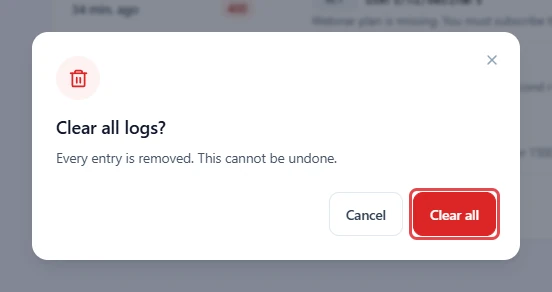
- Click Clear all.
- Read Clear all logs? It says Every entry is removed. This cannot be undone.
- Click Clear all to confirm, or Cancel. You see Logs cleared.
- Turn off Record Zoom API requests. You see Logging off.
What is recorded, and what never is #
| Recorded | Never recorded |
|---|---|
| Date and time of the request | Access tokens and Authorization headers |
| Method and the part of Zoom asked, without the query string | Your Client ID, Client Secret and Account ID values |
| Status code, Zoom error code and Zoom’s message | Passwords and passcodes sent to Zoom |
| How long Zoom took to answer | What ZooMeet sent to Zoom (request bodies) |
| The WordPress user who triggered it | Meeting details Zoom sent back on success |
Email addresses in a request path are replaced with {email}. Anything in a message that looks like a token or a secret is replaced before it is saved.
Security note: Only administrators can see the log. Even so, turn logging off when you are done, and clear the log before you share your site with someone new.
Benefits of API logs #
- The real reason, not a guess: See Zoom’s own message and code for every failure.
- Faster support: A CSV of errors replaces a long back-and-forth.
- Safe by design: No tokens, secrets or meeting data are stored.
- Looks after itself: Old entries are removed after 14 days, and the log never grows past 2,000 entries.
Troubleshooting #
“Logging is off” #
Logging has not been turned on. Click Turn on logging, or turn on Record Zoom API requests.
“No requests logged yet” #
Logging is on, but nothing has been recorded since. With Errors only, this means no request has failed. Repeat the action that went wrong, or switch to All requests to see every request.
Many 401 entries with Source Access token #
Zoom refused to sign ZooMeet in. Check the Account ID, Client ID and Client Secret in ZooMeet > Settings > Connect, and that the Zoom app is activated. See How to connect Zoom with ZooMeet using Server-to-Server OAuth.
Entries with status 400 or 403 #
Zoom refused the request. The message usually names the reason, for example a missing scope or a feature your Zoom plan does not include. Add the scope in the Zoom App Marketplace, or check your plan.
Entries with status 429 #
Zoom is limiting requests from your account. Wait a minute and try again.
Entries show Failed #
ZooMeet could not reach Zoom at all. Your server may be offline, or a firewall may block outgoing requests. Ask your host to allow requests to zoom.us and api.zoom.us.
Frequently asked questions #
Do I need ZooMeet Pro for API logs? #
No. API logs are part of the free plugin.
Does logging slow my site down? #
No, not noticeably. Each entry is one small database row, written only when ZooMeet talks to Zoom. Use Errors only to keep it lighter still.
Should I leave logging on all the time? #
No. Turn it on while you look into a problem, then turn it off.
Is the log removed when I delete ZooMeet? #
Yes. Uninstalling ZooMeet removes the log and its settings.
You’re ready to troubleshoot Zoom #
You can now record Zoom’s answers, find the failed requests, read the details, download them for support and clean up afterwards. If the log points at the connection, start with the setup guide.


