- Before you begin
- Step 1: Open Import
- Step 2: Choose what to import and from which host
- Step 3: Pick the meetings
- Step 4: Choose the status and categories
- Step 5: Update meetings already on your site (optional)
- Step 6: Import
- Step 7: Check the imported meetings
- Benefits of importing from Zoom
- Troubleshooting
- Frequently asked questions
- You're ready to import from Zoom
Already have meetings scheduled in Zoom? You do not need to create them again. Import brings existing Zoom meetings and webinars into WordPress, and gives each one a meeting page on your site.
An imported meeting works exactly like one you created in ZooMeet. It has a meeting page with a countdown and join buttons, you edit it with the same form, and it works with shortcodes, courses and reports.
By the end of this guide, you will have:
- Your scheduled Zoom meetings listed for any host
- The ones you want picked, with meetings already on your site skipped
- Meeting pages created as Published or Draft, with categories
- Pages already on your site updated with the latest details from Zoom
- A clear result for every meeting, with a link to edit it
Estimated setup time: 5 minutes. Importing never changes anything in Zoom. It only adds pages to your site.
Note: Importing meetings is free. Importing webinars requires ZooMeet Pro.
Before you begin #
Make sure you have:
- ZooMeet installed and activated, with Zoom connected. See How to connect Zoom with ZooMeet using Server-to-Server OAuth.
- An administrator account on your WordPress site
- Categories ready, if you want to tag the imported meetings. See How to organize Zoom meetings with categories in ZooMeet.
- ZooMeet Pro and a Zoom Webinars licence, if you want to import webinars
Step 1: Open Import #
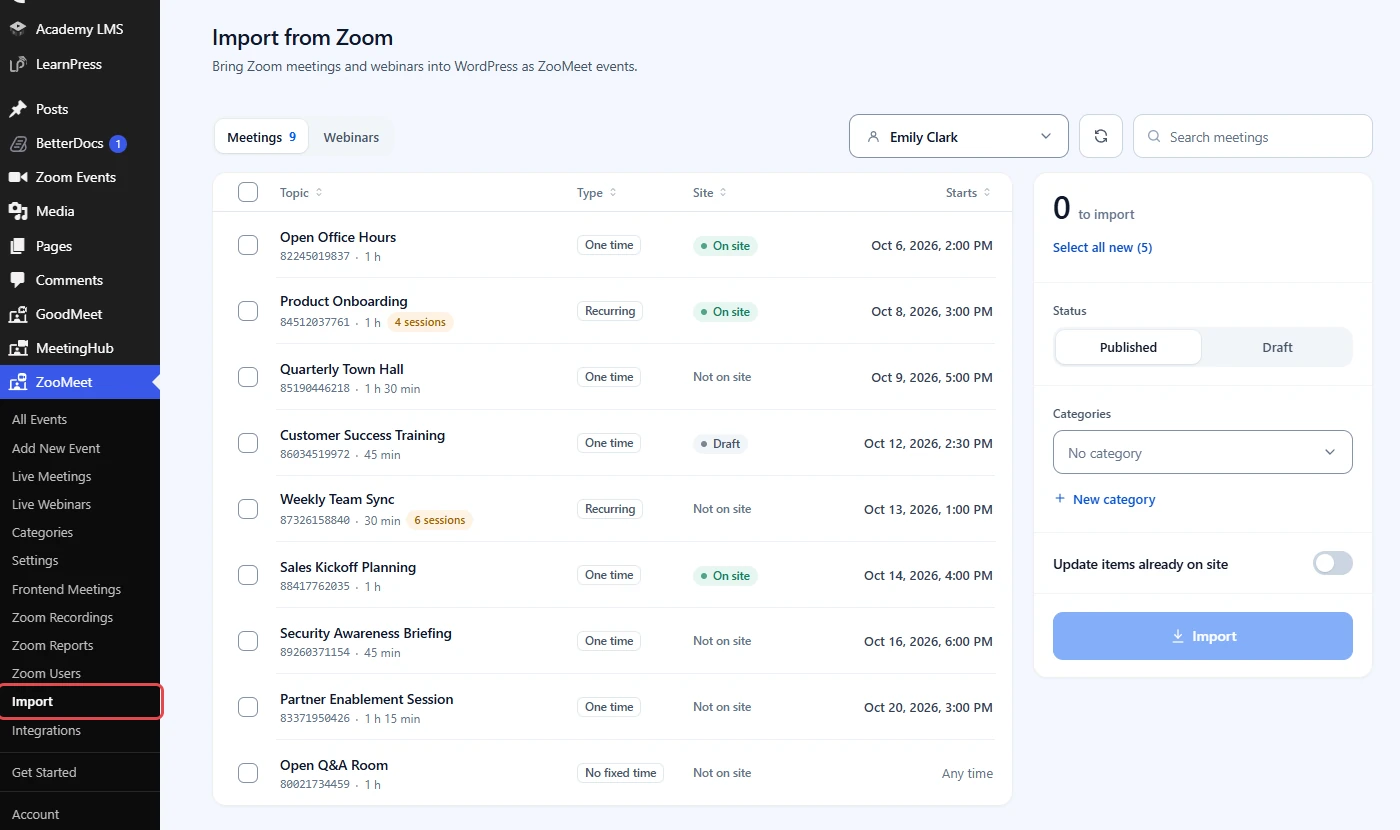
The Import item appears in the ZooMeet menu once Zoom is connected.
- In the WordPress admin menu, go to ZooMeet > Import.
- Check the heading Import from Zoom and the line Bring Zoom meetings and webinars into WordPress as ZooMeet events.
Step 2: Choose what to import and from which host #
- At the top left, click Meetings or Webinars. Without ZooMeet Pro, Webinars shows a Pro badge.
- Click the host picker and pick the Zoom user whose meetings you want.
- Type in Search meetings to narrow the list by topic or Zoom ID.
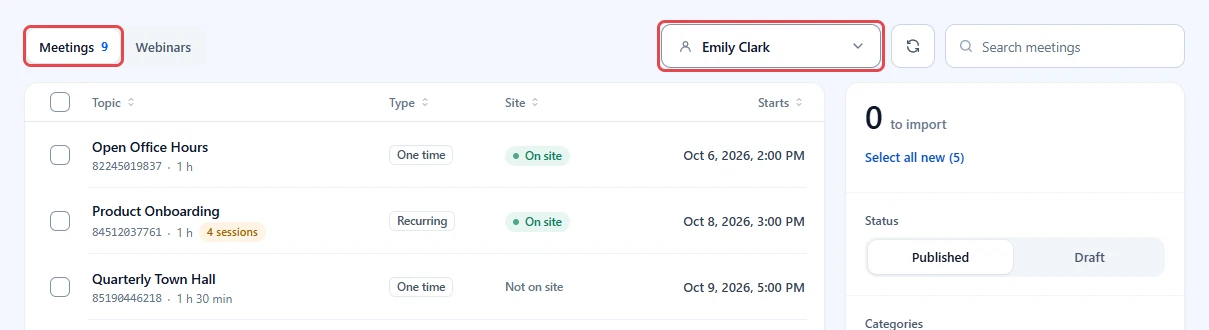
The Site column tells you which meetings are already on your site: On site, Draft or Not on site. The list is kept for 5 minutes. Click the round arrow, Refresh from Zoom, to read it again now.
Note: Import lists scheduled meetings, the ones with a set time that have not expired. Meetings that already ended are not offered.
Step 3: Pick the meetings #
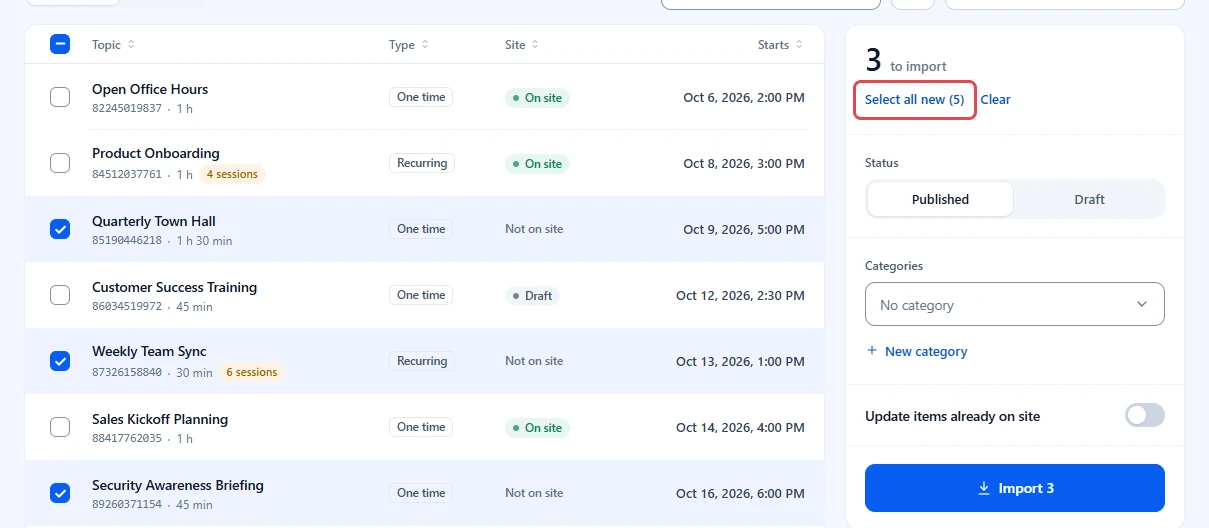
- Tick the box at the start of each meeting you want.
- Or click Select all new in the panel on the right. It ticks every meeting that is Not on site. The number in brackets tells you how many.
- Read the big number at the top of the panel. It shows how many meetings will be imported.
- Click Clear to start over.
Step 4: Choose the status and categories #
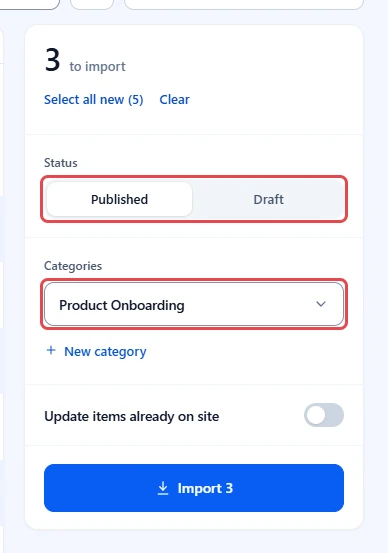
- Under Status, keep Published to put the pages live right away, or pick Draft to check them first.
- Under Categories, pick one or more categories for every meeting in this import. The list starts on No category. Click New category to add one on the spot.
Tip: Import one group at a time, for example all onboarding sessions, so each group gets the right category.
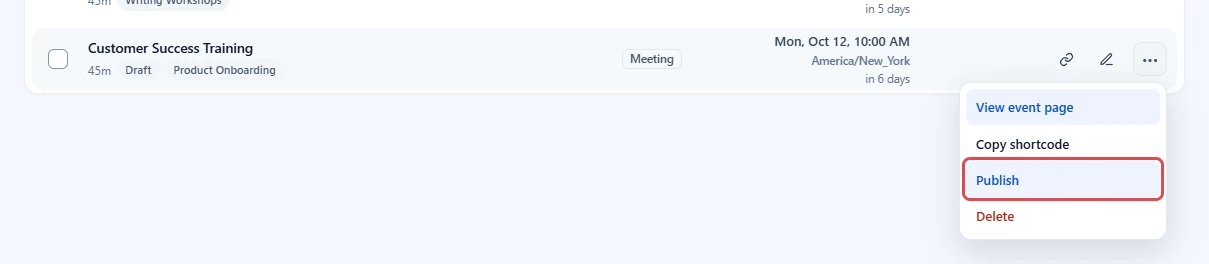
Draft pages show a Draft label in All Events and are hidden from visitors. When you are ready to put one live:
- Go to ZooMeet > All Events and find the row with the Draft label.
- Click More actions (•••) > Publish. You see Event published.
Step 5: Update meetings already on your site (optional) #
Turn this on when a meeting changed in Zoom after you imported it, for example a new time or topic.
- Turn on Update items already on site.
- Tick the meetings marked On site that you want to refresh.
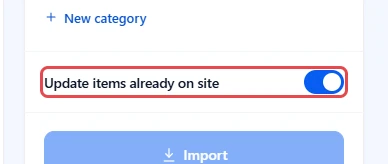
An update copies the topic, time, length, passcode and Zoom settings from Zoom. It keeps what belongs to your site: the meeting theme, thumbnail, layout switches, course links and the page status. New categories are added to the ones the meeting already has.
Step 6: Import #
- Click Import. The button shows the number, for example Import 3. The same button sits at the bottom of the screen, next to 3 ready.
- Wait while the progress bar fills. It counts up, for example 10 of 24. ZooMeet imports 10 at a time.
- Read the result under the progress bar, for example 3 imported or 2 imported, 1 already on site.
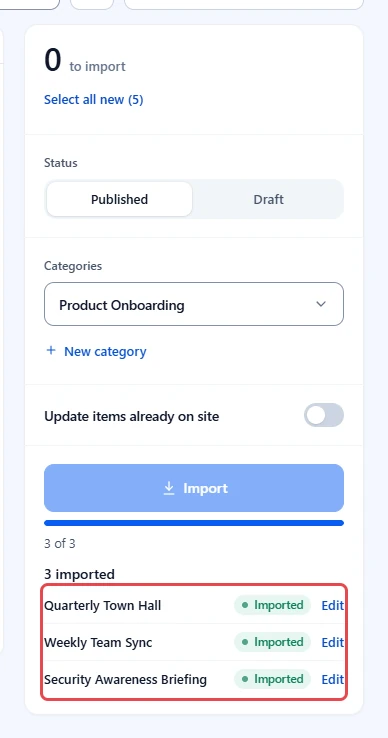
- Click Edit next to a meeting to open it in ZooMeet’s form.
- The list on the left now marks the imported meetings On site.
Step 7: Check the imported meetings #
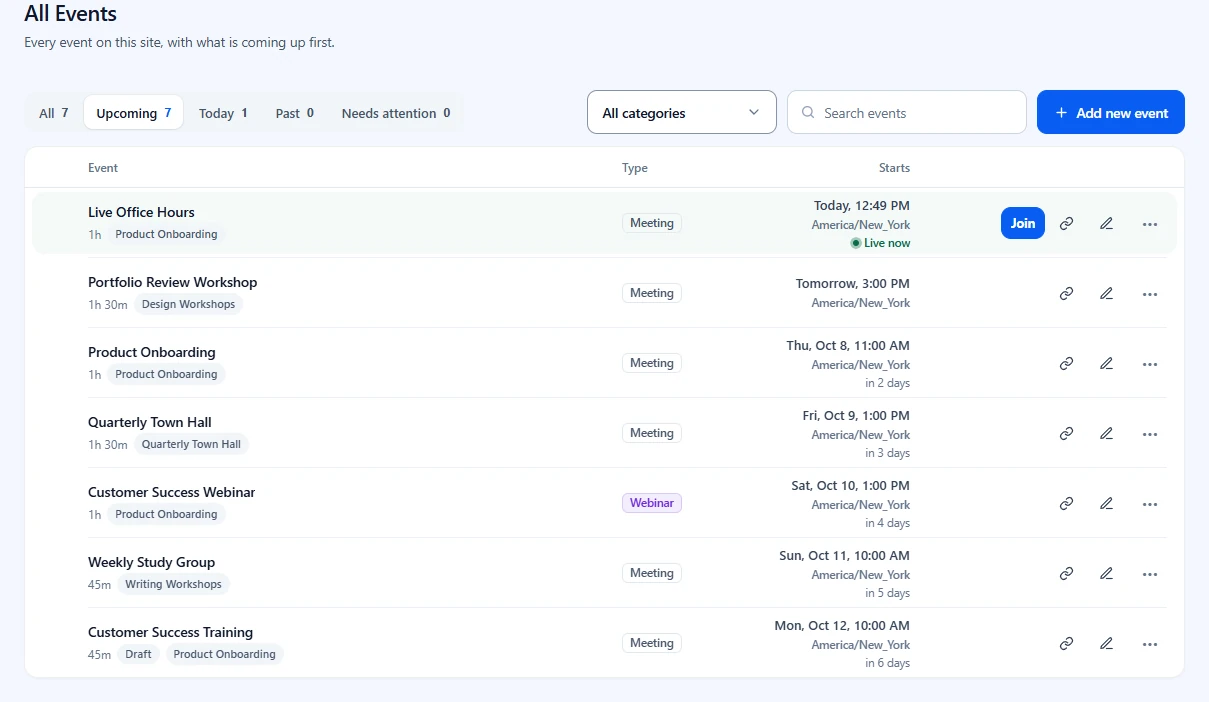
- Go to ZooMeet > All Events. The imported meetings are in the list, with their categories. A recurring meeting shows how often it repeats under its start time, for example Recurs weekly.
- Hover over a row, click More actions (•••), then View event page.
Tip: Imported meetings have no thumbnail yet. Open each one, go to Page design, and add a cover image so the page looks finished.
Benefits of importing from Zoom #
- No double work: Meetings you already scheduled in Zoom get pages in seconds.
- No duplicates: Meetings already on your site are found by their Zoom ID and skipped.
- Organized from the start: Status and categories are set as the meetings come in.
- Stay in sync: Refresh imported meetings after they change in Zoom.
Troubleshooting #
“No scheduled meetings” #
The host has no scheduled meetings in Zoom. Try another host, or click Refresh from Zoom if you just created one.
“No webinar plan” #
The host has no Zoom Webinars licence, so there are no webinars to import. Pick another host.
“Importing webinars is part of ZooMeet Pro.” #
Webinars can be imported only with ZooMeet Pro. Meetings stay free.
The Import button is greyed out #
No meeting is picked, or every picked meeting is already on your site. Pick a meeting marked Not on site, or turn on Update items already on site.
A meeting shows Failed #
The message under its name gives Zoom’s reason. The meeting may have been deleted in Zoom, or Zoom may be busy. Click Refresh from Zoom and try again. To see Zoom’s full answer, turn on API logs.
Frequently asked questions #
Will importing create a second meeting in Zoom? #
No. Import only reads from Zoom. The page on your site uses the same Zoom meeting and join link.
What if I import the same meeting twice? #
It is skipped and marked Already on site. ZooMeet matches meetings by their Zoom ID.
Are recurring meetings imported with every session? #
Yes. A recurring meeting comes in as one meeting page with its repeat schedule and one join link for every session.
Can I import past meetings? #
No. Only scheduled meetings are listed. For past meetings and who attended, use Zoom Reports.
Do I need ZooMeet Pro to import? #
No for meetings. Yes for webinars.
You’re ready to import from Zoom #
You can now bring any scheduled Zoom meeting onto your site, with the right status and categories, and refresh it when it changes in Zoom. Next, see everything on your Zoom account, or organize your meetings with categories.


