- Before you begin
- Step 1: Open the Meetings tab
- Step 2: Set the Meeting defaults
- Step 3: Set the Calendar defaults
- Step 4: Set the Meeting page defaults
- Step 5: Save your changes
- Step 6: Check the Add New Meeting form
- Benefits of setting meeting defaults
- Troubleshooting
- Frequently asked questions
- You're ready to set meeting defaults
If you keep picking the same time zone and reminder on every new meeting, set them as defaults instead. GoodMeet keeps them on the Meetings tab in GoodMeet settings, along with who gets calendar emails and how the meeting page looks.
Once they are saved, the Add New Meeting form opens with those values filled in. Each meeting can still change any field for itself.
By the end of this guide, you will have:
- A default time zone, reminder and event status for new meetings
- Calendar rules for who gets emails and how the event shows on calendars
- A decision on whether vendors use their own Google calendar
- Default page layout switches for every new meeting page
- An Add New Meeting form that opens with your defaults already filled in
Estimated setup time: 5 minutes. Defaults only shape new meetings, so meetings you already made stay exactly as they are.
Before you begin #
Make sure you have:
- GoodMeet installed and activated, with your Google account connected
- An administrator account on the site
- GoodMeet Pro activated, if you want to change the Pro defaults: Should register, Recurring meeting, Notification, Event status, Send updates, Show as and Visibility
Step 1: Open the Meetings tab #
Let’s get started. All meeting defaults live on one settings tab, so you only need one screen for this guide.
- In the WordPress admin menu, go to GoodMeet > Settings.
- In the settings menu on the left, click Meetings.
- Check that the heading reads Meetings, with the line What every new meeting starts with: time zone, reminders and how its calendar event is created.
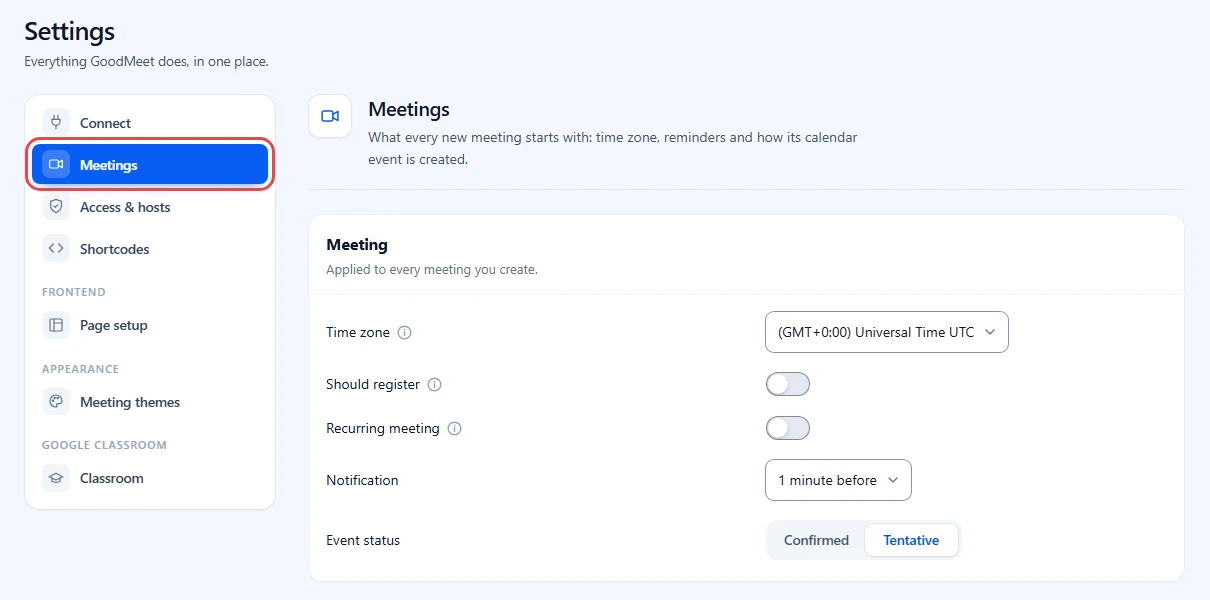
Tip: You can open this tab directly. Add #/meetings to your GoodMeet settings address.
https://brightpath.example.com/wp-admin/admin.php?page=goodmeet-settings#/meetings
Your actual URL may look different. Always copy it from your own GoodMeet settings.
Step 2: Set the Meeting defaults #
The Meeting group reads Applied to every meeting you create. These five defaults decide when a meeting happens and how guests are reminded.
- Set Time zone to the zone new meetings are created in. The start time on the form is shown in this zone.
- Turn on Should register if new meetings should ask visitors for a name and email before they get the join link.
- Turn on Recurring meeting if new meetings should start as repeating meetings.
- Pick a Notification: 1 minute before, 5 minutes before, 15 minutes before or 30 minutes before. Google Calendar reminds guests at that time.
- Pick an Event status: Confirmed or Tentative. Tentative marks the event as not yet certain on guests’ calendars.
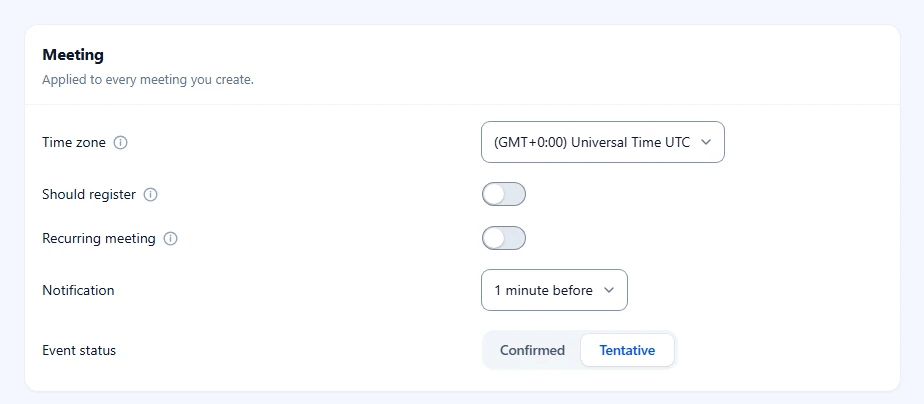
Note: Should register, Recurring meeting, Notification and Event status require GoodMeet Pro. Time zone works without it.
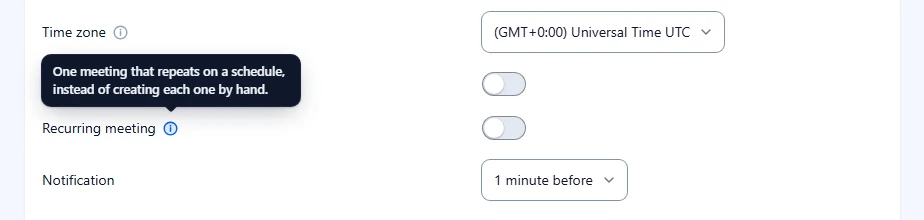
Not sure what a setting does? Each one with a small i icon has a hint.
- Hover over the i icon next to a label to read the hint.
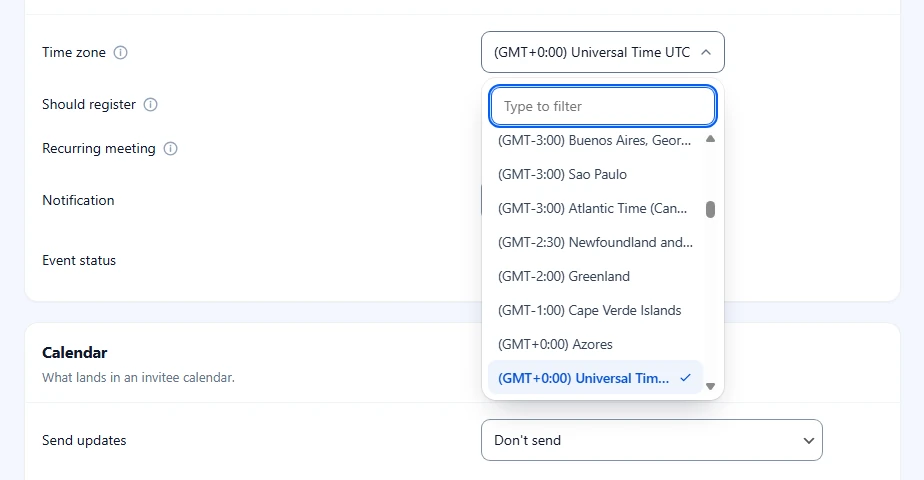
The time zone list is long, so it has a filter box.
- Click the Time zone field.
- Type a city or offset in Type to filter.
- Click the zone you want.
Step 3: Set the Calendar defaults #
The Calendar group reads What lands in an invitee calendar. These defaults go to Google Calendar with every new meeting. They decide what your guests see in their own calendar.
- Turn on Vendors use their own calendar if marketplace vendors should link their own Google account. When on, vendors get a Configure page under Google Meeting in their dashboard. When off, every meeting uses the site owner’s account.
- Pick who gets an email when the event is created or changed in Send updates: All guests, Guests outside your organization or Don’t send.
- Set Show as. Busy blocks the time on guests’ calendars. Free leaves their time open.
- Set Visibility. Default visibility follows each guest’s calendar setting. Public shows the event details to anyone who can see the calendar. Private hides them.
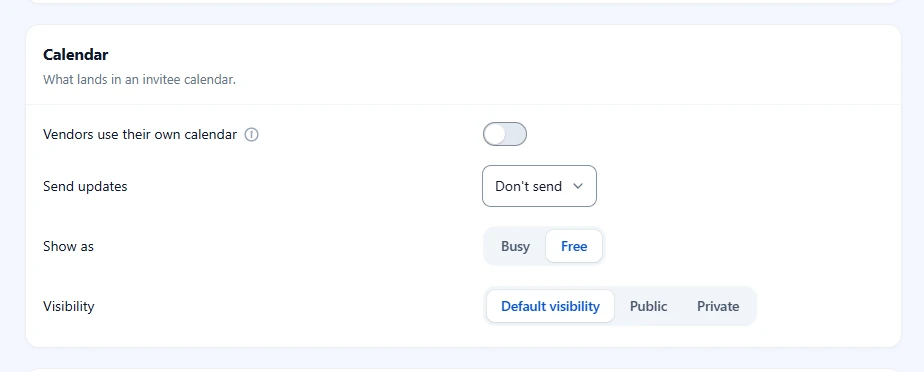
Note: Vendors use their own calendar is a site rule, not a per-meeting default, and it works without GoodMeet Pro. See the vendor guides for MultiVendorX, Dokan and WCFM Marketplace.
Step 4: Set the Meeting page defaults #
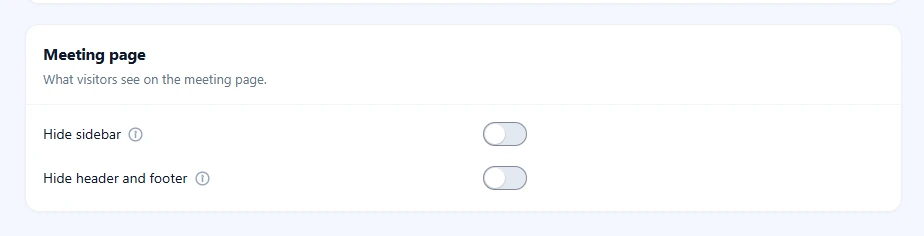
The Meeting page group reads What visitors see on the meeting page. Each new meeting starts with these two switches set the same way.
- Turn on Hide sidebar to remove the sidebar from the meeting page on your site.
- Turn on Hide header and footer to remove your theme header and footer, so the page shows only the meeting.
Step 5: Save your changes #
GoodMeet keeps nothing until you save, so you can try values and back out safely.
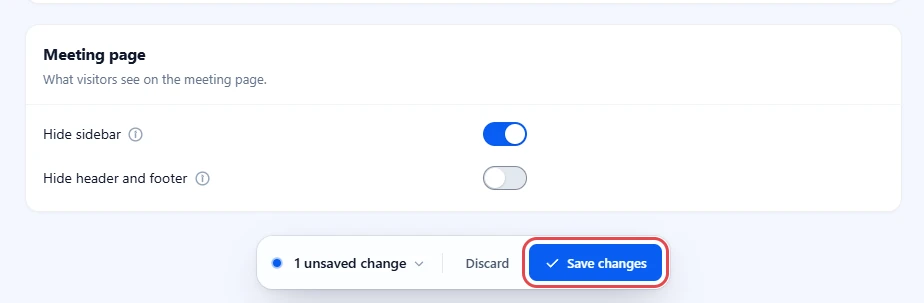
- Change a value. A bar appears at the bottom of the screen and counts your unsaved changes.
- Click the count, for example 1 unsaved change, to see what changed.
- Click Save changes to keep your defaults, or Discard to put everything back.
Step 6: Check the Add New Meeting form #
The form reads your defaults each time it opens, so a quick look confirms everything saved.
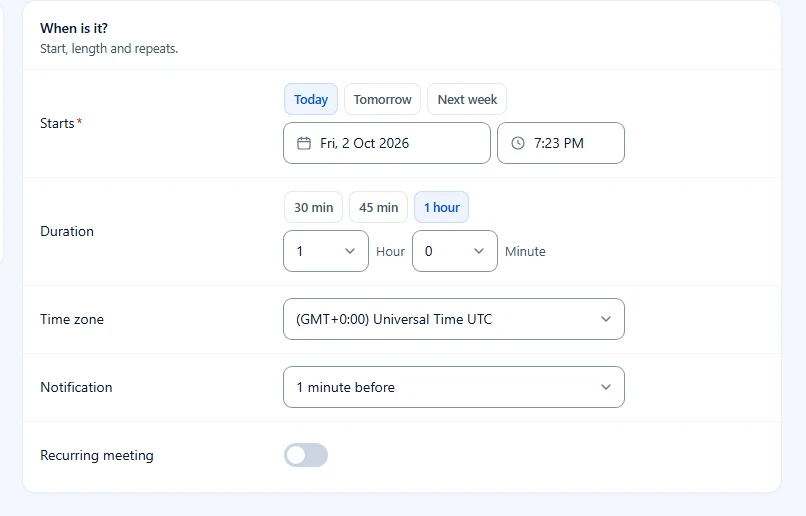
- Go to GoodMeet > All Meetings and click Add new.
- In Date and time, check that Time zone, Notification and Recurring meeting show your defaults.
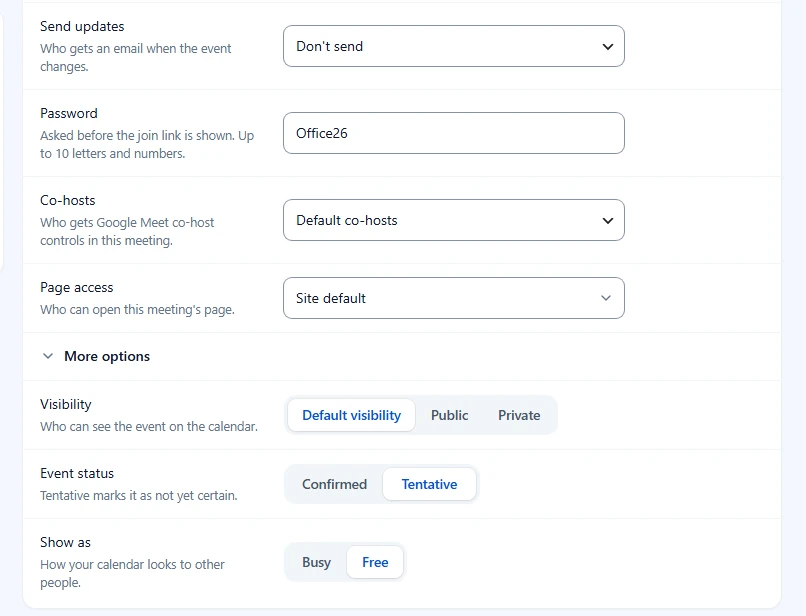
- Click Access and controls. Should register and Send updates start with your defaults.
- Open More options to see Visibility, Event status and Show as.
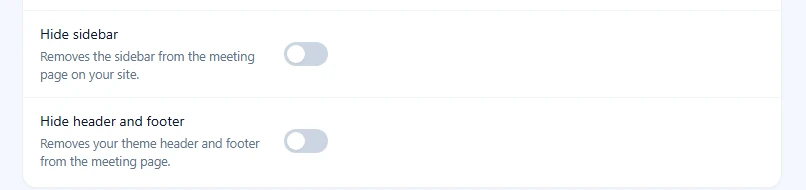
- Click Page design. Hide sidebar and Hide header and footer start with your defaults.
Note: Instructors who create meetings from the front end use the same form, so they start from the same defaults.
Benefits of setting meeting defaults #
- Most new meetings need only a name and a start time, because the rest of the form is already filled in.
- Instructors who create meetings from the front end start from your time zone and reminder, not a guess.
- You decide once whether Google emails guests about new and changed events.
- A single meeting can still differ from the defaults, and changing it there leaves the site defaults alone.
Troubleshooting #
A setting is greyed out with a lock icon #
The setting is part of GoodMeet Pro, and Pro is not active.
- Activate GoodMeet Pro.
- Reload the Meetings tab.
Time zone, Hide sidebar, Hide header and footer, and Vendors use their own calendar work without Pro.
My existing meetings did not change after I saved #
Defaults only fill in the form for new meetings. Each saved meeting keeps its own values.
- Open the meeting from All Meetings.
- Change the field.
- Click Update meeting.
“Connect Google Meet to change these settings.” #
No Google account is connected, so GoodMeet blurs and locks the Meetings tab. The Connect item in the settings menu shows a Set up badge.
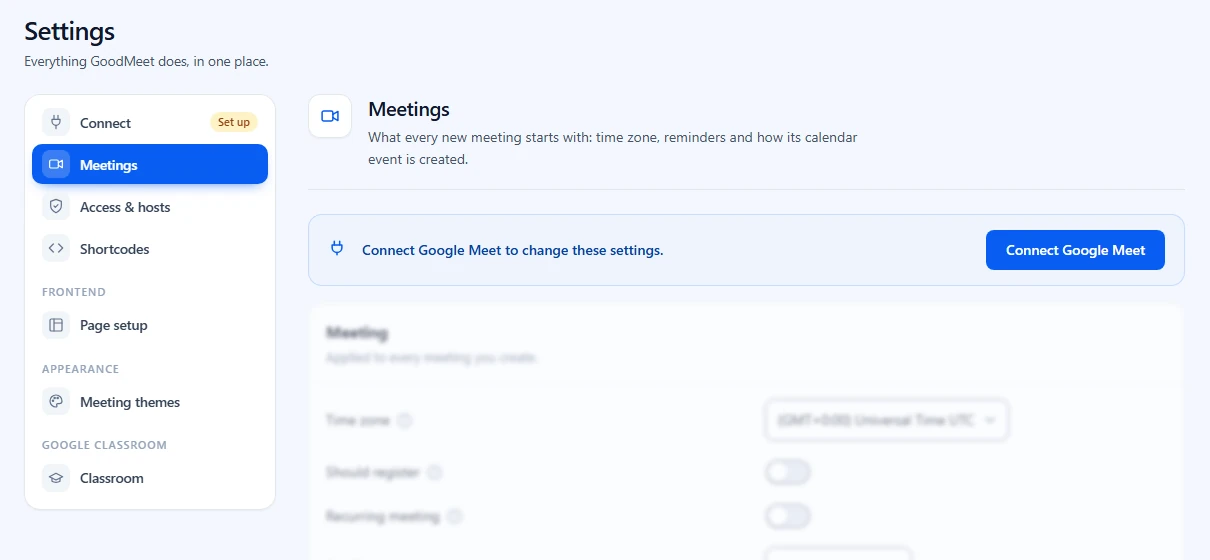
- Click Connect Google Meet.
- Finish the connection with How to connect your Google account to GoodMeet. Your saved defaults come back unchanged.
A teacher’s new meetings use a different time zone or reminder #
With Google Classroom on, a teacher can save personal class preferences. Their own time zone, reminder and duration win over the site defaults.
Check that:
- The teacher’s class preferences hold the values you expect, or
- You change the field on the meeting itself.
Guests get no email when I create a meeting #
Send updates is set to Don’t send. Set it to All guests, either as the default here or on the meeting itself.
I cannot find the Calendar or Meeting page group #
Vendors on a marketplace site see only the Meeting group, because calendar rules and the meeting page belong to the site owner. Log in with an administrator account to see all three groups.
Frequently asked questions #
Do defaults change meetings I already created? #
No. Defaults only fill in the Add New Meeting form. Meetings you already saved keep their own settings.
Can I override a default on one meeting? #
Yes. Every default is also a field on the meeting form. Change it there, and only that meeting is affected.
Which time zone is used if I never set one? #
The form uses the time zone saved on this tab. If the Meetings tab was never saved, it falls back to the time zone in WordPress Settings > General. When none is set there, it uses UTC.
Do vendors share my defaults? #
No. A vendor sees only the Meeting group, and those values are saved for that vendor. The Calendar and Meeting page groups stay with the site owner.
You’re ready to set meeting defaults #
The Add New Meeting form now opens with your saved time zone, reminder and calendar rules, for Emily Clark and for instructors. Next, set up repeating meetings and registration, or pick the page design your meetings use.
- How to set up recurring meetings with GoodMeet
- How to require registration for a meeting with GoodMeet
- How to choose a meeting page theme with GoodMeet
- How to connect your Google account to GoodMeet
- How to let MultiVendorX vendors sell Google Meet meetings with GoodMeet
- How to let Dokan vendors sell Google Meet meetings with GoodMeet
- How to let WCFM Marketplace vendors sell Google Meet meetings with GoodMeet


