The Daily report shows one month of Zoom use, day by day: how many meetings ran, how many people joined and how many minutes they spent. Use it to spot busy weeks, quiet weekends and whether this month is growing compared with the last.
It is the first tab on ZooMeet > Zoom Reports, and it loads the current month as soon as you open the screen.
Note: Screens below use sample data. Your own list fills in once your Zoom plan includes this feature.
By the end of this guide, you will have:
- The Daily report open for any month
- Totals for the month, compared with the month before
- A chart of participants per day
- A table of every day you can filter and sort
- With ZooMeet Pro, the list of people who attended on a given day
Estimated setup time: 2 minutes.
Before you begin #
Make sure you have:
- Zoom connected, on a paid Zoom plan. See How to use Zoom Reports in ZooMeet for the plan details.
- An administrator account on your WordPress site
- ZooMeet Pro, if you want the View button on each day
Step 1: Open the Daily tab and pick a month #
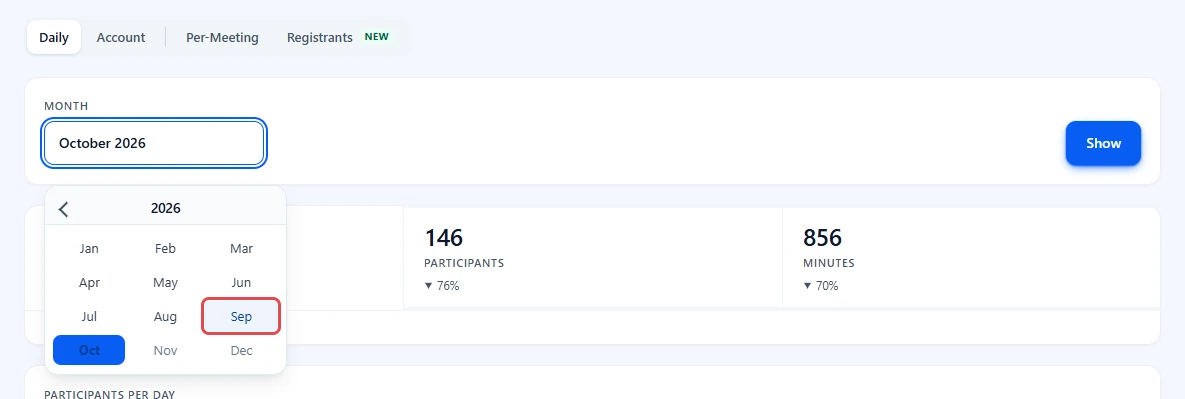
- Go to ZooMeet > Zoom Reports. The Daily tab is open, showing the current month.
- Click the Month field. A year view opens.
- Click a month, for example Sep.
- Click Show.
Step 2: Read the totals and the chart #
The totals sit above everything else, so the answer comes before the detail.
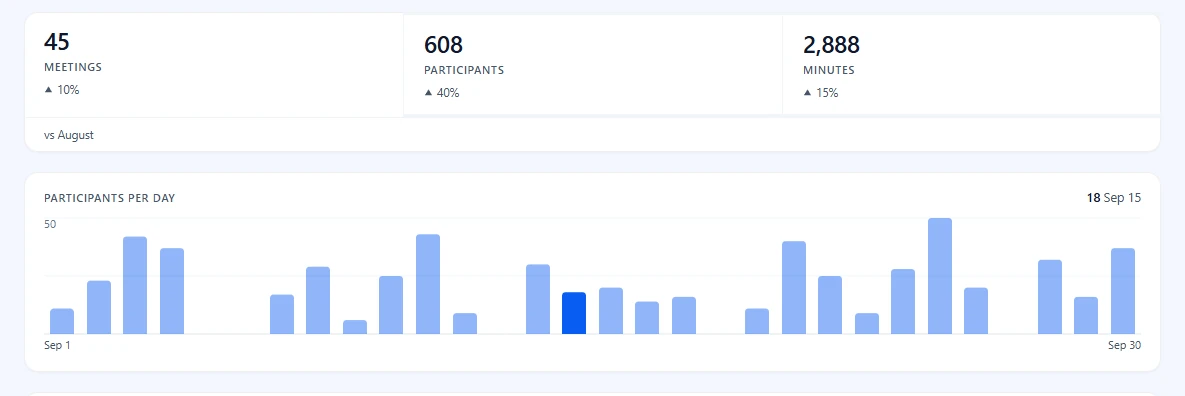
- Read Meetings, Participants and Minutes for the month.
- Read the small arrow and percentage under each. It compares the month with the one before, named on the left, for example vs August. no change means the two months are equal.
- Look at Participants per day. Each bar is one day, from the first of the month on the left to the last on the right.
- Hover over a bar to see that day’s number and date at the top right of the chart.
Tip: The comparison is fetched quietly after the report. If Zoom does not answer it, the totals show without arrows, and the rest of the report is unaffected.
Step 3: Read, filter and sort the table of days #
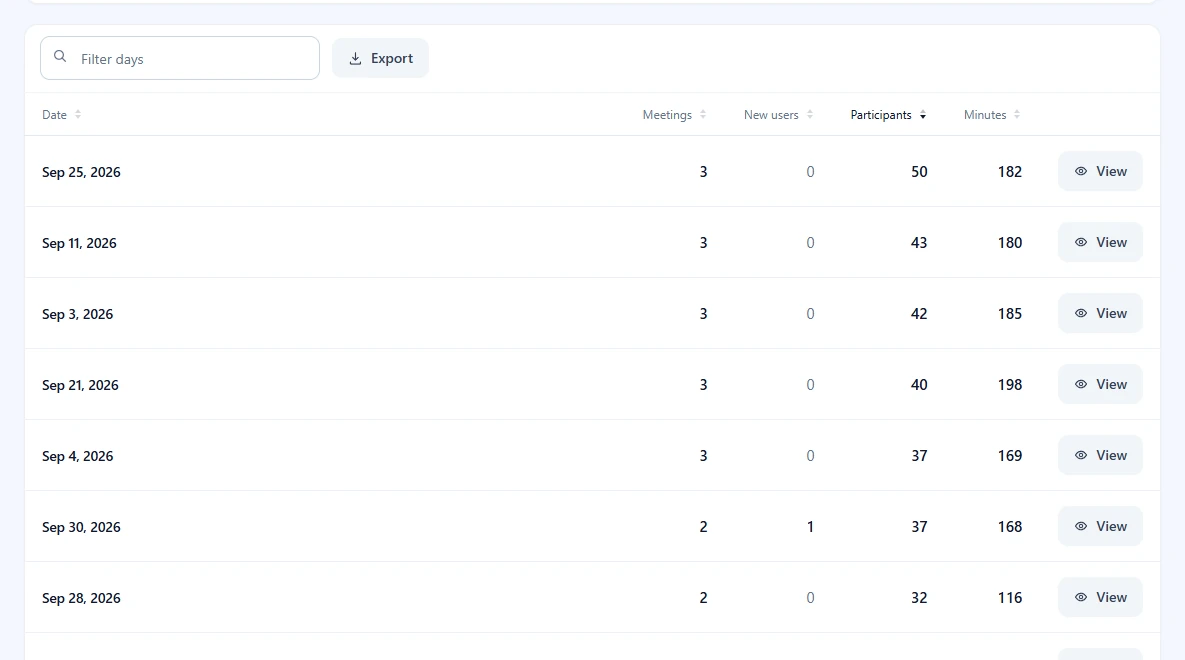
Below the chart, the table lists every day of the month.
- Read the row for a day: Date, Meetings, New users, Participants and Minutes.
- Click a column heading to sort by it. Click again to reverse the order. The arrow beside the heading shows the direction.
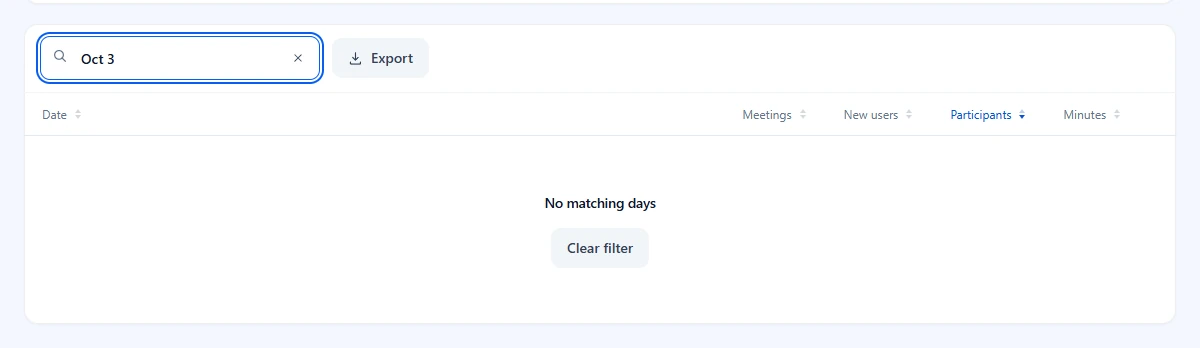
- Type in Filter days to narrow the list, for example
Sep 2or a number such as40.
If nothing matches the filter, the table says No matching days. Click Clear filter to see every day again.
Step 4: See who attended on a day #
With ZooMeet Pro, each day with meetings has a View button. Days without meetings show None.
- Click View on a day.
- Read the Participants window. The date is under the title. People counts each person once, Joins counts every time someone joined (it only appears when the two differ), and Meetings counts the sessions that day.
- Type in Filter people to find someone by name, email or meeting.
- Click a column heading to sort, and use the page numbers at the bottom to move through the list, 10 joins per page.
- Click the cross, or press Escape, to close the window.
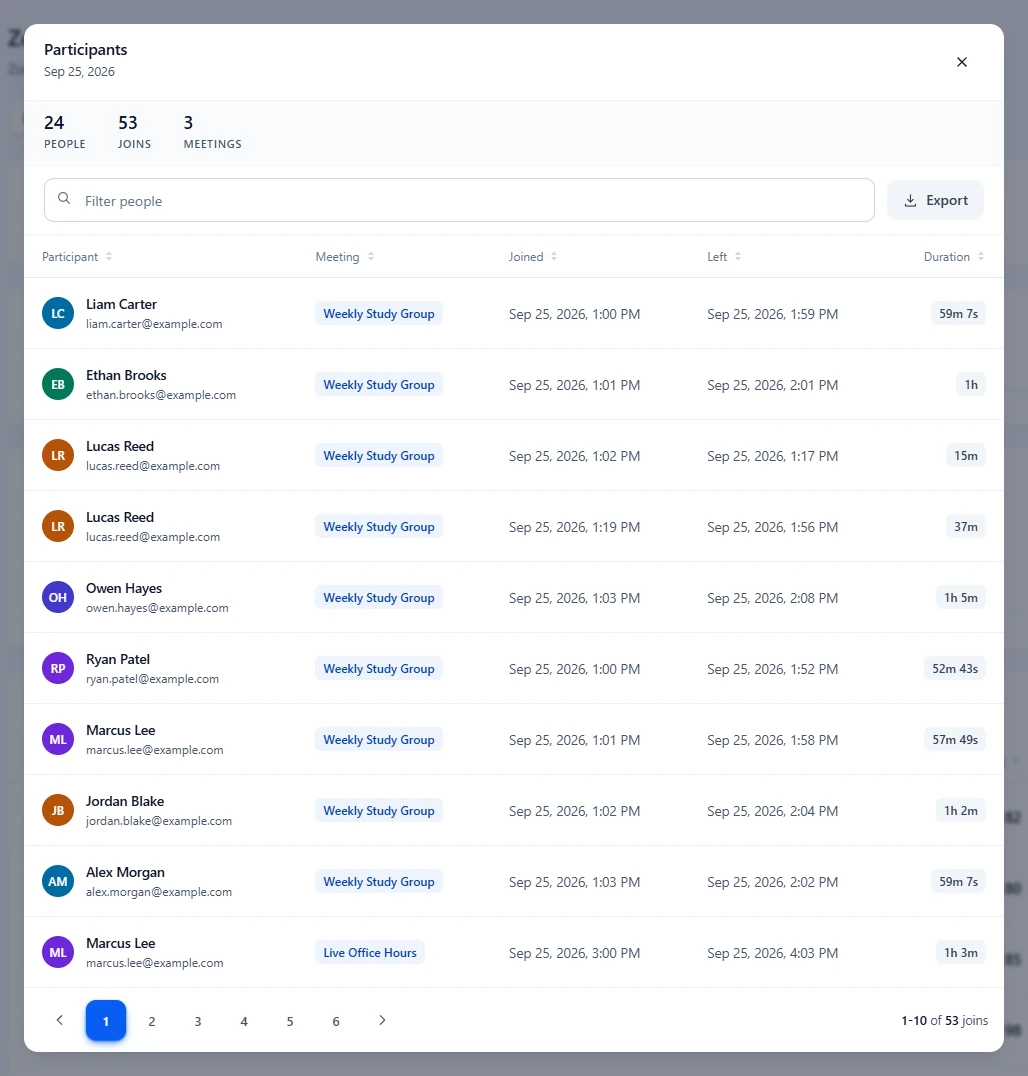
The window gathers that day’s meetings from every Zoom host on your account. If Zoom does not answer for one of them, the window says Some hosts could not be read from Zoom, so this list may be incomplete. and shows the rest.
To save the table or the window as a file, see How to export Zoom reports to CSV.
What the numbers mean #
| Column or card | What it counts |
|---|---|
| Meetings | Zoom meetings that took place that day on your account. |
| New users | Zoom users added to your account that day. |
| Participants | Joins to those meetings. One person in two meetings counts twice. |
| Minutes | Meeting minutes, as Zoom reports them for the day. |
| People (window) | Different people who joined, counted once each by email, or by name when Zoom has no email. |
| Joins (window) | Every join. Someone who left and came back, or went to two meetings, counts more than once. |
| Meetings (window) | Meetings those people joined. |
| Duration (window) | How long that person stayed, in hours, minutes and seconds. |
Troubleshooting #
“Only available for Paid or ZMP account.” #
The Zoom account is on the free plan, and Zoom does not provide this report. Upgrade the Zoom account, then click Show again.
“No usage found” #
You clicked Show and Zoom has no meetings for that month. Pick another month, or check that meetings in that month were hosted on a paid account.
“No report yet” #
You have not asked for a report on this tab yet. Click Show.
“Nobody attended” #
The Participants window found no joins for that day. Zoom may still be preparing the report for a recent meeting; try again later.
The View button is missing #
View needs ZooMeet Pro. Without it, the table shows See who attended, which opens the upgrade window.
Frequently asked questions #
Can I pick a range of days instead of a month? #
No. Daily works by month. For any date range, use the Account tab.
Why do a few days show zero? #
Those days had no meetings, often weekends. They stay in the table so the month is complete.
Does the report include meetings that were scheduled but never started? #
No. Zoom only counts meetings that took place.
You’re ready to read your daily usage #
You can now pick a month, read its totals and trend, find the busiest days and, with ZooMeet Pro, see who attended. Next, compare your hosts or save the numbers to a file.


