- Before you begin
- Step 1: Start a new meeting (Name and type)
- Step 2: Set the first session, then turn on Recurring meeting (Date and time)
- Step 3: Choose the recurrence
- Step 4: Choose when the series ends
- Step 5: Create the meeting
- What visitors see
- Benefits of recurring meetings in ZooMeet
- Troubleshooting
- Frequently asked questions
- You're ready to run recurring meetings
Do you run the same session every week, such as office hours or a study group? Creating each one by hand gets slow, and one wrong date confuses everyone. With Recurring meeting, you create the meeting once and Zoom repeats it on the schedule you choose.
ZooMeet creates one recurring Zoom meeting with the same join link for every session. The meeting page counts down to the next session, so attendees never need a new link.
By the end of this guide, you will have:
- A meeting that repeats daily, weekly or monthly, or has no fixed time
- Weekly sessions on the days you pick, or monthly sessions on a date or a weekday
- A series that ends on a date or after a number of sessions
- One Zoom join link that works for every session
Estimated setup time: 5 minutes. Recurring meeting is a switch on the meeting, so you can turn it off again later.
Note: Requires ZooMeet Pro. Without Pro, the Recurring meeting switch shows a lock icon and cannot be turned on.
Before you begin #
Make sure you have:
- ZooMeet and ZooMeet Pro installed and activated
- Zoom connected. See How to connect Zoom with ZooMeet using Server-to-Server OAuth.
- An administrator account on your WordPress site
Let’s get started.
Step 1: Start a new meeting (Name and type) #
A recurring meeting starts like any other. If you have not created one before, How to create your first Zoom meeting covers every field.
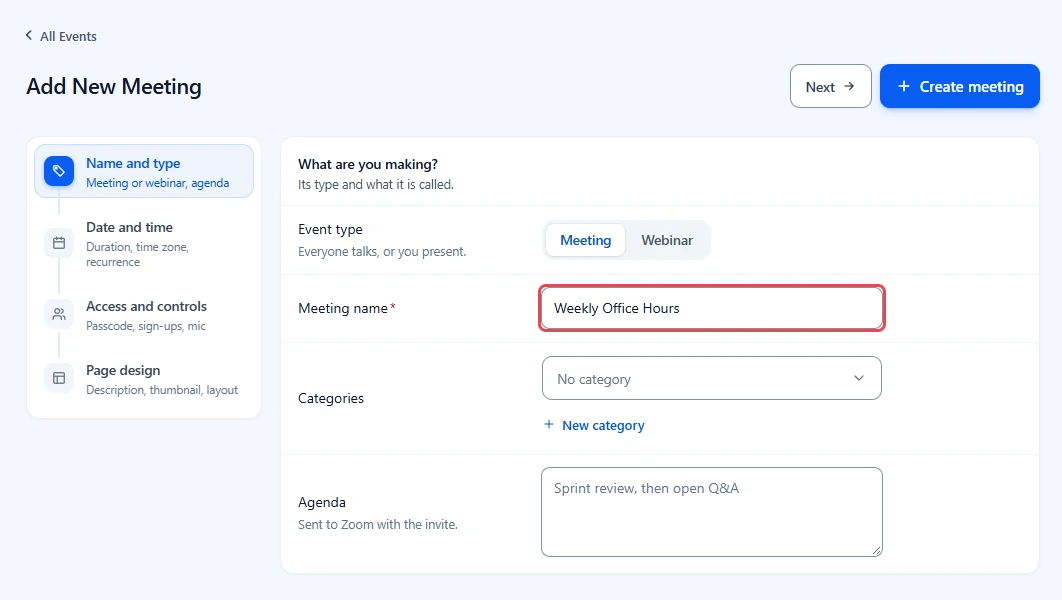
- Go to ZooMeet > Add New Event.
- In Meeting name, type a name, for example
Weekly Office Hours.
Step 2: Set the first session, then turn on Recurring meeting (Date and time) #
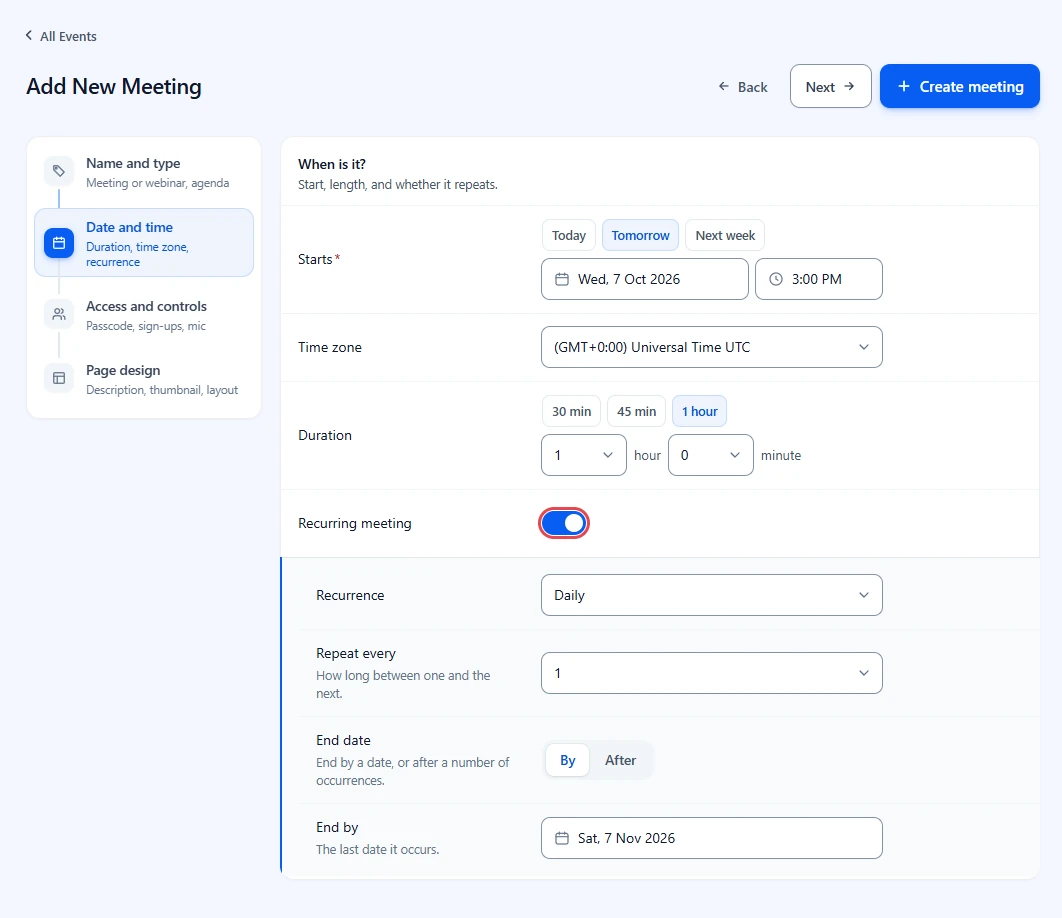
The first session takes its date and time from Starts. The clock time of every later session comes from it too.
- Click Date and time on the left.
- Set Starts to the date and time of the first session.
- Check Time zone.
- Set Duration. Click 30 min, 45 min or 1 hour to fill the dropdowns, or pick the hour and minute yourself.
- Turn on Recurring meeting. The recurrence options open below it.
Step 3: Choose the recurrence #
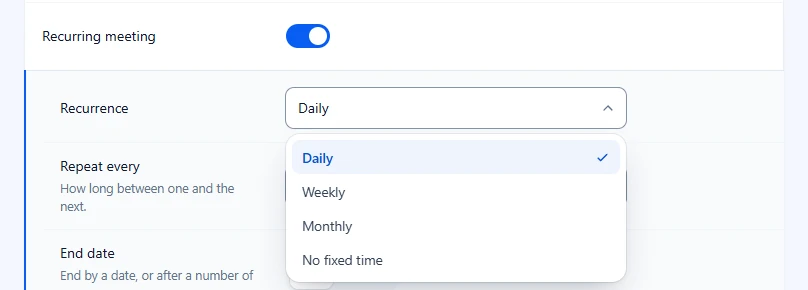
Open Recurrence and pick Daily, Weekly, Monthly or No fixed time. Then set Repeat every, the gap between one session and the next.
Daily #
- Under Recurrence, pick Daily.
- Set Repeat every to 1 for every day, or 2 for every other day. You can pick up to 31.
Weekly #
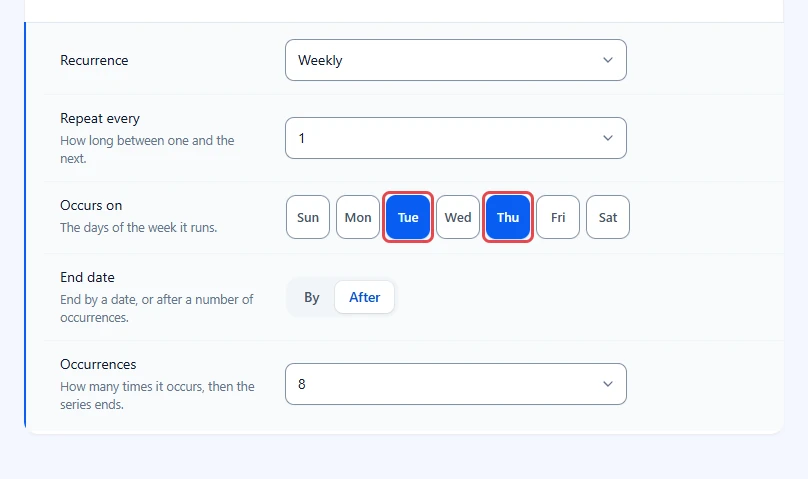
- Under Recurrence, pick Weekly.
- Under Occurs on, click each day the meeting runs, for example Tue and Thu.
- Set Repeat every to 1 for every week, or 2 for every other week. You can pick up to 12.
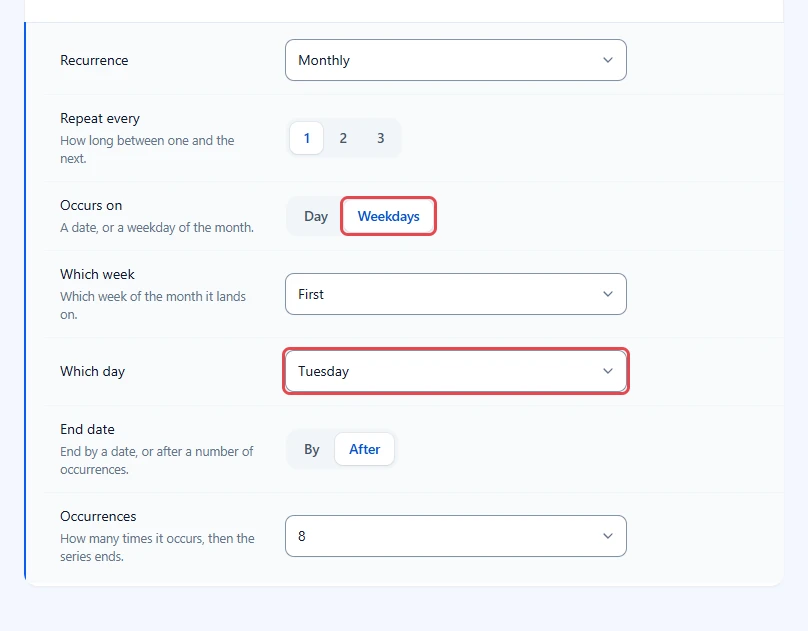
Monthly #
- Under Recurrence, pick Monthly.
- Set Repeat every to 1, 2 or 3 months.
- Under Occurs on, click Day to repeat on a date, then pick the Day of the month.
- Or click Weekdays, then choose Which week (First, Second, Third, Fourth or Last) and Which day, for example Tuesday.
No fixed time #
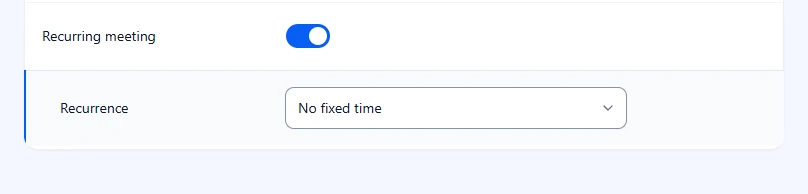
Pick No fixed time for a room people can use any time, such as a standing help desk. Zoom keeps one link with no schedule, so there is nothing else to set.
Step 4: Choose when the series ends #
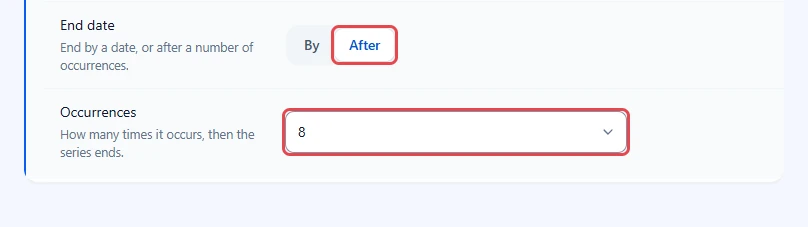
A series without an end keeps filling calendars, so decide up front how long it runs. Under End date, pick one option.
- Click By to stop on a date, then pick the date in End by. Its hint reads The last date it occurs.
- Or click After to stop after a set number of sessions, then pick the Occurrences, from 1 to 20.
Note: End by follows Starts: it is set to one month after the start each time you change Starts, until you pick an end date yourself. After that it stays where you put it, unless Starts moves past it. Check it matches the last session you want before you create the meeting.
Step 5: Create the meeting #
- Fill in Access and controls and Page design if you like. They work the same as for any meeting.
- Click Create meeting at the top right.
ZooMeet creates one recurring Zoom meeting. Every session uses the same join link and the same meeting page.
What visitors see #
The meeting page shows the next session and counts down to it, and lists the recurrence in plain words, for example Weekly on Tuesday, Thursday. In All Events, the meeting shows how often it recurs under its start time, for example Recurs weekly. After each session, the page moves on to the next date by itself.
Benefits of recurring meetings in ZooMeet #
- One meeting, many sessions: You set the schedule once instead of creating eight meetings for a month of office hours.
- The link never changes: Every session uses the same Zoom link and the same page, so attendees can bookmark it.
- Flexible patterns: Pick days of the week, a date each month, or the first Tuesday of the month.
- A clear end: Stop on a date or after a set number of sessions.
Troubleshooting #
The Recurring meeting switch is locked #
Recurring meeting requires ZooMeet Pro. Activate ZooMeet Pro and reload the form.
The first session is on the wrong day or time #
The first session comes from Starts.
- Open the meeting and click Date and time.
- Fix Starts. It stays visible while Recurring meeting is on.
- Check the End by date or Occurrences still fits the new start.
The series stops sooner than expected #
The series ends on whichever limit you set. Occurrences counts sessions, not weeks, so Tue and Thu for four weeks needs 8. If you picked By, check that the End by date is the date of the last session.
The meeting was not created #
Zoom refused the request, and the message on the form names the reason. Check that Zoom is still connected in Settings > Connect, and that the end date is after the first session.
Frequently asked questions #
Does each session get its own Zoom link? #
No. A recurring meeting is one Zoom meeting with one join link for every session.
Can I make every new meeting recurring by default? #
Yes. Turn on Recurring meeting in Settings > Events. See How to set default meeting settings with ZooMeet.
Can a series run forever? #
Pick No fixed time for an open room with no schedule. A daily, weekly or monthly series ends By a date or After a number of occurrences.
What happens if ZooMeet Pro is turned off later? #
The meeting keeps repeating in Zoom, because the schedule lives in Zoom. You cannot turn Recurring meeting on for new meetings until Pro is active again.
You’re ready to run recurring meetings #
Your meeting now repeats on the schedule you set, with the same Zoom link for every session. Next, set your defaults so new meetings start the way you like.


