- Step 1: Install and Activate DriveHub
- Step 2: Add your Google Account
- Step 3: Enable SureForms Integration
- Step 4: Creating a Module
- Step 5: Choose Your Google Drive Folder (Source Tab)
- Step 6: Choose File Rules (Filter Tab)
- Step 7: Change How It Looks (Advanced Tab)
- Step 8: Set Up Email Alerts (Notifications Tab)
- Step 9: Choose Who Can Use It (Permissions Tab)
- Step 10: Add the Google Drive Upload Field (SureForms Editor)
- Step 11: Add the Form to a Page
- Step 12: See the Result
- Already Using the SureForms Pro File Upload Field?
- Benefits of using DriveHub with SureForms
Do you want clients to send their documents straight to your Google Drive when they fill out a SureForms form? You can easily do this by using DriveHub with SureForms.
This setup is super useful because large files never touch your hosting space, every upload lands in the Drive folder you choose, and each form entry links to the files it brought in.
Here is an easy, step-by-step guide to help you set it all up!
Note: This needs DriveHub Pro.
Step 1: Install and Activate DriveHub #
From the WordPress plugin repository install and activate DriveHub using the following method.
- Go to Plugins from your WP-Admin.
- Click on Add New.
- Search for DriveHub.
- Click Install and then Activate the plugin.


Step 2: Add your Google Account #
Once activated you’ll be redirected to the Setup menu.
- Click on Start setup.
- Choose the setup method (Whole Drive/Selected folders).
- Click on Add account.
- Select the Google Account you want to add.
- Allow the necessary permissions.
Read our step by step setup guide to avoid any confusion.

Step 3: Enable SureForms Integration #
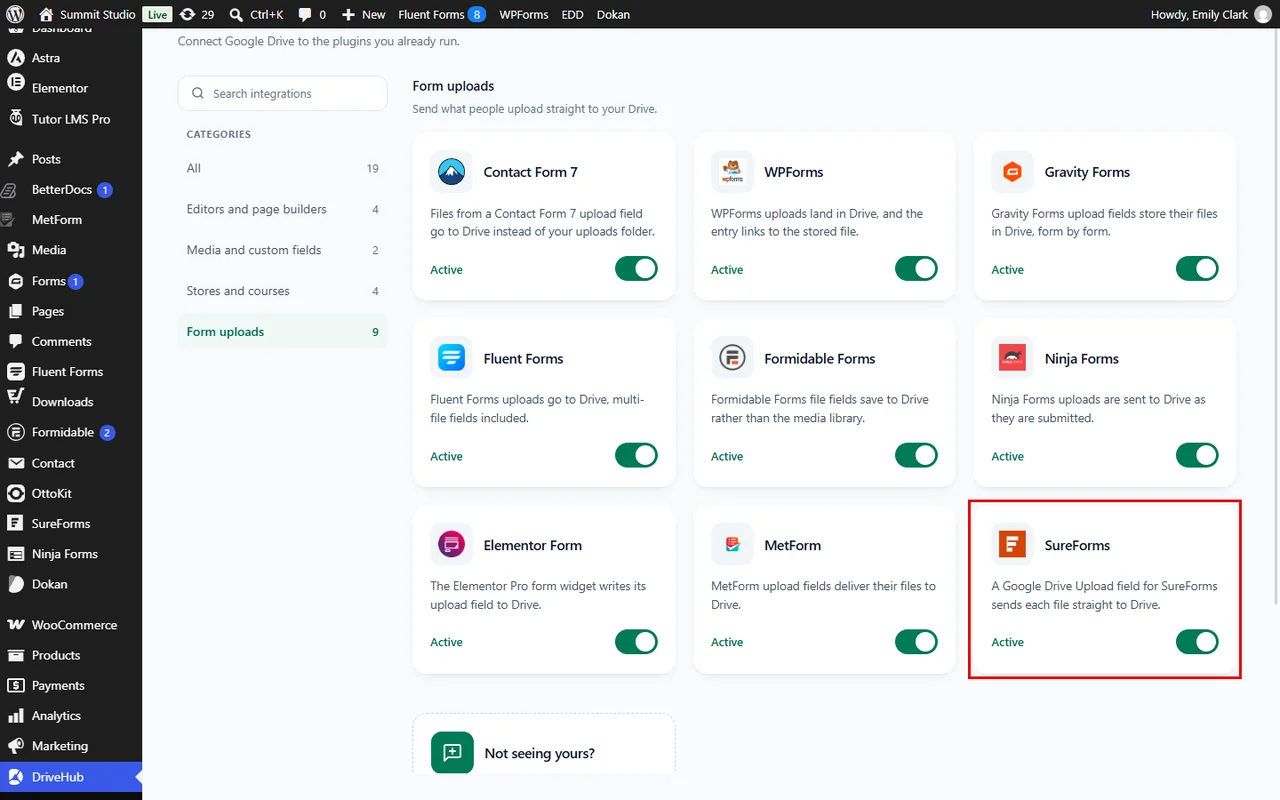
In this step, you switch on the SureForms integration:
- Go to DriveHub > Integrations.
- Find the SureForms card under Form uploads and turn it on.
- Click Save changes.
Step 4: Creating a Module #
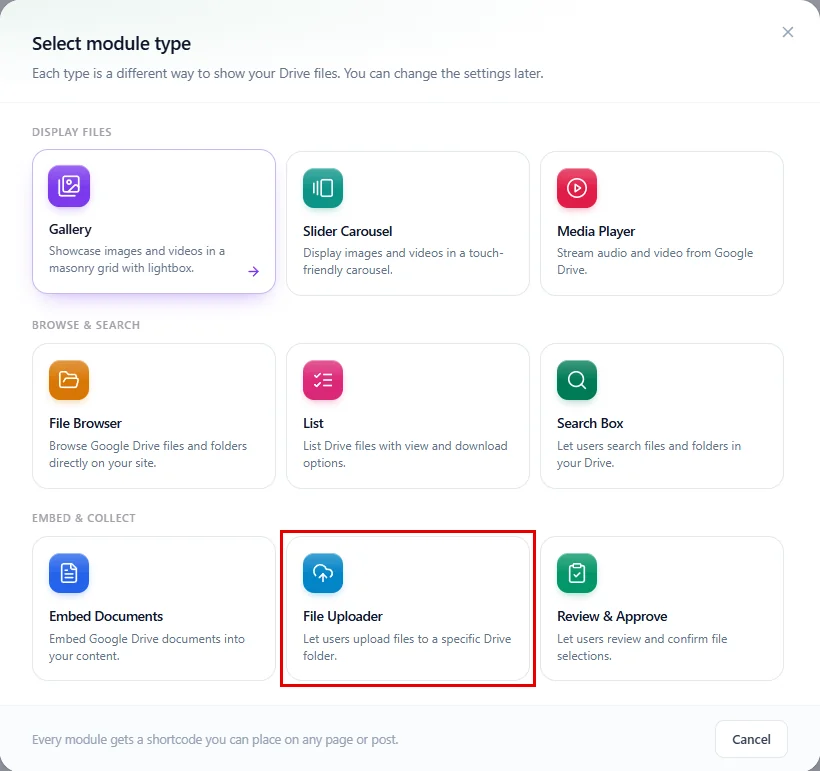
The next step is to create a module so that we can use it with the integration.
- Go to DriveHub and click on Modules.
- Create a new File Uploader Module.
Step 5: Choose Your Google Drive Folder (Source Tab) #
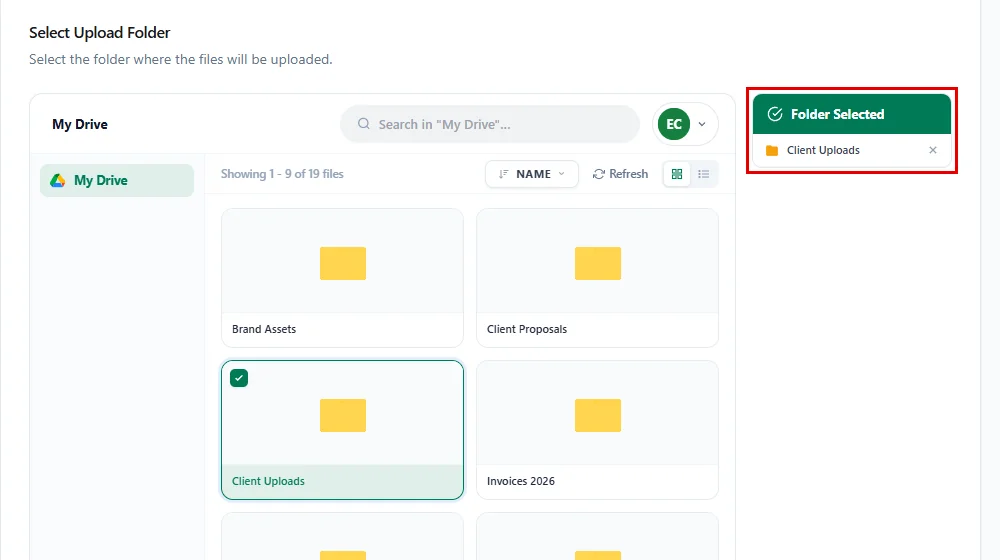
In this step, you pick where the files from your form will go:
- Go to the Source Tab.
- Pick the Google Drive folder where you want people’s uploaded files to be saved.
Step 6: Choose File Rules (Filter Tab) #
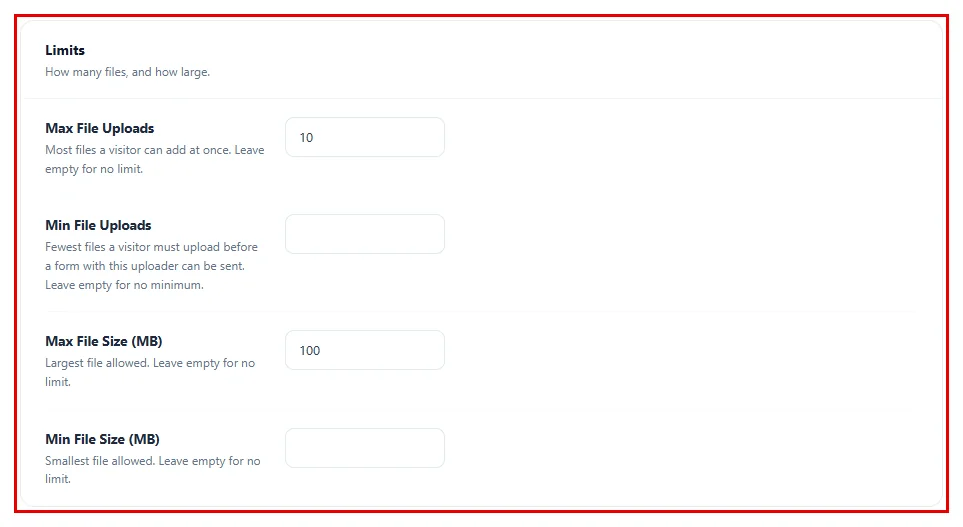
Here, you can decide what kinds of files people are allowed to send:
- Go to the Filter Tab.
- Allowed Extensions: Type in the types of files you want (like pdf, docx) separated by commas. If you leave this blank, people can upload any file type.
- File Limits: Choose the maximum number of files people can upload (Max File Uploads), and how big or small the file size can be (Max File Size (MB) and Min File Size (MB)).
Step 7: Change How It Looks (Advanced Tab) #
- Go to the Advanced Tab.
- Here, you can change the size and width of the upload box on your website.
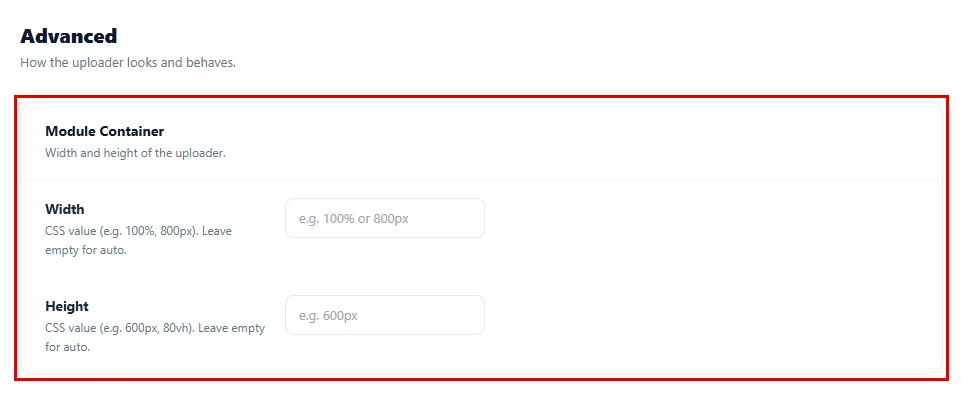
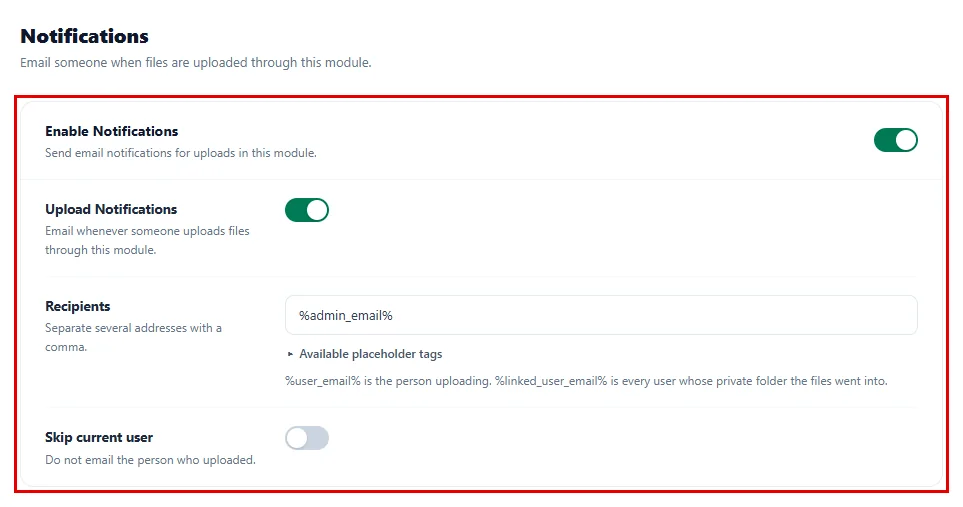
Step 8: Set Up Email Alerts (Notifications Tab) #
- Go to the Notifications Tab.
- Turn this on if you want to get an email every time someone uploads a file through your form.
Step 9: Choose Who Can Use It (Permissions Tab) #
- Go to the Permissions Tab.
- Here, you can choose if Everyone can use the upload box, or only people who are Logged In to your website.
- You can also set a password if you want to keep the uploader extra safe.
Don’t forget to click the Save changes button at the top right when you are finished!

Step 10: Add the Google Drive Upload Field (SureForms Editor) #
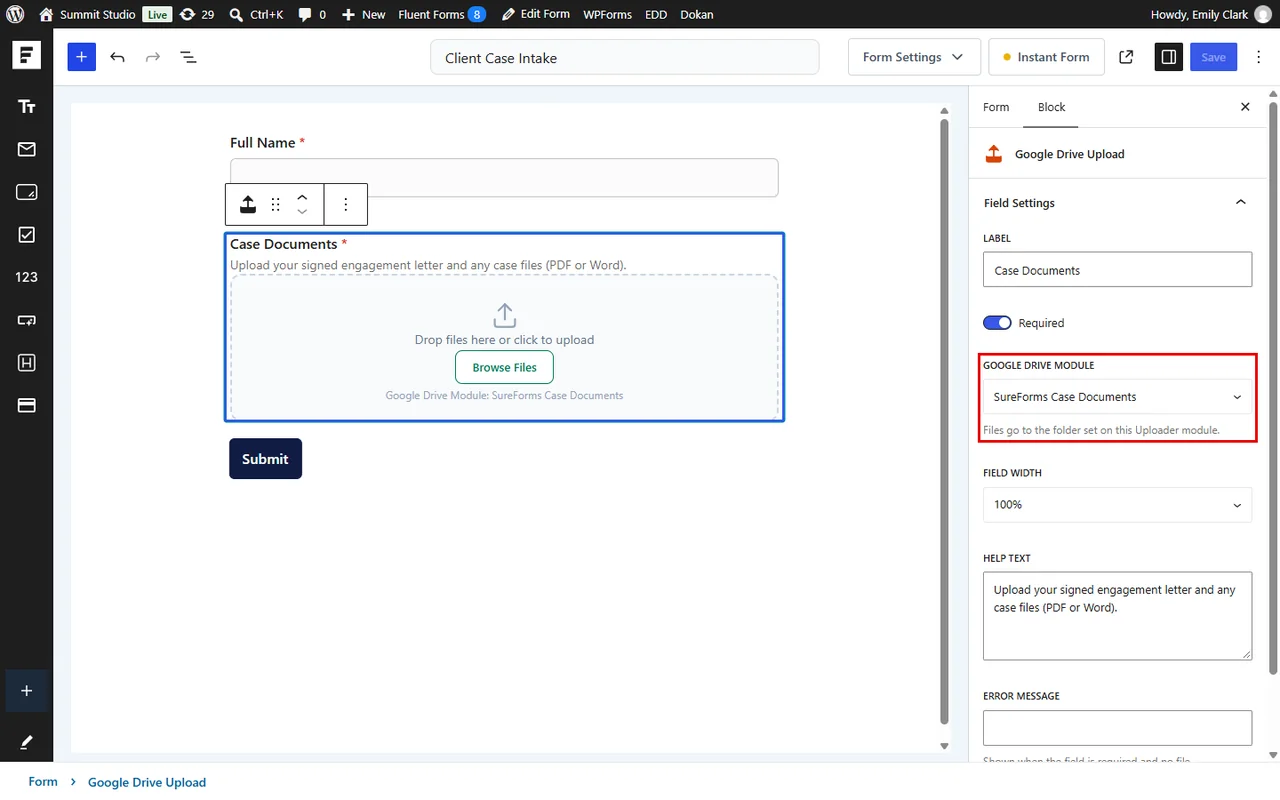
Now add the upload box to your form. Go to SureForms > New Form, or edit an existing form:
- Add the fields you need (for example Text for the client’s name).
- Open the block inserter. Under General Fields, click Google Drive Upload to add it to your form.

- Click the Google Drive Upload field to open its settings on the right.
- Change the Label (for example Case Documents) and turn on Required if every client must send at least one file.
- Pick your module from the Google Drive Module dropdown. Only File Uploader modules are listed.
- Add Help Text and an Error Message if you like.
Don’t forget to click Save (or Publish on a new form) at the top right!
Step 11: Add the Form to a Page #
Let’s put the form on your website:
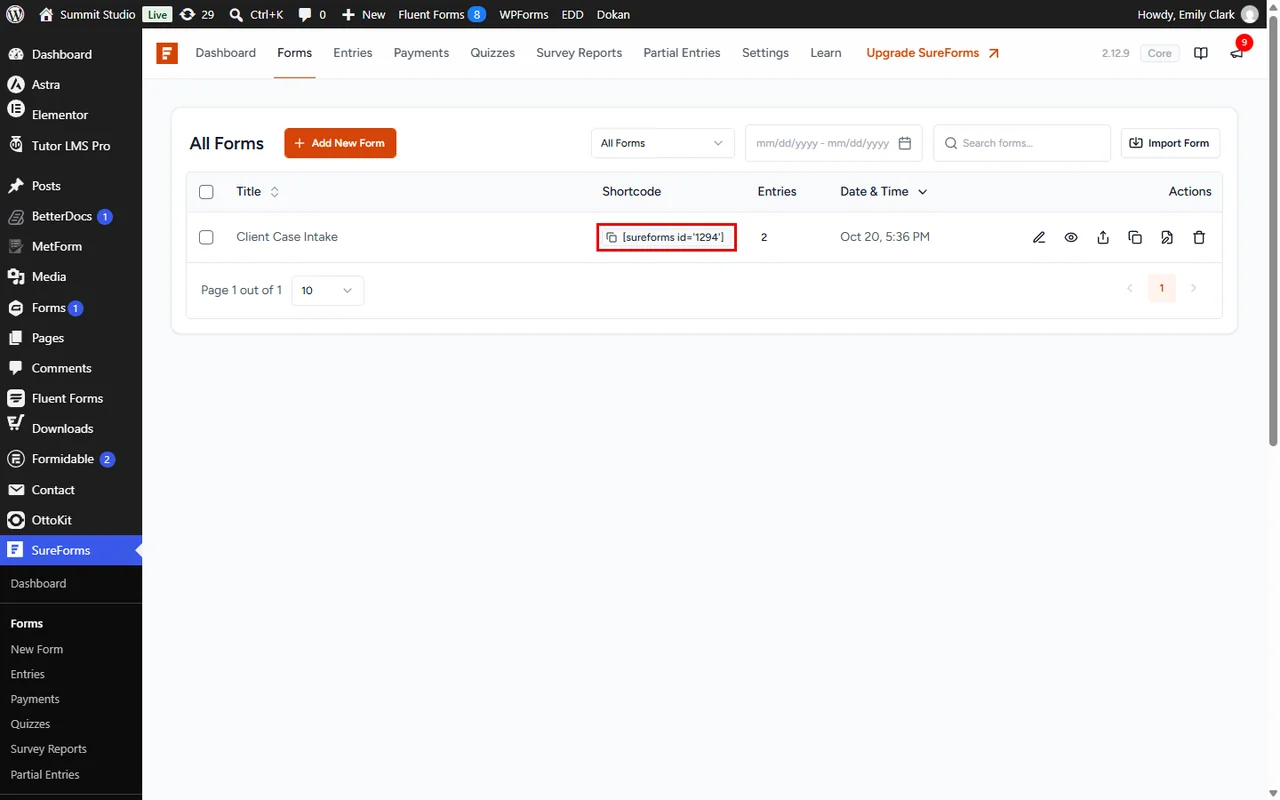
- Go to SureForms > Forms.
- Click the shortcode next to your form to copy it.
- Paste it into any page or post. You can also add the SureForms block to a page and pick your form there.
Step 12: See the Result #
And that’s it. Your visitors now see the DriveHub upload box inside the form. Files go straight to your Google Drive folder while they fill out the rest of the form, and the form will not send until a required upload field has a file.
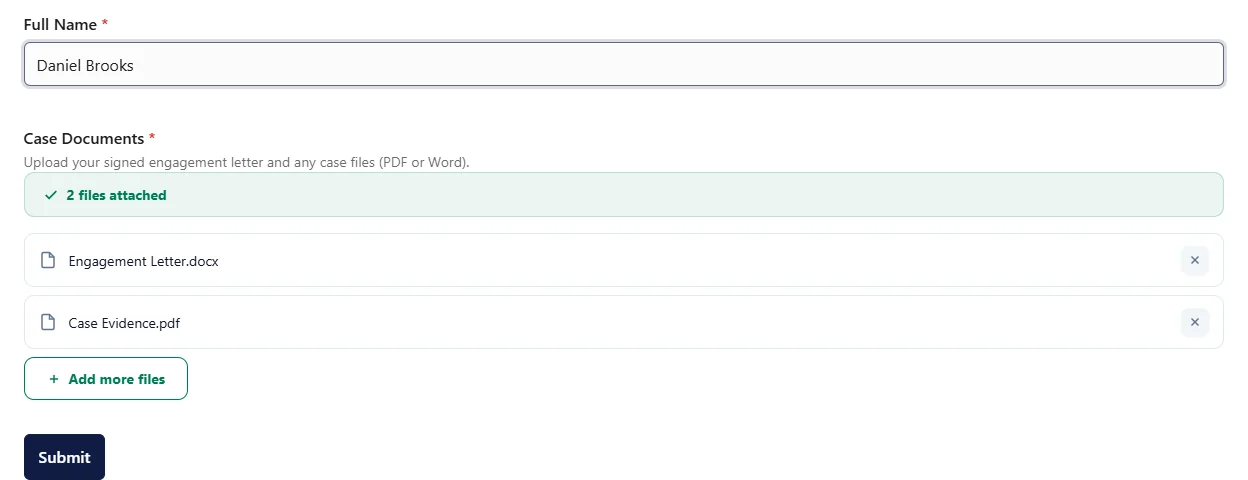
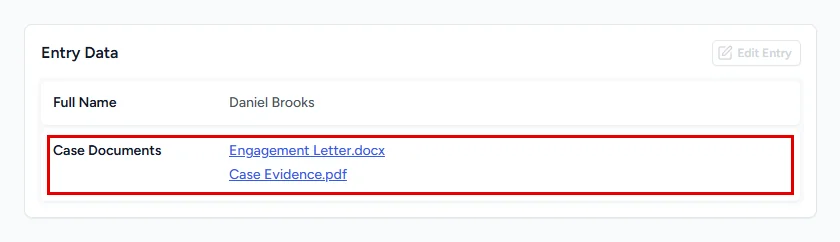
When the form is sent, the entry keeps a link to every uploaded file. Open SureForms > Entries and click an entry: each file name opens the file in Google Drive. The admin email and the field’s smart tag show the same links.
Already Using the SureForms Pro File Upload Field? #
Note: This needs SureForms Pro.
If your forms already use the File Upload field from SureForms Pro, DriveHub can send those files to Google Drive too:
- Edit the form and click Form in the settings sidebar on the right.
- In the Google Drive (DriveHub) panel, pick a File Uploader module in Send uploads to Google Drive. Leave it on Off (keep files on this site) to keep things as they are.
- Turn on Delete local copy after upload if you don’t want to keep a copy on your server.
- Click Save.
After each submission, DriveHub copies the uploaded files to the module’s folder, and the entry links to Google Drive instead of your uploads folder.
Benefits of using DriveHub with SureForms #
- Save hosting space: Form attachments go to Google Drive, not your server.
- Linked entries: Each SureForms entry and admin email lists the uploaded files with links to Google Drive.
- One place for files: Every attachment lands in the folder you picked on the module.
- Your rules: Limit file types, sizes and who can upload, right from the module.
With DriveHub and SureForms, collecting client documents through your forms is simple and tidy.
Related guides:


