Do you want to send a client a link that opens a file straight away, or downloads it with one click? You can easily do this with DriveHub, right from your WordPress dashboard.
This is super useful because you do not have to open Google Drive, hunt for the file and dig through its sharing menu. You copy the link in DriveHub and paste it into an email, a chat, a button or a page on your site.
DriveHub gives you two kinds of links:
- Preview Link: opens the file in the Google Drive viewer, so people can read or watch it in their browser.
- Download Link: downloads the file to the visitor’s device straight away.
Here is an easy, step-by-step guide to help you share them!
Step 1: Find Your File in the File Browser #
- Go to DriveHub > File Browser from your WP-Admin.
- Open the folder that holds your file.
Need a refresher on getting around? Read How to Manage Your Google Drive Files from the WordPress Dashboard.
Step 2: Copy a Link From the Right-Click Menu #
This is the quickest way to grab a link:
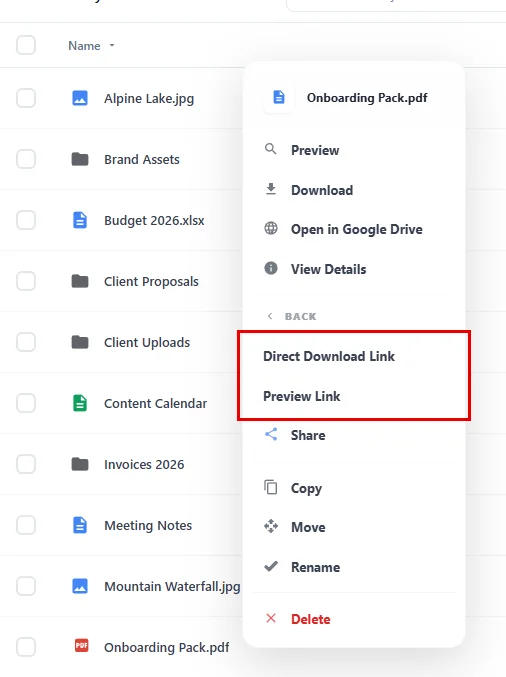
- Right-click the file (or click the ⋮ button at the end of its row).
- Click Copy Links.
- Click Direct Download Link or Preview Link.
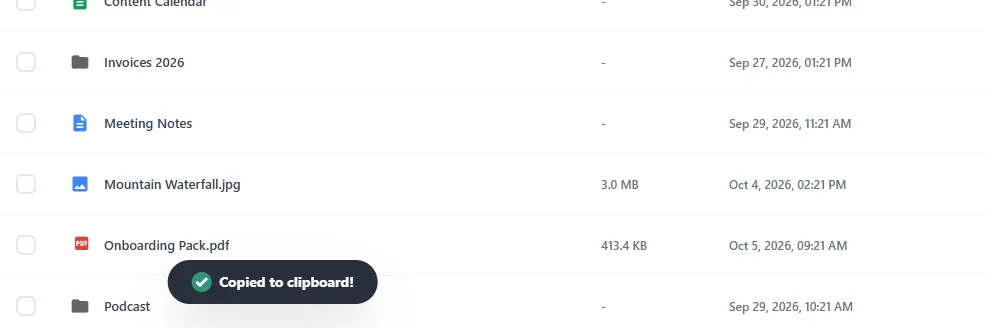
You will see the message Copied to clipboard! at the bottom of the screen. The link is ready to paste anywhere.
Tip: Want to check the file first? Click Open in Google Drive in the same menu to open it in a new tab.
Step 3: Or See the Link Before You Copy It #
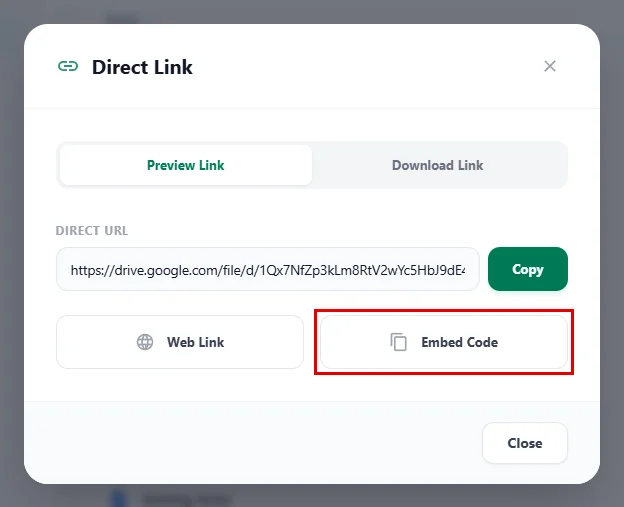
If you want to see the full link before you share it, use the Direct Link window:
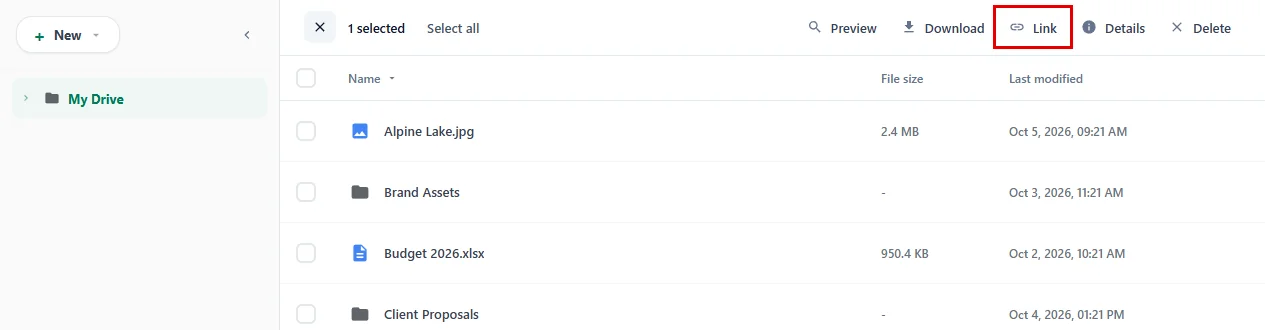
- Tick the box next to the file.
- Click Link in the toolbar.
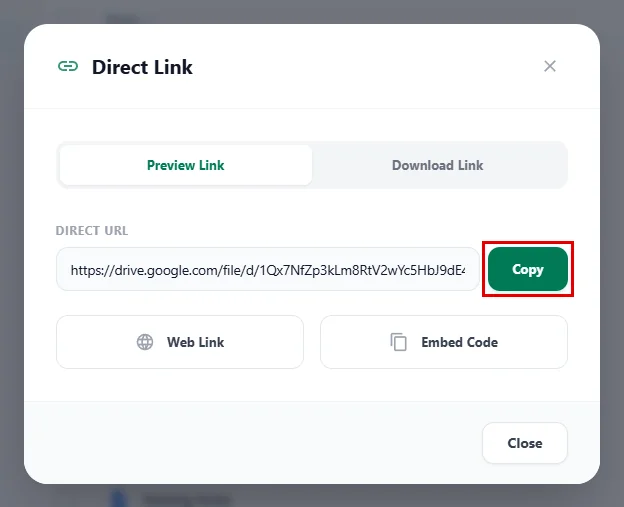
The Direct Link window opens on the Preview Link tab:
- Check the address under Direct URL.
- Click Copy. The button changes to Copied! for a moment.
To get the download link instead:
- Click the Download Link tab.
- Click Copy.
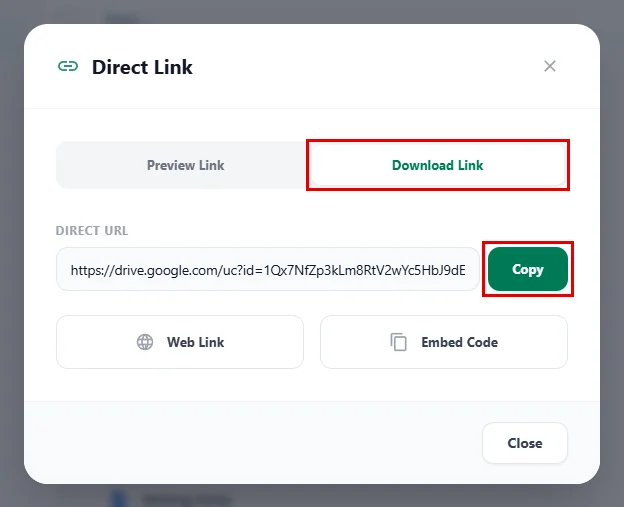
Click Web Link to open the link in a new tab and try it yourself, and Close when you are done.
Sharing a Google Doc, Sheet or Slides file? #
Google Docs, Sheets and Slides are not ordinary files, so Google turns them into a file at the moment someone opens the download link. You get to pick which kind:
- Click the Download Link tab.
- Choose a Format: PDF (.pdf) is picked for you, or choose Word (.docx) for a Doc, Excel (.xlsx) for a Sheet or PowerPoint (.pptx) for Slides.
- Click Copy.
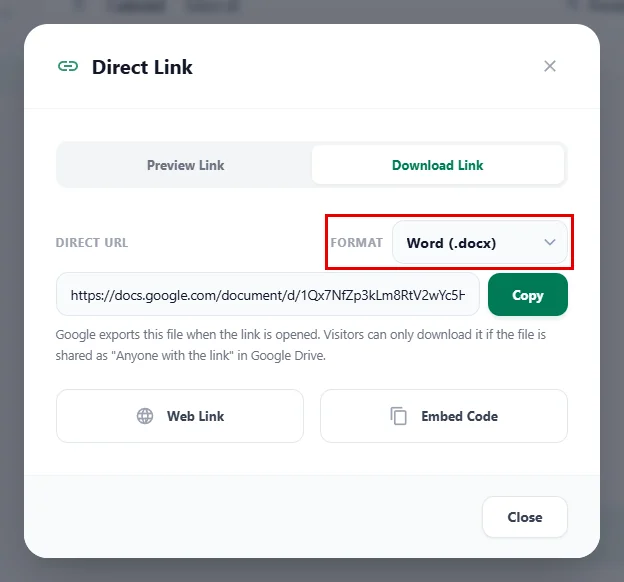
The link updates as soon as you change the format. The Direct Download Link in the right-click menu always copies the PDF version.
Note: Visitors can only download a Google Doc, Sheet or Slides file when it is shared as Anyone with the link in Google Drive. Step 4 shows you how. The Preview Link works for every file.
Step 4: Make Sure People Can Open the Link #
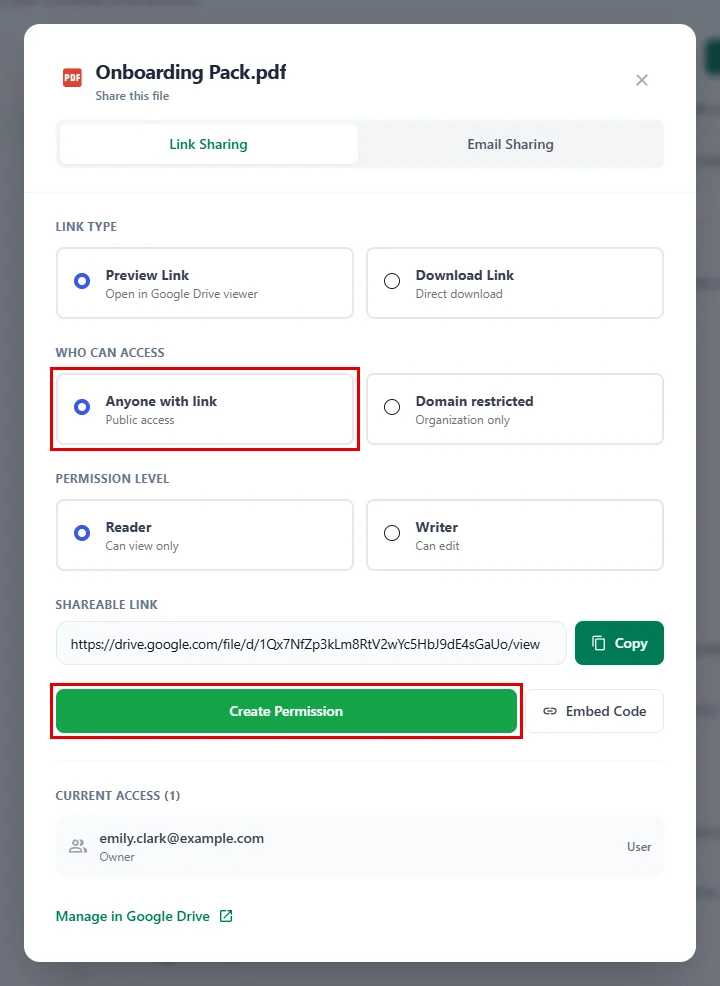
Google only lets people open a file they have permission to see. If the file is private, visitors who click your link land on a Google “request access” page instead of your file. To let anyone with the link open it:
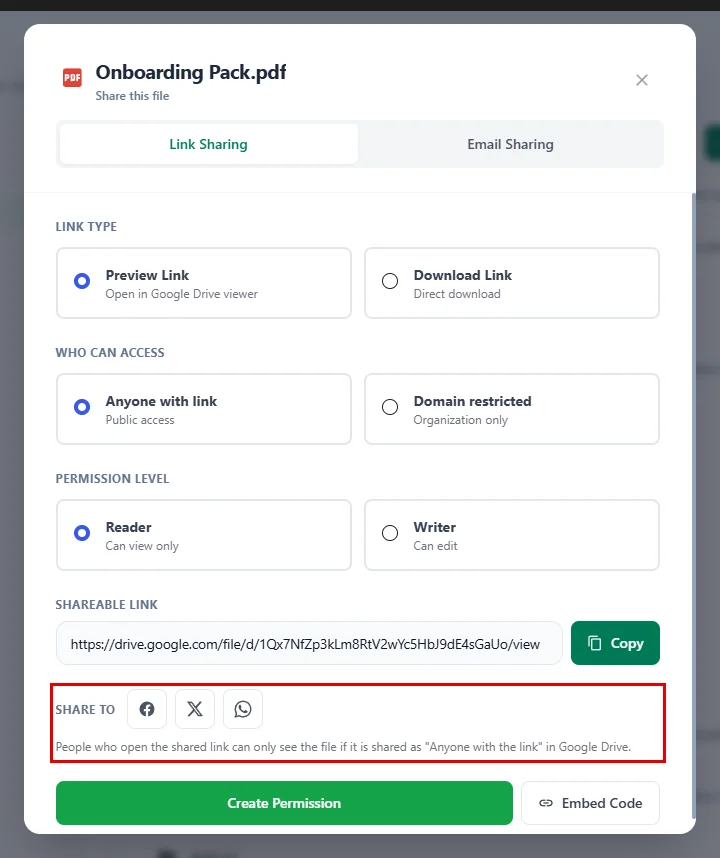
- Right-click the file and click Share.
- On the Link Sharing tab, choose Anyone with link under Who can access.
- Leave Permission Level on Reader, so people can view the file but not change it.
- Click Create Permission.
You will see Permission created successfully, and anyone with the Reader role now appears under Current Access.
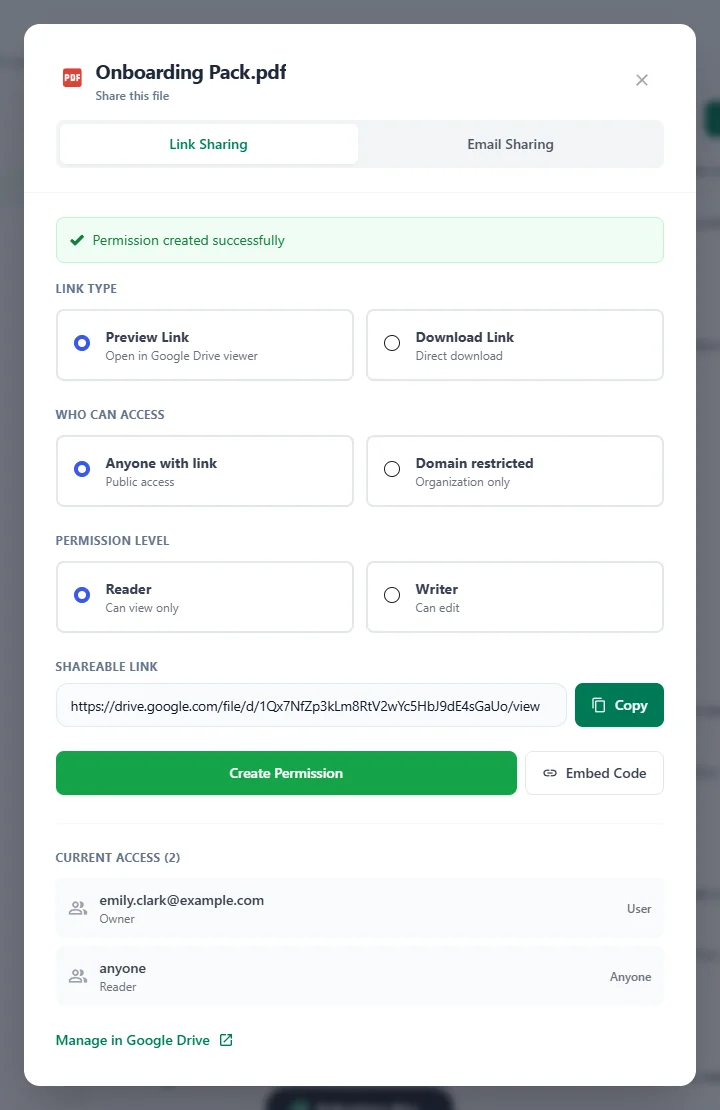
Important: Anyone who gets the link can open the file. Only share files you are happy to make public, and pick Domain restricted instead if the file should stay inside your organization.
Step 5: Embed the File on a Page (optional) #
Want the file to show right inside a page or post instead of opening in a new tab? DriveHub gives you a ready-made embed code:
- Open the Direct Link window for your file (tick the file, then click Link).
- Click Embed Code. The code is copied to your clipboard.
- Edit your page or post and add a Custom HTML block.
- Paste the code into the block and update the page.
The embed code is a small iframe that shows Google’s own preview of the file, so the same rule applies: people can see it only if the file is shared with them, for example with Anyone with link from Step 4. You can also copy it from the Embed Code button in the Share window.
Post the Link on Social Media (optional) #
Want to share the file on Facebook, X or WhatsApp? Turn those channels on first:
- Go to DriveHub > Settings > Security.
- Under Sharing channels, click Facebook, Twitter and/or WhatsApp, then click Save changes.
A Share to row now appears in the Share and Direct Link windows. Click a button and that network opens in a new tab with your file’s link ready to post.
Step 6: Share the Link #
Now paste your link wherever you need it:
- In an email or a chat message.
- As the link of a button or a text link on any page or post.
- In a menu item, so visitors can reach the file from your site navigation.
When someone opens a Preview Link, the file opens in the Google Drive viewer in their browser. When someone opens a Download Link, the file downloads straight to their device.
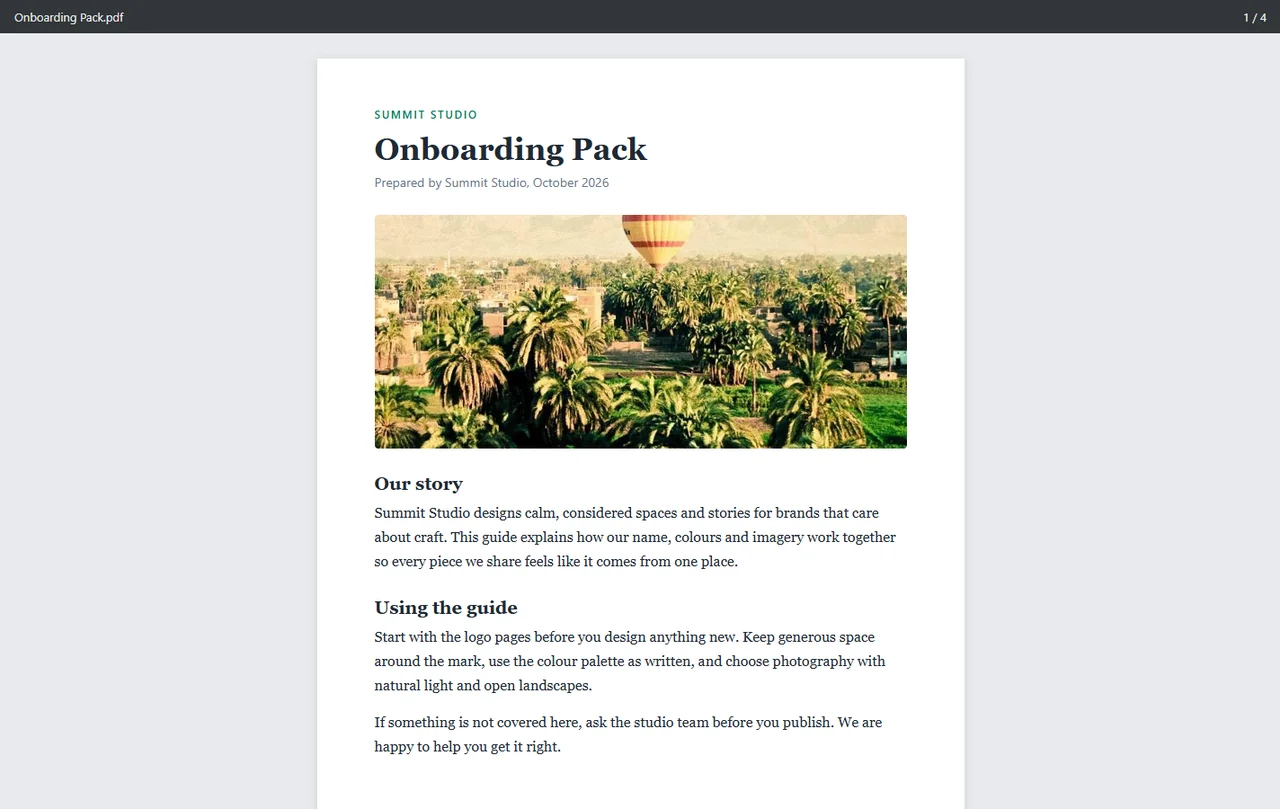
This is the preview page your visitor sees: the file opens right in their browser, with nothing to download or install.
And that’s it! Now you can share any Google Drive file with a single link, straight from WordPress.
Benefits of Sharing Direct Links With DriveHub #
- Fast: Copy a link in two clicks without leaving your dashboard.
- Clear choice: Pick a preview link for reading, a download link for saving, or an embed code to show the file on a page.
- Safe sharing: Set who can open the file before you send the link.
- Light hosting: Files stay in Google Drive, so big downloads never touch your web server.
With DriveHub, sharing a Google Drive file is as easy as copy and paste.


