- Before you begin
- Step 1: Open the Calendar settings
- Step 2: Turn on Check Google Calendar to stop double bookings
- Which Google events block a time
- Step 3: Copy your calendar feed address
- Step 4: Subscribe to the feed in your calendar app
- Step 5: Reset the address if it leaks (optional)
- Benefits of calendar sync
- Troubleshooting
- Frequently asked questions
- You're ready to keep your calendar in sync
To stop double bookings in WordPress with MeetingHub, go to MeetingHub > Booking setup > Settings and turn on Check Google Calendar under Calendar. Times you are busy in Google Calendar are then never offered on your booking pages. To see your bookings in your own calendar app, copy the Calendar feed address from the same group and subscribe to it.
Together, the two keep both directions in step: your calendar blocks your booking pages, and your bookings show up in your calendar.
By the end of this guide, you will have:
- Booking pages that skip the times you are busy in Google Calendar
- A clear idea of which Google events block a time and which do not
- Your MeetingHub bookings in Google Calendar, Apple Calendar or Outlook
- A private feed address you can reset if it ever leaks
Estimated setup time: 5 minutes, if Google Meet is already connected.
Note: Requires MeetingHub Pro. Without Pro, MeetingHub still blocks times you already have booked in MeetingHub, and every booking email carries a calendar file.
Before you begin #
Make sure you have:
- MeetingHub and MeetingHub Pro installed and activated
- An administrator account
- Google Meet connected in MeetingHub, for Check Google Calendar. See How to connect Google Meet to WordPress with MeetingHub.
Step 1: Open the Calendar settings #
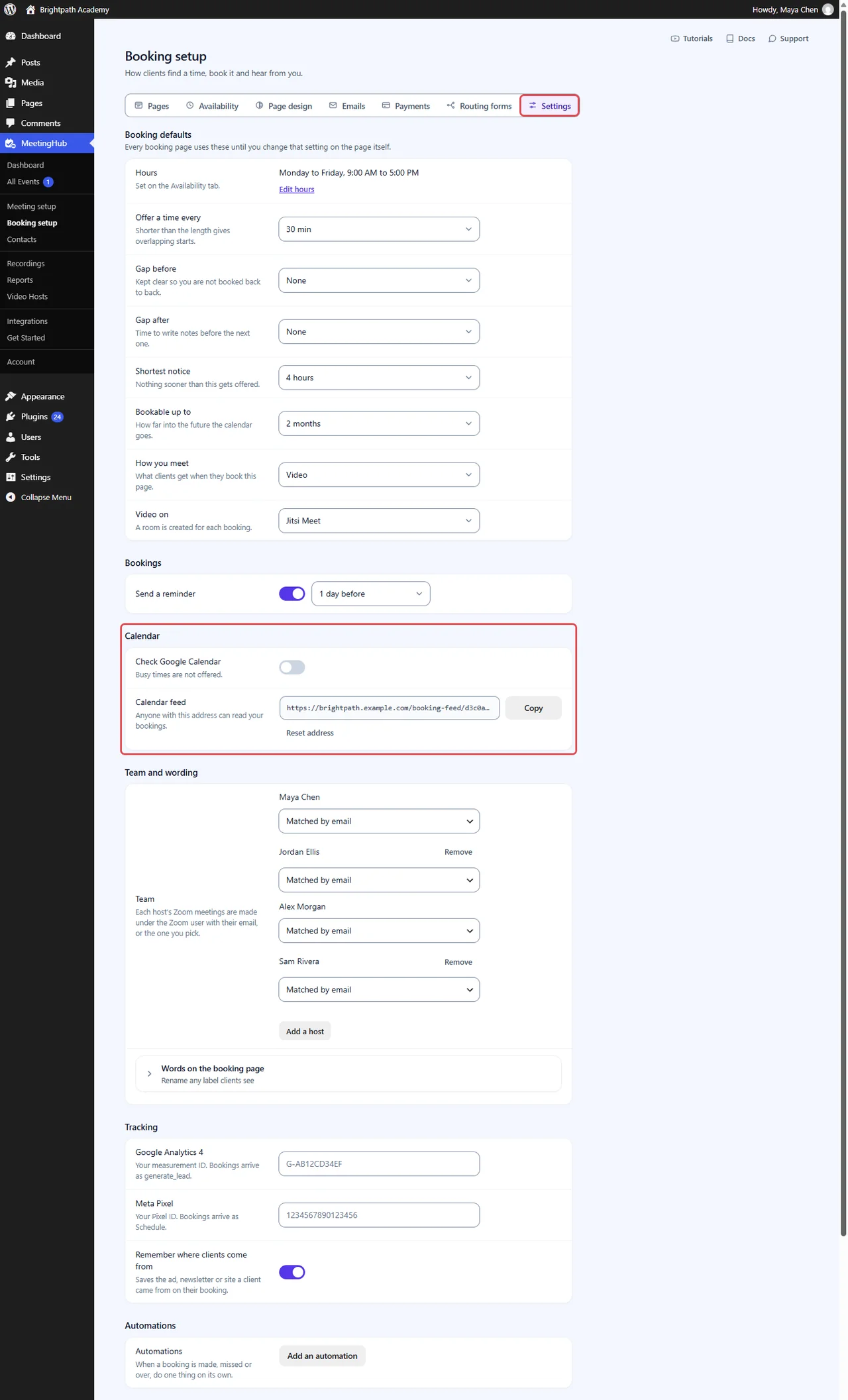
- Go to MeetingHub > Booking setup.
- Click the Settings tab.
- Scroll to the Calendar group.
It holds two rows: Check Google Calendar and Calendar feed.
Step 2: Turn on Check Google Calendar to stop double bookings #
MeetingHub checks the Google account your Google Meet connection uses. It reads your events; it never adds, changes or deletes anything in Google Calendar.
- Turn on Check Google Calendar.
- Click Save changes in the bar that appears.
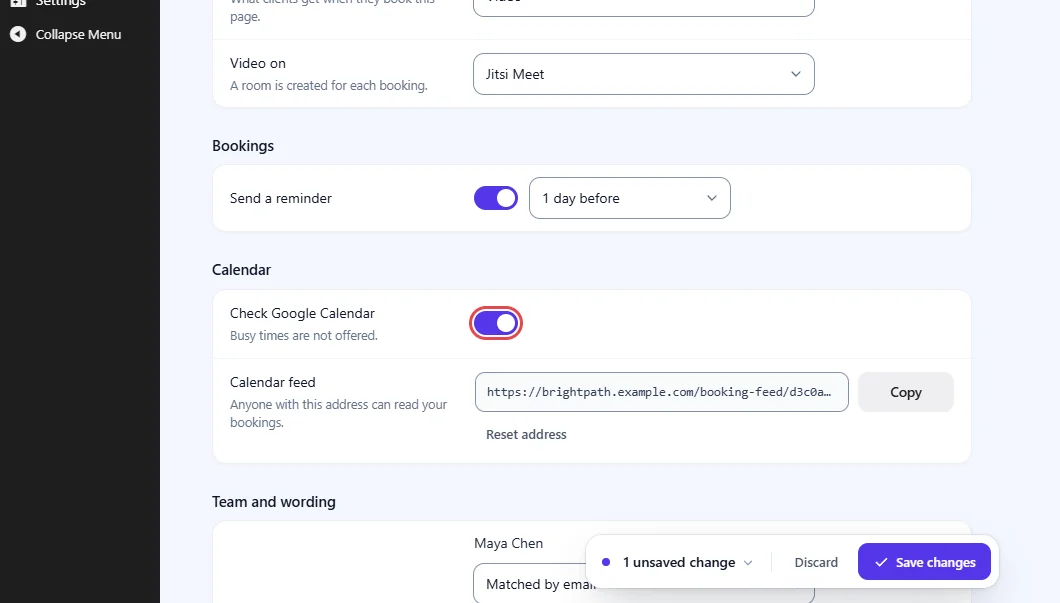
From now on, a time that overlaps a busy event in Google Calendar is not offered on your booking pages.
If the row shows Connect Google Meet instead of a switch, Google Meet is not connected yet. Click it to connect, then come back here.
Note: MeetingHub reads one calendar: the one your Google Meet connection uses. Its busy times are kept off every booking page on the site, including pages other hosts run.
Which Google events block a time #
| In Google Calendar | On your booking pages |
|---|---|
| A timed event shown as busy | That time is blocked |
| An all-day event | The whole day is blocked, from midnight on your site’s clock |
| An event shown as free | Not blocked |
| An event you declined | Not blocked |
| A cancelled event | Not blocked |
| The event for a MeetingHub booking | Counted once, as the booking itself |
MeetingHub keeps what it read for 5 minutes, so a new event in Google Calendar can take up to 5 minutes to close that time on your booking pages.
Step 3: Copy your calendar feed address #
The calendar feed is the other direction: a private address that lists your MeetingHub bookings, which any calendar app can subscribe to.
- In the Calendar group, find Calendar feed.
- Click Copy. The button reads Copied for a moment.
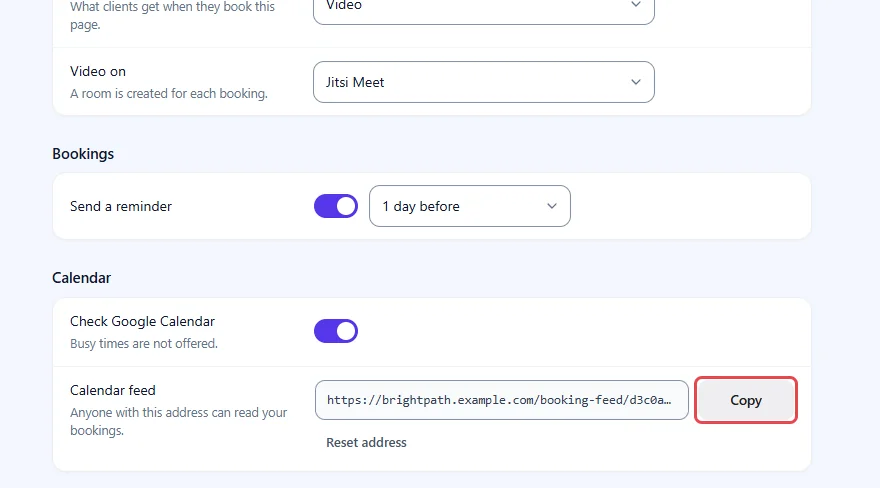
The address looks like this:
https://brightpath.example.com/booking-feed/3f9a1c7e5b2d8f604a1e9c3b7d5f2a8e6c4b0d9f1e7a3c5b8d2f6e0a4c9b1d7e.ics
Your actual URL may look different. Always copy it from your own MeetingHub settings.
Step 4: Subscribe to the feed in your calendar app #
Every calendar app can subscribe to an address like this one. Google Calendar calls it adding a calendar from a URL; Apple Calendar and Outlook call it subscribing to a calendar.
- Open your calendar app’s option to add or subscribe to a calendar by URL.
- Paste the feed address.
- Save. Your bookings appear as a separate calendar.
What the feed holds:
- Your bookings from 30 days ago to a year ahead.
- Cancelled bookings and no-shows, marked as cancelled, so they disappear from your calendar instead of lingering there.
The feed asks calendar apps to check for changes every hour. Each app decides for itself, and some check less often, so a new booking can take a while to show.
Security note: Anyone with the feed address can read your bookings, including client names. Keep it private, and never paste it on a public page.
Step 5: Reset the address if it leaks (optional) #
- Click Reset address.
- Confirm “Reset this address? Every calendar already subscribed to it will stop updating.”
MeetingHub says “New address generated.” The old address stops working at once. Subscribe your calendar again with the new one.
Benefits of calendar sync #
- No double bookings: Your dentist appointment in Google Calendar keeps that hour off your booking pages.
- Read-only and safe: MeetingHub only reads Google Calendar; it never writes to it.
- All your bookings in one view: The feed puts MeetingHub bookings next to everything else you have planned.
- Pages keep working: If Google cannot be reached, your booking pages still work.
Troubleshooting #
The row shows Connect Google Meet instead of a switch #
Google Meet is not connected in MeetingHub. Connect it first; see How to connect Google Meet to WordPress with MeetingHub.
“The last check failed (…). Booking pages kept working, without your Google busy times.” #
MeetingHub could not read Google Calendar at that time, and the message shows Google’s reason. While it fails, your pages still offer times, but without your Google busy times. Check that Google Meet is still connected, then turn Check Google Calendar off and on again to clear the message. You can also click Dismiss.
A busy event still shows as a free time #
Check that:
- The event is shown as busy in Google Calendar, not free.
- You did not decline it.
- It is on the calendar your Google Meet connection uses.
- 5 minutes have passed since you added it.
My calendar app does not show new bookings #
The app decides how often it refreshes the feed, and some wait several hours. Check that you subscribed with the current address; after Reset address, the old one no longer works.
Frequently asked questions #
Does MeetingHub add bookings to my Google Calendar? #
No. Check Google Calendar only reads it. To see bookings in Google Calendar, subscribe to the Calendar feed.
Can I check Outlook or Apple Calendar for busy times? #
No. Check Google Calendar works with Google Calendar through your Google Meet connection.
Do hosts get their own calendar feed? #
No. The feed lives on the Settings tab, which only administrators see. It lists the bookings of the person signed in.
Can I switch the check off for a while? #
Yes. Turn off Check Google Calendar and click Save changes. Your own MeetingHub bookings still block their times.
You’re ready to keep your calendar in sync #
Your booking pages now respect your Google Calendar, and your bookings show up in the calendar you already use. Next, block the days the whole team is off, or review your other booking settings.


