- Before you begin
- Step 1: Open Access & hosts
- Step 2: Choose who can open event pages (Page access)
- Step 3: Add default alternative hosts
- Step 4: Save your changes
- Step 5: Check the alternative host on a new meeting
- What visitors see
- How ZooMeet decides who can open a meeting page
- Benefits of access rules and alternative hosts
- Troubleshooting
- Visitors still open meeting pages without logging in
- I picked By role, and now nobody can open the page
- The Alternative hosts list says "No Zoom users. Connect Zoom first."
- The Alternative hosts list says "All Zoom users are already selected."
- The alternative host is missing from a new meeting
- "Access settings could not be loaded." or "Failed to save access settings."
- Frequently asked questions
- Security best practices
- You're ready to control access and alternative hosts
Running a members-only class or an internal session? By default, anyone with the link can open a meeting’s page on your site. With ZooMeet you can limit every meeting page to logged-in users, or to the WordPress roles you choose.
On the same screen you pick default alternative hosts. ZooMeet fills them into every new meeting, so a colleague can start the Zoom meeting when the host is away.
By the end of this guide, you will have:
- A site-wide rule for who can open meeting pages
- Allowed roles picked, if only some members should get in
- Default alternative hosts filled into every new meeting
- A clear idea of what blocked visitors see
- A way to test your rule safely
Estimated setup time: 5 minutes. Nothing changes until you click Save changes, and you can switch back to Everyone at any time.
Note: Access & hosts is part of free ZooMeet. You do not need ZooMeet Pro for anything in this guide.
Before you begin #
Make sure you have:
- ZooMeet installed and activated
- An administrator account on your WordPress site
- A connected Zoom account. See How to connect Zoom with ZooMeet using Server-to-Server OAuth.
- For alternative hosts: at least two licensed users on your Zoom account
Let’s get started.
Step 1: Open Access & hosts #
The access rule and the default alternative hosts live together in ZooMeet settings.
- In the WordPress admin menu, go to ZooMeet > Settings.
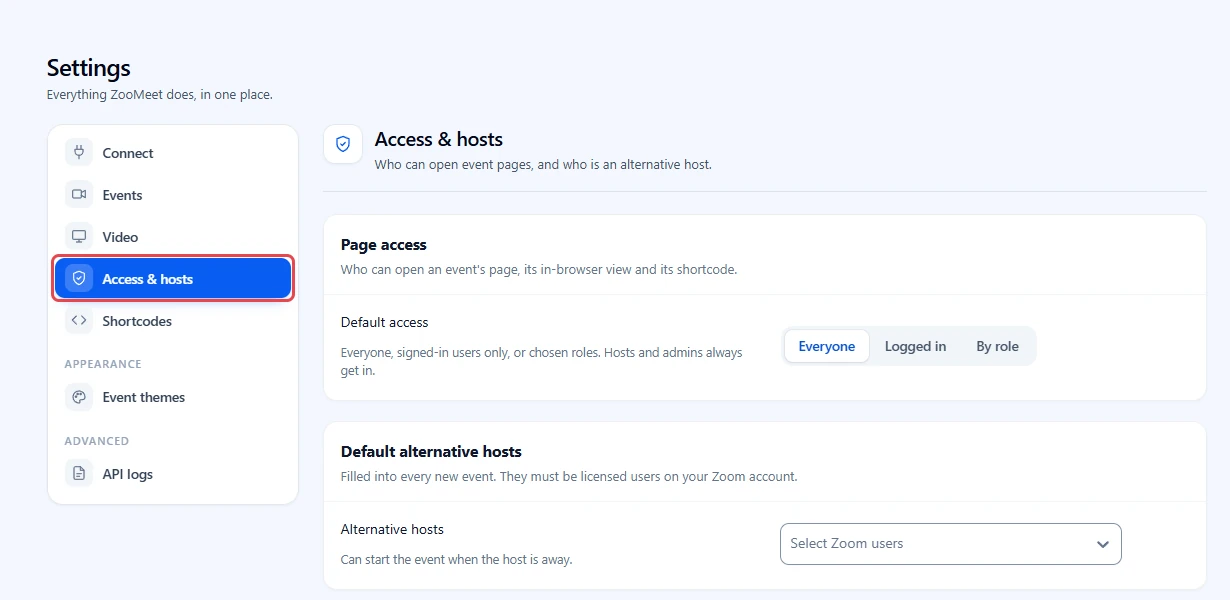
- In the settings menu on the left, click Access & hosts.
- Check that the screen shows two groups: Page access and Default alternative hosts.
Step 2: Choose who can open event pages (Page access) #
Default access decides who can open an event’s page, its in-browser view and its shortcode. It applies to every meeting on your site.
- Find Default access in the Page access group.
- Click one option:
– Everyone: anyone with the link, logged in or not. This is the default.
– Logged in: any user with an account on your site.
– By role: only users with one of the roles you choose. - If you picked By role, click the Allowed roles field that appears and pick one or more roles, for example Customer and Student.
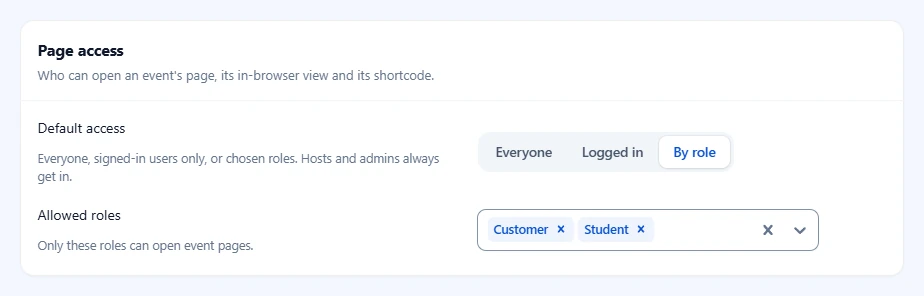
Important: By role with no roles picked blocks every visitor except meeting hosts and administrators.
Tip: The hint says it plainly: “Hosts and admins always get in.” The person who created a meeting and every site administrator can always open it.
Step 3: Add default alternative hosts #
An alternative host can start the meeting when the host is away. Zoom only accepts licensed users on the same Zoom account, so ZooMeet lists your Zoom users instead of asking you to type emails.
- Find the Default alternative hosts group. It reads “Filled into every new event. They must be licensed users on your Zoom account.”
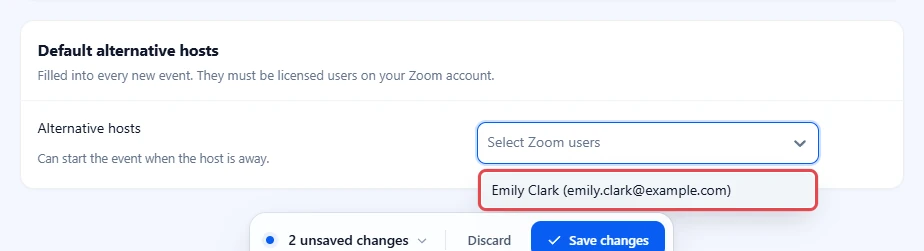
- Click the Alternative hosts field.
- Pick one or more Zoom users from the list.
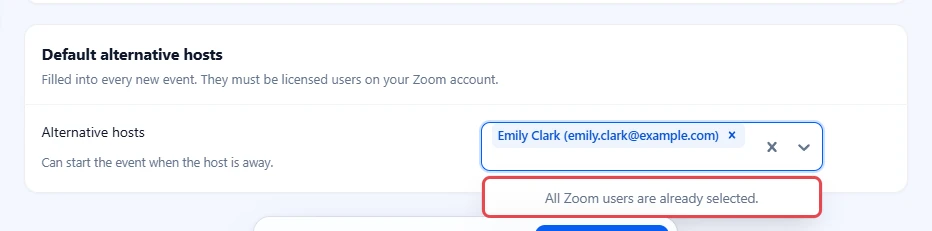
Once you have picked every Zoom user on your account, the list reads All Zoom users are already selected. There is nobody left to add.
Note: A meeting’s own host is never added as its alternative host, because Zoom refuses that. If your Zoom account has only one user, the field stays empty on new meetings.
Step 4: Save your changes #
Your changes only take effect after you save them.
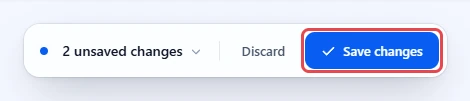
- Look at the bar at the bottom of the screen. It shows the number of unsaved changes.
- Click Save changes. To undo your edits instead, click Discard.
Step 5: Check the alternative host on a new meeting #
Default alternative hosts are filled into the meeting form, not added in secret. The person creating the meeting sees them and can remove any.
- Go to ZooMeet > Add New Event.
- In the steps on the left, click Access and controls.
- Look at Alternative hosts, below Host. Your default alternative hosts are already in the field.
- Add or remove people for this meeting, then create the meeting as usual.
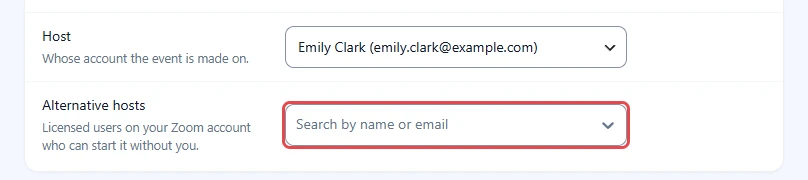
Tip: If you change Host, ZooMeet drops that person from Alternative hosts for you.
What visitors see #
A visitor who may not open a meeting never sees its details or join buttons. They see a short card inside your theme instead.
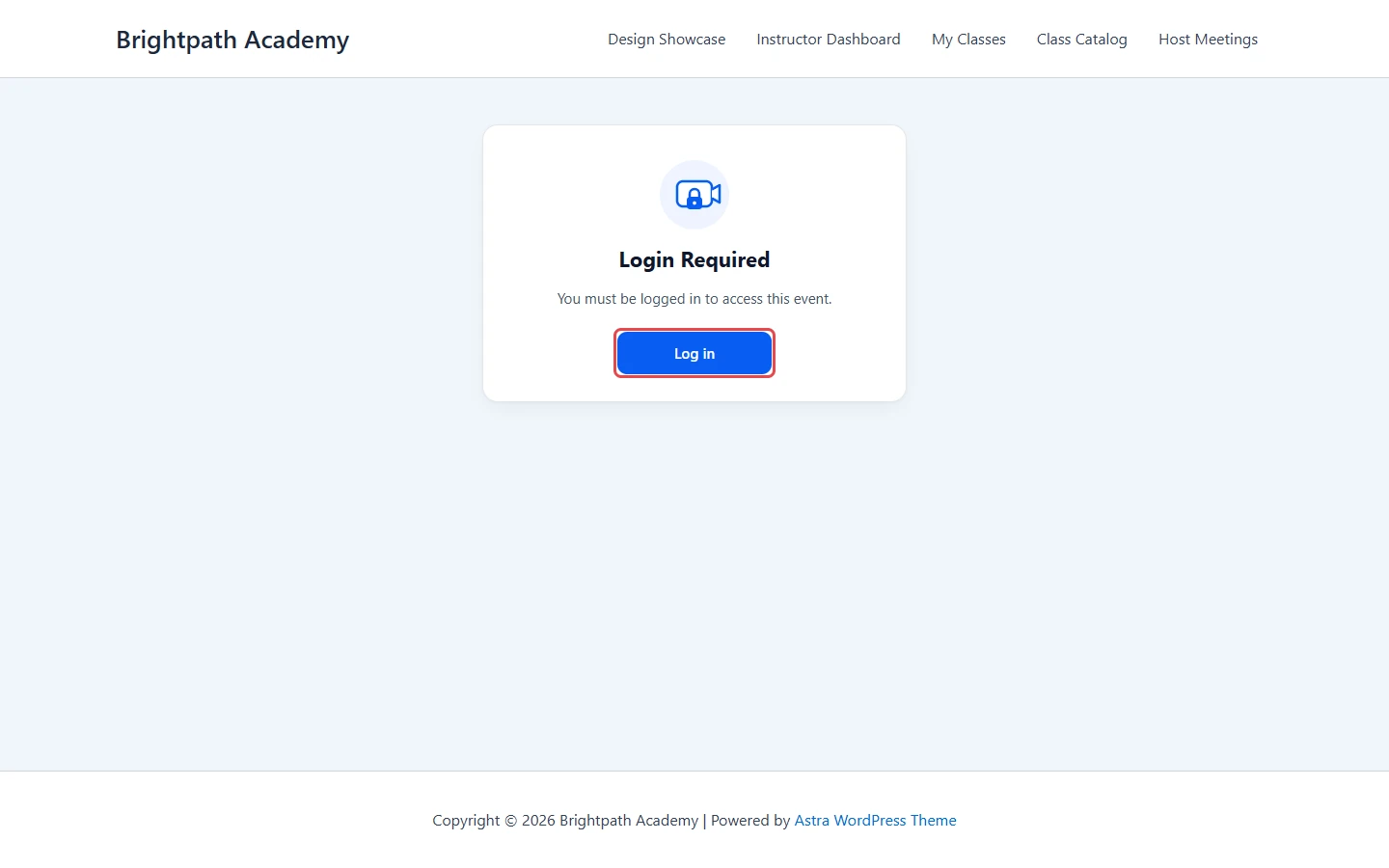
When the rule is Logged in or By role and the visitor is logged out, the card reads Login Required and “You must be logged in to access this event.” The Log in button brings them back to the same meeting after they log in.
When the rule is By role and a logged-in user has none of the allowed roles, the card reads Access Denied and “You do not have permission to access this event.”
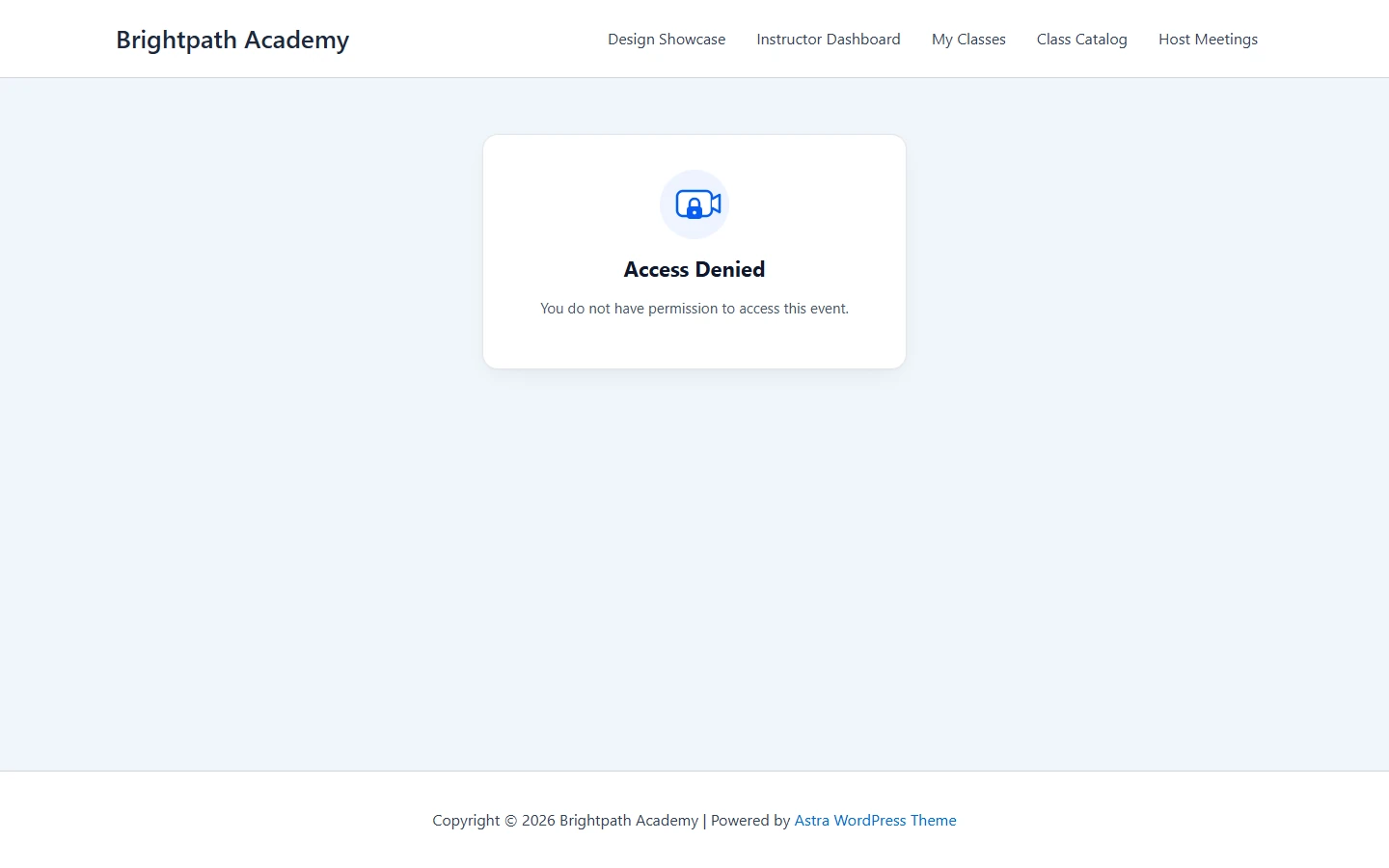
The same card replaces a meeting shortcode on any page, and meeting lists leave out meetings the visitor cannot open.
How ZooMeet decides who can open a meeting page #
ZooMeet checks these rules in order:
- The person who created the meeting can always open it.
- Site administrators can always open it.
- Otherwise ZooMeet uses Default access: Everyone, Logged in or By role.
- Logged in and By role send logged-out visitors to Login Required. By role sends logged-in users without an allowed role to Access Denied.
Note: With ZooMeet Pro, a meeting added to an LMS course can be limited further to that course’s students. That rule only narrows access; it never opens a page that Default access blocks. See How to add Zoom live classes to Tutor LMS courses with ZooMeet.
Benefits of access rules and alternative hosts #
- Members-only pages: Logged in and By role close every meeting page to everyone else.
- One rule everywhere: The meeting page, the in-browser view, shortcodes and meeting lists all follow it.
- No dead ends: Logged-out visitors get a Log in button and return to the same meeting.
- A backup host: Default alternative hosts can start the meeting when the host cannot.
Set it once, and every new meeting follows it.
Troubleshooting #
Visitors still open meeting pages without logging in #
Default access is still on Everyone, or the change was not saved.
Check that:
- Logged in or By role is selected in Access & hosts.
- You clicked Save changes and saw “Access settings saved.”
- You test in a private browser window. Administrators and the meeting’s host always get in.
I picked By role, and now nobody can open the page #
The visitors’ role is not in Allowed roles, or no role is picked at all.
- Open ZooMeet > Settings > Access & hosts.
- Add the missing roles to Allowed roles.
- Click Save changes.
The Alternative hosts list says “No Zoom users. Connect Zoom first.” #
ZooMeet could not load any more Zoom users to pick.
Check that:
- Your Zoom account is connected in ZooMeet > Settings > Connect.
- The users you want are not already in the field. The list only offers users you have not picked yet.
- The person is a licensed user on your Zoom account.
The Alternative hosts list says “All Zoom users are already selected.” #
Every Zoom user on your account is already in the field. Add another licensed user in your Zoom account, then reload Access & hosts to pick them.
The alternative host is missing from a new meeting #
ZooMeet never makes the meeting’s host its own alternative host. If the default alternative host is the person in Host, the field stays empty for that meeting. Pick a different host, or add another licensed Zoom user.
“Access settings could not be loaded.” or “Failed to save access settings.” #
ZooMeet could not reach your site’s settings in time. Reload the page and try again. If it keeps happening, check that you are still logged in as an administrator.
Frequently asked questions #
Is Access & hosts a Pro feature? #
No. Page access and default alternative hosts are part of free ZooMeet.
Can a meeting’s host be locked out of their own meeting? #
No. The person who created the meeting and every site administrator always get in, whatever rule you pick.
Does Page access change who can join in the Zoom app? #
No. It controls the pages on your site. Anyone who already has the raw Zoom link and passcode can still try to join in Zoom. Share the meeting page, not the Zoom link.
Can I set a different rule for one meeting? #
No. Default access applies to every meeting. With ZooMeet Pro, meetings added to an LMS course can also be limited to that course’s students.
Do alternative hosts need an account on my site? #
No. They need to be licensed users on your Zoom account. ZooMeet lists them from Zoom.
Security best practices #
- Start strict. Use Logged in or By role for paid or private classes, and keep Everyone for open events.
- Share the meeting page, not the Zoom link. The page checks access every time it opens.
- Keep a passcode on private meetings. Page access protects your site; the passcode protects the Zoom meeting itself.
- Give alternative host rights only to people you trust. They can start the meeting and control it.
- Review Default alternative hosts when people leave your team.
- Test every rule in a private window, as a logged-out visitor and as a user with each role.
You’re ready to control access and alternative hosts #
Your meeting pages now open only for the people you chose, and new meetings come with a backup host ready. Next, put meetings on your own pages and let members host their own.


