- Before you begin
- Step 1: Start a new meeting (Basics)
- Step 2: Turn on Should register and set the password (Access and controls)
- Step 3: Create the meeting and check the page
- What visitors see
- Where to see who registered
- Benefits of registration in GoodMeet
- Troubleshooting
- The Should register switch is locked
- The visitor sees "This email is already registered. Sign in with the password from your email."
- The visitor sees "Invalid email or password."
- The visitor sees "Invalid password"
- The visitor never got the registration email
- The visitor still sees the forms after signing in
- Frequently asked questions
- Security best practices
- You're ready to run meetings with registration
For a webinar or a workshop with limited seats, you probably want to know who is coming before you hand out the link. With Should register, visitors give their name and email first, and only then get the way in.
GoodMeet emails each registrant the meeting password and adds them as a guest on the Google Calendar event. Once they sign in, the page shows the Join Google Meet button. You set it up with one switch and one password.
By the end of this guide, you will have:
- A meeting that asks visitors to register before they see the join button
- A meeting password that GoodMeet emails to every registrant
- Registrants added as guests on the Google Calendar event
- A clear idea of what visitors see, from the sign-up form to the join button
- A way to see who registered
Estimated setup time: 5 minutes. Should register is a switch on the meeting, so you can turn it off again later.
Note: Requires GoodMeet Pro. Without Pro, the Should register switch and the Password field show a lock icon.
Before you begin #
Make sure you have:
- GoodMeet and GoodMeet Pro installed and activated
- A connected Google account. See How to connect your Google account to GoodMeet.
- An administrator account, or an instructor account with front-end meeting access
- A site that can send email, because registrants get their password by email
Let’s get started.
Step 1: Start a new meeting (Basics) #
Registration works on any meeting, new or existing. Here you start a new one. To add registration to an existing meeting, click Edit on its row instead and go to Step 2.
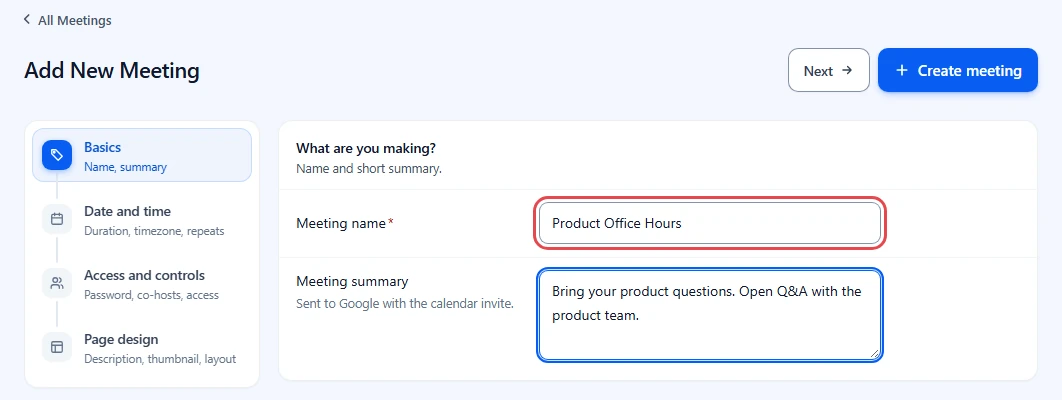
- In the WordPress admin menu, go to GoodMeet > All Meetings and click Add new.
- In Basics, type a Meeting name, for example Customer Onboarding Webinar.
- Set the date and time in Date and time, as for any meeting.
Step 2: Turn on Should register and set the password (Access and controls) #
The password is what registrants type to see the join button. GoodMeet sends it in the registration email, so visitors never need to ask you for it.
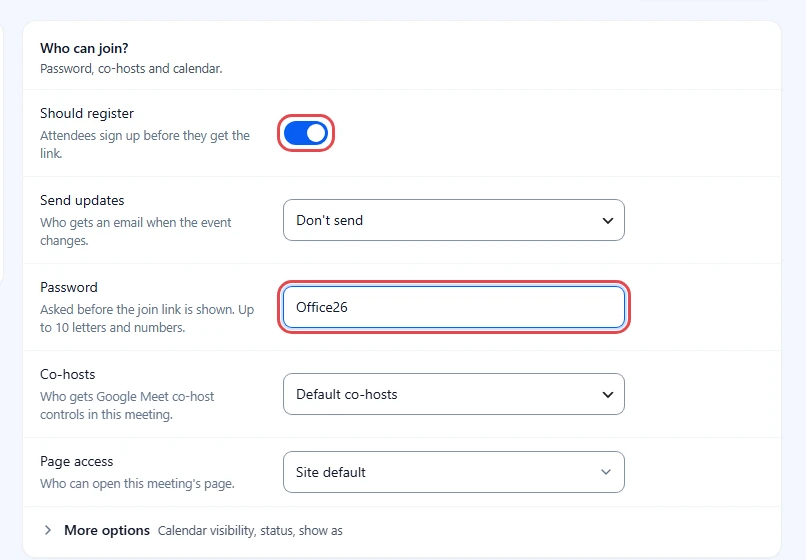
- Click Access and controls in the steps on the left. The heading reads Who can join?
- Turn on Should register. Its hint reads Attendees sign up before they get the link.
- Check the Password. GoodMeet fills in a random one. You can type your own, up to 10 letters and numbers.
- Leave Send updates on Don’t send if you do not want Google to email guests about changes to the event.
Security note: Anyone with the password and a registered email can open the join link. Use a new password for each meeting rather than reusing one.
Step 3: Create the meeting and check the page #
- Optionally, go to Page design and set Meeting theme to Guestlist, a theme built around signing up.
- Click Create meeting at the top right, or Update meeting for an existing meeting.
- Open the meeting page in a private browser window. Administrators always see the join button, so a private window shows you what visitors see.
What visitors see #
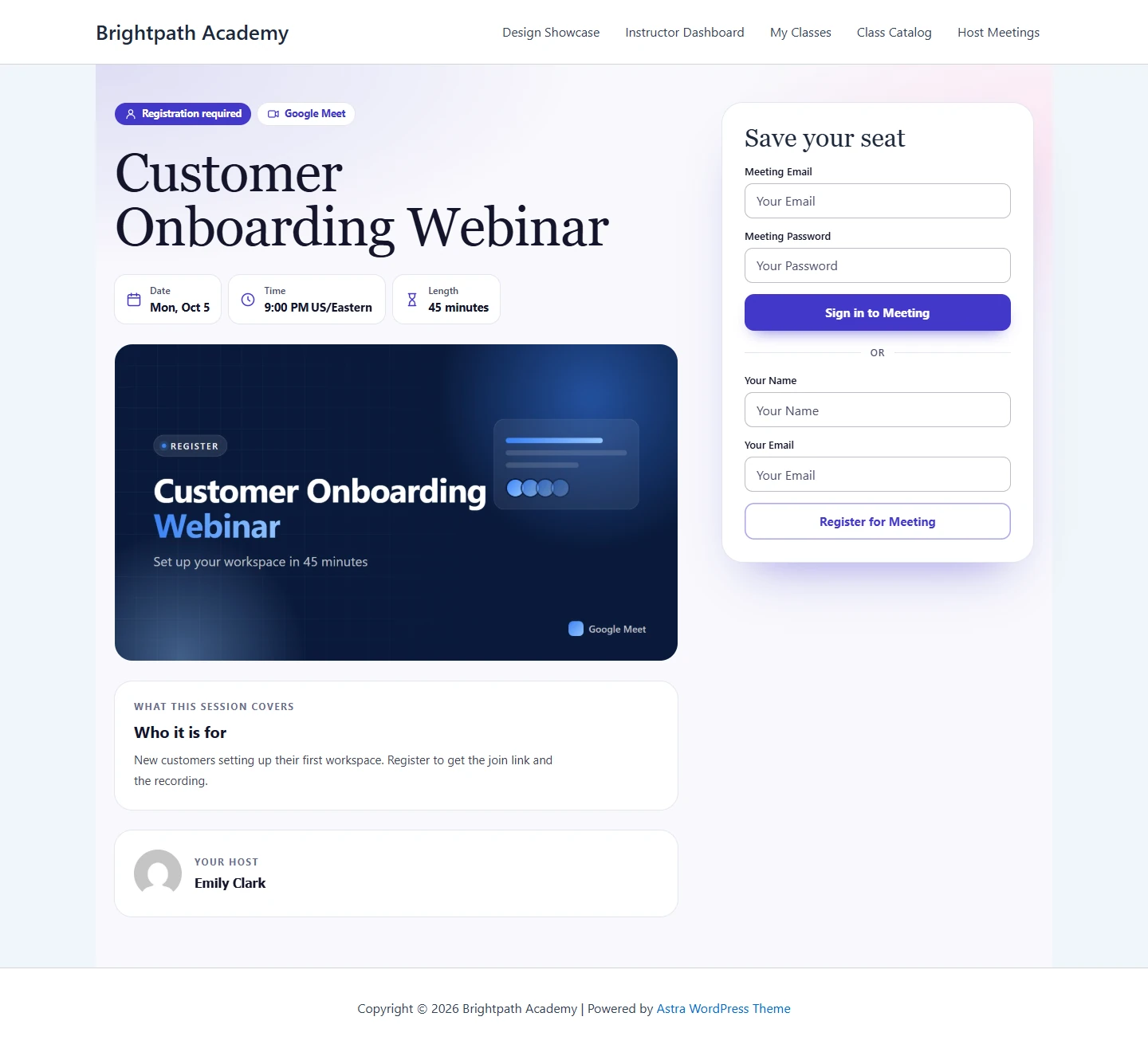
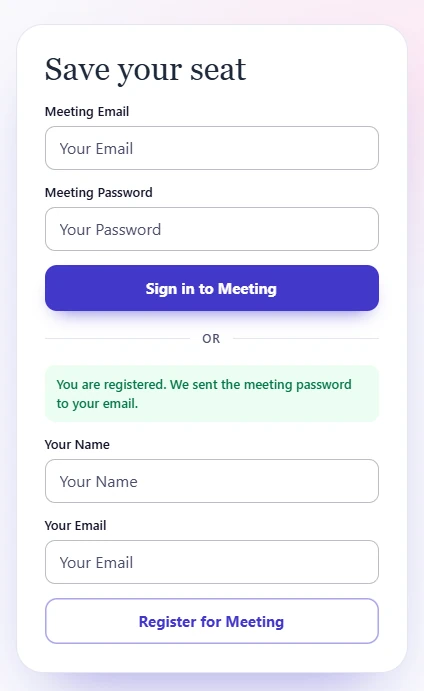
When Should register is on, visitors do not see the join button at first. They see a sign-in form and a register form instead.
- The heading of the forms is Sign in or Register for the Meeting. Some themes use their own heading, such as Save your seat in Guestlist.
- People who already registered fill in Meeting Email and Meeting Password, then click Sign in to Meeting.
- New visitors fill in Your Name and Your Email under OR, then click Register for Meeting.
Registering #
A visitor only needs a name and an email to register.
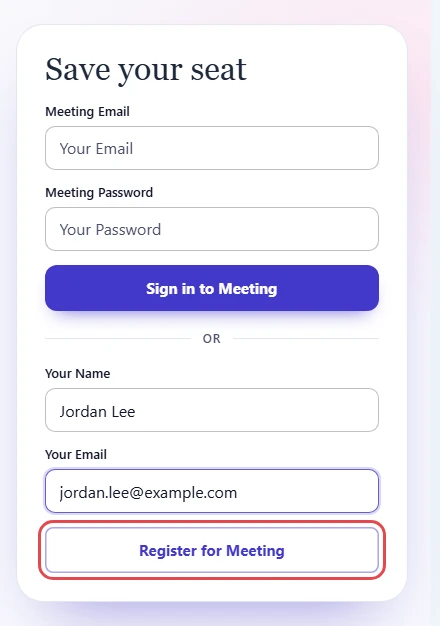
- The visitor fills in Your Name and Your Email.
- They click Register for Meeting.
When registration succeeds, three things happen:
- The form shows You are registered. We sent the meeting password to your email. and clears its fields, so it reads as finished.
- GoodMeet emails the visitor with the subject Meeting Registration Details. The email lists their email, the meeting Password and a link to the meeting page.
- GoodMeet adds the visitor as a guest on the Google Calendar event, so the meeting also appears in their calendar.
Signing in and joining #
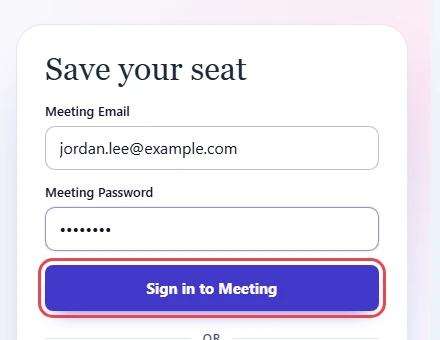
- The visitor types their email and the password from the email into the sign-in form.
- They click Sign in to Meeting.
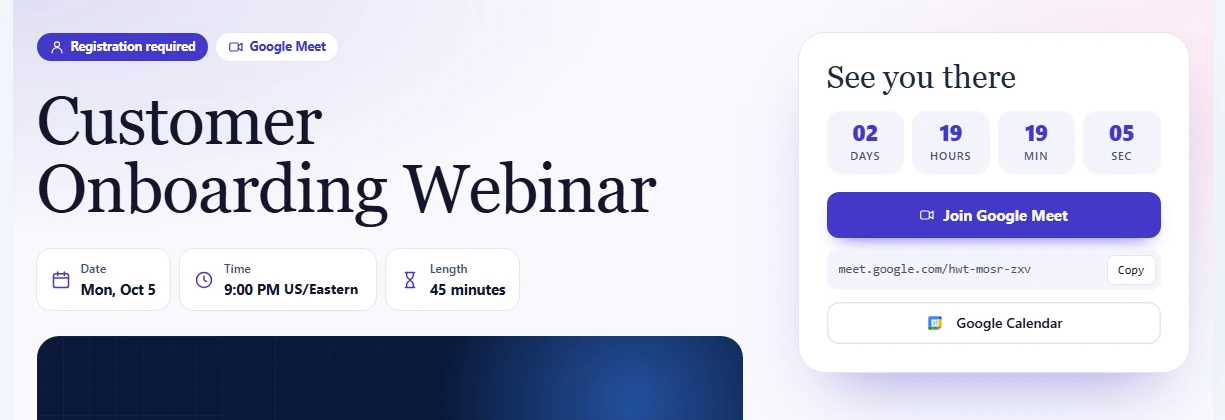
The page reloads. The forms are gone and the Join Google Meet button shows, with the countdown and the Meet link.
Note: A successful sign-in lasts one day in that browser. After that, the visitor signs in again with the same email and password.
Where to see who registered #
GoodMeet does not have a separate registrants screen. Every registrant is added as a guest on the meeting’s Google Calendar event.
- Open Google Calendar with the Google account connected to GoodMeet.
- Click the meeting and look at the guest list. Each registrant shows with the name and email they typed.
Benefits of registration in GoodMeet #
- A guest list before the meeting starts: every attendee leaves a name and email, and appears as a guest on the Google Calendar event.
- No passwords to send by hand: the Meeting Registration Details email delivers the password the moment someone registers.
- A hidden Meet link: the Join Google Meet button stays hidden until a registered visitor signs in.
- One sign-up per series: on a recurring meeting, one registration covers every session.
Troubleshooting #
The Should register switch is locked #
Should register requires GoodMeet Pro.
- Activate GoodMeet Pro.
- Reload the meeting form.
The visitor sees “This email is already registered. Sign in with the password from your email.” #
That email has already registered for this meeting.
- Ask the visitor to find their Meeting Registration Details email.
- Ask them to sign in with that email and password in the sign-in form.
The visitor sees “Invalid email or password.” #
The email in the sign-in form has not registered for this meeting.
Check that:
- The visitor typed the same email they registered with.
- The visitor registered first, with the form under OR.
The visitor sees “Invalid password” #
The email is registered, but the password does not match the meeting Password.
Check that:
- The visitor copied the password from their email, without extra spaces.
- You did not change the Password after they registered. If you did, send them the new one.
The visitor never got the registration email #
GoodMeet sends the email through your WordPress site, so the problem is usually email delivery.
Check that:
- The visitor looked in their spam or junk folder.
- Your site can send email. An SMTP plugin often fixes delivery problems.
- The visitor typed their email correctly. If not, they can register again with the right one.
The visitor still sees the forms after signing in #
The sign-in lasts one day in one browser.
Check that:
- The visitor uses the same browser they signed in with.
- The browser allows cookies for your site.
Frequently asked questions #
Do visitors register once for a whole recurring series? #
Yes. Registration belongs to the meeting, so one registration covers every session. See How to set up recurring meetings with GoodMeet.
Does every registrant get the same password? #
Yes. The meeting has one Password, and GoodMeet emails it to everyone who registers.
Can I make every new meeting registration-only by default? #
Yes. Turn on Should register in Settings > Meetings. See How to set default meeting settings with GoodMeet.
Can I sell access instead of asking for registration? #
Yes. When a meeting is sold as a WooCommerce product, the page shows only Sign in for the Meeting. Buyers are registered when they order, and the meeting password appears with their order once it is completed. See How to sell Google Meet meetings with WooCommerce.
What happens if GoodMeet Pro is turned off later? #
The registration forms disappear, so every visitor sees the join button until Pro is active again.
Security best practices #
- Use a new Password for each meeting, and change it if it is shared publicly.
- Keep Page access in mind: registration controls the join button, while Page access controls who can open the page at all. See How to control who can see meetings and who can co-host with GoodMeet.
- Registrants’ names and emails end up on your Google Calendar event. Treat them as personal data and remove guests you no longer need.
- Make sure your site sends email over a trusted service, so the password email is not marked as spam or tampered with.
- Check what visitors see in a private window, not while logged in as an administrator.
You’re ready to run meetings with registration #
Your meeting now shows its join button only to people who registered and signed in. Each registrant appears in the guest list of the Google Calendar event. Next, make the meeting repeat, set defaults so new meetings start this way, or sell seats instead.


