- Before you begin
- Step 1: Choose meetings or webinars
- Step 2: Choose where the sign-ups came from
- Step 3: Filter by order status (WooCommerce)
- Step 4: Set the dates and show the report
- Step 5: See who registered
- What the numbers mean
- Troubleshooting
- "No meetings found"
- "Could not load meetings."
- "WooCommerce is not active on this site."
- "Zoom refused: webinar registrants need a paid Zoom plan with the Webinar add-on."
- "Zoom no longer has this webinar."
- "Zoom rejected the saved credentials. Reconnect Zoom in Settings."
- "Could not load registrants."
- "Download failed."
- "Nobody registered"
- Frequently asked questions
- Security best practices
- You're ready to track your sign-ups
The Registrants report lists your meetings and webinars with the number of people who signed up for each, and where those sign-ups came from: Zoom, a WooCommerce order or a registration on your own site. Open any row to see each person, their status and when they registered. Use it before a session to plan numbers, and after it to follow up.
Note: Screens below use sample data. Your own list fills in once your Zoom plan includes this feature.
By the end of this guide, you will have:
- A list of meetings or webinars with their sign-up counts
- Sign-ups filtered by where they came from and, for WooCommerce, by order status
- The list of registrants for any session
- A clear idea of what each status means
Estimated setup time: 3 minutes.
Before you begin #
Make sure you have:
- ZooMeet Pro. Registrants is a Pro report. Without Pro, the tab shows a locked sample with an Upgrade button.
- An administrator account on your WordPress site
- Sessions that collect sign-ups: registration turned on, or meetings sold with WooCommerce. See How to require registration for Zoom meetings with ZooMeet, How to create Zoom webinars with ZooMeet and How to sell Zoom meetings with WooCommerce.
Step 1: Choose meetings or webinars #
- Go to ZooMeet > Zoom Reports and click Registrants.
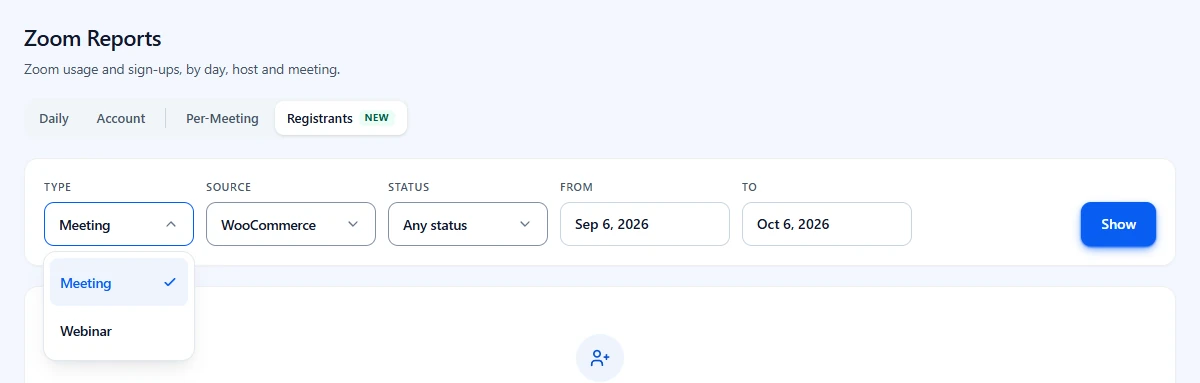
- Click Type and pick Meeting or Webinar.
Step 2: Choose where the sign-ups came from #
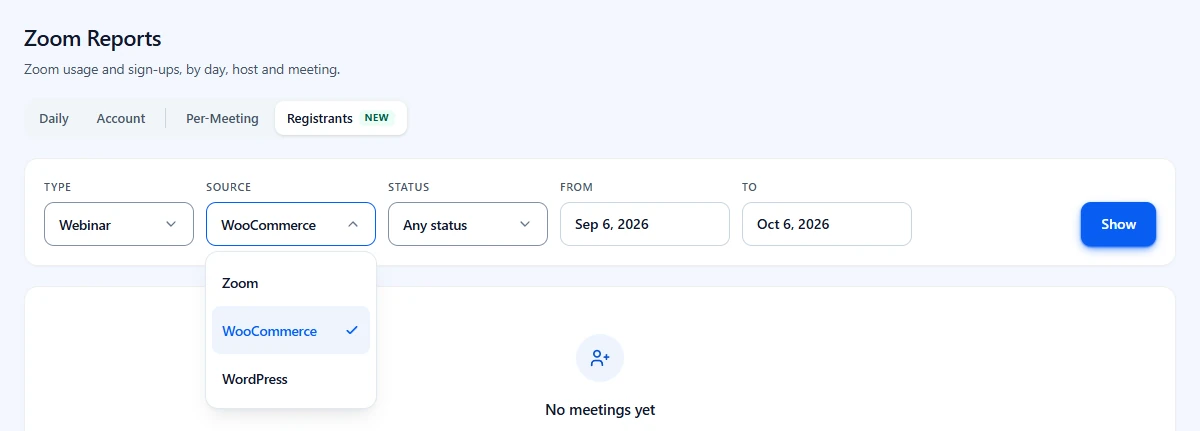
- Click Source.
- Pick one:
– Zoom: people who registered on Zoom’s own registration page. Offered for webinars only, because Zoom keeps registrant lists for webinars.
– WooCommerce: people who bought the session as a product in your shop.
– WordPress: people who registered on your site’s meeting page.
Step 3: Filter by order status (WooCommerce) #
Status appears only when the source is WooCommerce, because it is the order status.
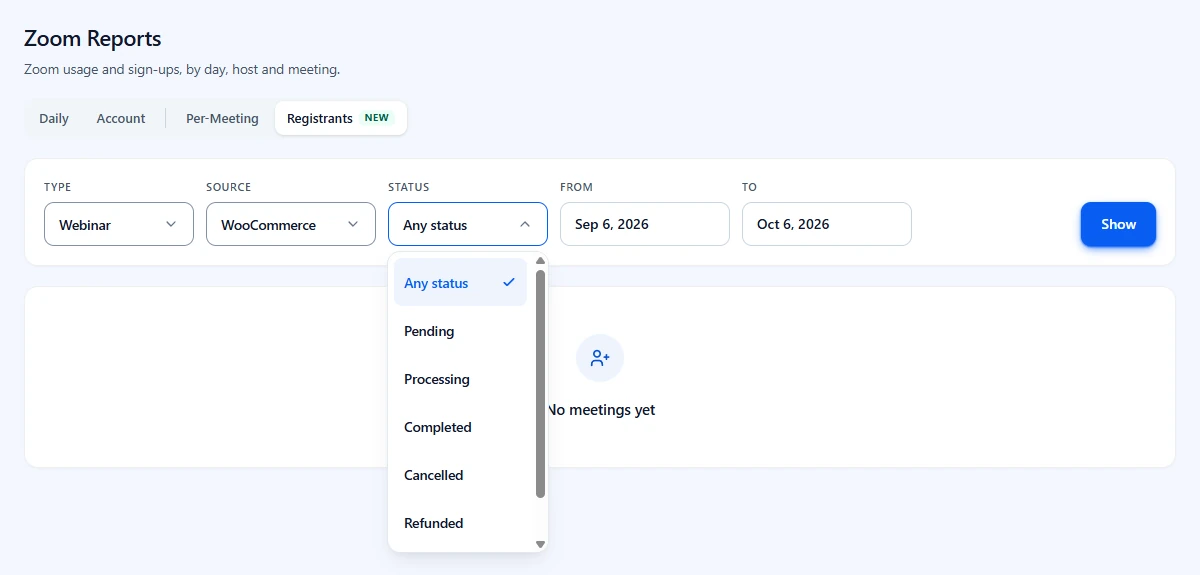
- Click Status.
- Pick Any status to see every order, or one status: Pending, Processing, Completed, Cancelled, Refunded or Failed.
Step 4: Set the dates and show the report #
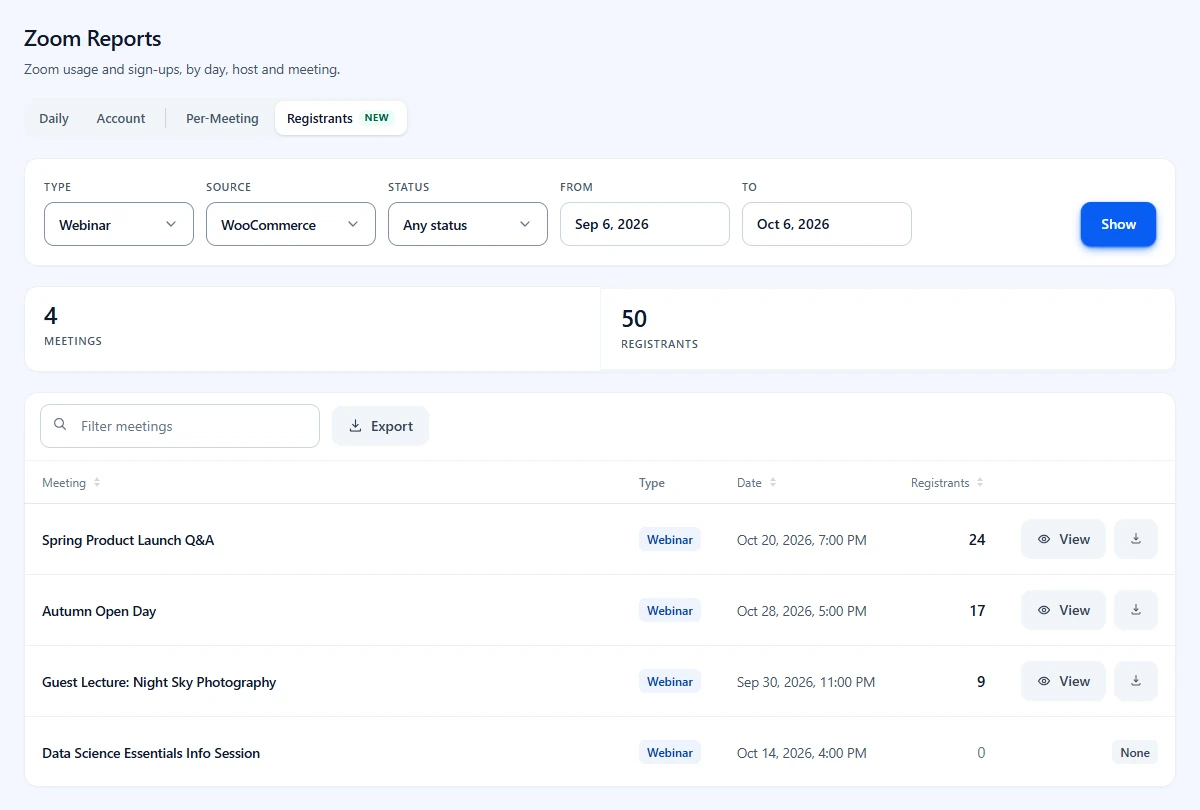
- Set From and To. The report lists sessions scheduled in that range.
- Click Show.
- Read Meetings and Registrants at the top.
- Read each row: Meeting, Type, Date and the number of Registrants.
- Click Meeting, Date or Registrants to sort, and type in Filter meetings to search by name, type or date.
If nothing matches the filters, the table says No meetings found with Nothing matches these filters.
Step 5: See who registered #
- Click View on a session.
- Read the Registrants window. The session name is under the title, with the number of Webinar signups or Meeting signups.
- Read each row: Registrant, Email, Status and Registered.
- Type in Filter people, sort by any column, and use the page numbers, 10 people per page.
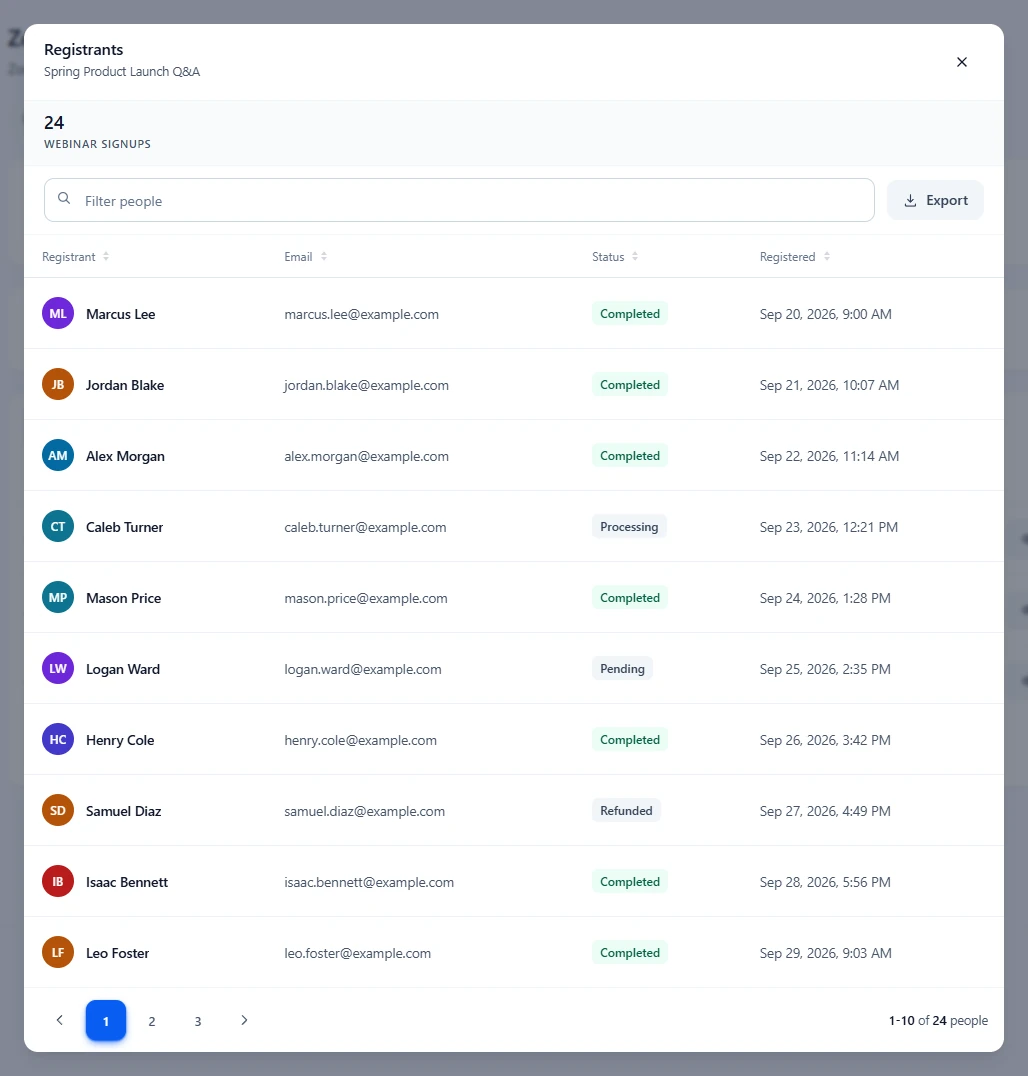
To save a session’s registrants, click the download icon on its row, or Export in the window. See How to export Zoom reports to CSV.
What the numbers mean #
| Column, card or status | Meaning |
|---|---|
| Meetings | Sessions in the list for these filters. |
| Registrants | Sign-ups for the session from the chosen source. A dash means the count is not available. |
| Registered | When the person signed up or placed the order. |
| Pending | The order is waiting for payment. |
| Processing | Paid, and the order is being handled. |
| Completed | The order is complete. The person has their place. |
| On hold | The order is waiting for you, for example to confirm a bank transfer. |
| Cancelled, Refunded, Failed | The order did not go through, or the money went back. |
| Zoom statuses | With Zoom as the source, the status is Zoom’s own, for example approved or pending when you approve registrants by hand. |
| registered | With WordPress as the source, everyone who signed up on your site. |
Troubleshooting #
“No meetings found” #
No session in the range has sign-ups from that source. Check Type, Source and the dates, then click Show again.
“Could not load meetings.” #
ZooMeet did not get an answer. Click Try again. If it keeps happening, check the Zoom connection in Settings.
“WooCommerce is not active on this site.” #
You picked WooCommerce as the source, but WooCommerce is not active. Activate it, or pick another source.
“Zoom refused: webinar registrants need a paid Zoom plan with the Webinar add-on.” #
With Zoom as the source, Zoom only shares registrants for webinars on a paid plan with the Webinar add-on. See How to create Zoom webinars with ZooMeet.
“Zoom no longer has this webinar.” #
The webinar was deleted in Zoom. Its sign-ups from WooCommerce or WordPress can still be listed with those sources.
“Zoom rejected the saved credentials. Reconnect Zoom in Settings.” #
The Zoom connection needs attention. See How to connect Zoom with ZooMeet using Server-to-Server OAuth.
“Could not load registrants.” #
The window could not load the list. Close it and click View again.
“Download failed.” #
The download icon could not fetch the list. Try again, or open View and use Export in the window.
“Nobody registered” #
The window found no registrants for this source and status. Pick Any status, or another source.
Frequently asked questions #
Why is Zoom not offered as a source for meetings? #
Zoom keeps a registrant list for webinars, which is what ZooMeet reads. Meeting sign-ups come from WooCommerce or your site.
Does the report change anything in Zoom or WooCommerce? #
No. It only reads. Approve or cancel registrations in Zoom, and change orders in WooCommerce.
Can I see registrants for a session that has not happened yet? #
Yes. That is the main use: set the dates to include upcoming sessions.
Security best practices #
- Registrant lists include names and email addresses. Share them only with people who run the session.
- Delete downloaded files once you have finished with them.
You’re ready to track your sign-ups #
You can now see how many people signed up for each meeting or webinar, where they came from, and who they are. Next, compare sign-ups with who actually attended, or save the lists.


