Do you want your Google Drive galleries and file lists to look like they belong on your website? You can easily do this with DriveHub.
The Appearance tab lets you pick the loading animation your visitors see, set a theme colour that matches your brand, and add your own CSS for the finishing touches.
Here is an easy, step-by-step guide to help you set it all up!
Step 1: Open the Appearance Tab #
All the look-and-feel options live in one place:
- Go to DriveHub > Settings from your WP-Admin.
- Click on Appearance in the settings menu.
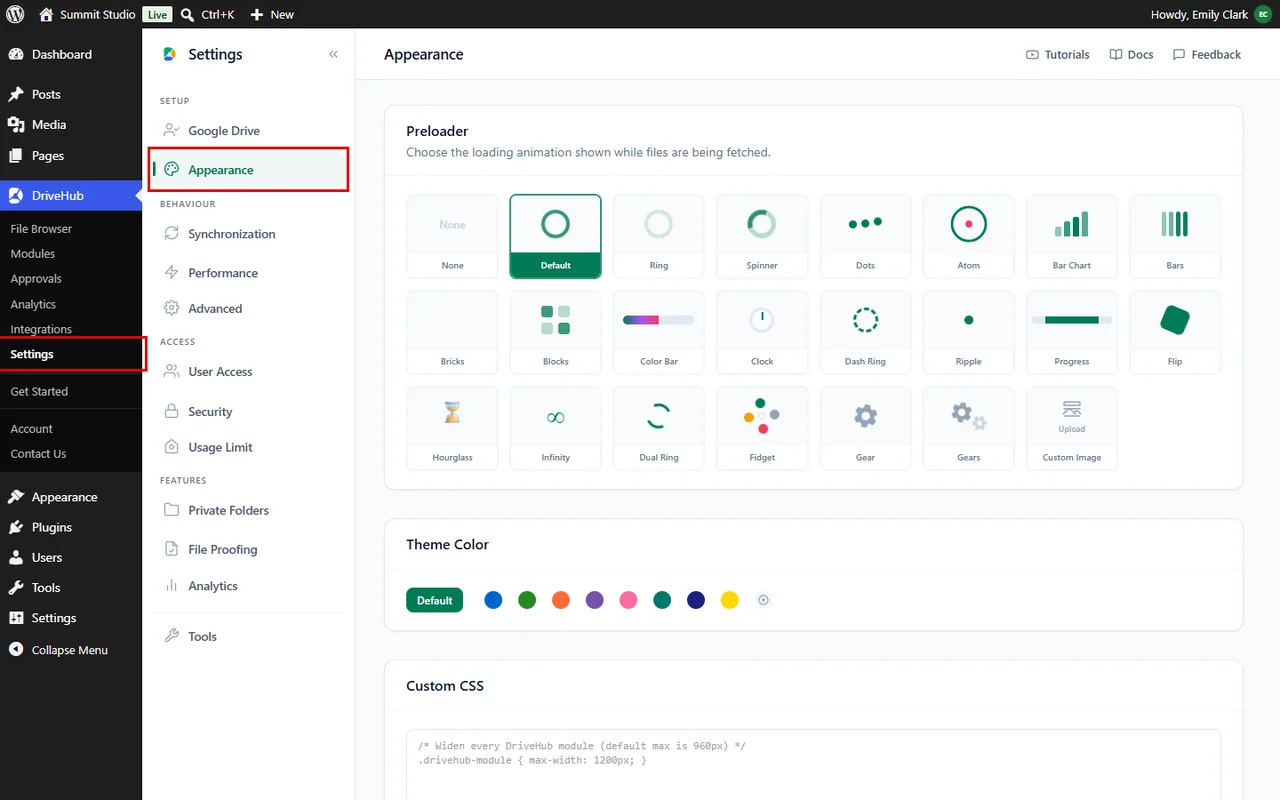
You will see three cards: Preloader, Theme Color and Custom CSS.
Step 2: Choose a Preloader #
The preloader is the small animation people see while DriveHub fetches files from Google Drive:
- In the Preloader card, click on the style you like. The selected tile turns green.
- None hides the animation, Default is the standard spinning circle, and Ring and Spinner are two lighter variations.
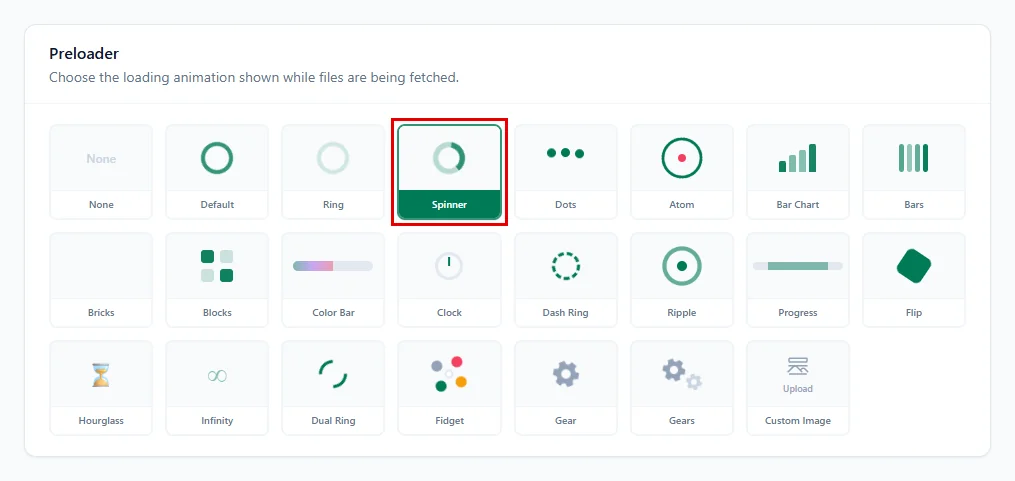
Pick something calm and simple if your pages load lots of photos; your visitors will see it every time they open a folder.
Step 3: Use Your Own Preloader Image (optional) #
Want your logo or a custom animated GIF instead? The other tiles, from Dots to Gears, and the Custom Image tile give you more styles:
- Click on Custom Image.
- Choose an image from your Media Library and click Use this image.
- Use Change to pick another image, or Remove to clear it.
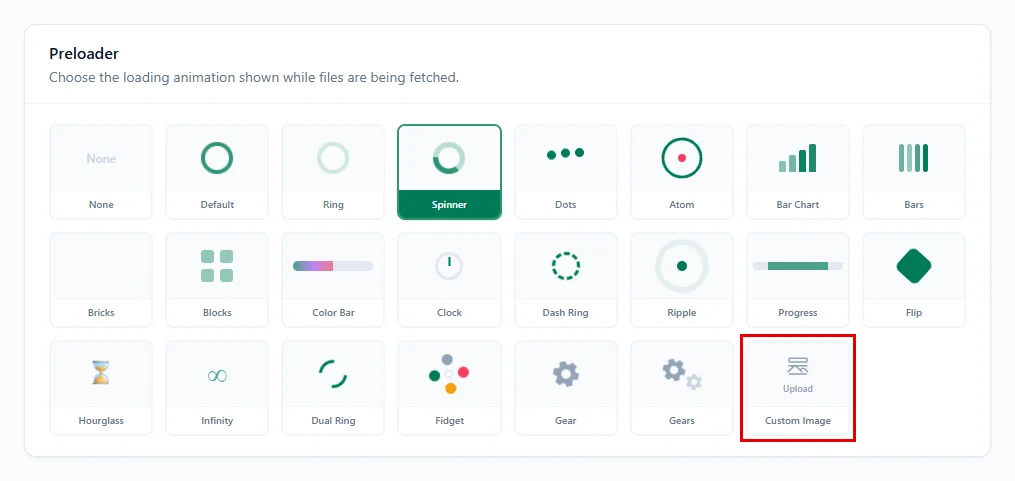
Your image then spins in place of the standard animation every time a gallery or file list loads, so visitors see your own brand while they wait. A small logo or a light animated GIF works best.
Note: Custom Image and the extra preloader styles (Dots, Atom, Bar Chart and the rest) need DriveHub Pro.
Step 4: Set Your Theme Color #
The theme colour is used for buttons, highlights and active items in DriveHub, both in your dashboard and on your website:
- In the Theme Color card, click on one of the preset colours, such as Ocean Blue, Forest Green or Sunset Orange. The chosen colour gets a ring around it.
- For an exact brand colour, click on the last circle (the plus icon) and pick any colour you like.
- Click Default to go back to DriveHub’s standard green.

Once you save, the buttons, highlights and active items in your DriveHub modules on the front end switch to that colour.
Note: Theme Color needs DriveHub Pro.
Step 5: Add Custom CSS (optional) #
If you know a little CSS, you can fine-tune spacing, fonts or borders:
- Type or paste your CSS rules into the Custom CSS box.
- Your CSS applies everywhere DriveHub shows up on the front end of your website.
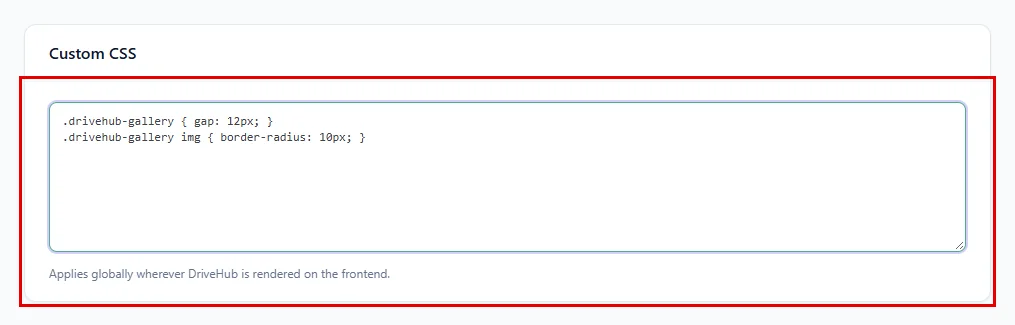
In the example above, the first rule adds a little more space between gallery photos and the second rounds their corners. DriveHub adds these rules right after its own styles, so they take effect without any extra tricks.
Note: Custom CSS needs DriveHub Pro.
Step 6: Save Your Changes #
As soon as you change anything, a bar appears at the bottom of the screen with the number of unsaved changes:
- Click on Save changes to keep your new look.
- Click Discard if you want to undo everything since your last save.

Don’t forget this step; nothing changes on your website until you save.
And that’s it! Open any page with a DriveHub gallery or file list, and you will see your new preloader and colours in action.
Benefits of Customising DriveHub’s Appearance #
- On-brand pages: Your Google Drive content uses the same colours as the rest of your site.
- Better first impression: A tidy loading animation tells visitors something is on its way.
- Full control: Custom CSS lets you adjust small details without touching theme files.
- One place: Every visual setting is on a single tab, so changes take seconds.
With DriveHub, your Google Drive files look like a natural part of your website.


