- Before you begin
- Step 1: Turn on the reminder email
- Step 2: Add a second and third reminder
- Step 3: Ask clients to confirm
- What clients see when you ask them to confirm
- Step 4: Mark a missed booking as a no-show
- Step 5: Send a "sorry we missed you" email
- Step 6: Add a text reminder (optional)
- How to see whether no-shows are going down
- Benefits of reminders and reconfirmation
- Troubleshooting
- Frequently asked questions
- You're ready to reduce no-shows
To reduce no-shows on your WordPress booking pages, MeetingHub sends clients a reminder email before each appointment, and MeetingHub Pro adds a second and third reminder, a “Yes, I am coming” email that frees the time when nobody answers, and a kind email to anyone who missed their time. You set the reminders under MeetingHub > Booking setup, and the confirmation request on each booking page.
A missed appointment costs you an empty hour that someone else could have booked. A reminder at the right moment, plus a quick “are you still coming?”, catches most of them before they happen.
By the end of this guide, you will have:
- A reminder email that goes before every appointment, at a time you choose
- A second and third reminder for clients who book far ahead
- Clients asked to confirm before the day, with unconfirmed times offered to others
- Bookings marked as no-shows, with a “sorry we missed you” email and a link to book again
- A clear idea of where to see your no-show rate
Estimated setup time: 5 minutes. Every setting in this guide has a safe default, so you can turn on one thing at a time.
Note: The first reminder and marking no-shows are in MeetingHub. More reminders, Ask clients to confirm and the No-show email require MeetingHub Pro.
Before you begin #
Make sure you have:
- MeetingHub installed and activated, and MeetingHub Pro for the Pro steps
- At least one booking page. See How to create a booking page in WordPress with MeetingHub.
- Booking emails that reach your clients. See How to edit booking confirmation emails and reminders in MeetingHub.
Step 1: Turn on the reminder email #
The reminder is one email before each appointment, with the date, the time and the join link. It is on by default, one day before.
- Go to MeetingHub > Booking setup and click the Settings tab.
- Under Bookings, leave Send a reminder switched on.
- Pick when it goes: 1 hour before, 2 hours before, 4 hours before, 12 hours before, 1 day before, 2 days before or 1 week before.
- Click Save changes.
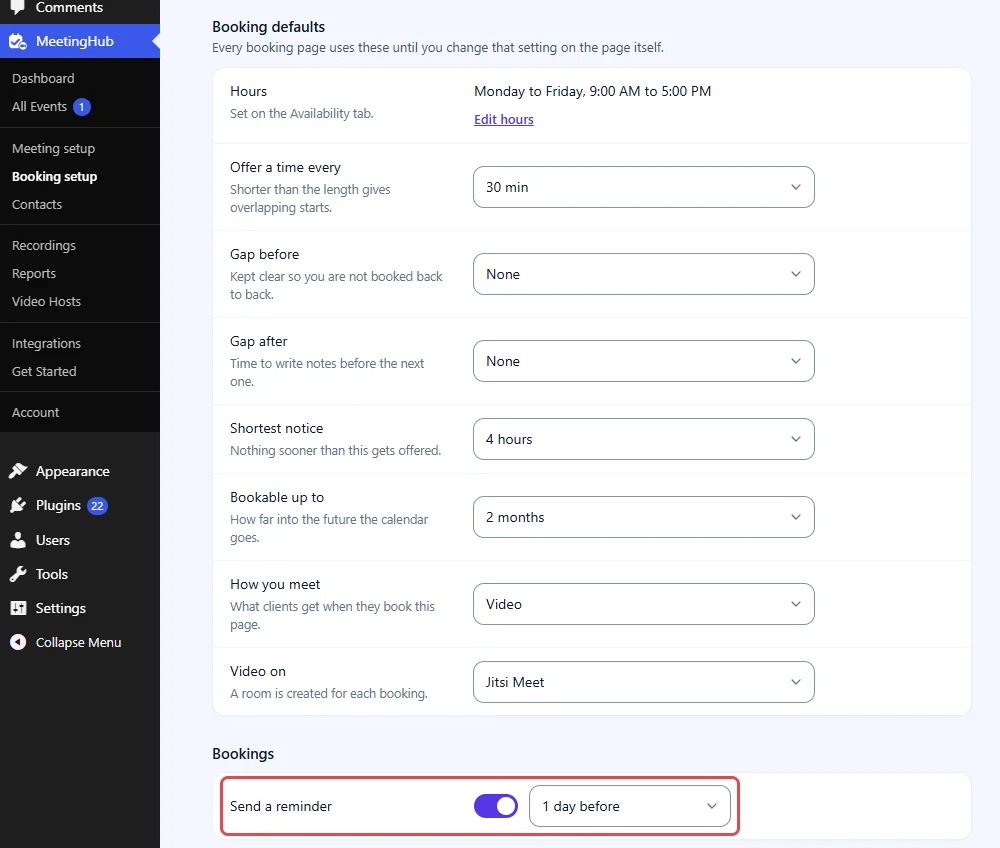
If Send a reminder is off, no reminder emails go at all, including the extra ones in the next step.
Step 2: Add a second and third reminder #
A client who books three weeks ahead can forget by the day before. More reminders catch them earlier, with the same wording as the first.
- Click the Emails tab.
- Under Before the appointment, find More reminders.
- In the first picker, choose when the second reminder goes, for example 1 week before.
- In the second picker, choose a third time, or leave it on Off.
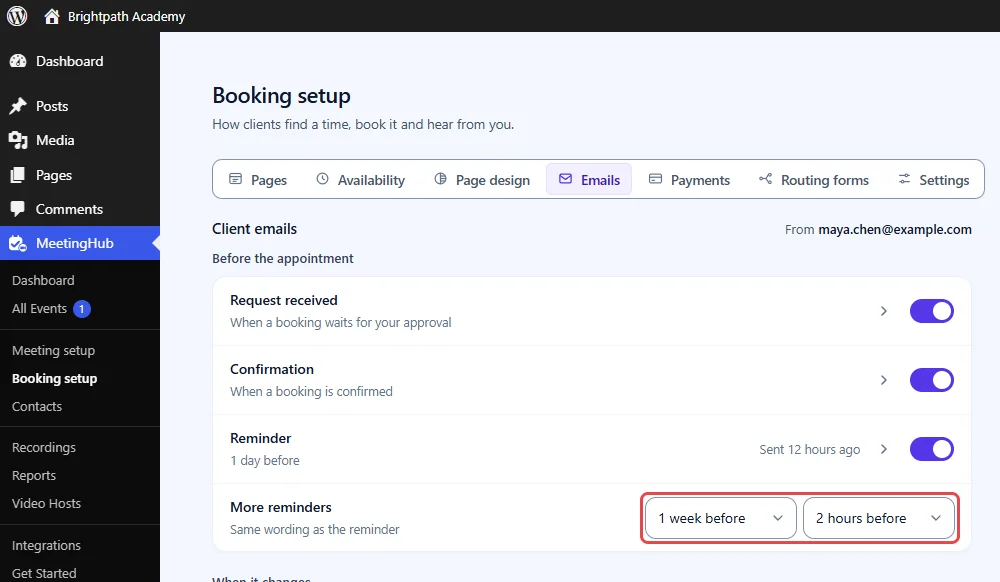
MeetingHub saves each choice as soon as you pick it. A picker never offers a time the first reminder or the other picker already uses, so two identical emails never go together. If a client books close to the start, only the reminders that still make sense go out, never several within the same hour.
Note: Requires MeetingHub Pro.
Step 3: Ask clients to confirm #
With this on, MeetingHub emails each client before the day with one button, Yes, I am coming. If they don’t answer in time, the booking is cancelled, the client is told why, and the time goes back on offer for someone else.
- Go to MeetingHub > Booking setup > Pages and click the booking page you want to change.
- Click After booking on the left.
- Under What happens after they book?, set Ask clients to confirm to 1 day before, 2 days before or 3 days before.
- Click Save changes.
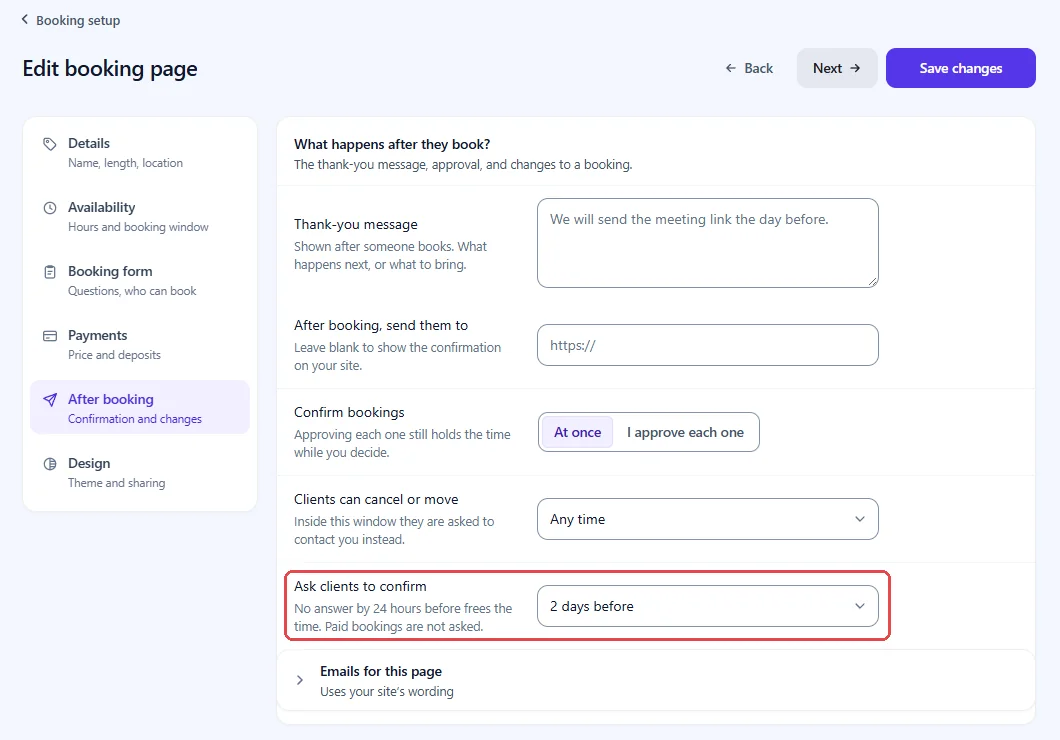
The deadline is half of the time you pick. With 2 days before, the email goes 48 hours ahead, and a client who has not answered 24 hours before the start loses the booking. The hint under the setting shows the exact number of hours.
Note: Requires MeetingHub Pro.
Some bookings are never asked:
- Paid bookings. A client who paid has already told you they are coming, and cancelling would mean a refund.
- Late bookings. Someone who books inside the window (for example, yesterday for tomorrow) meant it.
What clients see when you ask them to confirm #
The email’s subject is Please confirm: followed by the booking page name. It asks Are you still coming? and says by when they need to answer.
- When they click Yes, I am coming, a page says Thanks, see you then and Your time is kept for you.
- If they click after the booking was cancelled, the page says This booking is no longer open with a Pick a time button to book again.

Step 4: Mark a missed booking as a no-show #
When someone does not turn up, mark it. Your attendance numbers stay honest, and with Pro the client gets a kind email with a link to book again.
- Go to MeetingHub > All Events, pick Booked in the type filter and click the Past tab.
- Click the booking to open its details.
- At the bottom of the panel, click Mark no-show. You see Marked as a no-show.
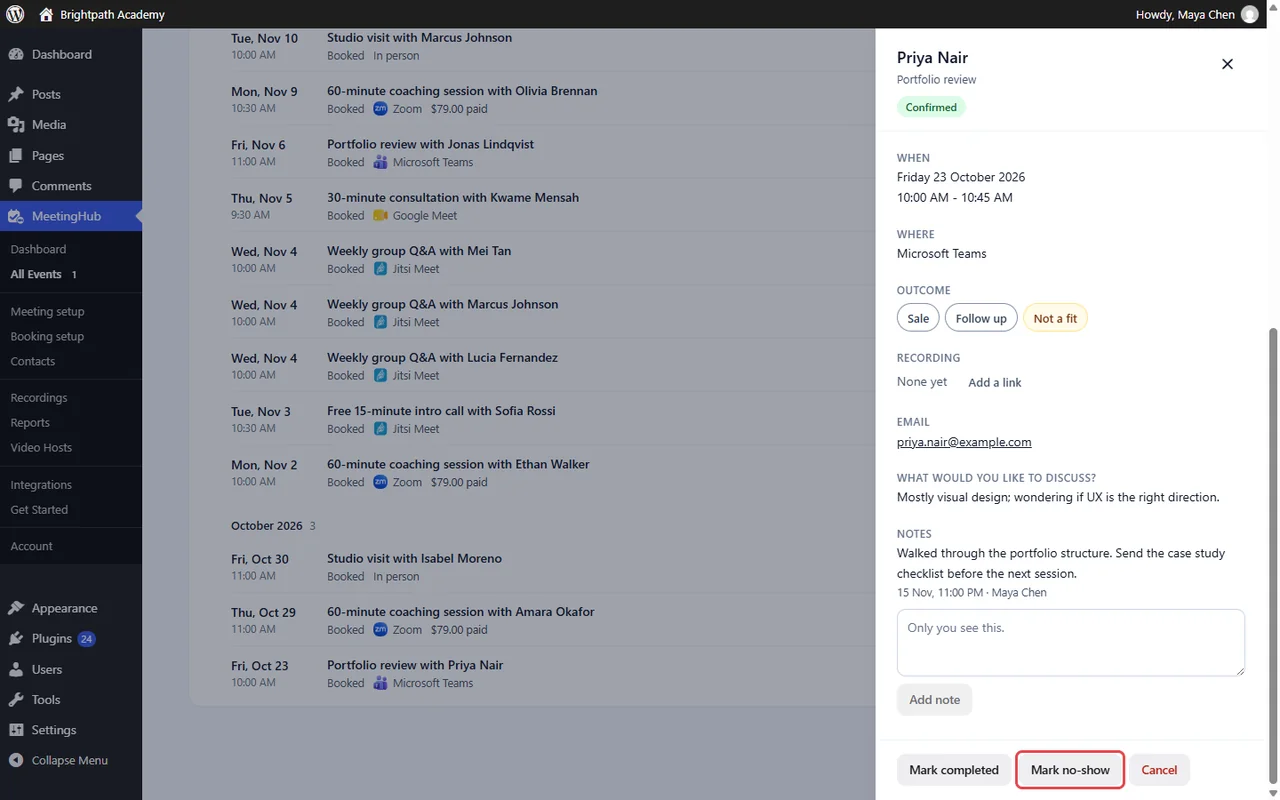
If the meeting did happen, click Mark completed instead. See How to follow up after a meeting: outcomes, notes and recordings.
Step 5: Send a “sorry we missed you” email #
The No-show email goes the moment you mark a booking as a no-show. It starts as We missed you: {page}, says “It looks like you could not make it. No problem: pick a new time below.”, and links back to the booking page.
- Go to MeetingHub > Booking setup > Emails.
- Under After the appointment, switch on No-show.
- To change the words, click the No-show row, edit the email and save it.

Note: Requires MeetingHub Pro.
Step 6: Add a text reminder (optional) #
A text often gets read faster than an email. With Twilio connected, MeetingHub Pro can text the same reminder, and an extra one an hour before the start, to clients who tick “Text me” when they book. See How to send booking reminders by text message with MeetingHub.
How to see whether no-shows are going down #
- The line above your booking pages on Booking setup > Pages shows your no-show rate for the last 30 days, for example Last 30 days: 31 booked, 2 cancelled, 6% no-shows.
- The Attendance card on MeetingHub > Dashboard splits finished appointments into Came and No-shows, compared with the period before.
See How to see booking analytics: trends, busiest hours and top pages.
Benefits of reminders and reconfirmation #
- Fewer empty hours: Clients get nudged before the day, at the moments you choose.
- Times that free themselves: An unconfirmed booking goes back on offer without you chasing anyone.
- Kind recovery: A client who missed their time gets an easy way to book again.
- Honest numbers: Marked no-shows feed your attendance rate, so you can see what works.
Troubleshooting #
Clients get no reminder email #
Check that:
- Send a reminder is switched on under Booking setup > Settings, and you clicked Save changes.
- The booking was made before the reminder time. A booking made 3 hours ahead never gets a reminder set to 1 day before.
- Other booking emails reach clients. Look under Recent sends on the Emails tab.
- Tools > Site Health does not show MeetingHub booking reminders are late. If it does, see How to check your MeetingHub setup with WordPress Site Health.
The More reminders pickers are greyed out or show Off #
The extra reminders depend on the first one. Switch on Send a reminder on the Settings tab first.
A client was not asked to confirm #
Check that:
- Ask clients to confirm is set on that booking page, not only on another one.
- The booking has nothing paid on it.
- The client booked before the ask time. With 1 day before, a booking made 12 hours ahead is not asked.
A confirmed client’s booking was cancelled #
The client did not click Yes, I am coming before the deadline. The cancellation reason reads “Not confirmed in time, so the time was offered to others.” They can book again from the link in their email.
Frequently asked questions #
Do reminders go for every booking page? #
Yes. Send a reminder and More reminders cover every booking page on the site. Ask clients to confirm is set per page.
Does asking clients to confirm cancel paid bookings? #
No. Paid bookings are never asked, so they are never cancelled for a missed answer.
What happens to reminders when a booking moves? #
MeetingHub sends them again for the new time. Reminders already sent for the old time do not count.
Can I send the no-show email without marking the booking? #
No. The No-show email goes only when you click Mark no-show on the booking. To reach clients after every meeting, use the Follow-up email or an automation.
You’re ready to reduce no-shows #
Your clients now hear from you before every appointment, confirm the ones they will keep, and get an easy way back if they miss one. Check your no-show rate in a few weeks to see the difference.
Related guides:


