- Before you begin
- Step 1: Open the page's Payments step
- Step 2: Add a package
- Step 3: See how clients buy a package
- Step 4: See what the client gets after paying
- Step 5: See how clients book the next session
- Step 6: Track packages in Contacts
- How sessions are counted
- Benefits of selling session packages
- Troubleshooting
- Frequently asked questions
- You're ready to sell session packages
To sell session packages in WordPress with MeetingHub, open a booking page that takes card payments, go to its Payments step and click Add a package, for example 5 sessions for $350. Clients pay once when they book their first session, get a package code by email, and book every later session with that code at no charge.
Packages suit coaches, tutors and therapists who sell a course of sessions rather than one call at a time, and they keep you out of spreadsheets that count who has sessions left.
By the end of this guide, you will have:
- A booking page that sells up to three packages beside the single session
- Clients who pay for the whole package and book their first session in one go
- A package code in their confirmation email, with a link that books the next session
- Sessions counted down as they book, and given back when they cancel
- Each client’s packages and sessions left in Contacts
Estimated setup time: 5 minutes.
Note: Requires MeetingHub Pro.
Before you begin #
Make sure you have:
- MeetingHub and MeetingHub Pro installed and activated
- Stripe connected, and a booking page with a price paid By card when booking. See How to take booking payments in WordPress with Stripe. Packages are sold by card only, so a page paid at the appointment cannot sell them.
Step 1: Open the page’s Payments step #
- Go to MeetingHub > Booking setup.
- On the Pages tab, click the name of the page, for example 60-minute coaching session.
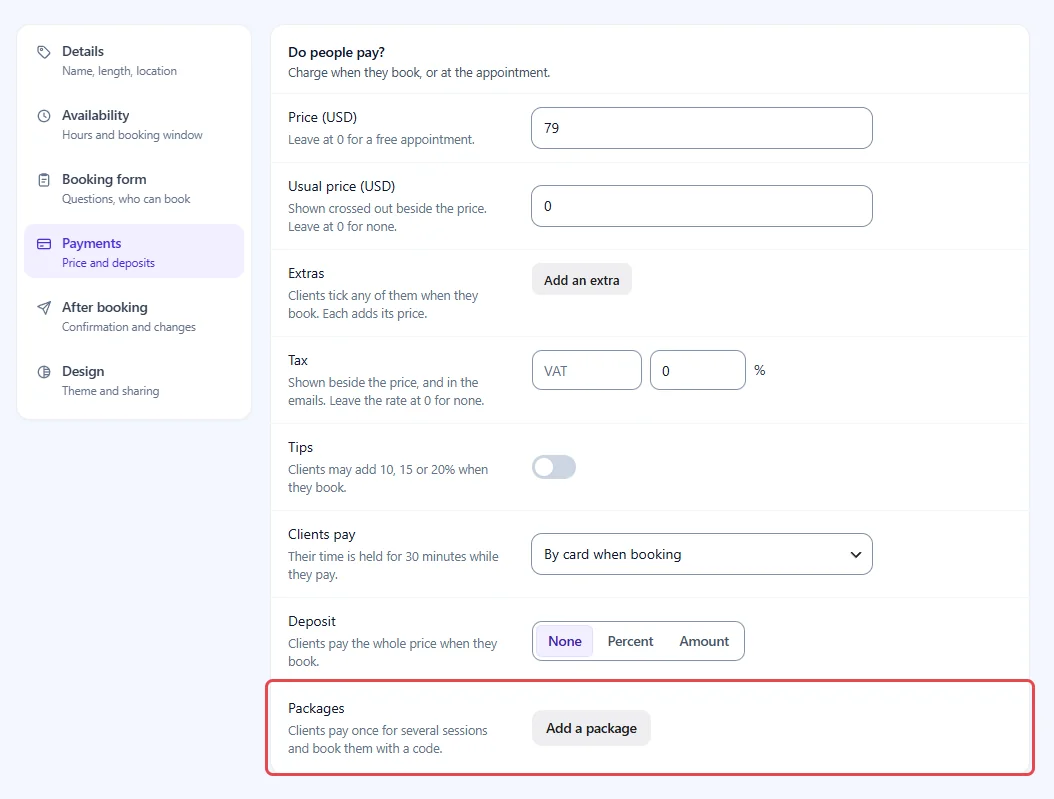
- Click Payments (Price and deposits) in the steps on the left.
- Check that Price is above 0 and Clients pay is By card when booking.
Packages is the last row of the Do people pay? card. Until the page takes cards, its hint reads Needs a price paid by card on this page.
Step 2: Add a package #
Each package is a number of sessions for one price, with an optional time limit.
- Under Packages, click Add a package.
- Type the number of sessions, from 2 to 50, for example
5. - After sessions for, type the package price, for example
350. - Choose how long clients have to use it: No end date, Within 3 months, Within 6 months or Within 12 months.
- To sell a bigger bundle too, click Add another package. A page sells up to three.
- Click Save changes at the top right.
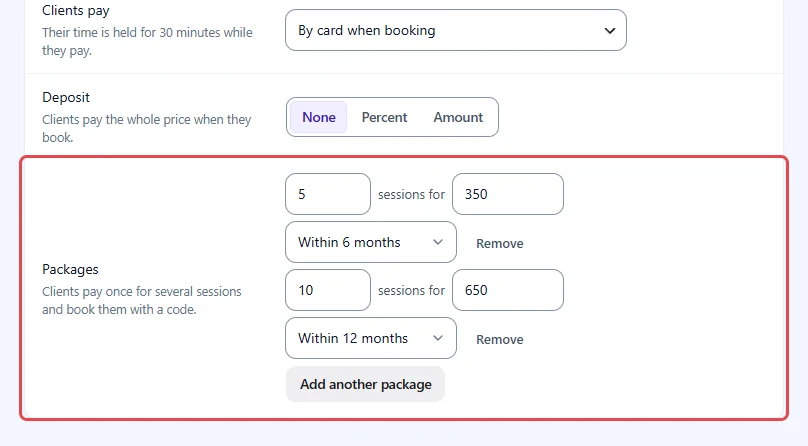
Click Remove to stop selling a package. Packages already sold keep working.
Important: A package needs at least 2 sessions and a price above 0. One without either is dropped when you save.
Step 3: See how clients buy a package #
On the booking page, clients now see a Sessions choice under Your details:
- One session, with the page’s price, for example $79.00
- Each package with its price and what it saves, for example 5 sessions at $350.00, save $45.00
When a client picks a package, the price shows what the sessions would cost one by one, crossed out, beside the package price, and the button changes to Pay $350.00 with the line This is session 1. You get a code to book the rest. The time they picked is their first session, and Stripe charges the package price.

Note: A package is priced for the page’s own length. If the page also offers other lengths, a client who picks another length is asked to pick the page’s length to buy a package.
Step 4: See what the client gets after paying #
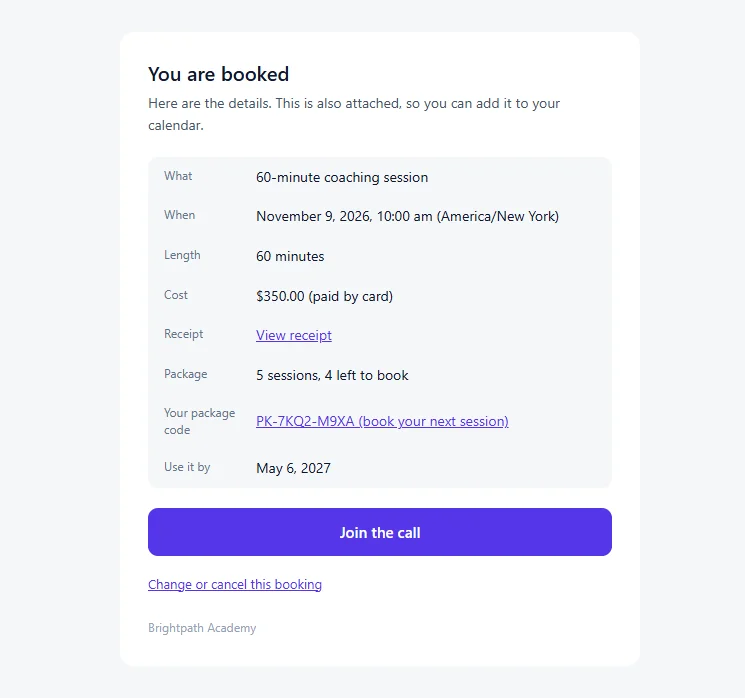
Once the payment comes through, the client’s confirmation email carries their package:
- Package: for example 5 sessions, 4 left to book
- Your package code: a code such as
PK-7KQ2-M9XAwith (book your next session), linked to your booking page with the code already in place - Use it by: the last day, when the package has a time limit
Step 5: See how clients book the next session #
The client opens the link from their email, or clicks Have a package code? on your booking page and types the code.
- They pick a time.
- The Package or discount code field holds their code. After Apply, the page says, for example, Prepaid: session 3 of 5, 2 left after this one.
- They book with the email they bought the package with. There is nothing to pay.

Each booking made with the code is a normal booking, with its own video room, reminders and link to change or cancel it.
Step 6: Track packages in Contacts #
- Go to MeetingHub > Contacts and click the client.
- Under Packages, read how far they are, for example 2 of 5 sessions booked · 60-minute coaching session, with the price, the code and the use by date.
- Under Booking history, each session paid by the package is tagged, for example Package session 2 of 5.

How sessions are counted #
- Booking a session with the code uses one session.
- Cancelling a session gives it back to the package, so the client can book another time.
- A no-show keeps the session used.
- Refunding the purchase voids the sessions not yet booked. The package shows Refunded.
- Cancelling the first booking after other sessions were used is not refunded automatically, even with Refund when I cancel on. It waits as Refund due so you can decide what to give back.
- An expired package stops working on its use by date.
Benefits of selling session packages #
- Money up front. Clients commit to the whole course of sessions on day one.
- Fewer drop-offs. A client with sessions left comes back to use them.
- No spreadsheet. MeetingHub counts every session and shows what is left.
- Easy rebooking. The link in the email opens your page with the code already filled in.
Packages turn one-off calls into a program clients have already paid for.
Troubleshooting #
There is no Sessions choice on the booking page #
Check that:
- Clients pay is By card when booking and Stripe is connected
- The package has 2 or more sessions and a price above 0, and you clicked Save changes
- The client opened the page without a package code. A link with a code shows the code field instead.
That package code belongs to another email #
The client typed a different email from the one they bought with. Ask them to book with the purchase email; a package belongs to that address only.
That package is for another booking page #
A package works only on the page it was bought on. Send the client the link from their confirmation email.
That package is for 60-minute sessions. Pick that length to use it. #
The page offers more than one length and the client picked another. Ask them to pick the length the package was bought at.
Every session in that package is booked #
All sessions are used. The client can buy a new package on the same page.
A discount code cannot be used with a package #
Packages have their own price, so a discount code is not taken off it. The client can remove the code, or book one session with the code.
Frequently asked questions #
Can one package cover several booking pages? #
No. A package is sold on one booking page and works only there.
Can clients add extras or a tip to a package? #
No. A package has a fixed price, and sessions booked with the code cost nothing, so there is nothing to add to. Tax set to Added to the price is added to the package price.
Can I give a client a package without them paying? #
No. Packages are created when the card payment for the first session comes through.
Does a package take a deposit? #
No. The package price is always paid in full, even on a page with a deposit.
What happens when a package expires? #
The code stops working, and sessions not booked by then are lost. Already booked sessions go ahead as normal.
You’re ready to sell session packages #
Your booking page now sells packages beside the single session, clients book every session with their code, and you can see what each client has left in Contacts.


