- Before you begin
- Step 1: Open your past bookings
- Step 2: Mark the booking completed or a no-show
- Step 3: Pick an outcome
- Step 4: Add a private note
- Step 5: Keep the recording on the booking
- Step 6: Send a follow-up email after each meeting
- Benefits of following up in MeetingHub
- Troubleshooting
- Frequently asked questions
- You're ready to follow up after a meeting
To follow up after a meeting in MeetingHub, open the booking in WordPress under MeetingHub > All Events, mark it completed or a no-show, add a private note, and, with MeetingHub Pro, record how it went (Sale, Follow up or Not a fit) and attach the recording. A follow-up email can then thank the client, share the recording link and invite them to book again.
The hour after a call is when you remember the most. A short note, an outcome and a thank-you email take two minutes and turn one meeting into the next.
By the end of this guide, you will have:
- Past bookings marked as completed or as no-shows
- Private notes on a booking that only you and your team see
- An outcome on each meeting, so you can see which calls turn into sales
- A recording link kept on the booking, found by itself for Zoom
- A follow-up email that goes out after each appointment, with the recording
Estimated setup time: 5 minutes, then a minute after each meeting.
Note: Marking bookings and notes are in MeetingHub. Outcomes, recording links and the Follow-up email require MeetingHub Pro.
Before you begin #
Make sure you have:
- MeetingHub installed and activated, and MeetingHub Pro for the Pro steps
- At least one booking whose time has passed. See How to manage booked appointments: approve, reschedule or cancel.
- For Zoom recordings found by themselves: Zoom connected, and the meeting recorded to the Zoom cloud. See How to connect Zoom to WordPress with MeetingHub.
Step 1: Open your past bookings #
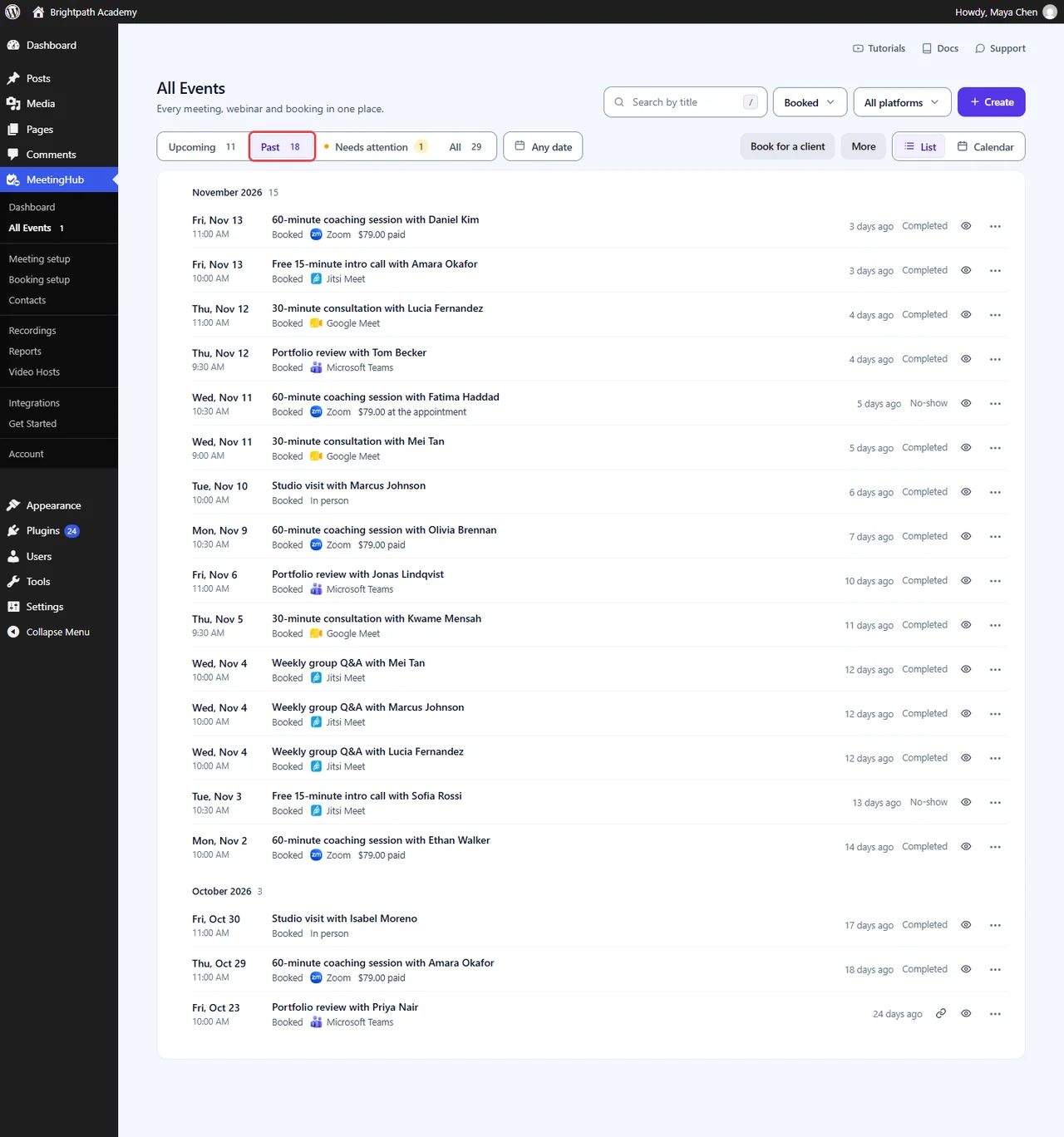
- In the WordPress admin menu, go to MeetingHub > All Events.
- In the type filter at the top, pick Booked.
- Click the Past tab.
- Click a booking to open its details in a side panel.
Step 2: Mark the booking completed or a no-show #
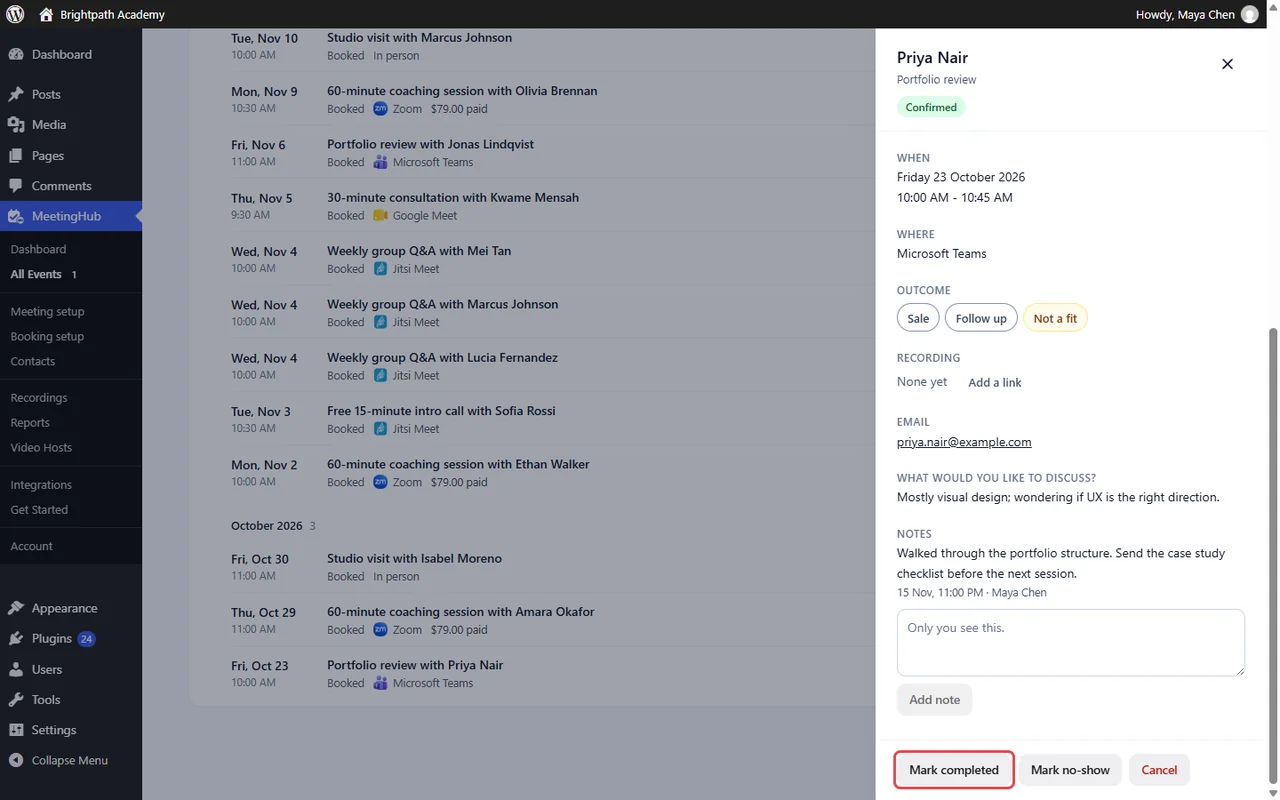
A booking stays as booked until you say how it went. Marking it keeps your attendance numbers right.
- At the bottom of the panel, click Mark completed if the meeting took place. You see Marked completed.
- Or click Mark no-show if the client did not come. You see Marked as a no-show.
With MeetingHub Pro, a no-show can send the client a “sorry we missed you” email with a link to book again. See How to reduce no-shows with reminders and reconfirmation.
Step 3: Pick an outcome #
An outcome records what came of the meeting, so you can see later which pages and sources bring paying clients. It shows once the booking’s time has passed.
- In the panel, find Outcome.
- Click Sale, Follow up or Not a fit. You see, for example, Marked Sale.
- To clear it, click the same outcome again. You see Outcome cleared.
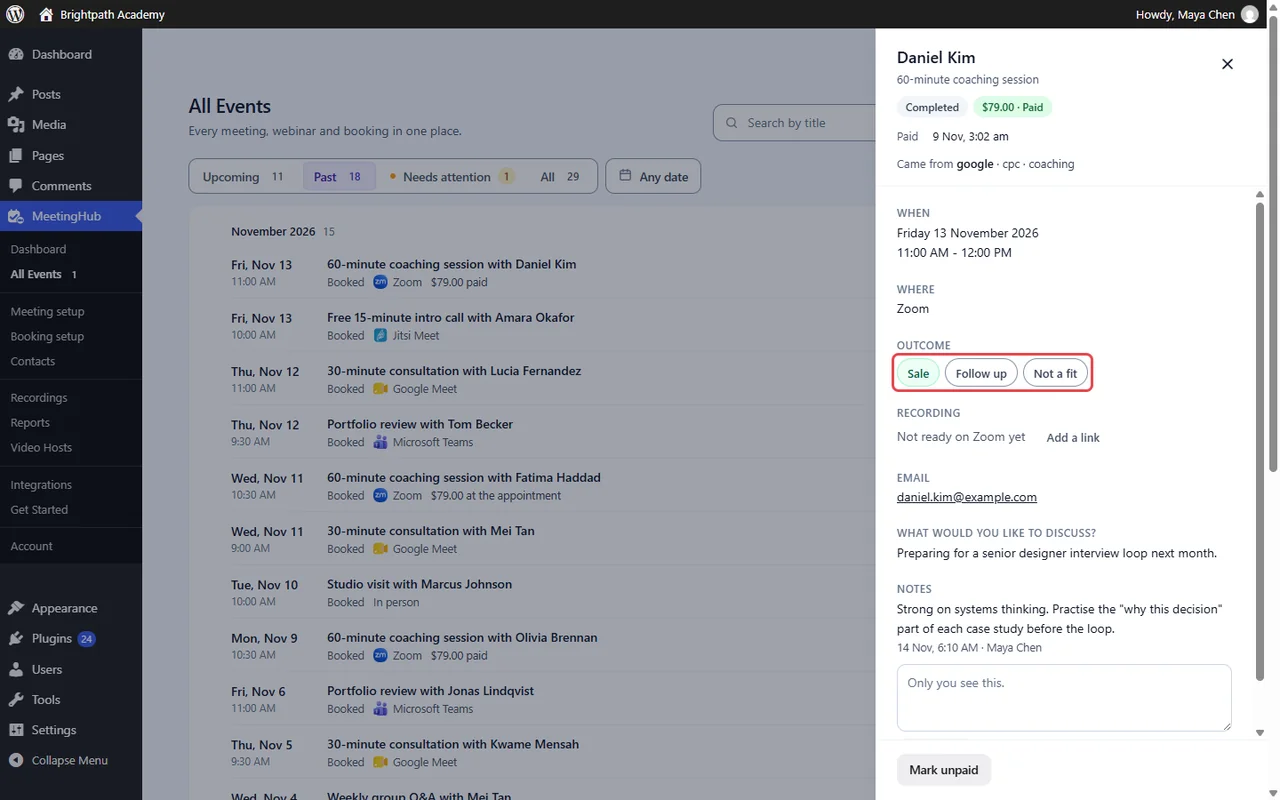
The outcome also shows in the client’s booking history under Contacts, and it travels with the booking to your other apps through webhooks.
Note: Requires MeetingHub Pro.
Tip: An automation can set the outcome for you, for example Follow up on every No-show. See How to automate booking follow-ups and send bookings to other apps.
Step 4: Add a private note #
Notes are for you and your team: what you discussed, what you promised, what to bring next time. Clients never see them.
- In the panel, scroll to Notes.
- Type in Add a note. The box reads Only you see this. until you type.
- Click Add note. You see Note added.
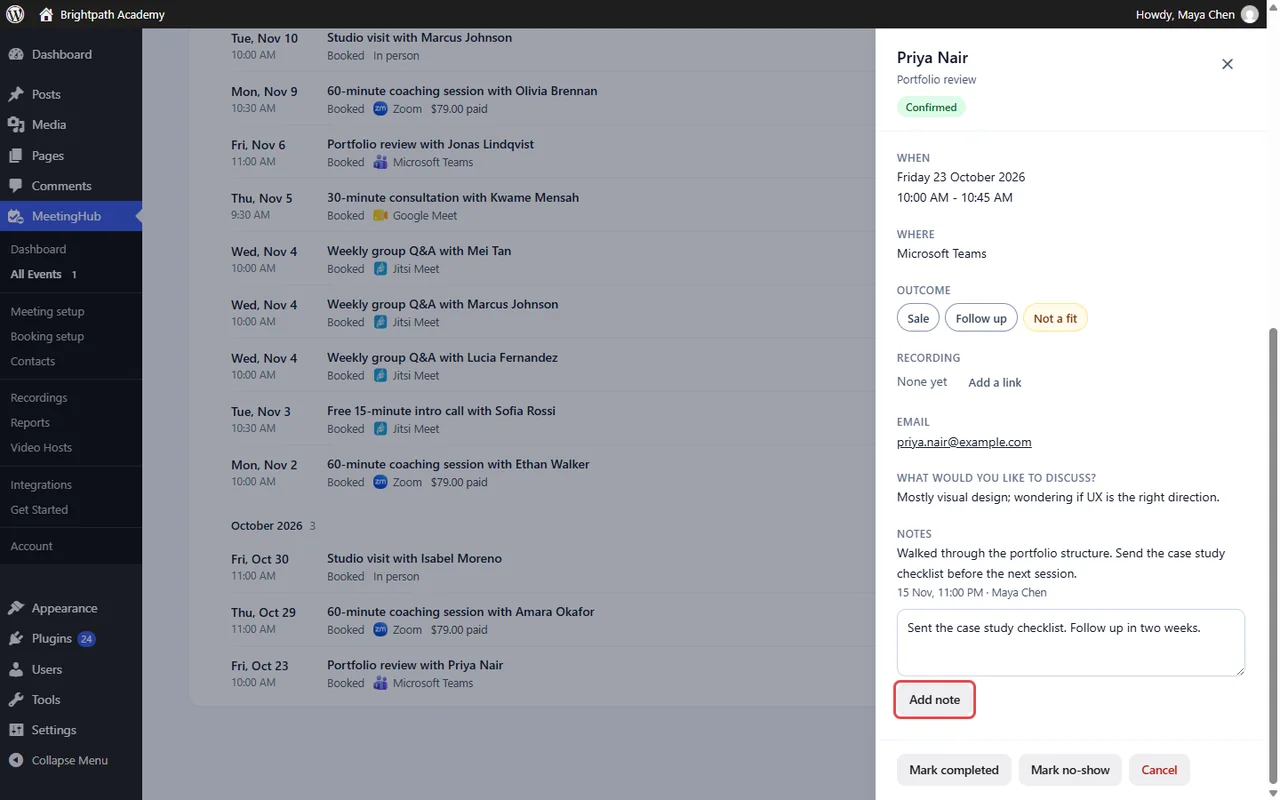
Each note keeps the time and the name of the person who wrote it. Answers from a routing form also arrive here as a note.
Step 5: Keep the recording on the booking #
A recording link on the booking lets you send it to the client in your follow-up email.
For a Zoom booking, MeetingHub Pro looks for the cloud recording on its own. Under Recording, the panel shows Looking…, then Open the recording once Zoom has it ready. Until then it reads Not ready on Zoom yet.
For any other platform, the panel shows None yet. Add the link yourself, the same way you would for a Zoom meeting recorded elsewhere:
- Under Recording, click Add a link.
- Paste the recording’s address in Recording link, starting with
https://. - Click Save link. You see Recording link saved.
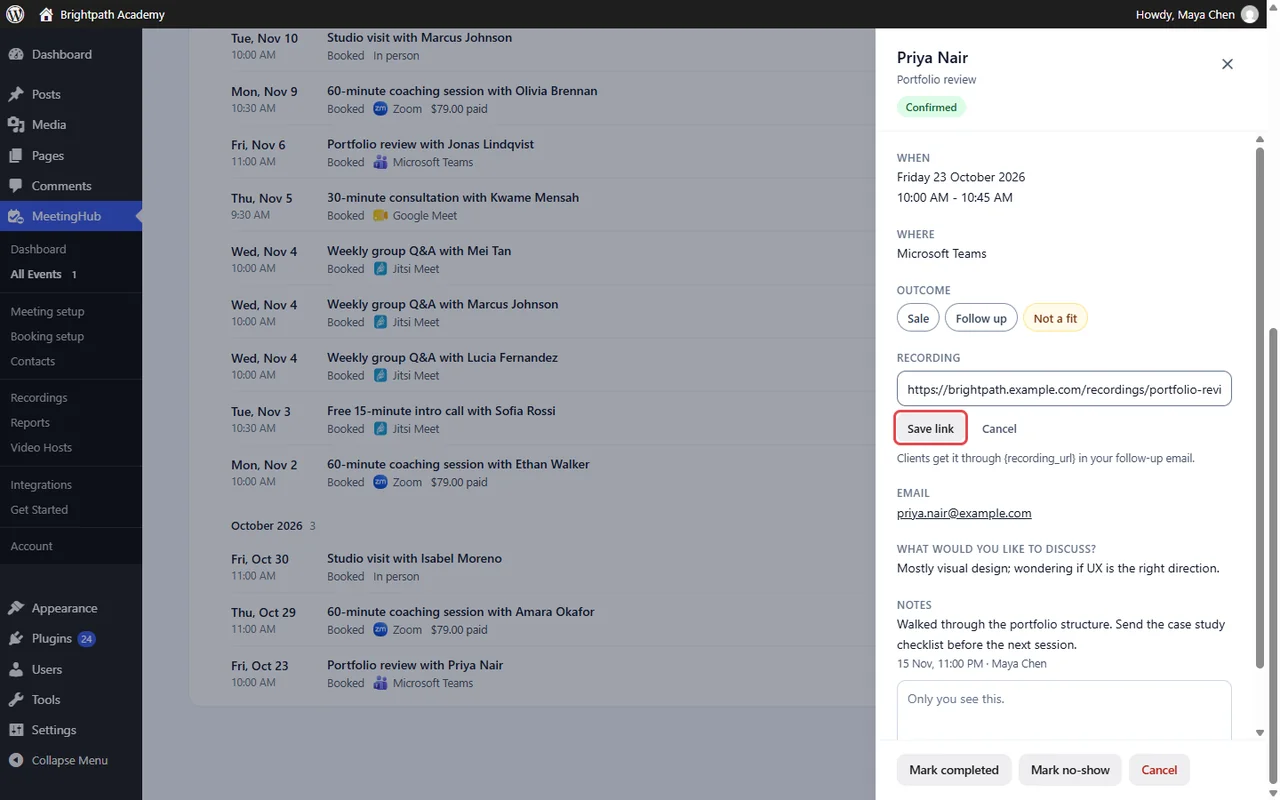
To replace the link, click Change. To delete a link you pasted, click Remove.
Note: Requires MeetingHub Pro.
Step 6: Send a follow-up email after each meeting #
The Follow-up email thanks the client and invites them to book again. It goes on its own after every appointment that took place.
- Go to MeetingHub > Booking setup and click the Emails tab.
- Under After the appointment, switch on Follow-up.
- In the picker next to it, choose when it goes: 1 hour after, 2 hours after, 4 hours after, 1 day after, 2 days after or 1 week after.
- To share the recording, click the Follow-up row, add
{recording_url}where the link belongs, and save the email.
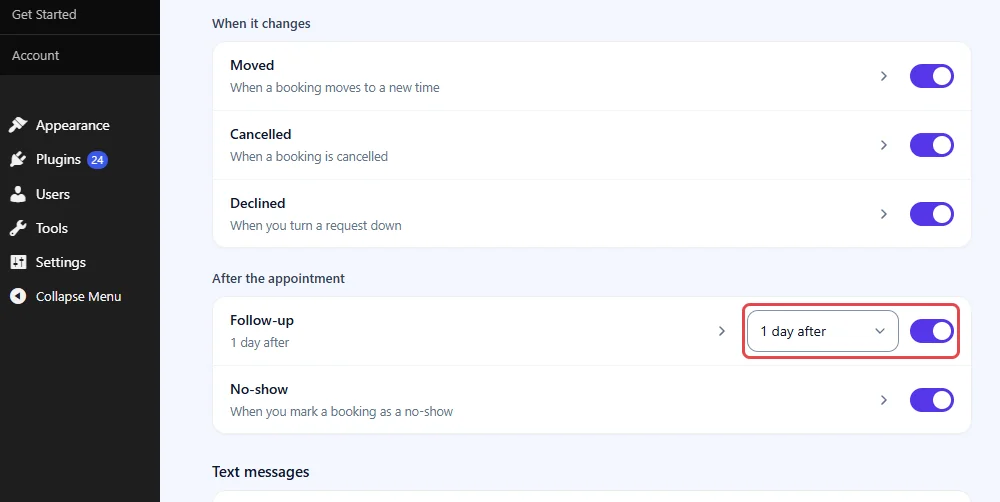
The ready email starts with the subject Thanks: {page} and says “Thank you for meeting with {host_name}. If you would like to meet again, pick a time below.”
Which bookings get it:
- Bookings that took place, whether you marked them completed or left them as booked.
- Not no-shows, cancelled bookings or requests you never approved.
- Not meetings that ended before you switched the follow-up on.
Note: Requires MeetingHub Pro.
Benefits of following up in MeetingHub #
- Everything on the booking: Outcome, notes and recording sit together, where you look before the next call.
- Honest numbers: Completed, no-show and outcome labels feed your attendance and sales figures.
- Follow-ups that send themselves: Every client gets thanked and invited back, even on a busy day.
- Recordings delivered: The right link reaches the right client with no copy and paste.
Troubleshooting #
The panel has no Outcome or Recording section #
These show only once the booking’s time has passed, and only with MeetingHub Pro active. A booking that is still ahead shows Reschedule instead.
The recording says Not ready on Zoom yet #
Zoom is still processing the recording, or the meeting was not recorded to the Zoom cloud. Local recordings stay on the host’s computer; upload one and paste its link with Add a link.
“That is not a web address. Paste the full link, starting with https://.” #
Paste the whole address, including https://.
“An outcome can be set once the booking has taken place.” #
The booking’s time has not passed yet. Wait until the meeting is over.
Clients did not get the follow-up email #
Check that:
- Follow-up is switched on under MeetingHub > Booking setup > Emails.
- The meeting ended after you switched it on.
- The booking was not marked as a no-show or cancelled.
Frequently asked questions #
Can clients see my notes? #
No. Notes show only in the booking panel in wp-admin. Clients never see them.
Can I add my own outcome labels? #
No. MeetingHub offers Sale, Follow up and Not a fit.
Does the follow-up email go to no-shows? #
No. A no-show gets the No-show email instead, if you switched it on.
Can I share recordings on a page instead of by email? #
Yes. For Zoom cloud recordings, see How to share Zoom cloud recordings on your site.
You’re ready to follow up after a meeting #
Every past meeting now ends with a clear status, a private note, an outcome and, where you have one, a recording that reaches the client in a friendly follow-up email. Look at your outcomes over time to see which booking pages bring the clients you want.
Related guides:


