- Before you begin
- Step 1: Open Contacts
- Step 2: Read the list
- Step 3: Find a client
- Step 4: Open a contact
- Step 5: See all of a contact's bookings
- Step 6: Keep notes on a contact
- Step 7: Read their booking history
- Step 8: Send them a personal booking link
- Step 9: Export your contacts
- How to remove a client's personal data
- Benefits of booking contacts in MeetingHub
- Troubleshooting
- Frequently asked questions
- Security best practices
- You're ready to work with your contacts
To see your booking contacts in WordPress, go to MeetingHub > Contacts. MeetingHub lists each client once, by email address, with how many times they booked, when they last came and their next appointment. Click a contact to see their history and jump to all of their bookings.
You do not have to keep a separate client list. Contacts builds itself from your bookings, so a new client appears the moment they book a time on one of your booking pages.
By the end of this guide, you will have:
- Your contacts list open, with the most active clients at the top
- A client found by name or email
- One contact’s panel open, with their booked, came and no-show counts
- Every booking from that client listed in All Events
- With MeetingHub Pro, private notes on a contact, their full booking history, a personal booking link and a CSV export
Estimated setup time: 3 minutes. Contacts only reads your bookings, so looking around changes nothing.
Before you begin #
Make sure you have:
- MeetingHub installed and activated. See How to install MeetingHub and finish the Get Started setup.
- A booking page that clients have booked. See How to create a booking page in WordPress with MeetingHub.
- An administrator account, or a host account that can manage bookings. A host who manages only their own bookings sees only their own clients.
- MeetingHub Pro, for notes, booking history, personal links and export
Step 1: Open Contacts #
- In the WordPress admin menu, go to MeetingHub > Contacts.
- Check the heading Contacts and the line Everyone who booked you.

If nobody has booked yet, you see No contacts yet and a Go to booking pages button. Share a booking page, and everyone who books appears here.
Step 2: Read the list #
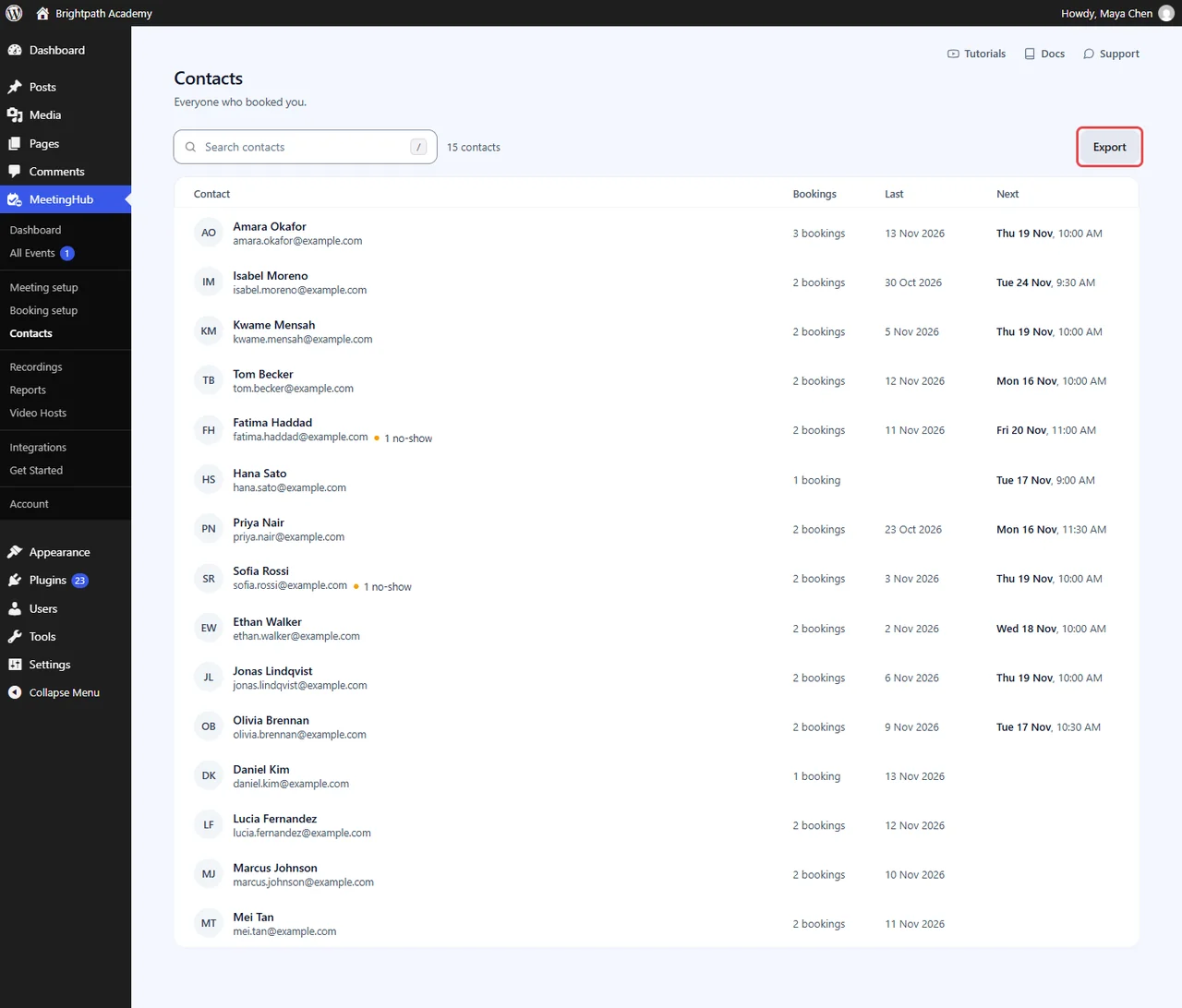
Each row is one person, matched by their email address. The clients you heard from most recently sit at the top.
- Contact: the name and email address. A dot marks clients who missed a booking (1 no-show) or cancelled one (1 cancelled).
- Bookings: how many times they booked, leaving out cancelled bookings.
- Last: the date of their last appointment.
- Next: their next booking, if they have one.
The list shows 25 contacts at a time. Use Previous and Next at the bottom to move between pages.
Step 3: Find a client #
- Click Search contacts, or press the slash key (
/) on your keyboard. - Type part of a name or an email address. The list narrows as you type.

If nobody matches, you see No contacts match. Click Clear search to see everyone again.
Step 4: Open a contact #
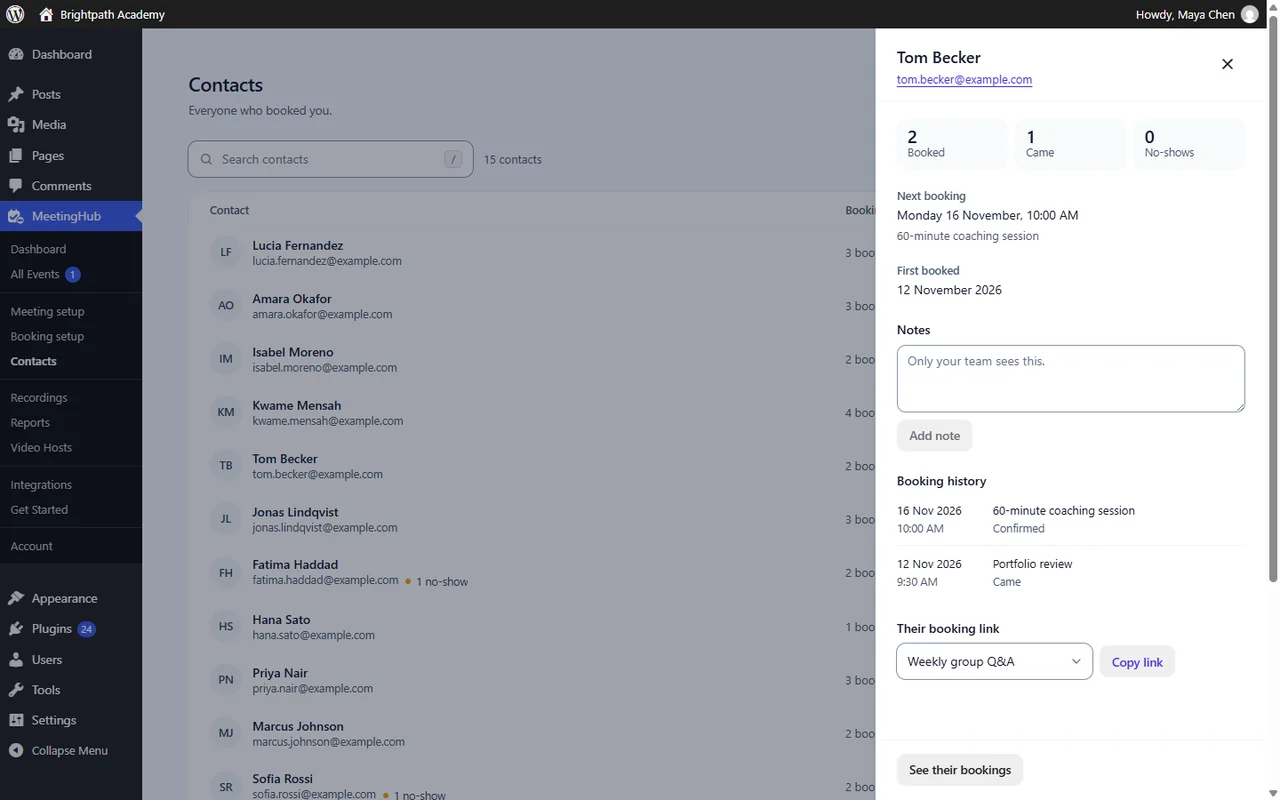
Click a contact’s row to open their panel on the right. The list stays behind it.
The panel shows:
- Their name, with their email address and phone number (when they gave one) ready to click.
- Three counts: Booked, Came and No-shows.
- Next booking: the date, time and booking page of their next appointment, or Nothing booked ahead.
- First booked: when they first booked with you.
- Cancelled: how many bookings they cancelled, when there are any.
Tip: Came and No-shows count only the bookings you marked. See How to manage booked appointments: approve, reschedule or cancel.
Step 5: See all of a contact’s bookings #
- In the contact’s panel, click See their bookings at the bottom.
- All Events opens on the All tab, with Booked chosen and the client’s email address in the search box, so the list shows only their bookings, past and upcoming.

From there you can open any of their bookings to reschedule, cancel or add a note.
Step 6: Keep notes on a contact #
Contact notes stay with the person, not with one booking, so the next host who talks to them sees the context.
- Open the contact.
- Under Notes, type in the box that says Only your team sees this.
- Click Add note.
To remove a note, click Delete next to it. You see Note deleted.
Note: Requires MeetingHub Pro. In the free plugin, Notes shows as a locked row. Notes on a single booking are free; see How to manage booked appointments: approve, reschedule or cancel.
Step 7: Read their booking history #
Under Booking history, the panel lists every booking from this contact, newest first: the date and time, the booking page and how it ended, such as Confirmed or Came.

Note: Requires MeetingHub Pro.
Step 8: Send them a personal booking link #
A personal link opens a booking page with the client’s name and email already filled in, so rebooking takes them a few seconds.
- Under Their booking link, pick the Booking page.
- Click Copy link. You see a message that the link was copied and that their details are filled in when they open it.
- Paste the link into an email or a chat to the client.
Note: Requires MeetingHub Pro.
Step 9: Export your contacts #
- Optionally, search first. The export follows the list as it is filtered.
- Click Export next to the search box. A CSV file downloads, and you see how many contacts were exported.
Note: Requires MeetingHub Pro. Without Pro, Export opens the upgrade window. Your bookings, with each client’s details, can still be exported for free from All Events with More > Export CSV.
How to remove a client’s personal data #
Contacts has no delete button, because a contact is built from bookings. When a client asks you to erase their data, use the WordPress privacy tools.
- Go to Tools > Erase Personal Data.
- Add the client’s email address and send the request. WordPress asks the client to confirm by email.
- Once confirmed, click Erase personal data on their request.
MeetingHub removes the client’s name, email address, phone number and booking management link from their bookings. The appointments stay as anonymous records, shown as Details removed, so your history and figures still add up. Tools > Export Personal Data gives a client a copy of their appointments in the same way.
Important: To delete every booking and all client details at once, use Delete all bookings under MeetingHub > Booking setup > Settings. See How to change booking settings (calendar feed, reminders, data).
Benefits of booking contacts in MeetingHub #
- A client list for free: it builds itself from your bookings, one row per person.
- Spot patterns: no-show and cancelled flags show who might need a reminder.
- Context before a call: counts, history and notes are one click away.
- Faster rebooking: with MeetingHub Pro, a personal link fills in their details.
Troubleshooting #
A client appears twice #
Contacts matches people by email address. A client who booked with two different addresses shows as two contacts. Their bookings are still all in All Events.
“Contacts did not load” #
The list could not be fetched. Check your connection and click Try again. If it keeps failing, reload the page.
A client is missing #
Check that:
- They finished booking. A booking abandoned before the last step creates nothing.
- You can see their booking. A host who manages only their own bookings sees only their own clients.
- Their details were not erased. An erased booking keeps no name or email.
The Came count stays at 0 #
Came counts bookings you marked completed. Mark finished appointments in All Events to fill it in.
Frequently asked questions #
Do I need to add contacts by hand? #
No. Everyone who books on one of your booking pages, or whom you book with Book for a client, appears automatically.
Are contacts WordPress users? #
No. Contacts come from bookings. Booking a time does not create a WordPress account.
Does a cancelled booking count in Bookings? #
No. Bookings leaves cancelled ones out. They are counted under Cancelled in the contact’s panel instead.
Can clients see my contact notes? #
No. Notes are only shown in the contact’s panel in your admin area.
Can I delete a contact? #
No, not from Contacts. To erase one person’s details, use Tools > Erase Personal Data in WordPress.
Security best practices #
- Give the manage-bookings capability only to people who need to see client details.
- Store exported CSV files somewhere private, and delete them when you are done. They hold names, emails and phone numbers.
- Answer erase requests through Tools > Erase Personal Data, so you keep a record that you did.
You’re ready to work with your contacts #
You can now find any client, see how often they book and show up, and jump to all of their bookings. With MeetingHub Pro you can also keep notes, send personal links and export the list. Next, manage the bookings themselves, or share your booking page with more people.


