Do you want each post, product or project page to carry its own Google Drive files, like a brochure for every product or a photo set for every client? You can easily do this with DriveHub and Advanced Custom Fields.
DriveHub adds a Google Drive Files field type to ACF. Editors pick Drive files right on the edit screen, and a single DriveHub module can then show the files of whatever post it sits on.
Here is an easy, step-by-step guide to help you set it all up!
Note: The ACF integration needs DriveHub Pro and the Advanced Custom Fields plugin.
Step 1: Turn On the ACF Integration #
- Go to DriveHub > Integrations from your WP-Admin.
- Find the Advanced Custom Fields card under Media and custom fields.
- Turn on the switch. The card now says Active.
- Click Save changes in the bar at the bottom of the screen.
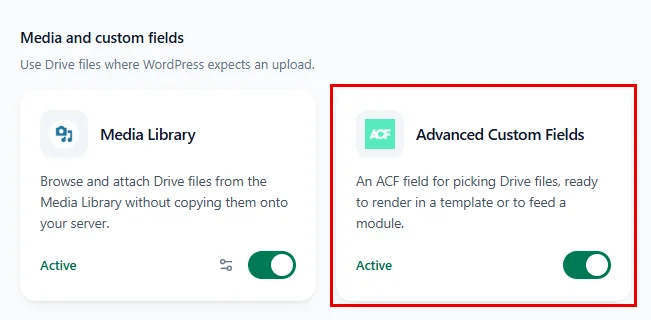
Tip: If the card says Advanced Custom Fields not detected, install and activate ACF from Plugins > Add New Plugin first.
Step 2: Add a Google Drive Files Field #
Now create the field your editors will fill in:
- Go to ACF > Field Groups and click Add New.
- Give the group a title (for example, Project Files).
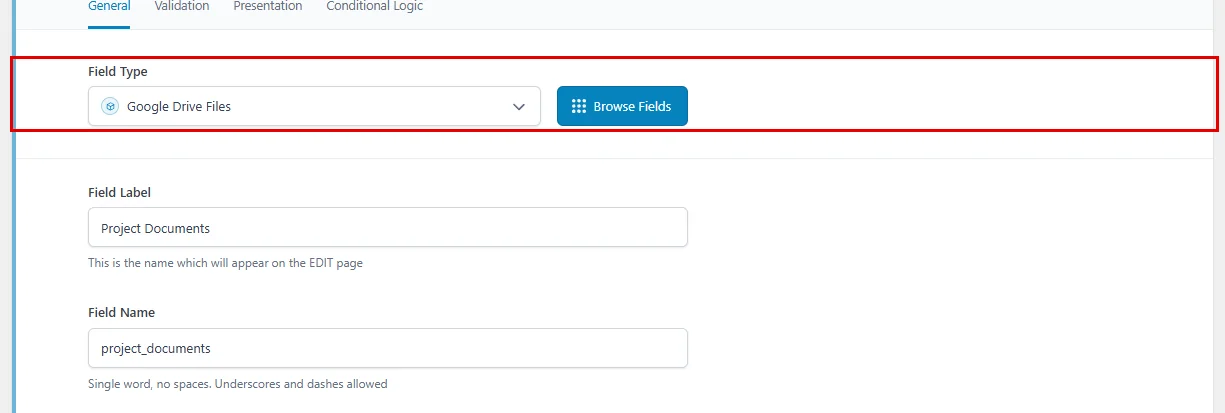
- In Field Type, choose Google Drive Files (you’ll find it under Content).
- Type a Field Label, for example Project Documents. ACF fills in the Field Name for you (
project_documents). Note this name down, you will need it in Step 5.
Step 3: Set a Minimum Number of Files (optional) #
- In the field settings, fill in Minimum files if every post needs a certain number of files. Leave it at 0 for no minimum.
- Turn on Required if the field may never be left empty.
- Under Settings > Location Rules, choose where the field shows up (for example, Post Type is equal to Post).
- Click Save Changes.

If an editor adds fewer files than the minimum, they see a message like “Please select at least 2 files.” when they save.
Step 4: Add Google Drive Files to a Post #
- Open a post (or the post type you chose) for editing.
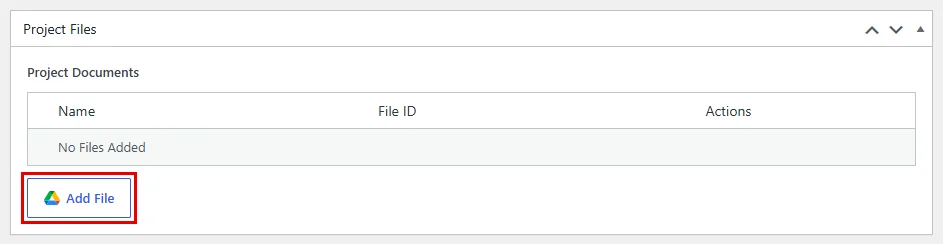
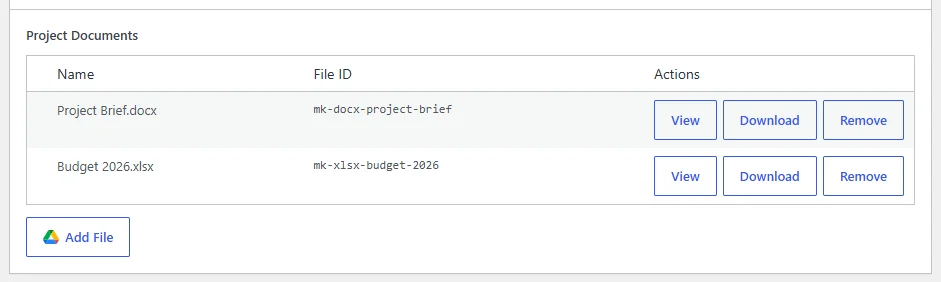
- Scroll to your Project Documents field and click on Add File.
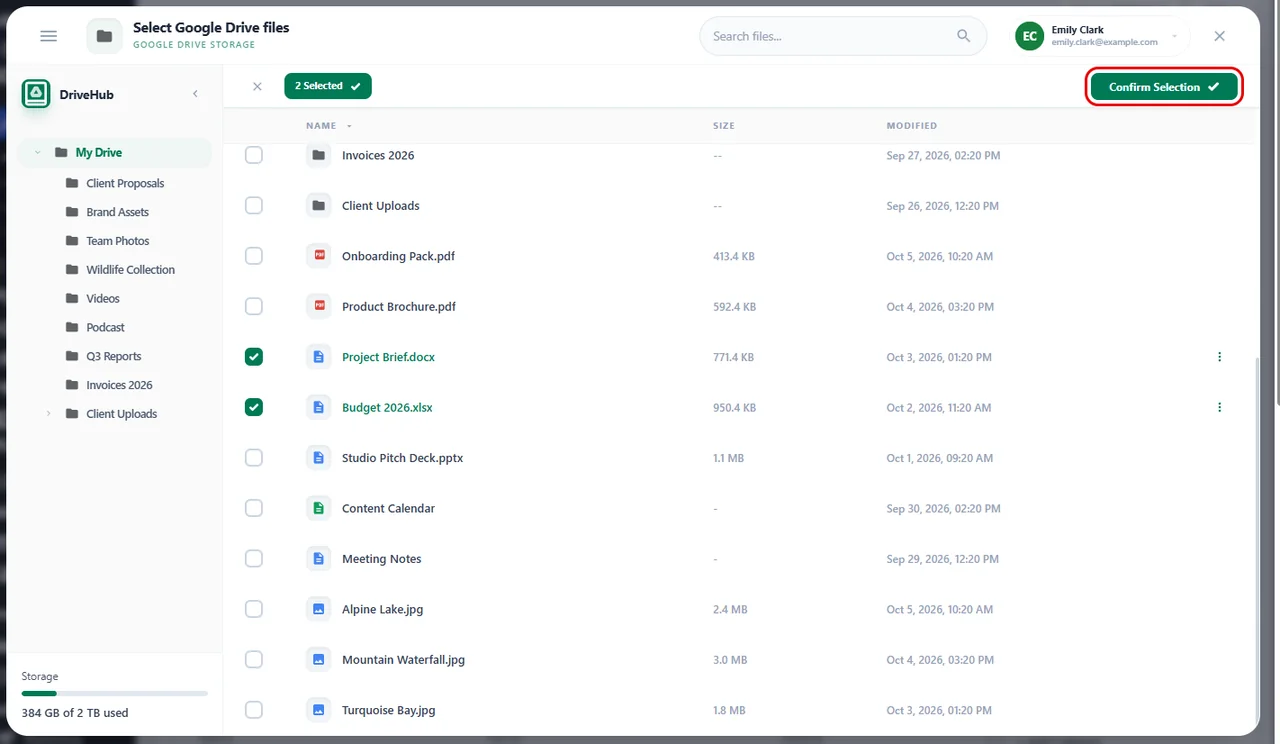
- In the Select Google Drive files window, tick the files you want (for example, Project Brief.docx and Budget 2026.xlsx).
- Click Confirm Selection.
The files now appear in a small table with their Name and File ID. Use View to open a file in Google Drive, Download to save it, or Remove to take it out of the field.
- Click Update (or Publish) to save the post.
Step 5: Show the Field’s Files with a DriveHub Module #
Here is where it gets handy. Build one module and use it on every post, and each post shows its own files:
- Go to DriveHub > Modules and create a new module (a List or Gallery works well), or open an existing one.
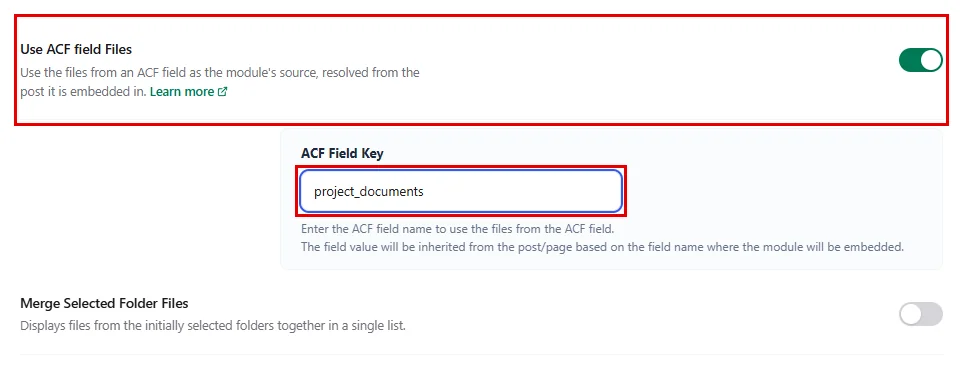
- On the Source tab, turn on Use ACF field Files.
- In ACF Field Key, type the field name from Step 2:
project_documents. - Click Save module.
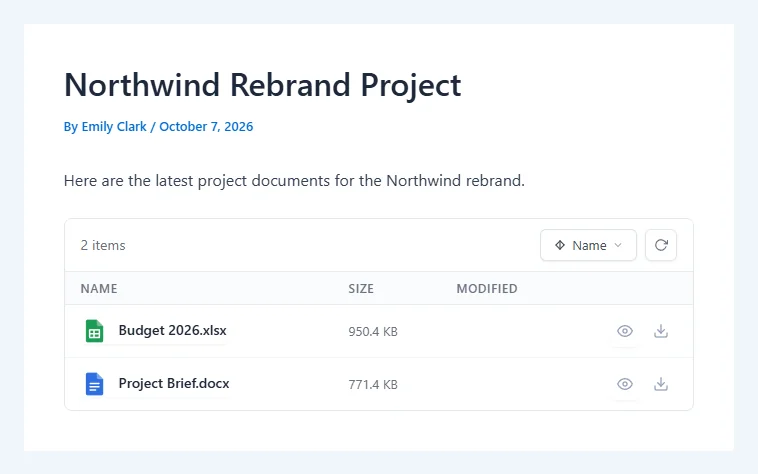
Now add this module to your posts (or to your post template). On each post, the module shows the files picked in that post’s Project Documents field.
Tip: Developers can also read the files in a theme template with get_field( 'project_documents' ). Each file comes back with its id, account_id, name, type, size, embed_link, download_link, view_link, icon_link and thumbnail_link.
Benefits of Using Google Drive with ACF #
- Files per post: Every product, project or client page gets its own Google Drive files.
- One module, many pages: Build the module once and it follows each post’s field.
- Easy for editors: Picking files is a click, with no links to copy.
- Save WordPress storage: Files stay in Google Drive, not in your uploads folder.
- Developer friendly: Use the file data in your own templates when you need to.
With DriveHub and ACF, your Google Drive files go exactly where each post needs them.


