Do you want to change how DriveHub previews photos and videos, have it remember the last folder your visitors opened, or decide what happens to your data if you ever remove the plugin? You can easily do this with DriveHub.
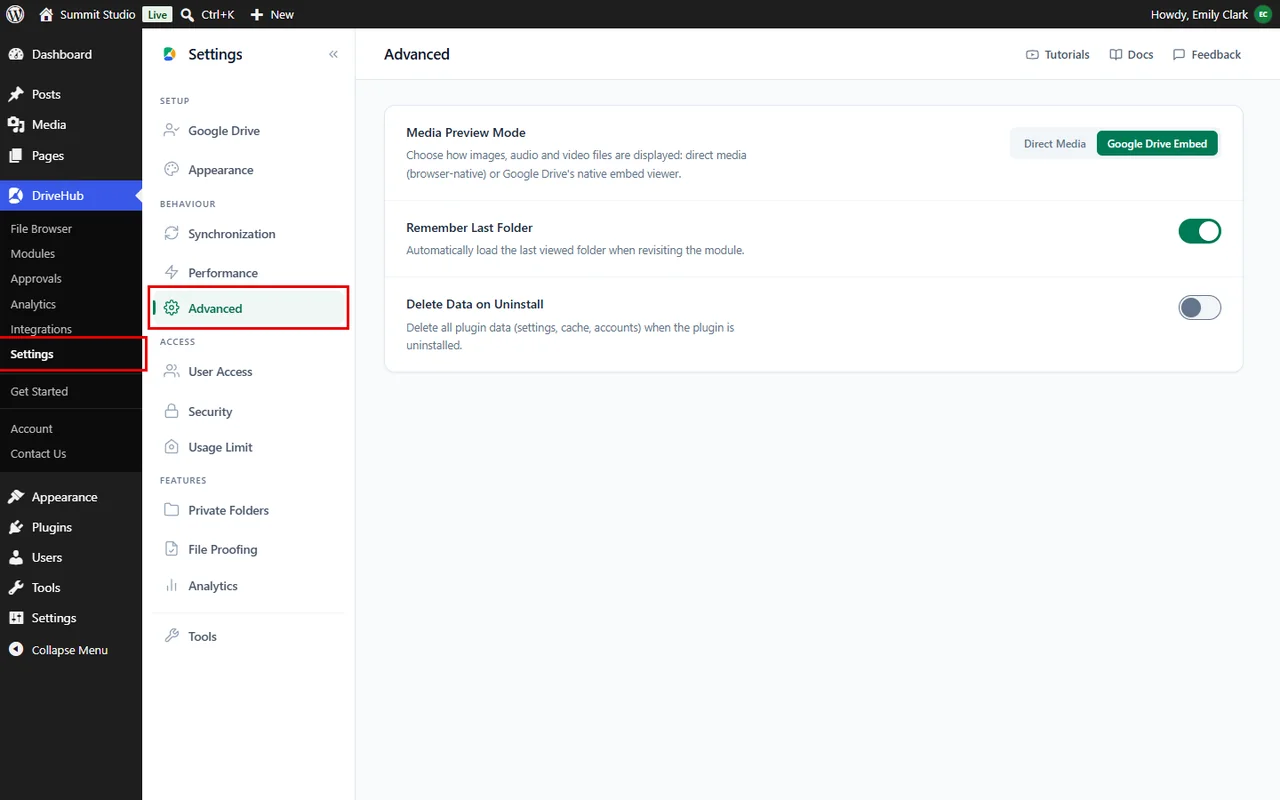
The Advanced tab keeps these three options together, so you can set them once and forget about them.
Here is an easy, step-by-step guide to help you set it all up!
Step 1: Open the Advanced Tab #
- Go to DriveHub > Settings from your WP-Admin.
- Click on Advanced in the settings menu.
Step 2: Choose the Media Preview Mode #
This option decides how images, audio and video files open when someone previews them:
- Direct Media shows the file with the browser’s own image viewer and media player. It is fast and clean.
- Google Drive Embed shows the file inside Google Drive’s own viewer.

List and file browser modules also have their own Media Preview Mode choice in the Preview card of their Permissions tab.
Note: Media Preview Mode needs DriveHub Pro.
Step 3: Remember the Last Folder #
- Keep Remember Last Folder switched on (it is on by default) so that when people come back to a module, it opens the folder they were last looking at.
- Switch it off if you want every visit to start from the module’s main folder.

This is a small touch that visitors notice when they browse deep folder trees, such as Client Proposals or Team Photos.
Step 4: Decide What Happens When You Uninstall #
- Leave Delete Data on Uninstall off (the default) if you might install DriveHub again later. Your settings, modules and connected Google accounts stay safe in WordPress.
- Turn it on only if you want a clean removal. When you then delete DriveHub from the Plugins screen, all of its data is removed for good: settings, connected accounts, modules, cache and logs.

Important: This cannot be undone. Export your setup first from DriveHub > Settings > Tools, as shown in How to Export, Import and Reset DriveHub Settings. Simply deactivating the plugin never deletes anything; only deleting it does. Your files in Google Drive are never touched.
Step 5: Save Your Changes #
- Click on Save changes in the bar at the bottom of the screen.

And that’s it! DriveHub now previews, remembers and cleans up exactly the way you want.
Benefits of the Advanced Settings #
- The right viewer: Choose a fast browser preview or Google Drive’s own viewer.
- Smoother browsing: Returning visitors land right where they left off.
- No surprises: You decide whether your data stays or goes when the plugin is removed.
With DriveHub, the small details are taken care of too.


