- Step 1: Open Your File Uploader Module
- Step 2: Turn On Upload Notifications (Notifications Tab)
- Step 3: Choose Who Gets the Email
- Step 4: See the Upload Email
- Step 5: Get Emails for Every Other Upload and Delete (Settings)
- Step 6: Turn On Analytics (Settings)
- Step 7: Set Up Email Reports
- Step 8: See the Activity Report
- Benefits of DriveHub Email Notifications
Do you want to know right away when someone sends you a file through your website, and get a regular summary of what people download? You can easily do this with DriveHub.
This setup is super useful because you never have to keep checking your Google Drive for new files, and you always know how your shared files are being used.
DriveHub gives you three kinds of emails:
- Uploader emails: Sent when someone uploads files through a File Uploader module. You set them up inside the module.
- Site-wide upload and delete emails: Sent when someone uploads or deletes files anywhere else in DriveHub, for example in a File Browser module or the WordPress dashboard. You set them up in the DriveHub settings.
- Activity reports: A daily, weekly or monthly summary of downloads and other file activity across your site. You set them up in the DriveHub settings too.
Here is an easy, step-by-step guide to help you set it all up!
Note: This needs DriveHub Pro.
Step 1: Open Your File Uploader Module #
Upload emails belong to a File Uploader module, so start there:
- Go to DriveHub > Modules.
- Click on your File Uploader module to edit it, for example Client Upload Box. Don’t have one yet? Follow our guide on how to let visitors upload files to Google Drive.
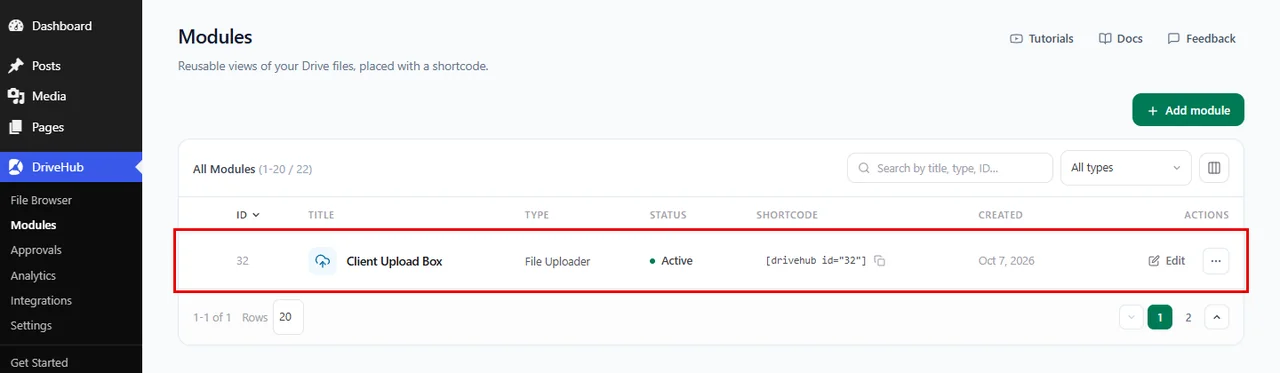
Note: The Notifications step only shows on File Uploader modules. Gallery, List and other display modules don’t send emails.
Step 2: Turn On Upload Notifications (Notifications Tab) #
In this step, you switch the emails on:
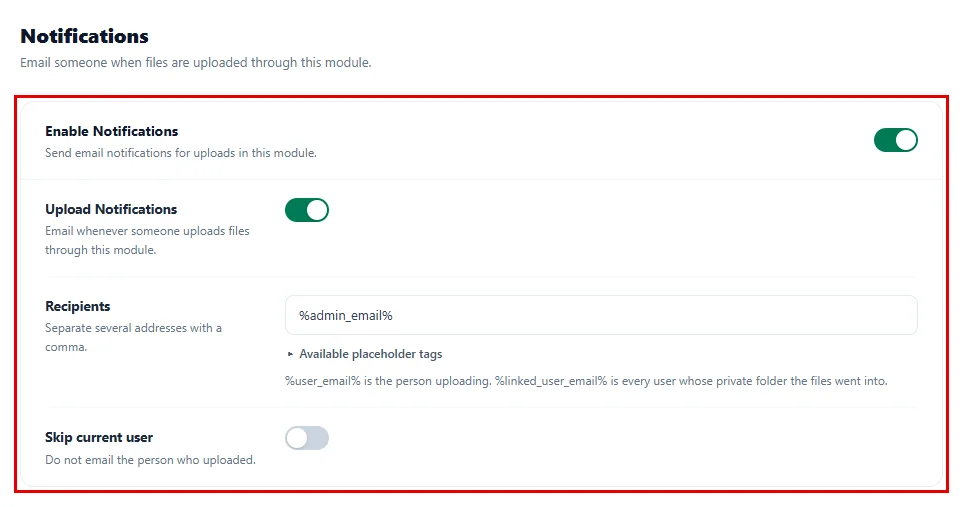
- Click on Notifications on the left.
- Turn on Enable Notifications.
- Keep Upload Notifications on, so an email goes out whenever someone uploads files through this module.
Step 3: Choose Who Gets the Email #
Here, you decide where the emails go:
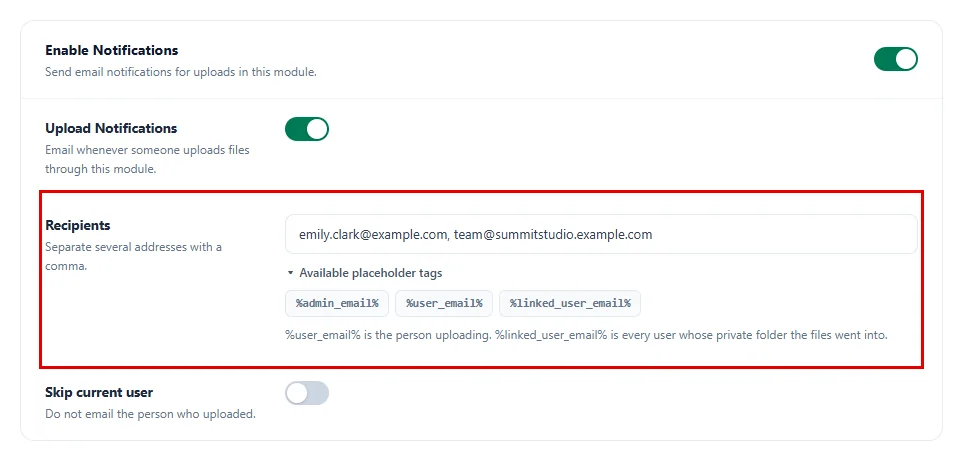
- In Recipients, type one or more email addresses, separated by commas, for example
[email protected], [email protected]. - Click Available placeholder tags to add a smart address with one click:
%admin_email%: your site’s admin email. This is already filled in for you.%user_email%: the person who is uploading, so they get a copy too.%linked_user_email%: every user whose private folder the files went into. Handy when the uploader uses Use Private Folder.- Turn on Skip current user if the person who uploads should not get the email.
Don’t forget to click the Save changes button at the top right when you are finished!
Step 4: See the Upload Email #
That’s it for uploads. Now whenever someone uploads files, DriveHub sends one email for the whole batch, not one per file. The subject shows your site name, the number of files and the module name, for example [Summit Studio] DriveHub: 3 files uploaded via Client Upload Box.
Inside, you’ll find who uploaded the files, a Google Drive link for each file and the page they were uploaded from. It is a plain text email and looks like this:
Subject: [Summit Studio] DriveHub: 3 files uploaded via Client Upload Box
Mark Wilson ([email protected]) uploaded:
- Northwind Logo Draft.pdf: https://drive.google.com/file/d/1aB2cD3eF4gH5iJ6kL7mN8oP9qR/view
- Northwind Brand Colours.pdf: https://drive.google.com/file/d/1sT2uV3wX4yZ5aB6cD7eF8gH9iJ/view
- Signed Contract.pdf: https://drive.google.com/file/d/1kL2mN3oP4qR5sT6uV7wX8yZ9aB/view
Page: https://summitstudio.example.com/client-uploads/
When the person who uploads is not logged in, the first line reads A visitor who was not logged in uploaded: instead.
Step 5: Get Emails for Every Other Upload and Delete (Settings) #
Want an email when files are uploaded or deleted outside a File Uploader module too? Turn on the site-wide notifications:
- Go to DriveHub > Settings.
- Click on Analytics on the left.
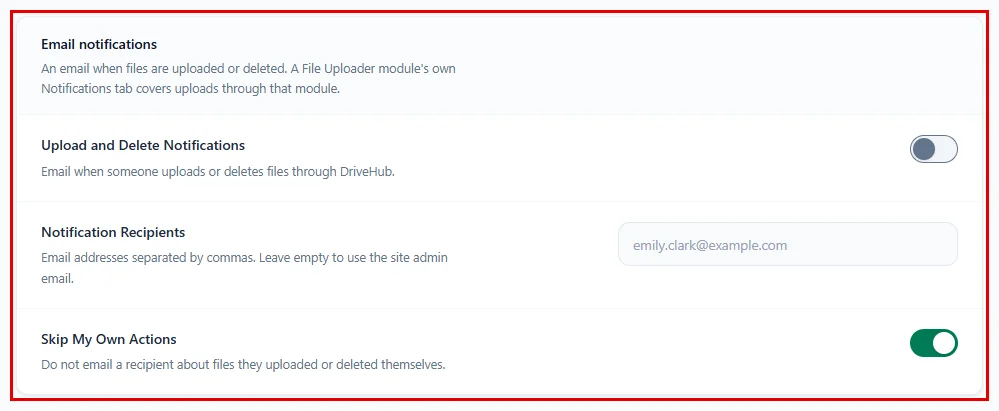
- Under Email notifications, turn on Upload and Delete Notifications. It is off until you turn it on.
- Notification Recipients: Type one or more email addresses, separated by commas. Leave it empty to send the emails to your site’s admin email.
- Skip My Own Actions: Keep this on so nobody gets an email about files they uploaded or deleted themselves.
- Click Save changes in the bar at the bottom of the screen.
DriveHub collects the files of one burst for about a minute and then sends one email, for example [Summit Studio] DriveHub: 3 files uploaded via DriveHub. It lists who did it and each file, with a Google Drive link for uploads. A delete email has the same shape, with deleted in the subject and each file’s ID instead of a link.
Note: Uploads through a File Uploader module are not included here, so you never get the same email twice. Those use the module’s own Notifications tab from Steps 1 to 3, which works on its own whether this switch is on or off.
Step 6: Turn On Analytics (Settings) #
Downloads are not emailed one by one. They come as a summary report instead. The report is built from DriveHub’s activity log, so tracking must be on first:
- Go to DriveHub > Settings.
- Click on Analytics on the left.
- Under Tracking, turn on Enable Analytics.
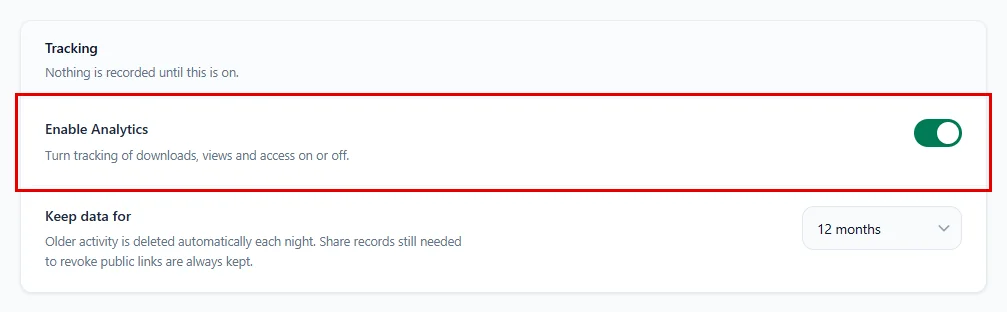
Learn what else this screen tracks in how to track downloads, uploads and views with Analytics.
Step 7: Set Up Email Reports #
Now set up the summary email in the same screen:
- Under Email reports, turn on Email Reporting.
- Email Report Frequency: Choose Daily, Weekly or Monthly.
- Email Report Recipients: Type one or more email addresses, separated by commas.
- Click Save changes in the bar at the bottom of the screen.
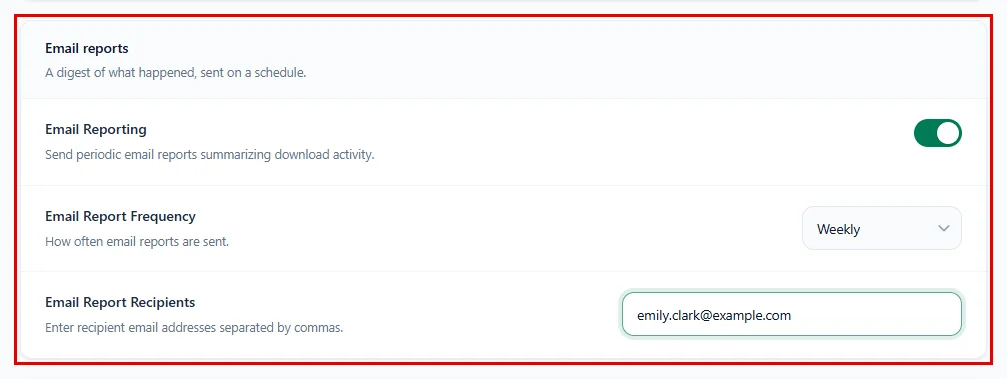
Tip: Weekly reports go out on Mondays, and monthly reports on the first day of the month. If nothing happened in that time, no email is sent.
Step 8: See the Activity Report #
From now on, DriveHub emails a short activity report on the schedule you picked. It counts each kind of file activity, such as downloads, previews and uploads, for that period, with a link back to your site.
Here is what a weekly report looks like:
Subject: [Summit Studio] DriveHub – Weekly activity report
DriveHub file activity report for Summit Studio (Weekly):
- Download: 48
- Preview: 31
- Stream: 12
- Upload: 9
- Search: 5
https://summitstudio.example.com
Benefits of DriveHub Email Notifications #
- Never miss a file: Know the moment a client sends something.
- No inbox flood: One email per batch of files, not one per file.
- Nothing slips by: Get an email when files are deleted, too.
- The right people: Send alerts to your team, the uploader or the folder owner.
- The big picture: A regular report shows how your files are being used.
With DriveHub, keeping track of uploads and downloads happens on its own, right in your inbox.


