The Per-Meeting report lists every meeting a host held in a date range, with the number of joins in each. Open any meeting to see who joined, when they arrived, when they left and how long they stayed. Use it to take attendance for a class, check who came to a workshop, or follow up with people who left early.
Note: Screens below use sample data. Your own list fills in once your Zoom plan includes this feature.
By the end of this guide, you will have:
- A list of one host’s meetings for the dates you choose
- Totals for meetings and participants
- The attendee list for any meeting, with join and leave times
- A filtered list, for example every session of one course
Estimated setup time: 3 minutes.
Before you begin #
Make sure you have:
- Zoom connected, on a paid Zoom plan. See How to use Zoom Reports in ZooMeet for the plan details.
- An administrator account on your WordPress site
- ZooMeet Pro. Per-Meeting is a Pro report. Without Pro, the tab shows a locked sample with an Upgrade button.
Step 1: Open Per-Meeting and pick the host #
- Go to ZooMeet > Zoom Reports and click Per-Meeting.
- Click Host and pick the Zoom user whose meetings you want. Each host shows the name with the email under it.
- Check From and To. They open on the last 30 days.
- Click Show.
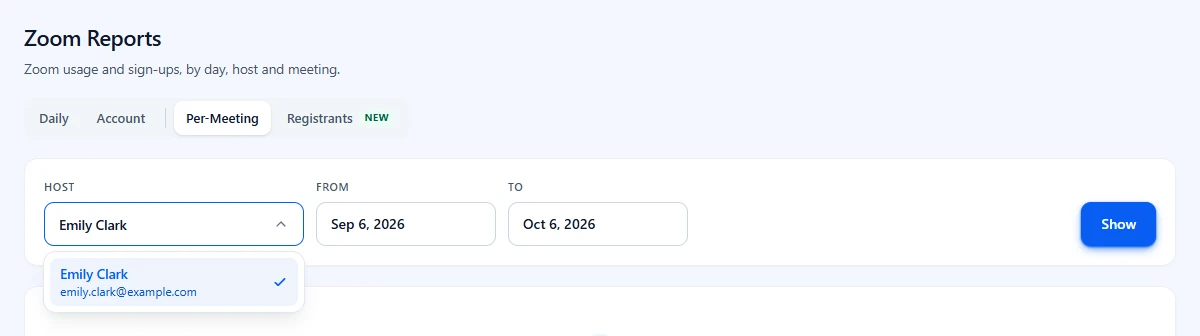
Note: If the Host list is empty, the tab says No Zoom hosts found. Open ZooMeet > Zoom Users once to load the hosts on your account, then come back.
Step 2: Read the meetings table #
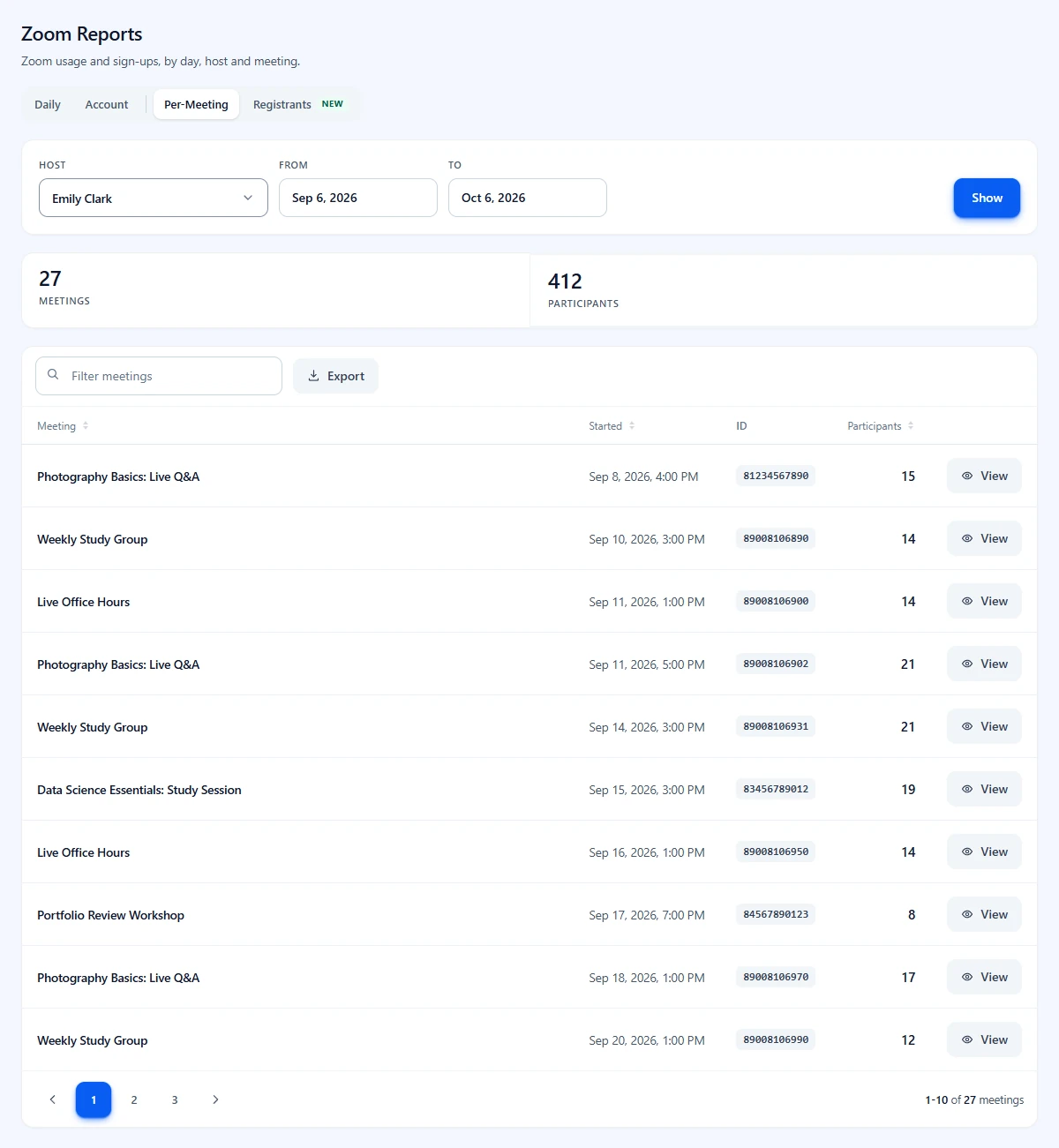
- Read Meetings and Participants at the top for the whole range.
- Read each row: Meeting, Started, the Zoom meeting ID and the number of Participants.
- Click Meeting, Started or Participants to sort by that column.
- Use the page numbers under the table to move through the list, 10 meetings per page.
Step 3: Filter the list #
Type in Filter meetings to narrow the table. It matches the meeting name, the meeting ID and the start date as shown, so Photography, 81234567890 or Sep 8 all work.
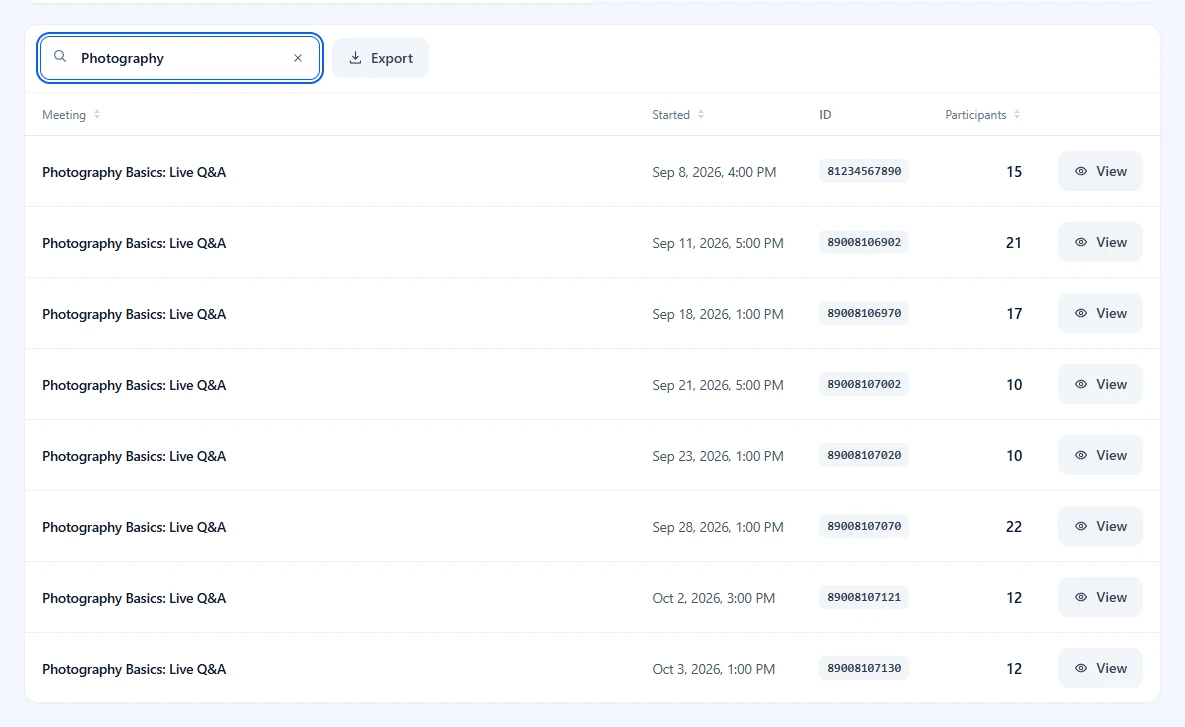
If nothing matches, the table says No matching meetings. Click Clear filter.
Step 4: See who attended a meeting #
- Click View on a meeting.
- Read the Participants window. The meeting’s date and name are under the title. People counts each person once, and Joins appears beside it when someone joined more than once.
- Read each row: the person’s name and email, the Meeting, when they Joined and Left, and their Duration.
- Type in Filter people to find someone, sort by any column, and use the page numbers, 10 joins per page.
- Close the window with the cross or Escape.
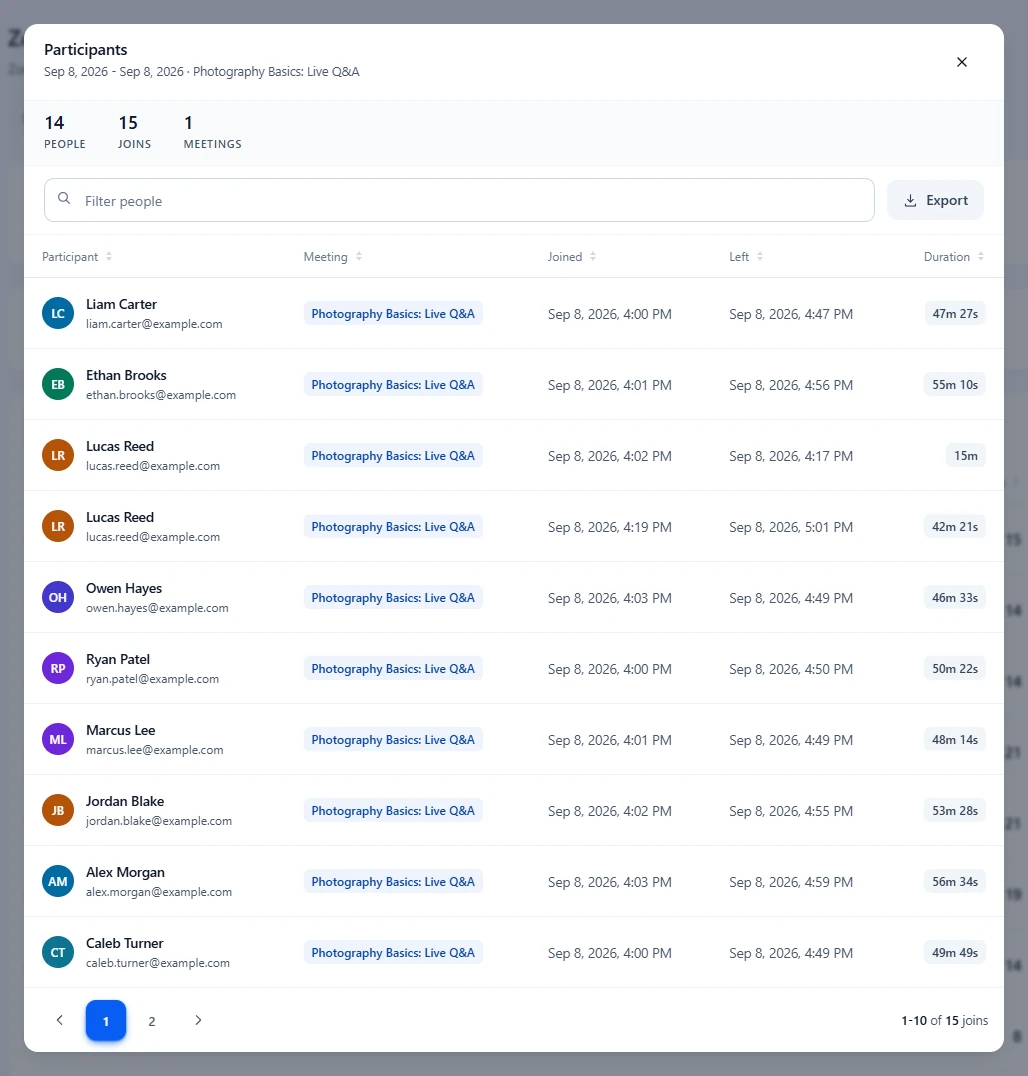
The window shows exactly the people in that session. For a recurring meeting, each occurrence is its own row in the table, so View always opens one occurrence. The window opens at once, because the table already holds the attendees.
To save the table or the window as a file, see How to export Zoom reports to CSV.
What the numbers mean #
| Column or card | What it counts |
|---|---|
| Meetings | Meetings the host held in the range. |
| Participants (table and total) | Joins, as Zoom reports them. Someone who drops out and rejoins counts twice, so this can be higher than People in the window. |
| People / Joins (window) | Different people once each, then every join. |
| Started | When the meeting began, in your site’s time zone, the same as on All Events and Zoom Recordings. |
| ID | The Zoom meeting ID. |
| Joined / Left | When that person entered and left. |
| Duration | Time between joining and leaving, in hours, minutes and seconds. |
Troubleshooting #
“This feature requires a Zoom Pro, Business, or Enterprise account. The Reports API is not available on your current Zoom plan.” #
Zoom refused the report because the account is on the free plan. Upgrade the Zoom account, then click Try again.
“No meetings found” #
The host held no meetings in that range, or Zoom has not finished its report for a recent meeting. Widen the dates, or try again later.
“Could not load meetings.” #
ZooMeet did not get an answer from Zoom. Click Try again. If it keeps happening, check the connection under ZooMeet > Settings > Connect.
“Nobody attended” #
The window found no joins for that meeting. Meetings that nobody joined have no participant report in Zoom.
Frequently asked questions #
Can I see attendance for a webinar? #
The report lists what Zoom returns for the host’s sessions in the range. For webinar sign-ups, use the Registrants tab.
Are guests without a Zoom account listed? #
Yes. Zoom lists everyone who joined, with the name they typed. The email is shown when Zoom has one.
How far back can I go? #
Zoom keeps meeting reports for about 15 months.
You’re ready to take attendance #
You can now list a host’s meetings, filter them by course, and see exactly who attended each one. Next, check who signed up before the session, or save the lists.


