- Before you begin
- Step 1: Install Academy LMS
- Step 2: Install and activate ZooMeet
- Step 3: Connect your Zoom account
- Step 4: Turn on the Academy LMS integration
- Step 5: Open Zoom live sessions in the Academy dashboard
- Step 6: Add events to the course page
- Step 7: Give lessons a live session
- Step 8: Create meetings from the Zoom Events tab
- Step 9: Open Access and controls in the meeting form
- Step 10: Pick the course
- Step 11: Choose where it shows and add it
- Step 12: Choose who can join and save
- Step 13: See it on your course page
- Benefits of using ZooMeet with Academy LMS
- What students see
- Troubleshooting
- The Add to a course card does not appear in the meeting form
- "No courses yet." on Zoom live sessions or in the course picker
- "Could not save. You need edit rights on the course and the event."
- "Live sessions are switched off for Academy LMS."
- Zoom live sessions or Zoom Events is missing from the dashboard menu
- The lesson does not show the meeting card
- Students see "For students of this course"
- Students see Details but no Join now
- Frequently asked questions
- Security best practices
- You're ready to run live Zoom classes in Academy LMS
If you want your Academy LMS students to find their Zoom classes right on the course page, you’re in the right place. This guide shows you how to connect ZooMeet to Academy LMS and attach Zoom meetings to your courses and lessons, step by step.
A meeting can sit on the course page, at the top of a lesson, or both. Students see the date and time, a countdown when the class is close, and a Join now button while it is live. The raw Zoom link never appears on the course page. Instructors can do all of this from the Academy frontend dashboard, and administrators can also use ZooMeet’s meeting form in WordPress admin.
By the end of this guide, you will have:
- Academy LMS, ZooMeet and ZooMeet Pro working together on your site
- A Zoom meeting listed in the Live sessions block of an Academy course page
- A live session card at the top of a lesson
- A choice of who can join: course students only, or anyone with the link
- Instructors managing live sessions for the courses they teach
- A clear picture of what visitors, students and instructors see
Estimated setup time: 10 minutes. Attaching a meeting never changes course progress, because the meeting is not a curriculum item.
Note: Requires ZooMeet Pro.
Before you begin #
Make sure you have:
- An administrator account on your WordPress site
- A Zoom account with a Server-to-Server OAuth app for ZooMeet
- At least one Academy course with a lesson, for example Data Science Essentials
- Academy’s frontend dashboard page set up, if instructors will use the dashboard steps
- A ZooMeet Pro license, for the Pro features in this guide
Let’s get started.
Step 1: Install Academy LMS #
First, make sure Academy LMS is installed and activated. ZooMeet adds live sessions to its courses, so it needs to be there first.
- In the WordPress admin menu, go to Plugins > Add New Plugin.
- Search for Academy LMS.
- Click Install Now, then Activate.
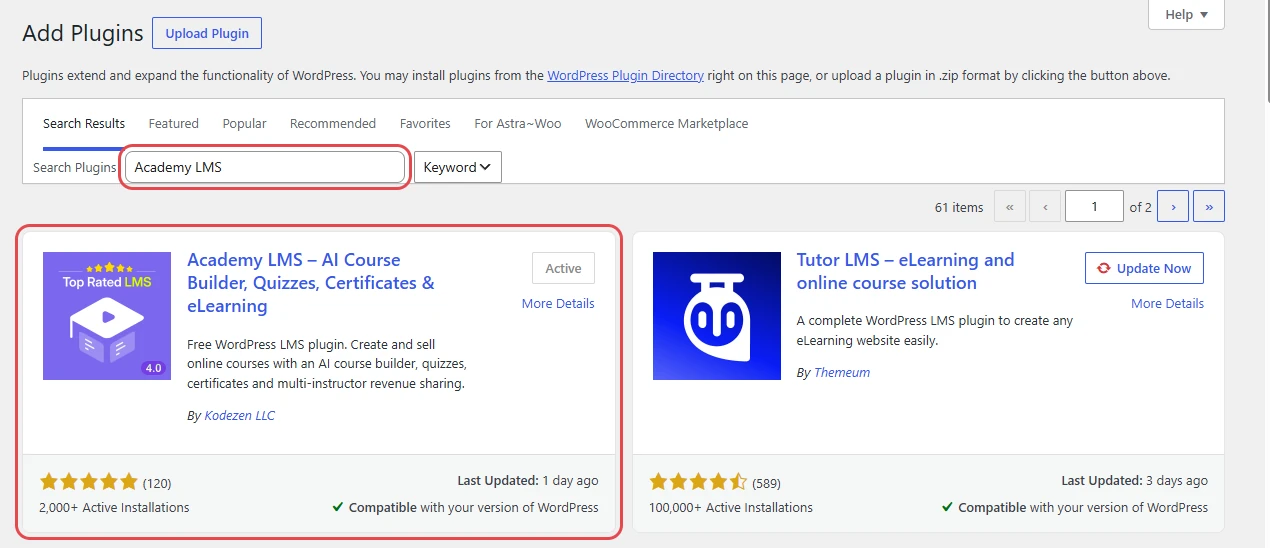
If Academy LMS is already active, skip to the next step.
Step 2: Install and activate ZooMeet #
ZooMeet creates your Zoom meetings and their meeting pages. The free plugin comes from WordPress.org, and ZooMeet Pro adds the Academy LMS integration on top of it.
- Go to Plugins > Add New Plugin.
- Search for ZooMeet.
- Click Install Now, then Activate.
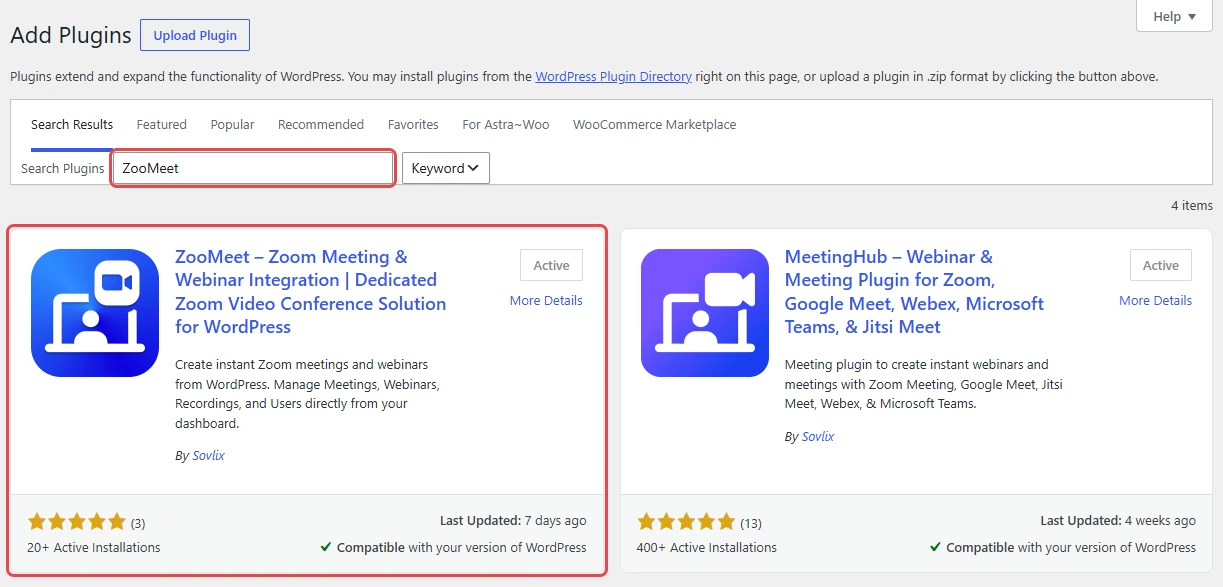
To use the Pro features in this guide, add ZooMeet Pro from inside ZooMeet. There is nothing to upload.
- In WordPress admin, open ZooMeet and click Upgrade, then complete the checkout.
- Go to ZooMeet > Account. Your license shows there, and ZooMeet offers to install ZooMeet Pro.
- Install ZooMeet Pro, then activate it.
Step 3: Connect your Zoom account #
ZooMeet cannot create meetings until your Zoom account is connected. You do this once for the whole site.
- Go to ZooMeet > Settings and click Connect.
- Paste the Account ID, Client ID and Client Secret from your Zoom Server-to-Server OAuth app.
- Save the settings and check that the connection succeeds.
Read our step-by-step Zoom setup guide for the full walkthrough, including how to create the Zoom app.
Step 4: Turn on the Academy LMS integration #
This switch turns on everything Academy-related in ZooMeet: the course picker in the meeting form, the dashboard menu items and the live sessions on your course pages.
- Go to ZooMeet > Integrations.
- In Categories, click Courses & LMS.
- On the Academy LMS card, switch the toggle on.
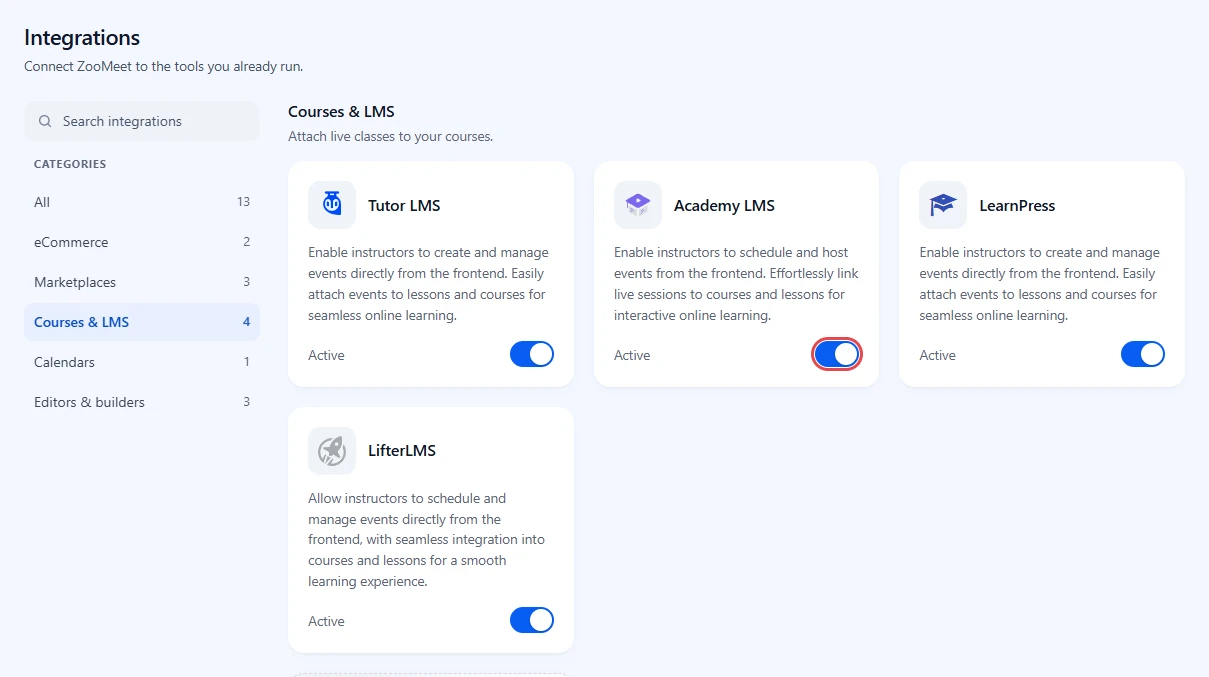
Now comes the main part. Academy’s own course builder has no place for add-on fields, so you attach meetings in one of two places:
- The Zoom live sessions screen in the Academy dashboard (Steps 5 to 7)
- ZooMeet’s meeting form, in WordPress admin or the dashboard’s Zoom Events tab (Steps 8 to 12)
Both save the same data. A change in one shows in the other.
Step 5: Open Zoom live sessions in the Academy dashboard #
Instructors can attach meetings without leaving the Academy frontend dashboard. Administrators can use this screen too.
- Open your Academy dashboard and switch to Teaching.
- Click Zoom live sessions.
- Find the course and click Manage.
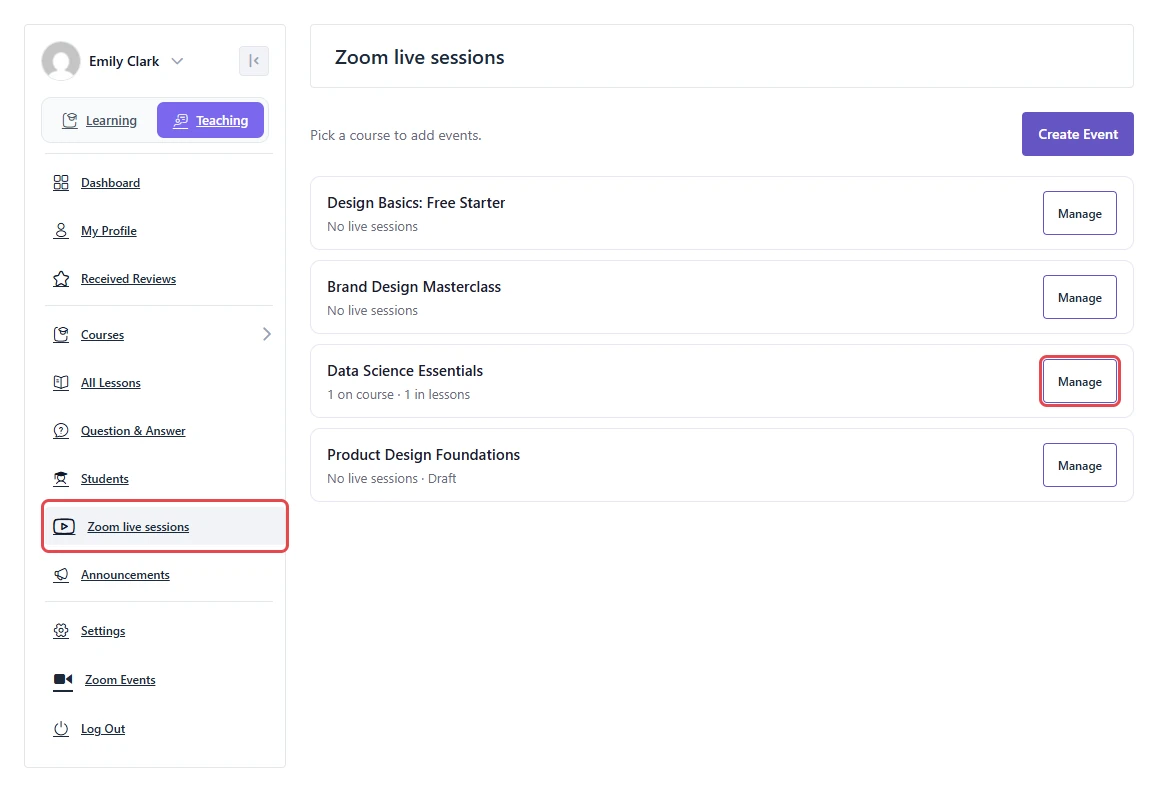
Note: Instructors see only the courses they teach: courses they authored or co-teach. Administrators see every Academy course, including drafts, which are marked “Draft”.
Step 6: Add events to the course page #
The Course sessions card lists every meeting shown on the course page: live meetings first, then upcoming ones from the soonest, then ended ones.
- Under Course sessions, open Choose a meeting or webinar and pick one. The list offers your live and upcoming meetings that are not on the course yet.
- Click Add To Course.
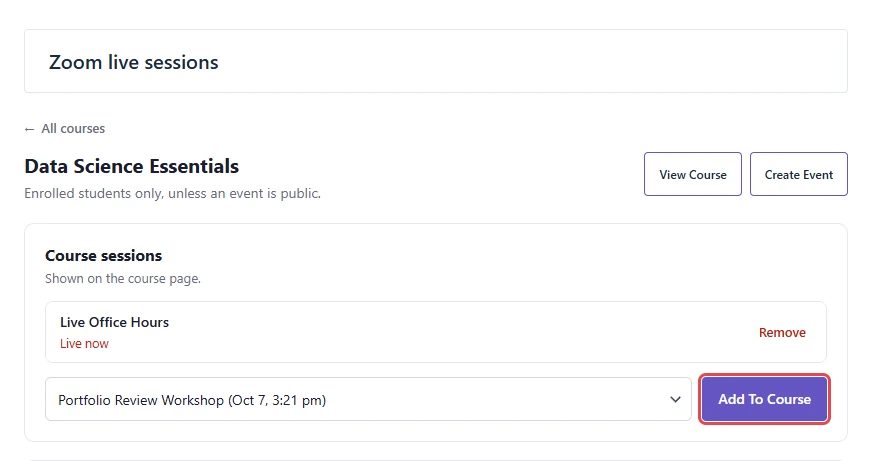
The page reloads with “Event added to the course.” Each upcoming row shows its date and time in the meeting’s own time zone, with a small zone label.
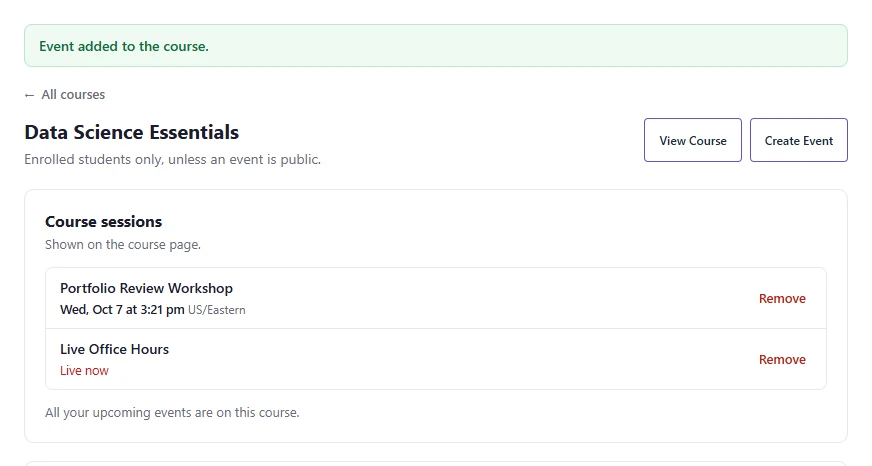
To take a meeting off the course, click Remove on its row and confirm. The page shows “Event removed from the course.”
Step 7: Give lessons a live session #
Each lesson can carry one meeting, shown at the top of the lesson.
- Under Lesson sessions, pick a meeting next to each lesson, or No live session.
- Click Save Lesson Sessions. The page shows “Lesson sessions saved.”
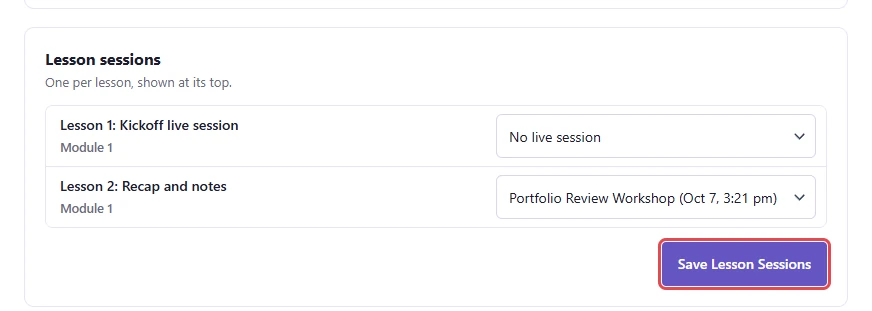
In each lesson picker, live meetings come first, marked “(live now)”, then upcoming ones from the soonest. Ended meetings come last, marked “, ended”.
Step 8: Create meetings from the Zoom Events tab #
Instructors can also create a new meeting right from the dashboard. The Zoom Events tab holds the full ZooMeet meeting list and form.
- In the Academy dashboard Teaching menu, click Zoom Events.
- Click Add new event. The form is the same one administrators use in WordPress admin.
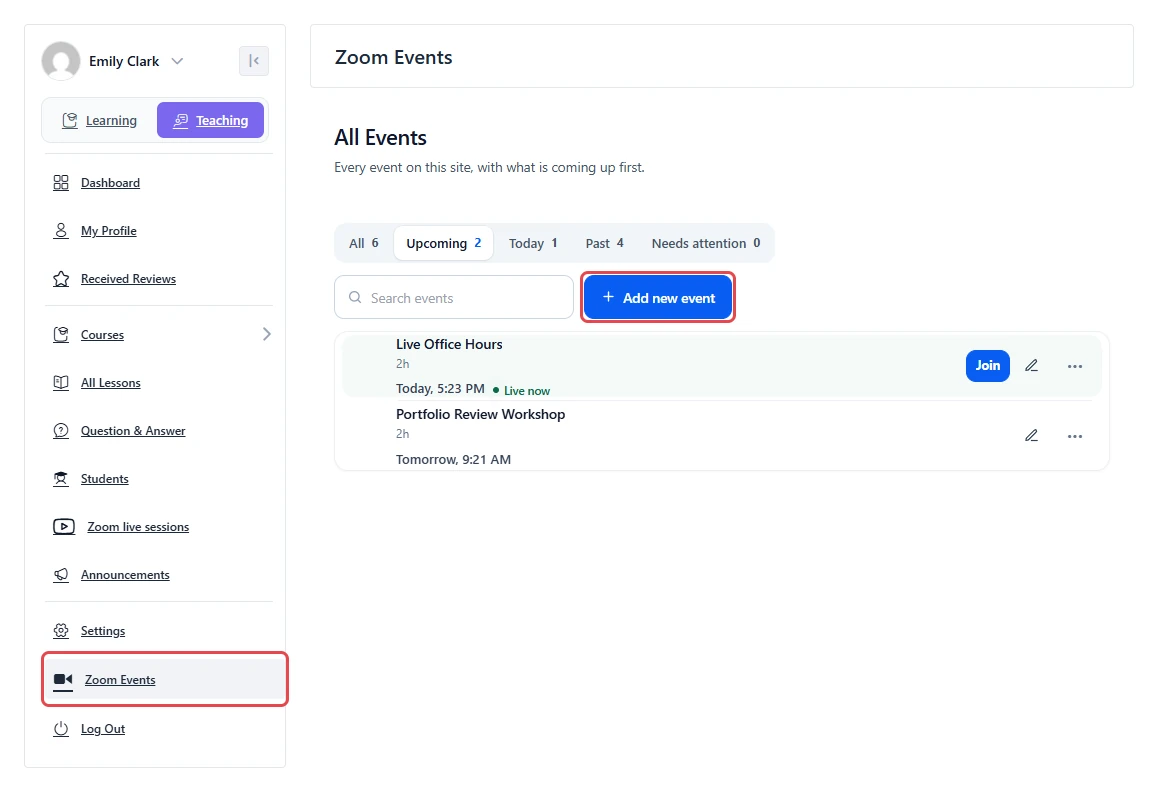
Note: Zoom Events shows for Academy instructors. Zoom live sessions shows for Academy instructors and administrators. Administrators without the instructor role create meetings in WordPress admin under ZooMeet > All Events.
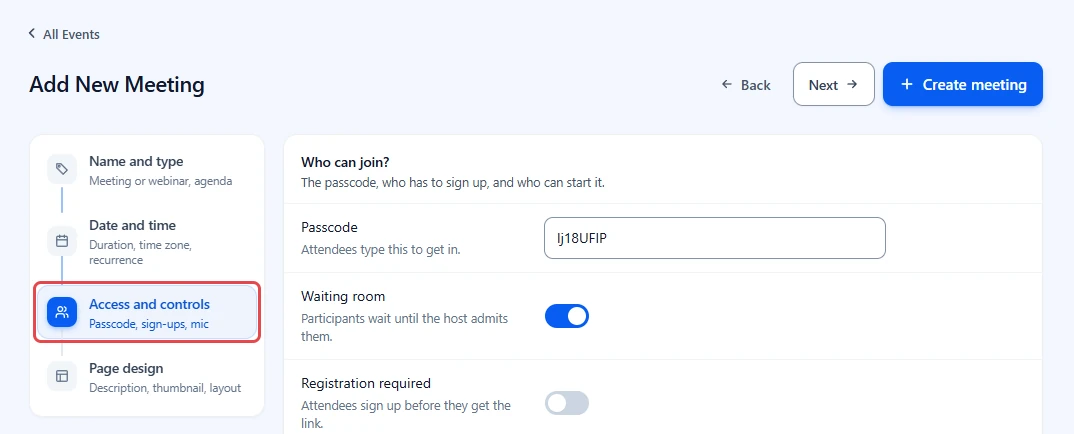
Step 9: Open Access and controls in the meeting form #
The course options live in the same form you use to create any meeting.
- Go to ZooMeet > Add New Event, or open an existing meeting from ZooMeet > All Events to edit it. In the dashboard, use Zoom Events > Add new event.
- Fill in Meeting name and the date and time as usual.
- In the step list on the left, click Access and controls.
Step 10: Pick the course #
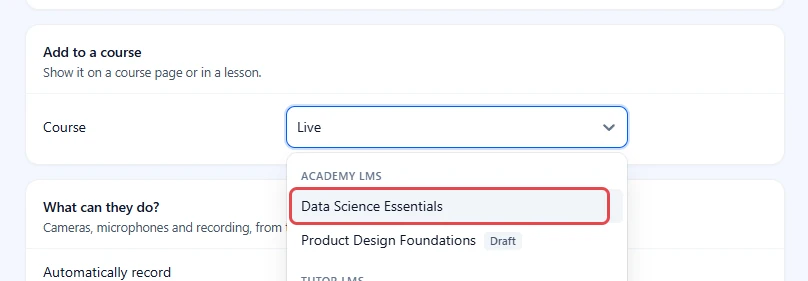
The Add to a course card reads “Show it on a course page or in a lesson.” Here you choose the course the meeting belongs to.
- Scroll to the Add to a course card.
- Click Search courses and type part of the course name.
- Choose your course from the Academy LMS group.
Step 11: Choose where it shows and add it #
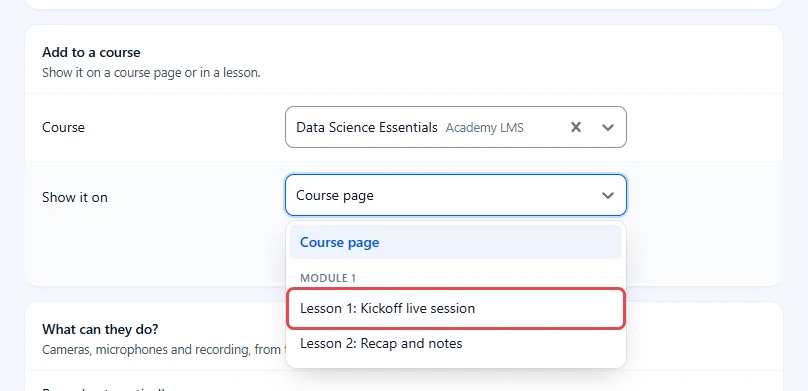
A meeting can appear in the course page list or at the top of one lesson.
- Open Show it on.
- Keep Course page, or pick a lesson. Lessons are grouped under their topic names.
- Click Add to course.
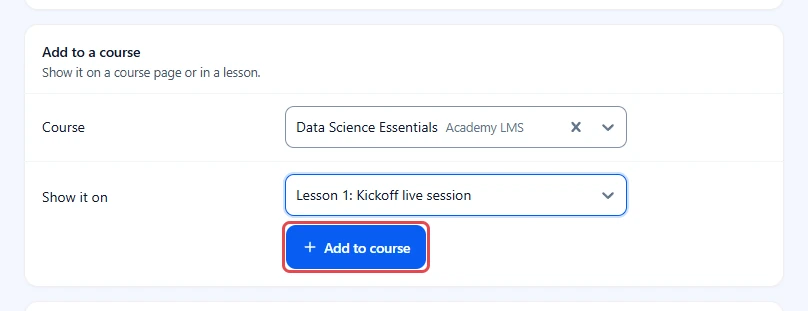
Important: A lesson holds one meeting. If the lesson already has one, the card warns you: “Replaces “…” on this lesson.”
To show the same meeting in more places, use the Add another field and repeat this step.
Step 12: Choose who can join and save #
Each place you added appears as a row in the card. Below the rows, Who can join decides whether the meeting is for enrolled students or open to anyone with the link.
- To remove a place, click the × on its row.
- Next to Who can join, click Change.
- Choose Course students or Anyone with link.
- Click Create meeting, or Update meeting when you edit.
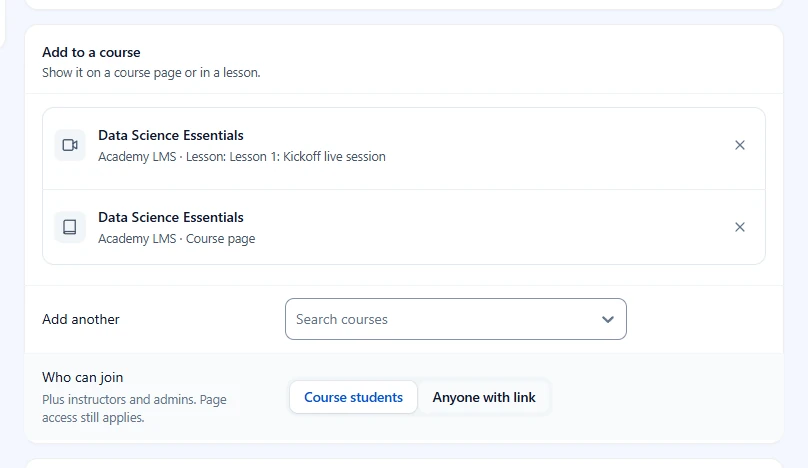
Note: Course students is the default. Enrolled students, the course’s instructors and admins can open the meeting page. Everyone else sees Enroll to join on the course page.
Step 13: See it on your course page #
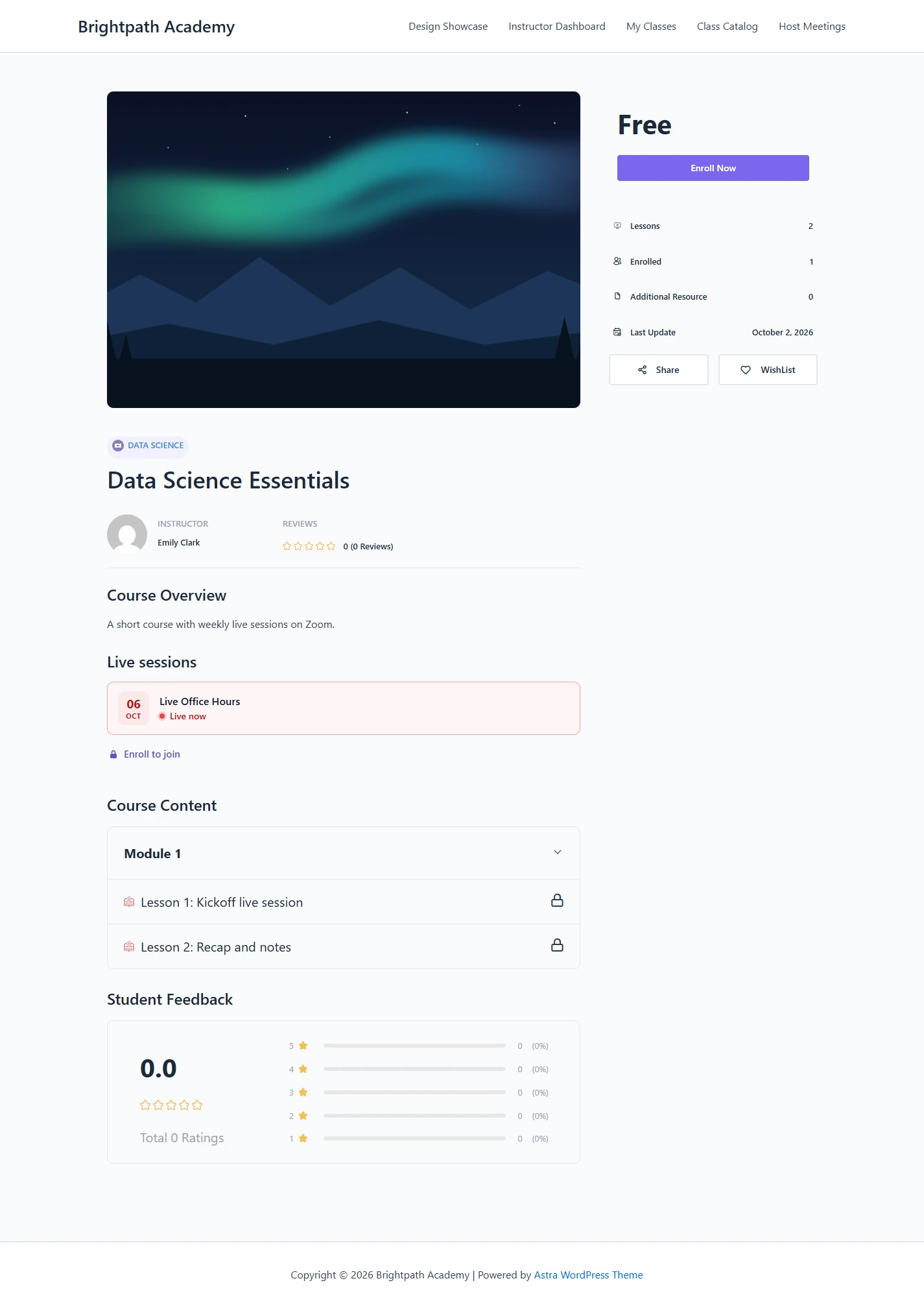
Open the course in a private browser window to check the result as a visitor. The course page shows a Live sessions block between Course Overview and Course Content. It lists dates and titles with no join link, plus one Enroll to join link.
Benefits of using ZooMeet with Academy LMS #
- Schedule once, show everywhere: One Zoom meeting appears on the course page, in a lesson, or both.
- The Zoom link stays private: Join now opens the meeting page, which checks enrolment first. The raw Zoom link is never printed on the course.
- Fewer missed classes: Times carry a zone label, a countdown starts a day before, and Join now appears when the class goes live.
- Instructors handle their own courses: They add live sessions and create meetings from the Academy dashboard, without opening WordPress admin.
Your students get one clear place to find every live class.
What students see #
Visitors and logged-in users who are not enrolled #
The course page lists dates and titles with no join link, plus one Enroll to join link. Clicking it scrolls to Academy’s own enroll button. A logged-in user who is not enrolled sees the same list as a visitor (Step 13).
Enrolled students #
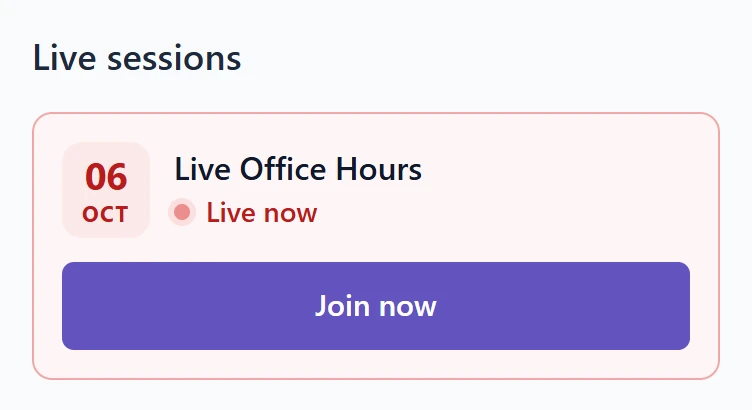
While a session is live, the row says Live now and has a Join now button. Upcoming rows get a Details button, show the day, the time and a small time zone label, and start a countdown when the class is less than a day away.
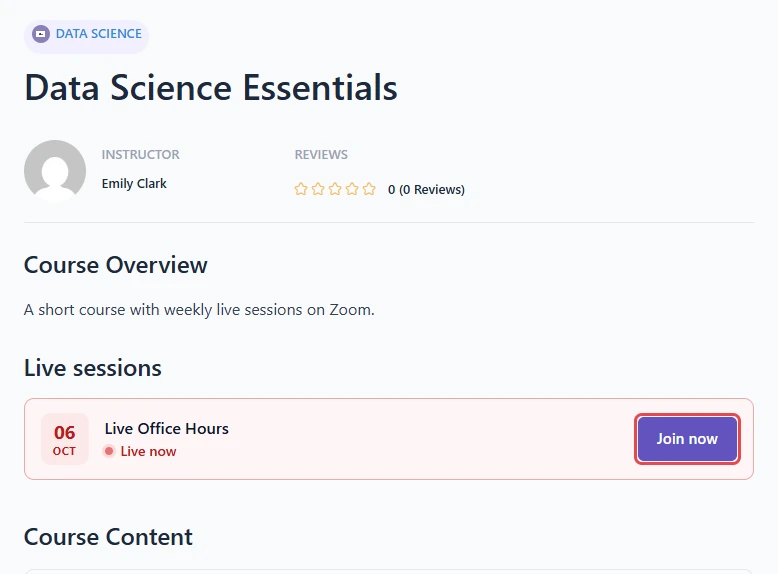
Course instructors and admins see the same buttons as enrolled students.
Inside a lesson #
A lesson with a live session shows the meeting card at the top of the lesson, labelled Live session.
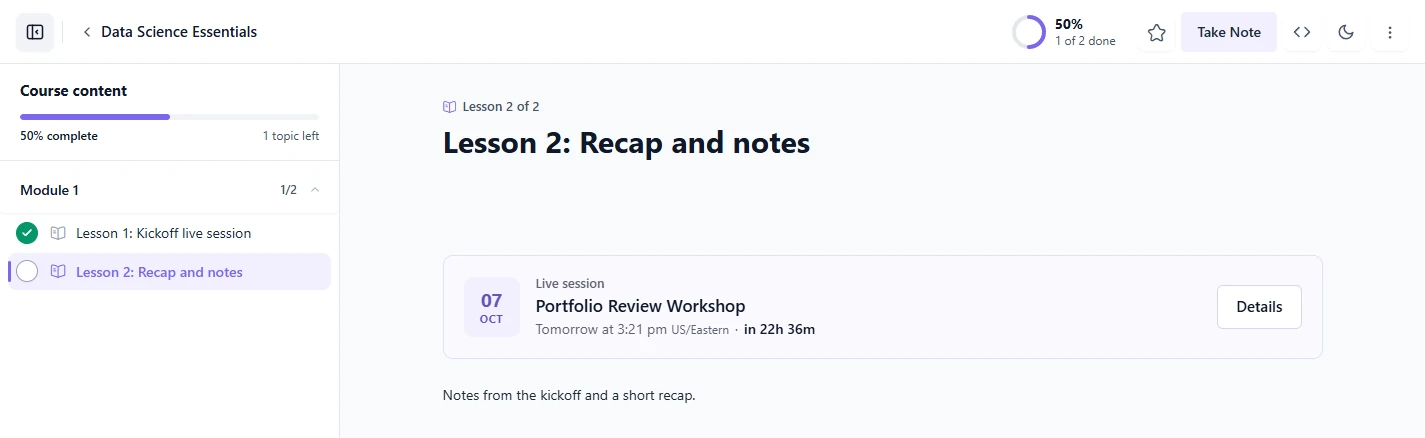
Note: The lesson card needs Academy’s Blocks learn page or its PHP learn page. Academy’s default React learn page has no place for it, so ZooMeet lists lesson sessions on the course page under In lessons instead.
On the meeting page #
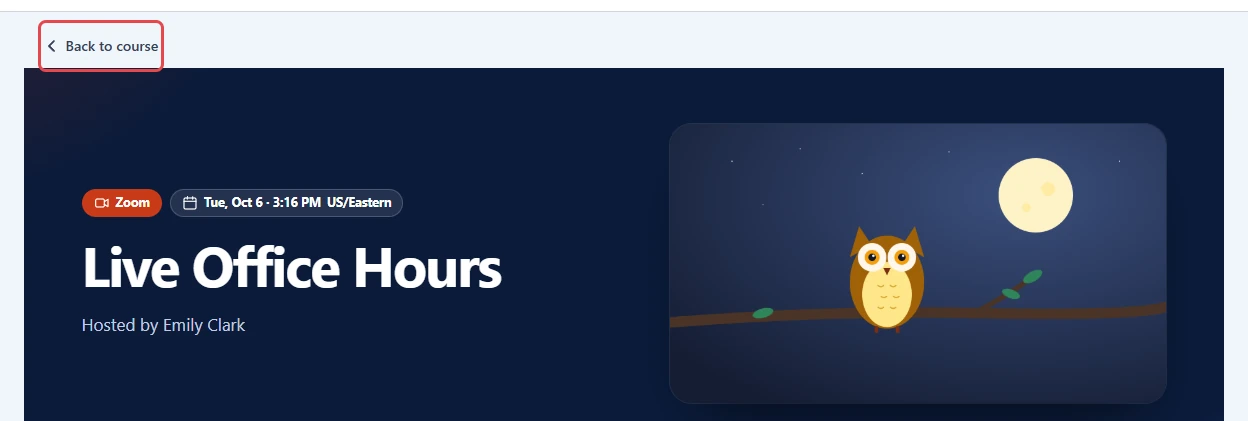
Students who open a meeting from a course get a Back to course link at the top. The link appears for logged-in users who may join one of the meeting’s courses.
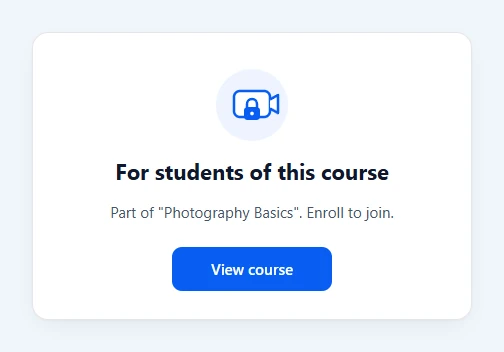
Someone who is not enrolled and opens the meeting link directly sees a locked card instead.
On a phone #
The Live sessions list fits small screens. Each row stacks the date, title and a full-width button.
Troubleshooting #
The Add to a course card does not appear in the meeting form #
The card only loads when ZooMeet Pro is active and a supported LMS is active and switched on.
Check that:
- ZooMeet Pro and Academy LMS are active.
- The Academy LMS switch is on under ZooMeet > Integrations.
- You reloaded the meeting form after turning it on.
“No courses yet.” on Zoom live sessions or in the course picker #
Instructors see only the courses they teach: courses they authored, or courses that list them as a co-instructor. Academy lets instructors edit other courses, but ZooMeet still keeps instructor actions to their own courses.
- Make the instructor the author or a co-instructor of the course, or
- Attach the meeting as an administrator.
“Could not save. You need edit rights on the course and the event.” #
You can attach only meetings you host or created, to courses you teach. Ask the meeting host or an administrator to attach it, or create your own event with Create Event.
“Live sessions are switched off for Academy LMS.” #
The Academy LMS switch is off. Go to ZooMeet > Integrations and turn it back on.
Zoom live sessions or Zoom Events is missing from the dashboard menu #
Both items sit in the Teaching area.
Check that:
- The dashboard is switched to Teaching.
- The user is an approved Academy instructor. Administrators see Zoom live sessions, and see Zoom Events only when they are also an instructor.
- The Academy LMS switch is on under ZooMeet > Integrations.
The lesson does not show the meeting card #
Academy’s default React learn page has no hook for extra content. Students find the session on the course page under In lessons. To show it inside the lesson, switch Academy to the Blocks learn page or the PHP learn page.
Students see “For students of this course” #
The meeting is set to Course students, and this user is not enrolled in any of its courses.
- Enroll the student, or
- Set Who can join to Anyone with link. Page access from ZooMeet settings still applies.
Students see Details but no Join now #
Join now shows only while the session is live, between its start and end time. Until then the row shows Details, which opens the meeting page with its countdown.
Frequently asked questions #
Can I pick meetings inside Academy’s course builder? #
No. Academy’s builder has no slot for add-on fields. Use the Zoom live sessions dashboard screen or ZooMeet’s meeting form.
Does a live session count toward course progress? #
No. The meeting is shown on the course page or inside a lesson. It is never a curriculum item.
Can one meeting be on several courses? #
Yes. Add one row per course or lesson in the Add to a course card, or add it on each course’s Zoom live sessions screen.
Can a lesson hold more than one meeting? #
No. One meeting per lesson. A course page can list many.
Do students ever see the Zoom join link on the course page? #
No. Join now and Details open the ZooMeet meeting page, which checks access before it shows the join options.
What happens when I delete a meeting? #
ZooMeet removes it from every course and lesson it was attached to.
Security best practices #
- Keep Who can join on Course students for paid or private courses, so only enrolled students reach the meeting page.
- Give the Academy instructor role only to people who should schedule classes. Instructors can attach only their own meetings to their own courses.
- Keep your Zoom Client Secret private, and never paste it into a course, lesson or page.
- Keep Academy LMS, ZooMeet, ZooMeet Pro and WordPress updated.
You’re ready to run live Zoom classes in Academy LMS #
Your Academy courses now list their live sessions, and lessons can show their own class card. Only enrolled students can join, and the Zoom link stays behind the meeting page. Instructors update sessions for their own courses from the Academy dashboard, and you can change any of it from WordPress admin. Next, set up another LMS or fine-tune your meeting pages.


