- Before you begin
- All ZooMeet shortcodes
- Step 1: Open the Shortcodes screen
- Step 2: Read the recording parameters (Pro)
- Step 3: Copy the shortcode for one meeting
- Step 4: Paste the shortcodes on a page
- Step 5: Choose which meetings the list shows
- Step 6: Check the page as a visitor
- Step 7: Add the classic editor button or the ZooMeet block (optional)
- What visitors see
- Benefits of ZooMeet shortcodes
- Troubleshooting
- Frequently asked questions
- You're ready to put meetings on any page
Your visitors may never find a meeting’s own page if they spend their time on a course page or a landing page. Shortcodes bring meetings to those pages instead. You can show a list of meetings, one meeting with its countdown and join buttons, the front-end meeting form, or your Zoom recordings.
This guide lists every ZooMeet shortcode, shows where to copy each one and explains what each visitor sees. It also covers the Embed Meeting button in the classic editor and the ZooMeet block. It is written for administrators and editors who build pages.
By the end of this guide, you will have:
- A page that lists your Zoom meetings
- The meeting list set to show the meetings you want
- One meeting embedded on a page, with its countdown and join buttons
- A clear picture of what each visitor sees
- The recording shortcodes, if you use ZooMeet Pro
Estimated setup time: 5 minutes per page. Shortcodes never change your meetings; removing one only removes it from that page.
Before you begin #
Make sure you have:
- ZooMeet installed and activated, with your Zoom account connected
- An account that can edit pages, such as Administrator or Editor
- At least one published meeting
- ZooMeet Pro activated, for the shortcodes marked Pro in the list below
All ZooMeet shortcodes #
Use this list to pick the shortcode you need. The steps after it show where to copy each one.
[zmeet-zoom-meeting-list]
What it shows: A searchable table of upcoming Zoom meetings with Topic, Start Time and an Event Link button to each meeting page. Ten meetings per page.
Attributes: show_past="yes" also lists meetings that have ended. category="slug1,slug2" lists only meetings in those categories. Administrators can narrow the list on the page itself (Step 5).
Who sees what: Each viewer sees only the meetings they may open.
Plan: Free
[zmeet-zoom-webinar-list]
What it shows: The same table for Zoom webinars.
Attributes: show_past="yes" also lists webinars that have ended. category="slug1,slug2" lists only webinars in those categories.
Who sees what: Same as the meeting list.
Plan: Free
[zmeet-zoom-meeting id="123"]
What it shows: One meeting: thumbnail, description, Time to go countdown, JOIN IN ZOOM APP and JOIN IN BROWSER, and a Details box.
Attributes: id (required). hide_timer="yes" hides the countdown. hide_details="yes" hides the Details box. hide_calendar="yes" hides the add-to-calendar box.
Who sees what: Viewers who may open the meeting see it in full. Everyone else sees the meeting’s access card.
Plan: Free. The calendar box and hide_calendar require Pro.
[zmeet-zoom-webinar id="123"]
What it shows: One webinar, laid out like the meeting embed.
Attributes: id (required). hide_timer="yes" hides the countdown. hide_details="yes" hides the Details box. hide_calendar="yes" hides the calendar box.
Who sees what: Same as the meeting embed.
Plan: Free. hide_calendar requires Pro.
[zmeet-frontend-meeting /]
What it shows: The meeting list and form for members who host their own meetings.
Attributes: None.
Who sees what: Members allowed to create meetings see the form. Logged-out visitors see a Login button.
Plan: Pro
[zmeet-zoom-single-recording]
What it shows: The recordings of one meeting or webinar.
Attributes: type and post_id (required), limit, show_upload, show_passcode.
Who sees what: Everyone who can view the page.
Plan: Pro
[zmeet-zoom-recording-archive]
What it shows: All Zoom recordings in a grid with thumbnails and video playback.
Attributes: host_email, from_date, to_date, limit, show_upload, show_passcode. All optional.
Who sees what: Everyone who can view the page.
Plan: Pro
Step 1: Open the Shortcodes screen #
ZooMeet keeps the list and recording shortcodes on one settings screen, ready to copy.
- In the WordPress admin menu, go to ZooMeet > Settings.
- In the settings menu on the left, click Shortcodes.
- Under Zoom Meeting List, click Copy. The button changes to Copied for a moment.
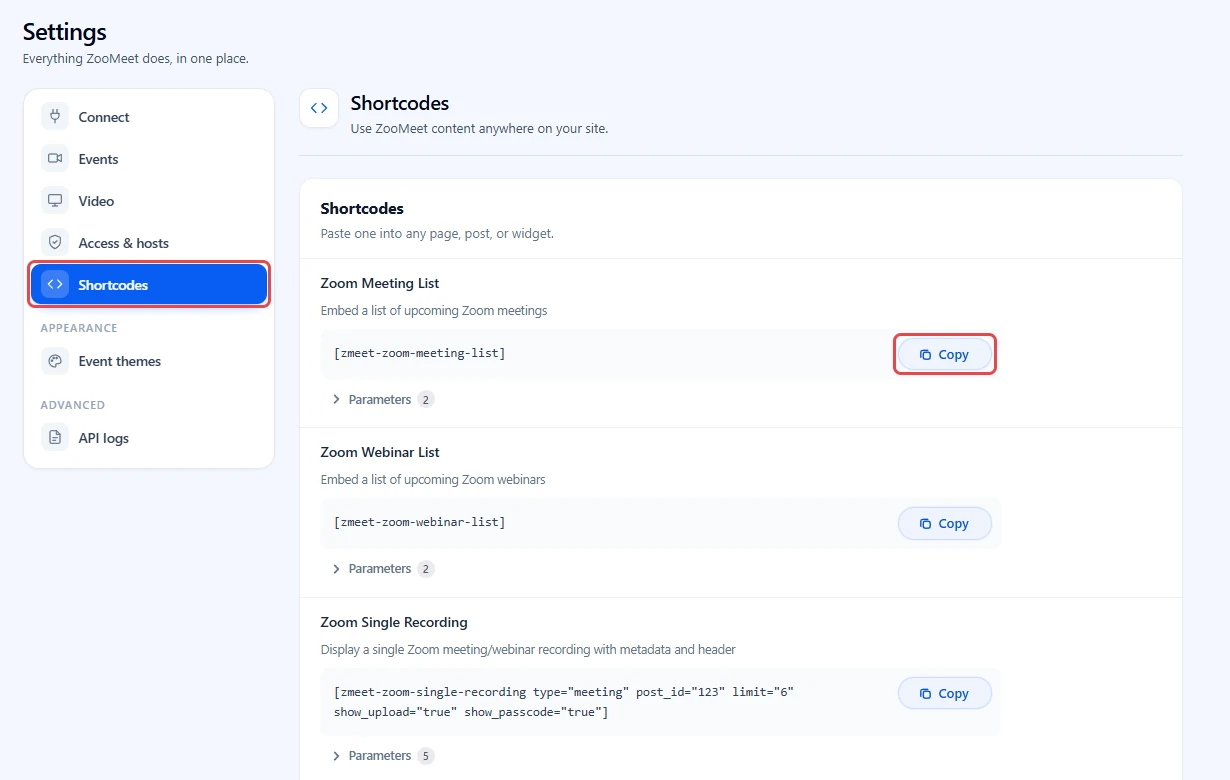
The shortcode on your clipboard looks like this:
[zmeet-zoom-meeting-list]
Note: Without ZooMeet Pro, the two recording rows show an Upgrade now button instead of the shortcode.
Step 2: Read the recording parameters (Pro) #
The recording shortcodes take parameters. Each row folds them away under Parameters until you need them. The Zoom Meeting List and Zoom Webinar List rows have a Parameters list too, for category and show_past.
- Click Parameters under Zoom Single Recording or Zoom Recording Archive.
- Read what each parameter does, then copy the shortcode and change the values.
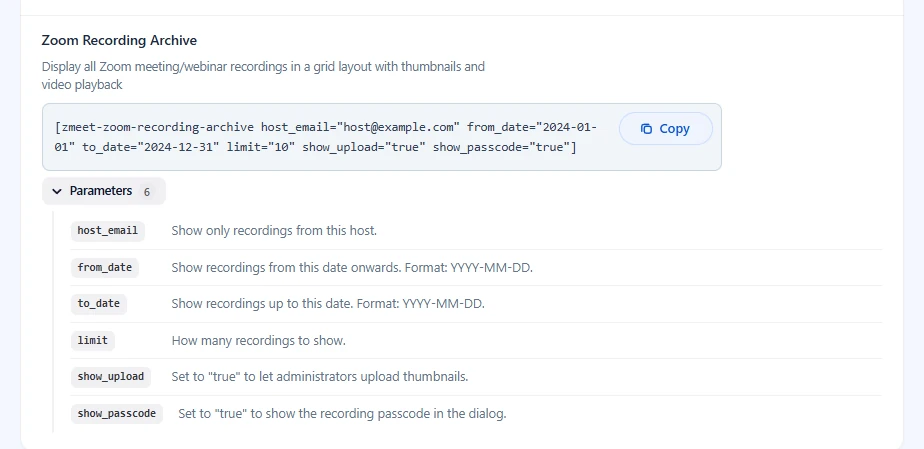
For Zoom Single Recording, replace 123 in post_id="123" with the meeting’s post ID. Set type to meeting or webinar.
Note: The recording shortcodes require ZooMeet Pro.
Step 3: Copy the shortcode for one meeting #
Each meeting has its own shortcode with its ID already filled in, so you never need to look the ID up.
- Go to ZooMeet > All Events.
- On the meeting’s row, click the ••• button.
- Click Copy shortcode. The menu confirms with Shortcode copied.
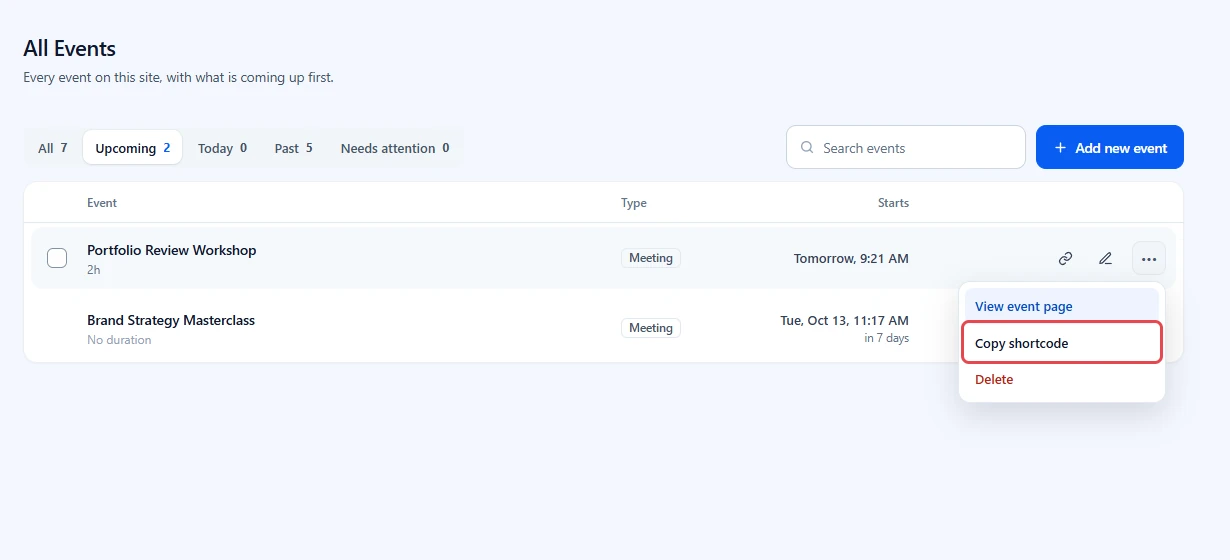
The copied shortcode looks like this:
[zmeet-zoom-meeting id="2166" hide_details="no" hide_timer="no" hide_calendar="no" /]
Your meeting ID will be different. Always copy it from your own All Events screen. A webinar copies as [zmeet-zoom-webinar ...].
Step 4: Paste the shortcodes on a page #
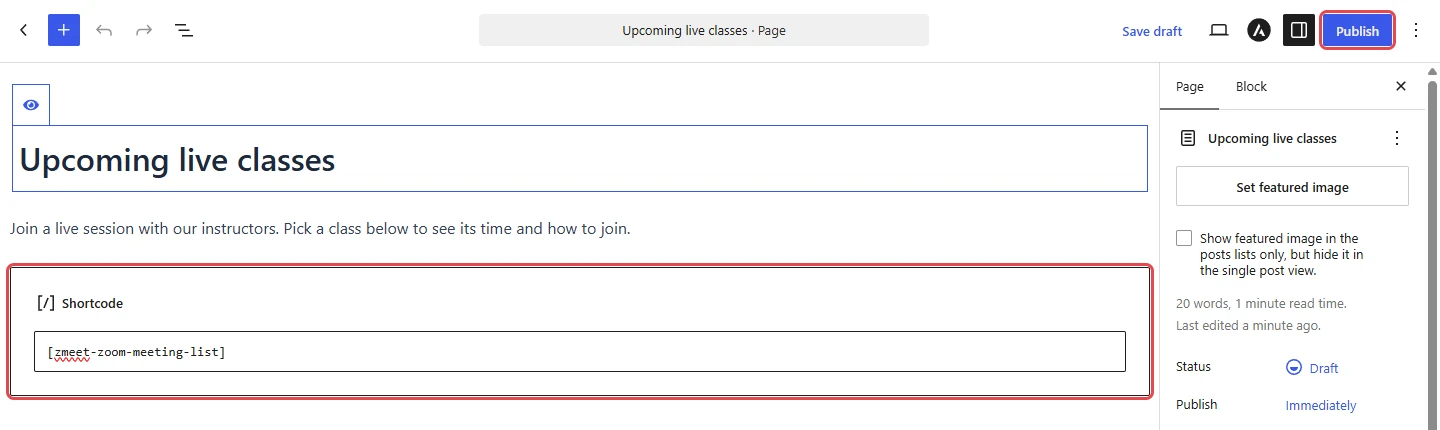
A Shortcode block shows the shortcode text in the editor and the real output on the live page.
- Go to Pages and edit a page, or click Add New Page. Here the page is called Upcoming live classes.
- Add a Shortcode block and paste the shortcode into it. Use one block per shortcode.
- Click Publish or Save, then view the page.
Tip: To change a single meeting embed, edit the values in the shortcode. Change hide_timer="no" to hide_timer="yes" to hide the countdown, or hide_details="no" to hide_details="yes" to hide the Details box.
To list meetings that have already ended as well, add show_past="yes":
[zmeet-zoom-meeting-list show_past="yes"]
The same attribute works on [zmeet-zoom-webinar-list]. Recurring meetings always stay in the list.
To list only the meetings in one or more categories, add category with the category slugs, separated by commas:
[zmeet-zoom-meeting-list category="product-onboarding,quarterly-town-hall"]
Copy each slug from the Slug column on ZooMeet > Categories. Meetings in child categories are included too. The same attribute works on [zmeet-zoom-webinar-list], and you can combine it with show_past="yes". See How to organize Zoom meetings with categories in ZooMeet.
Step 5: Choose which meetings the list shows #
A new list shows every published, upcoming meeting that the viewer may open. You can narrow it on the page itself, while logged in as an administrator.
- Open the published page while logged in as an administrator. Below the list you see Event Visibility. Only administrators see it.
- It starts on Show all events. Leave it there to list every meeting.
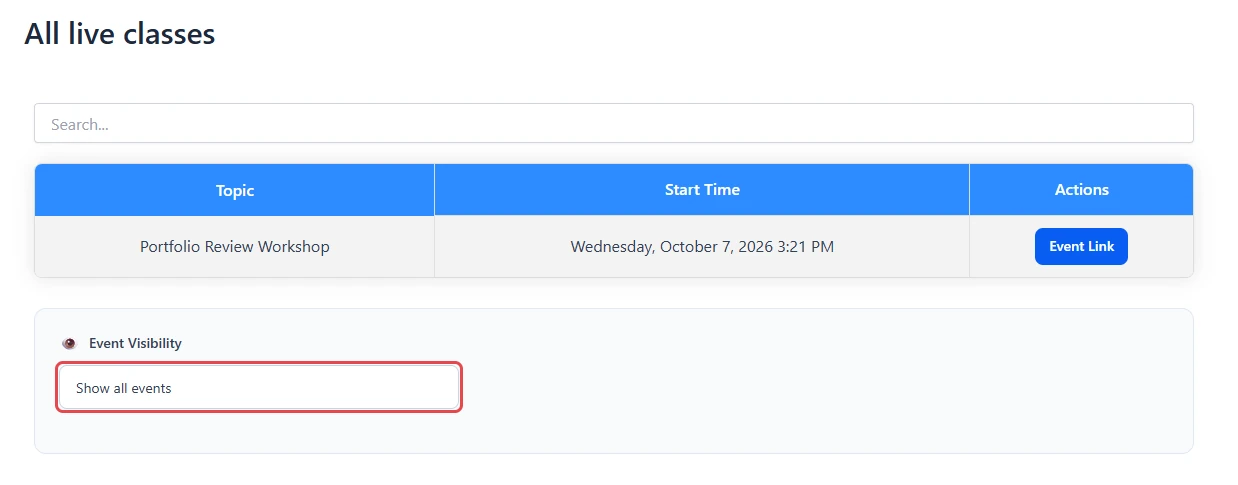
To narrow the list, open Event Visibility and pick one option:
- User Specific: meetings created by the users you pick in Select Users. Type at least two letters to search.
- Role Based: meetings created by users with the roles you pick in Select Roles.
Your choice saves on its own and the list reloads. Each page with the shortcode keeps its own choice, so two pages can show different meetings.
Tip: User Specific suits a page for one instructor’s classes. Role Based suits a page for all your teachers.
Step 6: Check the page as a visitor #
Open the page in a private browser window, so you see it the way a logged-out visitor does.
- Check that the list shows the meetings you expect. Meetings this visitor may not open, such as course-only or members-only meetings, are left out.
- Click Topic or Start Time to sort the list, or type in Search… to find a meeting.
- Click Event Link to open a meeting page in a new tab.
Note: If every upcoming meeting is limited to course students or logged-in members, a logged-out visitor sees No events available. That is your access rules at work.
Step 7: Add the classic editor button or the ZooMeet block (optional) #
ZooMeet adds two more ways to put a meeting on a page.
The Embed Meeting button (classic editor) #
The Embed Meeting button writes the single meeting shortcode for you. It shows wherever WordPress shows the classic editor toolbar, such as the Classic Editor plugin or a Classic block.
- Switch the editor to Visual.
- Click the toolbar button with the video icon. Its tooltip reads Embed Meeting.
- Pick a meeting in Select a meeting and click Ok.
ZooMeet inserts [zmeet-zoom-meeting id="…" hide_details="no" hide_timer="no" hide_calendar="no"/].
Note: Requires ZooMeet Pro. The button shows for users who can edit posts or pages and have the visual editor turned on in their profile.
The ZooMeet block #
In the block editor, search the block inserter for Zoom Direct Meeting or Webinar (ZooMeet). It is in the Embed category.
- In the block settings on the right, choose Event Type: Meeting or Webinar.
- Pick the Zoom user in Select A Host, then the meeting in Select A Meeting or Select A Webinar.
- Tick Link Only ? to show only a Join meeting link. Leave it off to show a table with the meeting ID, topic, start time, timezone, duration and a Join link.
Important: The block reads meetings straight from Zoom and saves a copy of the details into the page. It shows the Zoom join link directly and does not check Page access. For members-only meetings, use [zmeet-zoom-meeting id="…"] instead.
If you build pages with Elementor, the same embed is the Zoom Direct Meetings & Webinars (ZooMeet) widget in the ZooMeet Widgets category.
What visitors see #
The meeting list #
Each visitor sees only the upcoming meetings they may open. A meeting limited to logged-in users, chosen roles or course students stays out of the list for everyone else. Meetings that have ended drop off the list unless the shortcode has show_past="yes". Event Link opens the meeting page in a new tab. The list never shows passcodes.
A single embedded meeting #
Visitors who may open the meeting see its thumbnail and description, the Time to go countdown, JOIN IN ZOOM APP and JOIN IN BROWSER, and the Details box. In the Details box, Topic is the meeting’s title and Hosted By is the meeting’s host, followed by the start time, duration and timezone.
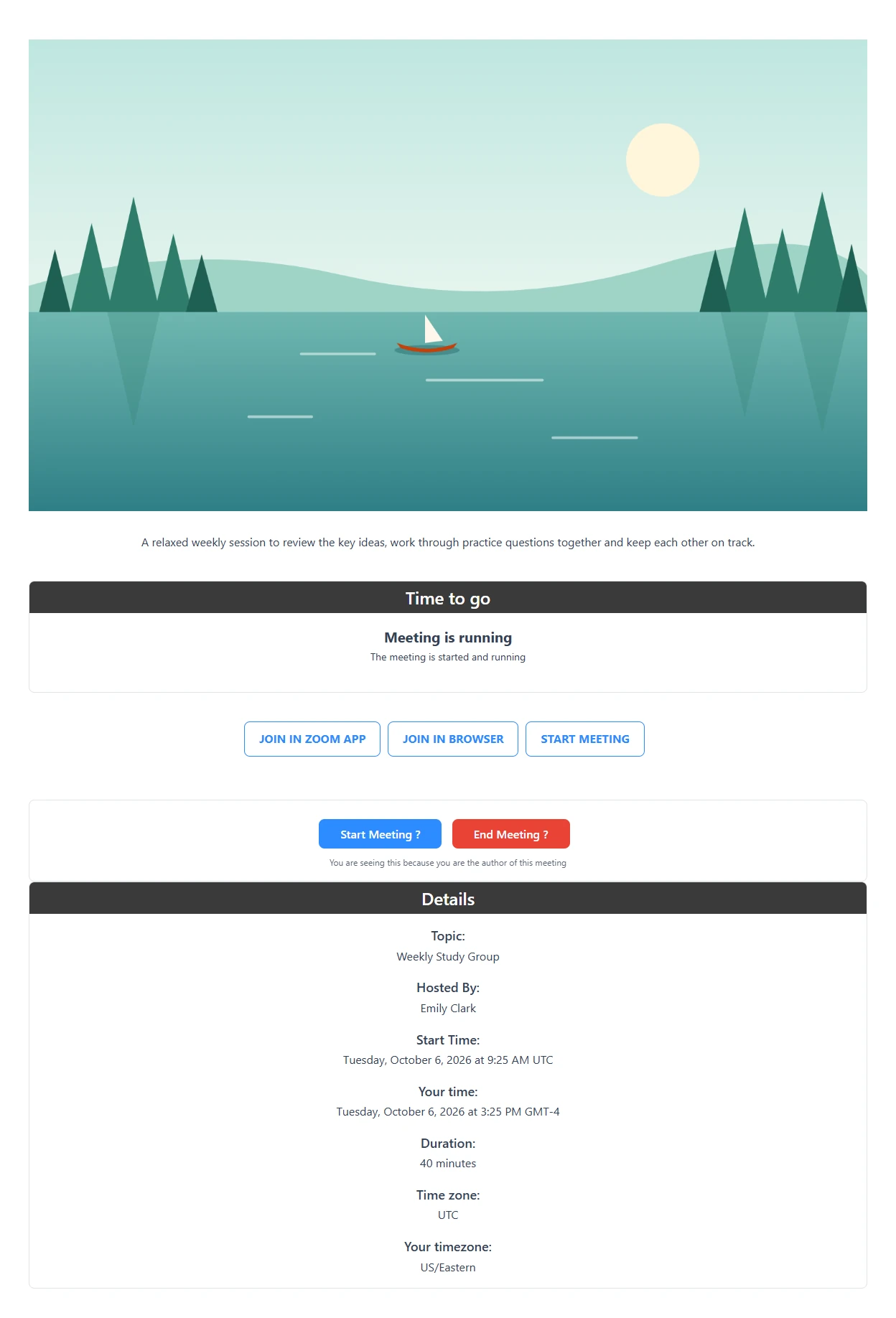
While a meeting runs, the countdown reads Meeting is running. After the host ends it, the embed shows The meeting has ended by the host. instead of the join buttons.
A visitor without access #
The embed follows the same access rules as the meeting page. A visitor who may not open the meeting sees the access card instead of the join buttons. Here the meeting belongs to a course, so a visitor who is not enrolled sees For students of this course with a View course button.
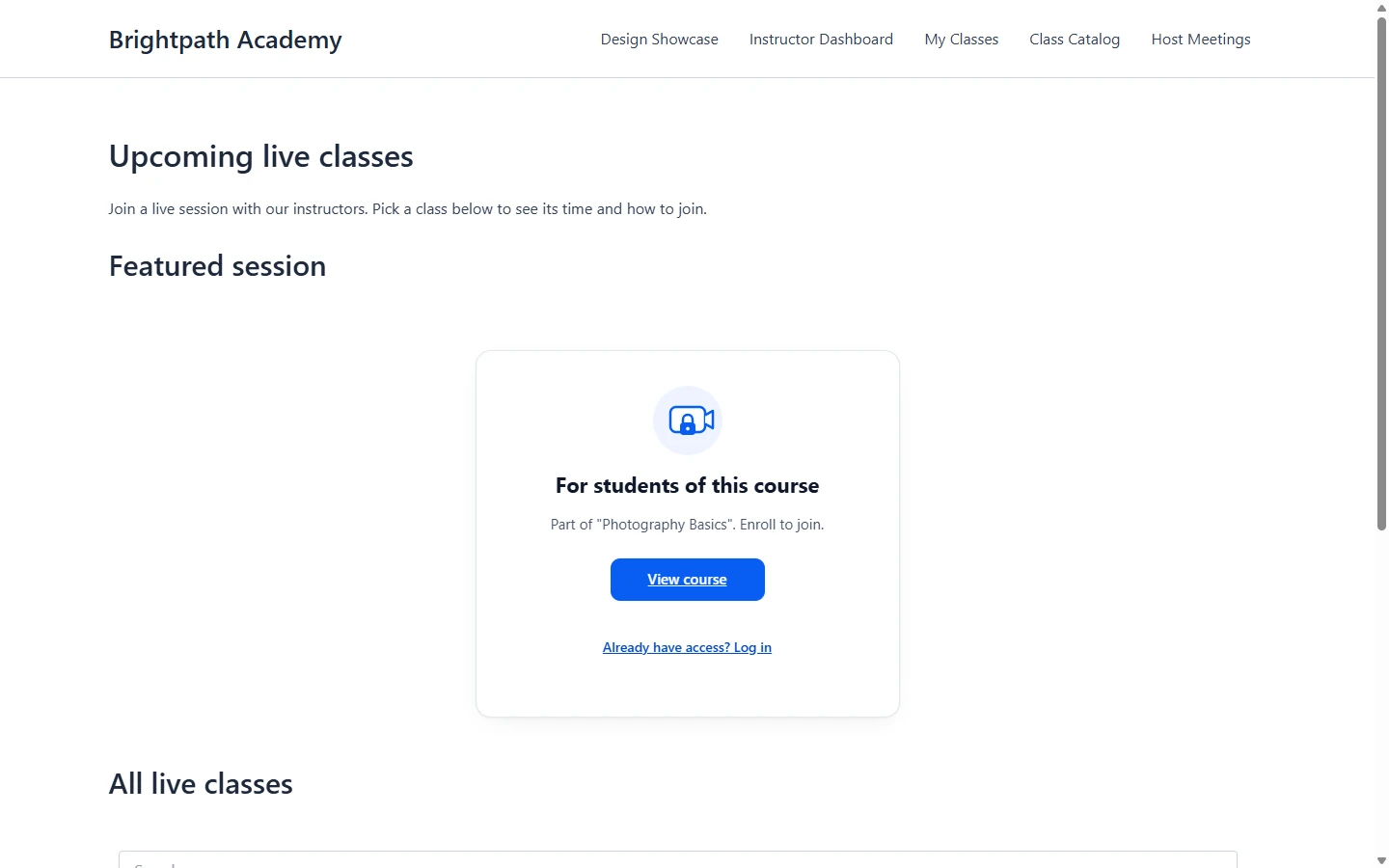
On a site set to Logged in or By role, the card reads Login Required or Access Denied instead. See How to control meeting access and alternative hosts with ZooMeet.
Security note: Shortcode embeds never open a gap in your access rules. The meeting list and the single meeting embed both check access for every visitor.
Benefits of ZooMeet shortcodes #
- Meetings on pages people already read: add a live class to a course, product or landing page.
- Changes show everywhere: the shortcodes read the live meeting, so a new time or description updates every page.
- Access rules still apply: lists and embeds follow each meeting’s access rules and never show passcodes.
- Nothing to break: removing a shortcode removes it from that page only. The meeting stays as it is.
Copy, paste, publish: your meetings now live where your visitors are.
Troubleshooting #
The meeting list says “No events available.” #
No upcoming meeting matches the list for this visitor.
Check that:
- At least one published meeting starts in the future. Ended meetings only show with
show_past="yes". - The visitor may open the meeting. Course-only and members-only meetings stay hidden from everyone else.
- Event Visibility on the page is not set to users or roles that have no meetings. Open the page as an administrator to check.
- The
categoryslugs, if you used them, match the Slug column on ZooMeet > Categories exactly.
The page shows “The meeting has ended or does not exist.” #
The ID in the shortcode is not a published meeting.
Check that:
- The meeting is published and not in the trash.
- The ID matches. Copy the shortcode again with Copy shortcode on All Events.
- You used
[zmeet-zoom-webinar ...]for a webinar, not[zmeet-zoom-meeting ...].
The page shows “Please use correct shortcode” #
The single meeting shortcode has no attributes. Add the meeting ID, for example [zmeet-zoom-meeting id="2166"].
The embed shows “Meeting does not exist” #
ZooMeet could not find the meeting in your Zoom account, for example because it was deleted in Zoom. Open the meeting in All Events, check it, and create it again if needed.
The shortcode shows as plain text on the page #
The shortcode belongs to ZooMeet Pro, or to a feature that is turned off.
- Activate ZooMeet Pro for the recording shortcodes and
[zmeet-frontend-meeting /]. - For the front-end form, turn on Let members create events in ZooMeet > Frontend Meetings.
hide_calendar does not hide the calendar box #
hide_calendar only works with ZooMeet Pro, and only with the value yes. Write hide_calendar="yes".
Frequently asked questions #
Can I use more than one ZooMeet shortcode on a page? #
Yes. For example, put one meeting above [zmeet-zoom-meeting-list], as on the page in this guide.
Does the meeting list show past meetings? #
No, not by default. Ended meetings drop off the list. Add show_past="yes" to the shortcode to keep them, for example [zmeet-zoom-meeting-list show_past="yes"].
Can the meeting list show only one category? #
Yes. Add the category slug, for example [zmeet-zoom-meeting-list category="product-onboarding"]. Separate several slugs with commas.
Does the meeting list show passcodes? #
No. It shows the topic, the start time and a link to the meeting page.
Can a visitor without access join through an embed? #
No. The embed shows the same access card as the meeting page, without the join buttons.
Do shortcodes work in widgets? #
Yes. Add a Shortcode block to a widget area and paste the shortcode.
You’re ready to put meetings on any page #
You can now list meetings, embed a single meeting and show your recordings on any page. Every embed follows your access rules. Next, decide who may open your meetings and let members host their own.


