- Step 1: Install DriveHub Pro and Connect Google Drive
- Step 2: Open the Automation Page
- Step 3: Create a Webhook Trigger in OttoKit
- Step 4: Add the Webhook in DriveHub (Where to Send)
- Step 5: Choose the Events (Events)
- Step 6: Send a Test and Save (Test and Save)
- Step 7: Map the Fields in OttoKit
- Step 8: Manage Your Webhooks (Webhooks Tab)
- Step 9: Turn On Incoming Actions (Incoming Actions Tab)
- Step 10: Create an Application Password (Your Profile)
- Step 11: Call an Action from OttoKit
- Step 12: Check Every Delivery (Delivery Log)
- Step 13: You're Connected
- Step 14: Start From a Recipe (Recipes Tab)
- Using Zapier, Make or n8n
- Troubleshooting
- Benefits of Automating Google Drive with OttoKit
Do you want your team to get a message every time a client uploads a file, or a client folder to appear in Google Drive the moment someone signs up? You can easily do this by using DriveHub with OttoKit.
DriveHub talks to OttoKit in two directions. Webhooks tell OttoKit when something happens in Drive (a file is uploaded, downloaded, shared or deleted, a folder is created, a form sends files), so OttoKit can email your staff, add a CRM record or post to Slack. Incoming actions let an OttoKit workflow work in your Drive: create a folder, save a file from a link, or give a user their private folder. Zapier, Make and n8n work exactly the same way.
Note: This needs DriveHub Pro.
Here is an easy, step-by-step guide to help you set it all up!
Step 1: Install DriveHub Pro and Connect Google Drive #
First, make sure DriveHub and DriveHub Pro are installed and your Google account is connected:
- Install and activate DriveHub from Plugins > Add New.
- Follow the setup screen to add your Google account.
- Add the Pro add-on, following how to install DriveHub Pro.
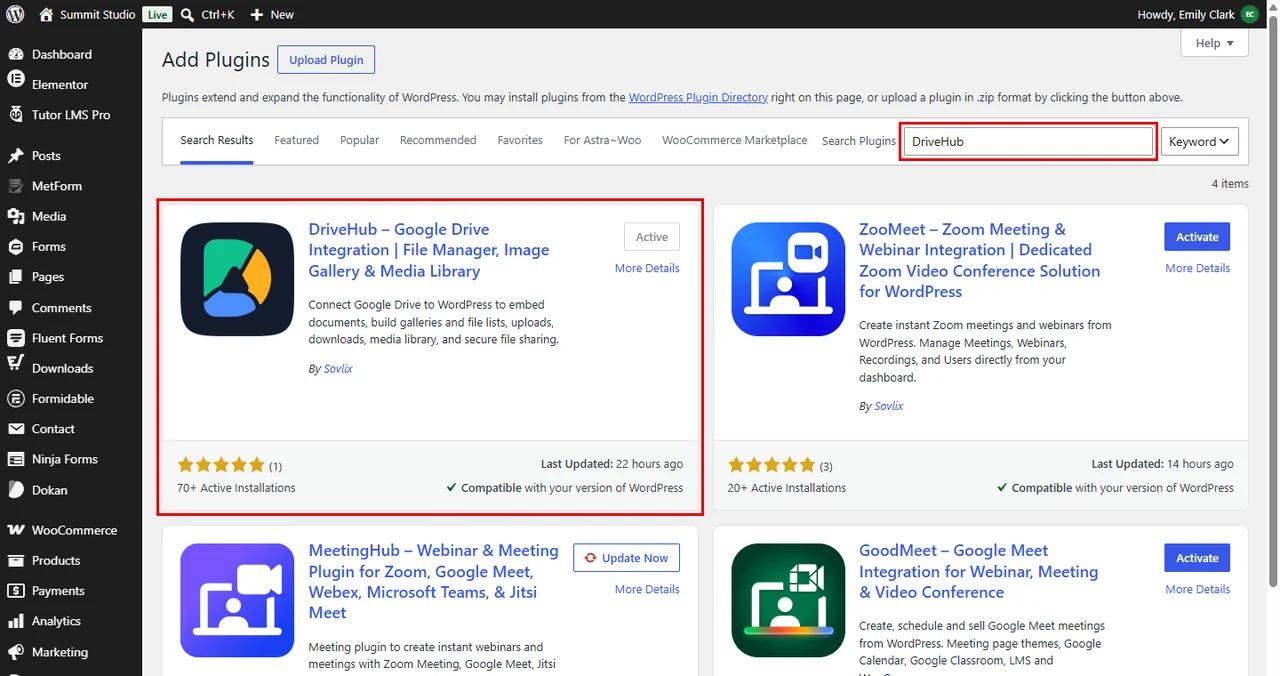
Read our step by step setup guide to avoid any confusion.
Step 2: Open the Automation Page #
- Go to DriveHub > Automation from your WP-Admin.
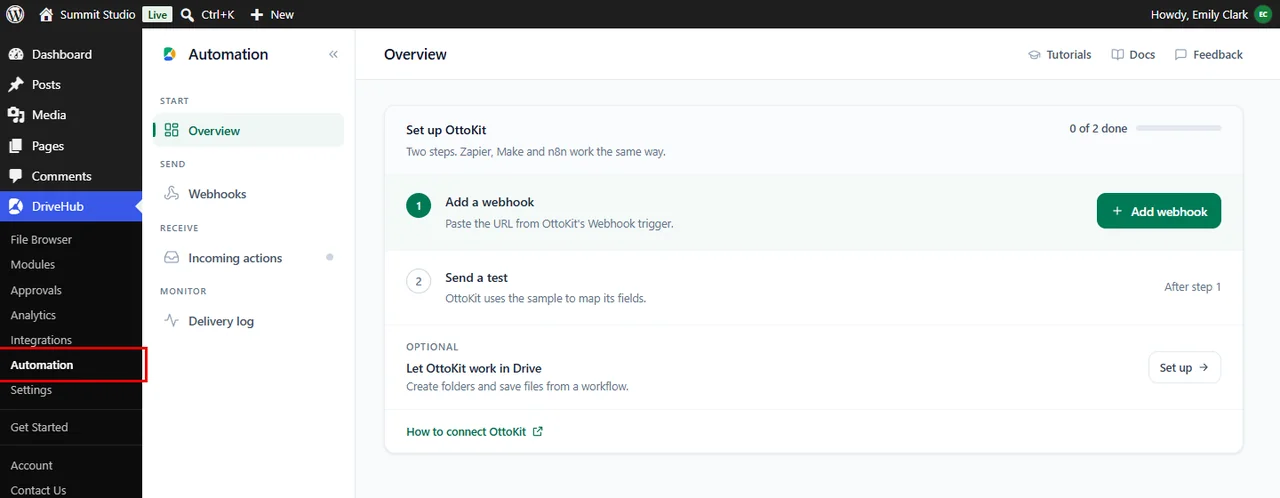
The Overview shows a short checklist: Add a webhook and Send a test. It ticks each step off by itself, so you always know what is left.
Step 3: Create a Webhook Trigger in OttoKit #
Now get the address DriveHub will send its messages to. Keep this tab open in a second window:
- In OttoKit, create a new workflow.
- For the trigger, choose the Webhook trigger.
- Copy the webhook URL OttoKit gives you. OttoKit now waits for a sample message, which you send in Step 6.
Step 4: Add the Webhook in DriveHub (Where to Send) #
Back in DriveHub, let’s add that URL:
- Click on Add webhook.
- Under Where should DriveHub send events?, pick OttoKit. (Pick Zapier, Make, n8n or Other if you use one of those; DriveHub then tells you where to find the URL in that tool.)
- Paste the URL into Webhook URL. Copy the whole URL, including the end.
- Give it a Name you will recognise, for example
OttoKit, client uploads. Only you see this name. - Click on Next.

Step 5: Choose the Events (Events) #
In this step, you pick what DriveHub tells OttoKit about:
- Tick the events you want. File uploaded is ticked for you, and it is the usual start for a client portal.
- Add others if you need them, for example Form entry sent for files that arrive through your forms.
- Click on Next.
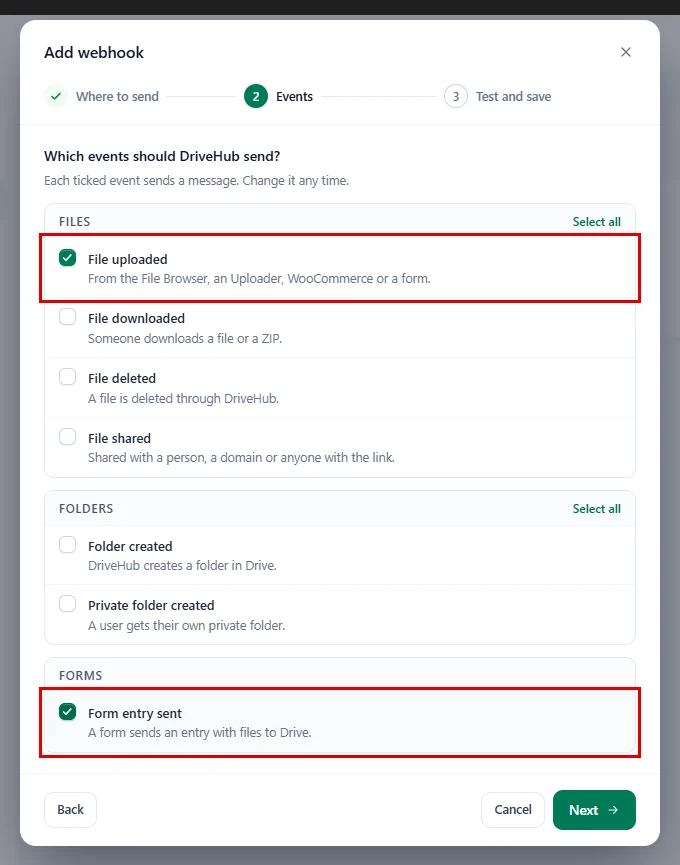
Here is what each event means:
- File uploaded: a file comes in from the File Browser, an Uploader, WooCommerce or a form.
- File downloaded: someone downloads a file or a ZIP.
- File deleted: a file is deleted through DriveHub.
- File shared: a file is shared with a person, a domain or anyone with the link.
- Folder created: DriveHub creates a folder in Drive.
- Private folder created: a user gets their own private folder.
- Form entry sent: a form sends an entry with files to Drive.
Step 6: Send a Test and Save (Test and Save) #
This is where OttoKit gets its first look at your data:
- Click on Send test. DriveHub sends a realistic sample of the first event you ticked.
- A green box says Delivered with the reply time. If it’s red, the box tells you what went wrong, for example a URL that was not copied in full.
- Leave Send events on. You can switch it off later to pause the webhook without deleting it.
- Click on Save webhook.

Tip: Advanced: signing secret (optional) is only for workflows that check where a message came from. OttoKit, Zapier and Make work without it, so leave it empty if you are not sure. If you click Generate, copy the secret straight away; DriveHub shows it only once.
Step 7: Map the Fields in OttoKit #
Go back to your OttoKit tab:
- Click Continue on the trigger. OttoKit now shows the sample DriveHub sent.
- Add the next step of your workflow, for example an email to your team.
- Map the sample fields into it, for example the file name (
file.name), the Google Drive link (file.webViewLink) and the uploader’s email (user.email). - Publish the workflow.
From now on, DriveHub sends each event once, a moment after it happens, and OttoKit runs your workflow every time.
Step 8: Manage Your Webhooks (Webhooks Tab) #
You’ll find every webhook you add under Webhooks:
- The Last delivery column shows whether the last message arrived and when.
- Use the switch in the On column to pause or resume a webhook.
- The buttons at the end of each row send a test, edit the webhook or delete it.

You can add up to 10 webhooks, for example one per workflow.
Step 9: Turn On Incoming Actions (Incoming Actions Tab) #
Now for the other direction. Incoming actions let OttoKit create folders and save files in your Drive. They are off by default, so nothing outside your site can change Drive until you allow it:
- Click on Incoming actions in the left menu.
- Turn on Allow incoming actions.
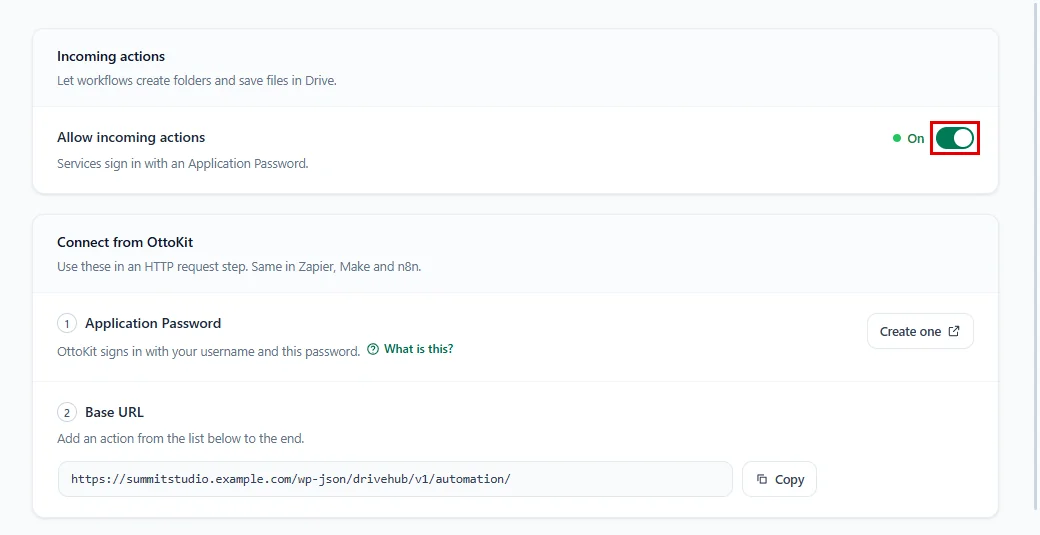
Two numbered steps show up under Connect from OttoKit: an Application Password and the Base URL. Click Copy next to the Base URL and keep it for Step 11.
Step 10: Create an Application Password (Your Profile) #
OttoKit signs in to your site with your WordPress username and an Application Password. It’s a separate password just for OttoKit: it can’t log in to the dashboard, and you can revoke it at any time.
- Next to Application Password, click on Create one. Your WordPress profile opens in a new tab.
- Under Application Passwords, type a name like
OttoKitin New Application Password Name. - Click on Add Application Password.
- Copy the password WordPress shows. It is shown only once.

Note: The password must belong to an administrator. WordPress also needs your site to use HTTPS for Application Passwords; without it, the card says Not available here.
Step 11: Call an Action from OttoKit #
Let’s try a real example: create a client folder in Drive whenever someone fills out your sign-up form. Under Actions on the Incoming actions tab, click Example next to create-folder to see a ready-made request:

In your OttoKit workflow, add a step that sends an HTTP request and fill it in like this:
- Method:
POST - URL: the Base URL plus the action, for example
https://your-site.com/wp-json/drivehub/v1/automation/create-folder - Authentication: Basic, with your WordPress username and the Application Password from Step 10.
- Body: JSON, for example
{ "path": "Clients/{{name}}" }, where{{name}}is the name field from your trigger.
Run the step. The folder appears in Google Drive, and if it already exists, DriveHub uses the same folder instead of making a second one.
Here are all the actions you can call:
ping: checks the password works and lists your connected accounts.create-folder: creates a folder or a whole path, likeClients/Daniel Brooks.upload-from-url: saves a file from a public link into Drive, for example a PDF your form tool creates.create-user-folder: creates a WordPress user’s private folder, using your private folder settings. Send the user’semailoruser_id.copyandmove: copy or move a file into another folder.
Note: If your Google account is connected with Selected folders, DriveHub only sees the folders you granted. Folders and files from an action that doesn’t name a folder go into the first granted folder, so they always show up in DriveHub. See how to connect only selected folders.
Further down the same tab, Options has two settings:
- Largest file from a link: the biggest file
upload-from-urlwill save, between 1 and 100 MB (25 MB by default). - Send webhooks for these actions: leave this off. Files and folders made by actions then don’t send webhooks, so a workflow can never start itself again in a loop.
Step 12: Check Every Delivery (Delivery Log) #
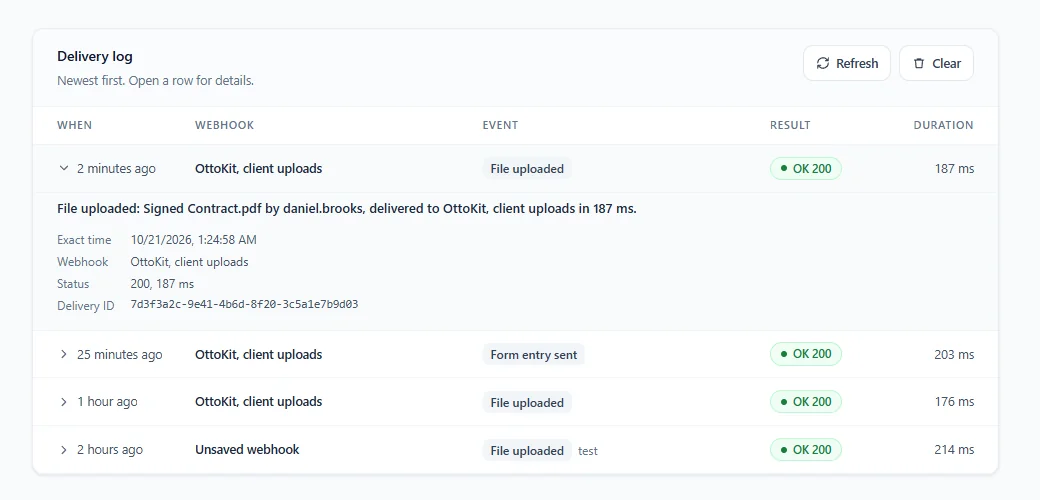
Want to know if a message reached OttoKit? Click on Delivery log:
- Each row shows when it was sent, the webhook, the event and the result (OK 200 means delivered).
- Click a row to see what happened in plain words. A failed delivery also says what to try.
- Click Refresh to load new deliveries.
Step 13: You’re Connected #
And that’s it. Open Overview again and you will see You’re connected, with the state of your webhooks, incoming actions and last delivery at a glance:

Now every upload, download or new folder you picked reaches OttoKit within seconds, and your workflows can create folders and save files in Drive for you.
Step 14: Start From a Recipe (Recipes Tab) #
Not sure what to build first? Recipes gives you ready workflows you can copy step by step:
- Click on Recipes in the left menu, under Start. On the Overview, Or start from a recipe (or Browse recipes once you are connected) opens it too.
- Start in DriveHub lists workflows that begin with something happening in Drive, for example Client uploads a file → notify your team.
- Start in OttoKit lists workflows that ask DriveHub to work in Drive, for example Create a case folder from a workflow.
- Click on Use recipe next to the one you want.

Each recipe opens as a short list of numbered steps:
- Pick your tool under I use: OttoKit, Zapier, Make or n8n. Only the wording changes.
- In a webhook recipe, click on Add this webhook. The Add webhook window opens with the right events already ticked, and the recipe comes back when you save.
- In an action recipe, every value you need (Method, URL, the two headers and the Body (JSON)) has its own Copy button. Paste them into your HTTP request step, or click Copy all as cURL.
- Replace placeholders like
{{client_name}}with fields from your trigger.
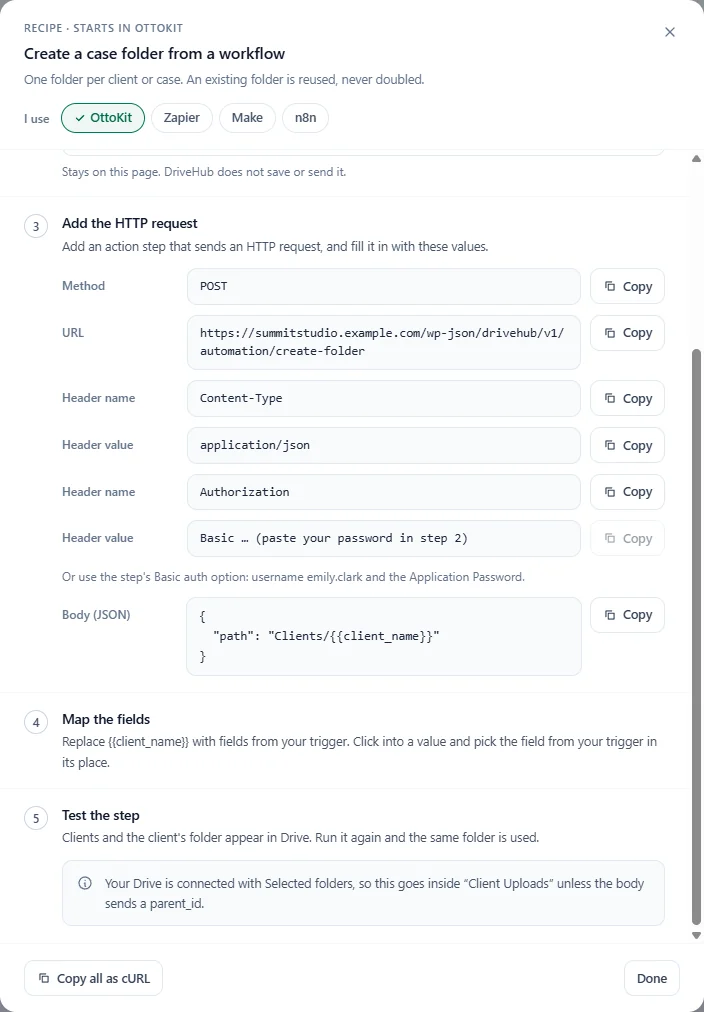
Tip: Paste your Application Password into the recipe to fill in the Authorization header for you. It stays on the page; DriveHub never saves or sends it.
If Incoming actions are off, an action recipe shows Turn on at the top. Click it and the steps are ready to use.
Form with files submitted → save to CRM or email shows when SureForms is installed. It doesn’t need a webhook at all: in OttoKit, use the SureForms trigger Form submitted, and each DriveHub Drive field arrives as Google Drive links you can map like any other field.
Using Zapier, Make or n8n #
Everything above works the same way. Only the place you copy the webhook URL from changes:
- Zapier: Webhooks by Zapier, Catch Hook, copy the URL. After the test, click Test trigger in Zapier.
- Make: Webhooks, Custom webhook, Add, copy the address.
- n8n: a Webhook node with the method set to POST, copy the Test URL.
For actions, use Zapier’s Webhooks by Zapier, Make’s HTTP module or n8n’s HTTP Request node with the same URL, Basic sign-in and JSON body.
Troubleshooting #
The test says DriveHub could not reach that URL.
Copy the URL again, all of it. Webhooks only go to public addresses on the normal web ports (80, 443 or 8080). A self-hosted n8n on another port needs to be put behind a normal HTTPS address.
An action answers 401 even with the right password.
Some servers drop the sign-in details before WordPress sees them. Ask your host to pass the Authorization header through to WordPress.
An action answers 403.
Check that Allow incoming actions is on, and that the Application Password belongs to an administrator.
Benefits of Automating Google Drive with OttoKit #
- No more checking by hand: Your team hears about new uploads the moment they land.
- Tidy client folders: Workflows create the right folder for every new client or order.
- Works with your tools: OttoKit, Zapier, Make and n8n all connect the same way.
- Safe by default: Incoming actions stay off until you switch them on, and each Application Password can be revoked at any time.
- See every message: The Delivery log shows what was sent and whether it arrived.
With DriveHub and OttoKit, Google Drive becomes part of your everyday workflows, without any code.
Related guides:


