The Account report shows Zoom use per host over any date range: how many meetings each host ran, how many people joined, how many minutes they spent and when the host last signed in. Use it to see who carries the most sessions, to spot hosts who have stopped using their account, and to compare one period with the one before.
Note: Screens below use sample data. Your own list fills in once your Zoom plan includes this feature.
By the end of this guide, you will have:
- The Account report for the date range you choose
- Account totals for hosts, meetings, participants and minutes, compared with the period before
- A table of hosts you can filter and sort
- With ZooMeet Pro, the list of people who attended one host’s meetings
Estimated setup time: 2 minutes.
Before you begin #
Make sure you have:
- Zoom connected, on a paid Zoom plan. See How to use Zoom Reports in ZooMeet for the plan details.
- An administrator account on your WordPress site
- ZooMeet Pro, if you want the View button on each host
Step 1: Open the Account tab and set the dates #
The tab opens on the last 30 days, which is the range most people want.
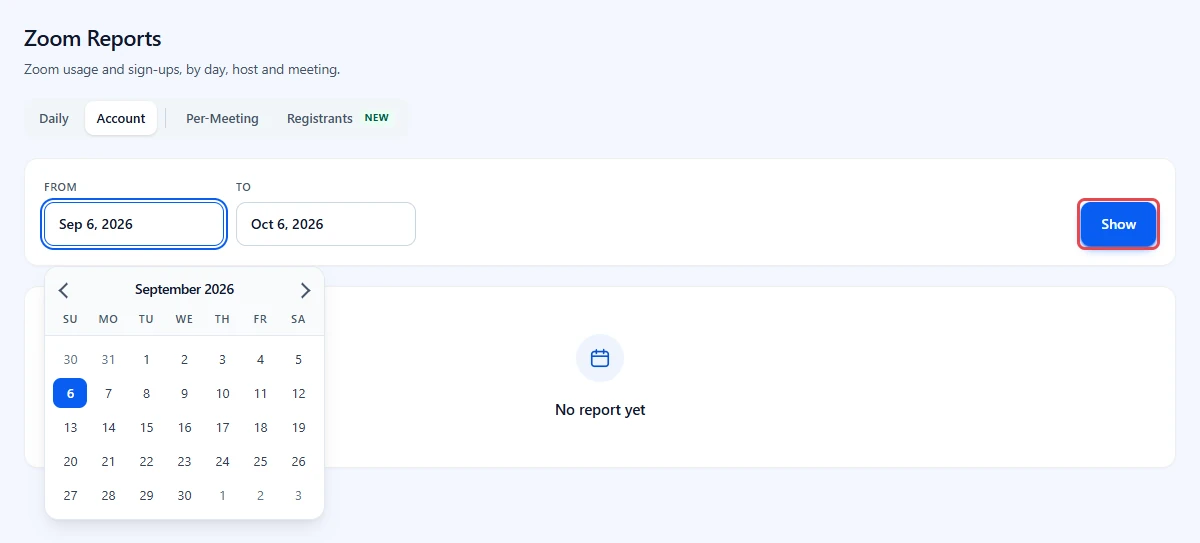
- Go to ZooMeet > Zoom Reports and click Account.
- Click From and pick the first day.
- Click To and pick the last day. If you move From past To, ZooMeet moves To with it, so the range never runs backwards.
- Click Show.
Tip: Zoom searches reports a month at a time. Keep ranges to a month or so for the quickest answer.
Step 2: Read the totals #
- Read Hosts, Meetings, Participants and Minutes for the range.
- Read the arrow and percentage under each. It compares the range with the same number of days just before it, named under the cards, for example vs the previous 30 days.
Step 3: Read, filter and sort the hosts #
The table has one row per host.
- Read each host’s name and email, then Meetings, Participants, Minutes and Last login.
- Click a column heading to sort, for example Meetings to see who hosts most.
- Type in Filter hosts to find a host by name, email or any number in the row.
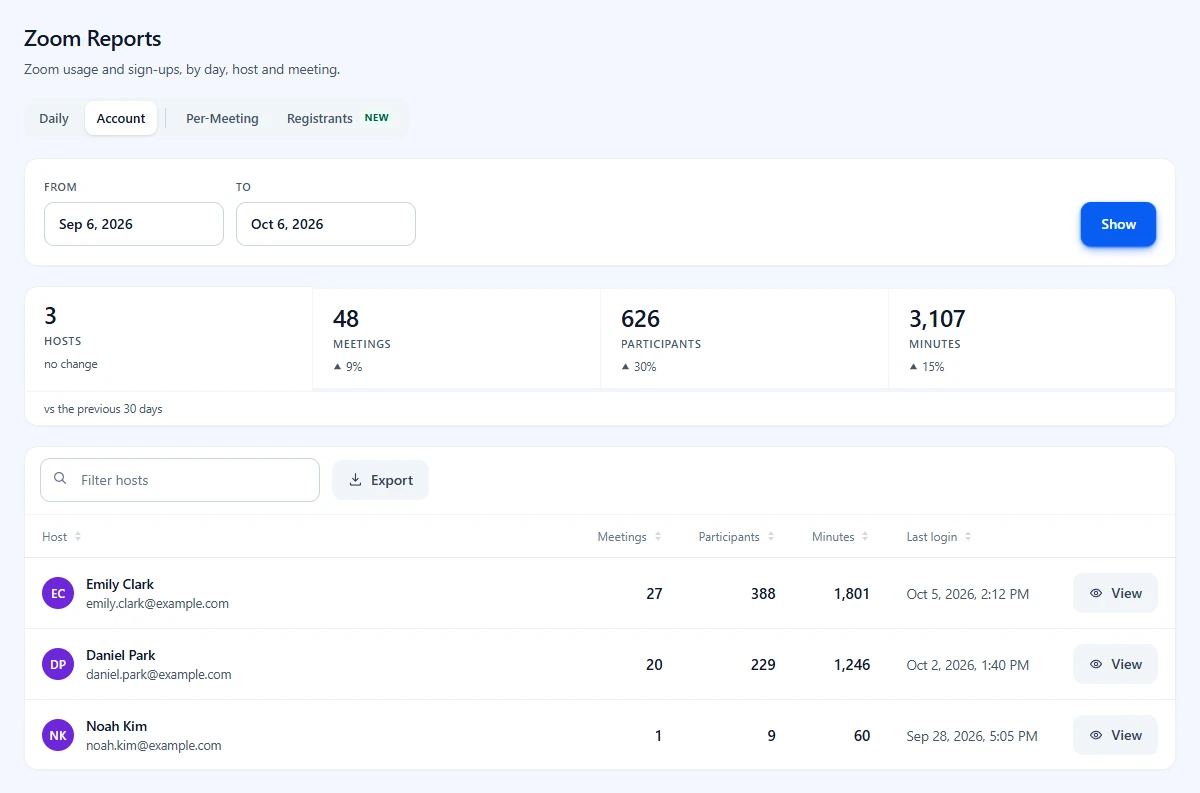
When the account has more than 10 hosts, page numbers appear under the table.
Step 4: See who attended one host’s meetings #
With ZooMeet Pro, each host has a View button. Hosts with no meetings in the range show None.
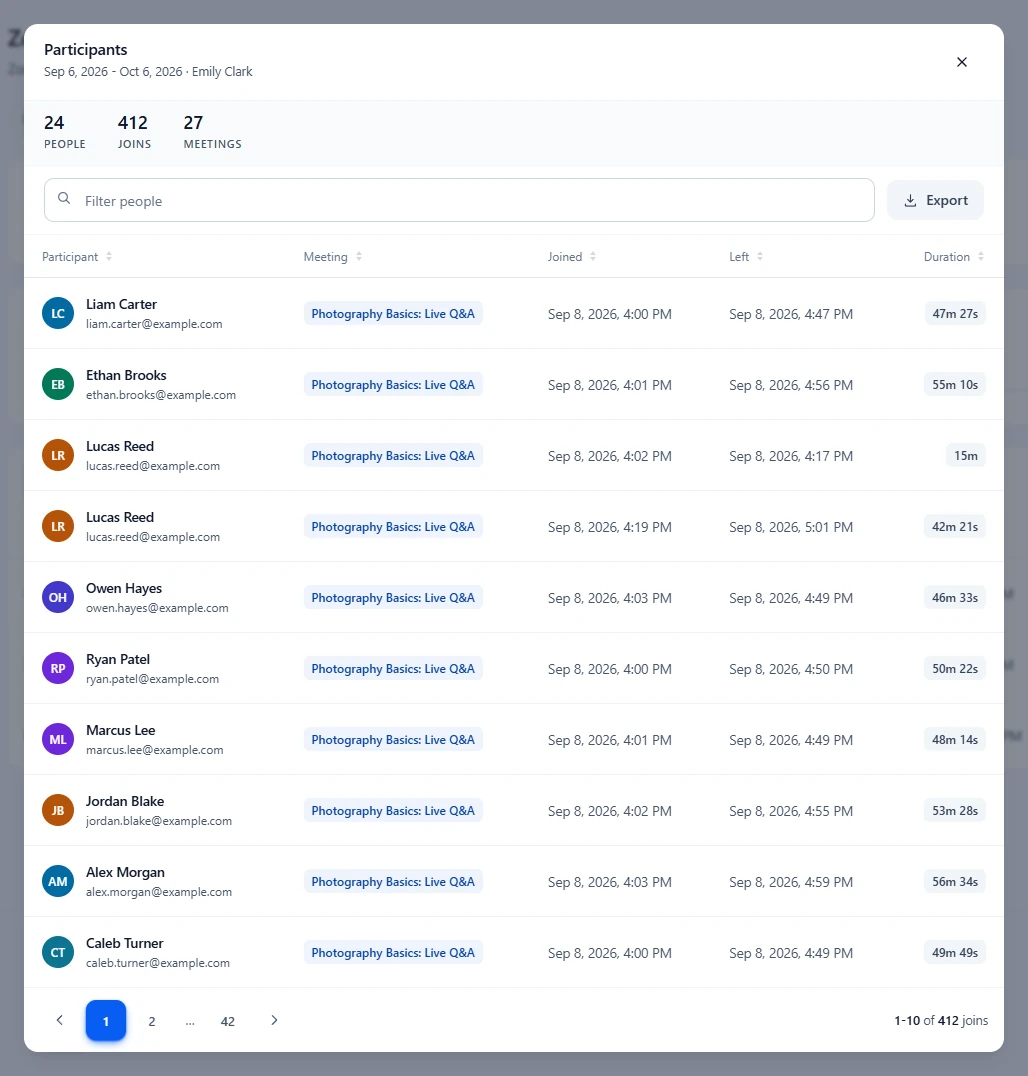
- Click View on a host.
- Read the Participants window. The range and the host’s name are under the title. People counts each person once, Joins counts every join, and Meetings counts the host’s sessions.
- Type in Filter people, sort by any column, and move through the pages, 10 joins each.
To save the table or the window as a file, see How to export Zoom reports to CSV.
What the numbers mean #
| Column or card | What it counts |
|---|---|
| Hosts | Zoom users who appear in the report for this range. |
| Meetings | Meetings the host ran in the range. |
| Participants | Joins to those meetings. One person in three sessions counts three times. |
| Minutes | Meeting minutes for the host, as Zoom reports them. |
| Last login | The last time the host signed in to Zoom. |
Troubleshooting #
“Only available for Paid or ZMP account.” #
The Zoom account is on the free plan, and Zoom does not provide this report. Upgrade the Zoom account, then click Show again.
“No usage found” #
No host ran a meeting in that range. Widen the dates and click Show.
“No matching hosts” #
Nothing in the table matches Filter hosts. Click Clear filter.
A host I expect is missing #
Zoom lists hosts who were active in the range. A host who held no meetings in those dates may not appear.
Frequently asked questions #
Is this the same as Zoom’s Active Hosts report? #
Yes, in substance. ZooMeet reads Zoom’s account usage report and shows it per host, with totals and a comparison.
Can I compare two specific months? #
Pick the first day and the last day of the later month. The arrows compare it with the same number of days just before.
Why is Last login older than the last meeting? #
Hosts can stay signed in to the Zoom app for weeks, so a meeting does not always mean a fresh sign-in.
You’re ready to compare your hosts #
You can now see which hosts carry your sessions, how use changes between periods and, with ZooMeet Pro, who attended each host’s meetings. Next, look at meetings one by one, or save the table.


