- Before you begin
- Step 1: Open the Events section
- Step 2: Set the Event defaults
- Step 3: Set the Joining defaults
- Step 4: Set the Event page defaults
- Step 5: Set the Video defaults
- Step 6: Save your changes
- Benefits of setting meeting defaults
- Troubleshooting
- Frequently asked questions
- You're ready to set meeting defaults
If you keep picking the same time zone, waiting room and video options on every new meeting, set them as defaults instead. ZooMeet keeps them in two sections of its settings: Events and Video.
Once they are saved, the Add New Meeting form opens with those values filled in. Each meeting can still change any field for itself.
By the end of this guide, you will have:
- A default time zone and recording option for new meetings
- Joining rules: waiting room, authentication, joining before the host and more
- Default host and participant video options
- Default page layout switches for every new event page
- A clear idea of how the save bar works, so nothing changes by accident
Estimated setup time: 5 minutes. Defaults only shape new meetings, so meetings you already made stay exactly as they are.
Before you begin #
Make sure you have:
- ZooMeet installed and activated, with Zoom connected. See How to connect Zoom with ZooMeet using Server-to-Server OAuth.
- An administrator account on your WordPress site
- ZooMeet Pro, if you want to change Recurring meeting or Registration required
Step 1: Open the Events section #
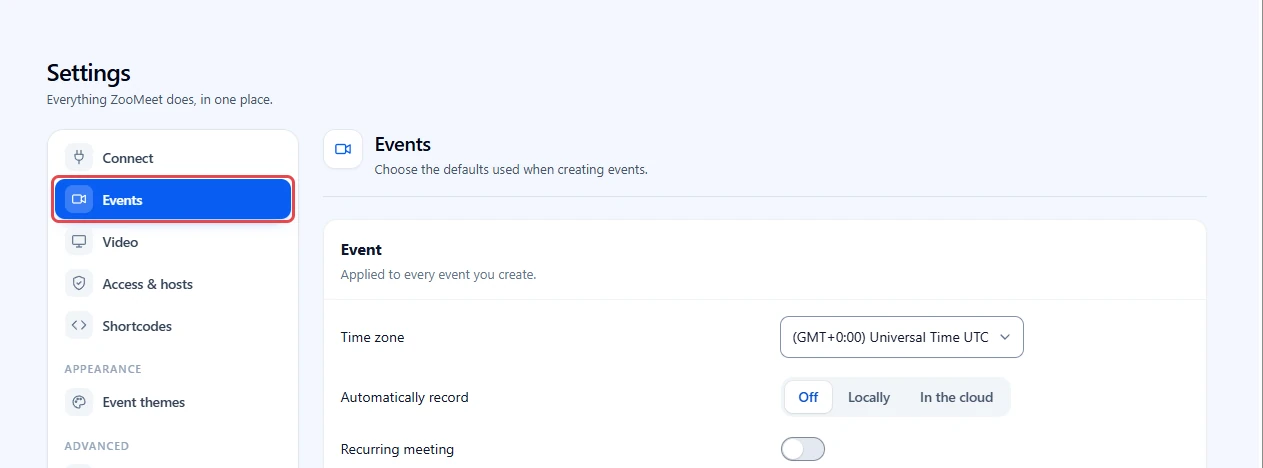
Let’s get started. Event defaults live in one section of the settings, split into three groups.
- In the WordPress admin menu, go to ZooMeet > Settings.
- In the settings menu on the left, click Events.
- Check that the heading reads Events, with the line Choose the defaults used when creating events.
Tip: You can open this section directly by adding #/meetings to your ZooMeet settings address.
https://brightpath.example.com/wp-admin/admin.php?page=zmeet-settings#/meetings
Your actual URL may look different. Always copy it from your own ZooMeet settings.
Step 2: Set the Event defaults #
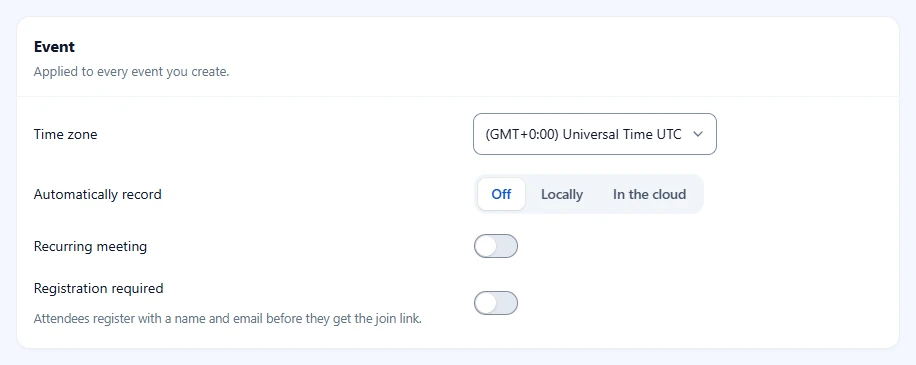
The Event group reads Applied to every event you create.
- Set Time zone to the zone most of your meetings happen in. The start time on the form is shown in this zone.
- Pick Automatically record: Off, Locally (on the host’s computer) or In the cloud (in Zoom’s cloud, on paid plans).
- Turn on Recurring meeting if new meetings should start as recurring meetings.
- Turn on Registration required if attendees should register with a name and email before they get the join link.
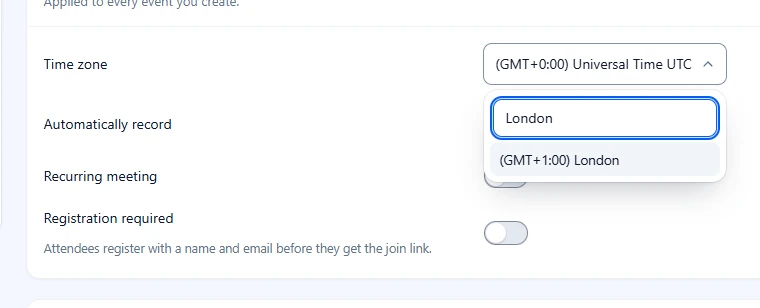
The time zone list is long, so it has a filter box.
- Click the Time zone field.
- Type a city in the filter box, for example
London. - Click the zone you want.
Step 3: Set the Joining defaults #
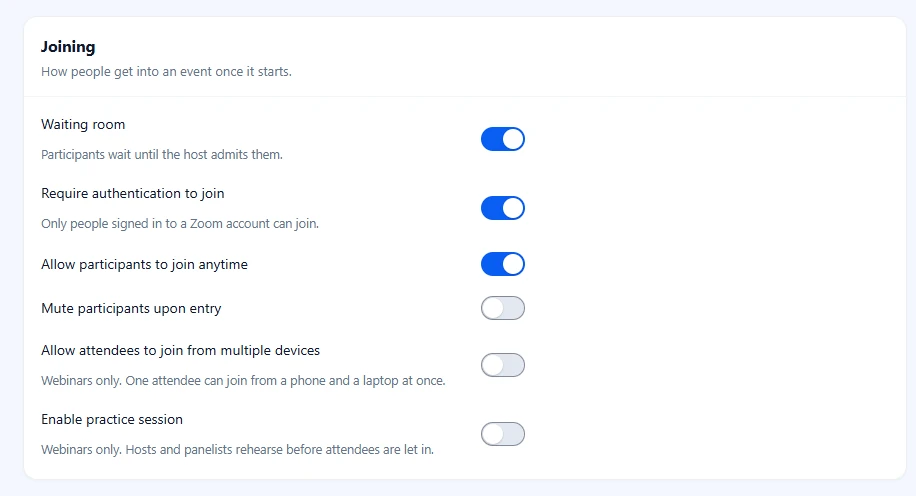
The Joining group reads How people get into an event once it starts.
- Leave Waiting room on if attendees should wait until you let them in.
- Turn on Require authentication to join only if every attendee has a Zoom account. Only people signed in to Zoom can join, so guests without an account cannot.
- Turn on Allow participants to join anytime if attendees may join before you arrive.
- Turn on Mute participants upon entry for large sessions.
- Turn on Allow attendees to join from multiple devices if one person may join a webinar from a phone and a laptop at once. It applies to webinars only.
- Turn on Enable practice session if webinar hosts and panelists should rehearse before attendees are let in. It applies to webinars only.
Step 4: Set the Event page defaults #
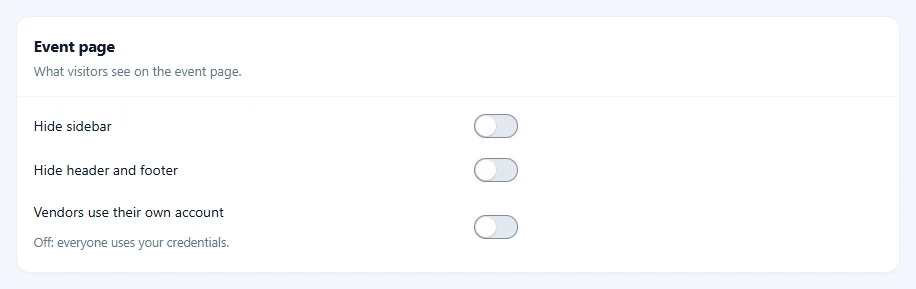
The Event page group reads What visitors see on the event page.
- Turn on Hide sidebar to remove the sidebar from event pages.
- Turn on Hide header and footer to remove your theme header and footer, so the page shows only the event.
- Leave Vendors use their own account off unless marketplace vendors should connect their own Zoom keys. Off, everyone uses your credentials.
Step 5: Set the Video defaults #
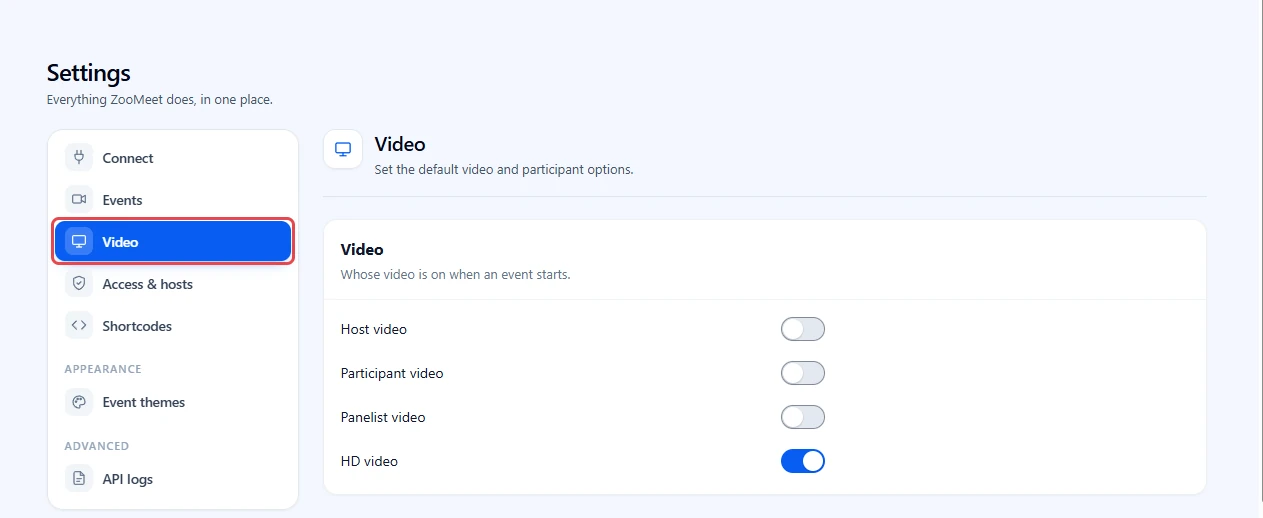
- In the settings menu, click Video.
- In the Video group, Whose video is on when an event starts., turn on the video you want on from the start: Host video, Participant video and, for webinars, Panelist video.
- Turn on HD video for webinars that need sharper video.
Step 6: Save your changes #
ZooMeet keeps nothing until you save, so you can try values and back out safely.
- Change a value. A bar appears at the bottom of the screen and counts your unsaved changes.
- Click the count, for example 1 unsaved change, to see what changed and its old and new value.
- Click Save changes to keep your defaults, or Discard to put everything back.
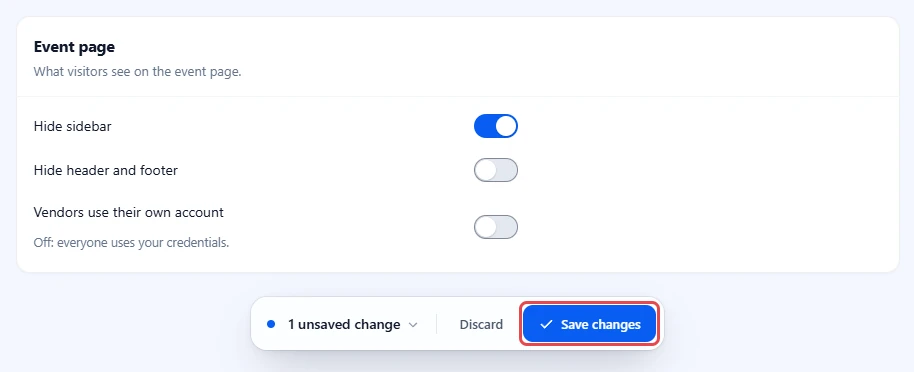
Note: The save bar covers every settings section. A change made on Events is still listed when you open Video, and saved together.
Benefits of setting meeting defaults #
- Most new meetings need only a name and a start time, because the rest of the form is already filled in.
- Your joining rules, such as the waiting room, are the same on every meeting unless you change them on purpose.
- Instructors who create meetings get your time zone and video rules, not a guess.
- A single meeting can still differ, and changing it there leaves the site defaults alone.
Troubleshooting #
“Connect Zoom to change these settings.” #
ZooMeet is not connected to Zoom, so the section is blurred and locked. The Connect item in the settings menu shows a Set up badge.
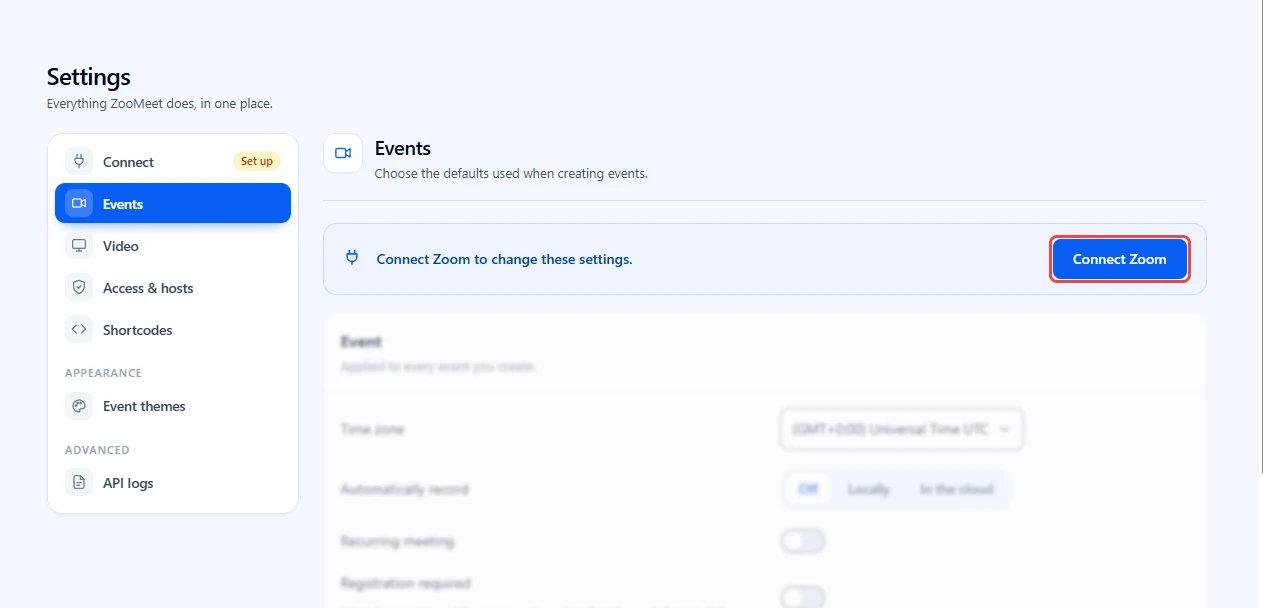
- Click Connect Zoom.
- Finish How to connect Zoom with ZooMeet using Server-to-Server OAuth.
A switch is greyed out with a lock icon #
The setting is part of ZooMeet Pro, and Pro is not active. Activate ZooMeet Pro and reload the page.
My existing meetings did not change after I saved #
Defaults only fill in the form for new meetings. Open the meeting from All Events, change the field and click Update meeting.
Guests cannot join and Zoom asks them to sign in #
Require authentication to join is on. Turn it off here for new meetings, and on the meeting’s Access and controls step for meetings you already made.
I cannot find the Joining or Event page switches #
Marketplace vendors see a shorter list, because site-wide rules belong to the site owner. Log in with an administrator account to see every group.
Frequently asked questions #
Do defaults change meetings I already created? #
No. Defaults only fill in the Add New Meeting form. Saved meetings keep their own settings.
Can I override a default on one meeting? #
Yes. Every default is also a field on the meeting form. Change it there, and only that meeting is affected.
Why is Automatically record set to In the cloud but nothing is recorded? #
Cloud recording needs a paid Zoom plan with cloud recording turned on in Zoom. On a free plan, pick Locally or Off.
You’re ready to set meeting defaults #
The Add New Meeting form now opens with your time zone, joining rules and video options. Next, create a meeting with them, or set up recurring meetings.


