- Before you begin
- Step 1: Open Access & hosts
- Step 2: Choose who can open meeting pages
- Step 3: Add default co-hosts
- Step 4: Check that your Google plan supports co-hosts
- Step 5: Save your defaults
- Step 6: Override access and co-hosts for one meeting (Access and controls)
- Step 7: Save the meeting
- What visitors see
- How GoodMeet decides who can open a meeting page
- Benefits of access rules and co-hosts
- Troubleshooting
- Frequently asked questions
- Security best practices
- You're ready to control access and co-hosts
Running a members-only class or an internal review? By default, anyone with the link can open a meeting’s page on your site. GoodMeet lets you limit meeting pages to logged-in users or to chosen WordPress roles, for the whole site or for one meeting.
You can also name co-hosts. GoodMeet adds them to the Google Meet call as co-hosts, so they skip the waiting room and get host controls. You set the site-wide defaults first, then override them on a single meeting where needed.
By the end of this guide, you will have:
- A site-wide rule for who can open meeting pages
- Default co-hosts added to every new meeting
- A check that your Google plan supports co-hosts
- One meeting with its own page access and co-hosts
- A clear idea of what blocked visitors see
Estimated setup time: 5 minutes. Nothing changes for existing meetings until you save new defaults.
Note: Requires GoodMeet Pro. Without Pro, all fields are locked. The Access & hosts screen shows one card, Host Settings are part of GoodMeet Pro, with an Upgrade to unlock button.
Before you begin #
Make sure you have:
- GoodMeet and GoodMeet Pro installed and activated
- An administrator account on your WordPress site
- A connected Google account. See How to connect your Google account to GoodMeet.
- For co-hosts: a paid Google Workspace plan that supports co-hosts (see Step 4)
Let’s get started.
Step 1: Open Access & hosts #
The site-wide defaults live in GoodMeet settings. Each meeting can override them later.
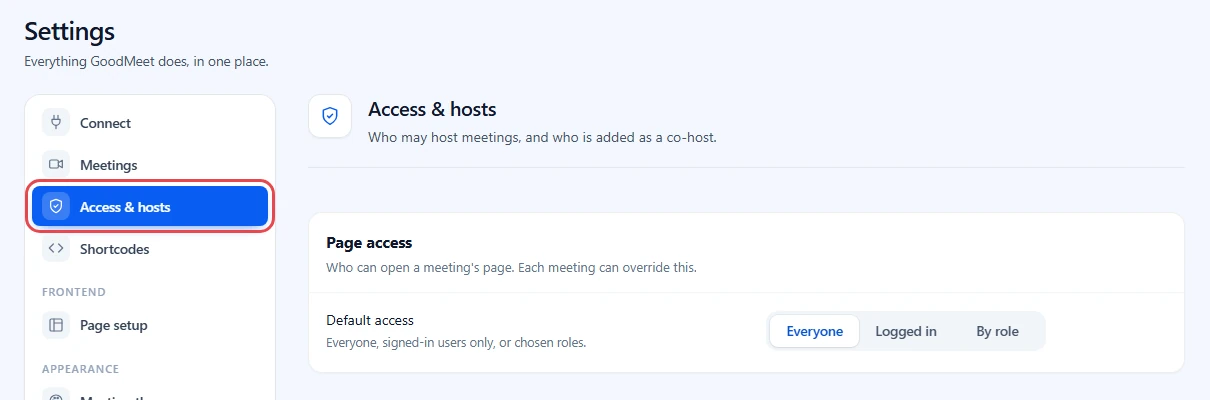
- In the WordPress admin menu, go to GoodMeet > Settings.
- In the settings menu on the left, click Access & hosts.
- Check that the screen shows two groups: Page access and Default co-hosts.
Step 2: Choose who can open meeting pages #
Default access applies to every meeting set to Site default, which is every meeting until you change it.
- Find Default access in the Page access group.
- Pick one option:
– Everyone: anyone with the link, logged in or not. This is the default.
– Logged in: any user with an account on your site.
– By role: only users with one of the roles you choose. - If you picked By role, click the Allowed roles field that appears and pick one or more roles, for example Subscriber and Customer.
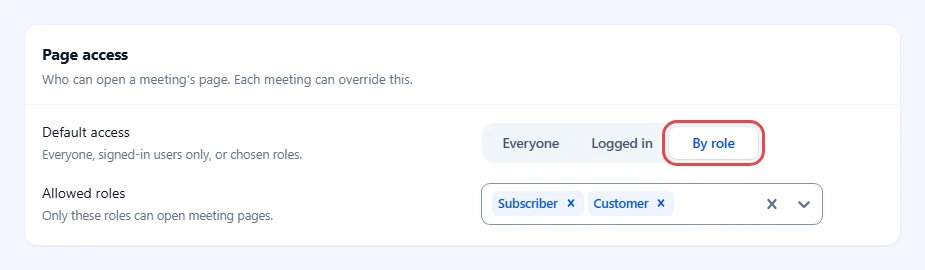
Important: By role with no roles picked blocks everyone except meeting hosts and administrators.
Tip: The meeting’s host and site administrators can always open a meeting page, whatever you pick here.
Step 3: Add default co-hosts #
Default co-hosts join every new meeting with host controls, which suits a teaching assistant or an operations lead who helps run every call.
- Find the Default co-hosts group.
- Click Co-host users, type a name and pick a WordPress user. GoodMeet uses the email address on their account.
- In Co-host emails, type any Google account email and press Enter. Repeat for each person.
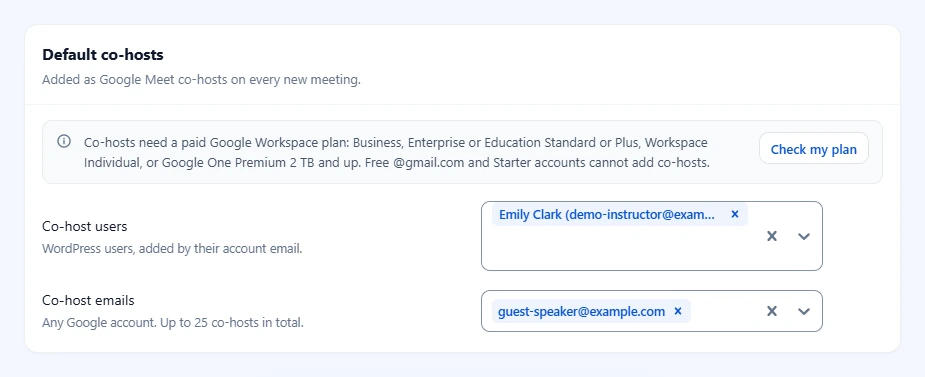
Note: A meeting can have up to 25 co-hosts in total. GoodMeet skips any address over that limit.
Step 4: Check that your Google plan supports co-hosts #
Google only allows co-hosts on some plans. Checking now saves you from wondering later why nobody got host controls.
- Read the note at the top of Default co-hosts. It lists the plans that support co-hosts and says: “Free @gmail.com and Starter accounts cannot add co-hosts.”
- Click Check my plan. GoodMeet asks Google and shows the result under the note.

The possible results are:
- Co-host management supported on this account. You are ready.
- Co-host management not supported on this Google account (requires a paid Google Workspace plan with co-host feature). Page access still works, but co-hosts are not added.
- Reconnect Google Meet to grant the new permission scope required for co-host management. Reconnect your Google account in Settings > Connect, then check again.
Step 5: Save your defaults #
Your changes take effect only after you save them.
- Look at the bar at the bottom of the screen. It shows the number of unsaved changes.
- Click Save changes. To undo your edits instead, click Discard.
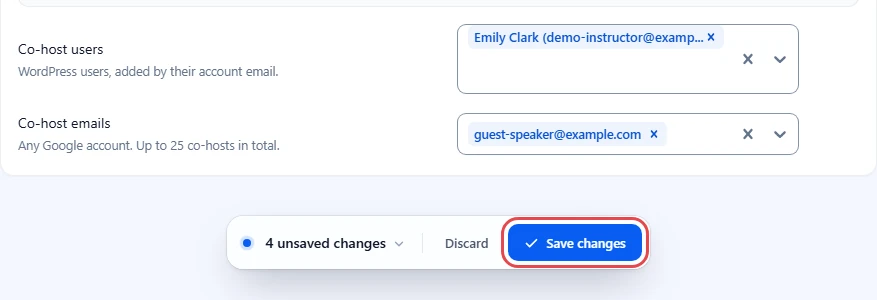
Note: Default co-hosts are added when a meeting is created or updated. Existing meetings pick up new defaults the next time you click Update meeting on them.
Step 6: Override access and co-hosts for one meeting (Access and controls) #
Some meetings need different rules from the rest of the site, such as a staff-only review on a public site.
- Go to GoodMeet > All Meetings and edit a meeting, or click Add new.
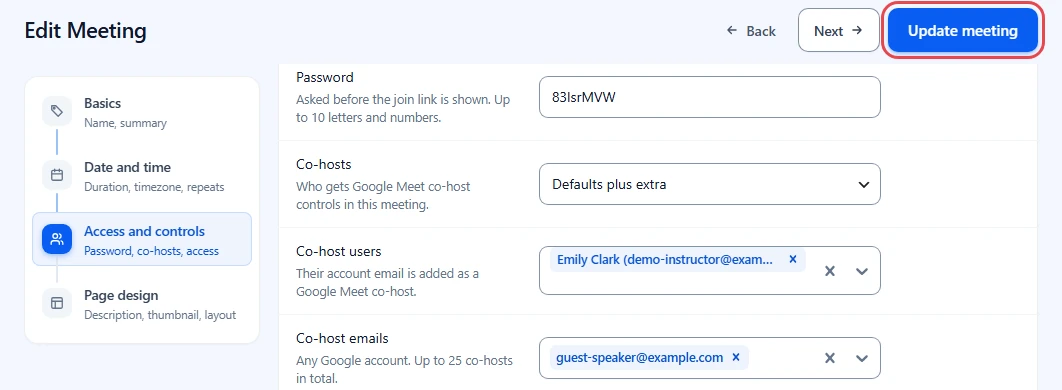
- In the steps on the left, click Access and controls. The step heading reads Who can join?
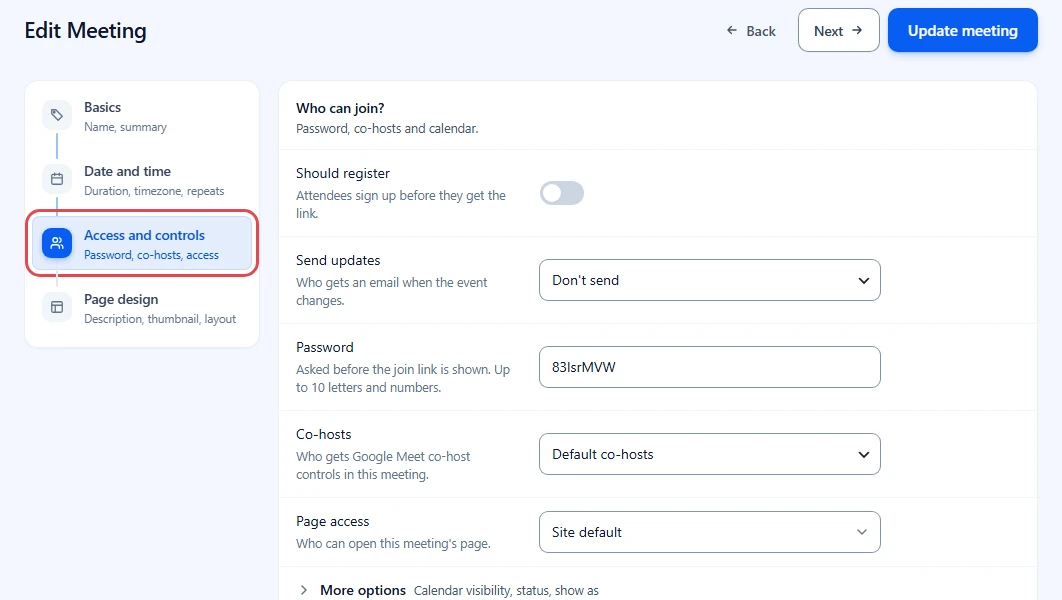
Set page access for this meeting #
- Click the Page access field. Its hint reads Who can open this meeting’s page.
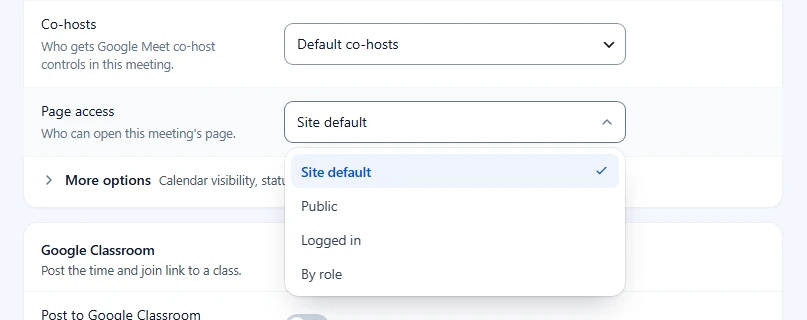
- Pick an option:
– Site default: follow Default access from Step 2. This is the default.
– Public: anyone with the link.
– Logged in: any logged-in user.
– By role: only the roles you pick.
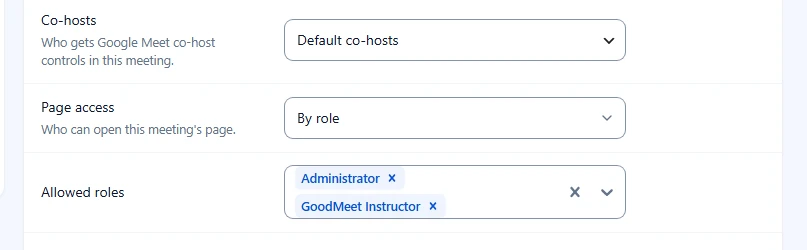
- If you picked By role, pick roles in the Allowed roles field that appears. This list replaces the site’s roles for this meeting.
Set co-hosts for this meeting #
- Click the Co-hosts field. Its hint reads Who gets Google Meet co-host controls in this meeting.
- Pick an option:
– Default co-hosts: use the people from Step 3.
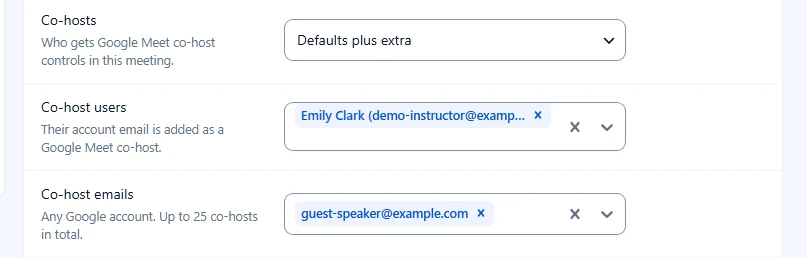
– Defaults plus extra: the defaults, plus people you add here.
– Only these: only the people you add here. The defaults are left out. - For the last two options, add people in Co-host users and Co-host emails, the same way as in Step 3.
Step 7: Save the meeting #
Saving applies the page access rule on your site and sends the co-hosts to Google.
- Click Update meeting at the top right. For a new meeting, click Create meeting.
- Wait for the confirmation message. GoodMeet saves the page access rule, then adds the co-hosts to the Google Meet call.
What visitors see #
A visitor who is not allowed to open the meeting page never sees the meeting details or the join button. They see a short message inside your theme instead.
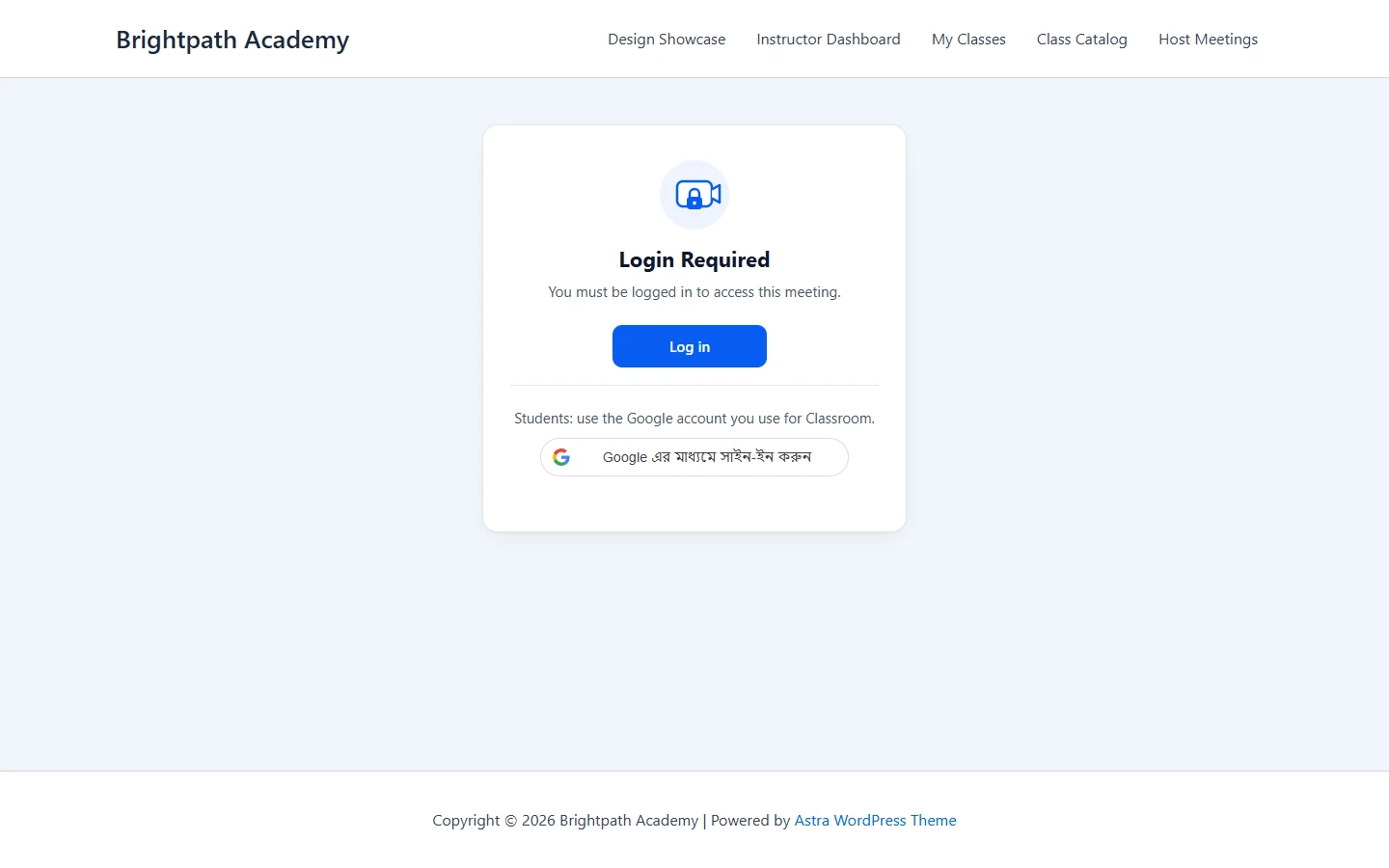
When the rule is Logged in or By role and the visitor is logged out, the page shows Login Required with a Log in button. After logging in, they come back to the same meeting.
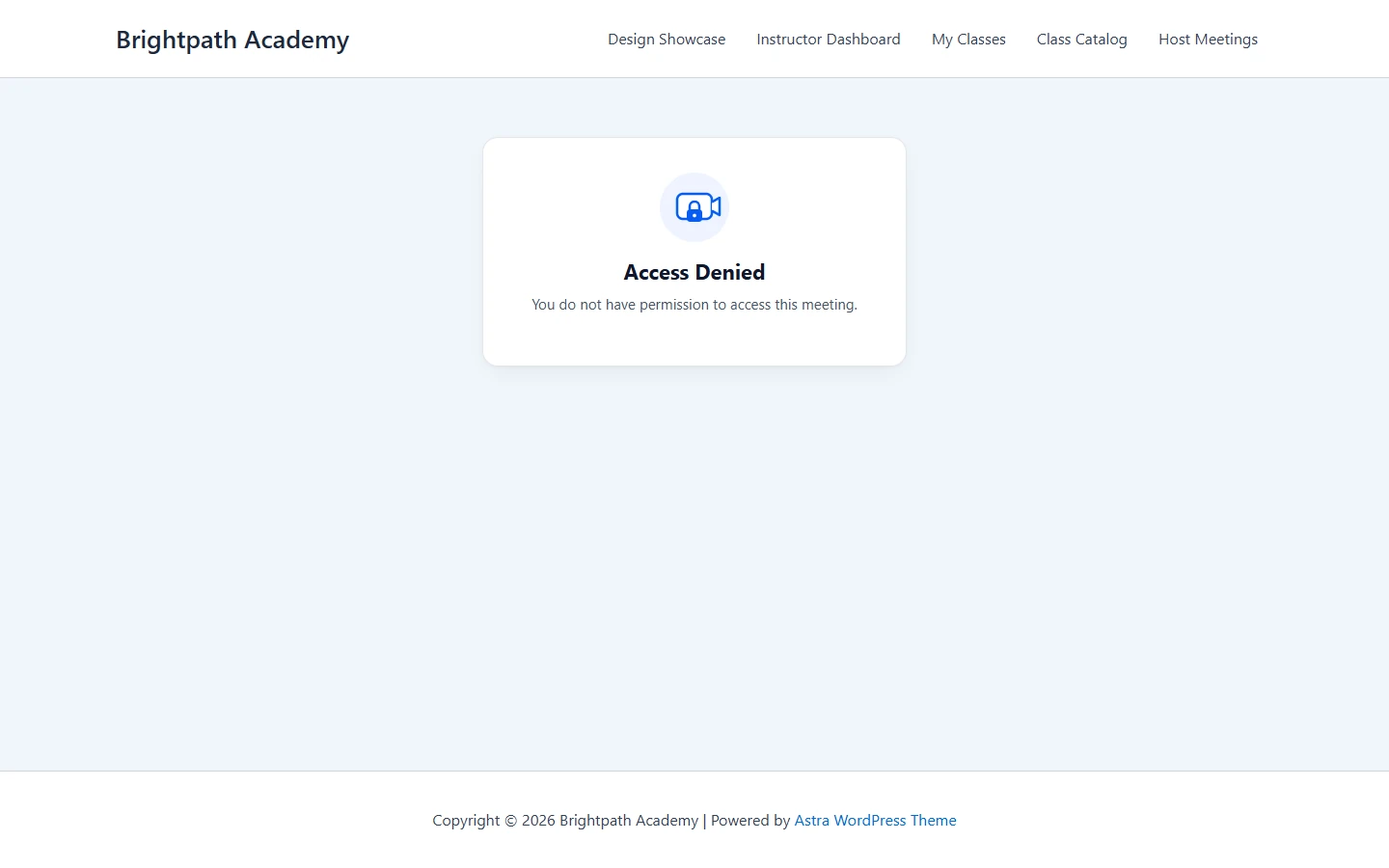
When a logged-in user does not have an allowed role, the page shows Access Denied and You do not have permission to access this meeting.
How GoodMeet decides who can open a meeting page #
GoodMeet checks these rules in order:
- The meeting’s host can always open it.
- Site administrators can always open it.
- If the meeting’s Page access is Site default, GoodMeet uses Default access from settings. Otherwise it uses the meeting’s own choice.
- Logged in and By role send logged-out visitors to Login Required. By role sends logged-in users without a listed role to Access Denied.
Note: Meetings linked to an LMS course or a Google Classroom class can be limited further to that course’s or class’s students. Those rules only narrow access; they never open a page that Page access blocks. See How to run Google Classroom classes from WordPress with GoodMeet.
Benefits of access rules and co-hosts #
- Members-only pages: Logged in and By role close the meeting page to everyone else.
- One rule, with exceptions: Default access covers every meeting set to Site default, and a staff-only meeting can still set its own roles.
- Help running the call: Co-hosts skip the waiting room and can admit, mute and remove participants.
- No dead ends: Logged-out visitors get Login Required with a Log in button and return to the same meeting afterwards.
Troubleshooting #
Visitors still open the meeting page without logging in #
The meeting’s own Page access wins over the site default.
Check that:
- The meeting’s Page access is not set to Public. Set it to Site default or Logged in and click Update meeting.
- Default access in Access & hosts is not set to Everyone, if the meeting follows the site default.
- You test in a private window. Administrators and the host always get in.
I set By role, and now nobody can open the page #
The visitors’ role is not in the list, or no role is picked at all.
Check that:
- Allowed roles lists the roles your visitors have.
- You edited the right list. A meeting’s own Allowed roles replaces the site’s list for that meeting.
Co-hosts were not added to the Google Meet call #
The connected Google account cannot add co-hosts, or it was connected before co-host permissions existed.
- Click Check my plan in Access & hosts.
- If it asks you to reconnect, reconnect in Settings > Connect.
- Open the meeting and click Update meeting.
New default co-hosts are missing from older meetings #
Co-hosts are added when a meeting is created or updated, not when you save settings.
- Open each older meeting.
- Click Update meeting.
A person I removed is still a co-host #
GoodMeet removes co-hosts that are no longer listed only while at least one co-host is still listed for that meeting.
- Remove the person in Google Meet or Google Calendar directly, or
- Keep at least one co-host listed and click Update meeting.
The Access & hosts fields are greyed out #
GoodMeet Pro is not active. Activate GoodMeet Pro. Clicking a locked field opens the upgrade dialog.
Frequently asked questions #
Do restricted meetings still appear in Google Calendar? #
Yes. Page access only controls the meeting page on your site. Calendar invitations and the Google Meet link follow Google’s own rules.
Can a meeting host be locked out of their own meeting? #
No. The host and site administrators always pass the check, whatever the rule says.
Do co-hosts need an account on my site? #
No. Use Co-host emails for anyone with a Google account. Use Co-host users for people who already have a site account.
Is “Everyone” in settings the same as “Public” on a meeting? #
Yes. Both let anyone with the link open the page.
Does a free @gmail.com account support co-hosts? #
No. Co-hosts need a paid Google Workspace plan. Page access works with any Google account.
Security best practices #
- Start strict. Use Logged in or By role as the site default, and set Public only on meetings meant for everyone.
- Remember that page access protects the meeting’s own page. If you embed a meeting on another page with a shortcode, limit access to that page too. See How to show meetings on any page with GoodMeet shortcodes.
- Anyone who has the raw Google Meet link can still knock to join. Share the meeting page, not the Meet link, and let the host admit people.
- Give co-host controls only to people you trust. Co-hosts can admit, mute and remove participants.
- Review Default co-hosts when people leave your team, then click Update meeting on upcoming meetings so Google gets the new list.
- Test every rule in a private window as a logged-out visitor and as a user with each role.
You’re ready to control access and co-hosts #
Your meeting pages now open only for the roles you picked, and your co-hosts get host controls in Google Meet. Next, put meetings on your own pages and set up the pages your instructors and students use.


