- Before you begin
- Step 1: Start a new meeting (Basics)
- Step 2: Turn on Recurring meeting (Date and time)
- Step 3: Choose how often it repeats
- Step 4: Choose when the series ends
- Step 5: Pick the Cadence theme and create the meeting (Page design)
- Step 6: Check the meeting page
- How a series looks in All Meetings
- Benefits of recurring meetings in GoodMeet
- Troubleshooting
- Frequently asked questions
- You're ready to run recurring meetings
Do you run the same meeting every week, such as office hours or a standup? Creating each session by hand gets slow, and one wrong date confuses everyone. With Recurring meeting, you create the meeting once and GoodMeet repeats it on the schedule you choose.
GoodMeet creates one repeating Google Calendar event with a single Meet link for every session. The meeting page always shows the next session and counts down to it, so your attendees never need a new link.
By the end of this guide, you will have:
- A meeting that repeats daily, weekly, monthly or every year
- A series that ends on a date, after a number of sessions, or never
- One Google Meet link that works for every session
- A meeting page that always shows the next session
- A clear view of the series in All Meetings
Estimated setup time: 5 minutes. Recurring meeting is a switch on the meeting, so you can turn it off again later.
Note: Requires GoodMeet Pro. Without Pro, the Recurring meeting switch shows a lock icon and cannot be turned on.
Before you begin #
Make sure you have:
- GoodMeet and GoodMeet Pro installed and activated
- A connected Google account. See How to connect your Google account to GoodMeet.
- An administrator account, or an instructor account with front-end meeting access
Let’s get started.
Step 1: Start a new meeting (Basics) #
A recurring meeting starts like any other meeting. If you have not created one before, How to create your first Google Meet meeting covers every field.
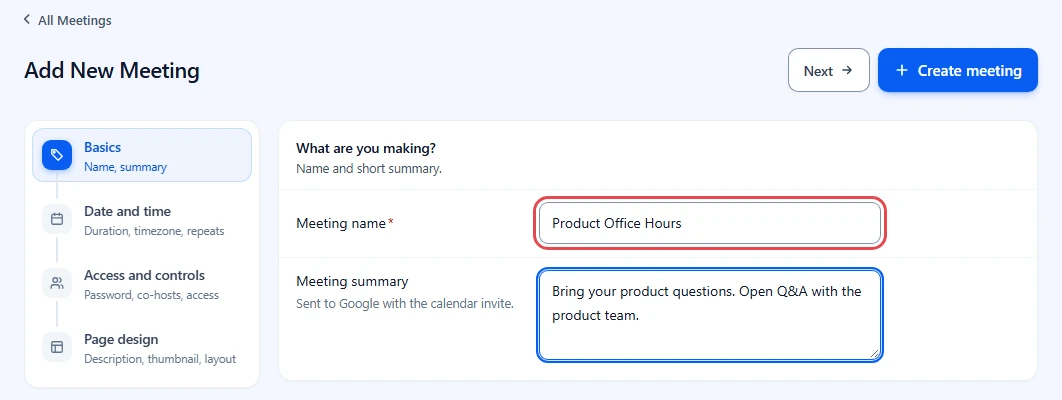
- In the WordPress admin menu, go to GoodMeet > All Meetings and click Add new.
- In Basics, type a Meeting name, for example Product Office Hours.
- Add a Meeting summary if you like. Google sends it with the calendar invite.
Step 2: Turn on Recurring meeting (Date and time) #
The start date is the first session. Every later session follows the rule you set in the next steps.
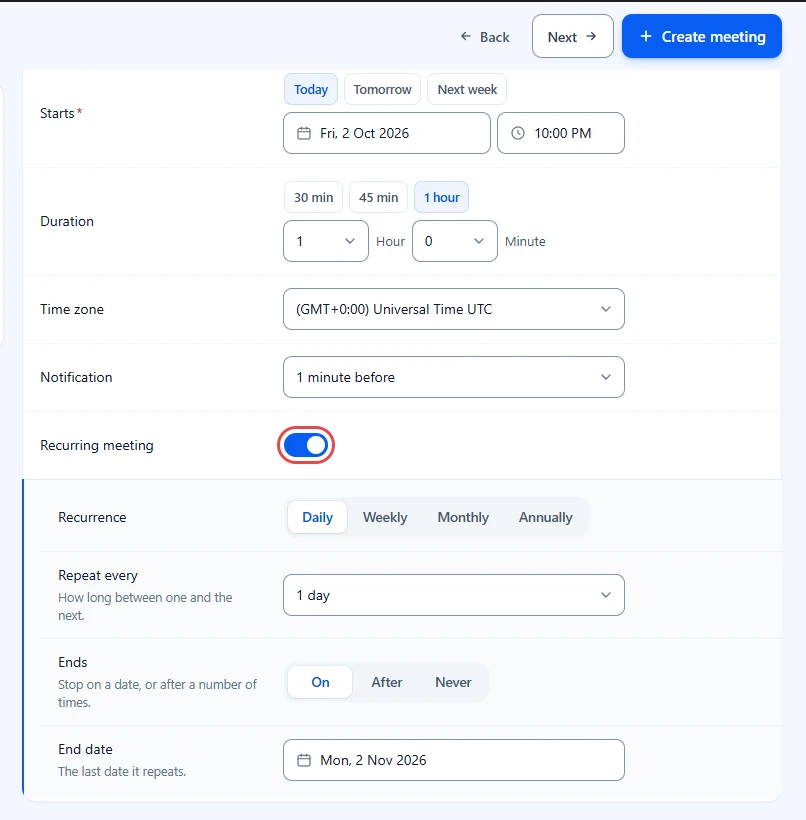
- Click Date and time in the steps on the left. The heading reads When is it?
- Set Starts to the date and time of the first session.
- Turn on Recurring meeting. The repeat options open below it.
Step 3: Choose how often it repeats #
Pick a Recurrence, then set Repeat every, the gap between one session and the next. Repeat every shows its unit, so it reads 1 day, 2 weeks or 3 months.
Daily #
- Under Recurrence, click Daily.
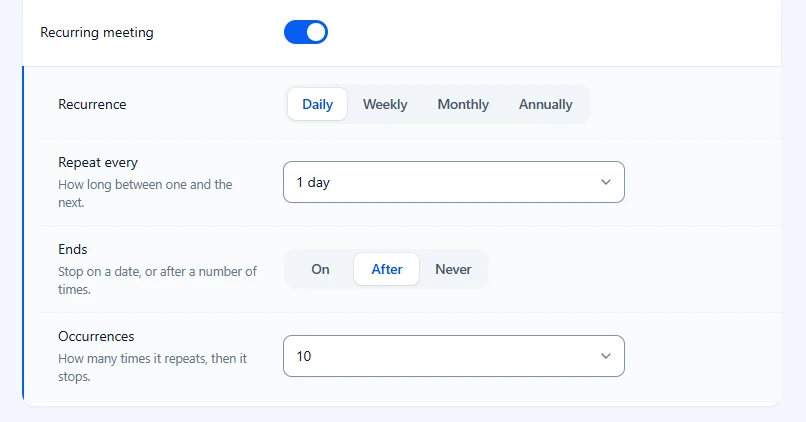
- Set Repeat every to 1 day for every day, or 2 days for every other day. You can pick up to 31 days.
Weekly #
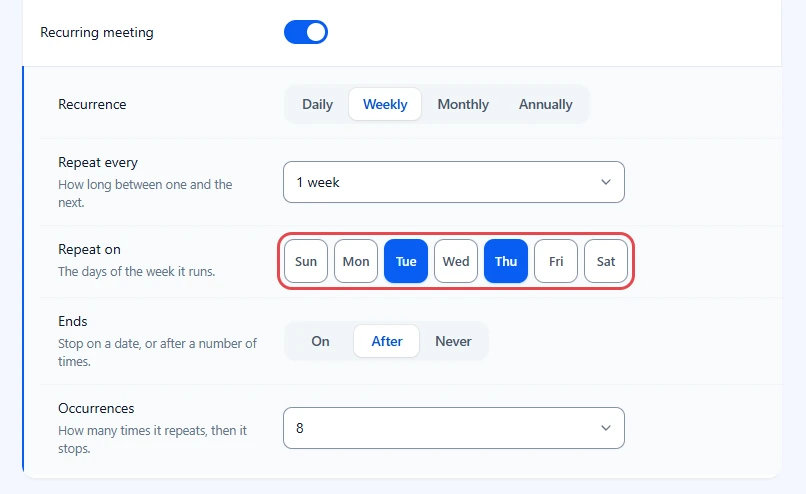
- Under Recurrence, click Weekly.
- Under Repeat on, click each day the meeting runs, for example Tue and Thu.
- Set Repeat every to 1 week, or 2 weeks for every other week. You can pick up to 12 weeks.
Monthly #
- Under Recurrence, click Monthly.
- Under Monthly on, click Day to repeat on the same date as the start, such as the 6th of each month.
- Or click Weekdays, then choose Which week (First, Second, Third, Fourth or Last) and Which day, for example Tuesday.
- Set Repeat every, for example 1 month.
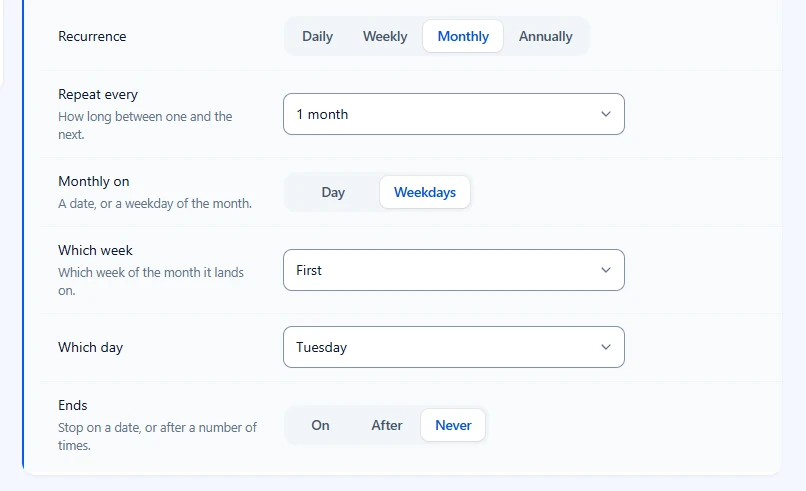
The meeting page spells the rule out for visitors, for example Monthly on the first Tuesday.
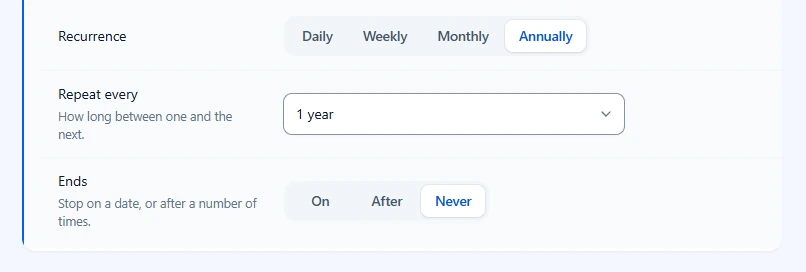
Annually #
- Under Recurrence, click Annually.
- Set Repeat every to 1 year, or 2 years for every other year.
The meeting repeats on the same month and day as the start date.
Step 4: Choose when the series ends #
A series without an end keeps filling your calendar, so decide up front how long it runs. Under Ends, pick one option.
- Click On to stop on a date. Pick the End date. Its hint reads The last date it repeats.
- Or click After to stop after a set number of sessions, then set Occurrences from 1 to 20.
- Or click Never to keep it going until you change or delete the meeting.
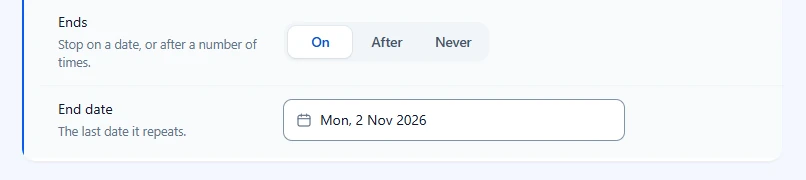
End date starts one month after the first session, and the date picker does not offer days before the start. If you later move Starts past the end date, GoodMeet moves the end date to one month after the new start.
The example in this guide uses Weekly on Tue and Thu, ending After 8 occurrences. That gives four weeks of office hours.
Step 5: Pick the Cadence theme and create the meeting (Page design) #
Any theme shows the repeat rule. Cadence is built for recurring meetings: the next session leads the page, with the rule beside it.
- Click Page design in the steps on the left.
- Set Meeting theme to Cadence.
- Click Create meeting at the top right.
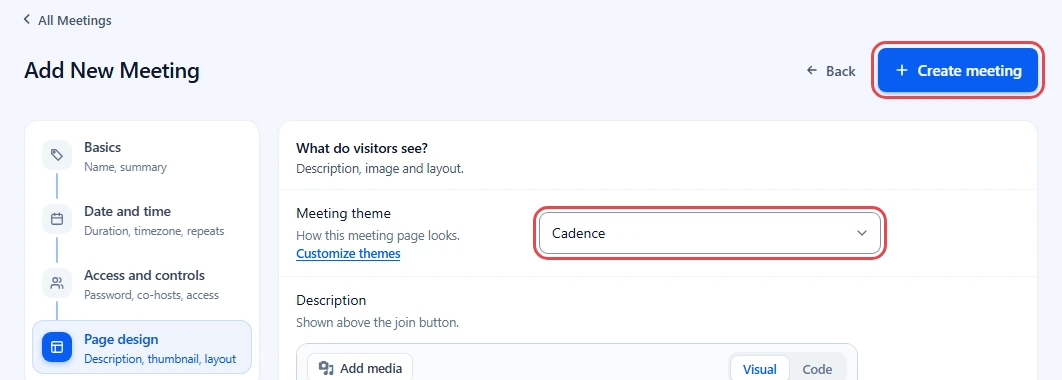
Note: Cadence requires GoodMeet Pro. Other themes show the rule in a Repeats row under the meeting details.
Step 6: Check the meeting page #
Open the meeting page in a private browser window to see it the way visitors do. Here is Daily Standup, a weekday meeting that uses Cadence.
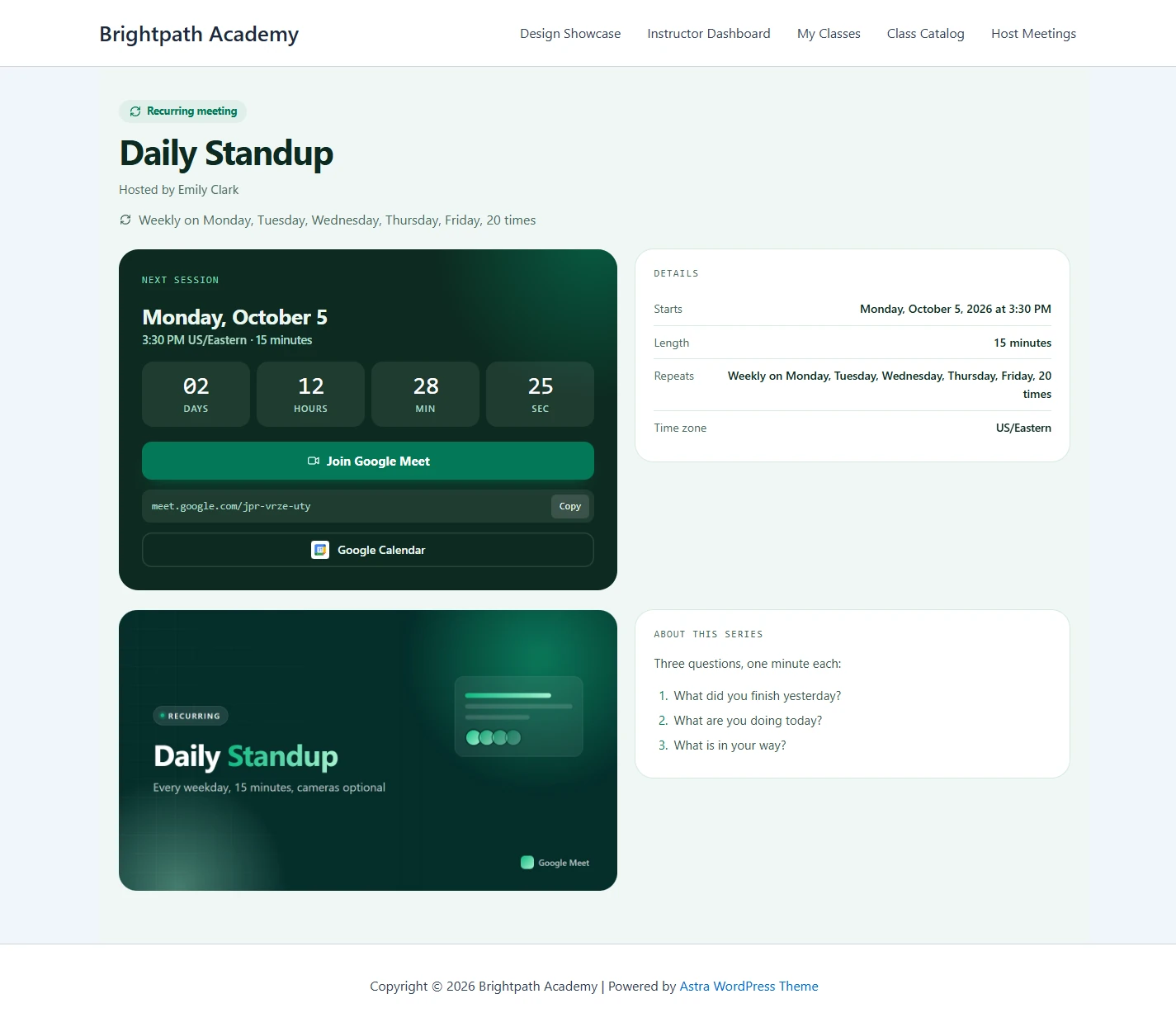
- Recurring meeting appears as a chip above the title.
- The repeat rule sits under the host name, for example Weekly on Monday, Tuesday, Wednesday, Thursday, Friday, 20 times.
- The Next session card shows the date and time of the coming session and counts down to it. When the series is over, it reads Last session.
- Details repeats the rule in the Repeats row.
- Your description shows under About this series.
After each session, the page moves on to the next date by itself. It reads the session list from Google Calendar, so you never edit dates by hand.
How a series looks in All Meetings #
In GoodMeet > All Meetings, a recurring meeting shows how often it repeats under its time: Repeats daily, Repeats weekly, Repeats monthly or Repeats yearly.
The time on the row is the session that is running now or coming next, not the first session. So a running series stays under Upcoming, sorted among your other meetings. It does not drop into Past once the first session is over.
Benefits of recurring meetings in GoodMeet #
- One meeting, many sessions: You set the schedule once instead of creating eight separate meetings for a month of office hours.
- The link never changes: Every session uses the same Meet link and the same meeting page, so attendees can bookmark it.
- Next date without edits: The page counts down to the next session and moves on by itself after each one.
- Rule in plain words: Visitors read the schedule as text, such as Monthly on the first Tuesday.
Troubleshooting #
The Recurring meeting switch is locked #
Recurring meeting requires GoodMeet Pro.
- Activate GoodMeet Pro.
- Reload the meeting form.
“The end date is before the first session. Pick a day on or after the start date.” #
Ends is set to On, and the End date falls before the first session, so Google would never repeat it. GoodMeet stops you before it sends anything to Google.
- Go to Date and time.
- Pick an End date on or after the start date, or switch Ends to After or Never.
- Click Create meeting or Update meeting again.
The series stops sooner than expected #
The series ends on the first limit it reaches.
Check that:
- Occurrences is high enough. It counts sessions, not weeks, so Tue and Thu for four weeks needs 8.
- The End date is the date of the last session you want.
The meeting was not created #
Creating a meeting also creates a Google Calendar event, and Google refused the request. The notice on the form names the reason. Nothing was saved, so your answers are still on the form.
- If the notice offers Connect Google Meet or Reconnect Google Meet, click it and finish the connection.
- Click Create meeting again.
Frequently asked questions #
Does each session get its own Meet link? #
No. A recurring meeting is one Google Calendar event with one Meet link. Every session uses the same link.
Can I make every new meeting recurring by default? #
Yes. Turn on Recurring meeting in Settings > Meetings. See How to set default meeting settings with GoodMeet.
Can I combine a recurring meeting with registration? #
Yes. Turn on Should register in Access and controls. One registration covers every session. See How to require registration for a meeting with GoodMeet.
What happens if GoodMeet Pro is turned off later? #
The Google Calendar event keeps repeating, because the rule lives in Google. The meeting page stops showing the repeat rule until Pro is active again.
You’re ready to run recurring meetings #
Your meeting now repeats on the rule you set, and its page shows the next session with the same Meet link. Next, ask people to sign up before they get the link, or set your defaults so new meetings start this way.


