How to Save WordPress Form Uploads to Google Drive (8 Form Plugins)

Every file your visitors upload through a WordPress form lands on your server by default. Resumes, client portfolios, support screenshots, product images. They accumulate fast and eat into your hosting storage.
Saving those uploads directly to Google Drive solves two problems at once. It keeps your server lean and puts files where your team can already find them, in an organized folder structure that matches your forms.
This guide covers how to send WordPress form file uploads to Google Drive for all eight major form plugins using a single plugin called DriveHub. Contact Form 7, WPForms, Gravity Forms, Ninja Forms, Fluent Forms, Formidable Forms, Elementor Forms, and MetForm are all supported.
Table of Contents
Why Save WordPress Form Uploads to Google Drive?
Keeping form uploads on your server works for low-traffic sites. But it creates real problems at scale.
- Server storage fills quickly with large files like PDFs, images, and videos
- Files are hard to share with team members who do not have WordPress admin access
- Organizing submissions by form, date, or submitter requires manual effort
- A server compromise exposes every uploaded file
Google Drive puts submitted files in organized folders, makes them shareable with anyone on your team, and stores them on Google’s infrastructure, completely separate from your WordPress server.
You can also backup your full WordPress site to Google Drive separately for complete offsite protection.
How DriveHub Connects Forms to Google Drive
DriveHub is a WordPress plugin that creates a direct connection between your site and Google Drive. For form uploads, it adds a Google Drive upload field to your form builder. When a visitor submits a file, it routes to the Google Drive folder you configured automatically. No Zapier or third-party automation service is required.
DriveHub supports all eight major WordPress form plugins from a single installation. You connect your Google account once and create separate upload modules for each form, each pointing to its own Google Drive folder.
One plugin, eight form integrations.
Contact Form 7, WPForms, Gravity Forms, Ninja Forms, Fluent Forms, Formidable Forms, Elementor Forms, and MetForm all connect through a single DriveHub installation. Set up one Google account and create separate modules for each form, each routing to its own Drive folder.
General Setup: DriveHub Installation and Module Configuration
These steps are the same for all eight form plugins. Complete them first, then follow the plugin-specific steps in the next section.
Step 1: Install DriveHub and Connect Google Drive
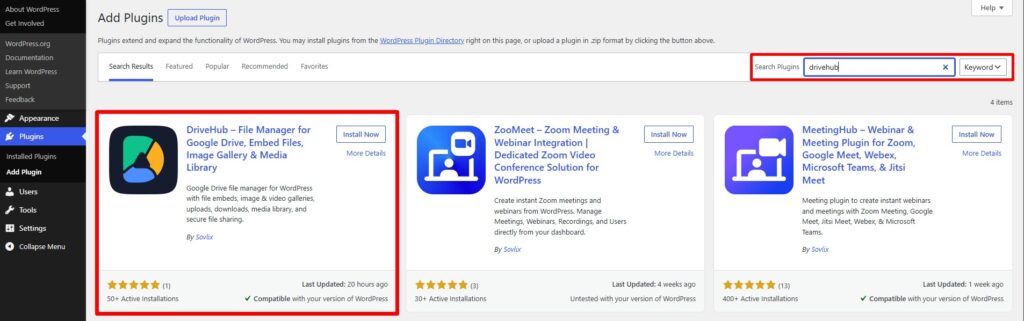
- Go to Plugins > Add New, search for DriveHub, click Install Now, then Activate.
- Open DriveHub settings and click Start Setup.
- Choose Whole Drive (full access) or Selected Folder (restricted to one folder). Click Continue.
- Sign in to your Google account and click Allow to grant DriveHub access.
Step 2: Enable Your Form Plugin Integration
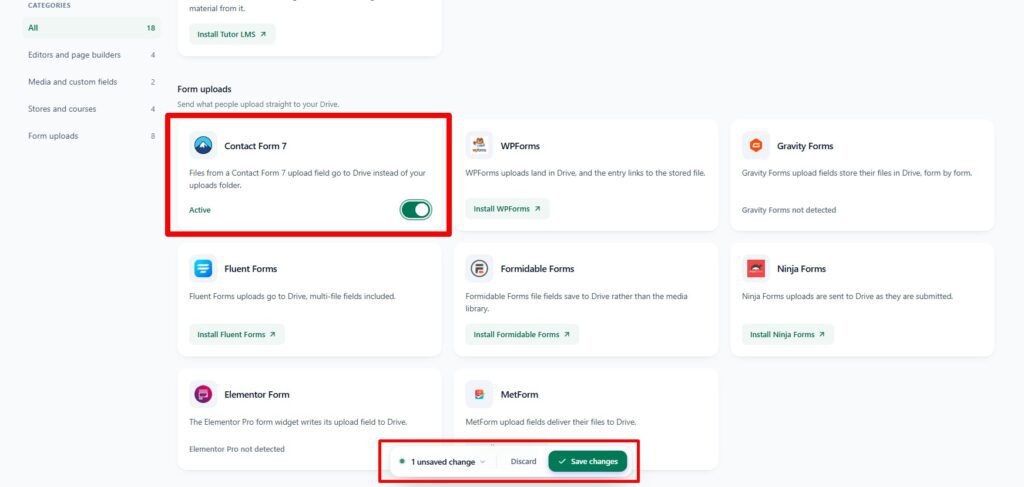
- Go to DriveHub Settings > Integrations.
- Find your form plugin in the list and toggle it on.
- Click Save Changes.
Step 3: Create a File Uploader Module
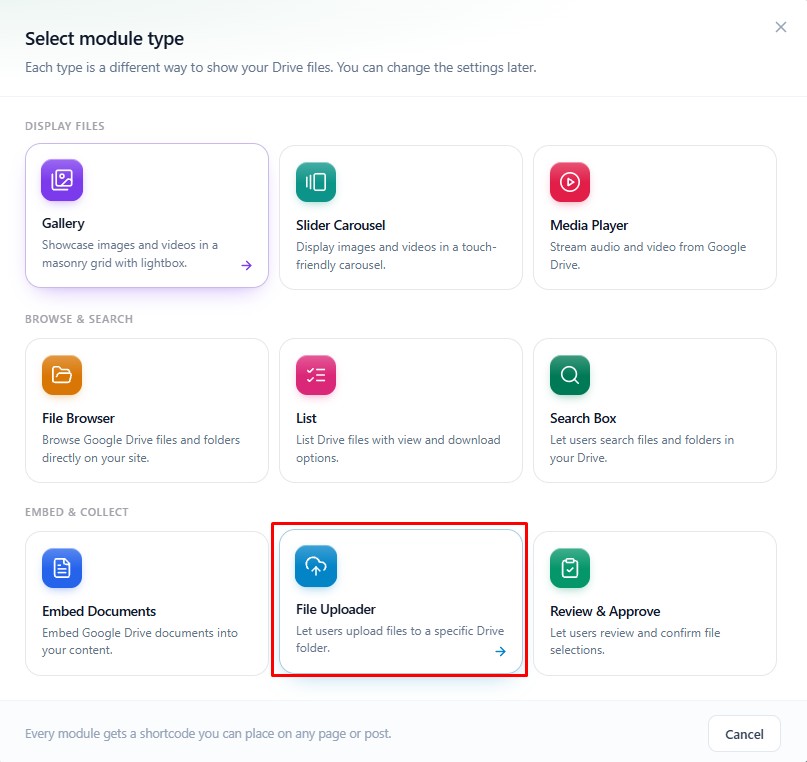
A module is a reusable upload configuration. Create one module per form so each form saves to its own Google Drive folder with its own file rules.
- Go to DriveHub and click Add New Module.
- Source tab: select the Google Drive folder where uploaded files should be saved.
- Filter tab: set allowed file types (e.g., jpg, png, pdf) and file size or quantity limits.
- Notifications tab: enable email alerts if you want to be notified on each upload.
- Permissions tab: choose whether uploads are open to everyone or restricted to logged-in users only.
- Save the module.
How to Add the Google Drive Upload Field to Each Form Plugin
Contact Form 7
After enabling the integration in DriveHub, a Google Drive Upload option appears in the Contact Form 7 field toolbar.
- Go to Contact Form 7 > Forms and edit or create a form.
- In the form editor, click the Google Drive Upload option in the toolbar.
- Select your DriveHub module from the dropdown.
- Copy the generated tag and paste it into your form template where the upload field should appear.
- Save the form and embed it on a page using its shortcode.
WPForms
WPForms integrates with DriveHub through the same Google Drive field system used by the other form plugins.
- Go to WPForms > All Forms and create or edit a form.
- In the form builder, locate the Google Drive field in the field library and drag it into your form.
- Click the field to open its settings and select your DriveHub module.
- Add any other fields you need (name, email, message), then save the form.
- Embed the form on any page using the generated shortcode.
Gravity Forms
Gravity Forms connects to Google Drive through DriveHub without requiring Zapier or any external automation service.
- Open Gravity Forms and create or edit a form.
- In the form editor, find the Google Drive upload field type in the field panel.
- Add it to your form and open the field settings.
- Select your DriveHub module from the module dropdown.
- Save the form and embed it on a page. Submitted files route directly to Google Drive.
Ninja Forms
Ninja Forms uses a drag-and-drop builder. The Google Drive upload field appears in the Common Fields section after enabling the DriveHub integration.
- Go to Ninja Forms > Dashboard and create or edit a form.
- In the builder, open the Common Fields panel on the left.
- Find the Google Drive field and drag it into your form layout.
- Click the field to open its settings. Select your DriveHub module.
- Add any other required fields (name, email), then publish the form.
- Embed the form shortcode on any page.
Fluent Forms
Fluent Forms is known for being lightweight and fast. The Google Drive upload field is available from the General Fields tab in the form editor.
- Open Fluent Forms > All Forms and create or edit a form.
- In the form editor, click the General Fields tab in the left panel.
- Click the Google Drive button to add it to your form.
- Open the field’s Advanced Options and enter your Module ID from the DriveHub module list.
- Add remaining fields, then publish the form using the generated shortcode.
Formidable Forms
Formidable Forms is suited to complex data forms and applications. The Google Drive upload field appears in the Add Fields panel after enabling the integration.
- Go to Formidable > Forms and create or edit a form.
- In the form builder, scroll the Add Fields panel on the left.
- Click the Google Drive button to add it to your form.
- In the Field Options panel, select your DriveHub module.
- Save the form and embed it on any page using the shortcode.
Elementor Forms
Elementor Forms is the native form widget built into Elementor Pro. After enabling the integration in DriveHub, the Google Drive upload field appears as a form field option inside the Elementor form widget.
- Open a page in Elementor and add a Form widget, or edit an existing one.
- Inside the Form widget, go to the Fields section and add a new field.
- Set the field type to Google Drive Upload.
- In the field settings, select your DriveHub module.
- Add your other form fields (name, email, message), update the page, and publish.
MetForm
MetForm is an Elementor-based form plugin. After enabling the DriveHub integration, the Google Drive field appears as a MetForm widget in the Elementor panel.
- Open a page in Elementor and add a MetForm widget, or edit an existing MetForm form.
- In the Elementor widget panel, search for the Google Drive widget and drag it into the form area.
- Click the widget and open its Contents settings. Select your DriveHub module.
- Add remaining form fields as Elementor widgets.
- Publish the page. File submissions from this form save to your chosen Google Drive folder.
All 8 Form Plugins at a Glance
| Form Plugin | DriveHub | Method | Free | Best For |
| Contact Form 7 | Yes | DriveHub direct | Yes | Simple contact and inquiry forms |
| WPForms | Yes | DriveHub direct | Yes | Beginner-friendly form builders |
| Gravity Forms | Yes | DriveHub direct | Yes | Advanced multi-step workflows |
| Fluent Forms | Yes | DriveHub direct | Yes | Fast, performance-focused sites |
| Formidable Forms | Yes | DriveHub direct | Yes | Complex data and application forms |
| Ninja Forms | Yes | DriveHub direct | Yes | Drag-and-drop form builders |
| Elementor Forms | Yes | DriveHub direct | Yes | Elementor page builder users |
| MetForm | Yes | DriveHub direct | Yes | Elementor-based form widgets |
Every major WordPress form plugin connects to Google Drive through DriveHub using the same process: enable the integration, create a module, and add the Google Drive field to your form. No Zapier account or third-party service is needed.
Where Do Uploaded Files Go?
When a visitor submits a file through a DriveHub-connected form, the file is uploaded through WordPress and saved to the Google Drive folder you set in the module Source settings. You do not need to move or sync anything manually.
You can create separate modules for different forms, each pointing to a different Google Drive folder. For example:
- Job Application Form module: saves to a Resumes folder in Google Drive
- Client Upload Form module: saves to a Client Files folder
- Support Ticket Form module: saves to a Support Attachments folder
Anyone with access to those Google Drive folders can view, download, or share the submitted files immediately, without needing WordPress admin access.
If you also want visitors to browse or download files from a Google Drive folder on your site, see how to embed a Google Drive folder in WordPress.
Troubleshooting Form Upload Issues
Files Are Not Appearing in Google Drive After Submission
First, confirm the integration is enabled for your form plugin under DriveHub Settings > Integrations. Then verify the correct module is selected in the form’s Google Drive field settings. If both look right, disconnect and reconnect your Google account in DriveHub setup to refresh the authorization token.
The Google Drive Field Does Not Appear in the Form Builder
This usually means the integration was not saved. Go to DriveHub Settings > Integrations, confirm the toggle for your form plugin is on, and click Save Changes again. Refresh the form editor page after saving.
Visitors See an Error When Uploading
Check the file type restrictions on your module’s Filter tab. If a visitor uploads a file type not listed in the allowed extensions (for example .zip when only .jpg and .pdf are listed), the upload is rejected. Add the missing type to the allowed list and save the module.
Google Drive Authentication Fails
If the Google authorization popup is blocked, allow popups for your WordPress admin URL in your browser settings. Then retry the authentication from the DriveHub setup screen. If the error persists, disconnect the account and complete the authorization flow again from the start.
Large Files Time Out During Upload
Very large files can hit PHP upload size limits before reaching Google Drive. Raise the upload_max_filesize and post_max_size values in your php.ini file, or ask your hosting provider to increase them. You can also set a maximum file size limit in the module’s Filter tab to prevent oversized submissions from reaching the upload step.
Frequently Asked Questions
Can I send form uploads to a shared Google Drive folder?
Yes. When connecting DriveHub, choose the Selected Folder option and pick a folder inside a shared drive your Google account has access to. This is useful for teams where multiple people need to access submitted files without logging into WordPress.
Can I use a different Google Drive folder for each form?
Yes. Create one DriveHub module per form and point each module to a different Google Drive folder. Each module can also have its own allowed file types and size limits. One plugin installation covers all forms.
Do I need Zapier to connect WordPress forms to Google Drive?
No. DriveHub creates a direct connection between your WordPress forms and Google Drive without any third-party automation service. Zapier is not needed for any of the eight supported form plugins.
Is DriveHub free?
DriveHub has a free plan available on WordPress.org that includes form upload integrations. A Pro version is available for additional features. The free version is sufficient to route form uploads to Google Drive for all supported plugins.
Will I be notified when someone uploads a file?
Yes. Open your DriveHub module settings and go to the Notifications tab. Enable email alerts and set your preferred notification email address. You will receive an email each time a file is submitted through any form connected to that module.
What file types can visitors upload?
You control this in each module’s Filter tab. Enter the file extensions you want to allow (for example: jpg, png, pdf, docx). You can also set a maximum file size and a maximum number of files per submission. Uploads that do not match the allowed types are rejected before they reach Google Drive.
Final Thoughts
Routing WordPress form file uploads to Google Drive takes less than 15 minutes to set up with DriveHub. All eight major form plugins use the same process: install DriveHub, enable the integration for your form plugin, create a module, and add the Google Drive field to your form.
Each form can save to its own Google Drive folder, with its own file type rules and email notifications. Your team gets instant access to submitted files without needing WordPress admin credentials.
For more ways to connect Google Drive with WordPress, read our guide on Google Drive WordPress integration, or see all Google Drive plugins for WordPress.



Dravid
Great Plugin