How to Embed Google Drive Folder in WordPress (3 Methods)

Quick Answer
You can embed a Google Drive folder in WordPress using a native iframe, a dedicated plugin, or DriveHub. The iframe method is free and fast but requires your folder to be set to public, which means anyone on the internet can view your files. DriveHub is the recommended method. It works with private folders, adds access controls, and creates an interactive file browser on your site. No coding needed.
WordPress powers 43% of all websites (W3Techs, 2024). Google Drive has over 15 GB of free storage with every Google account. Connecting the two saves server space and makes it easier to share files with your visitors.
The most common request is simple: show a folder of files on a WordPress page. It could be a resource library, a client file share, a media folder, or a collection of downloadable documents.
The problem is that most methods require you to make your folder public. That means anyone on the internet can view the files, not just your site visitors. This guide covers 3 ways to embed Google Drive folder in WordPress, including one method that keeps your files completely private.
For a broader overview, see our guide on how to use Google Drive files in WordPress.
Table of Contents
Why Embed Google Drive Folder in WordPress?
Embedding a Google Drive folder on a WordPress page is useful in several situations.
- Resource libraries. Share documentation, guides, templates, or downloads without uploading files to your server.
- Client portals. Give clients a dedicated page to access project files, invoices, or deliverables.
- Media collections. Display a folder of images, videos, or audio files as a gallery or player.
- Team file access. Let team members browse and download shared files from a familiar WordPress interface.
- Storage management. Files stay in Google Drive and never take up space on your WordPress hosting plan.
The key benefit is that files live in Google Drive, not on your server. Updates to the Drive folder appear on your site automatically, without editing any page.
Iframe Embed vs. Interactive File Browser: What Is the Difference?
Before picking a method, it helps to understand what you are actually building.
An iframe embed shows a static view of your folder inside a fixed-size box on your page. Visitors can see the files listed but cannot filter, search, or control what they see. The folder must be publicly accessible.
An interactive file browser works more like a mini file manager. Visitors can browse folders, search files, and download what they need. You can restrict access by user role or password. The files do not need to be publicly shared.
Most site owners who want to embed Google Drive folder in WordPress actually want the second option. The methods below cover both.
Method 1: Native Iframe Embed (No Plugin Required)
This method uses a Google Drive embed URL and a Custom HTML block in WordPress. It takes about 5 minutes and requires no plugins. The trade-off is that your folder must be set to publicly visible.
Step-by-Step: Embed Google Drive Folder via Iframe
- Open Google Drive and navigate to the folder you want to embed.
- Right-click the folder and click Share.
- Under “General access,” change the setting to “Anyone with the link” and set the role to “Viewer.” Click Done.
- Right-click the folder again and click “Get link.” Copy the link. It will look like this: https://drive.google.com/drive/folders/FOLDER_ID?usp=sharing
- Extract the FOLDER_ID from the URL. It is the long string of letters and numbers between /folders/ and ?usp=sharing.
- Build the embed URL: https://drive.google.com/embeddedfolderview?id=FOLDER_ID (replace FOLDER_ID with the ID you copied). Add #list for list view or #grid for grid view at the end.
- In WordPress, open the page or post where you want to embed the folder. Add a Custom HTML block.
- Paste this code: <iframe src=”https://drive.google.com/embeddedfolderview?id=FOLDER_ID#list” style=”width:100%; height:500px; border:none;”></iframe>
- Replace FOLDER_ID with your actual folder ID. Adjust the height value as needed. Update the page.
Important: Limitations of the iframe method
Your folder must be set to public for the embed to work. This means anyone on the internet can view the files, not just your WordPress visitors. There is no access control, no login gating, and no upload option. Some browsers and server configurations (CSP headers) can silently block iframes, which means some visitors may see a blank area instead of your folder.
Method 2: DriveHub Plugin (Recommended)
DriveHub is a Google Drive plugin for WordPress that creates an interactive file browser on your site. Unlike the iframe method, DriveHub works with private folders. You do not need to make your Google Drive files publicly accessible. Access is controlled through WordPress user roles, passwords, or login gates.
The plugin connects via OAuth, meaning you never share your Google account password. Files stay in Google Drive and are streamed to your visitors. Your hosting storage is not affected.
For a visual walkthrough of the setup, watch the DriveHub folder embedding tutorial on YouTube.
Step-by-Step: Embed Google Drive Folder with DriveHub
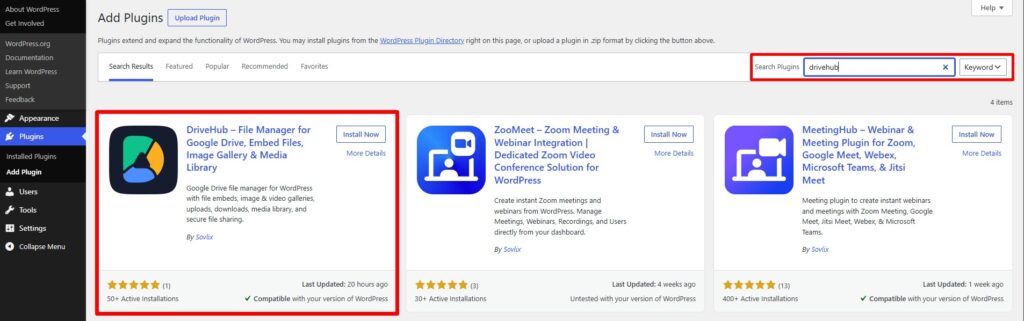
- Install DriveHub: Go to WordPress dashboard → Plugins → Add New. Search for “DriveHub” and install the free version from WordPress.org. Activate it.
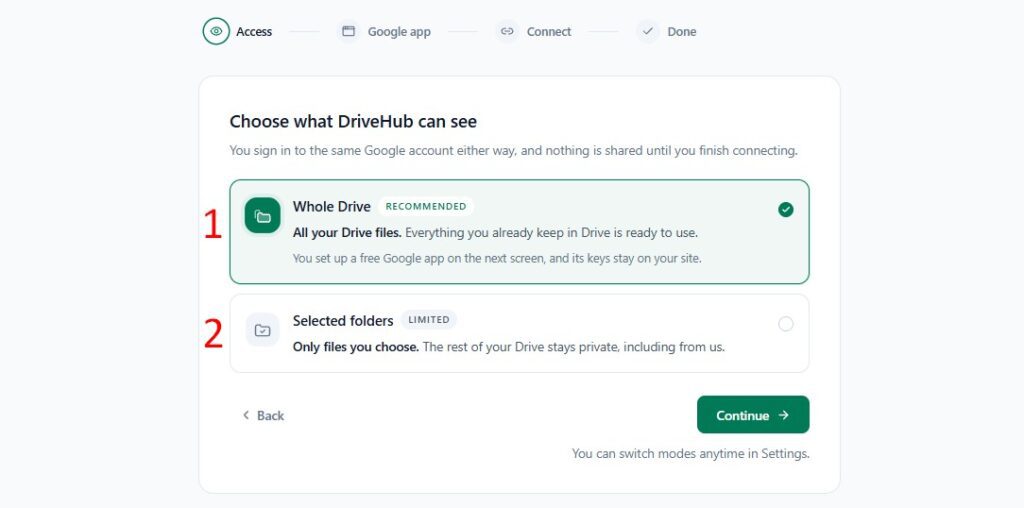
- Connect your Google account: Go to DriveHub in your dashboard. Click “Connect Google Drive” and follow the OAuth prompt. You will approve access without sharing your password. The connection is instant.
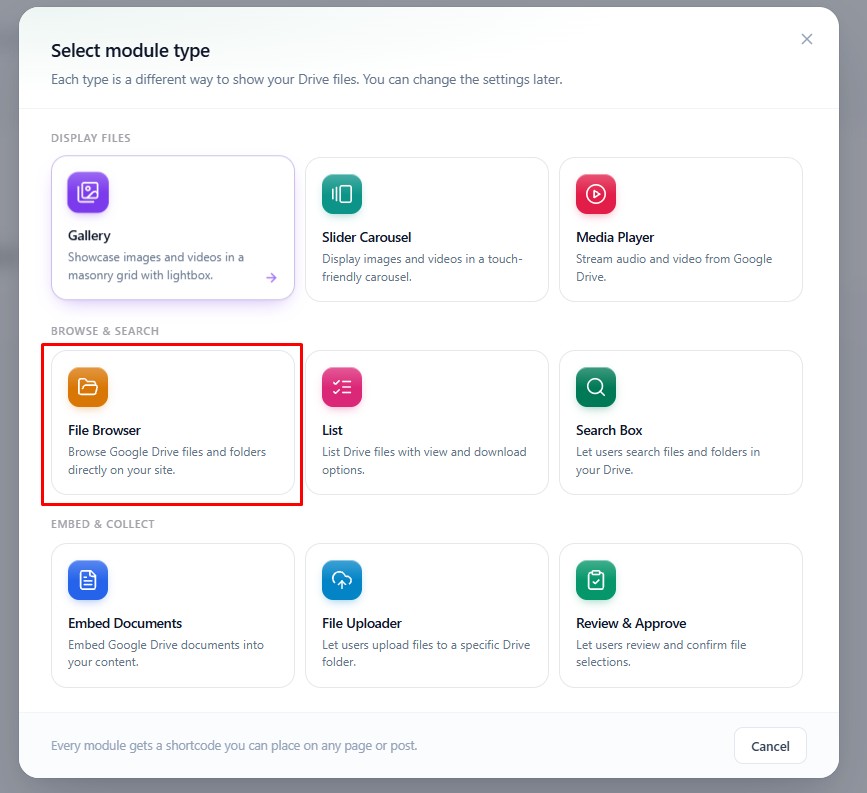
- Create a new module: Inside DriveHub, click “Add New Module.” Select “File Browser” as the module type. This creates the interactive folder view your visitors will see.
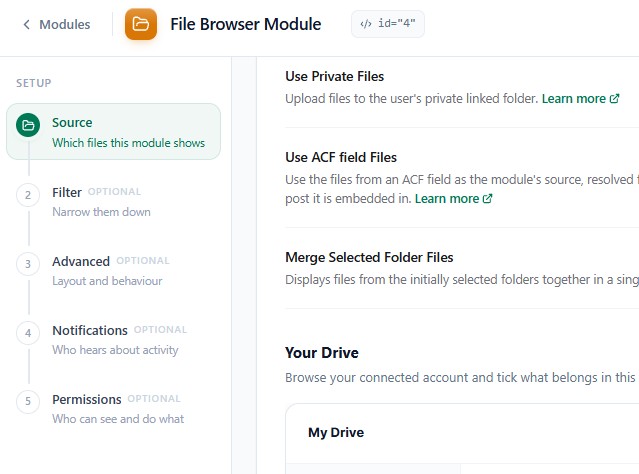
- Select your folder: A file picker will open showing your Google Drive. Navigate to the folder you want to display and select it. You can choose any folder, including private ones that are not publicly shared.
- Configure layout and design. Choose list or grid layout. Set the display height, column count, and any sorting preferences. These settings control how the folder looks on your page.
- Set permissions. By default, the module is visible to all visitors. You can restrict it to logged-in users only, specific user roles (e.g., subscribers or editors), or add password protection. This is the key advantage over the iframe method.
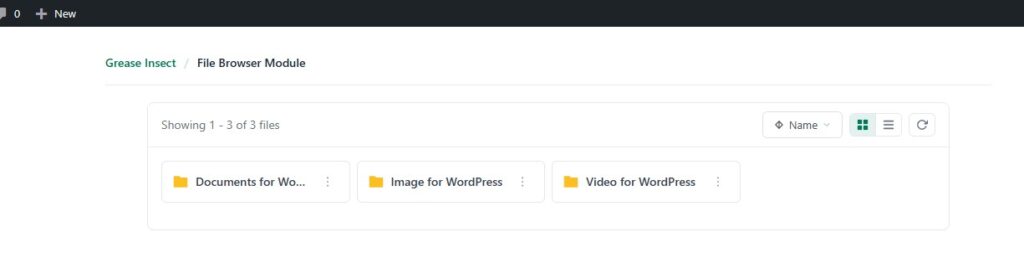
- Copy the shortcode and paste it into your page. DriveHub generates a shortcode like [drivehub id=”1″]. Open any page or post in WordPress, add a Shortcode block, paste it in, and publish. The folder appears on your page.
What DriveHub can do that the iframe method cannot
Private folders. Your files do not need to be publicly shared on Google Drive.Role-based access. Show different file sets to different user types.Visitor uploads. Let visitors upload files to your Drive folder via Contact Form 7.Search and filter. Visitors can search for specific files inside the embedded folder.Works with Gutenberg, Elementor, and Divi.
Prefer to manage your own Google API credentials? See the DriveHub manual connection guide.
Method 3: Google Drive Embedder Plugin
Google Drive Embedder is a free plugin that makes it easy to embed individual Google Drive files into pages using a simple editor button. It is more suited to single-document embedding than full folder display.
For folder embedding, the plugin requires you to set the folder to public, similar to the iframe method. It does not add access controls or visitor upload features.
Key features:
- Embed Drive files with a button in the WordPress editor
- Supports PDFs, Word docs, spreadsheets, and presentations
- Multisite compatible
- Premium version adds folder embedding
Best for: Sites that only need to embed Google Drive PDF in WordPress or display a single document, not a full folder.
Method Comparison at a Glance
Use this table to choose the right method for your situation.
| Method | Public Folder? | Access Controls | Visitor Uploads | Free | Best For |
| Native Iframe | Yes (required) | No | No | Yes | Quick static embed |
| DriveHub | No | Yes | Yes | Yes* | Full control + private folders |
| Google Drive Embedder | Yes (required) | No | No | Yes | Simple single-file embed |
Which Method Should You Use?
Use the iframe method if you need a quick static embed, your folder content is not sensitive, and you do not need access controls. It works in minutes with no plugin install.
Use DriveHub if you want an interactive file browser, need to keep files private, want to restrict access by user role, or want visitors to be able to upload files to your Drive. It is the most complete option and works for most WordPress site owners. You can also use it to embed Google Drive videos in WordPress, embed PDFs, and create photo galleries, all from the same plugin.
Use Google Drive Embedder if you only need to embed a single document or PDF on a page and want the simplest possible setup.
Looking for a broader comparison? See our full guide on the best Google Drive plugins for WordPress.
Frequently Asked Questions
Can I embed a private Google Drive folder in WordPress?
Yes, with DriveHub. The native iframe method requires your folder to be publicly accessible. DriveHub connects to your Google Drive via OAuth and can display private folders without making them public. Access is controlled through WordPress user roles or passwords. See our guide on how to integrate Google Drive with WordPress for more detail.
Why is my Google Drive iframe showing a blank space?
The most common reasons are: the folder is not set to public sharing, your browser or server is blocking the iframe using Content Security Policy (CSP) headers, or the embed URL is constructed incorrectly. Make sure the FOLDER_ID in your embed URL matches the folder’s actual ID from the share link.
Does embedding a Google Drive folder slow down my WordPress site?
The iframe method loads content directly from Google’s servers, so it does not add load to your hosting. DriveHub also streams files from Google Drive without copying them to your server. Neither method stores files in your WordPress media library or uses your hosting storage.
Can visitors upload files to Google Drive from my WordPress site?
Yes, with DriveHub. It supports front-end file uploads via Contact Form 7. When a visitor submits a form, the file goes directly to your Google Drive folder. This is not possible with the iframe method or Google Drive Embedder. If this is a requirement, DriveHub is the only option covered in this guide. See our guide on integrating Google Drive with WordPress for setup steps.
Can I use DriveHub to embed Google Drive as a media library in WordPress?
Yes. DriveHub acts as a Google Drive WordPress media library by letting you browse, upload, and manage Drive files directly from your WordPress dashboard. You can insert Drive files into posts and pages without downloading and re-uploading them. Files stay in Google Drive and are never duplicated to your server.
Can I embed multiple Google Drive folders on different pages?
Yes. DriveHub lets you create multiple modules, each pointing to a different folder. Each module gets its own shortcode. You can display a client folder on one page, a media library on another, and a download center on a third. The iframe method also supports multiple folders. Each requires a separate embed code block on each page.
Do I need a paid Google account to embed folders in WordPress?
No. All three methods in this guide work with a free Google account. Google Drive gives 15 GB of free storage with every account (Google, 2024). That is enough for most small to medium sites. For larger file collections or team use, Google One or Workspace plans offer additional storage.
Conclusion
Embedding a Google Drive folder in WordPress is straightforward once you pick the right method. The native iframe takes minutes but exposes your files to anyone on the internet. DriveHub gives you full control: private folders, role-based access, visitor uploads, and an interactive file browser, all without a line of code.
For most WordPress site owners, DriveHub is the better long-term solution. The free version handles the most common use cases. Download DriveHub from WordPress.org or visit Sovlix.com to learn more.