How to Manage Google Drive Files from WordPress
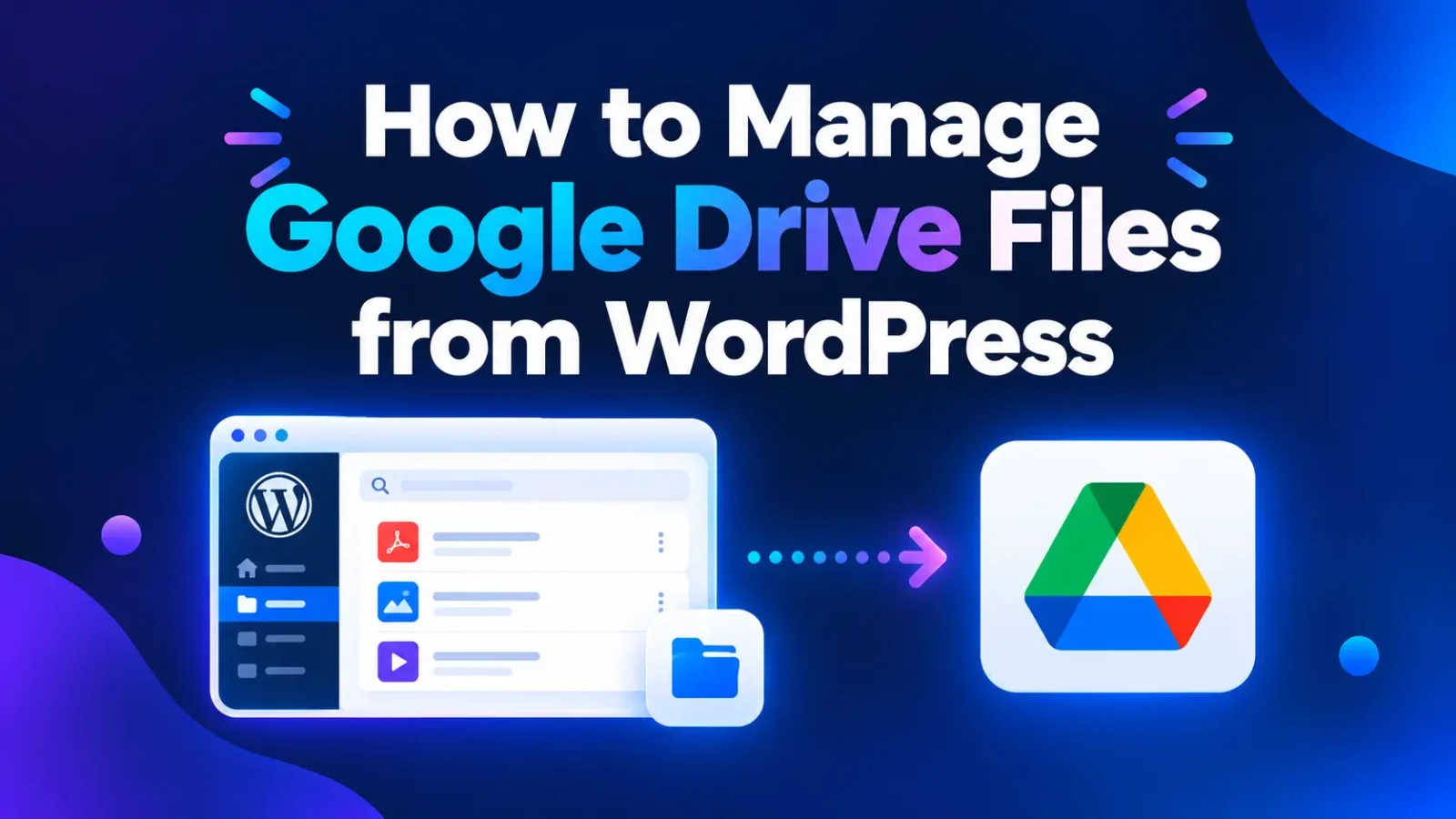
Managing files across Google Drive and WordPress can quickly become frustrating. You might store documents, images, videos, PDFs, and other resources in Google Drive, but need to access them while working on your WordPress website.
Without a proper integration, switching between platforms to find files, organize resources, and prepare content can slow down your workflow.
The good news is that you can manage Google Drive files from WordPress without constantly switching between your website and Google Drive.
In this guide, you’ll learn how to connect Google Drive to WordPress, access your files from the WordPress dashboard, choose which folders to connect, and make your files available on your website using DriveHub.
Table of Contents
Why Manage Google Drive Files from WordPress?
Google Drive is useful for storing and organizing files, while WordPress gives you a platform to publish content and manage your website. Connecting the two can make everyday tasks easier.
For example, you might want to:
- Access Google Drive documents without leaving WordPress.
- Browse files and folders from your WordPress dashboard.
- Display PDFs, images, videos, and documents on your website.
- Make selected files available for visitors to view or download.
- Collect files from customers or website visitors.
- Manage website resources without manually uploading duplicate copies to your WordPress Media Library.
If your team already relies on Google Drive, integrating it with WordPress can help simplify how you work with existing files.
How to Manage Google Drive Files from WordPress Using DriveHub
DriveHub is a Google Drive integration plugin for WordPress that lets you connect your Drive account and work with files through your WordPress dashboard.
Depending on your needs, you can browse connected files, work with folders, create file displays, and make selected resources available on your website.
Follow these steps to get started.
Step 1: Install and Activate DriveHub
First, install DriveHub on your WordPress website.
- Log in to your WordPress dashboard.
- Navigate to Plugins → Add New Plugin.
- Search for DriveHub.
- Click Install Now, then Activate.
Once the plugin is activated, open DriveHub from your WordPress dashboard and start the setup process.
If you need help installing the plugin or understanding the available features, visit the DriveHub website.
Step 2: Connect Your Google Drive Account
Before you can manage your Google Drive files in WordPress, you need to connect the Google account that contains your files.
DriveHub offers two connection methods: Whole Drive and Selected folders. Choose the option that fits your workflow.
Option 1: Connect Your Whole Google Drive
Choose Whole Drive if you need to work with existing files and folders across your Google Drive account.
This option is useful when you have already stored documents, images, videos, and other resources in Drive and want to access them through WordPress.
To set it up:
- Open DriveHub → File Browser in your WordPress dashboard.
- Start the setup process.
- Choose the Whole Drive connection option.
- Follow the instructions to configure your Google connection.
- If using Manual mode, create a Google Cloud project, enable the Google Drive API, configure OAuth credentials, and enter the credentials in DriveHub.
- Connect your Google account and approve the requested permissions.
After the connection is complete, open the DriveHub File Browser to check that your files and folders are available.
For detailed instructions, follow the DriveHub manual Google Drive connection setup guide.
Option 2: Connect Only Selected Google Drive Folders
You don’t always need to connect your entire Google Drive account. If you only want to work with specific folders, DriveHub also supports Selected folders.
This option is useful when you want to keep your integration focused on particular resources, such as a folder for website images, new client uploads, or documents prepared specifically for your website.
To connect selected folders:
- Open DriveHub → File Browser.
- Click Start setup.
- Choose Selected folders.
- Sign in to the Google account that contains your folders.
- Approve the connection.
- Click Choose folders and select the folders you want to connect.
- Confirm your selection and finish the setup.
You can add or remove selected folders later through the available DriveHub settings or File Browser controls.
Important: With Selected folders, files that were already inside a folder before you connected it remain inaccessible through this connection. Files added to that folder afterward can be accessed. If you need to work with existing files, choose Whole Drive instead.
For the complete process, see How to Connect Only Selected Google Drive Folders to WordPress.
Step 3: Access Your Google Drive Files from WordPress
After connecting your Google account, you can access the files available to DriveHub through its File Browser.
From your WordPress dashboard:
- Open DriveHub.
- Navigate to File Browser.
- Browse the connected files and folders.
- Locate the resources you need for your website.
Instead of repeatedly opening Google Drive in another browser tab, you can use the WordPress dashboard as a convenient starting point for working with your connected files.
The files available to you depend on the connection method and folders you’ve authorized.
This is particularly useful if you regularly work with documents, images, videos, or other resources stored in Google Drive.
Step 4: Organize Your Workflow Around Google Drive Folders
A well-organized Google Drive account makes it easier to manage website resources.
Consider creating separate folders for different purposes, such as:
- Documents: PDFs, manuals, reports, and reference materials.
- Images: Product photos, marketing graphics, and website images.
- Videos: Tutorials, demonstrations, and other video content.
- Client files: Documents and resources associated with specific projects.
- Uploads: Files collected from customers or website visitors.
Once your folders are organized, connect the relevant folders to DriveHub or use Whole Drive if you need access to your existing Drive files more broadly.
This structure can also make it easier to decide which resources belong on particular WordPress pages.
For example, you might use a dedicated folder for downloadable product documentation and another for images displayed in a portfolio.
Keep in mind that folder organization helps you manage your resources, but it does not automatically make files private or public. Access still depends on the connection permissions, DriveHub settings, and the way files are shared or displayed.
Step 5: Display Google Drive Files on Your WordPress Website
Accessing files from your dashboard is useful, but you may also want to make selected resources available to your website visitors.
DriveHub lets you create modules for displaying supported Google Drive content on your WordPress pages.
Depending on your needs, you can use features such as:
- File browser: Let visitors browse supported files and folders.
- File lists: Present files with download buttons.
- Document embeds: Display supported documents within a page.
- Image galleries: Organize and display images from Google Drive.
- Video and audio players: Present supported media on your website.
- File uploads: Allow visitors to upload files to a connected Drive location.
- Search: Help visitors find files within supported file displays.
For example, if you maintain a collection of PDF manuals in Google Drive, you could create a file list on a WordPress resource page. Visitors could then find and download the documents without you manually uploading another copy of each file to WordPress.
If you want to set this up, follow the guide on creating your first DriveHub module and adding it to a page.
Choose the module that fits your use case and configure it according to your website’s needs.
Step 6: Keep Your Google Drive and WordPress Workflow Manageable
Once your Google Drive integration is working, a few simple practices can make file management easier over time.
Use descriptive file and folder names
Choose names that help you identify files quickly. For example, Product-Manual-2026.pdf is more informative than Document-01.pdf.
Connect only the folders you need
If your website only uses a few folders, consider Selected folders rather than granting access to your entire Drive. This helps keep the integration focused on the resources you intend to use.
Separate internal documents from website resources
Maintain distinct folders for internal documents and files intended for your website. Review permissions and module settings before making resources available to visitors.
Review your file displays periodically
When files change, revisit the relevant WordPress pages and check that the displayed resources are still appropriate and accessible.
Avoid unnecessary duplicate uploads
When possible, work with files already stored in Google Drive rather than creating extra copies solely for your website. This can reduce repetitive file-management work, although it does not eliminate every need for WordPress media uploads.
What Can You Do with Google Drive and WordPress Together?
Connecting Google Drive to WordPress can support several practical workflows.
| Use case | How it helps |
| Document libraries | Make manuals, reports, and reference documents easier to access. |
| Download centers | Present resources that visitors can download. |
| Image galleries | Display collections of Drive-hosted images. |
| Video resources | Present supported videos on relevant pages. |
| Client file collection | Receive files from clients or website visitors. |
| Team resources | Keep website-related documents organized in Google Drive. |
You can also save your WordPress form uploads to your connected Google Drive account as well.
The best setup depends on whether you want to manage files privately from the dashboard, display them publicly, or collect new files through your website.
Frequently Asked Questions
Can I manage Google Drive files directly from WordPress?
Yes. With a compatible integration such as DriveHub, you can access connected Google Drive files through the WordPress dashboard and use supported features to work with or display those files.
Do I need to connect my entire Google Drive account?
No. DriveHub offers Whole Drive and Selected folders connection methods. Whole Drive is suitable when you need access to existing files across your account, while Selected folders limits the connection to folders you choose.
Remember that Selected folders makes files added after the folder is connected available through that connection; existing files in the selected folder remain inaccessible through it.
Can I display Google Drive files on my WordPress website?
Yes. DriveHub supports modules for presenting supported files and media, including file lists, document embeds, image galleries, and video or audio players.
What visitors can see depends on the module configuration, the connected resources, and applicable access permissions.
Can visitors upload files to my Google Drive through WordPress?
DriveHub supports file-upload workflows that allow visitors to send files to connected Google Drive locations. Configure the relevant module and review its settings before publishing it on your website.
Will connecting Google Drive automatically make my files public?
No. Connecting Google Drive does not automatically mean every file is publicly accessible. The files available to DriveHub depend on the connection method and permissions, while visitor access depends on how you configure your website’s file displays and access controls.
Always review your settings before publishing sensitive resources.
Do I need Google Cloud credentials to connect Google Drive?
It depends on the connection method. DriveHub’s Manual Whole Drive setup requires configuring a Google Cloud project and OAuth credentials. The Selected folders method uses DriveHub’s Google app and does not require you to create your own Google Cloud project.
See the manual connection guide for Whole Drive setup or the Selected folders guide for the alternative.
Simplify Google Drive File Management with DriveHub
Managing files between Google Drive and WordPress doesn’t have to involve constant switching between platforms or unnecessary duplication.
With DriveHub, you can connect your Google Drive account, access available files from your WordPress dashboard, choose relevant folders, and display supported resources on your website.
Whether you’re building a document library, creating a download center, displaying image collections, or collecting files from visitors, the right integration can make your workflow easier to manage.
Ready to get started? Explore DriveHub for WordPress and connect your Google Drive workflow to your website.