How to Backup WordPress to Google Drive: 3 Free Methods (2026)

WordPress powers 43% of all websites on the internet (W3Techs, 2025). With that scale, data loss from a hack, a bad plugin update, or a server failure is more common than most site owners expect.
Google Drive is one of the best places to store WordPress backups. It gives you 15GB of free storage (Google, 2024), stays completely separate from your web host, and is accessible from any device. If your hosting provider has an outage or deletes your files, your backup stays safe.
This guide covers three free ways to backup WordPress to Google Drive. You will find step-by-step instructions for each plugin, a comparison table, how to restore from a backup, and best practices for keeping your backups reliable.
Table of Contents
Quick Answer on How to Backup WordPress to Google Drive
- Install a backup plugin: UpdraftPlus, Duplicator, or BackWPup.
- Open plugin settings and select Google Drive as your backup destination.
- Authenticate with your Google account to grant the plugin access.
- Choose what to include: database, themes, plugins, and uploads.
- Set a backup schedule (daily for active sites, weekly for static ones).
- Click Backup Now to run your first backup and confirm it uploads to Google Drive.
What Does a WordPress Backup Include?
A complete WordPress backup has two parts. Knowing what each one contains helps you decide what to include and how much storage you will need.
- Database: every post, page, comment, user account, plugin setting, and WooCommerce order lives in your MySQL database. This is the most important part to backup.
- Files: themes, plugins, and everything inside the wp-content/uploads folder. This includes all images, PDFs, videos, and media files uploaded to your site.
- WordPress core files: the WordPress software itself. Most backup plugins skip these because you can always re-download them from WordPress.org for free.
For most sites, backing up the database plus the wp-content folder covers everything that cannot be replaced easily.
How Much Google Drive Storage Do You Need?
Google Drive provides 15GB of free storage shared across Gmail, Google Photos, and Drive. Here is a rough estimate for different WordPress site sizes:
- Small blog or portfolio site: 1 to 3 GB per backup
- Medium site with regular media uploads: 5 to 10 GB per backup
- WooCommerce store with large product image libraries: 10 to 30 GB per backup
If your site fits under 5GB and you keep two to four backup copies, the free 15GB tier covers you. For larger sites, Google One starts at $1.99 per month for 100GB (Google, 2024).
Tip: set your backup plugin to keep only the most recent 2 to 4 copies. This prevents old backups from filling your storage over time.
Method 1: Backup WordPress to Google Drive with UpdraftPlus (Easiest)
UpdraftPlus has over 3 million active installs on WordPress.org (WordPress.org, 2025). It is the most widely used backup plugin, and the free version includes Google Drive support with scheduled backups.
Step-by-Step: UpdraftPlus Google Drive Setup
- Go to Plugins > Add New in your WordPress dashboard. Search for UpdraftPlus and click Install Now, then Activate.
- Go to Settings > UpdraftPlus Backups. Click the Settings tab at the top.
- Scroll down to the Choose your remote storage section. Click Google Drive.
- Scroll to the bottom and click Authenticate with Google. A popup will open.
- Sign in to the Google account where you want to store backups. Click Allow to grant UpdraftPlus access.
- Back in UpdraftPlus Settings, set your Files backup schedule and Database backup schedule. Daily works best for active sites. Weekly is fine for mostly static sites.
- Under Include in files backup, check Plugins, Themes, Uploads, and Others to get a full site backup.
- Click Save Changes. Then click the Backup/Restore tab and click Backup Now to run your first backup and confirm it uploads to Google Drive.
Test your restore before you need it.
Run a practice restore on a staging site or a fresh local WordPress install within a few days of setting up backups. A backup you have never tested is not one you can rely on when things go wrong.
Method 2: Backup WordPress to Google Drive with Duplicator
Duplicator is built for WordPress site migrations but works well for backups too. The free version lets you connect Google Drive and create full-site backup packages. Automatic scheduling requires Duplicator Pro, but the free version is excellent for manual backups before major site changes.
Step-by-Step: Duplicator Google Drive Backup
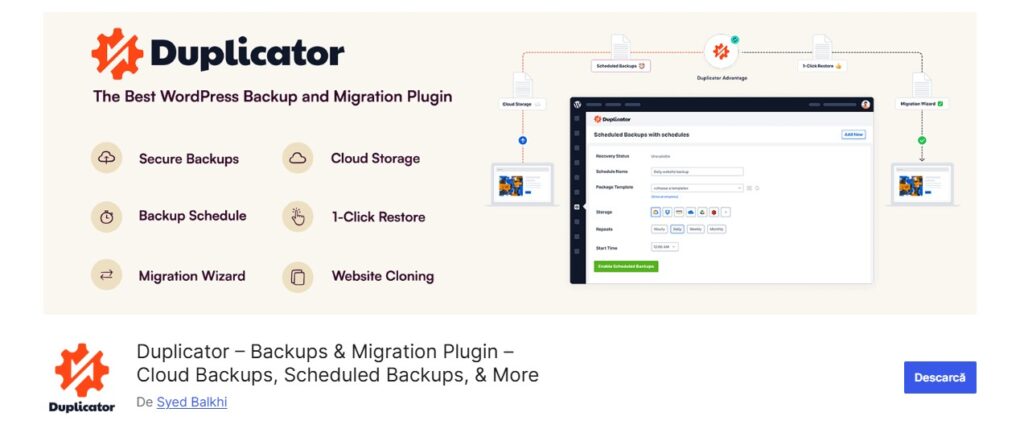
- Install and activate Duplicator from the WordPress plugin directory.
- Go to Duplicator > Storage in your dashboard and click Add New.
- Set the storage type to Google Drive. Click the Authorize button and complete the OAuth flow to connect your Google account.
- Go to Duplicator > Packages and click Create New.
- In the Storage step, select the Google Drive profile you just created.
- Click through the scan and build steps. Duplicator will zip your full site and upload it to Google Drive automatically.
The free version of Duplicator is the right tool for pre-update backups, site clones, and one-off full-site snapshots. If you need scheduled automatic backups at no cost, use UpdraftPlus or BackWPup instead.
Method 3: Backup WordPress to Google Drive with BackWPup (Fully Free)
BackWPup is completely free, including scheduled automatic backups to Google Drive. The setup takes a few more steps than UpdraftPlus because it requires creating API credentials in the Google Cloud Console. Once configured, it runs automatically with no paid plan required.
Step-by-Step: BackWPup Google Drive Setup

- Install BackWPup from the WordPress plugin directory and activate it.
- Go to BackWPup > Add new job. Give the backup job a descriptive name.
- Under Job Type, check Database backup and File backup.
- Click the To: Google Drive tab. You will need a Client ID and Client Secret. Go to console.cloud.google.com, create a new project, enable the Google Drive API, and create an OAuth 2.0 Client ID. Paste both values into BackWPup.
- Click Authenticate, sign in to your Google account, and click Allow.
- Open the Schedule tab. Choose your backup frequency and preferred time.
- Click Save changes. BackWPup will now send backups to Google Drive on your chosen schedule.
Worth the extra setup time.
BackWPup requires about 10 to 15 extra minutes to create Google API credentials. In return, you get fully automated backups sent to Google Drive with no subscription fees ever.
Which Backup Plugin Should You Use? (Comparison)
| Plugin | Free Plan | Scheduled (Free) | GDrive Free | Best For |
| UpdraftPlus | Yes | Yes | Yes | Most users, easiest setup |
| Duplicator | Yes | Pro only | Yes | Migrations and manual backups |
| BackWPup | Yes | Yes | Yes | Fully free, no paid plan needed |
| All-in-One WP Migration | Yes | Pro only | Extension (paid) | Simple one-click restores |
UpdraftPlus is the best starting point for most WordPress site owners. BackWPup is the best choice if you want a fully free automated solution with no premium plan. Duplicator fits best when you also need site migration tools or pre-update snapshots.
How to Restore Your WordPress Site from a Google Drive Backup
Restoring your site is just as important as creating the backup. Here is how to restore using UpdraftPlus, which has the simplest built-in restore process of the three plugins.
- Go to Settings > UpdraftPlus Backups and open the Backup/Restore tab.
- Scroll down to Existing backups. If your backup is in Google Drive but not listed, click Rescan remote storage.
- Find the backup you want to restore and click Restore.
- Select what to restore: Database, Plugins, Themes, Uploads, and Others. For a full restore, select all of them.
- Click Restore. UpdraftPlus will download the backup from Google Drive and apply it.
- After the restore completes, click the link to delete temporary backup files and clean up.
Back up before you restore.
Always create a fresh backup of your current site before restoring an older version. If the restore does not go as expected, you will have the current version to fall back to.
WordPress Backup Best Practices
How Often Should You Run Backups?
Match your backup frequency to how often your site content changes.
- Daily: sites that publish new posts, process orders, or collect form submissions regularly
- Weekly: mostly static sites or portfolios that change less than once a week
- Before every major update: always run a manual backup before updating plugins, themes, or WordPress core
What to Include in Each Backup
- Always include: the database and the uploads folder (wp-content/uploads)
- Include when changed: themes folder and plugins folder
- Safe to skip: WordPress core files, since you can re-download them from WordPress.org
The 3-2-1 Backup Rule
Keep 3 copies of your site data, on 2 different storage types, with 1 copy stored offsite. Google Drive is your offsite copy. Your web host may keep a server-level backup. One additional local copy on your computer covers business-critical sites.
Backup Retention Settings
Old backups accumulate quickly and can fill your 15GB Google Drive limit in weeks. In UpdraftPlus, go to Settings and set the retention count to 2 for both files and database backups. This keeps only the two most recent copies and automatically deletes older ones.
Troubleshooting Common Backup Issues
Google Drive Authentication Fails
The authentication window is a popup. If your browser blocks popups for your WordPress admin URL, the login window will not open. Allow popups for your admin domain in your browser settings, then try authenticating again from the UpdraftPlus settings page.
Backup Completes but Files Do Not Appear in Google Drive
The OAuth token connecting UpdraftPlus to your Google account may have expired. Go to Settings > UpdraftPlus Backups > Settings, scroll to Google Drive, and click Disconnect. Re-authenticate with your Google account to get a fresh connection token.
Backup Times Out or Never Finishes
Large sites can hit PHP execution time limits during backup. Try splitting your backups: set the database and files to run on separate schedules. You can also increase the PHP max_execution_time value in your php.ini file, or ask your host to raise it for you.
Google Drive Storage Shows as Full
Old backup files accumulate faster than expected. In UpdraftPlus, set the files retention to 2 copies and the database retention to 2 copies. You can also log in to drive.google.com, open the UpdraftPlus folder, and manually delete old backup archives to free up space immediately.
Restore Fails Partway Through
Large database imports can hit PHP memory or timeout limits mid-restore. If this happens, restore the database only as a first step, then restore the files separately in a second restore operation. Using WP-CLI to import the database directly bypasses most PHP limits.
Use Google Drive for More Than Backups
Once your backups are running reliably, you may want to connect Google Drive to WordPress in other ways. DriveHub by Sovlix is a plugin that lets you serve files directly from Google Drive on your WordPress site, without uploading them to your server.
This is a different use case from backups. Instead of copying files to Google Drive for safekeeping, you are using Google Drive as an active file source for your visitors. Common uses include:
- Embed Google Drive folders as interactive file browsers on any WordPress page
- Display PDFs, presentations, and documents from Google Drive on your site
- Use Google Drive files in WordPress as a media alternative without server storage
- Embed Google Drive videos and serve them without using your server bandwidth
DriveHub works with private Google Drive folders, so your files stay protected even when displayed on a public page. It does not require making your Google Drive public, which avoids the security issue that comes with iframe embeds.
See the full Google Drive WordPress integration guide or visit DriveHub on WordPress.org to learn more.
Frequently Asked Questions
Is it free to backup WordPress to Google Drive?
Yes. UpdraftPlus and BackWPup are both free and support Google Drive without any paid plan. Google Drive gives you 15GB of free storage, which covers most small to medium WordPress sites. Larger sites or those with many backup copies may need a Google One plan for more storage.
How do I automate WordPress backups to Google Drive?
UpdraftPlus and BackWPup both include automatic scheduled backups in their free versions. After connecting your Google Drive account, set the backup frequency in the plugin settings. UpdraftPlus lets you set separate schedules for the database and for files.
Will my Google Drive backup survive a site hack?
Yes. Backups stored in Google Drive are completely separate from your web server. A hacker who accesses your WordPress site cannot reach your Google Drive account without your Google login credentials. This is why storing backups offsite matters.
How many backup copies should I keep?
Keep between 2 and 4 weeks of backup history. This gives you a window to roll back past issues that went unnoticed for a few days, such as a malware infection or a plugin conflict. Set a retention limit in your backup plugin to delete older copies automatically.
Can I backup just the WordPress database without all the files?
Yes. UpdraftPlus, Duplicator, and BackWPup all support database-only backups. This is faster and uses far less storage than a full backup. Running a daily database backup alongside a weekly full backup is a practical strategy for sites that update content frequently.
Does Google Drive storage include backups in my 15GB limit?
Yes. Files stored in Google Drive, including backup archives from WordPress, count toward your 15GB free limit shared with Gmail and Google Photos. To check your usage, open drive.google.com and look at the storage meter in the left sidebar.
Final Thoughts
Backing up your WordPress site to Google Drive takes less than 15 minutes to set up. UpdraftPlus is the easiest starting point for most users. BackWPup is the best choice if you need automated backups at no cost. Duplicator works well for manual full-site snapshots before major changes.
Once your backup schedule is running, check it every month. Confirm that new backup files are appearing in Google Drive, that your storage is not running out, and run a practice restore every few months to make sure your backup files are valid and complete.
If you want to explore more Google Drive tools for WordPress, read our guide on the best Google Drive plugins for WordPress.