How to Schedule a Zoom Meeting: Step-by-Step Guide (2026)
You need a meeting next Tuesday at 2 PM. Your team, a client or a class has to get the link before then. Zoom makes this easy once you know where the buttons are.
This guide shows how to schedule a Zoom meeting on the desktop app, in your browser and on your phone. You will also learn how to invite others, share the link, pick the right settings, and put Zoom meetings on your own WordPress site.
All steps follow Zoom’s current interface, now called Zoom Workplace.
Table of Contents
Quick Answer: How to Schedule a Zoom Meeting
Here is how to schedule a Zoom meeting in short. Sign in to the Zoom desktop app, click the Home tab, then click Schedule. Enter a topic, date and time, choose your meeting options, and click Save. Zoom creates the meeting link, which you can send to your guests or share in a calendar invite.
On the web, go to Zoom Products > Meetings > Schedule a Meeting. On a phone, tap Home > Schedule, then Save.
4 Ways to Schedule a Zoom Meeting
You can schedule the same Zoom meeting from four places. Each one gives you a working Zoom link. Pick the one that matches where you already work.
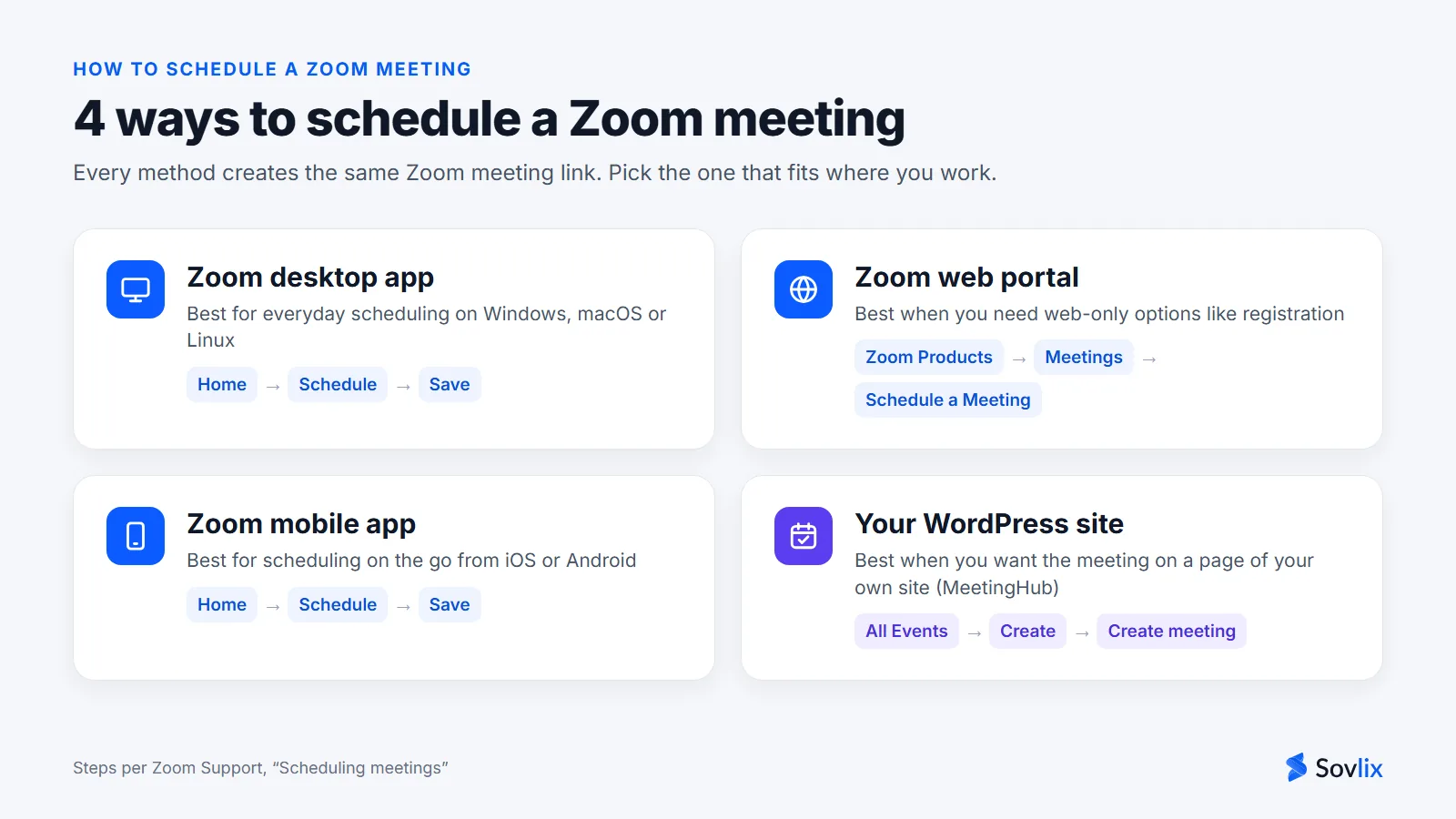
| Method | Where you click | Best for |
|---|---|---|
| Zoom desktop app | Home > Schedule > Save | Daily scheduling on Windows, macOS or Linux |
| Zoom web portal | Zoom Products > Meetings > Schedule a Meeting | Web-only options like registration |
| Zoom mobile app | Home > Schedule > Save | Scheduling while you are away from your desk |
| Your WordPress site | MeetingHub > All Events > Create | A meeting page on your own website |
How to Schedule a Meeting in Zoom Workplace (Desktop App)
The desktop app is the fastest way for most people. If you are learning how to schedule a Zoom meeting for the first time, start here. Zoom renamed the app Zoom Workplace, but the steps are the same on Windows, macOS and Linux.
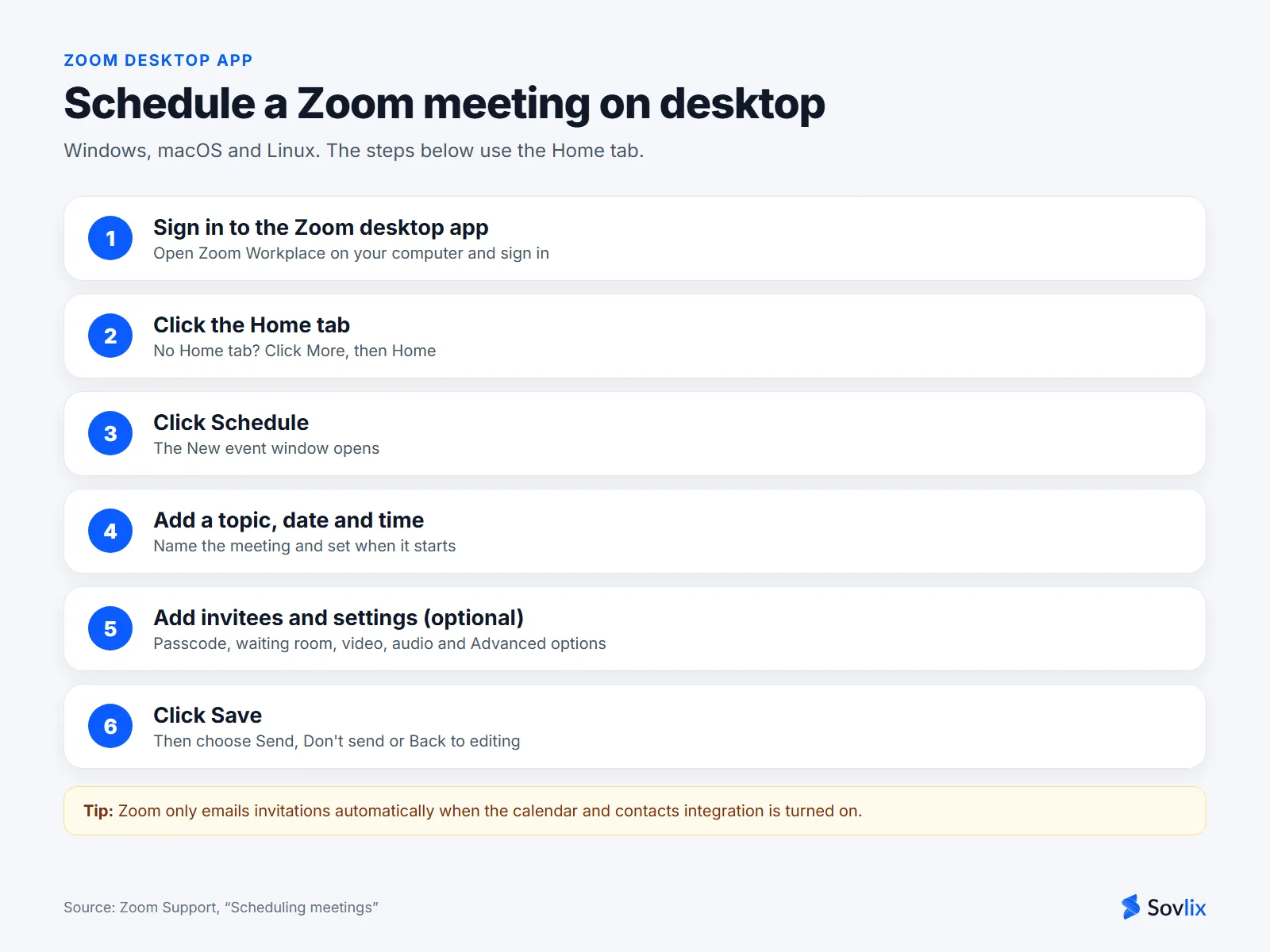
Here is how to schedule a Zoom meeting step by step on desktop:
- Sign in to the Zoom desktop app. Open Zoom Workplace and sign in to your account.
- Click the Home tab. If you do not see it, click More, then Home.
- Click Schedule. The New event window opens.
- Add a topic, date and time. Give the meeting a clear name, such as “Q4 Planning Call”. Then set the start date and time.
- Add invitees and settings (optional). Type the names or emails of your guests. Click Settings or Advanced to set a passcode, waiting room and more.
- Click Save. If your calendar is connected to Zoom, choose Send to email the invite, Don’t send to skip the email, or Back to editing to make changes.
Your meeting now shows on the Home tab under your upcoming meetings. Click Start next to it when it is time to begin.
Other places to schedule on desktop: You can also click the Calendar tab and pick a time slot. If your calendar is not connected, use the Meetings tab, click the add icon, then Create event.
How to Schedule a Meeting on Zoom in Your Browser
No app? No problem. The Zoom web portal works in any browser. Scheduling now starts from the Zoom Products menu, so some older guides point to a menu that is no longer there.
Here is how to schedule a meeting on Zoom from the web:
- Sign in to the Zoom web portal at zoom.us.
- Click the Zoom Products icon in the top-right corner.
- Click Meetings. It opens in a new browser tab.
- Click Schedule a Meeting.
- Add a topic, date, time and options. You can add invitees here too.
- Click Save.
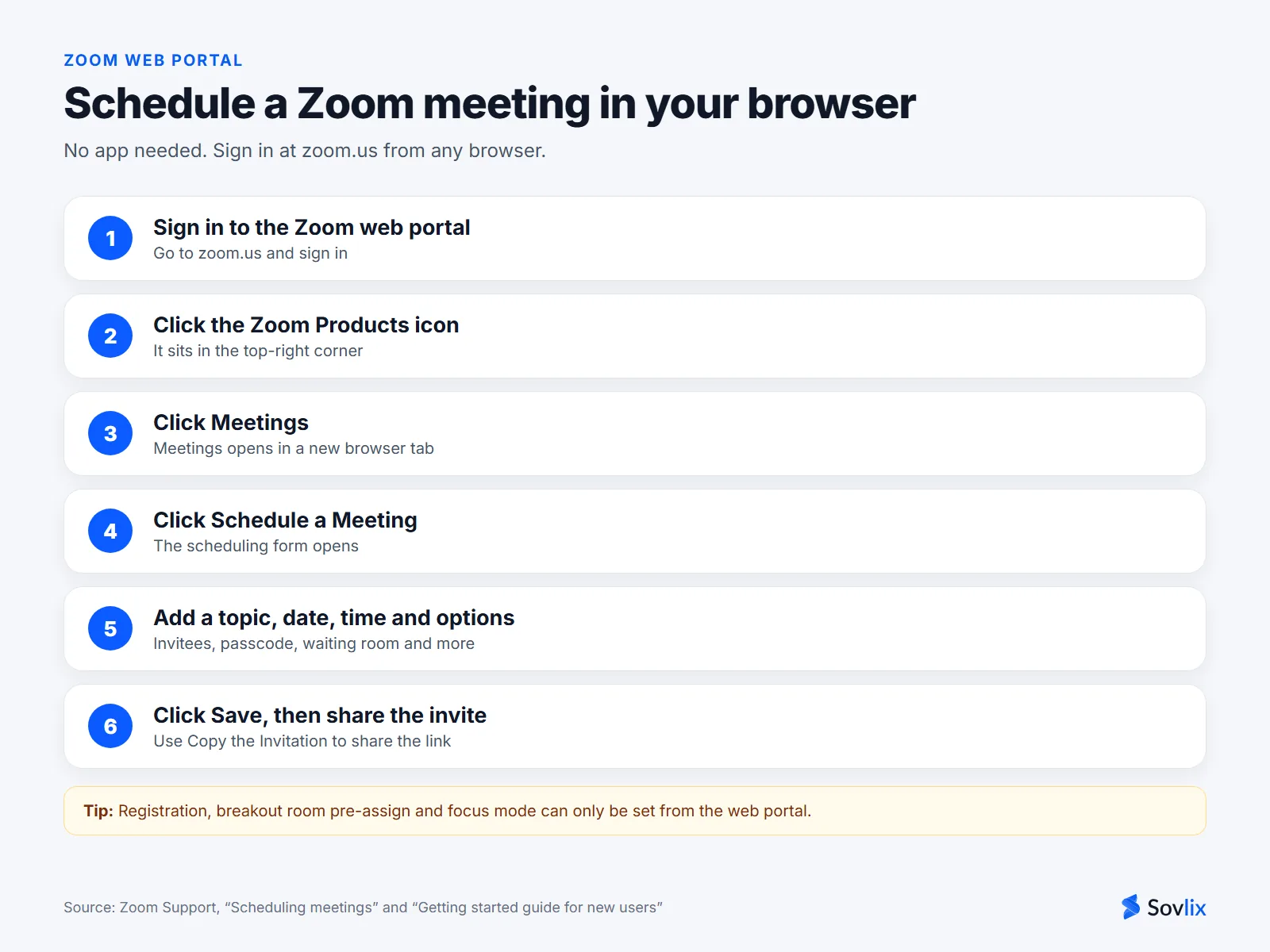
The web portal has a few options the apps do not. You can only turn on Registration, pre-assign breakout rooms and enable focus mode from here.
If you use the Zoom Web App, click Home, then Schedule. Zoom sends you to the same web portal form.
How to Schedule a Zoom Meeting on Your Phone
The Zoom mobile app works the same on Android and iPhone. Here is how to schedule a Zoom meeting from your phone:
- Sign in to the Zoom mobile app.
- Tap the Home tab. If you do not see it, tap More, then Home.
- Tap Schedule.
- Add a topic, date and time, then pick your meeting options.
- Tap Save.
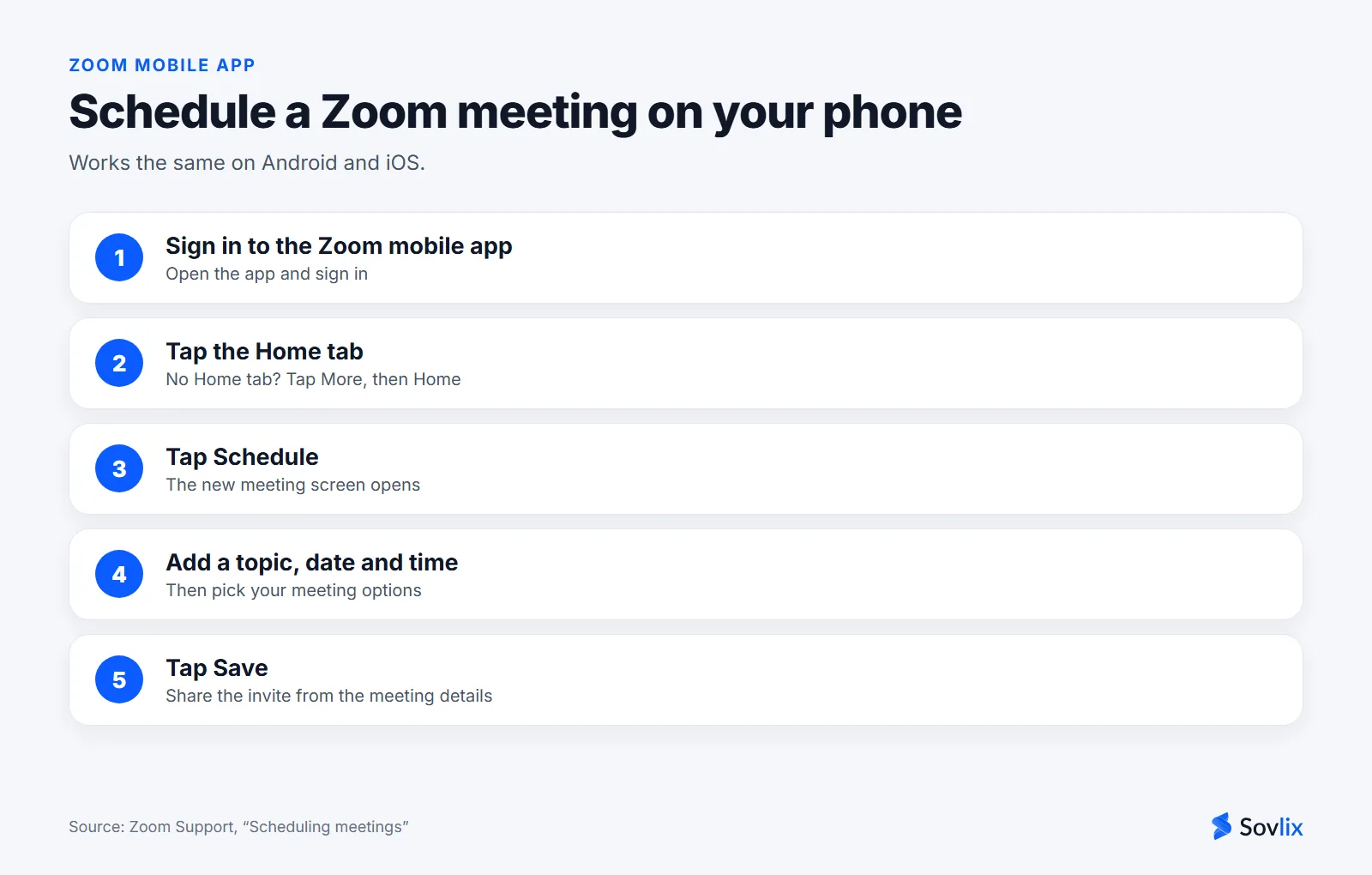
The mobile app creates a new meeting ID by default. Turn on Use personal meeting ID if you want your Personal Meeting ID instead.
How to Schedule a Zoom Meeting and Invite Others
Scheduling a meeting does not always send an invite. This trips up a lot of people.
Zoom only emails invitations automatically when the calendar and contacts integration is turned on. This connects Zoom to Google Calendar, Microsoft 365, Exchange or Zoom Calendar.
You have two ways to invite others:
- With a connected calendar: Add your guests’ emails while you schedule. When you click Save, choose Send. Zoom emails the invite and adds the meeting to their calendar.
- Without a connected calendar: Schedule the meeting, then copy the invitation and paste it into an email, chat or calendar event.
You can also add guests later. Open the meeting from your upcoming list and copy the invitation again.
Tip: For big groups, share the link in one place, like your team chat, instead of typing every email.
How to Schedule a Zoom Meeting Link and Share It
Every scheduled meeting gets its own link. Here is how to schedule a Zoom meeting and share link details with your guests:
- Schedule the meeting with any method above.
- Open the meeting from your upcoming meetings list.
- Click Copy the Invitation (or the copy link option).
- Paste it where your guests will see it.
The invitation holds the join link, the meeting ID and the passcode. Send the whole invitation, not only the link, so guests have everything they need.
How long does a Zoom link last? It depends on the meeting type:
- One-time meeting: the link expires 30 days after the meeting is scheduled. Each time you restart it within 30 days, it stays valid for another 30 days.
- Recurring meeting: the link expires 365 days after the last meeting was started.
- Instant meeting: the link expires as soon as the meeting ends.
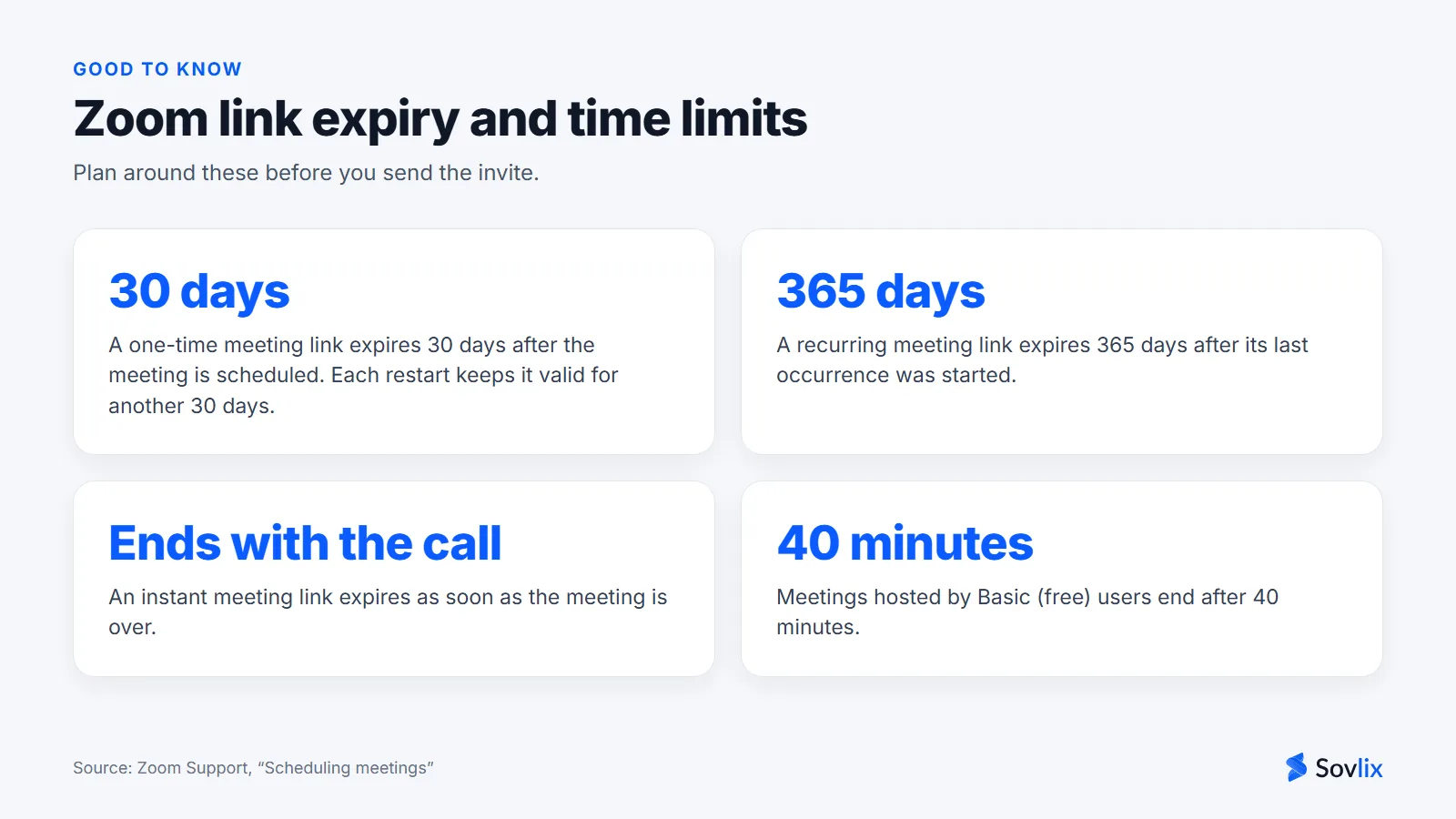
Source for these limits: Zoom Support, “Scheduling meetings”.
Which Zoom Settings to Turn On
Knowing how to schedule a Zoom meeting is only half the job. The right settings keep it secure and easy to join. You set these options while you schedule, and your account admin may lock some of them.
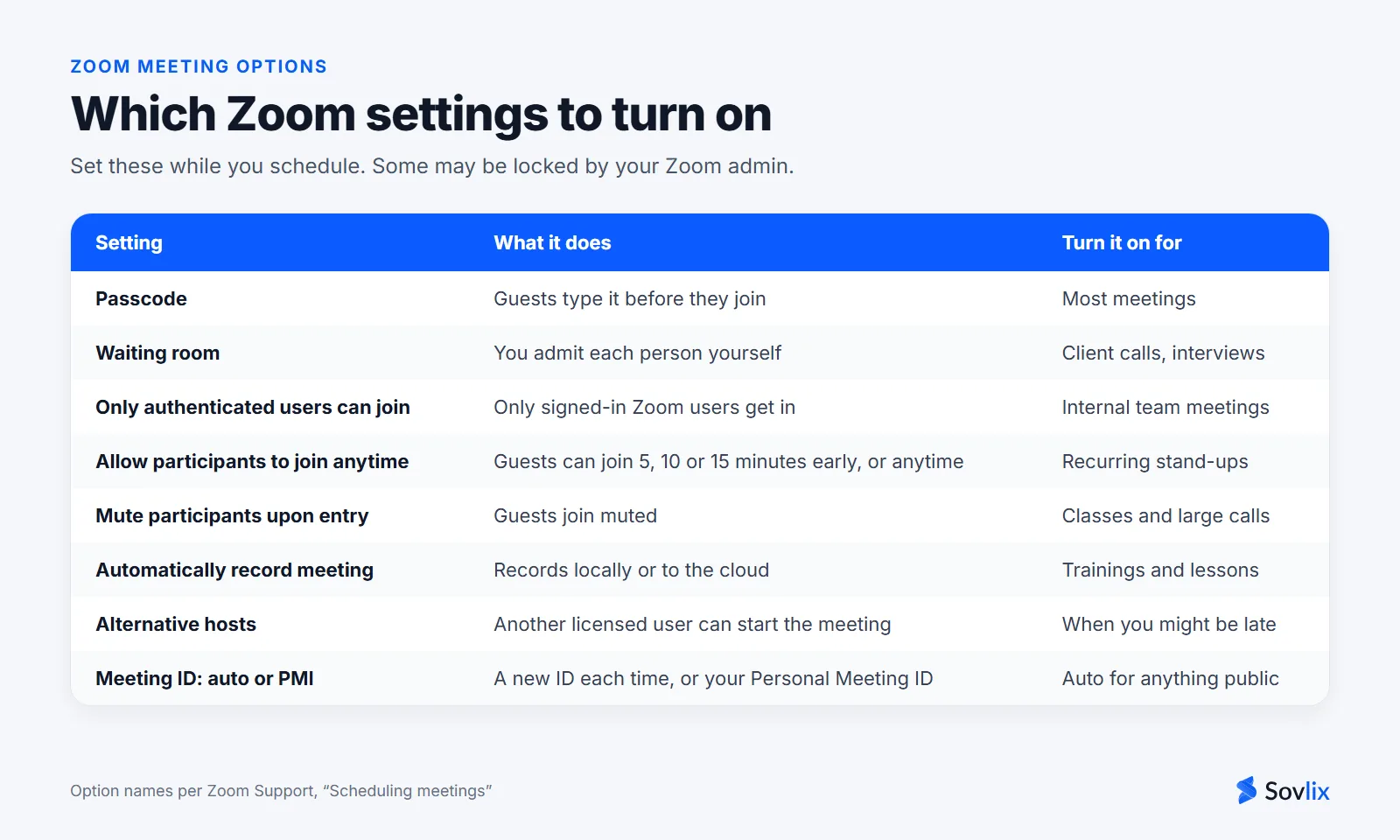
- Passcode: Guests type it before they join. Keep it on for most meetings.
- Waiting room: You let each person in yourself. Good for client calls and interviews.
- Only authenticated users can join: Only people signed in to Zoom get in. Useful for internal meetings.
- Allow participants to join anytime: Guests can join before you, 5, 10 or 15 minutes early, or anytime.
- Mute participants upon entry: Guests join muted. This helps in classes and large calls.
- Automatically record meeting: Zoom records to your computer or to the cloud.
- Alternative hosts: Another licensed Zoom user on your account can start the meeting if you are late.
Meeting ID: Choose Generate Automatically for a new ID each time. Use your Personal Meeting ID only with people you trust, since that ID never changes.
Recurring meetings: Zoom supports recurring meetings on desktop, mobile and web. Use them for weekly stand-ups or classes so the link stays the same.
How to Schedule a Free Zoom Meeting
Yes, you can schedule a Zoom meeting with a free (Basic) account. The steps are exactly the same as above.
The main limit is time. Zoom says meetings hosted by Basic (free) users end after 40 minutes. Plan a short agenda, or start a new meeting if you need more time.
A free account still lets you set a passcode, use the waiting room and share a link.
How to Schedule a Zoom Meeting From Your WordPress Site
Do you run classes, webinars or client calls from a WordPress website? Then you may want the meeting on your own site, not only in Zoom.
MeetingHub is a free WordPress plugin by Sovlix. It creates the Zoom meeting for you and builds a meeting page on your site with a countdown, Add to calendar links and a join button. Guests can join in the Zoom app or right in their browser.
Here is how to schedule a Zoom meeting from WordPress with MeetingHub. Watch the 90-second walkthrough first:
Step 1: Connect Zoom to WordPress
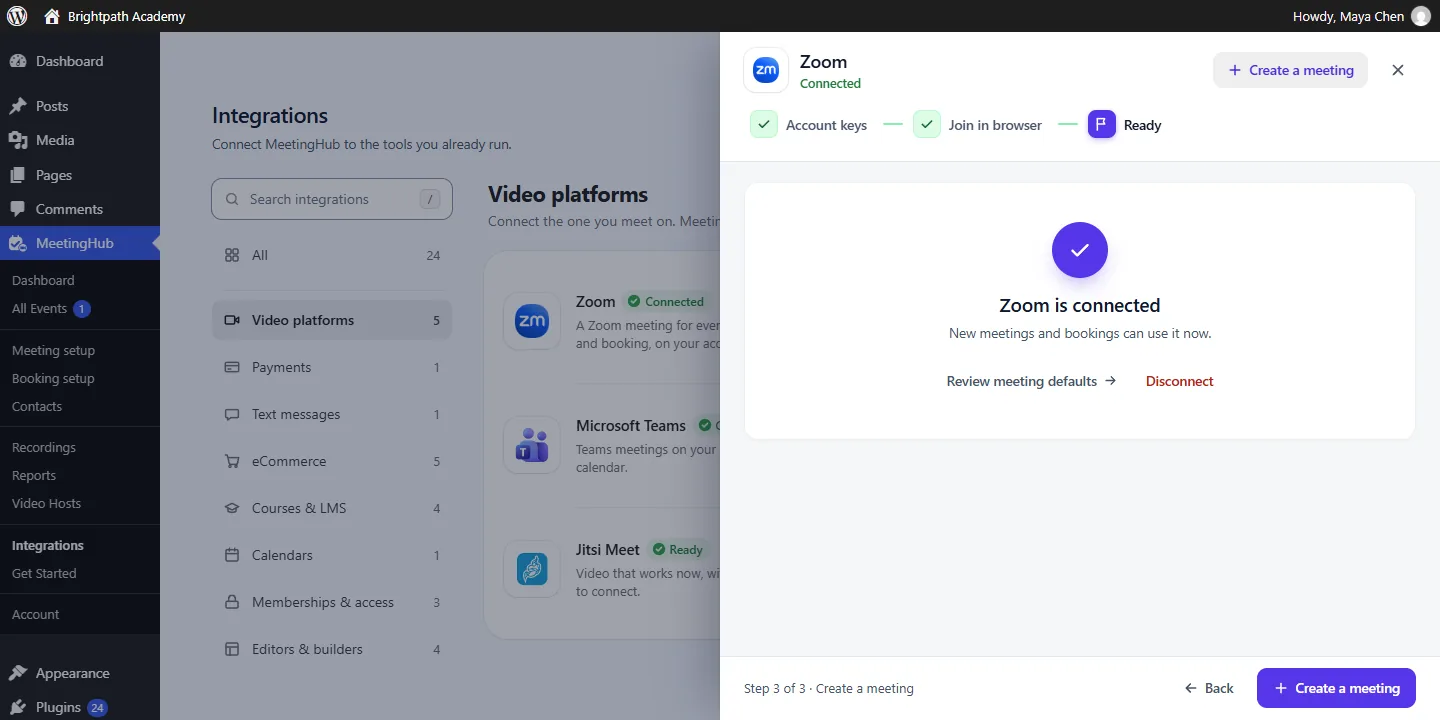
Install MeetingHub, then go to MeetingHub > Integrations. The Zoom card should say Connected. If it does not, follow our guide on how to connect Zoom to WordPress with MeetingHub.
Step 2: Create a new meeting
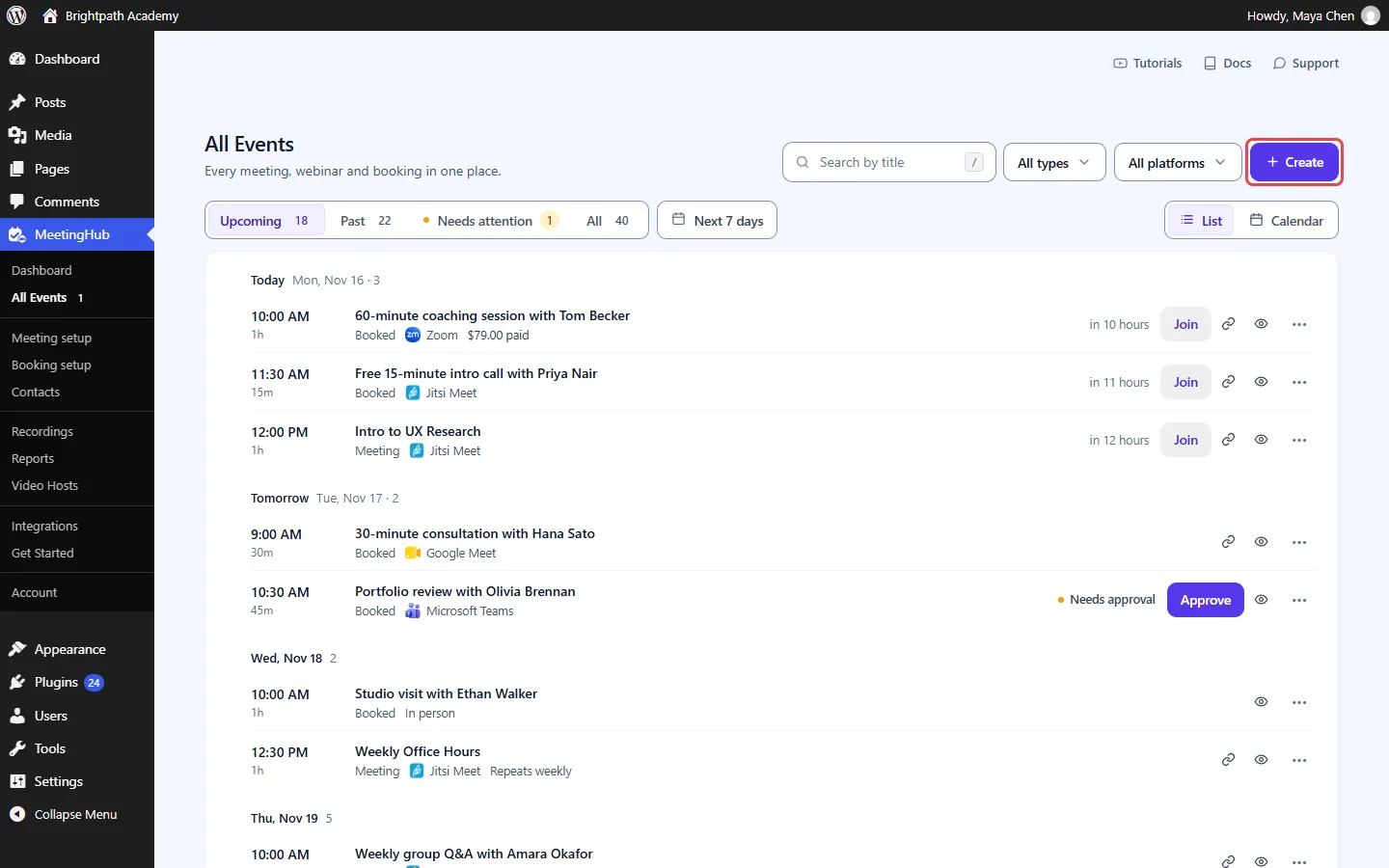
Go to MeetingHub > All Events and click Create. The new meeting form has four steps on the left: Name and platform, Date and time, Access and controls and Page design.
Keep Meeting as the event type. Type a meeting name and pick Zoom as the platform. Add a short agenda. Zoom sends it with the invite.
Step 3: Set the date, time and access
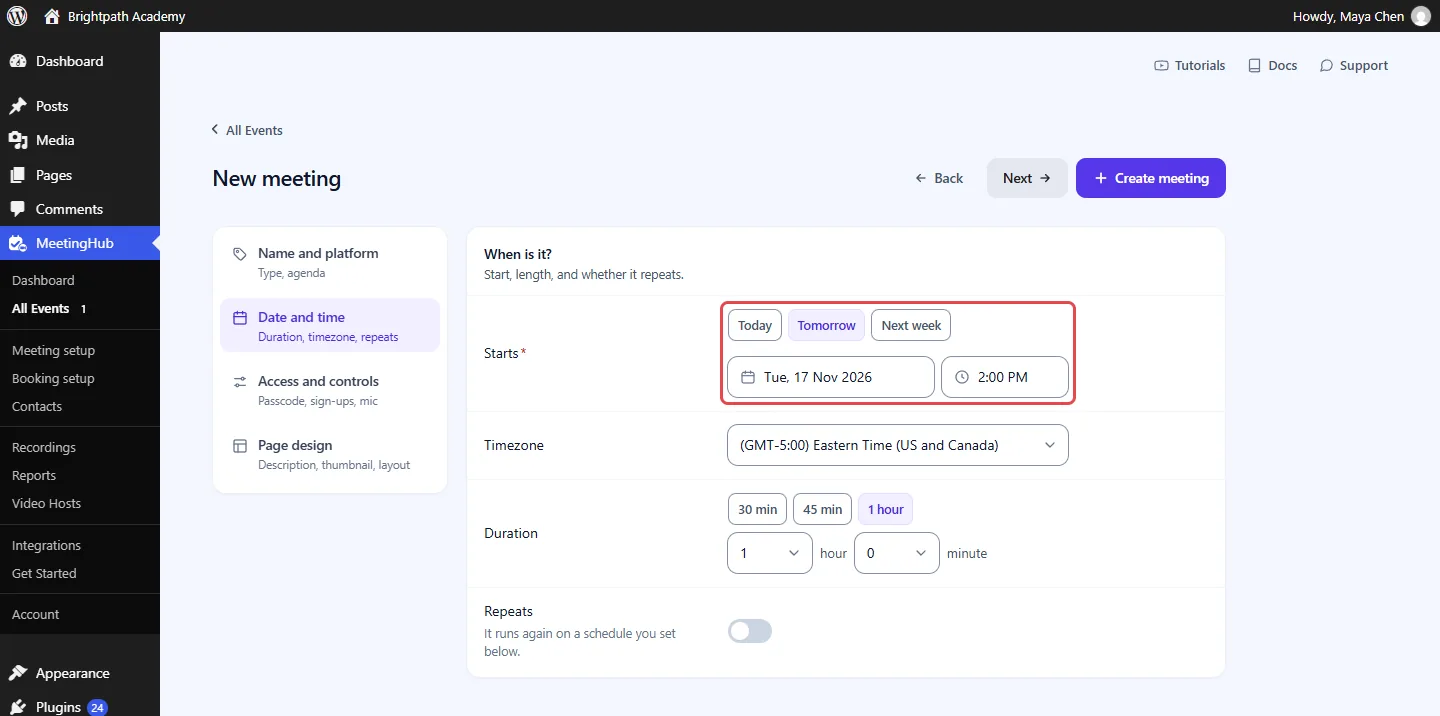
Pick the day and start time. Check the Timezone and choose a Duration, such as 1 hour.
Under Access and controls, check the Passcode and turn on the Waiting room if you want to let people in yourself. You can also mute everyone on entry or record the meeting automatically.
Step 4: Design the page and create the meeting
On Page design, add a short description and a thumbnail. Then click Create meeting. MeetingHub schedules the meeting on Zoom and adds it to All Events.
Step 5: Share the meeting page
Open the meeting page with the eye icon. Visitors see a countdown, Add to calendar links and the meeting details. When it is time, they click Join in Zoom app or Join in browser. You click Start meeting as the host.

Share the page link, or use Copy shortcode to place the meeting on any page. For the full walkthrough, see how to create your first online meeting in WordPress. For weekly sessions, see how to set up recurring meetings in WordPress (a MeetingHub Pro feature).
Let People Book a Zoom Meeting With You
Scheduling works well when you pick the time. But what if clients, students or leads need to choose a time with you?
Sending emails back and forth to find a slot wastes time. A booking page fixes this. People pick a free time from your calendar, and the Zoom meeting is created for them.
With MeetingHub, every booking on a Zoom booking page gets its own Zoom meeting. The join link goes into the confirmation email and the calendar file. Learn how to create a booking page in WordPress.
Frequently Asked Questions
How do I schedule a Zoom meeting for someone else?
Add another licensed Zoom user on your account as an Alternative host while you schedule. They can then start the meeting if you cannot join.
Can I schedule a Zoom meeting without the app?
Yes. Sign in at zoom.us, click the Zoom Products icon, then Meetings > Schedule a Meeting. It works in any browser.
Does scheduling a Zoom meeting send invites automatically?
Only if your calendar is connected through the calendar and contacts integration. Otherwise, copy the invitation and send it yourself.
Can I start a scheduled Zoom meeting early?
Yes. Zoom lets you start a scheduled meeting any time before the scheduled time. Open it from your upcoming meetings and click Start.
Why did my Zoom link stop working?
A one-time meeting link expires 30 days after the meeting is scheduled unless you restart it. A recurring link expires 365 days after its last use. Deleted meetings also lose their link.
How long can a free Zoom meeting last?
Meetings hosted by Basic (free) users end after 40 minutes. Upgrading to a paid Zoom plan avoids this cutoff.
Can I schedule Zoom meetings from Outlook or Google Calendar?
Yes. Zoom offers an Outlook add-in and Google Calendar add-ons. After you install one, you can add a Zoom meeting to any calendar event. See Zoom’s scheduling guide for the current steps.
Conclusion
Now you know how to schedule a Zoom meeting from any device. On desktop, click Home > Schedule. On the web, go through Zoom Products > Meetings. On a phone, tap Home > Schedule. Then share the link with your guests.
If you run meetings for clients, students or members, put them on your own WordPress site. MeetingHub creates the Zoom meeting and the meeting page together, and it is free to start.