Appointment Reminder Email Templates: 15 Samples You Can Copy
A client books a call with you. Then the week gets busy, and the call slips their mind. You sit in an empty meeting room, waiting.
A short appointment reminder email fixes most of this. It puts the time, the place and the join link back in front of the client right when they need it.
Below are 15 appointment reminder email templates you can copy and paste. Each one has a subject line, preview text and body. You will also learn what to include, when to send each reminder, and how to send them automatically from WordPress.
Table of Contents
What Is an Appointment Reminder Email?
An appointment reminder email is a short message you send before a booked appointment. It tells the client when the appointment is, where it happens, and how to change it if plans shift.
It is not the same as a confirmation email. The confirmation goes out the moment someone books. The reminder goes out later, usually a day or a few hours before the appointment.
No-shows are still a real problem. In an August 2026 poll by MGMA, 32% of medical groups said their no-show rates were higher than in 2025, 58% said about the same, and only 10% saw a drop (MGMA Stat, August 2026). Practices in the poll said they already use reminders, so what each reminder says and when it arrives matter.
What to Include in an Appointment Reminder Email
A good appointment reminder email answers every question a client might have before they show up. Keep it short, but do not skip the basics.
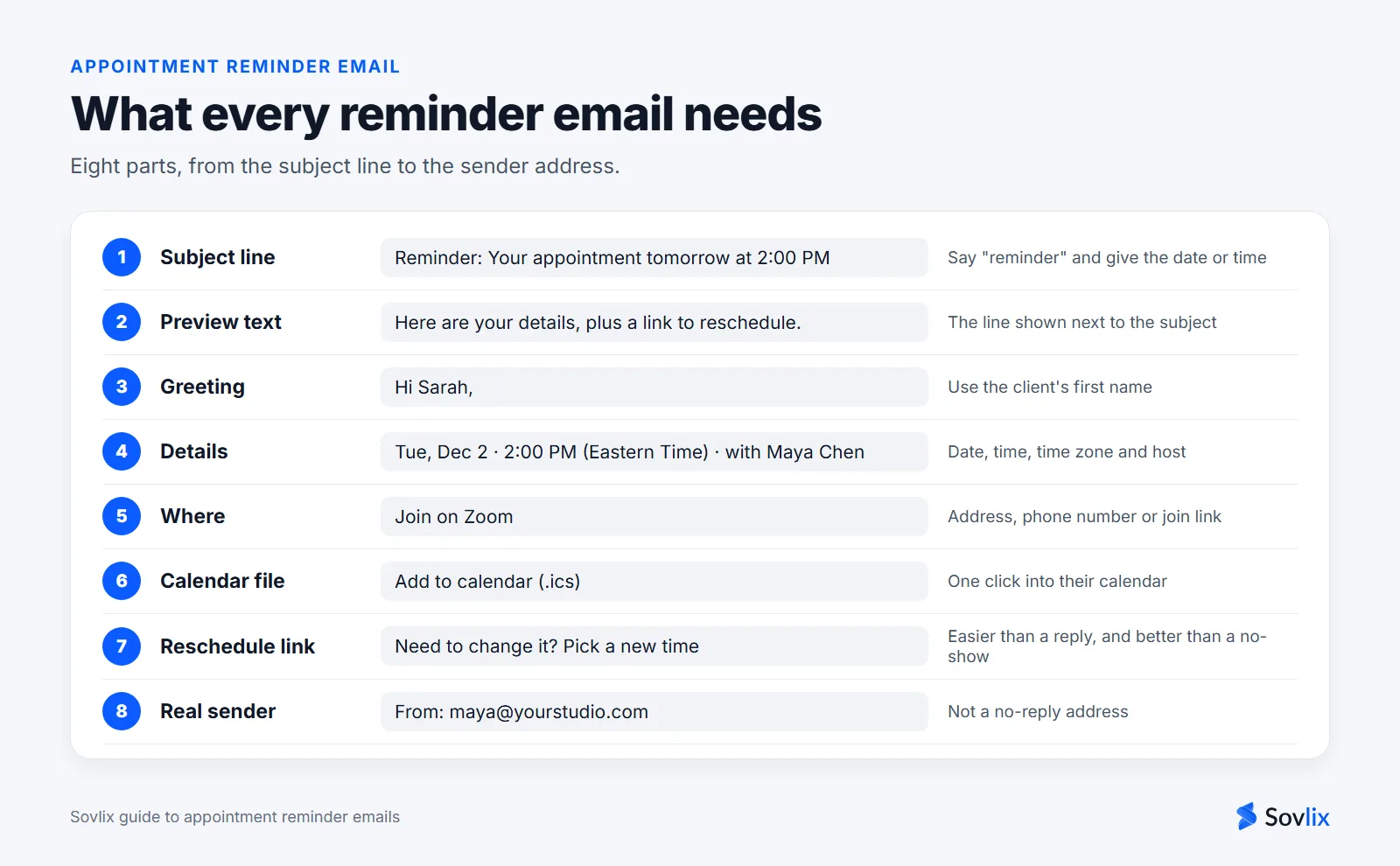
- A clear subject line. Put the word “reminder” and the date or time in it.
- The client’s name. A personal greeting gets more attention than “Dear customer”.
- The date and time, with the time zone. This matters for online calls across regions.
- Where it happens. An address for in-person visits, a phone number for calls, or a join link for video.
- What to bring or prepare. Documents, a laptop, questions, or nothing at all.
- A way to reschedule or cancel. A link works better than “reply to this email”.
- Your contact details. Send from a real address people can reply to, not a no-reply one.
When to Send an Email Reminder for Appointments
Timing decides whether a reminder helps. Too early and people forget again. Too late and they cannot change their plans.
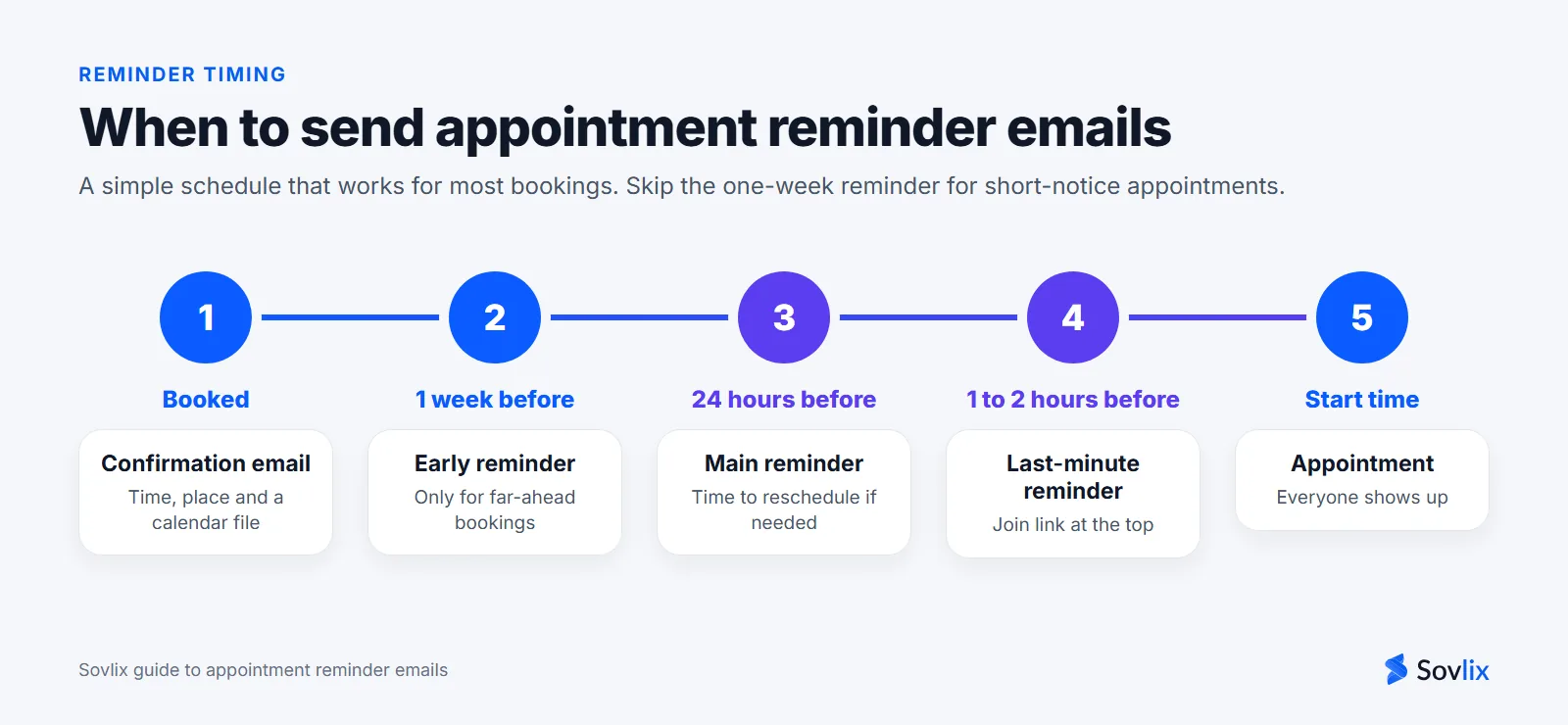
A simple schedule works for most businesses:
| When | Send this | Why |
|---|---|---|
| Right after booking | Confirmation email | Confirms the time and adds it to their calendar |
| 1 week before | Early reminder | Only for appointments booked far ahead |
| 24 hours before | Main reminder | Gives time to reschedule if needed |
| 1 to 2 hours before | Last-minute reminder | Best for video calls, with the join link on top |
For appointments booked only a day or two ahead, skip the one-week reminder. One reminder 24 hours before is often enough. Set your email reminder appointment schedule once, then let it run for every booking.
15 Appointment Reminder Email Templates
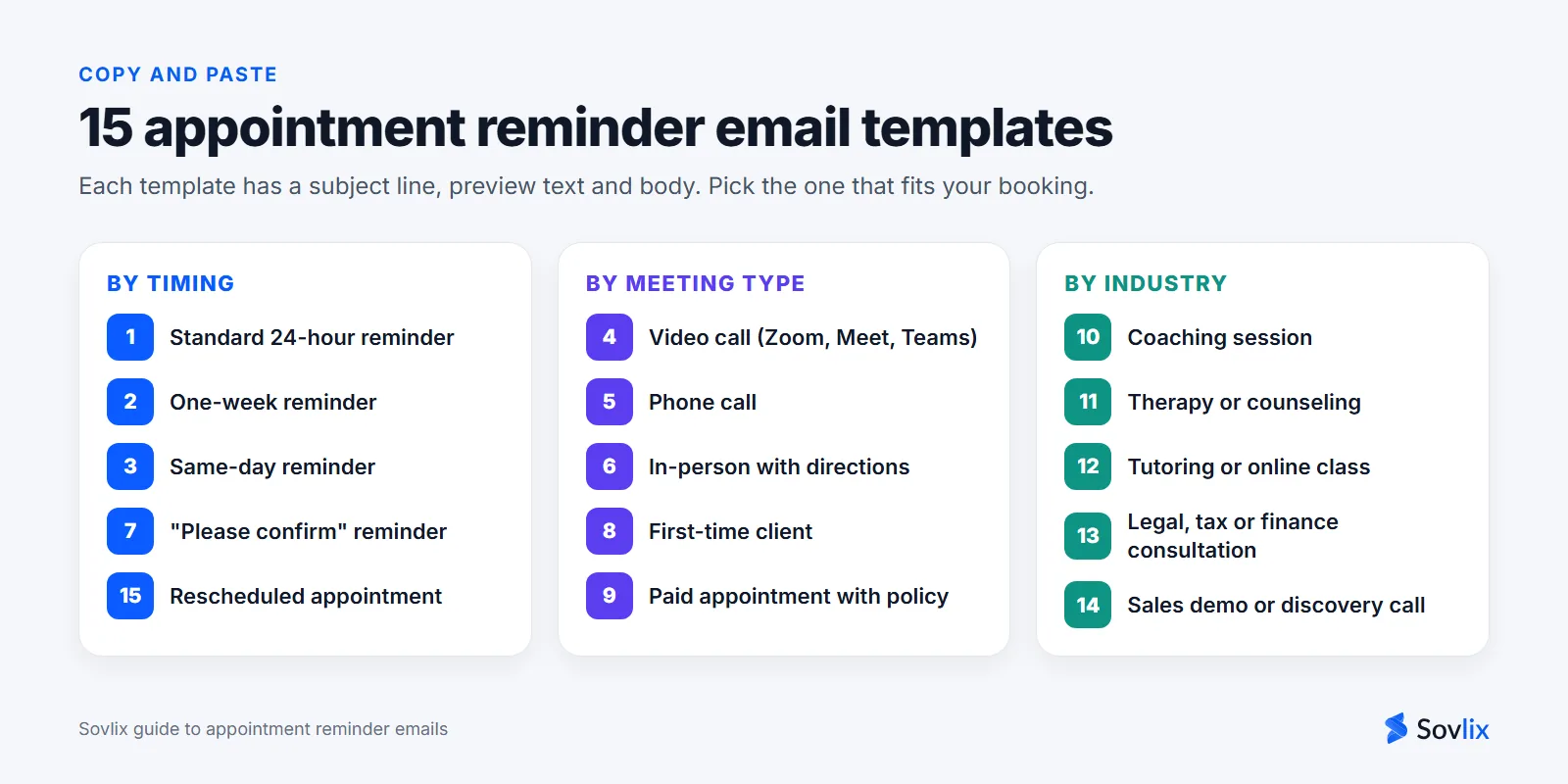
These appointment reminder email samples cover the most common situations. Copy any template below and replace the words in [brackets]. Each sample appointment reminder email includes a subject line, preview text and the email body.
1. Standard 24-hour appointment reminder email
Use this as your default. It works for almost any business.
Hi [Client Name],
This is a friendly reminder about your appointment with [Business Name] tomorrow.
When: [Day, Date] at [Time] ([Time Zone])
Where: [Address or Join Link]
With: [Host Name]
Need to change it? [Reschedule or cancel here].
See you soon,
[Your Name]
2. One-week appointment reminder email
Send this when the client booked weeks ago. It gives them time to move the appointment.
Hi [Client Name],
Your [Appointment Type] with [Business Name] is one week away.
Date: [Day, Date]
Time: [Time] ([Time Zone])
Location: [Address or Online]
If this time no longer works, you can [pick a new time here]. We will send one more reminder the day before.
Thanks,
[Your Name]
3. Same-day appointment reminder email
Short and direct. Send it 1 to 2 hours before the start.
Hi [Client Name],
Just a quick reminder: your appointment with [Host Name] starts today at [Time] ([Time Zone]).
[Address or Join Link]
Running late or cannot make it? [Let us know here].
[Your Name]
4. Video call reminder email (Zoom, Google Meet or Teams)
Put the join link at the top. People read this email right before they click in.
Hi [Client Name],
Your video call with [Host Name] is today at [Time] ([Time Zone]).
Join here: [Meeting Link]
Platform: [Zoom / Google Meet / Microsoft Teams]
Passcode: [Passcode, if any]
Tips for a smooth call:
- Join 2 to 3 minutes early to check your camera and microphone.
- Use headphones if you can.
Cannot make it? [Reschedule here].
Talk soon,
[Your Name]
5. Phone call appointment reminder email
Say clearly who calls whom. This avoids two people waiting for each other.
Hi [Client Name],
This is a reminder that [Host Name] will call you at [Phone Number] on [Day, Date] at [Time] ([Time Zone]).
Is that number wrong, or do you need a different time? [Update your booking here].
Thanks,
[Your Name]
6. In-person appointment reminder email with directions
Add the address, parking and arrival tips. These details save a lot of late arrivals.
Hi [Client Name],
We look forward to seeing you on [Day, Date] at [Time].
Address: [Street, City]
Parking: [Parking Details]
Please arrive: [10] minutes early
Bring: [ID, documents or items]
Need to change your visit? [Reschedule here] or call us at [Phone Number].
See you soon,
[Your Name]
7. “Please confirm” appointment reminder email
Ask for a quick yes. It tells you who is coming and frees slots that are not.
Hi [Client Name],
Are you still able to make your appointment on [Day, Date] at [Time]?
[Yes, I will be there]
[I need a new time]
If we do not hear from you by [Deadline], we may offer this time to someone else.
Thank you,
[Your Name]
8. First-time client appointment reminder email
New clients have more questions. Tell them what to expect.
Hi [Client Name],
We are glad you booked with [Business Name]. Your first appointment is tomorrow at [Time] ([Time Zone]).
What to expect: [Short description, for example “a 30-minute call to get to know your goals”]
How to prepare: [One or two simple steps]
Where: [Address or Join Link]
Questions before we meet? Just reply to this email.
Warmly,
[Your Name]
9. Paid appointment reminder email with policy
Use this for paid sessions. Mention the cancellation policy kindly, not as a threat.
Hi [Client Name],
Your [Service] is booked for [Day, Date] at [Time] ([Time Zone]).
Paid: [Amount] (thank you)
Where: [Address or Join Link]
A quick note: changes made at least [24 hours] before the session are free. After that, [your policy].
[Reschedule or cancel here]
Best,
[Your Name]
10. Coaching session reminder email
Friendly and focused on the client’s goal.
Hi [Client Name],
Our coaching session is on [Day, Date] at [Time] ([Time Zone]).
Before we meet, think about one win from the past week and one thing that felt hard. We will start there.
Join here: [Meeting Link]
Need to move it? [Pick a new time].
Talk soon,
[Coach Name]
11. Therapy or counseling appointment reminder email
Keep it private. Do not mention the reason for the visit or any health details.
Hi [First Name],
This is a reminder of your appointment with [Practitioner Name] on [Day, Date] at [Time] ([Time Zone]).
Location: [Office Address or Secure Video Link]
If you need to reschedule, please use [this link] or call [Phone Number] at least [24 hours] ahead.
Kind regards,
[Practice Name]
12. Tutoring or online class reminder email
Tell students what to have ready, so the lesson starts on time.
Hi [Student Name],
Your [Subject] lesson with [Tutor Name] is tomorrow, [Day, Date], at [Time] ([Time Zone]).
Please have ready: [Books, worksheet or homework]
Join here: [Meeting Link]
If you need to change the time, [reschedule here].
See you in class,
[Tutor Name]
13. Professional consultation reminder email (legal, tax or finance)
A formal tone, with a clear list of documents to bring.
Dear [Client Name],
This is a reminder of your consultation with [Advisor Name] at [Firm Name] on [Day, Date] at [Time] ([Time Zone]).
To make the most of our time, please have these ready:
- [Document 1]
- [Document 2]
Location: [Office Address or Join Link]
To reschedule, please [use this link] or reply to this email.
Sincerely,
[Advisor Name]
[Firm Name]
14. Sales demo or discovery call reminder email
Short, with a reason to show up.
Hi [First Name],
Looking forward to our call tomorrow at [Time] ([Time Zone]).
In [30] minutes, we will:
- Look at how you handle [problem] today
- Show you how [Product] can help
Join here: [Meeting Link]
If something came up, [grab a new time here].
Thanks,
[Your Name]
15. Rescheduled appointment reminder email
Make the new time impossible to miss, and mention the old one so there is no mix-up.
Hi [Client Name],
Your appointment has moved.
New time: [Day, Date] at [Time] ([Time Zone])
Old time (cancelled): [Old Date and Time]
Where: [Address or Join Link]
We have attached a new calendar file, so your calendar shows the right time.
See you then,
[Your Name]
Appointment Reminder Email Subject Lines
The subject line decides whether the email gets opened. Keep it short, and put the date or time in it.
- Reminder: Your appointment tomorrow at [Time]
- See you on [Day] at [Time]
- Your call with [Host Name] starts in 2 hours
- Please confirm your appointment on [Date]
- Join link inside: your call at [Time]
- [Client Name], your visit is tomorrow
- Coming up: [Appointment Type] on [Date]
- Updated: your new appointment time
Best Practices for Appointment Email Reminders
These tips help each appointment email reminder get read and acted on.
- Always show the time zone. For online calls, write “2:00 PM (Eastern Time)”, not just “2:00 PM”.
- Put the most important detail first. For video calls, that is the join link. For visits, it is the address.
- Add a calendar file. An .ics attachment puts the appointment in Google Calendar, Outlook or Apple Calendar with one click.
- Make rescheduling easy. A link to pick a new time beats a no-show every time.
- Send from a real address. Clients reply to reminders with questions. A no-reply address loses those messages.
- Keep it mobile friendly. Many clients open reminders on their phone. Short lines and one clear button work best.
- Protect private details. For health, legal or financial appointments, leave out the reason for the visit.
- Check that emails arrive. Set up an SMTP service for your website so reminders do not land in spam.
How to Send Automated Appointment Reminder Emails in WordPress
Copying templates works for a few clients. Once bookings grow, you need email appointment reminder software that sends each reminder for you.
If your website runs on WordPress, MeetingHub handles this for free. Clients book on your site, and MeetingHub sends the confirmation, the reminder, and the moved and cancelled emails on its own. For video bookings, each email carries the Zoom, Google Meet, Microsoft Teams, Webex or Jitsi join link.
Step 1: Write your reminder wording
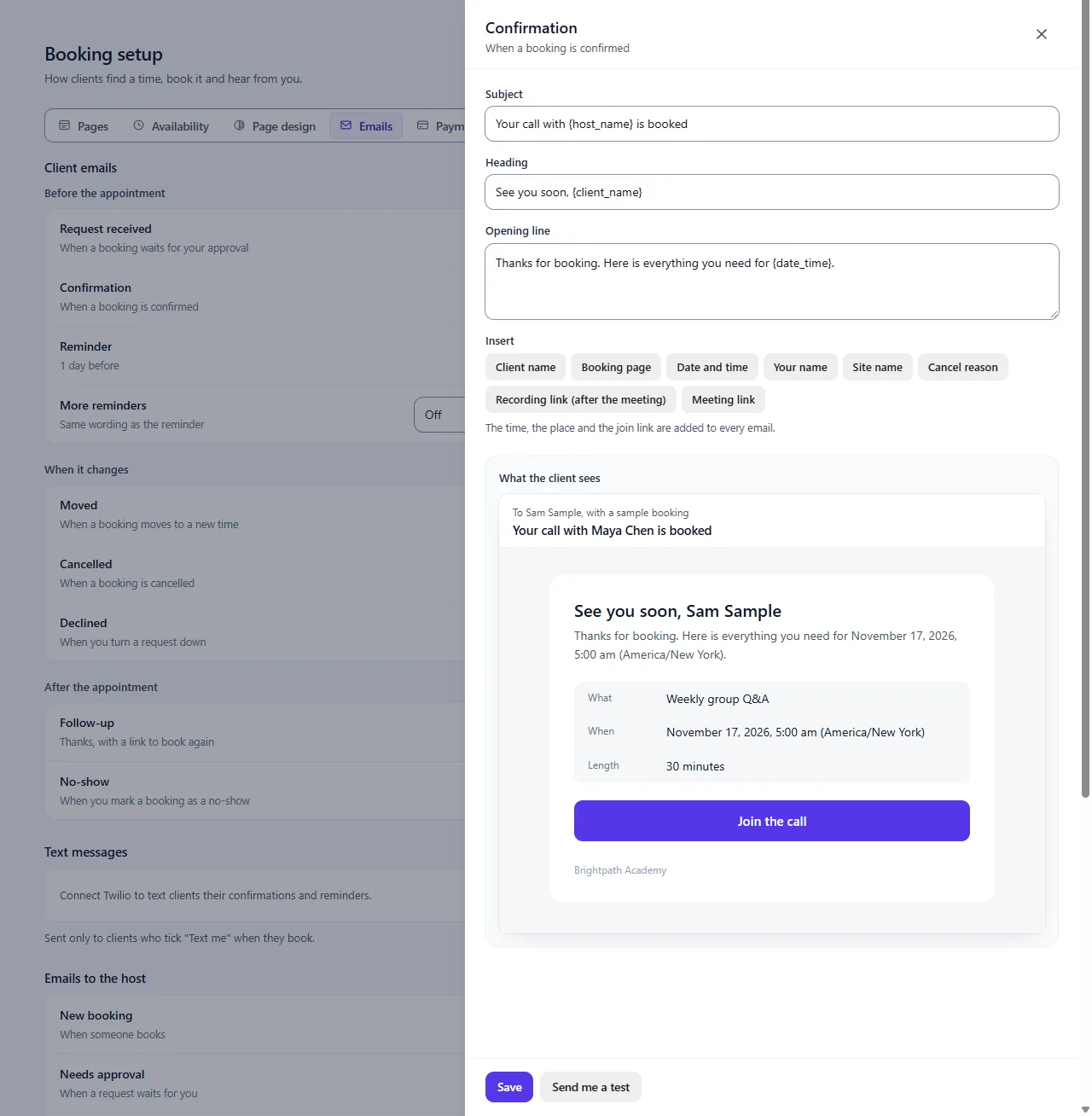
Go to MeetingHub > Booking setup > Emails and click the Reminder row. Rewrite the Subject, Heading and Opening line, or keep the standard wording.
Use the Insert buttons to add placeholders such as `{client_name}`, `{date_time}`, `{host_name}` and `{page}`. MeetingHub fills them in from each booking.
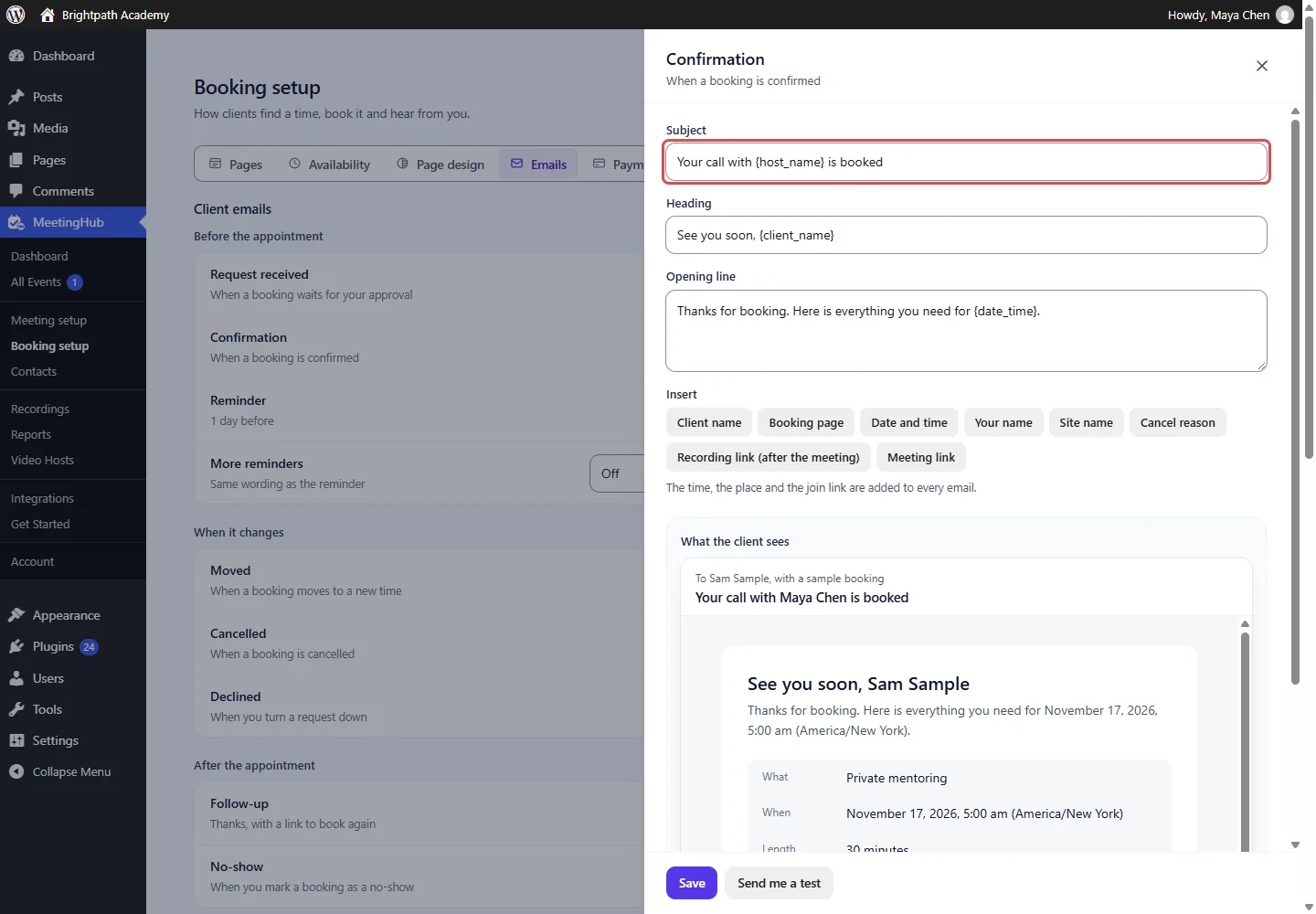
The time, the place and the join link are added to every email automatically, so you cannot forget them. For the full walkthrough, see how to edit booking confirmation emails and reminders.
Step 2: Choose when the reminder goes
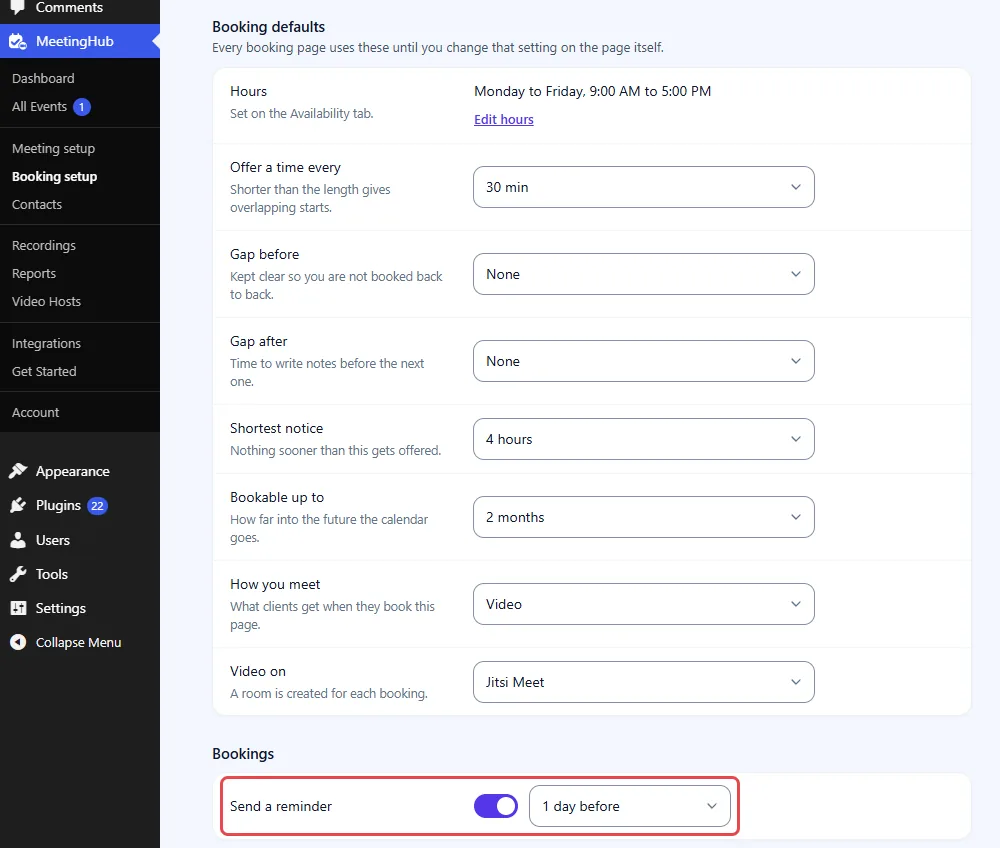
On the Settings tab, open Send a reminder and pick a time, from 1 hour before to 1 week before.
Step 3: Test it and check what was sent
Click Send me a test to see the reminder in your own inbox. Later, Recent sends shows every booking email, with failed ones first and a Send again button.
Step 4: Add more reminders and confirmations (Pro)
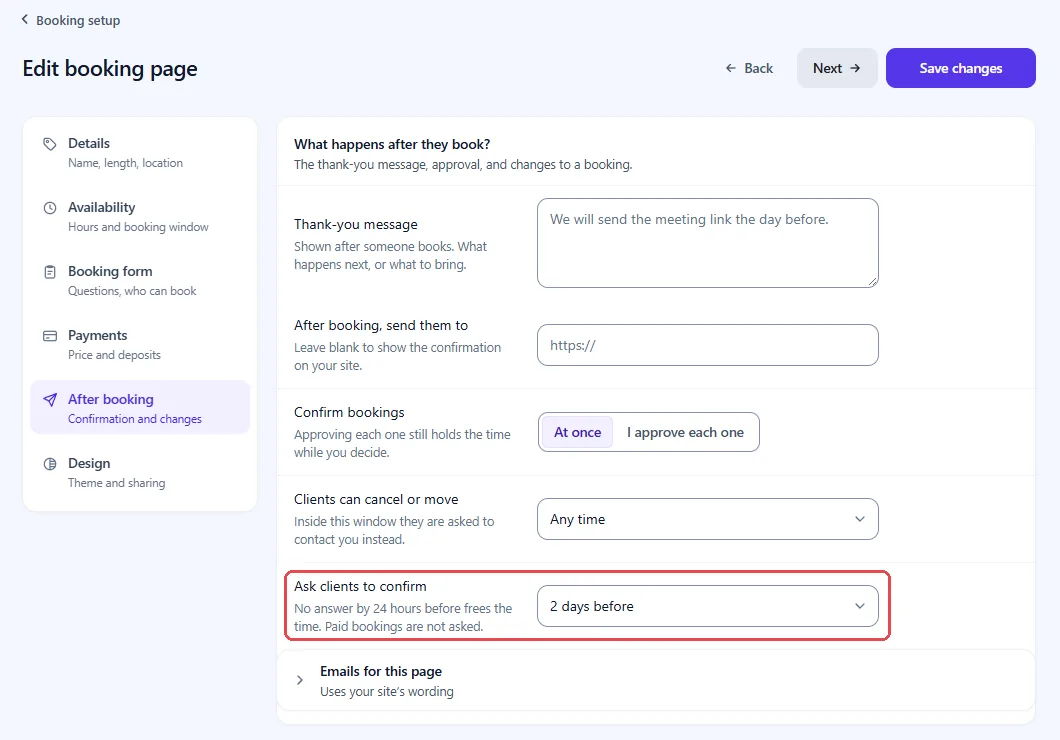
MeetingHub Pro adds a second and third reminder and text message reminders. It can also ask clients to confirm, then free the time if nobody answers.
Learn more in our guide on how to reduce no-shows with reminders and reconfirmation. New to booking pages? Start with how to create a booking page in WordPress.
Frequently Asked Questions
How do you write an appointment reminder email?
Start with a subject line that includes “reminder” and the date. Greet the client by name. Then list the date, time, time zone and location or join link. End with a link to reschedule and your contact details.
How far in advance should I send an appointment reminder email?
Send the main reminder about 24 hours before. Add a one-week reminder for appointments booked far ahead, and a 1 to 2 hour reminder for video calls.
What is a good appointment reminder email example for a video call?
Use template 4 above as your appointment reminder email sample. Put the join link, the platform name and any passcode at the top, and remind people to join a few minutes early.
Should an appointment reminder email ask clients to confirm?
It helps for long or high-value appointments. A “please confirm” email (template 7) tells you who is coming and lets you offer empty slots to others.
Can I send automated appointment reminder emails for free?
Yes. On WordPress, MeetingHub sends one reminder before every appointment for free, at a time you choose. More reminders and text messages need MeetingHub Pro.
What should I leave out of a medical or therapy reminder?
Leave out the reason for the visit and any health details. Share only the name, date, time, location and a way to reschedule.
Conclusion
A good appointment reminder email is short, clear and sent at the right time. Pick a template above, fill in your details, and send it about 24 hours before each appointment.
When you have more bookings than you can remind by hand, let your website do it. MeetingHub sends reminders with the join link and calendar file for every booking, free on WordPress.