
If you already store documents, images, videos, PDFs, or other resources in Google Drive, you may want to use those files directly on your WordPress website without downloading and uploading every file again.
The good news is that you can use Google Drive files in WordPress in several ways. You can embed individual documents, create file lists and document libraries, display images and videos in galleries, offer downloads, and collect files from visitors through supported upload workflows.
For a more complete Google Drive and WordPress workflow, DriveHub connects Google Drive with WordPress so you can manage and display supported Drive files without having to duplicate your entire Drive library on your WordPress hosting.
In this guide, you will learn how to use Google Drive files in WordPress, the different methods available, and how to set everything up with DriveHub.
Table of Contents
Can You Use Google Drive Files in WordPress?
Yes. You can use Google Drive files in WordPress by manually embedding individual files, uploading copies to the WordPress Media Library, or connecting Google Drive to WordPress with a plugin such as DriveHub.
The best method depends on what you are trying to accomplish.
- Document embeds
- PDFs and other supported documents
- Image galleries
- Video and media displays
- File lists
- Document libraries
- Download centers
- Frontend file browsing
- File uploads
- File sharing
- Protected resources
- Client portals and private file areas
Why Use Google Drive Files in WordPress?
Many businesses and individuals already use Google Drive or Google Workspace to store their files. The problem starts when those same files also need to appear on a WordPress website.
A traditional workflow often looks like this:
Google Drive → Download file → WordPress Media Library → Upload file → Add to page
That creates an additional copy of the file on your website.
Using Google Drive with WordPress can simplify this process and reduce unnecessary duplicate file management.
Keep Your Files Organized in Google Drive
You can continue organizing documents, images, videos, and other resources in folders in Google Drive.
Avoid Unnecessary Duplicate File Management
For supported DriveHub workflows, the original files remain in Google Drive instead of requiring your entire Drive library to be copied into WordPress hosting.
Update Files From a Central Location
When Google Drive remains the source for supported workflows, your team can continue managing files from Drive instead of maintaining separate copies across different platforms.
Create Richer WordPress File Experiences
Instead of simply linking to a Google Drive URL, you can create document libraries, galleries, file lists, download areas, and other frontend experiences.
3 Ways to Use Google Drive Files in WordPress
Method 1: Manually Embed Google Drive Files
Google Drive allows you to share and embed certain files using Google’s own sharing and embedding options. This can work well when you need to display a single file on a page.
- A Google Doc
- A Google Sheet
- A Google Slide presentation
- A PDF
- Another supported document
The problem is that this approach becomes inconvenient when your website contains dozens or hundreds of Drive files.
Best for: Simple, one-off embeds.
Method 2: Download Files and Upload Them to WordPress
Another option is to download the file from Google Drive and upload it to the WordPress Media Library.
Google Drive → Download → WordPress Media Library → Add to page
This is straightforward, but it creates a separate copy of the file. If you update the original document in Google Drive, the WordPress copy does not automatically become the new version.
Best for: Websites that only need a small number of locally hosted files.
Method 3: Connect Google Drive to WordPress With DriveHub
If Google Drive is already an important part of your workflow, connecting it directly to WordPress can be more practical.
DriveHub is a Google Drive plugin for WordPress that lets you manage, embed, display, upload, download, and share supported Google Drive files from WordPress.
Best for: Websites that regularly use Google Drive files and need more than a basic embed.
How to Use Google Drive Files in WordPress With DriveHub
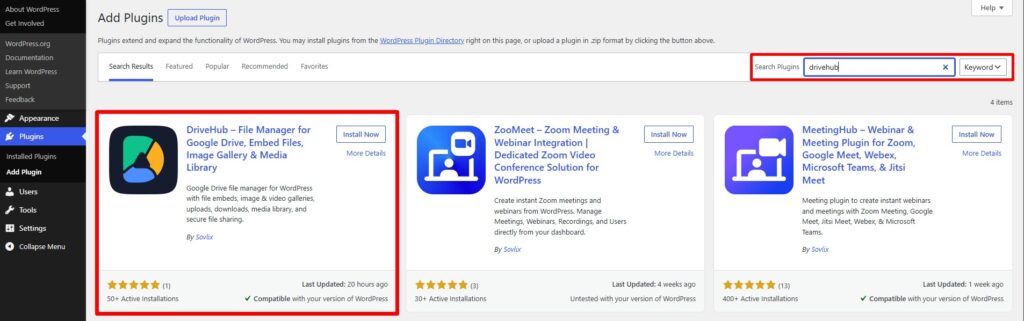
Step 1: Install DriveHub
First, install and activate DriveHub on your WordPress website.
1. Go to Plugins → Add New.
2. Search for DriveHub.
3. Install the plugin.
4. Activate DriveHub.
5. Open the DriveHub dashboard.
Step 2: Connect Google Drive to WordPress
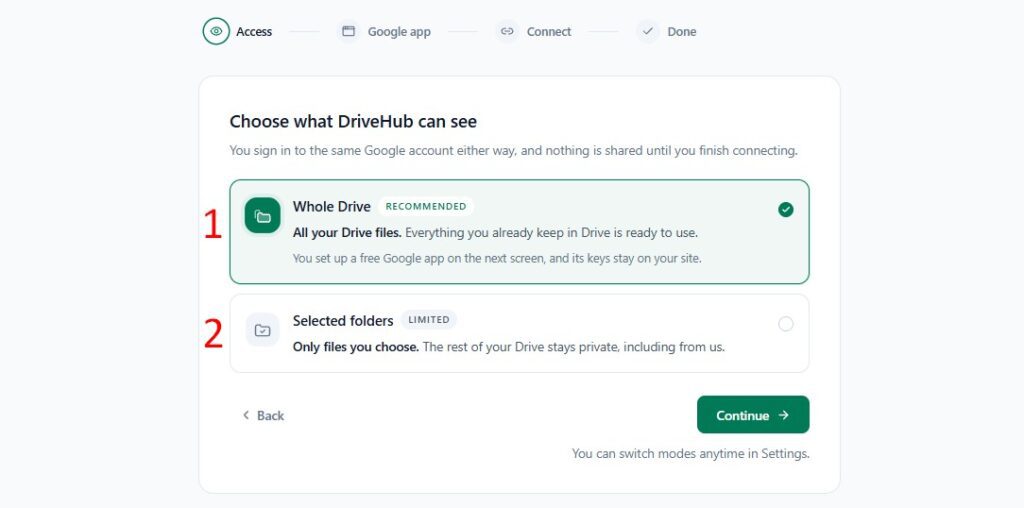
Open the DriveHub account settings and connect your Google Drive account through the available OAuth connection process.
OAuth allows WordPress to authorize DriveHub to work with your Google Drive account without requiring you to give the plugin your Google account password.
DriveHub provides an automatic connection option and a manual connection method for users who want to configure their own Google Cloud project and OAuth credentials.
Step 3: Choose the Google Drive File or Folder
After connecting your account, open DriveHub’s Module Builder. Depending on what you are trying to create, you can select an individual file or a Drive folder.
- Select a PDF to embed it.
- Select an image folder to create a gallery.
- Select a resource folder to create a file list.
- Select a media folder for supported video or audio workflows.
Step 4: Configure Your Module
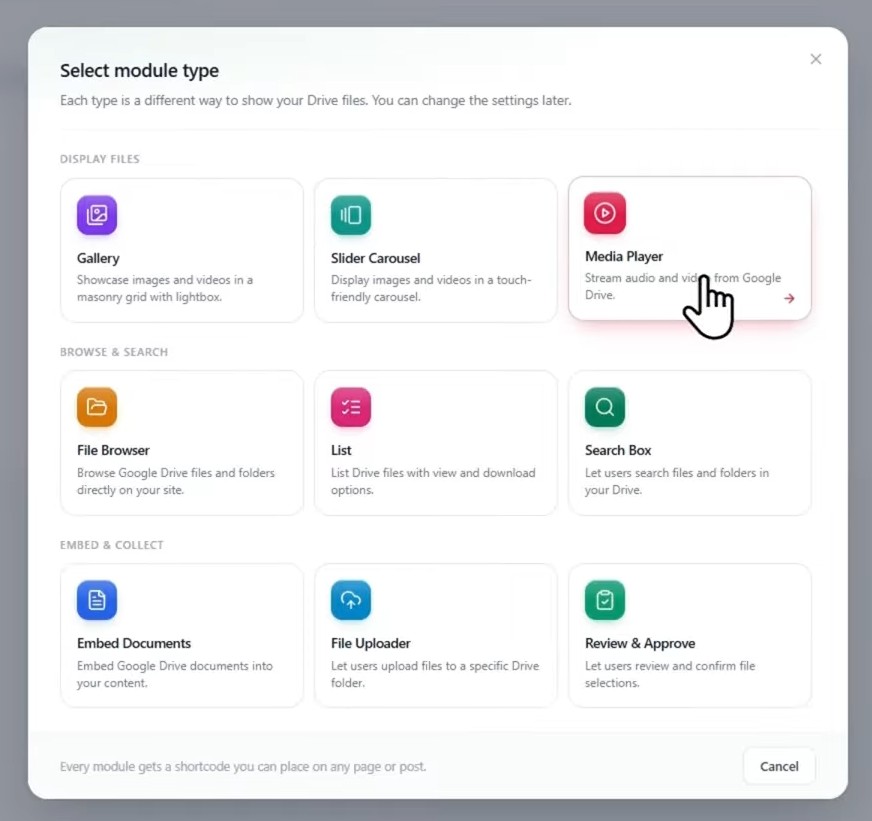
Depending on your use case and plan, you can create modules such as:
- Embed Document
- File List
- Photo Gallery
- File Browser
- Media Player
- Slider Carousel
- Review & Approve
- & more…
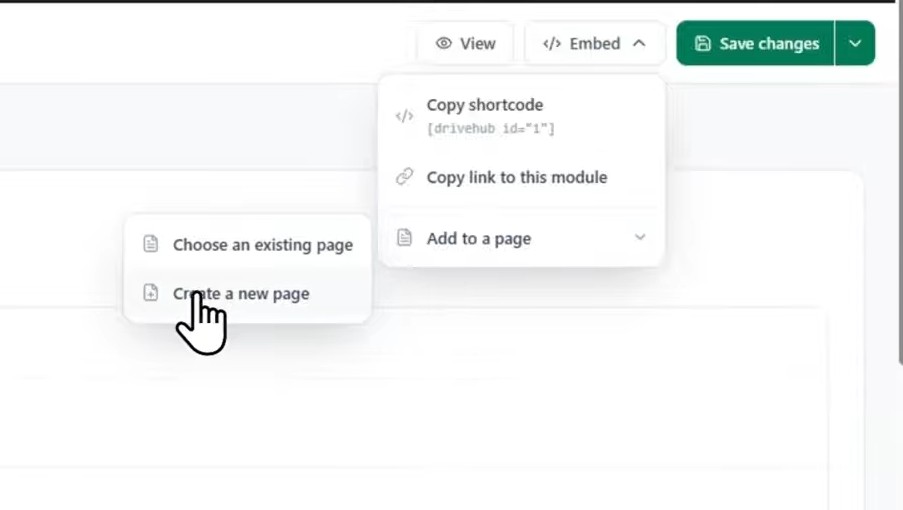
Step 5: Add the Module to WordPress
Once you have configured your module, insert it into your WordPress website. DriveHub supports popular WordPress editing environments, including Gutenberg, Elementor, Divi, Classic Editor/TinyMCE, and shortcodes.
6 Ways to Use Google Drive Files in WordPress
1. Embed Google Drive Documents
You can embed supported Google Drive documents directly into WordPress. This is useful for reports, manuals, presentations, spreadsheets, course materials, company documents, and research resources.
If your goal is specifically to embed PDFs from Google Drive, see our detailed guide on how to embed a Google Drive PDF in WordPress.
2. Display Google Drive Images in WordPress
If you keep your images in Google Drive, you can use DriveHub to turn supported Drive images into WordPress galleries.
- Photography portfolios
- Event galleries
- Real estate websites
- Product images
- Client galleries
- Creative portfolios
Organize the images in Google Drive and use the corresponding folder as the source for your gallery.
3. Embed and Play Google Drive Videos
Videos can consume significant storage space, particularly when you have a large video library. With DriveHub Pro, supported Google Drive video files can be played through WordPress using the Media Player module.
For a dedicated tutorial, see our guide on how to embed Google Drive videos in WordPress.
4. Create a Google Drive File List or Document Library
If you have a Google Drive folder containing PDFs, reports, guides, manuals, presentations, and other resources, you can turn the folder into a structured file list or document library.
Example resource library:
- Product Manual
- Installation Guide
- User Guide
- Pricing PDF
- Technical Documentation
- FAQ Document
5. Create a Google Drive Download Center
You can use Google Drive files as downloadable resources such as eBooks, whitepapers, product catalogs, brochures, templates, and user manuals.
6. Collect Files From WordPress and Send Them to Google Drive
The workflow can also work in the opposite direction. Instead of using WordPress only to display Google Drive files, you can use your WordPress website to collect files and send them to Google Drive.
Visitor → WordPress form → Google Drive folder
- Job applications
- Client document submissions
- Assignments
- Project files
- Support attachments
- Customer documents
Google Drive vs WordPress Media Library
There is not one answer for every website. The right choice depends on how you manage your content.
| Requirement | WordPress Media Library | Google Drive + DriveHub |
| Store files locally on WordPress hosting | Yes | No |
| Organize files in Google Drive | No | Yes |
| Embed supported Drive files | No native Drive connection | Yes |
| Create Drive-powered galleries | No | Yes |
| Create Drive-powered file lists | No | Yes |
| Create Drive document libraries | No native Drive connection | Yes |
| Upload files from WordPress to Drive | No | Yes |
| Frontend Drive file browsing | No | Yes with DriveHub Pro |
| Frontend Drive file search | No | Yes with DriveHub Pro |
Google Drive WordPress Integration: Which Method Should You Choose?
- You only need one document: A manual Google Drive embed may be enough.
- You need a few files hosted locally: Uploading them to the WordPress Media Library may be appropriate.
- You regularly work with Google Drive files: Use a dedicated Google Drive WordPress plugin such as DriveHub.
- You need a document library: Use DriveHub’s File List or relevant file-browser functionality.
- You need an image gallery: Use the Photo Gallery module.
- You need to display Google Drive videos: Use the supported Media Player workflow in DriveHub Pro.
- You need visitors to upload files to Google Drive: Use the File Uploader or supported form integrations.
- You need protected resources: Use the access controls available for supported DriveHub modules.
What Can You Build With Google Drive and WordPress?
Build a Business Resource Center
Create a central location for company documents, product manuals, reports, guides, policies, and presentations.
Build a Client Portal
Use Drive-powered workflows for client deliverables, project documents, images, reports, and resources.
Build a Photography Gallery
Organize images in Google Drive and display selected folders as WordPress galleries.
Build an Educational Resource Library
Use Google Drive for assignments, PDFs, presentations, research materials, course documents, and videos.
Build a Download Center
Create centralized download pages for eBooks, product catalogs, whitepapers, brochures, and guides.
Collect Customer or Client Files
Use WordPress forms or DriveHub’s supported upload functionality to collect files into designated Google Drive folders.
Can Google Drive Replace WordPress Media Storage?
Google Drive can be used as the source for many WordPress file workflows, but it does not mean you should replace the WordPress Media Library for everything.
Theme assets, featured images, site graphics, and other WordPress-specific media may still make sense in the Media Library. Google Drive becomes particularly useful when you have large collections of documents, images, videos, downloads, client files, or resources that you already manage in Drive.
Does DriveHub Upload My Google Drive Files to WordPress?
Not necessarily. For supported DriveHub workflows, your original files remain in your connected Google Drive account rather than requiring your entire Drive library to be copied to your WordPress hosting.
However, some operations may read or stream file data through your WordPress server when required for previews, downloads, or other requested operations.
Is It Safe to Connect Google Drive to WordPress?
DriveHub uses Google’s OAuth authorization process for supported account connections rather than asking you to enter your Google account password into the plugin.
As with any third-party service connected to Google Drive, review the permissions requested and only connect accounts that you are authorized to use.
Frequently Asked Questions
How do I use Google Drive files in WordPress?
You can manually embed them, upload copies to WordPress, or connect Google Drive with DriveHub. DriveHub supports document embeds, galleries, file lists, downloads, uploads, file browsing, and other Drive-powered workflows.
Can I use Google Drive as file storage for WordPress?
Yes. For supported workflows, DriveHub can use Google Drive as the source for files displayed, shared, uploaded, or delivered through WordPress while keeping the original files in Drive.
Can I embed Google Drive files in WordPress?
Yes. DriveHub supports supported Google Drive documents, PDFs, images, media, and other supported file formats.
Can I create a Google Drive document library in WordPress?
Yes. You can use DriveHub’s File List and relevant file-browser functionality to create a WordPress document library or resource center from supported Google Drive folders.
Can I display Google Drive images in WordPress?
Yes. DriveHub can turn supported images stored in Google Drive into WordPress galleries.
Can I embed Google Drive videos in WordPress?
Yes. DriveHub Pro includes a Media Player module for supported video and audio files stored in Google Drive.
Can visitors upload files directly to Google Drive from WordPress?
Yes. DriveHub supports file-upload workflows that send supported uploads from WordPress to configured Google Drive folders.
Can I restrict access to Google Drive files in WordPress?
Yes. DriveHub supports access controls for supported modules based on WordPress user roles, individual users, or passwords.
Does using Google Drive save WordPress storage?
It can reduce the need to keep duplicate copies of supported Drive files on your WordPress hosting. Some operations may still process or stream file data through WordPress.
Does DriveHub require my Google password?
No. DriveHub uses OAuth authorization for supported Google Drive connections.
Do I need to create a Google Cloud project?
DriveHub provides an automatic connection option and a manual connection method for users who want to configure their own Google Cloud project and OAuth credentials.
Can I use Google Drive with Elementor?
Yes. DriveHub supports Elementor, Gutenberg, Divi, Classic Editor/TinyMCE, and shortcodes.
Can I connect multiple Google Drive accounts?
DriveHub Pro supports multiple Google Drive accounts and supported Shared Drives, depending on account permissions and configuration.
Final Thoughts
Google Drive and WordPress serve different purposes. Google Drive is excellent for organizing and managing files in the cloud, while WordPress gives you the website and frontend experience where visitors can access those files.
You do not necessarily have to choose between them. With a Google Drive WordPress plugin such as DriveHub, you can connect the two systems and use supported Drive files for document embeds, galleries, file lists, document libraries, downloads, media, uploads, and other website workflows.
If you only need to embed one file, a manual method may be enough. But if Google Drive is already a central part of your file-management workflow, connecting it to WordPress can give you a more scalable way to manage and present your content.